WooCommerce bookings: the complete guide to taking bookings and rentals
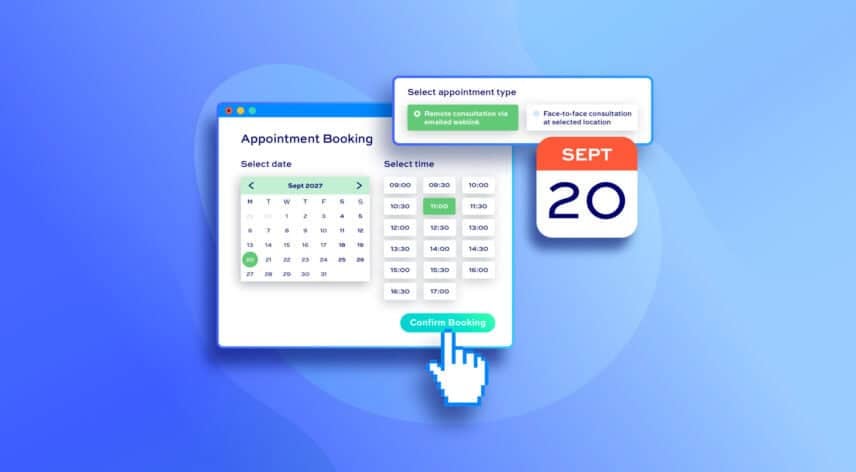
Bookings for WooCommerce turns any WooCommerce product into a bookable one. You can accept date-based bookings, overnight stays, weekly rentals, and time-slot appointments directly through your store – with calendar availability, flexible pricing, and automatic confirmations. It works with every theme, page builder, and payment gateway, so you can start taking bookings today.
This guide shows you how to set up a booking system from scratch, which booking type fits your business, and how to manage every booking once they start coming in.
After reading this guide:
- Your customers will be able to:
- Pick dates or time slots from a calendar
- See live availability and avoid double bookings
- Book and pay in a single checkout, without leaving your site
- As the store owner, you’ll be able to:
- Accept payments for bookings and rentals online
- Set flexible pricing, including seasonal rates and length-of-stay discounts
- Sync availability with Airbnb, Booking.com, and Google Calendar
- Manage every booking from a single back-end calendar
Bookings for WooCommerce lets you accept date-based bookings through your WooCommerce store – so it integrates with all themes and page builders, including the most popular like Elementor, Divi and Beaver Builder.
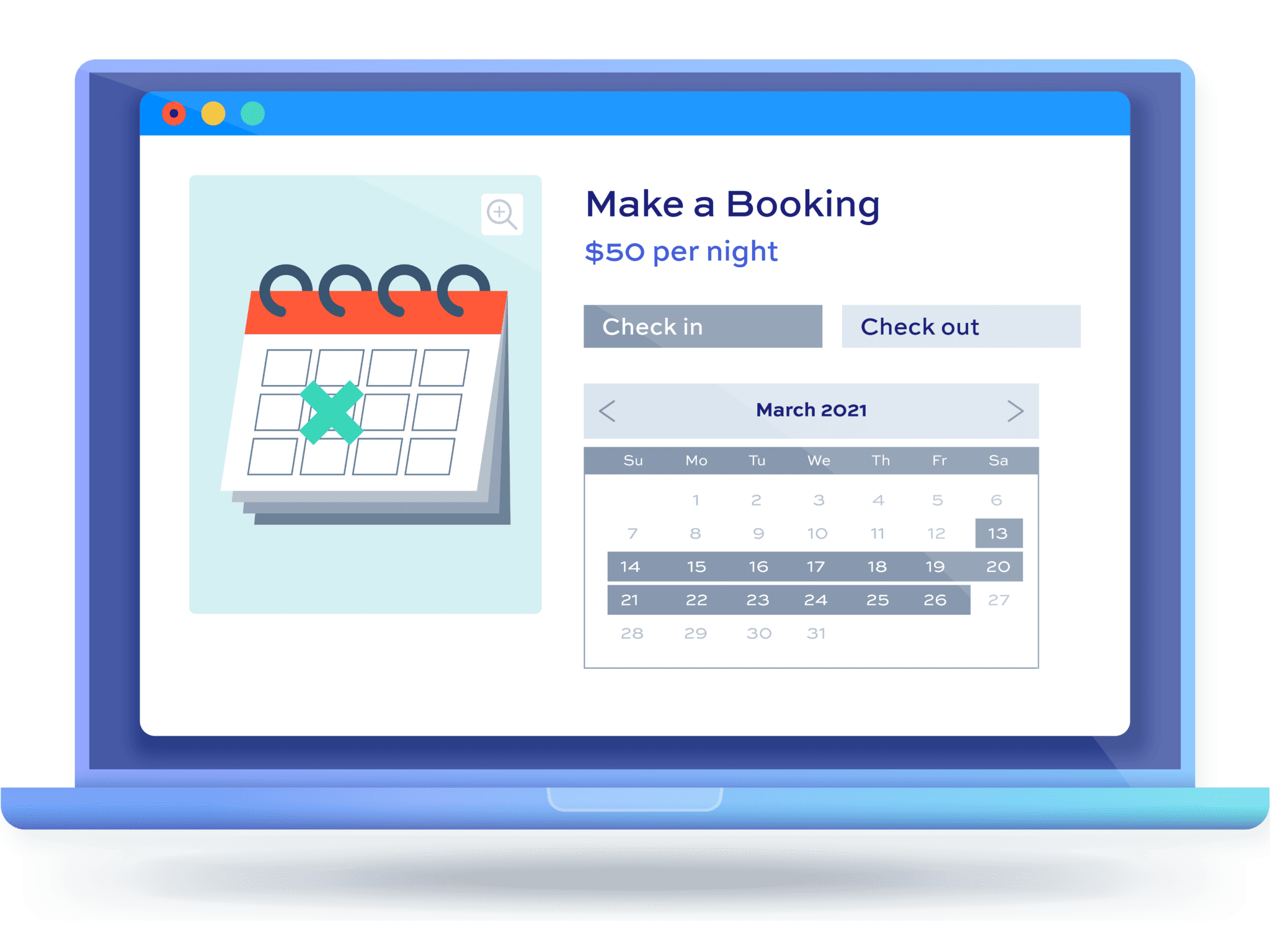
Why take bookings through WooCommerce?
WooCommerce is the ideal platform for bookings and rentals. You already have a store, a checkout, and your payment gateways in place, so adding bookings is a matter of installing one plugin rather than rebuilding your site.
You also keep full control. Third-party booking platforms take a commission on every reservation and hold your customer data. Take bookings on your own site and you keep the revenue and the data.
A booking plugin handles the hard parts for you. It manages real-time availability, prevents overlaps, calculates pricing, and sends confirmation emails automatically.

I have a small camera rental site. I tested multiple bookings plugins and this was the best bookings plugin by far.
What booking types can you offer?
Bookings for WooCommerce supports several booking types, set by your choice of booking unit. Pick the one that matches how you charge, then configure the details around it.
| Booking type | Billed by | Best for | Example |
|---|---|---|---|
| Per day | Each calendar day | Daytime hire returned the same period | Bike, car, or equipment rental |
| Per night | Each overnight stay (check-in to check-out) | Accommodation | Holiday cottage or B&B room |
| Per week | Seven-day blocks | Longer rentals | Campervan or property let |
| Time slots | Each slot within a day | Appointments and classes | A 60-minute yoga class or consultation |
| Flat rate | One fixed fee, any length | Fixed-price services | An event ticket or airport transfer |
The booking unit controls how availability displays on the calendar and how the cost is calculated. To offer appointments or classes, set the unit to ‘Day’ and enable time slots on the ‘Time Slots’ tab.
Which businesses use WooCommerce bookings?
Bookings for WooCommerce adapts to almost any booking or rental model. Here are the most common use cases, with links to step-by-step tutorials for each.
Accommodation
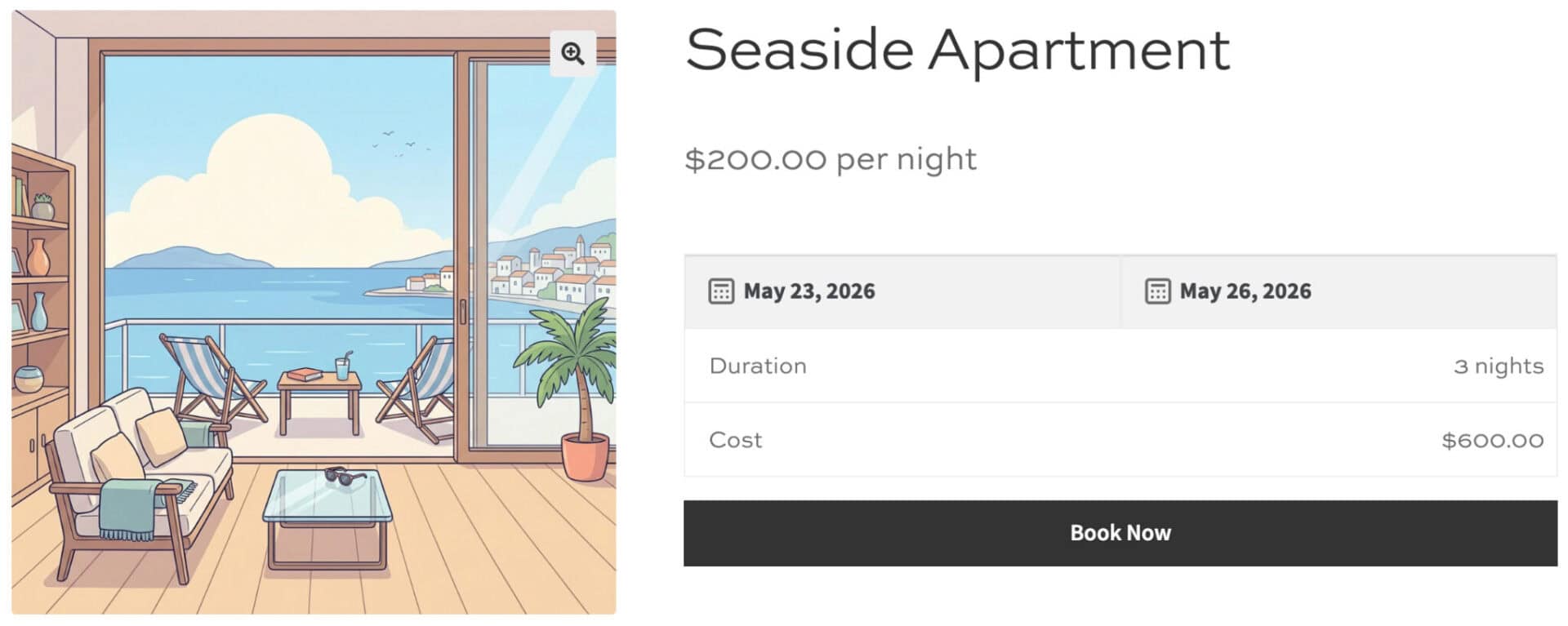
Take per-night bookings for hotels, cottages, B&Bs, and short-term lets. Set the booking unit to ‘Night’ so the calendar runs from check-in to check-out, and enable ‘Allow overlaps’ so a new guest can arrive on the same day another leaves.
Add seasonal rates for peak periods and a minimum stay to protect busy weekends. Then sync your availability with Airbnb and Booking.com so a booking on one channel blocks the dates everywhere else.
See our guide to hotel and accommodation bookings.
Classes and courses
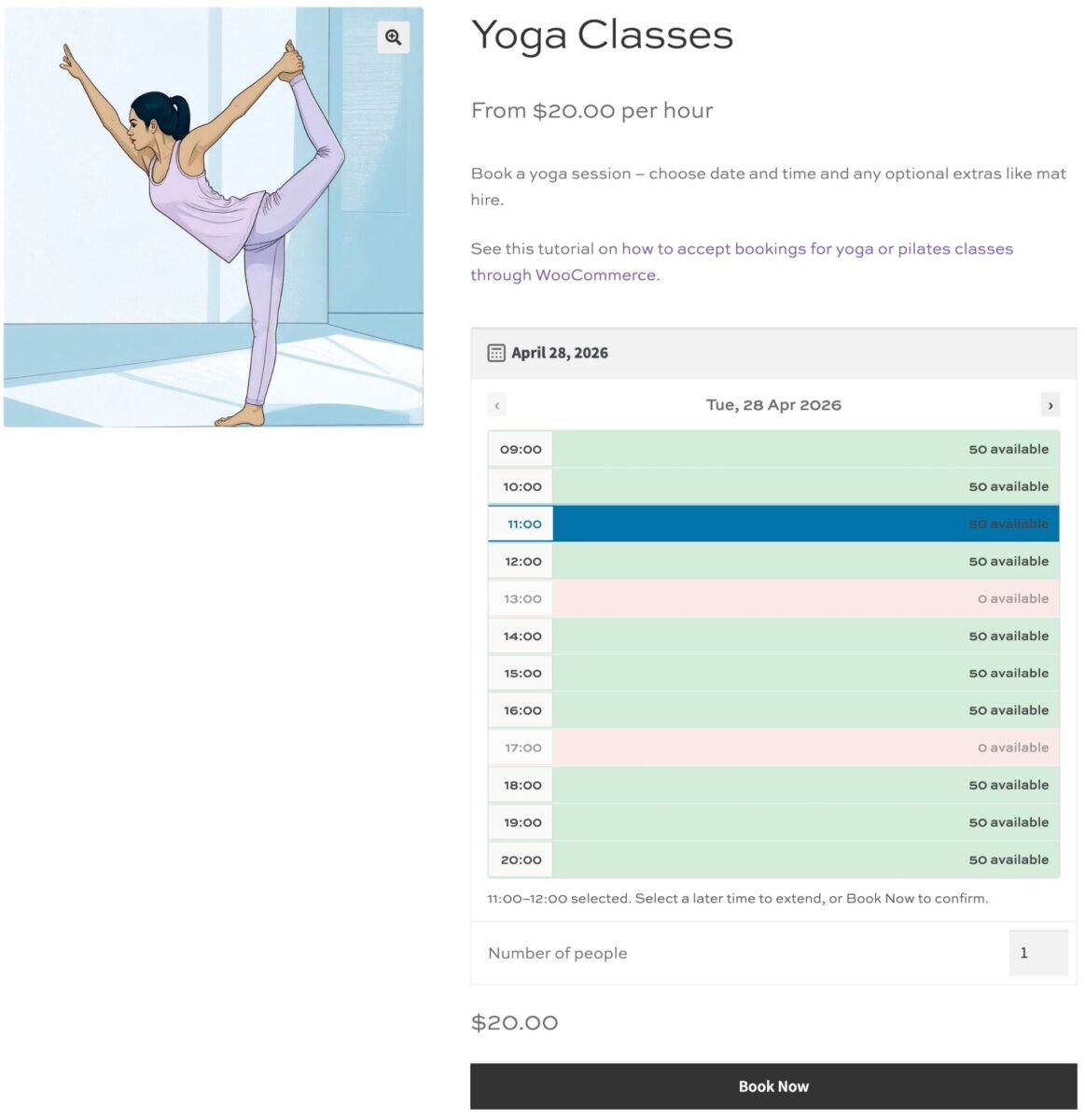
Sell places on classes and courses using time slots, with a set capacity per session. Set ‘Max bookings per unit’ to the number of spaces, and the slot stays open until it’s full, then closes automatically.
This works for one-off sessions and multi-week courses alike. You can also add a lead time so customers can’t book a class that’s about to start.
Our tutorials on yoga and pilates class bookings and selling course bookings walk through both.
Rentals
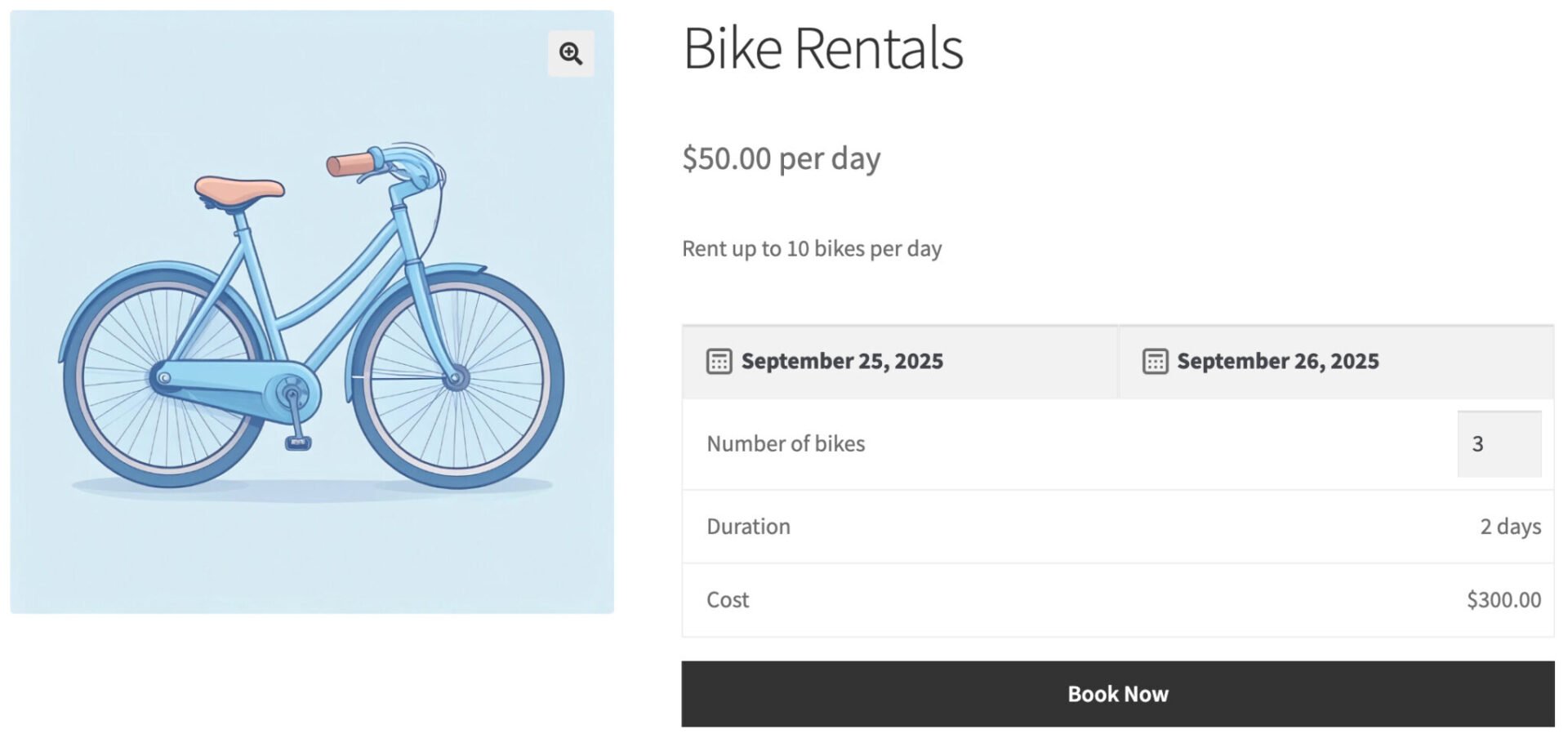
Charge per day or per week for anything you hire out, from bikes to heavy equipment. Set ‘Max bookings per unit’ to your stock level so you never oversell, and add a buffer period to leave time for cleaning or maintenance between hires.
Length-of-stay discounts reward longer rentals, and a security deposit protects you against damage or late returns. A ‘Last bookable date’ is handy for seasonal hire that closes over winter.
We have step-by-step guides for equipment rentals, bike rental, boat hire, campervan rentals, car rental, and skip and dumpster hire.
Appointments and tours
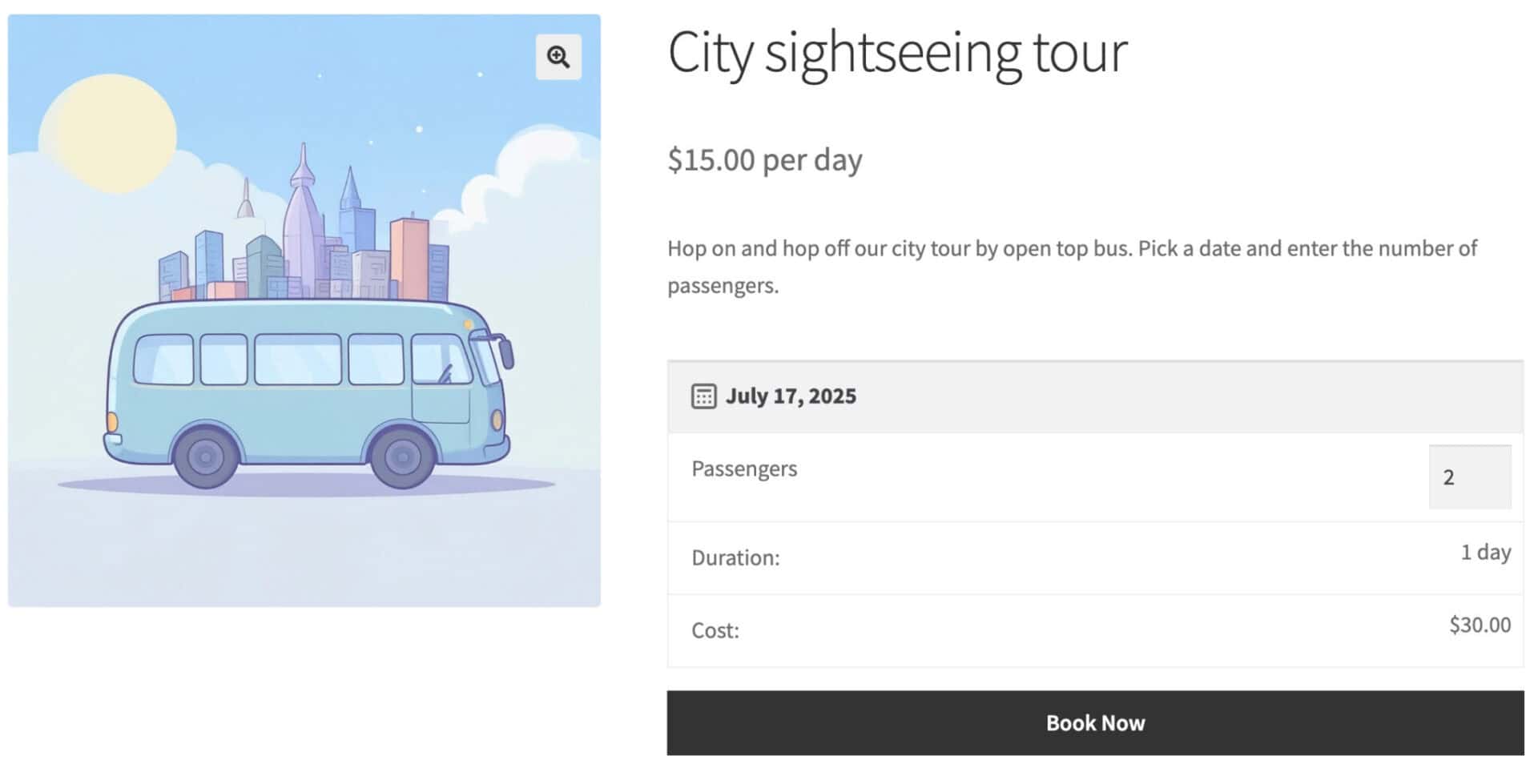
Offer bookable time slots for appointments, experiences, and guided tours. Customers pick a date, then choose from the available times, with each slot limited to the capacity you set.
Add a lead time so you’re never booked at short notice, and use automatic reminder emails to cut down on no-shows. This suits everything from a one-person consultancy to a tour operator running several departures a day.
Our tour booking tutorial covers the full setup.
How do you set up a booking system with Bookings for WooCommerce?
In this tutorial, we’ll assume that you already have WordPress and WooCommerce installed and ready to go.
Step #1: Install Bookings for WooCommerce
Once you’ve purchased Bookings for WooCommerce:
- Download the plugin’s zip file by clicking on the link on your order confirmation screen or in your welcome email. You’ll receive the email automatically a few seconds after you’ve completed the purchase
- Go to Plugins > Add New in your WordPress dashboard
- Click on the ‘Upload Plugin’ button
- Drag and drop the plugin’s downloaded zip file into the ‘Choose File’ area and click ‘Install Now’
- When the plugin has uploaded, click the ‘Activate Now’ button
You now have Bookings for WooCommerce active on your site. There’s more detail in our installation guide.
Step #2: Create a booking product
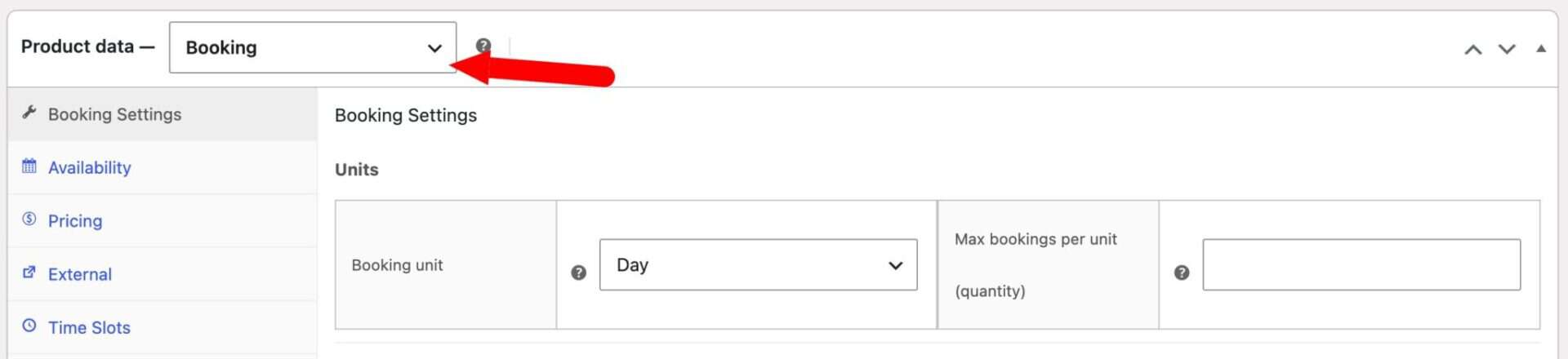
Create your booking product the same way you would any other WooCommerce product. Go to Products > Add New, give it a name and description, then select ‘Booking’ from the ‘Product type’ field in the ‘Product data’ section.
A set of booking tabs appears. You now have a bookable product ready to configure. See our docs on creating a booking product for a full reference.
Step #3: Set your booking unit and duration
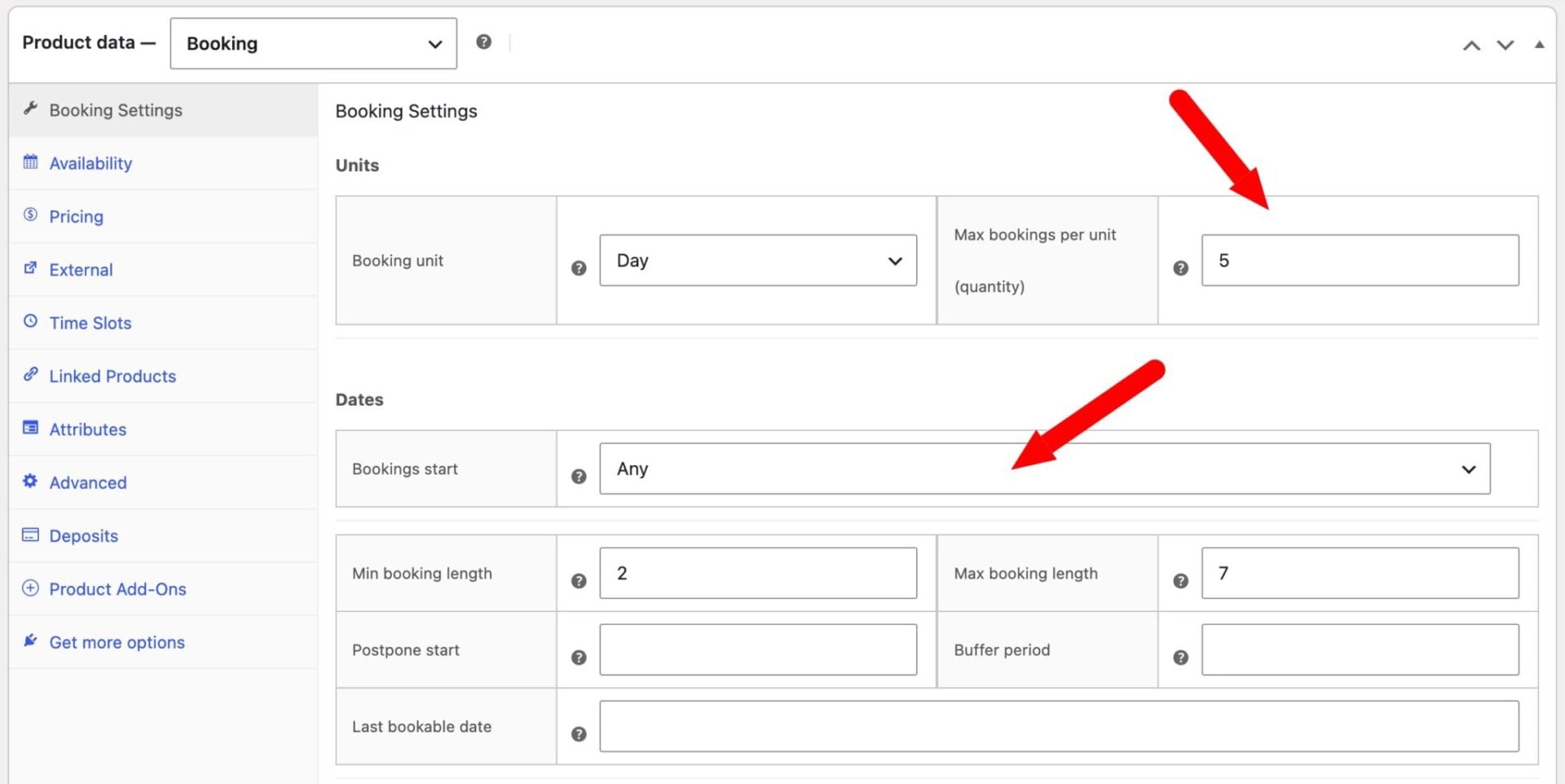
Open the ‘Bookings Settings’ tab and choose your booking unit – ‘Day’, ‘Night’, or ‘Week’. This controls how availability displays and how the price is calculated.
Set ‘Max bookings per unit’ to the number of units you have available. Enter 1 for a single room or vehicle, or 10 if you’re renting out ten bikes, so the date stays bookable until every unit is taken.
Use ‘Min booking length’ and ‘Max booking length’ to control how long a booking can run. Add a ‘Postpone start’ value to set a lead time, and a ‘Buffer period’ to leave a gap between bookings for cleaning or preparation.
Set a ‘Last bookable date’ if you only want to accept bookings up to a certain point, such as the end of a season.
You now have the core rules of your booking in place. Now let’s look at pricing.
Step #4: Set your pricing
Enter your ‘Standard price’ on the ‘Bookings Settings’ tab. This is the price per unit – per night, per day, or per week.

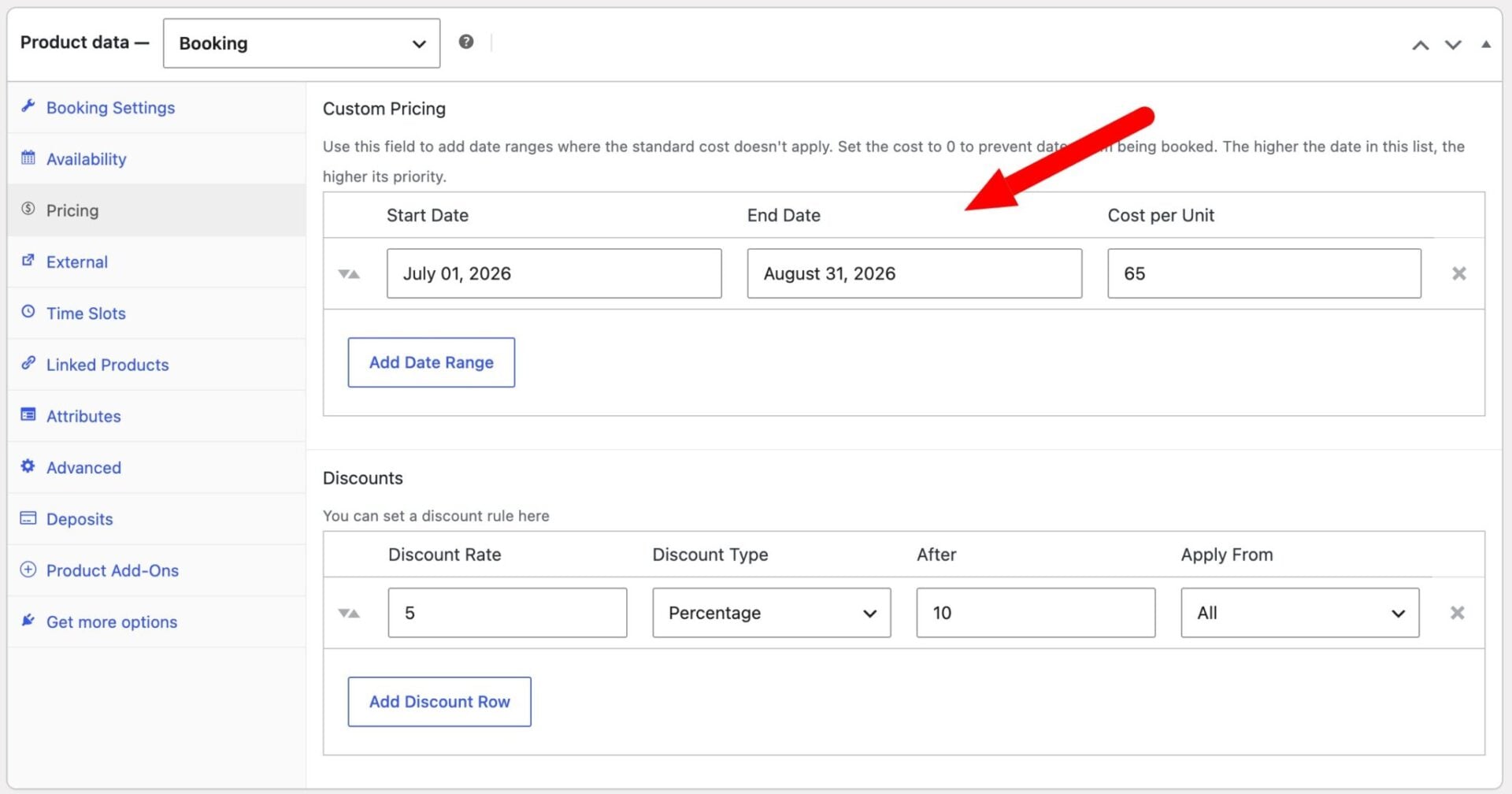
For seasonal rates, open the ‘Pricing’ tab and add a row under ‘Custom Pricing’ with a start date, end date, and cost. Rows higher in the list take priority, so you can stack rules without conflict.
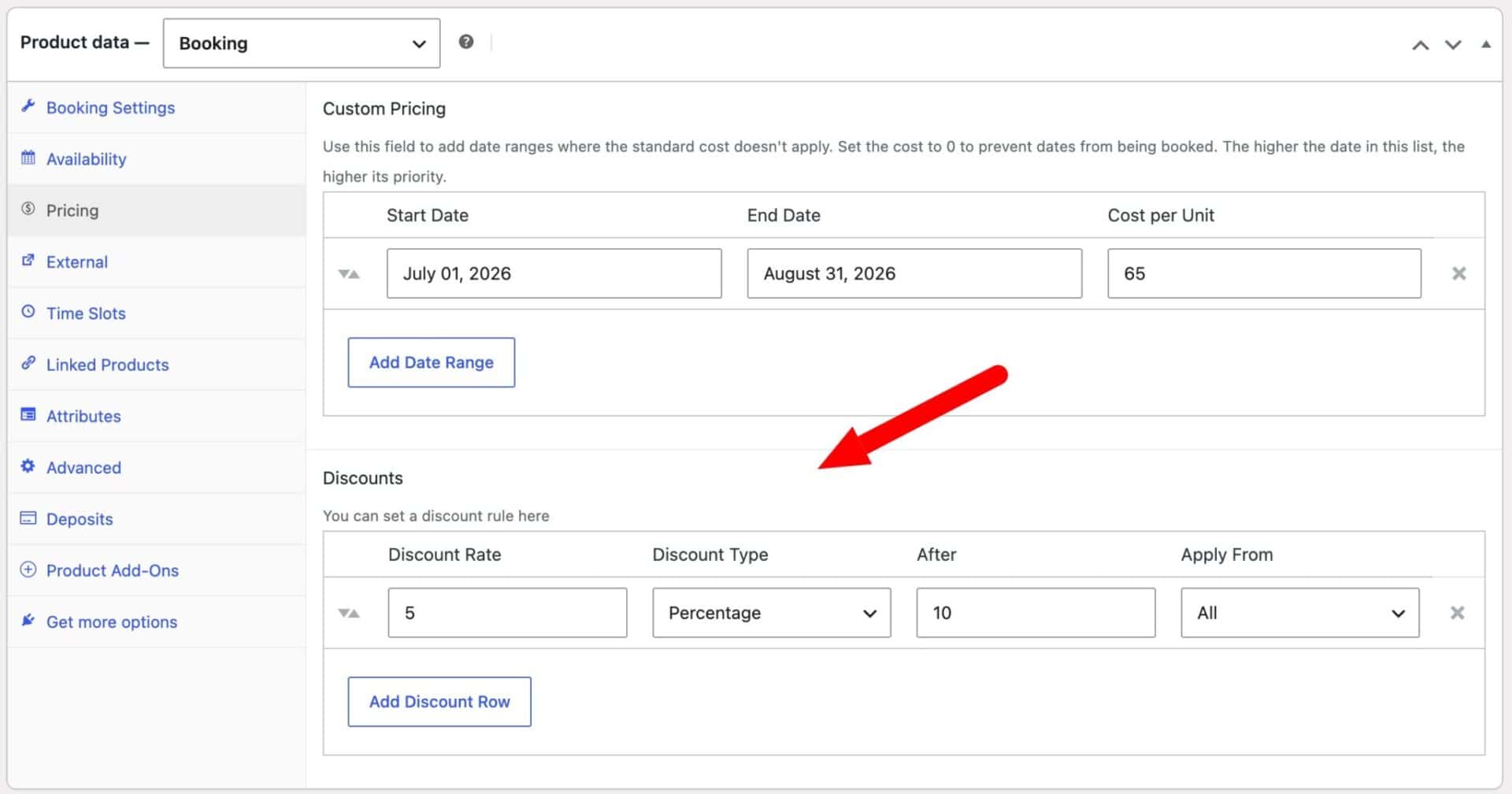
Add length-of-stay discounts under ‘Discounts’ on the same tab. For example, you can apply a 10% discount after three nights and a 20% discount after seven.
Your product now has flexible pricing. Now let’s control when it can be booked.
Step #5: Control availability
Open the ‘Availability’ tab to set the days your product can be booked. Tick any days under ‘Disable days of the week’ to grey them out in the customer’s date picker, which is ideal for weekday-only or weekend-only availability.

To block out specific dates, go to the ‘Pricing’ tab and add a custom pricing row with a cost of 0. Those dates can’t be selected, which is useful for closed periods and maintenance windows.
Your product’s availability is now defined. Now let’s look at syncing with external calendars.
Step #6: Optionally sync with Airbnb, Booking.com and Google Calendar
Bookings for WooCommerce syncs two-way with any service that uses the iCal format, including Airbnb, Booking.com, VRBO, and Google Calendar. When a booking is made on one platform, the others update automatically to block those dates.
To set this up, go to WooCommerce > Settings > Bookings > External and enable ‘Auto-sync calendars’. Then open the ‘External’ tab on your product, check ‘Enable sync calendars’, and add the external calendar’s iCal URL.
Copy the product’s ‘Export URL’ into the external service to complete the two-way link.
Syncing with Google Calendar
For Google Calendar, add the Export URL using the ‘From URL’ option under ‘Other calendars’. Our guide to syncing with third-party services covers each platform.
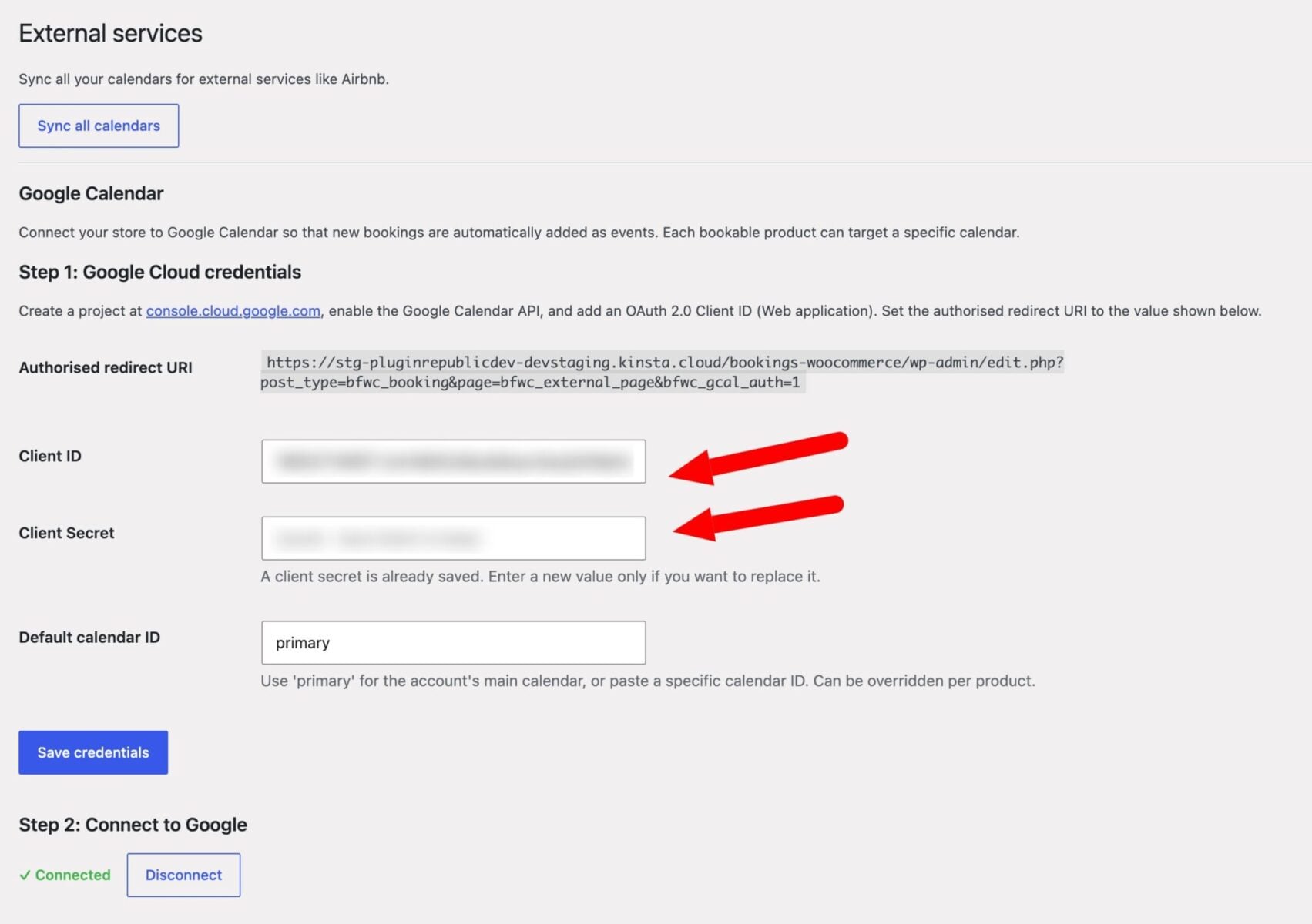
Your bookings now stay in sync across every channel. Now let’s look at appointments.
Step #7: Optionally add time slots
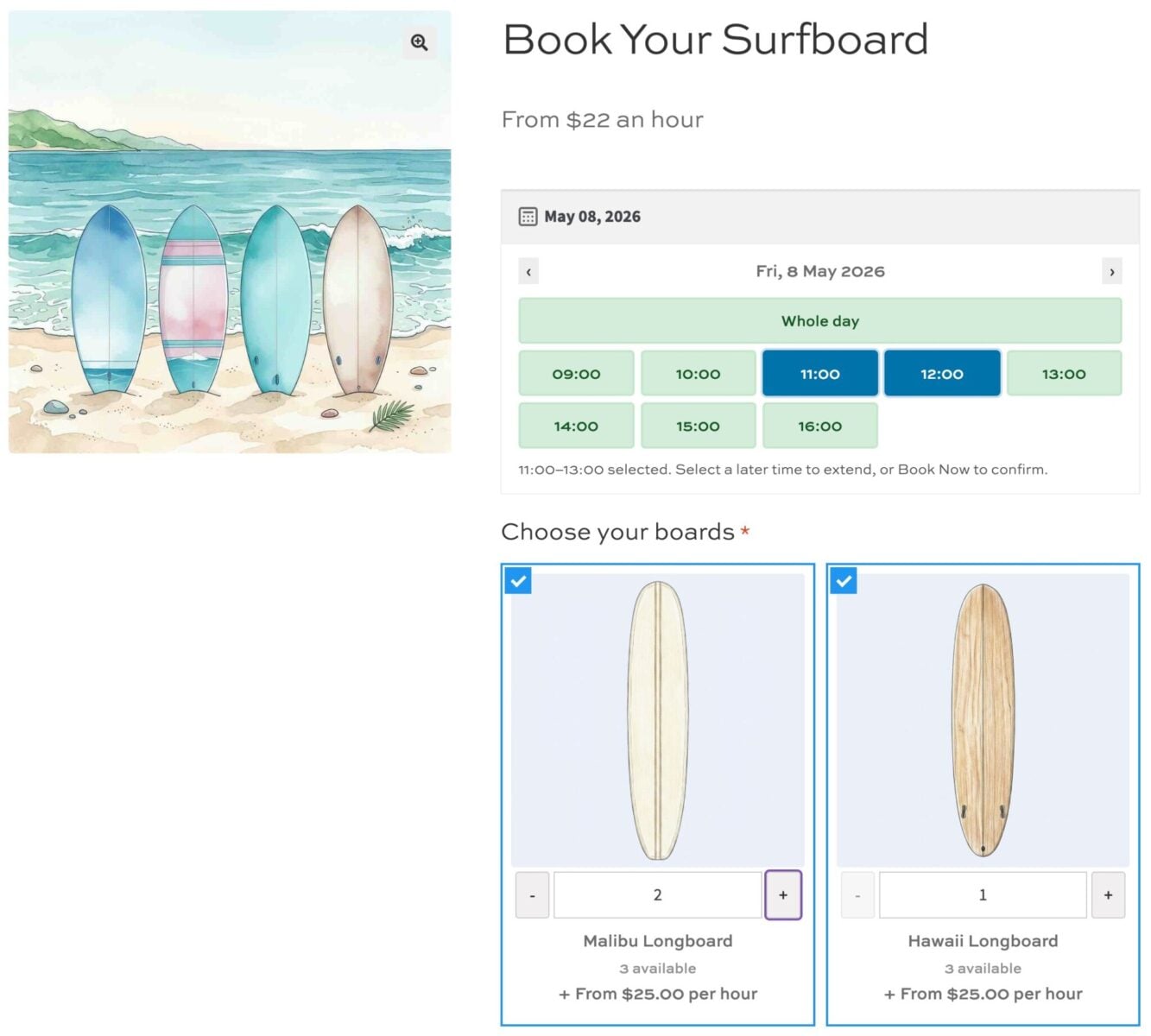
To offer appointments or classes, set the booking unit to ‘Day’, then open the ‘Time Slots’ tab and add your slots. Customers pick a date and then a time, rather than a range of days.
Publish your product. You now have a bookable product where customers can choose a slot, see live availability, and pay at checkout. Our time slots documentation has the full setup.
How do you manage bookings from the back end?
Once your products are live, you can manage everything from your WordPress dashboard.
Process bookings as WooCommerce orders
Every booking appears as part of a standard order under WooCommerce > Orders, alongside the rest of your store’s sales. You can view customer details, take payment, issue refunds, and add order notes exactly as you would for any other product.
This means bookings flow through your existing reports, receipts, and accounting tools without any extra setup.
You can also view bookings independently of the orders they’re associated with.
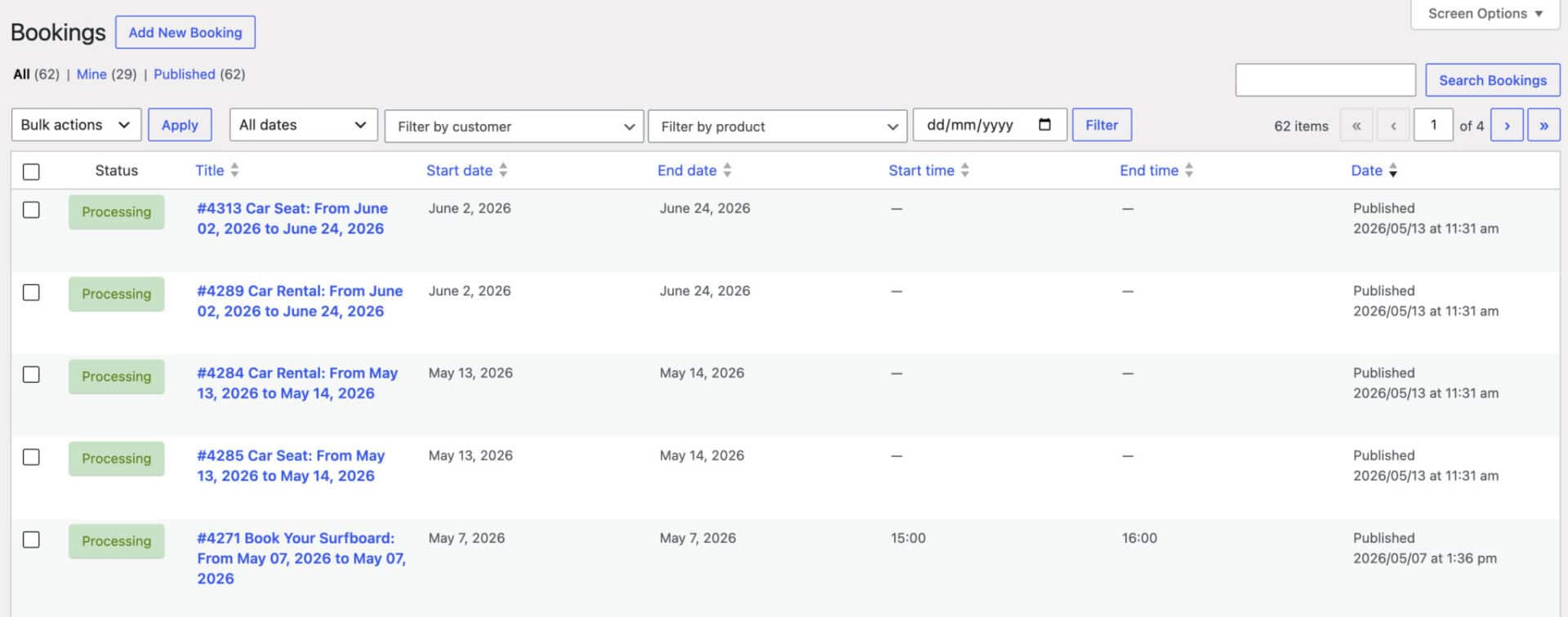
Add a booking manually
To take a phone or walk-in reservation, create an order under WooCommerce > Orders, then add the booking itself under Bookings > Add Booking. Select the product, pick the dates from the calendar, set the quantity, and publish.
For time slot products, you can book a slot directly from the product’s ‘Availability’ tab instead. Our guide to adding and editing bookings manually covers each method.
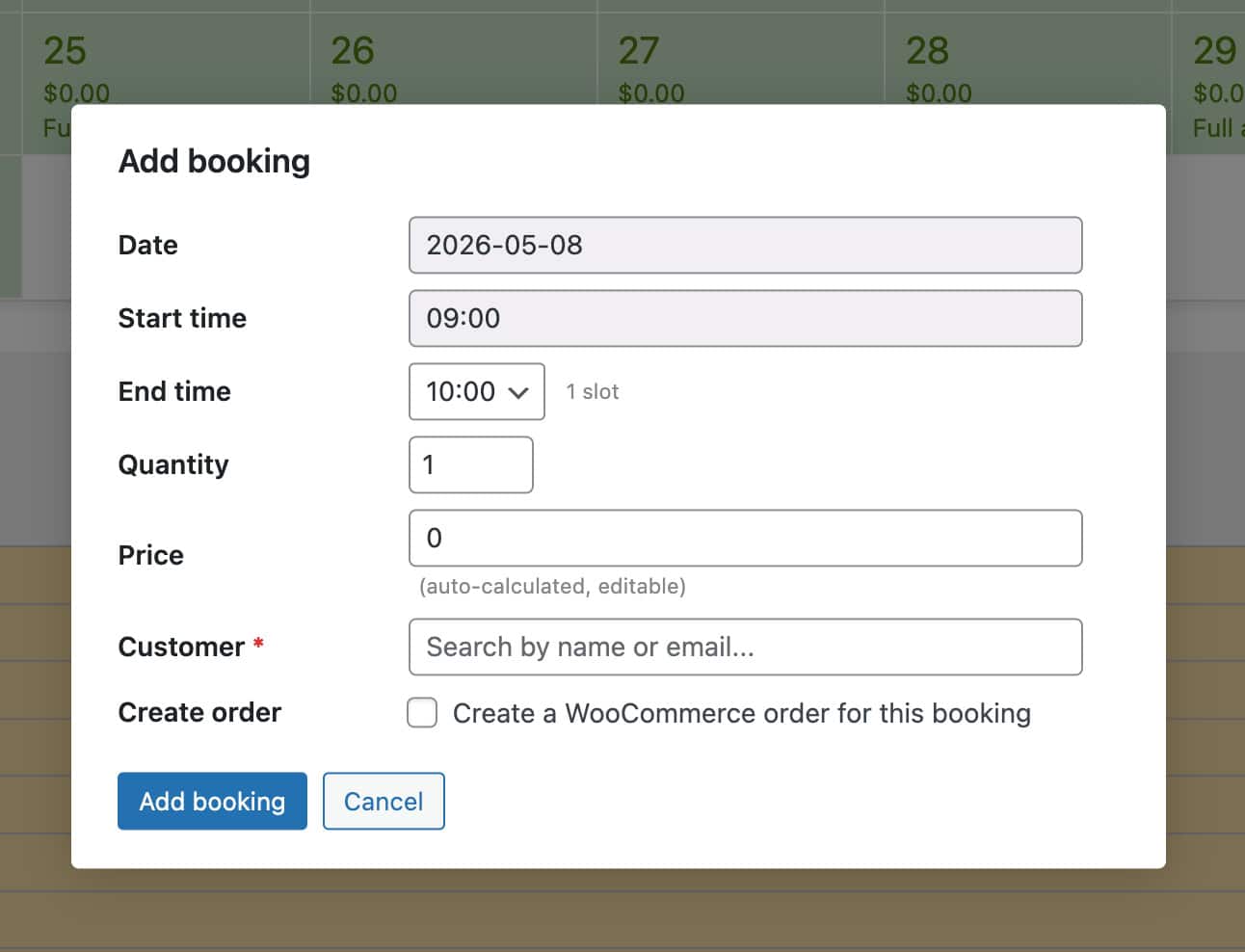
Edit or cancel a booking
Open any booking under Bookings and click ‘Edit booking’ to change the dates or quantity. This is available while a booking is ‘Pending’ or ‘On hold’.
To cancel, change the booking’s status to ‘Cancelled’, which frees up the dates for other customers. Cancelling the linked WooCommerce order cancels the booking automatically.
View the dashboard
See availability, occupancy, and revenue across all your products in one place under Bookings > Dashboard. Choose a date range from the row of buttons at the top – anything from ‘Yesterday’ to ‘This year’, or a custom range – and the Dashboard automatically shows the most useful view: a single-day diary, a week diary for a few days, or a full calendar for anything longer.
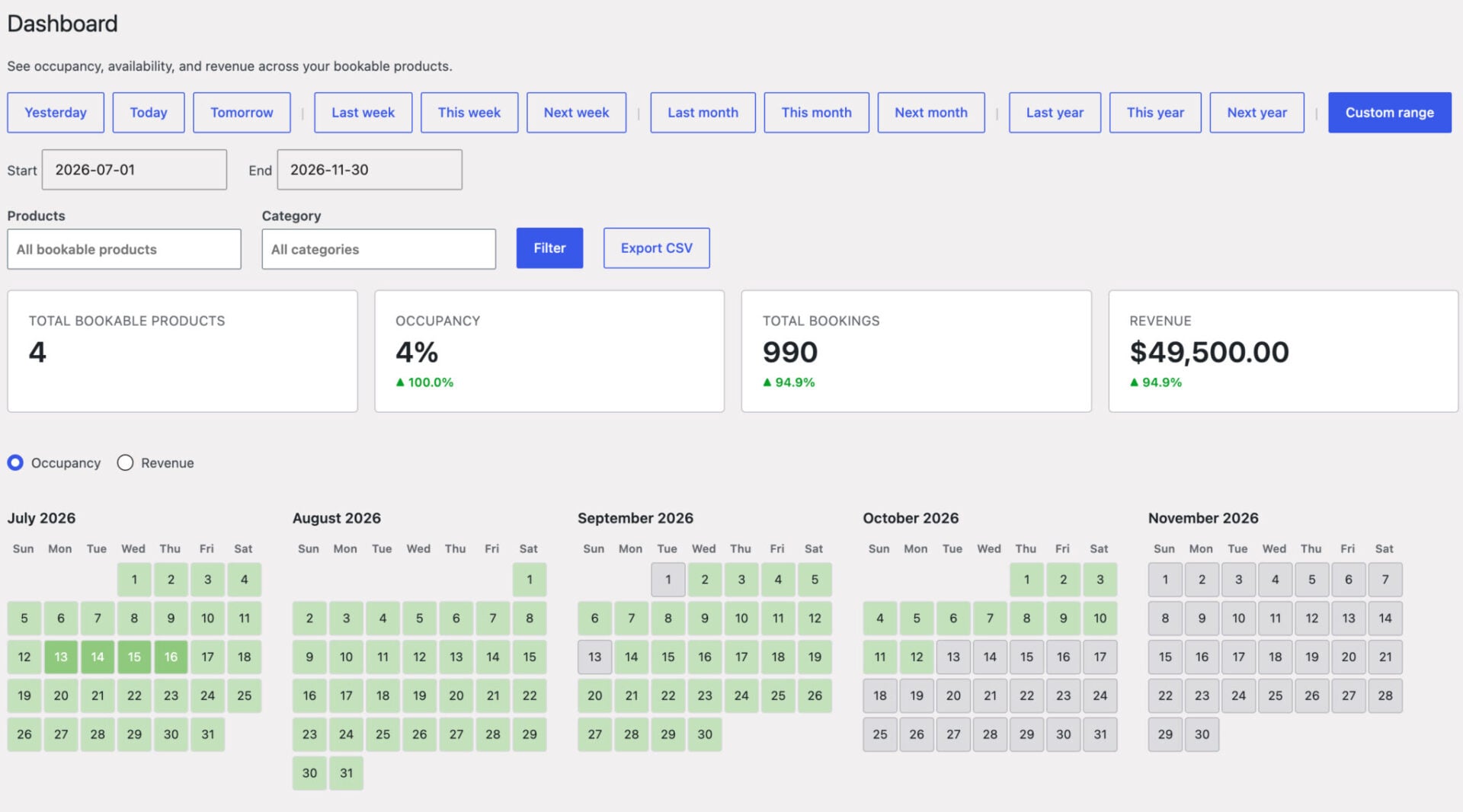
Four summary tiles show your total bookable products, occupancy, total bookings, and revenue for the selected range, each with an indicator comparing it to the previous equivalent period. Filter by product or category to narrow any of this down, and toggle the calendar view between ‘Occupancy’ and ‘Revenue’ shading to spot your busiest or highest-earning days at a glance.
Click any day, time slot, or product row to open a panel showing every booking there, with an ‘Add booking’ button so you can create one without leaving the page. This gives you a single view of your whole operation, however many products you have.
A scaled-down version of the same Dashboard is built into each product’s own ‘Availability’ tab, showing just that product’s bookings, so you can check or manage one product without leaving its edit screen. Note that the Dashboard replaces the older Bookings > Calendar page, which is deprecated and will be removed in a future version.
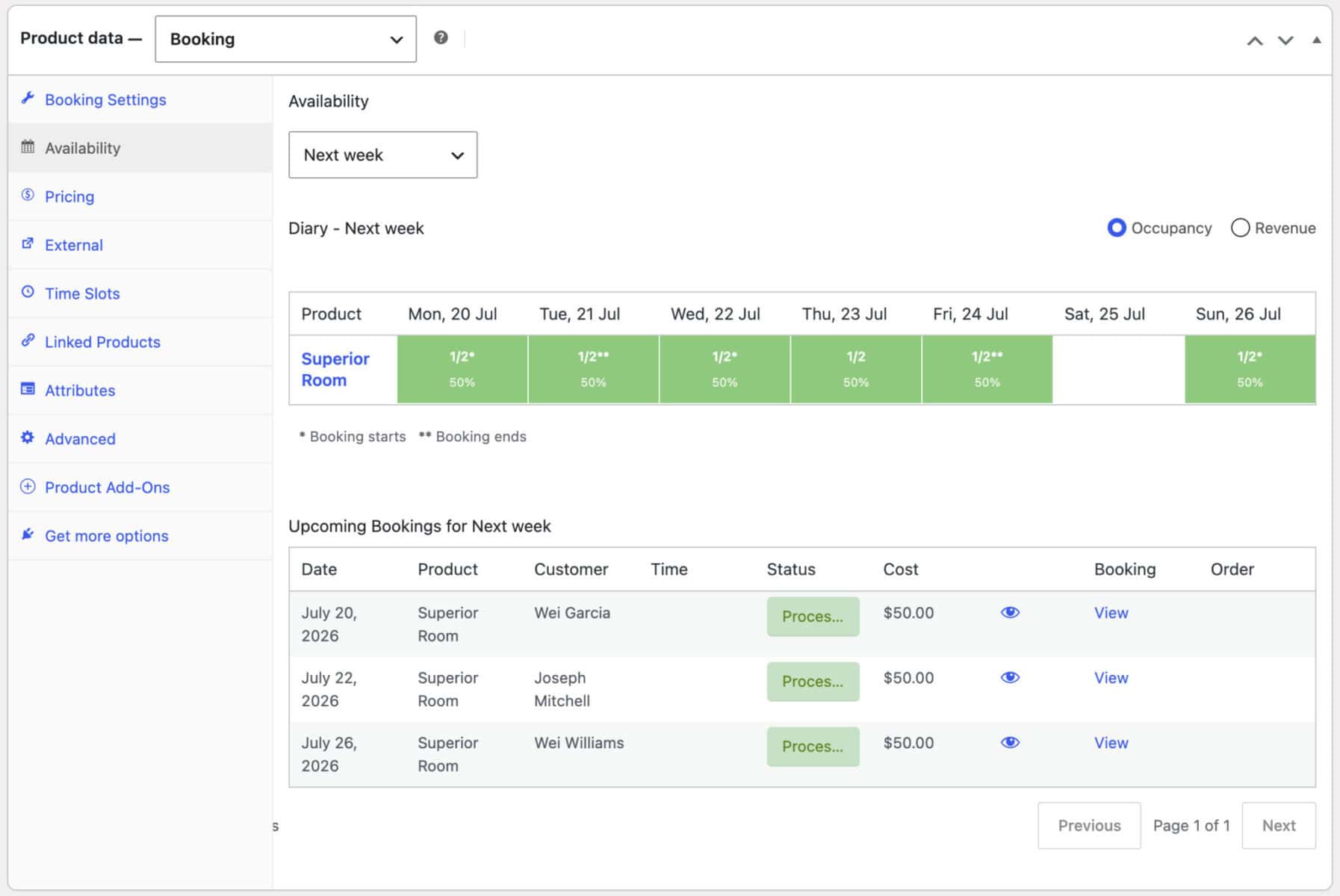
(Leave “Export your bookings to CSV” as-is – Bookings > Export is a separate, dedicated export screen. You could optionally add a line noting the Dashboard also has a quick ‘Export CSV’ button scoped to whatever date range and filters are currently on screen, if useful.)
Export your bookings to CSV
Export your bookings for a chosen date range to a CSV file under Bookings > Export. Enter a start and end date, click ‘Export CSV’, and the file downloads automatically.
The report covers every booking whose start date falls in your range, with columns for the product, dates, booking length, customer details, and amount paid. This makes it easy to report on revenue, hand a schedule to your team, or import the data into another system. See our guide to exporting bookings to CSV for the full column list.
Send automatic emails
Bookings for WooCommerce can send emails before and after a booking starts or ends. Enable them under WooCommerce > Settings > Emails, then use the {booking_id} and {date} tags to personalize each message.
For example, send a welcome email two days before check-in, or a follow-up the day after a rental ends. See our automatic emails guide for the full list.
Bonus #1: Take a deposit instead of full payment
For higher-value rentals, you can ask customers for a deposit at checkout and collect the balance later. This lowers the barrier to booking while still securing the reservation.
Our guides to taking booking deposits and accepting security deposits for rentals show you how.
Bonus #2: Add optional extras with Product Add-Ons Ultimate
Increase the value of every booking by offering paid extras at the point of sale. With WooCommerce Product Add-Ons Ultimate, you can add custom fields and options to your booking products, like insurance, equipment, or a guided experience.
Because it integrates with Bookings for WooCommerce, you can charge each extra by booking unit – per night, per day, or per week – or as a one-off flat rate. So you might charge insurance per day, a child seat per day, and a single cleaning fee as a flat charge.
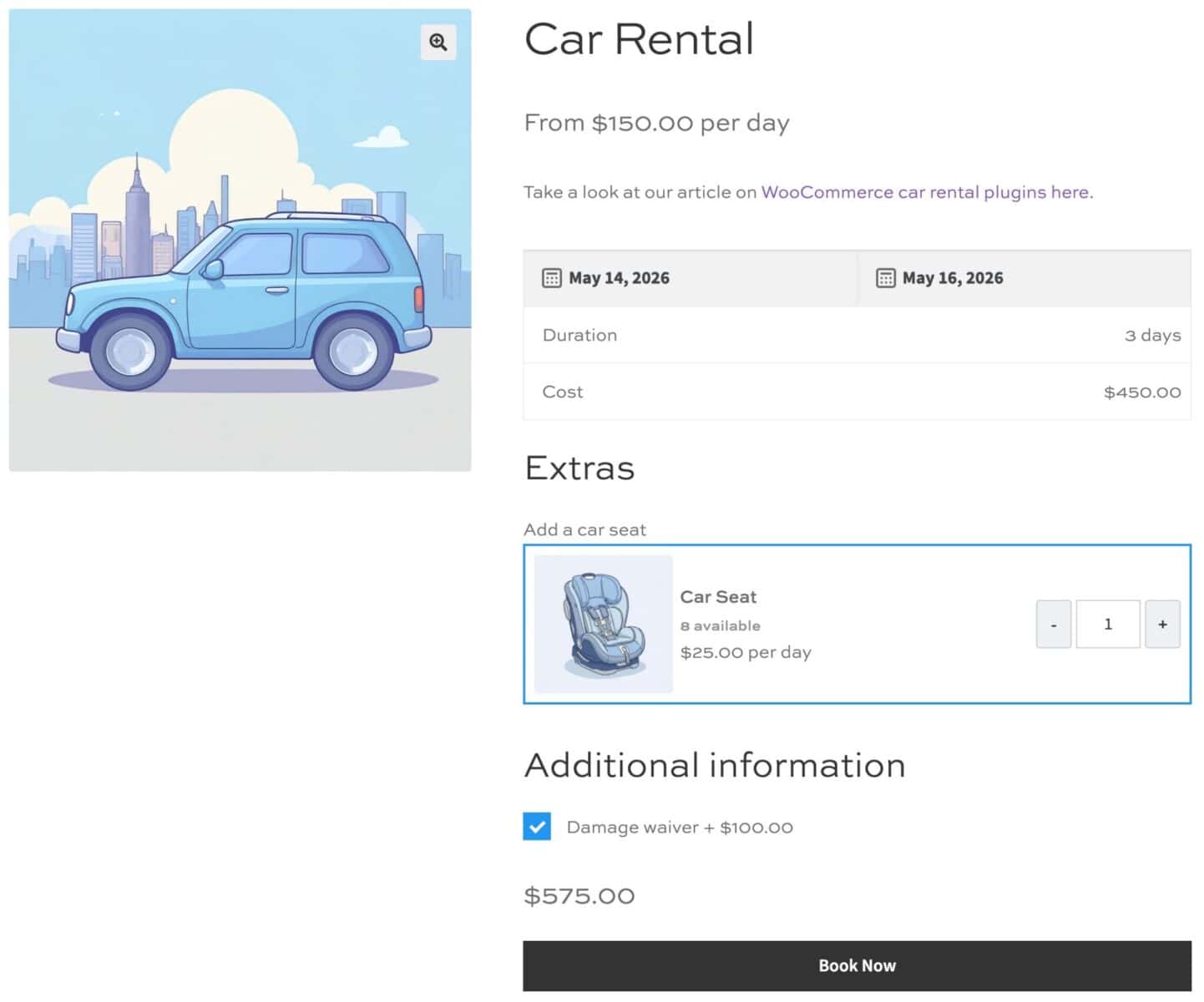
Our guide to integrating Product Add-Ons Ultimate with Bookings shows you how to set it up.

Very easy to setup, and is the only plugin I found that allows you to set a stock level. Bookings for WooCommerce solved a problem I had for this client who needed to allow people to not only select the days, but also a number of people for those days.
How does Bookings for WooCommerce compare to other plugins?
Bookings for WooCommerce isn’t the only option, and the right choice depends on your business. For a side-by-side look at the leading plugins and how they stack up, see our guide to the best WooCommerce Bookings alternatives.
| Plugin | Best for | Key strengths | Needs WooCommerce? | Rating | Starting price |
|---|---|---|---|---|---|
| WooCommerce Bookings (the original) | General WooCommerce bookings | Official extension, but rated poorly and needs add-ons for full functionality | Yes | 2.7/5 (Woo.com) | $249/year |
| Bookings for WooCommerce | Rentals, lets, hire, and appointments | Time slots, seasonal pricing, stock control, calendar sync, front-end search | Yes | 4.8/5 (Trustpilot) | From $79/year (lifetime from $199) |
| WooCommerce Bookings And Appointments | Appointment scheduling | Dynamic pricing, recurring bookings, custom fields | Yes | 4.96/5 (PluginHive) | $149/year (single site) |
| MotoPress Hotel Booking | Hotels and vacation rentals | Real-time calendar, OTA iCal sync, upsells | No (WordPress) | 3.7/5 (WordPress.org, free version) | Free / from $139/year |
| YITH Booking and Appointment | Services with person types | Flexible time units, person-type discounts, add-ons | Yes | 4.4/5 (YITH) | $249/year |
| Booking and Appointment Plugin | Mixed product types | Zoom integration, supports many product types | Yes | Not publicly listed | $199/year |
| RnB WooCommerce Booking and Rental | Budget rentals | Pre-built layouts, per-distance pricing | Yes | Not publicly listed | $29 |
| PinPoint | WordPress or WooCommerce bookings | Responsive layout, calendar extensions | No (WordPress) | Not publicly listed | $70/year (1 site) |
| Booking Calendar | Simple WordPress calendars | Gutenberg blocks, Google Calendar sync | No (WordPress) | Not publicly listed | Free (pro available) |
| Sales Igniter Bookings & Tours | Larger rental operations | Order editing, check-in/out tracking | Yes | Not publicly listed | Contact for pricing |
WooCommerce bookings – recap
In this guide, we looked at how to take bookings and rentals through WooCommerce. We covered the booking types you can offer, the businesses that use them, how to set up a booking system step by step, and how to manage your bookings once they start coming in.
Bookings for WooCommerce gives you flexible booking units, seasonal pricing, real-time availability, two-way calendar sync, and automatic confirmations – all from your existing store.
Bookings for WooCommerce is compatible with every theme and page builder – and it’s backed by a 14-day money-back guarantee and world-class support, so you can try it risk-free.