How to accept bookings for yoga or pilates classes with WooCommerce
In this article, we’ll look at how to accept bookings for yoga or pilates classes through WooCommerce. Taking bookings online is a massive time-saver, allowing you to get on with the yoga.
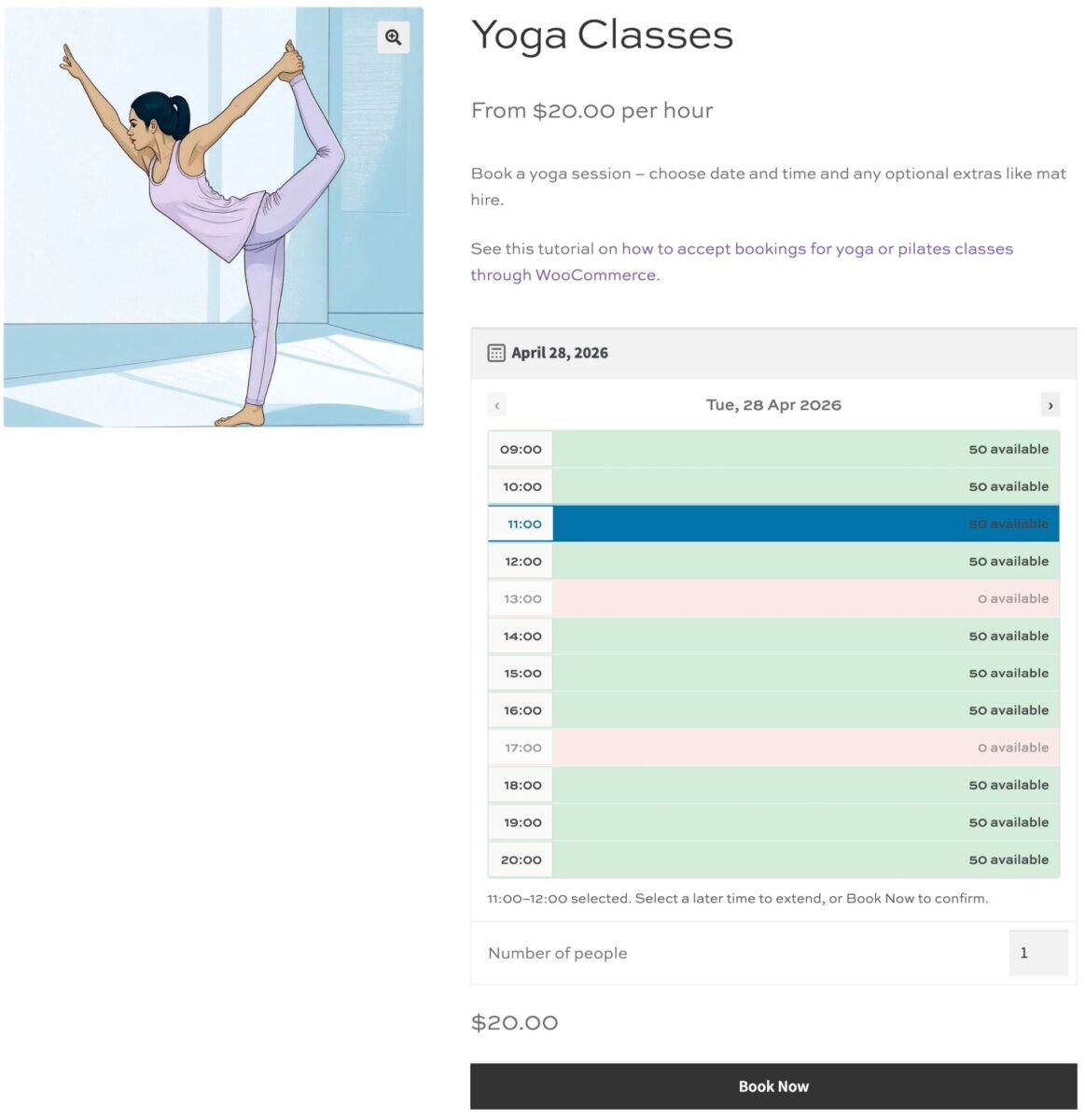
Because WooCommerce isn’t designed for bookable products by default, you’ll need an extra plugin. Our Bookings for WooCommercce plugin contains everything you need to start taking bookings for your yoga classes.
You’ll be able to:
- Display a calendar for the user to select the date of their class
- Allow them to specify how many places they want to book
- Let them choose the time of their session
- Add extra options like mat hire
Further, you’ll be able to:
- Accept bookings for multiple sessions each day – e.g. 9am, 10am, etc
- Set the maximum capacity for each class
- Disable certain days of the week or times of the day
- Set different prices for different session times if required
There’s a demo product here. You can test it out by selecting a date, choosing the number of places you want to book, picking a time and optionally choosing to hire a mat.
Accept yoga class bookings in WooCommerce – tutorial
To create products in WooCommerce where users can book yoga or pilates sessions, you’ll need Bookings for WooCommerce. This plugin lets you accept date-based bookings and – using its built-in time slots feature – offer multiple timed sessions each day, each with its own capacity.
If you also want to offer extras like mat hire, you can add WooCommerce Product Add-Ons Ultimate to your setup. Both plugins are available together in the Bookings and Product Add-Ons Bundle at over 25% discount.
Let’s look at how to use Bookings for WooCommerce to accept bookings for yoga classes.
Step #1: Install and activate the plugin
When you purchase Bookings for WooCommerce you’ll get an email with a link to the plugin zip file.
- Download the plugin’s zip file by clicking the link on your order confirmation screen or in your welcome email
- Go to Plugins > Add New in your WordPress dashboard
- Click the ‘Upload Plugin’ button
- Drag and drop the zip file into the ‘Choose File’ area and click ‘Install Now’
- When the plugin has uploaded, click the ‘Activate Now’ button
Step #2: Create your yoga classes product
- Go to Products > Add New
- Give your product a name, e.g. ‘Yoga Classes’, add a description and featured image – plus any other details you like
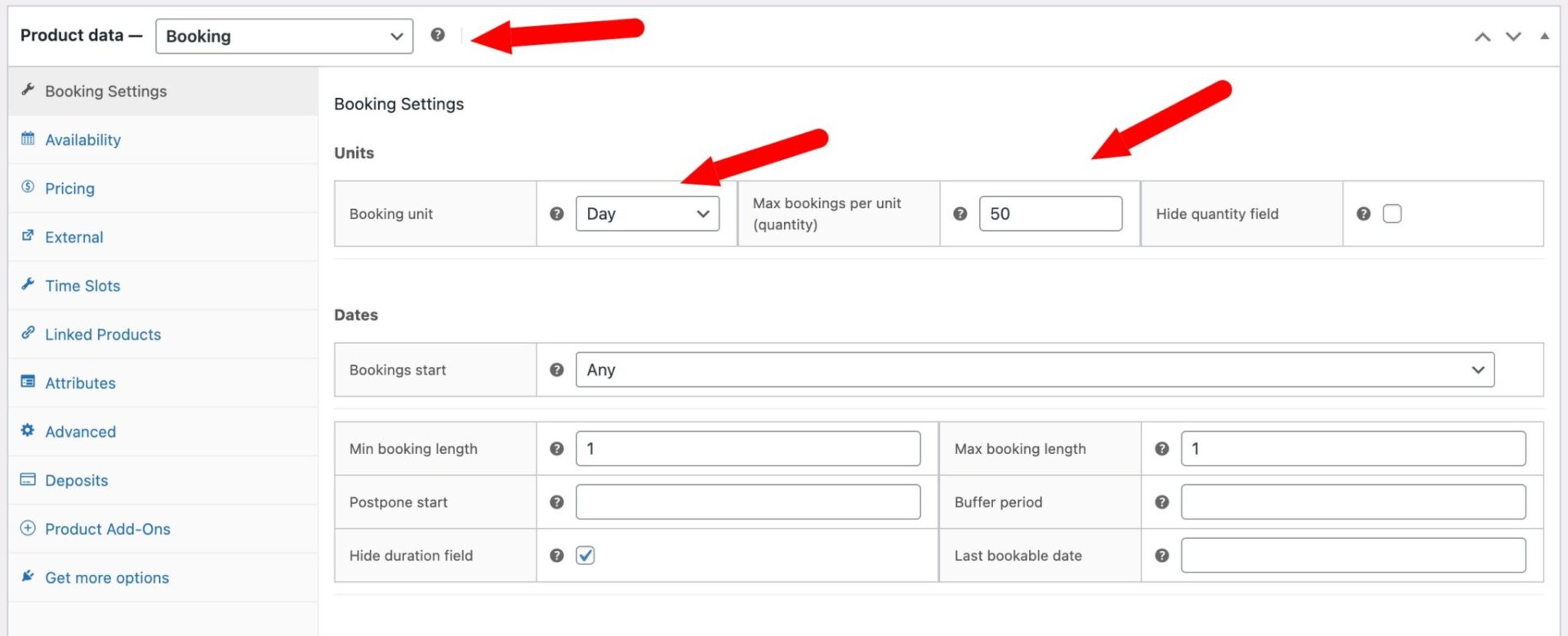
- Change the ‘Product type’ to ‘Booking’
Once you’ve changed the product type to ‘Booking’, update the ‘Booking Settings’ in the ‘Product data’ section.
- Set the ‘Booking unit’ to ‘Day’
- Enter the maximum number of places per session in the ‘Max bookings per unit’ field. You can adjust this number for individual sessions later
- Enable the ‘Hide duration field’ setting
Step #3: Set up time slots
With the booking unit set to ‘Day’, you can now configure time slots for your sessions. Click the ‘Time Slots’ tab in the ‘Product data’ section.
- Check ‘Enable time slots’
- Set the ‘Slot duration’ in minutes – e.g.
60for one-hour sessions - Set the ‘First slot time’ – e.g.
09:00 - Set the ‘Last slot end time’ – e.g.
17:00. With 60-minute slots, this creates sessions running from 9:00 AM through to 4:00 PM - Enter a ‘Price per slot’ – this is the price charged per session
- Choose a ‘Time slot view’ – for yoga classes, ‘Start time and Duration’ or ‘Diary View’ works well, as customers can see exactly which sessions are available
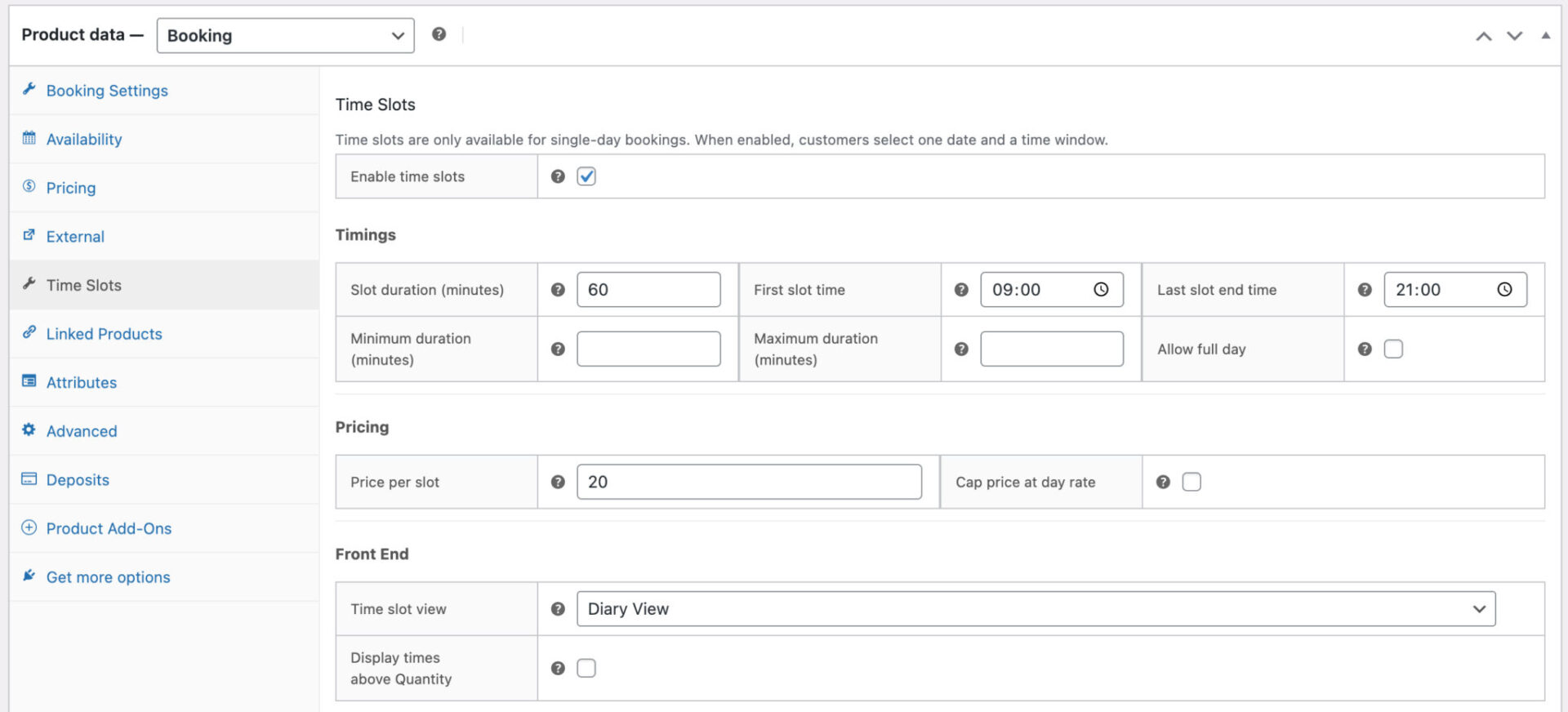
Save or publish the product. Users can now pick a date for their yoga class, choose how many places they need, and select a session time. Availability updates automatically as bookings come in.
Step #4 (optional): Set per-session capacity
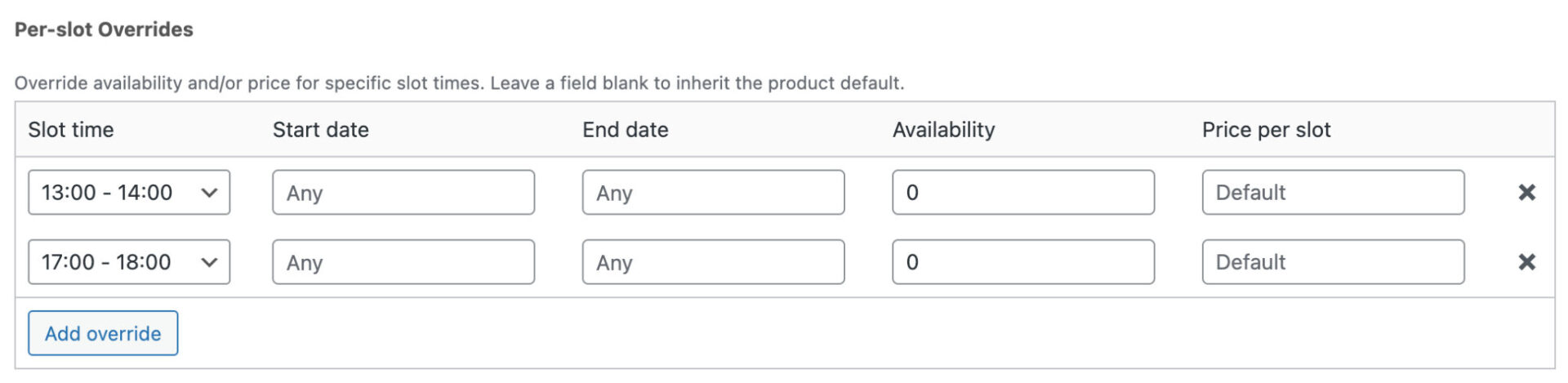
If different sessions have different capacities, you can use the per-slot overrides table to set a maximum number of bookings for a specific time slot. You can also use this to block out certain sessions – so if you need a break during the day, just set the session availability to 0.
- In the ‘Per-slot overrides’ table, click ‘Add row’
- Choose the slot time from the ‘Slot time’ dropdown, e.g.
09:00 - 10:00 - Leave ‘Start date’ and ‘End date’ blank if the override applies to all dates
- Enter the maximum number of bookings for that slot in the ‘Availability’ column
Repeat for each session that has a different capacity. Any slot without an override will use the product-level ‘Max bookings per unit’ setting.
Step #5 (optional): Offer extra options
If you’d like to upsell options such as mat hire, you’ll need WooCommerce Product Add-Ons Ultimate. Once installed and activated:
- Click the ‘Product Add-Ons’ tab in the ‘Product data’ section
- Click ‘Add Group’ then ‘Add Field’
- Enter a label, e.g. ‘Hire a mat’
- Choose ‘Checkbox’ as the ‘Field Type’
- Enter the price in the ‘Field Price’ setting
Users will now be able to select this as an extra option when booking their class.
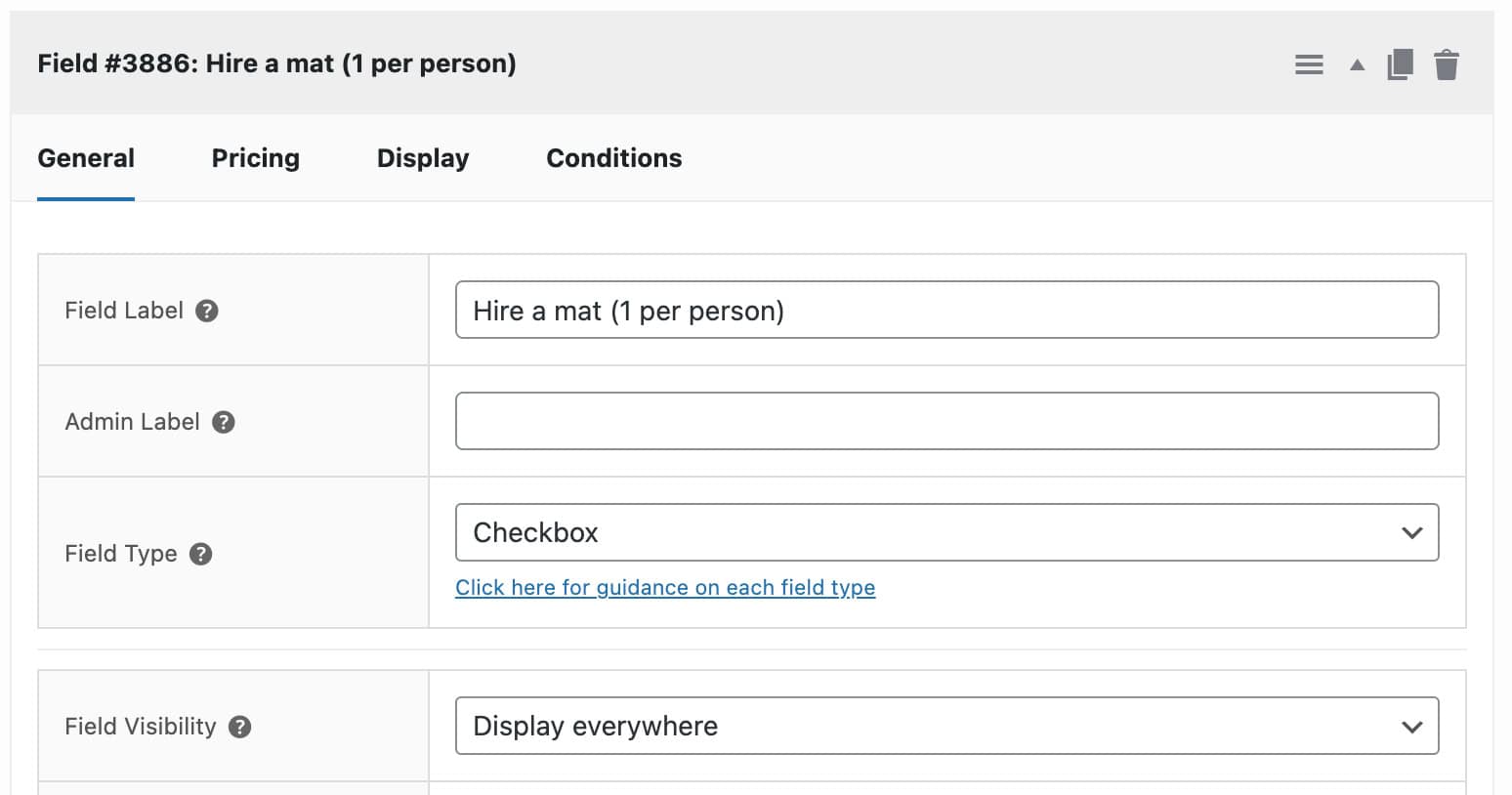
WooCommerce yoga classes – additional options
Now let’s look at some additional options you can use.
Can you charge different prices for different session times?
Yes – use the per-slot overrides table on the ‘Time Slots’ tab to set a different price for a specific session.
- In the ‘Per-slot overrides’ table, click ‘Add row’
- Choose the slot time you want to price differently
- Enter the new price in the ‘Price per slot’ column
That price will apply to bookings made for that specific time slot. Any slot without a price override will fall back to the default ‘Price per slot’ setting.
How do you set the price label?
By default, the price label will show the product’s standard price. To add some dynamic text instead:
- Edit the main product, e.g. Yoga Classes
- In the ‘Price format’ field, enter your preferred text – use the
{slot_price}tag to display the price dynamically, for example:From {slot_price} per session

What happens if a session is fully booked?
If a session has reached its maximum capacity for the chosen date, it will be shown as unavailable in the time slot selector. Users won’t be able to select it, so overbooking isn’t possible.
How do you disable certain days of the week?
If your yoga studio is closed on certain days, you can prevent users from booking those days entirely.
- In the ‘Product data’ section, click the ‘Booking Settings’ tab
- Select which days of the week to disable
Users won’t be able to make any bookings on those days.
How do you check availability?
On the ‘Availability’ tab, you can view availability and bookings for your yoga classes through a calendar, week diary, or single-day diary, depending on the date range you select. If you need to change the details of any bookings, go to the ‘Bookings’ menu item in the WordPress dashboard.
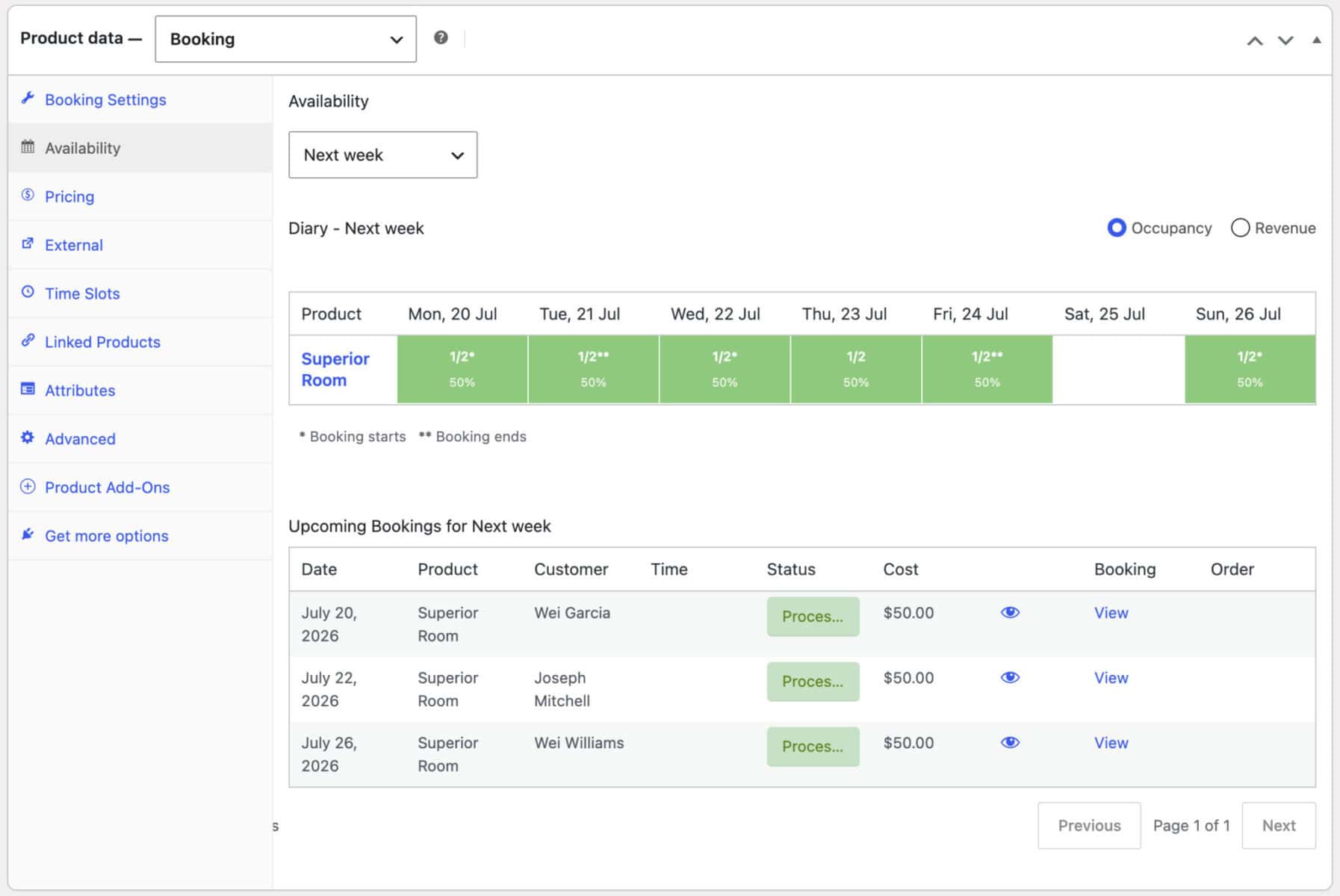
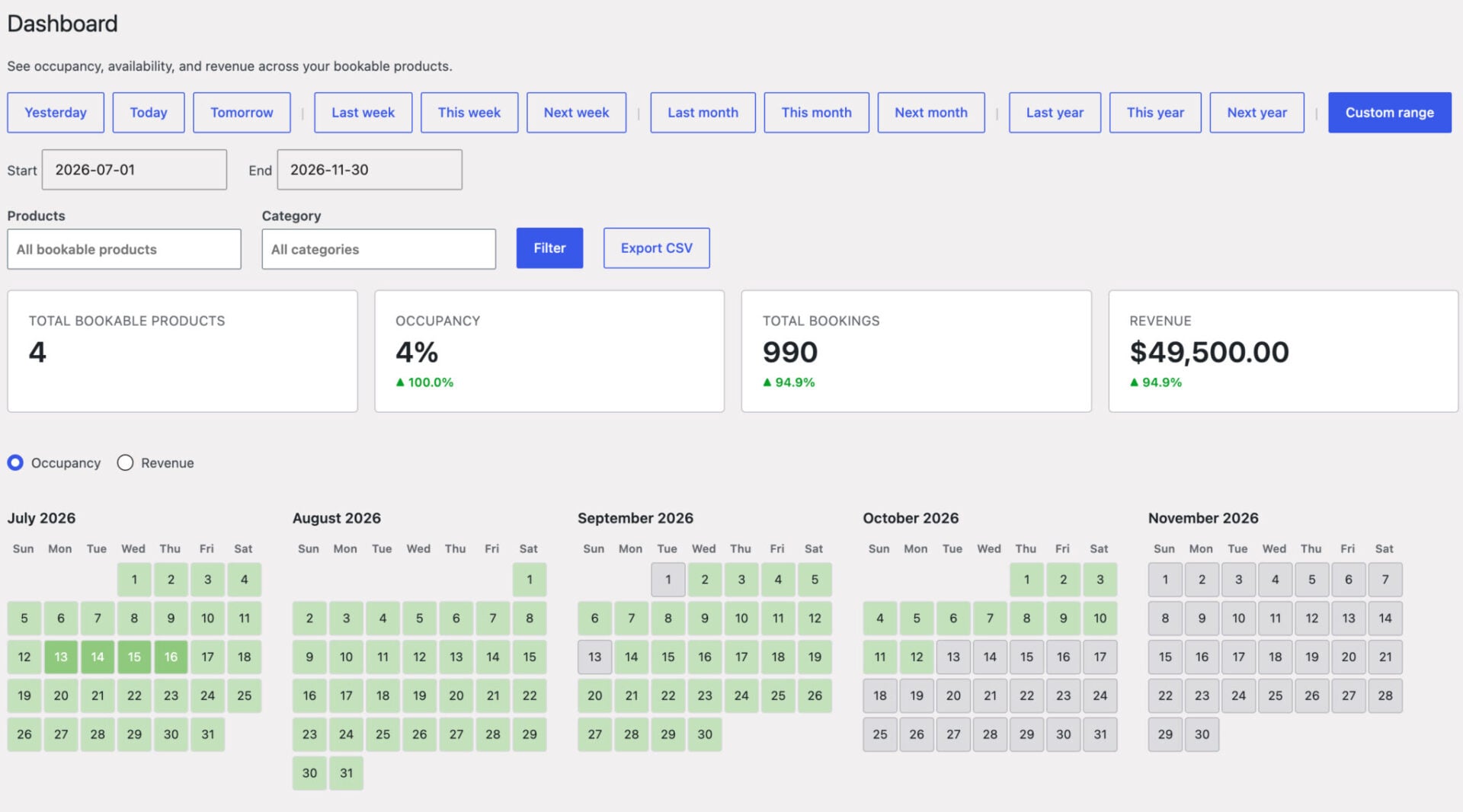
For a view across all your class products at once, go to Bookings > Dashboard, where you can filter by product or category and see occupancy and bookings for your whole timetable in one place.
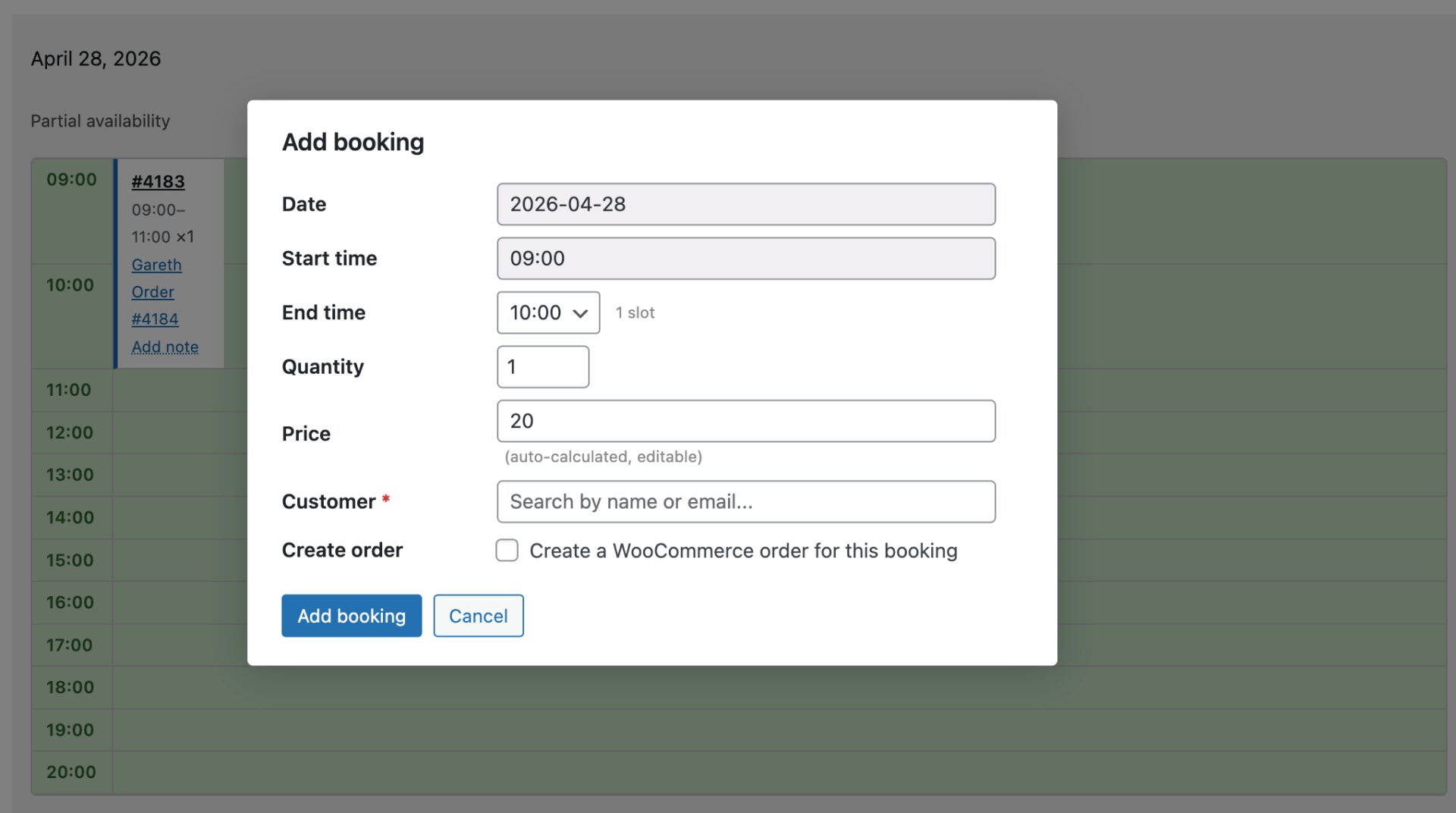
You can also add bookings manually from this page – so if someone calls you or emails you separately, you can book their slot directly from your WordPress admin.
How to manage your bookings
Once you’ve got your product online and users are booking classes, you will need to manage bookings.
View bookings as orders
When a user chooses the date and time of their class, they go through to the checkout page just the same as any other WooCommerce product. When they complete the purchase, you’ll receive an email and an order will be created in exactly the same way as for any other product.
The date and time will be listed clearly as part of the order line meta.
Edit bookings
If you need to change the details of any bookings, you can go to the ‘Bookings’ menu item in the WordPress dashboard. Find the booking that you want to edit and update details as you wish.
Book yoga classes through WooCommerce – recap
In this article, we looked at how to use the Bookings for WooCommerce plugin to accept bookings for yoga or pilates classes through WooCommerce. This plugin makes it easy to create time and date-based bookable products for your users to book their class.
With Product Add-Ons Ultimate, you can create time-based bookable sessions, allowing you to offer different timed classes.
Buy both plugins together at a discount:
WooCommerce Bookings and Product Add-Ons Bundle
Create the ultimate bookings site in WooCommerce
Our plugins are compatible with all themes and page builders – plus we have a fantastic support team to help you with the set up. Our products all come with a 14 day money back guarantee – so you can purchase them risk-free.