Time slots in Bookings for WooCommerce allow you to divide a bookable day into fixed-length windows . When enabled, customers select a single date and then choose a time window within that day. Time slots are only available when the Booking unit is set to Day.
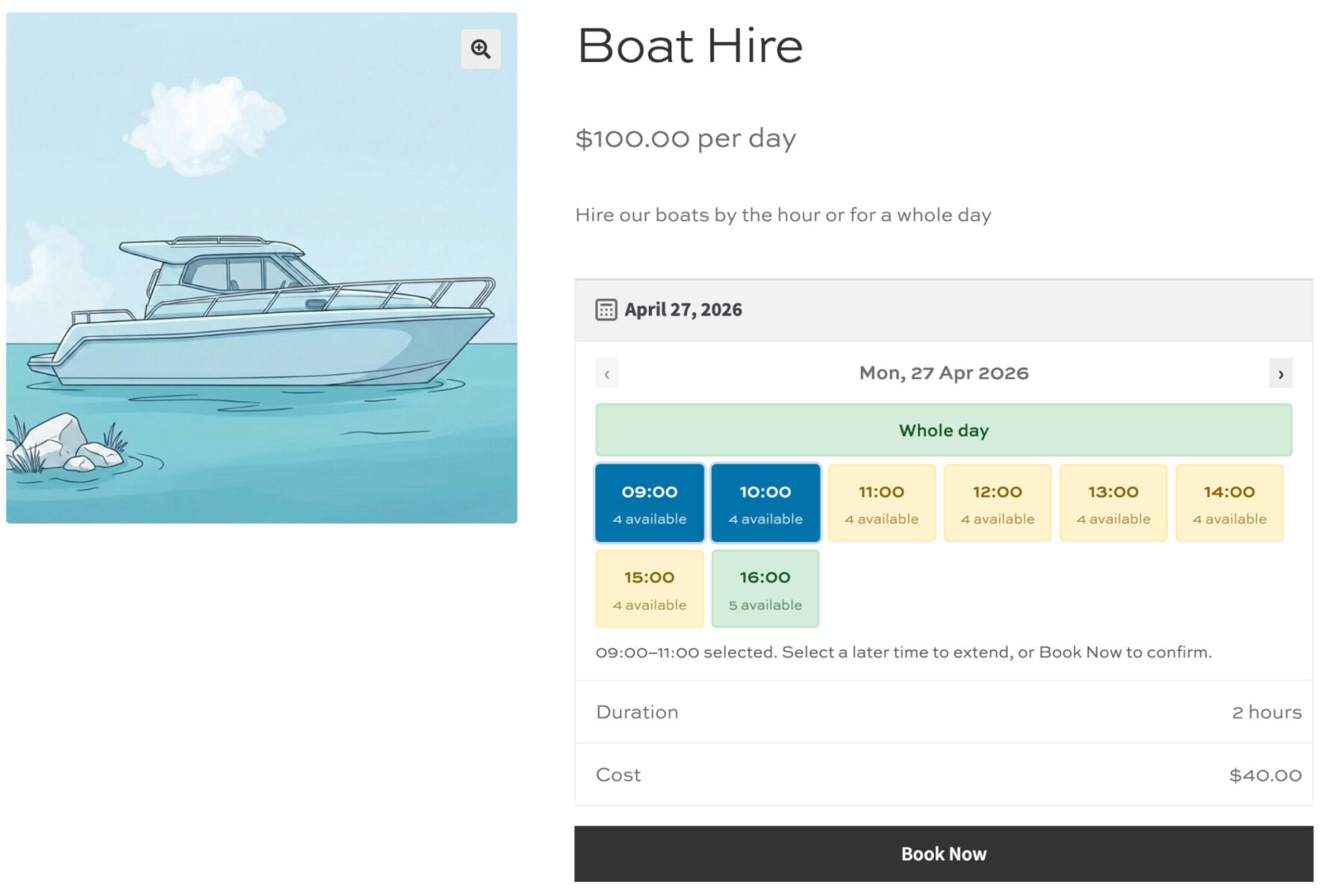
To enable Time Slots:
- Set the Booking Unit to ‘Day’ on the ‘Booking Settings’ tab
- Click on the ‘Time Slots’ tab and configure using the settings below
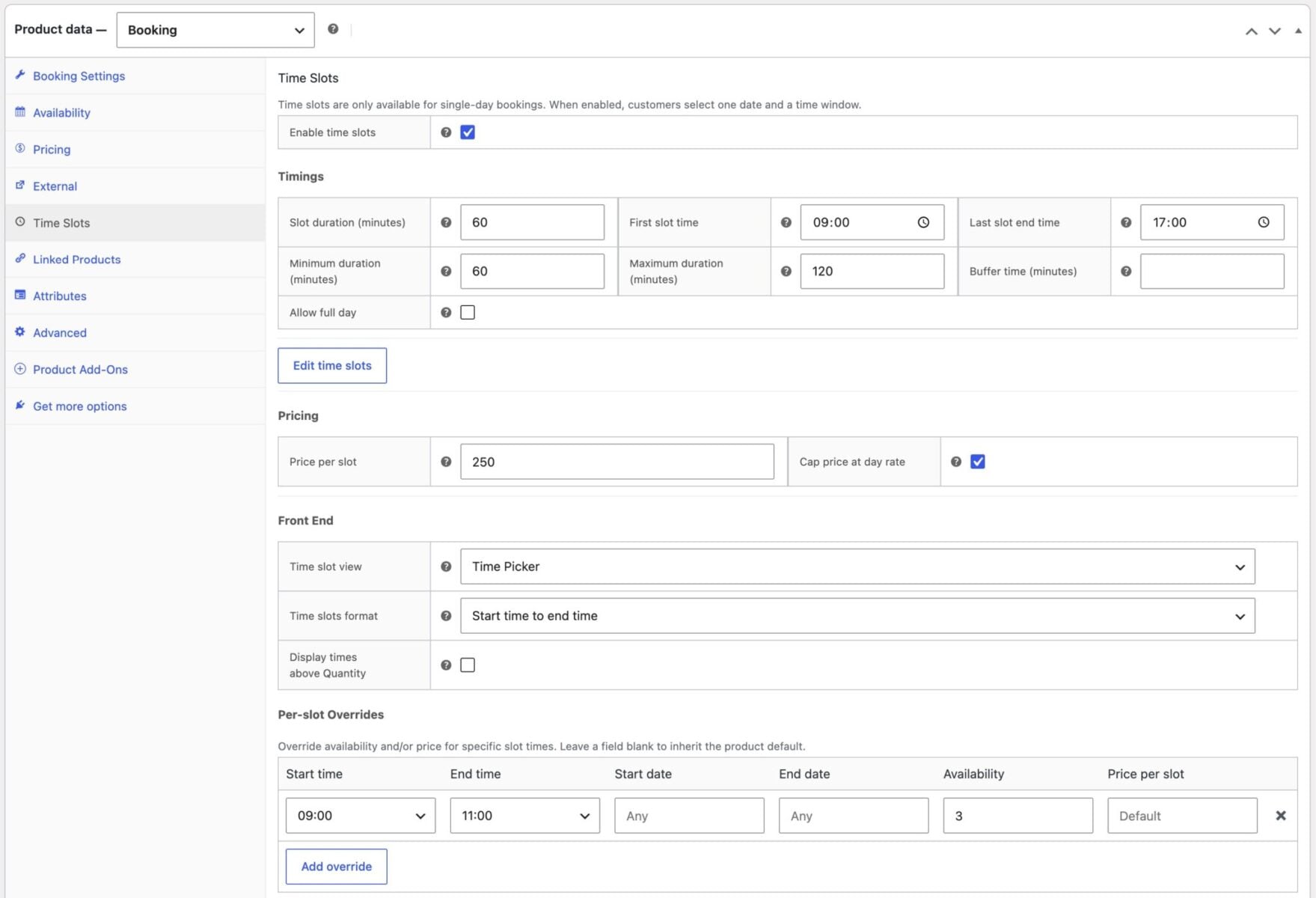
Time Slots Settings
Enable time slots
Activates the time slots feature for this product. When enabled, the booking form forces single-day selection – any Min/Max booking length settings are overridden to 1. All other settings on this tab are hidden until this is checked.
Timings
Slot duration (minutes)
The length of each individual time slot in minutes. All slots on a given day are the same length. This value also determines the step used by the Minimum and Maximum duration fields.
First slot time
The time at which the first slot of the day starts, e.g. 09:00.
Last slot end time
The time at which the last slot must end. No slot will start at or after this time. For example, with a 60-minute slot duration, a last slot end time of 17:00 means the last slot starts at 16:00.
Minimum duration (minutes)
The shortest booking a customer can make, expressed in minutes. Must be a multiple of the slot duration. Leave blank or set to 0 for no minimum.
Maximum duration (minutes)
The longest booking a customer can make, expressed in minutes. Must be a multiple of the slot duration. Leave blank or set to 0 for no maximum.
Buffer time
The Buffer time field subtracts a number of minutes from the displayed end of each slot without changing availability or cost. For example, a 60-minute slot starting at 09:00 with a 10-minute buffer displays as 09:00–09:50, but the next slot still starts at 10:00 and the booking is charged for the full 60 minutes.
You can use buffer time to build in a turnaround or cleaning window between bookings.
Allow full day
Adds a Whole day option to the time selector. Selecting it books the entire window from First slot time to Last slot end time in a single selection. The option is disabled if any slot within the day is unavailable.
Irregular time slots (Edit Time Slots)
By default, time slots are generated automatically at equal intervals from the First slot time to the Last slot end time. The Edit Time Slots button opens a table that lets you customize each slot individually.
To access it: click Edit Time Slots in the Timings section. The table shows one row per slot.
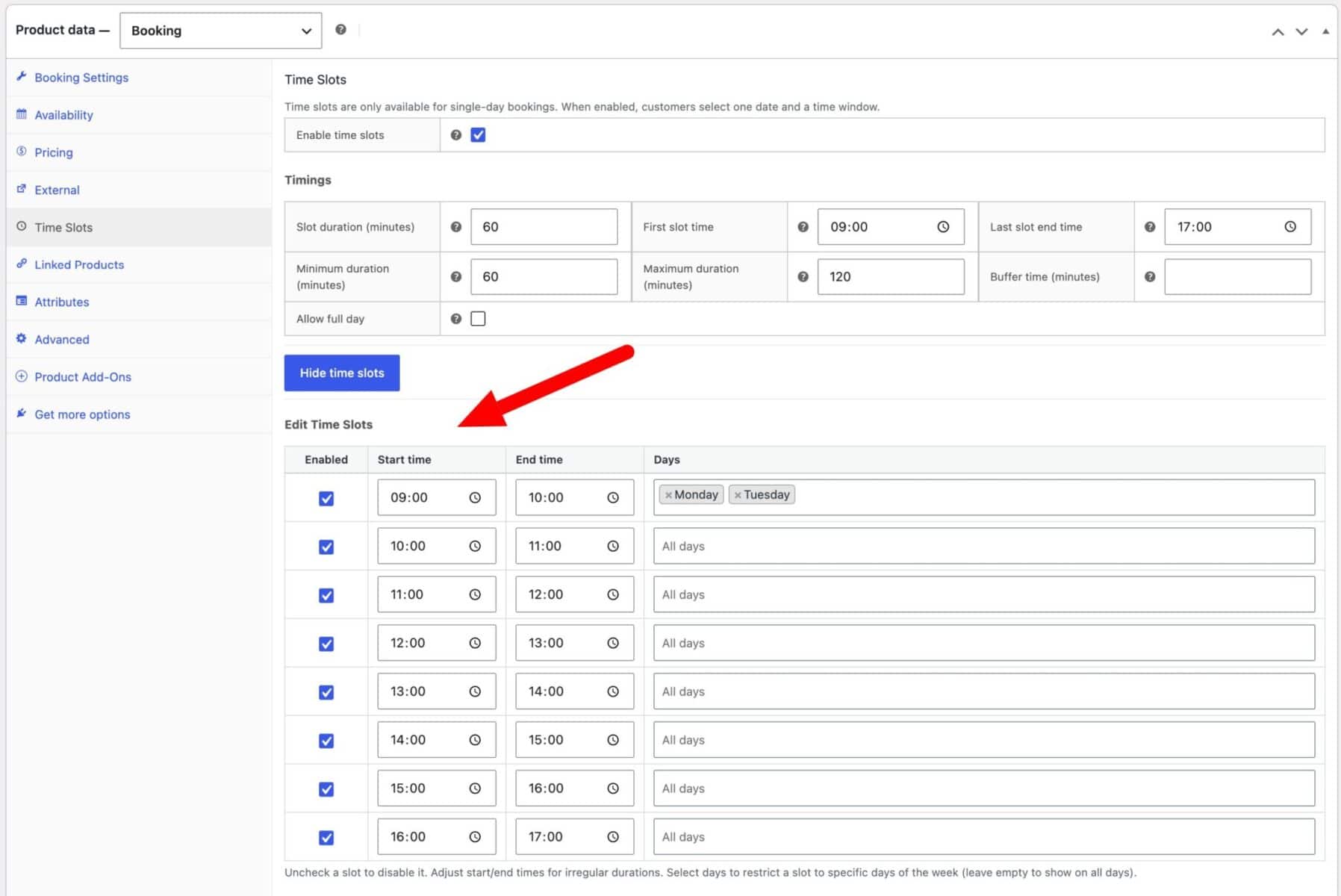
Each row has four columns:
| Column | Description |
|---|---|
| Enabled | Uncheck to disable a slot so it never appears to customers |
| Start time | Override the slot’s start time |
| End time | Override the slot’s end time — this allows slots of different lengths |
| Days | Restrict the slot to specific days of the week. Leave empty to show on all days |
Changes take effect after saving the product. If you change the First slot time, Last slot end time, or Slot duration after customizing slots, your custom slot data is preserved and the table reflects your saved values rather than regenerating.
Use cases:
- A gym that offers 45-minute classes in the morning and 90-minute classes in the afternoon
- A venue that is unavailable on certain days for specific time windows
- A service that closes at different times on weekends
Pricing
Price per slot
The cost charged per slot unit. A booking spanning two slots costs 2x this amount. If left blank, the product’s standard price is used instead.
Cap price at day rate
When enabled, the total slot cost is capped at the product’s standard price. Useful when a full-day booking should not cost more than the day rate even if the per-slot total would exceed it.
Front end
Time slot view
Controls how the time selection UI is presented to customers. Options:
| Option | Behavior |
|---|---|
| Start time and End time | Customer picks a start time, then an end time from a dropdown. |
| Start time and Duration | Customer picks a start time, then selects a duration from a dropdown. |
| Duration, Quantity, Start time | Customer selects a duration first, then enters a quantity, then picks a start time. Available start times update based on the chosen duration and quantity. |
| Time Picker | A visual grid of slot cells. Customer clicks to select a start slot, then clicks again to extend the range. |
| Diary View | A vertical list of slots with availability indicators. Selection works the same as Time Picker. |
Time slots format
When using the Time Picker or Diary View, the Time slots format setting controls how each slot cell is labelled:
- Start time to end time: e.g. 09:00–10:00 (default)
- Start time: e.g. 09:00
- From start time: e.g. From 09:00
Display times above Quantity
When enabled, the time slot selectors appear inside the booking table above the quantity field rather than below the date picker calendar. Not available for the Duration, Quantity, Start time view.
Per-slot overrides
Overrides the default availability and/or price for a specific slot time, optionally restricted to a date range. Each row in the table is one override rule. Leave any field blank to inherit the product default.
| Column | Description |
|---|---|
| Start time | The first slot the override applies to |
| End time | The last slot the override applies to |
| Start date | The first date the override is active (inclusive). Leave blank to apply from any date. |
| End date | The last date the override is active (inclusive). Leave blank to apply until any date. |
| Availability | Maximum number of bookings allowed for this slot on matching dates. |
| Price per slot | Price charged for this slot on matching dates, replacing the default slot price. |
Multiple overrides can target the same slot time with different date ranges to model seasonal pricing or capacity changes. The first matching override in the list is used.
Notes on Time Slots settings
- Changing the First slot time or Last slot end time when existing bookings already exist will trigger a confirmation warning, as existing bookings will no longer match the updated slot schedule.
- Changing the Booking unit away from Day while time slots are enabled will also trigger a warning. Saving with a non-Day unit disables slot functionality on the front end.
- The Per-slot overrides slot selector is populated from the saved Timings settings. If you change the slot duration or times, save first before adding overrides to ensure the slot list is current.
Slot Discounts
You can apply automatic discounts based on the number of consecutive slots a customer books. Discounts are found in the Slot discounts section of the Time Slots tab.
See this article for a more detailed guide to discounts in Bookings for WooCommerce.
Click Add discount to add a row. Each row has three fields:
| Field | Description |
|---|---|
| Min slots | The minimum number of slots that must be booked for the discount to apply |
| Discount | The discount amount |
| Type | Percentage (%) deducts a percentage of the total slot cost; Fixed deducts a fixed amount |
If multiple discount rows are configured, the highest-qualifying tier is applied. For example, if you have a 10% discount at 2 slots and a 20% discount at 4 slots, a customer booking 5 slots will receive the 20% discount.
Discounts are applied to the total slot cost after the day-rate cap (if enabled).
Quick Guide – How to create time slots
Follow the steps below to create time slots for your booking product.
- On the Booking Settings tab, set the Booking unit to Day.
- On the Time Slots tab, check Enable time slots.
- Set your timings:
- Slot duration – how long each bookable window lasts, e.g.
60minutes for hourly slots. - First slot time – when the day starts, e.g.
09:00. - Last slot end time – when the day ends, e.g.
17:00. With 60-minute slots, this creates 8 slots running from 9:00 AM to 4:00 PM.
- Slot duration – how long each bookable window lasts, e.g.
- Set a Price per slot, e.g.
25.00for $25 per hour. - Choose a Time slot view, e.g. Start time and Duration so customers pick when they arrive and how long they need.
- Save the product.
Customers will now see a date picker followed by the time slot selector. For the example above, a customer booking a 2-hour session starting at 10:00 AM would be charged $50.