How do you sell personalized products in WooCommerce?

You can sell personalized products in WooCommerce by adding fields to the product page where customers enter a name or message, upload a photo and choose from options you’ve set. In this tutorial, we’ll build a personalized greetings card from start to finish.
After completing this tutorial:
- Users will be able to:
- Choose a message or write their own
- Upload a photo
- Add a longer message for the inside of the card
- As the store owner or admin, you’ll be able to:
- Charge a flat fee or a price per character for personalization
- Show a field only when the customer needs it
- Receive the customer’s text and files with each order
- As a bonus, we’ll also look at how to:
- Add the same personalization fields to many products
There’s a demo product here so you can see it in action.
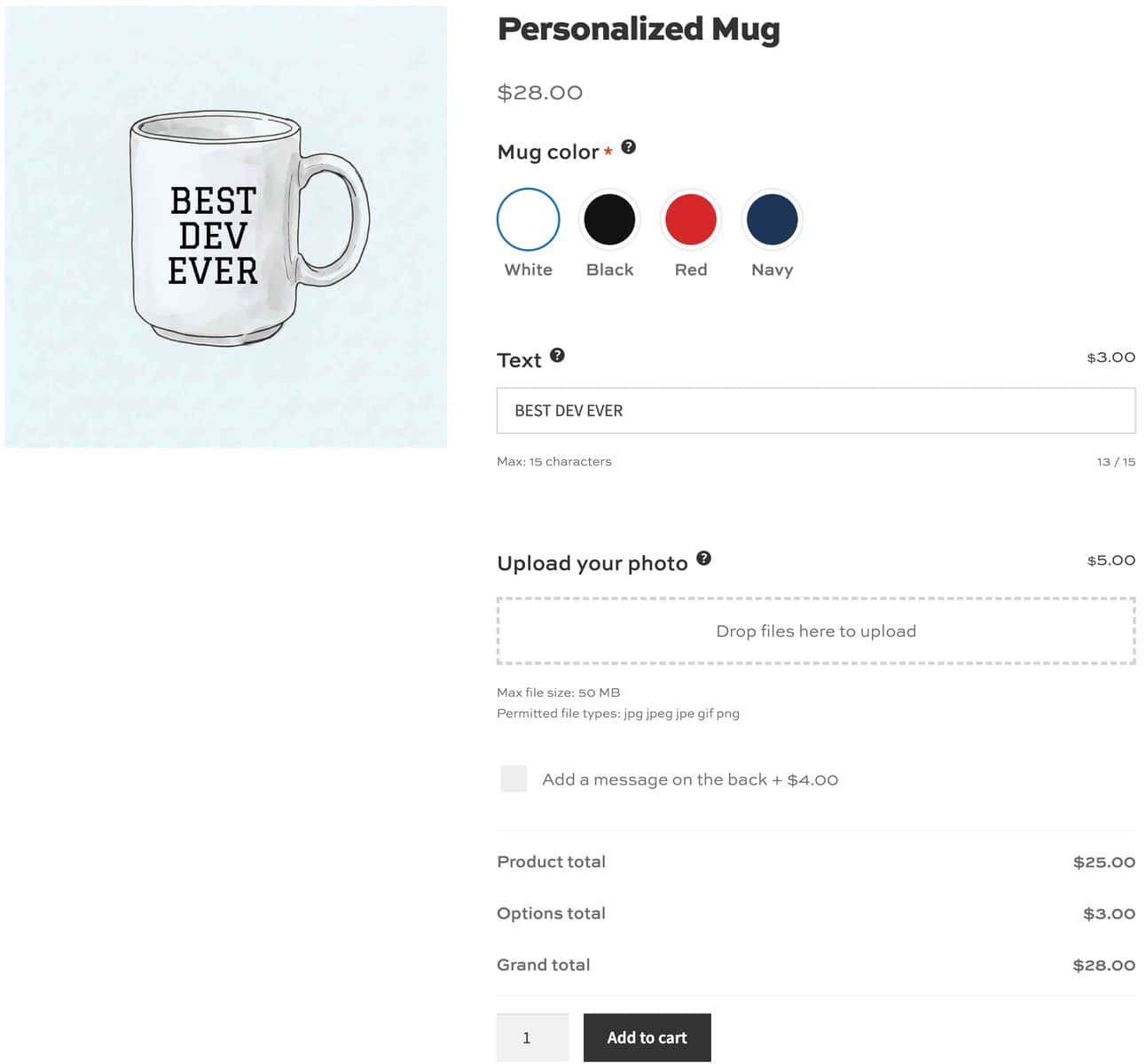
The global personalized gifts market was valued at $32.7 billion in 2025, according to Grand View Research. It’s projected to reach $62.5 billion by 2035.
What is a personalized product in WooCommerce?
A personalized product is one that the customer adds their own content to before they buy. For example, a name engraved on a bracelet, a photo printed on a mug or a message inside a card.
WooCommerce doesn’t have fields for this by default. You add them with a product add-ons plugin, and the customer’s input is saved with their order.
How is personalization different from customization and configuration?
Personalization means the customer supplies something of their own, like text or an image. Customization and configuration mean they choose from options that you’ve defined, like a color, a size or a set of components.
Lots of stores use the terms loosely, and many products actually need both. However, if your product is mostly about choosing components, see our guide to configurable products.
Why can’t you use variations?
Variations are fixed combinations of attributes, each set up in advance. They can’t collect a name, a message or an uploaded file, because you can’t create a variation for every possible input.
You can use both on the same product. Our guide to WooCommerce variations covers the variations side.
What do you need to sell personalized products?
WooCommerce Product Add-Ons Ultimate lets you add 20+ types of fields to any WooCommerce product, each with its own price. It’s our own plugin, and it’s compatible with all themes and page builders and with all WooCommerce payment gateways.
WooCommerce Product Add-Ons Ultimate
Customize products with extra fields and options
If you’d like to compare it with the alternatives first, we’ve tested seven others in our round-up of WooCommerce product options plugins.

We are currently using the plugin for a monogramming service add-on for selected products on our online store. We struggled to find an "out of the box" solution which required minimal setup. Thanks to Plugin Republic's excellent Add-Ons Ultimate plugin, we have been able to offer a customized monogramming service with minimal setup to our customers.
In this tutorial, we’ll assume that you already have WordPress and WooCommerce installed and ready to go.
How to create a personalized product in WooCommerce
Step #1: Install the plugin
Once you’ve purchased WooCommerce Product Add-Ons Ultimate:
- Download the plugin’s zip file by clicking on the link on your order confirmation screen or in your welcome email. You’ll receive the email automatically a few seconds after you’ve completed the purchase
- Go to Plugins > Add New in your WordPress dashboard
- Click on the ‘Upload Plugin’ button
- Drag and drop the plugin’s downloaded zip file into the ‘Choose File’ area and click ‘Install Now’
- When the plugin has uploaded, click the ‘Activate Now’ button
The plugin is now active and you’re ready to create your product.
Step #2: Create the product and add a group
With Add-Ons Ultimate activated, you can create your mug in the same way you would any other product:
- Go to Products > Add New and enter a name, a price and a product image
- Click the ‘Product Add-Ons’ tab in the ‘Product data’ section
- Click ‘Add Group’
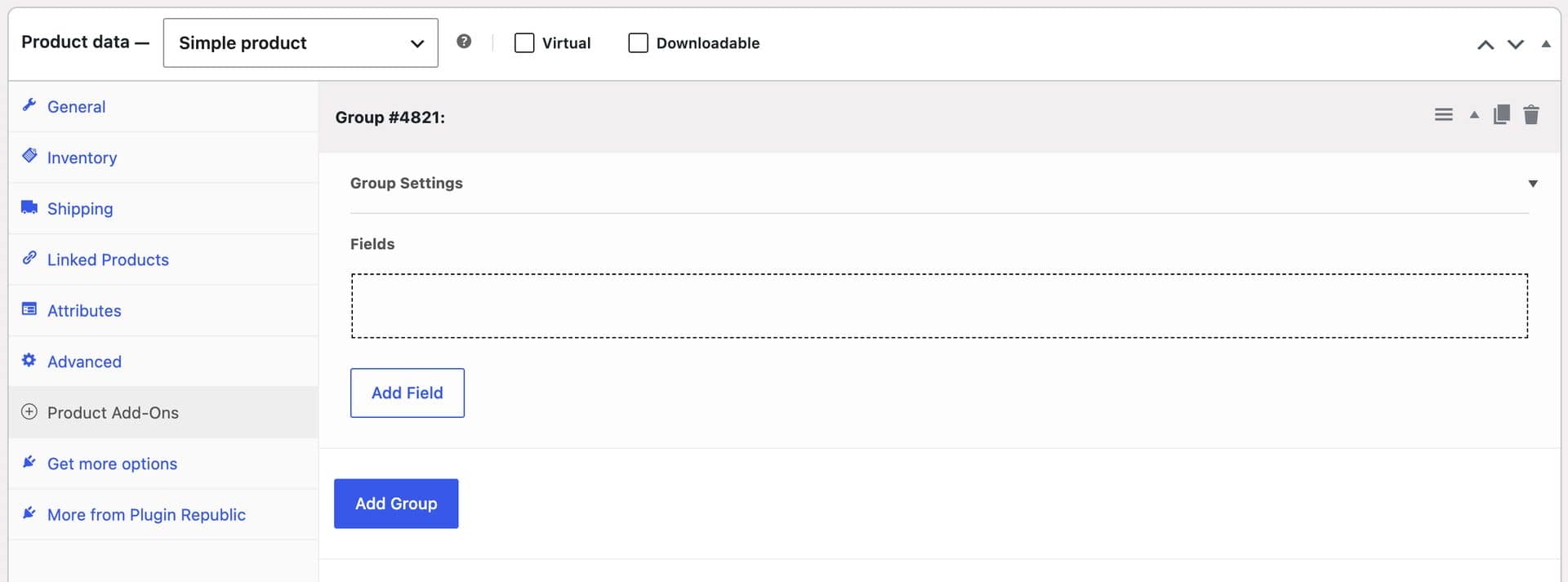
You now have a product with an empty group for your personalization fields. Now let’s look at how to add the first field.
Step #3: Add swatches for the mug color
Let customers choose the color of their mug:
- Click ‘Add Field’ and set ‘Field Type’ to ‘Swatch’
- Enter ‘Mug color’ in the ‘Field Label’ setting
- Click the ‘Options’ tab and click ‘Add Option’ for each color
- Enter a label and a hex value for each color, or upload an image of the mug in that color
- Check the ‘Required Field’ setting
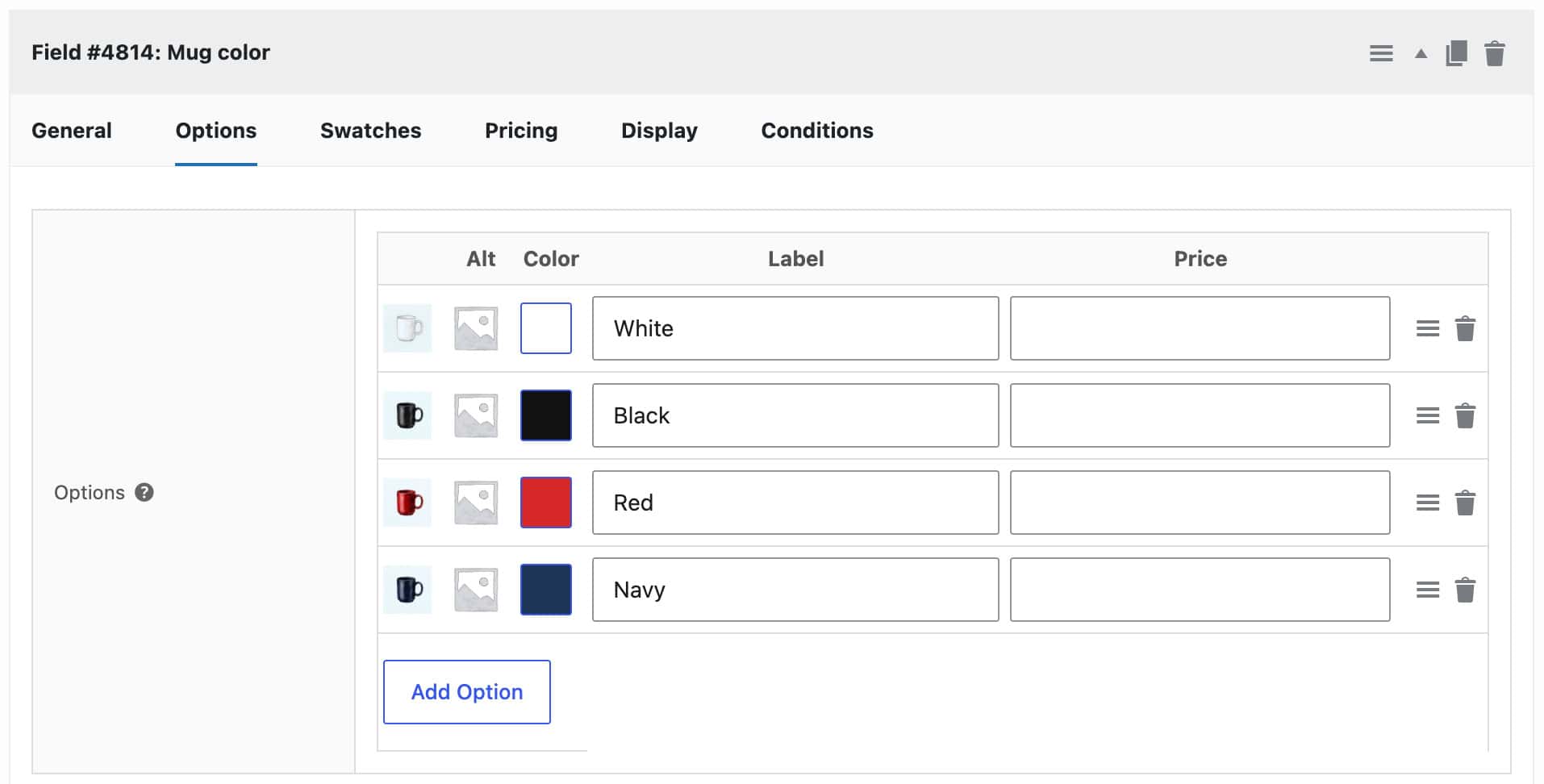
You now have a row of color swatches on the product page. You can enter a price for any color that should cost more.
Step #4: Add a text field for a name
Add a field where customers type the name to be printed on the mug:
- Click ‘Add Field’ and set ‘Field Type’ to ‘Text’
- Enter ‘Name’ in the ‘Field Label’ setting
- Click the ‘Text’ tab and enter 15 in the ‘Maximum Characters’ setting, or whatever fits your print area
- Click the ‘Pricing’ tab and enter a price in the ‘Field Price’ setting if you want to charge for adding text
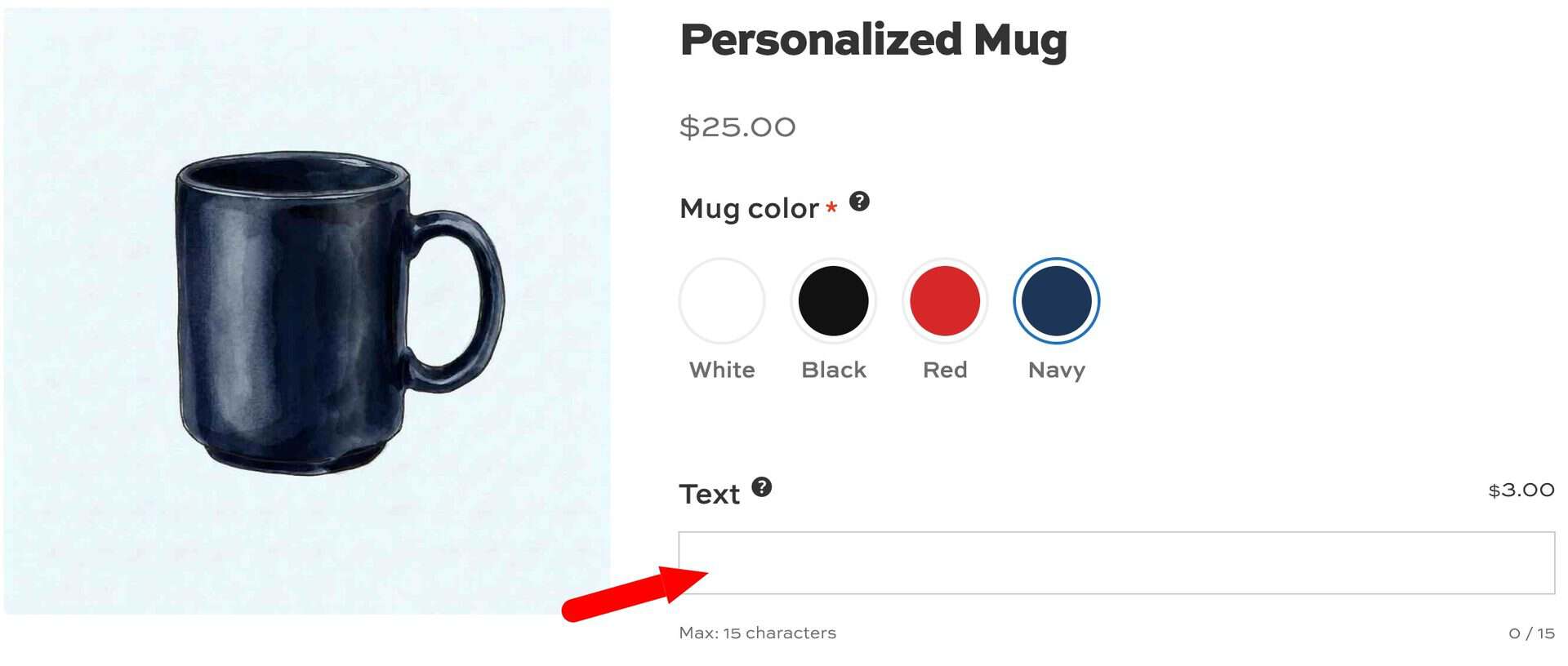
Customers can now enter a name, and the product price updates if you’ve set a fee. The character limit stops them entering more text than you can print.
Step #5: Add an upload field for a photo
Let customers upload their own photo to be printed on the mug:
- Click ‘Add Field’ and set ‘Field Type’ to ‘Upload’
- Enter ‘Upload your photo’ in the ‘Field Label’ setting
- Click the ‘Pricing’ tab and enter a price in the ‘Field Price’ setting if you want to charge for a photo
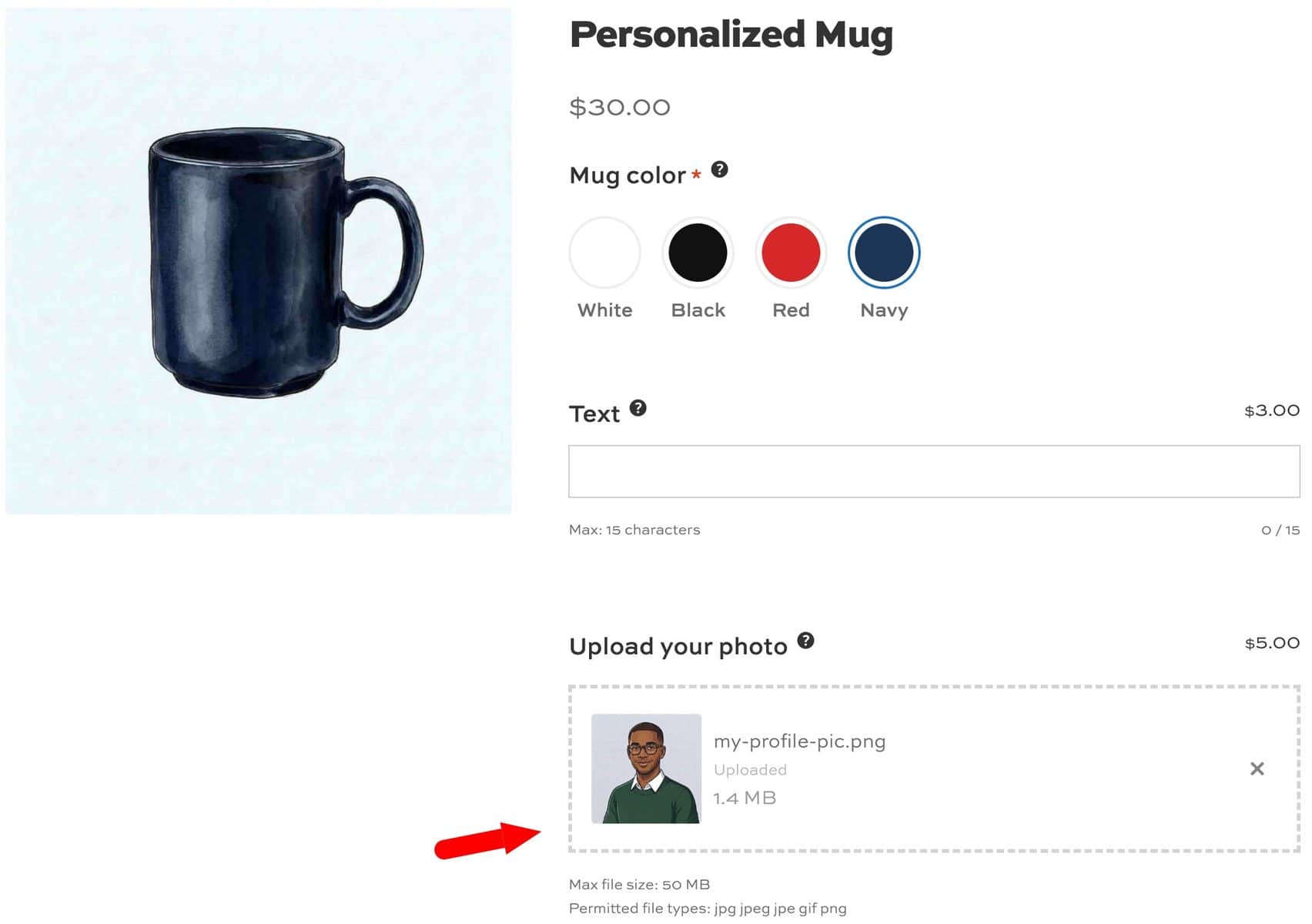
Customers can now drag and drop an image onto the product page. To set the permitted file types and the maximum file size, go to WooCommerce > Settings > Product Add-Ons > Uploads.
Step #6: Add an optional message that only shows when it’s needed
Offer a message on the back of the mug as a paid extra, and only show the text field to customers who want it:
- Click ‘Add Field’ and set ‘Field Type’ to ‘Checkbox’
- Enter ‘Add a message on the back’ in the ‘Field Label’ setting
- Click the ‘Pricing’ tab and enter the fee in the ‘Field Price’ setting
- Click ‘Add Field’ again and set ‘Field Type’ to ‘Text’
- Enter ‘Your message’ in the ‘Field Label’ setting and set a ‘Maximum Characters’ value on the ‘Text’ tab
- Click the ‘Conditions’ tab on the text field and click ‘Add Condition’
- Choose to show the field when ‘Add a message on the back’ is checked
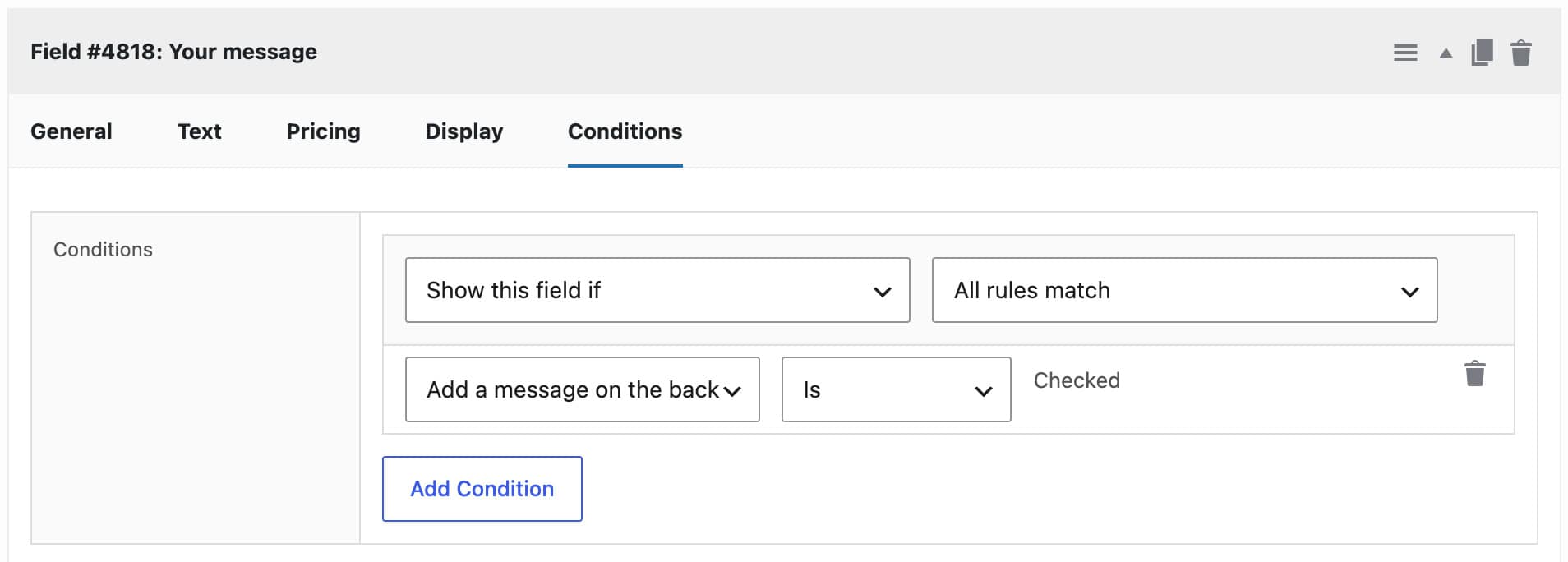
Publish your product. Customers can now pick a color, add a name, upload a photo and tick a box to add a message on the back. The message field stays hidden until it’s needed, which keeps the product page short.
Our guide to conditional product options has more examples.
Step #7: Optionally add a live preview
You can show the customer’s photo and name on the mug as they add them, using the Image Preview and Text Preview extensions. This helps customers check their design before they buy.
We’ve covered the set-up in a separate tutorial on adding a live preview to WooCommerce products, which builds a personalized phone case.
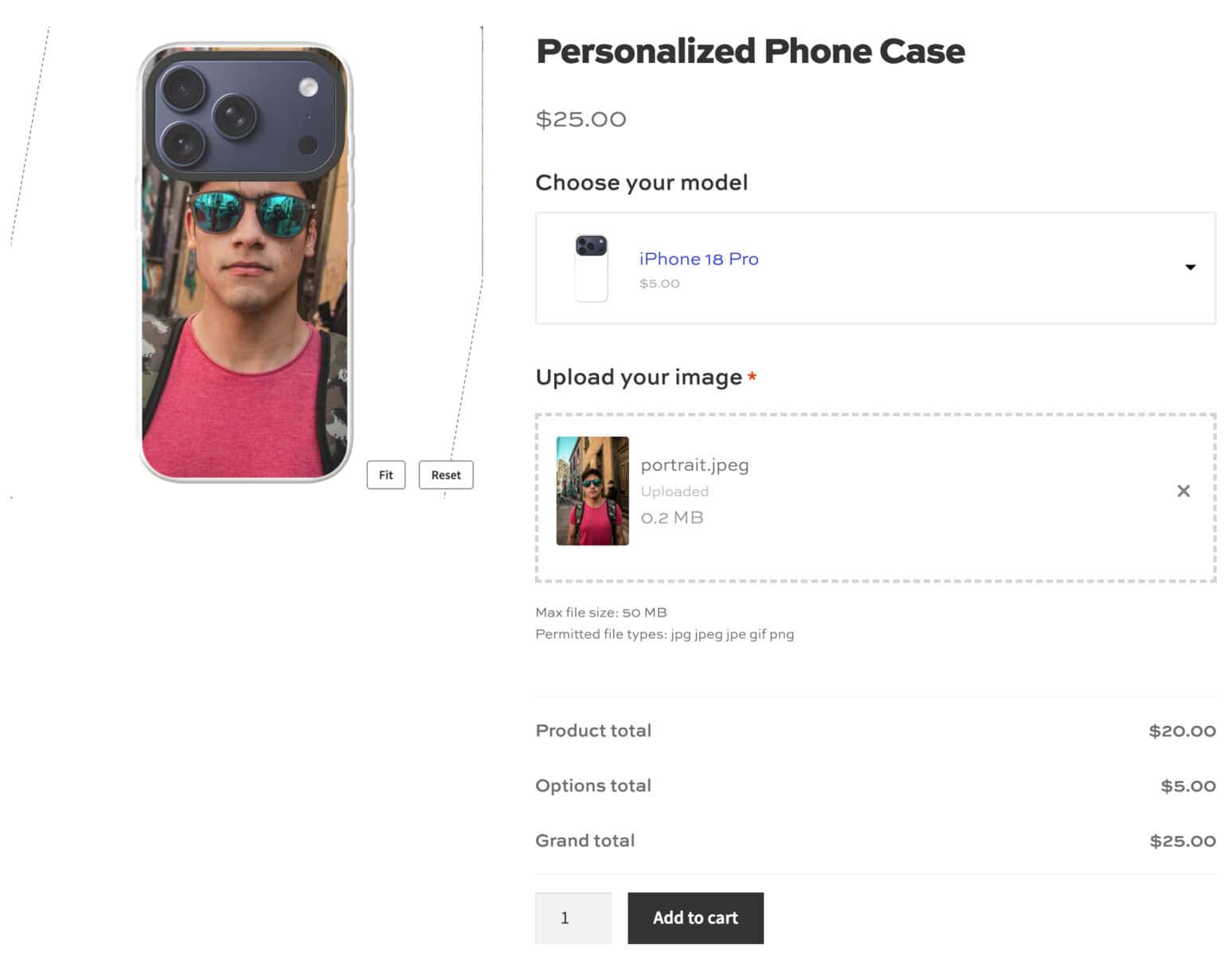
That’s how to create a personalized product in WooCommerce using the Add-Ons Ultimate plugin.
What do personalized product examples look like?
Let’s look at some other products you can build with the same fields. You can add as many or as few fields as you like.
Example #1: Greetings cards
A personalized card needs fields for the front and for the inside, so it uses two groups:
- Add a ‘Select’ field with a list of messages for the front, plus an option to write your own
- Add a ‘Text’ field for the custom message, shown only when that option is selected
- Add a ‘Textarea’ field in a second group for the inside message
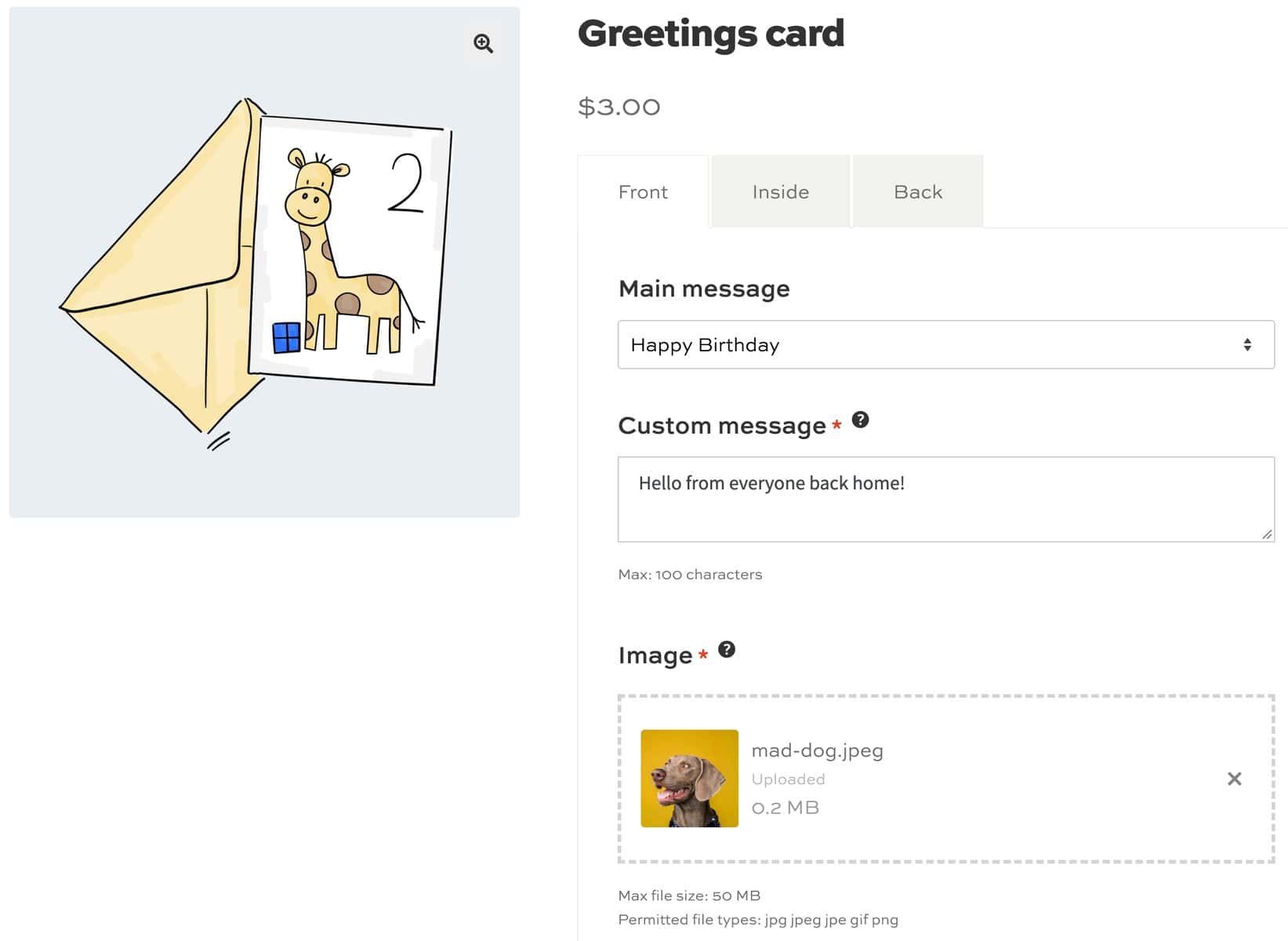
There’s a demo product here so you can see it in action.
Example #2: Engraved jewelry
An engraved bracelet is usually priced by the length of the engraving:
- Add a ‘Text’ field, enter a ‘Field Price’ and check ‘Price Per Character?’ on the ‘Pricing’ tab
- Enter 5 in the ‘Free Characters’ setting on the ‘Text’ tab so the first five characters are included
- Check ‘Only Charge Alphanumeric’ so customers aren’t charged for spaces and punctuation
Our guide to WooCommerce product engraving goes through this in more detail.
Example #3: Phone cases
A phone case combines a model selector, a photo upload and a name. The customer sees their photo on the case as soon as they upload it.
The live preview tutorial builds this product step by step.
Example #4: Printed t-shirts
A printed t-shirt uses color swatches, a text field for a slogan and an upload field for a graphic. See our guide to creating a WooCommerce custom t-shirt designer.
How do you manage orders for personalized products?
Once you’ve got your personalized products up and running, you’ll want to be able to manage them from the back end.
Manage orders
Go to WooCommerce > Orders and open an order. The customer’s selections and text are listed under each product, and uploaded images appear as links that you can click to view the file.
The same details appear in the cart, at checkout and in the order emails.
Download uploaded files
To download all the files for an order as a zip, enable ‘Organize uploads by order’ in WooCommerce > Settings > Product Add-Ons. A ‘Download files’ button will then appear on the order screen.
You can also enable ‘Attach uploads to emails’ so that files arrive with your new order emails. Our guide to WooCommerce image uploads covers the upload settings.
Bonus #1: Add the same personalization fields to many products
If you sell a range of personalized products, you can create the fields once and apply them to all of them:
- Go to Product Add-Ons > Global Groups and click ‘Add New Group’
- Enter a title for the group
- Choose where it appears in the ‘Applies To’ setting: on all products, on specific products or on specific categories
- Click ‘Add Field’ and create your fields in the same way as above
Now any change you make to the group is applied to every product it’s assigned to.
FAQs
Yes, with the Image Preview and Text Preview extensions. The customer’s photo and text appear on the product image as they add them, and our live preview tutorial has the steps.
Yes. Every field can have its own price, so you can charge a flat fee for a name, a fee for an uploaded photo or a price per character for an engraving.
Yes. The fields are responsive and follow your theme’s styles.
Yes. You can use variations and add-on fields together on the same product, and you can show certain fields only when a specific variation is selected.
Personalized products in WooCommerce – recap
In this article, we looked at how to sell personalized products in WooCommerce. We built a personalized mug with color swatches, a name, a photo upload and an optional message that only appears on request. We also looked at how to manage personalized orders and how to add the same fields to many products.
WooCommerce Product Add-Ons Ultimate gives you the text, upload and swatch fields a personalized product needs, with conditional logic and per-character pricing in every license.
WooCommerce Product Add-Ons Ultimate is compatible with all themes and page builders, including Astra, Flatsome and Woodmart, and page builders like Elementor and Divi. If you have any questions, our world-class support team is on hand to help. And it’s backed by a 14-day money-back guarantee, so you can try it risk-free.
WooCommerce Product Add-Ons Ultimate
Customize products with extra fields and options
Hi!
I’ve got a sandwich bar in Budapet, Hungary. I’m looking for a theme or woocommerce plug in. Create your own sandwich.
basic sandwich > 20cm or 40cm > rye or white > choose toppings > price
Thank You!
Hi Tamas
The WooCommerce Product Add Ons Ultimate plugn – https://pluginrepublic.com/wordpress-plugins/woocommerce-product-add-ons-ultimate/ – can do this. You can create a product in WooCommerce then add extra options like bread and fillings using the plugin.
I’m happy to help you set it up if you decide to purchase.
Thanks
Gareth
Thank You for the quick answer.
Really it knows it 🙂 Promising.
Although most of our guest are english speakers, I have to make a version in hungarian language too. Is it possible?
I’m rookie in the page bulding theme, so I decidede slowly.
Thanks for your patience.
Hi Tamas
Yes, the plugin is translatable so you can create a Hungarian version if you need. I can send you the files and some guidance if you like?
Gareth
Very kind of You.
One more question: two languages means two separate site with two separate woocommerce?
Hi …
How i am using this plugin it works fine on wordpress builtin themes but i am developing custom theme and want to know how can i display the field on my custom made template.
Thanks
Hi Abid – which plugin are you using?
Gareth
Hi, I also have a question.
It’s for a jewelry site.
let’s say I first want to let a customer select the bracelet color (all bracelets are the same except for color), then let them choose a charm to add to the bracelet… after that they can purchase, or add more charms.
Can the product do this?
And when the select a color or charm, will it load the appropriate image for that single product (not end result)?
Thanks
Hi – yes, you can use the plugin to allow customers to add charms to the bracelet. But the plugin doesn’t change the product image.
Gareth
Thanks for the fast reply… clear so it’s all text options, no visuals to select from… that’s too bad. maybe in the future?
At some stage, yes.
Does the product price get updated automatically once the customer selects an addon ? Or the updated price is only seen at the checkout page?
Hi Mike – yes, the price gets automatically updated on the product page when an option / addon is selected.
Gareth
Thanks for the prompt response.
Could you also tell me if I buy license for one site (domain) would that work for that website’s subdomain as well? eg: shop.domain.com
Hi Mike – yes it would.
Gareth
Hello Gareth,
I would like to explain my need so that you can tell me if this plugin is capable. That would make a buying decision for me.
I am trying to sell T shirts on my online store. I want customers to be able to do the following:
1) Pick a color from given ones. Once a color is picked, the corresponding shirt (with the selected color) should show up.
2) Pick any color from a color picker (in hex or rgb) for their shirts. (A corresponding picture need not show for this)
3) Add a name to be printed on the shirt.
4) Add multiple names incase they need to buy more of the same product but with different names.
5) Upload a logo/picture to be printed on the shirt.
6) Product Prices (shown right beside the product picture) be updated sequentially, as the customer keeps adding stuff.
7) Regarding the extra info taken on the product page eg name to be printed: Would this info be a part of the same email that WooCommerce sends the admin (site owner) as part of other order details. Or would this be a separate email?
Please provide feedback on the plugin’s capability about each point separately.
Thanks in advance.
Thanks Mike. Here are the answers:
1. You can do this through WC variations.
2. My plugin doesn’t currently have a color picker option, though I will add one.
3. Yes.
4. You can have a text field where they could add multiple names.
5. Yes.
6. The product price is updated next to the Add to Cart button as users update options.
7. Extra info comes through on the same email.
Have you seen the demo site?
Gareth
Hello Gareth,
How can I edit a product extra group? I created one but the conditions don’t seem to be working correctly and I can’t see a way to edit it and have to delete it and start over.
FYI… The “Add Product Group” from my WP Dashboard under “WooCommerce Product Add Ons Ultimate” > “Add WooCommerce Product Add Ons Ultimate” doesn’t let me add anything. I can select the fields but it none will take any input… I am creating the product groups and conditions from the “Products” section of each product and it is here where I do not see any method to edit the product group once it has been created (only move, duplicate or delete).
Thanks,
Hi Robert
Please refer to https://pluginrepublic.com/support-categories/product-extras-for-woocommerce/ for how to use the plugin. You need to add product extras to individual products, not via the WooCommerce Product Add Ons Ultimate item on the dashboard which just records entries from orders.
Gareth
Hello,
First of all great plug in, I enjoy it a lot! 2 questions:
1. is there any way to add custom css to the product extras? If so do you have some templates.
2. is there any way that people can upload stuff (media) without being logged in?
Looking forward to your answer,
Richard Hopp
Hi Richard
You can add custom CSS via the Customizer > Additional CSS panel.
You can allow users to upload media without being logged in. Go to WooCommerce > Settings > WooCommerce Product Add Ons Ultimate and uncheck ‘Users must be logged in to upload’
Thanks
Gareth
Hi, this question regards helping to cut time while adding products to our website as we have 1500+ products all with variations it is very time consuming. Can I bulk set this plugin to add generic custom fields for all products?
For example
MOQ
Lead Time
Product Size
Print size
& then be able to set options which I use regularly from a drop down or add new options.
For example MOQ is often either 3 days, 5 days or 7-10 days so would save time typing for each product.
Thanks in advance
Ryan
Hi Ryan
Global extras are going to be in the next version of the plugin. I don’t have a date for when that will be available but will be some time this summer.
Thanks
Gareth
Hi,
I’m creating a customizable uniform website in woocommerce and want to know if there is anyway to add the option for customers to be able to input multiple name and numbers at one time for a group order? I am going to use the Woocommerce product designer plugin.
Hi! This plugin is looking good.
Is there a way to have file uploads go directly to Dropbox (or Amazon, etc.) instead of to my site server?
Thanks,
Winter!
Hi – there isn’t a method to do that from within the plugin. However, you might find that there is a separate plugin that will allow you to do this.
Gareth
Hi, Is it possible to use this plugin and have personalization done via an “add-to-cart” URL instead of as an option for a buyer to enter? I want to set the personalization for a team number and would lcreate a unique button URL that does something like “/cart/?add-to-cart=1243&quantity=1&team_number=0064” . Where 1243 is the product and 0064 is the team number that I am adding. I need to access this team number in cart, checkout and IPN notifications to/from paypal. Jill
Hi Jill
No, that’s not currently possible with this plugin. Happy to discuss any custom coding you’d like – just email me on info[at]catapultthemes.com.
Thanks
Gareth
What if i have fields for a product, the user selects the quantity to be 5 or more for example, can I ask the user to fill the form for each item?
for example, pizza, he will select 5 pizzas of the same kind but with different 5 toppings
Hi Omar
The user would need to select one pizza with the first topping, add that to the cart, then select the next pizza with a different topping, etc.
Gareth
Hi. I want to make a pop up for the extra products. The problem is that I don’t know how to add extra products in a pop up..if a client wants 2 different things and 2 boxes I want that to show him a pop up message like: Hey. You have 2 boxes, don’t you want us to wrap the gift in one bigger box?
Hi There
I am busy with a website that sells dinner packages which there are 4 at this stage. Each dinner package you can choose 5 meals out of 10 for the price of that package. So my question is would this WooCommerce Product Add Ons Ultimate – WooCommerce product addons plugin let me be able to let the customer choose 5 out of the 10 meals available for each product and then choose from 1 – 6 people to cater for.
Hope you understand what I am trying to achieve and could lead me in the right direction.
Thanks for the post
Hi Shane – if I understand it correctly, you’d have 10 meals as options and users would be able to select 5 of those options. Is that correct?
Hi
Is it a way to set a field in order to send a virtual product to friend. for example define “Friend email ” field and when this field filled the product send to thid email address. how to call this field in some other plugins?
Hi – that’s not possible with this plugin. I’m sure it can be achieved with some custom code.
Gareth
Hey Gareth
Thanks for a great tutorial on custom giftcards.
I intend to add custom posters to my shop and would very likely be using “Product Add-Ons Ultimate” as part og the setup.
But the biggest challenge is how to actually generate the PDF’s (or what ever format the offset guy will print the poster from) when the customers have finished their design. Do you know of any plug-ins, API’s or services that can do that
My webshop is not live yet, so i can not provide a link to it 🙂
Thanks in advance
Hi Jeppe
Unfortunately I don’t know of any plugins that will help you with this. If you find something, please let me know as it would interesting to add it to this post.
Thanks
Gareth
Hi. Can any of your plugins help me insert more content under the product and description?
I want to display the product as the default woocommerce template, but then I want to add more text and some buttons with download-able pdfs and a contact from underneath. Hope you get, what I mean.
The thing is – I am not going to sell anything yet, but want to display it like a shop and later on add price and “add too cart”. But for now, I want the customers to be able to download a “how to guide” and to fill out the contact form to “get an offer” on the specific product.
Hi – the Add-Ons Ultimate plugin will allow you to add more content before the add to cart button. So depending on your theme, this would normally be under the short product description.
It would be possible to add buttons and downloadable PDFs – though you would need to customise one of the field templates (https://pluginrepublic.com/documentation/overriding-templates/). It’s possible to do it.
Thanks.
Gareth
Okay, thank you for the quick response 🙂
I have an add on plug in and I want my add on products have images, and this images changes when I choose in the dropdown menu.
Hi Gareth — is it possible to pre-populate an add-on field (text or radio or dropdown) with user profile meta? I’m looking for a way to allow the logged in customer to indicate “re-use” of an uploaded file from a previous purchase (of same or different product). For example, custom decoration requires a one time fee to produce the artwork from the customer’s original file. On subsequent orders, I need to allow customer to indicate they’ve already provided the art and paid the fee.
Thanks.
Hi Scott
Yes, you can pre-populate add-on field values. Here’s a simple example: https://pluginrepublic.com/documentation/auto-populate-field-value/.
This uses parameters in the URL but you can also query user data and check whether a customer has already provided the artwork.
Thanks
Gareth
Bonjours Gareth
Y a-t-il possibilité que le slogan ou le texte que le client choisit puisse ce voir sur la photo du produits
Bonjour Serif
Non, il n’y a pas possible à ajouter un slogan sur la photo.
Just an update on this. It’s possible to preview text and uploaded images on the main product images using the following plugins:
https://pluginrepublic.com/wordpress-plugins/text-preview-plugin/
https://pluginrepublic.com/wordpress-plugins/image-preview-for-add-ons-ultimate/
I have a sushi restaurant, we offer an offer where people can put together their own combination, but they can only choose a limited amount of products. I require that the checkbox group has a product selection limit and that it be configurable, your application has that option.
Yes, correct. The checkbox group field allows you to specify a minimum and maximum number of selections.
can you show me one of your examples with this action. Thank you.
We are interested in buying your product in the Pro version, but since we made the switch of the wordpress application from a test server to production without losing the license; that is, when I move my wordpress page to another hosting with another domain, how do I keep the same license?
Hello,
Is the adding responsive? Will it work with desktop and mobile screen sizes?
Hi Rodney
Yes, the fields are responsive and will mostly follow your theme’s styles.
Thanks
Gareth
How can I preview the product?
Hi Michael
There’s no image preview – is that what you’re looking for?
Thanks
Gareth
Hi Gareth, thanks for this great article. I’m trying to create something like your custom greeting cards example, but I’m having problems. I want to add 2 customized cards for different people – I don’t want them both to having the same name or picture, obviously. So changing the “quantity” to 2 is useless. However, selecting the “sold individually” option means I can only add one card to my basket. How can I sell each product individually but allow the customer to add more than one to their basket? Am I missing something really obvious? Thanks, Dave
Thanks Dave. There’s a couple of options – either the user enters their name, adds the product to the cart, then enters a different name, and adds the product to the cart. Or you have more than one add-on field, allowing for multiple names.
Thanks.
Hi, I’ve just purchased the pro version for my site. I’m currently setting up a product box offering my customers to choose 20 items out of 8 different products.
My question is, can I set the individual stock quantity for each of the 8 products? Example: If out of the 8 different products I sell, 2 of those sell out and I only have 6 different products in stock on offer, I would need my customers to be able to still choose 20 items from these. If that makes sense.
Would I need to input/control stock levels on my original singular item listings on my site and would it then automatically link across to my product boxes and deduct? Many thanks
Hi Jo
Yes, if you’re using child products as the items for the box, then you can manage their stock. Your customers will still be able to choose from in-stock items.
Thanks
Hello
How can i change the ulpoader to a drag and drop format?
Thanks in advance
I got it:) But I have another question how can I hide these values under the ajay uploader
Max file size: 2 MB
Permitted file types: jpg jpeg jpe png gif
You can use some CSS:
.pewc-description {display: none;
}
May I ask if the stock of product options are manageable? Thanks.
Hi
Yes, when you use the ‘Products’ field, your options are other products so the stock is reduced whenever an item is purchased, just as with a standard WooCommerce product.
Thanks.
Hello, I added groups and fields but they’re not showing in front . It only showing add to cart button. Anything wrong ? Thank you
Hi
In the first instance, please check https://pluginrepublic.com/documentation/add-on-fields-not-showing/.
If you need further assistance, please raise a support ticket via https://pluginrepublic.com/support/
Thanks.
Hi!
I have a shop with 100 products and would like to know if there is a way of using a “customization template” or do you have to apply the fields for every product?
Thank you!
Hi David
Yes, you can use Global Add-Ons: https://pluginrepublic.com/documentation/global-add-ons/. These allow you to create fields and apply them to multiple products – either all products, specific products by ID, or specific product categories.
Hope that helps.
Thank you for the information! It was really helpful. I’m still researching for what the client exactly needs, but will keep this in mind. Have a nice day!
I want 5$ per word to be automatically included in the total, if someone wants to add text on my product. Is this possible ?
Hi
You can specify a cost per character and have this added to the product price.
Thanks.
Hi, Is there is a way or any recommendation to have the preview of the product selected by the customer? Thank you
Hi
You can update the main product image based on the user’s selection in an image swatch field; or you can use the Image Preview extension for Add-Ons Ultimate to add an uploaded image to the main product image.
Thanks.
Hi
There Should be an option for preview
Slogan Text Should Display on Product Moreover There should be an option to chose which font size + common font style option to display on t-shirt With Preview
If Its Possible Please Let Me Know
Hi – yes, you can preview text on your image using the Text Preview extension: https://pluginrepublic.com/wordpress-plugins/text-preview-plugin/.
There’s a simple demo here: https://pluginrepublic.com/wordpress-plugins/text-preview-plugin/.
Thanks.
can this be connected with DOKAN plugin
Hi
Yes, the plugin will work with Dokan but your vendors will not be able to configure add-on fields from the front end. This will need to be done from the admin.
Thanks.
Hey, just wondering if there’s a way to import a SVG so that it outlines the shape (and create a custom 2d template) for the customer to import designs on it? (And that anything that’s out of the outline is masked)
Thanks
Hi
That’s not currently possible with this plugin.
Thanks.
Hi Gareth,
I was thinking: Is it possible in this setup to add a quantity selector like this (see screenshot in the link below):
https://imgur.com/a/uXip8dl
Looking forward to hear from you.
Martijn
Hi Martijn
Yes, you can also allow the user to select a quantity. There’s a setting for ‘Products Quantities’: https://pluginrepublic.com/documentation/product-fields/.
Thanks.
Great. Is that available in the Basic version? Or just in the Pro version?
This is available in the Pro version only.
Thanks.
How do you get the product image to change with the color of the t-shirt like in the example product?
Hi Nick
You can use an Image Swatch field and opt to change the main product image. If you need more help with this, please raise a support ticket here – https://pluginrepublic.com/support/ – and our team will get back to you.
Thanks.
Hi,
I’m looking for an all in one plugin for my “Personalised gifts” website. The easy part is getting a plugin for the sublimation services, but I will also need a plugin for the laser engraving and laser cutting services. I want my customers have the opportunity to have the same options as sublimation, but in a laser engraving format.
Hi Kim
Could you give some more details about what options you would like to have on the product page?
Thanks.
Hi Gareth! Is there a way to add the Products Addons added to a Simple Product to the window of a Composite product that has that Simple Product as one of it’s components?
Hi Tomas
It’s not possible to insert add-ons to products that are components of other products. You can only include add-ons on the main product itself.
Thanks.
Hi 🙂
Can I attach a video file and send it with a personal greeting?
Hi
Yes, you can allow users to upload video files and enter a custom text message.
Thanks.
Amazing, thank you for your quick reply. Any chance to test this before buying the plugin? Also – can the process be translated to other language using TranslatePress?
Hi
Yes, the plugin is fully translatable. We don’t have a demo version but we do have a 14 day money back guarantee. I’d be happy to refund you if the plugin doesn’t meet your expectations in any way.
Thanks.
Can we design our custom fields according to our own requirement – For example making border outside of the field and style it ?
Hi
Yes, you can update some styles directly through the Customizer or apply your own CSS for more advanced design options.
Thanks.