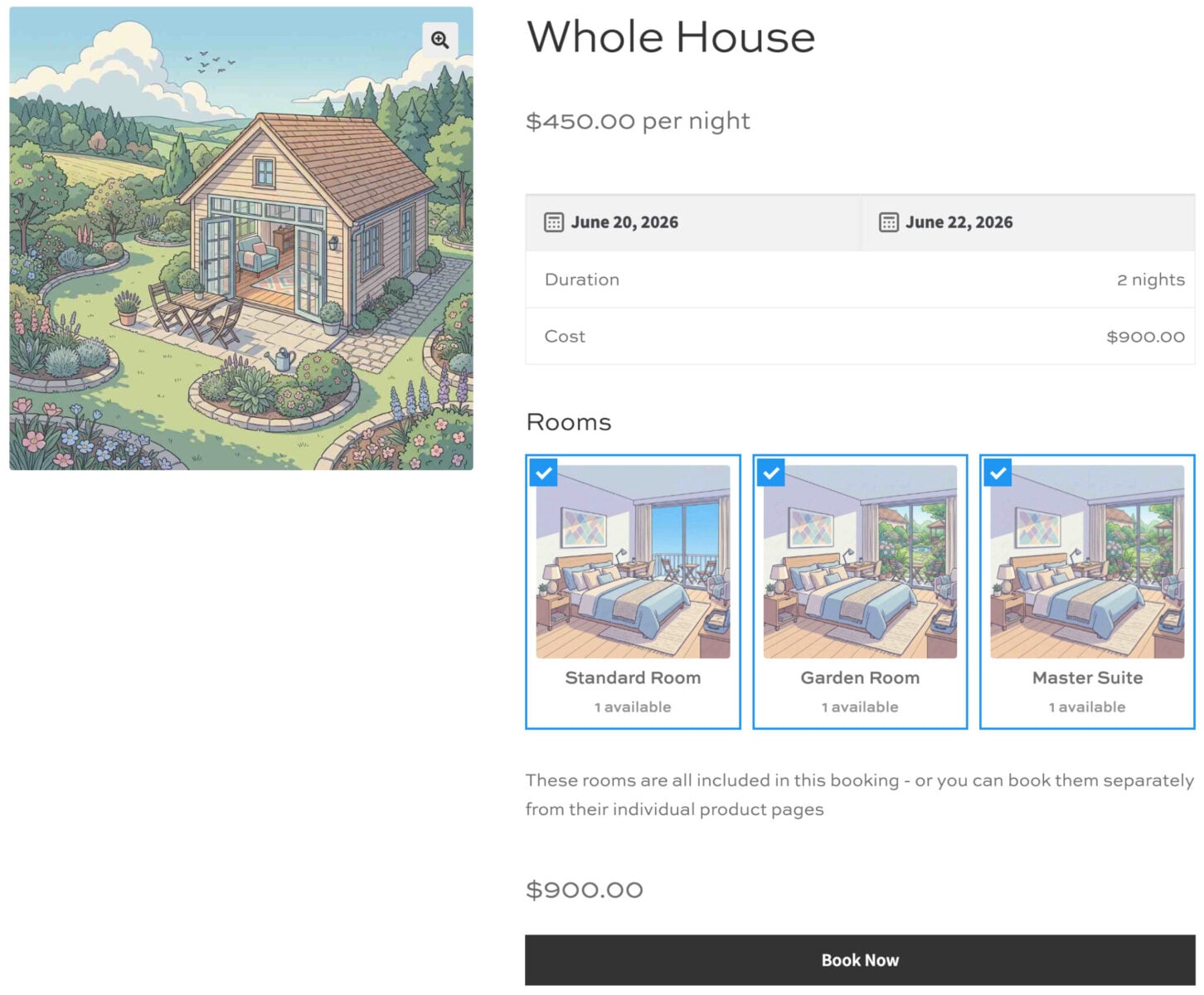
A rental bundle lets you sell several individually bookable items together as a single package. A customer books one product, the bundle, and all the items within it are reserved simultaneously. Each item can still be booked individually from its own product page if you wish – so you can rent out rooms in a house separately or all rooms together as a bundle. You can even make items within the bundle optional if you want.
To create a rental bundle in WooCommerce you need two plugins:
These are available together at a discount in the WooCommerce Bookings and Product Add-Ons Bundle.
What are the benefits of rental bundles?
The benefits of rental benefits for you as the store owner are:
- No double-booking. The bundle’s calendar is automatically blocked on any date when any item in the package is already reserved. You never have to check individual item availability manually.
- Less admin. Every selected item in the bundle is added to the cart and order in one action, so there are no separate transactions to manage.
- Upsell with confidence. You can offer a genuine discount on the bundle knowing the availability logic will prevent overselling.
The benefits for your customers are:
- Simple checkout. One product, one booking, one payment so the customer doesn’t need to find and book each item separately.
- Guaranteed availability. Customers only see dates when the complete bundle is free, so they never get part-way through checkout only to find part of the package is taken.
- A better deal. Bundle discounts reward customers for booking everything together.
How to create a rental bundle in WooCommerce
To create your rental bundle:
- Create each item as a bookable product – check the tutorials below for some specific examples
- Create the main bundle product as a bookable product
- Add a new ‘Products’ add-on field and assign the items as products
- Enable the ‘Rental bundle’ setting on the ‘Products’ tab
When you enable it, the plugin automatically:
- Blocks the parent product’s calendar on any date when any child product is already booked or marked unavailable.
- Automatically sets the field’s Products Layout to either Checkboxes Images, Checkboxes List or Components List to ensure that multiple child products are selected
- Pre-selects all child products in the booking form and, if Product Quantities is Linked, prevents the customer from deselecting them – the bundle is always booked as a whole.
- Adds every child product to the cart when the customer adds the parent product, reserving everything in a single action.
Enabling Rental Bundle also restricts the field’s Products Quantities setting to two modes, which control how the child products behave in the booking form. This is the main decision to make when setting up a bundle:
- Linked (the default) – every child product is pre-selected, and its quantity is locked to match the parent’s booking quantity; customers cannot deselect any of them. The bundle is always booked as one complete, fixed set. Use this when the items always belong together, such as the rooms in a whole-house booking or the equipment in a fixed hire package — see Tutorial 1 and Tutorial 2.
- Independent – nothing is pre-selected. Customers choose which child products to include and their own quantity for each one. Use this when the parent product represents a group booking or pass and customers should be able to mix and match which items they take – see Tutorial 3.
When Independent is selected, a Child Product Quantity Limit setting appears. This controls how the parent’s booking quantity restricts the quantities customers can choose for the child products, and offers two options:
- Total across all products, the default, where the combined quantity of child products selected cannot exceed the parent’s booking quantity. For example, with a parent quantity of 3, a customer could select 2 of one child and 1 of another, but not 4 in total
- Each product independently, where every child product may be booked up to the full parent quantity on its own, with no combined limit across the others. So with a parent quantity of 3, a customer could select 3 of every child product.
Choose Total when the parent quantity represents a single pool of units to be divided among the child products (as in the Group Ski Pass tutorial below), and Each product independently when the parent quantity instead represents something like a number of people or sessions, each of whom might need their own full set of every item.
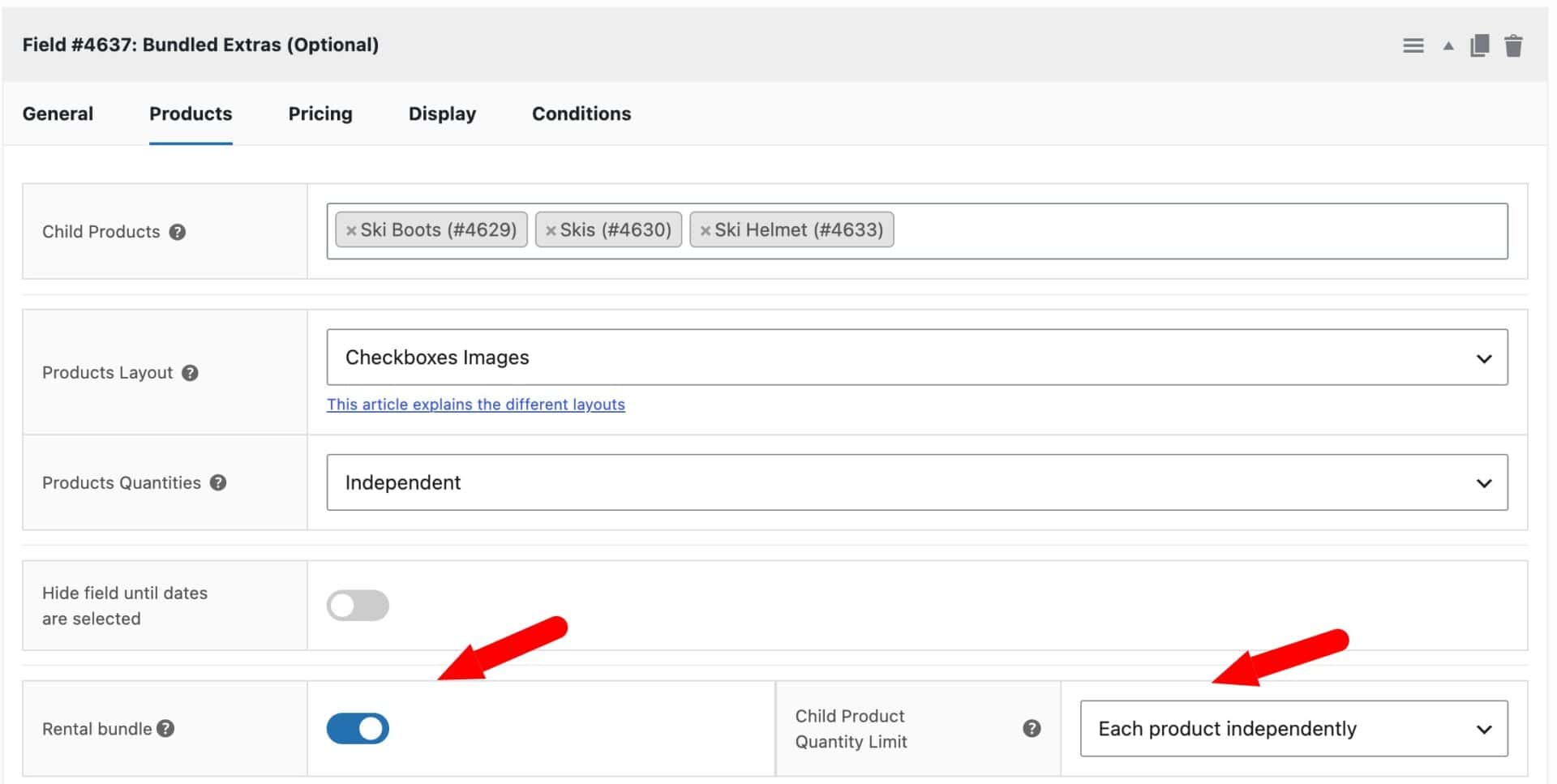
Take a look at these three example tutorials for more detailed information.
Tutorial 1: Whole house booking (rooms as child products)
In this scenario you run a holiday let with three individually bookable rooms, a Master Suite, a Garden Room, and a Standard Room, that can also be booked together as an entire house.
Step 1: Create the room products
Create a separate product for each room.
- Go to Products > Add New.
- Set the product name (e.g. Master Suite) and price.
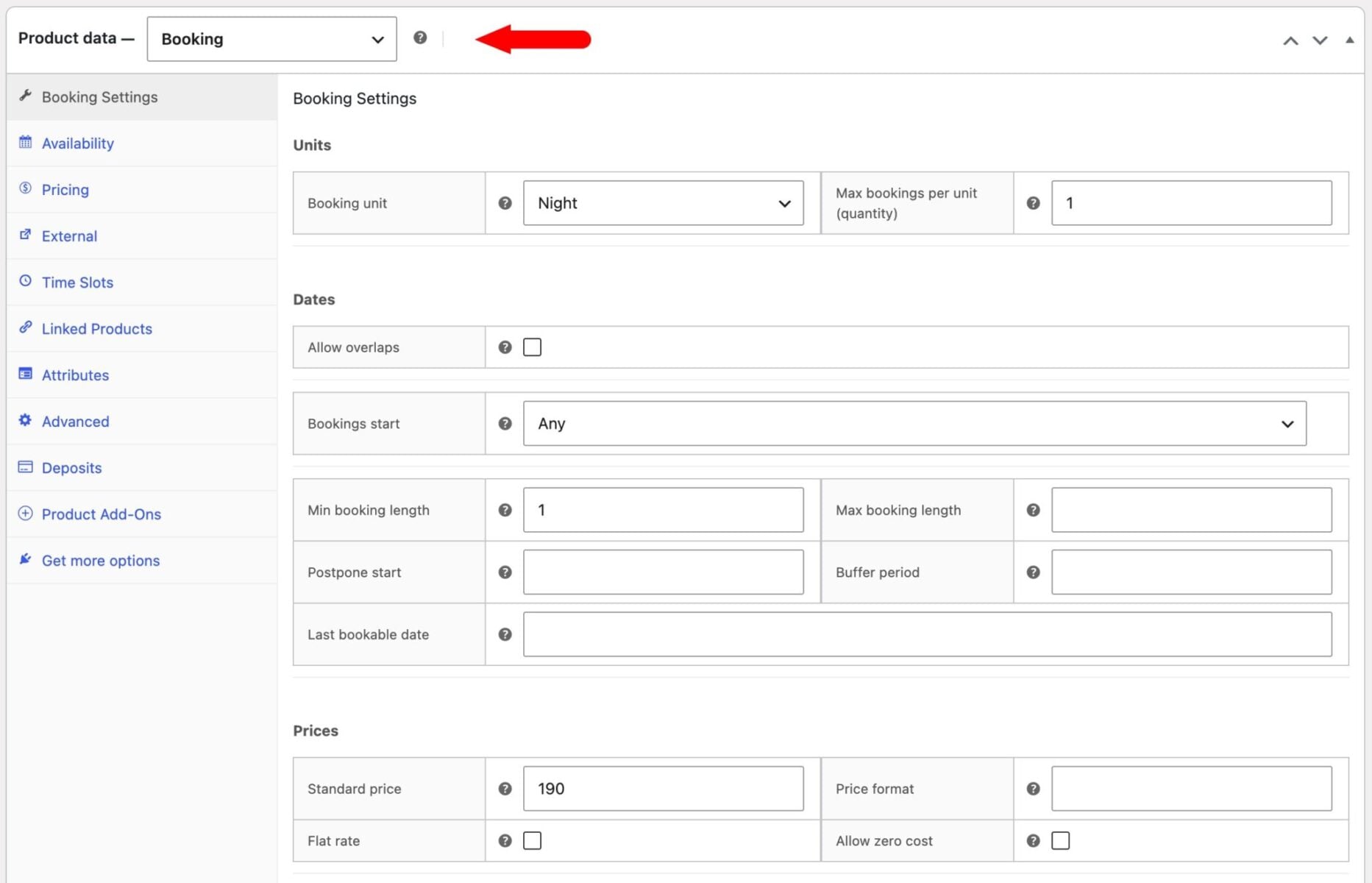
- In the Product data panel, select Booking from the product type dropdown.
- On the Bookings Settings tab, configure:
- Booking unit: Night, Day or Week, depending on your check-in policy
- Standard price: The rate for that room alone
- Minimum / Maximum booking length: Your minimum and maximum stay
- Availability: Add any blocked dates, seasonal pricing, or booking limits as needed
- Publish the product.
- Repeat for each room.
(If you do not want to list each room individually on your site, set their catalog visibility to Hidden).
Step 2: Create the ‘Whole House’ product
- Go to Products > Add New and name it Whole House.
- Select Booking as the product type.
- In the Bookings tab, set:
- Booking unit: This needs to be the same as your individual room products
- Standard price: The rate for the whole house (per day, night or week)
- Minimum / Maximum booking length and any other settings
- Open the Product Add-Ons tab (added by Product Add-Ons Ultimate) and click Add Group, then Add Field.
- Set the field type to Products.
- In the Products tab of the field settings, search for and select all three room products in the Child products selector.
Step 3: Enable the ‘Rental bundle’ setting
Still in the Products tab of the field settings:
- Scroll down to the Rental bundle checkbox. It appears automatically once the parent product is a booking product and all selected child products are also booking products.
- Check Rental bundle
- Select Linked in Products Quantities to ensure that the quantity of each product always matches the number of items booked
- Save the product.
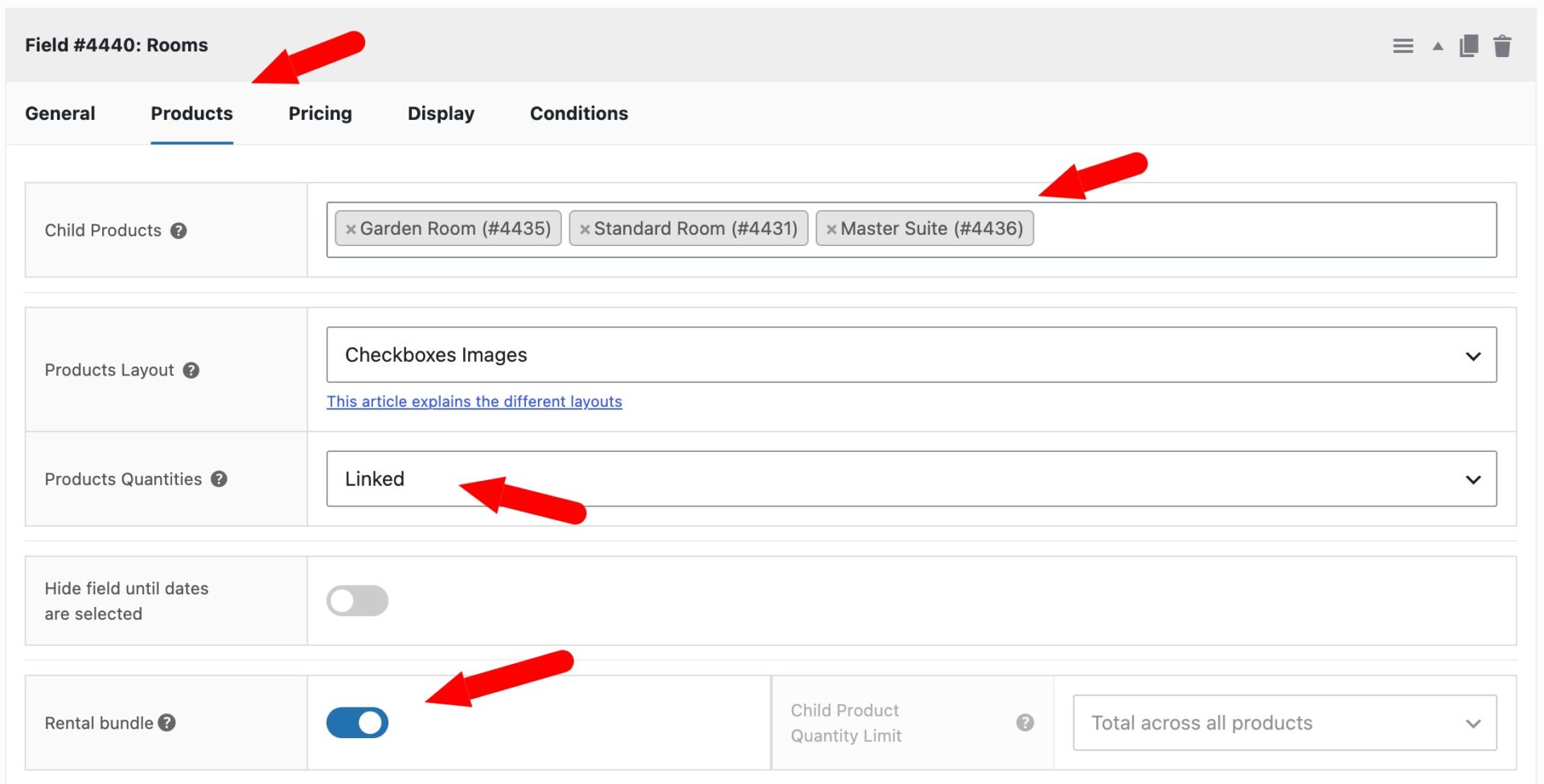
The Whole House calendar will now grey out any date on which any room is already booked. Customers can only select a date range when every room is completely free.
Step 4: Set bundle pricing
Because you’ve set a price rate for the Whole House in Step 2 above, you need to discount the price of the individual rooms when they are part of the bundle. This is to ensure that the customer only gets charged the Whole House rate:
- In the Products field settings, click the Pricing tab
- Set a 100% discount to ensure that only the Whole House rate applies:
- Enter 100 in the Discount field
- Choose Percentage in the Discount type field
- Set Option Price Visibility to Hidden
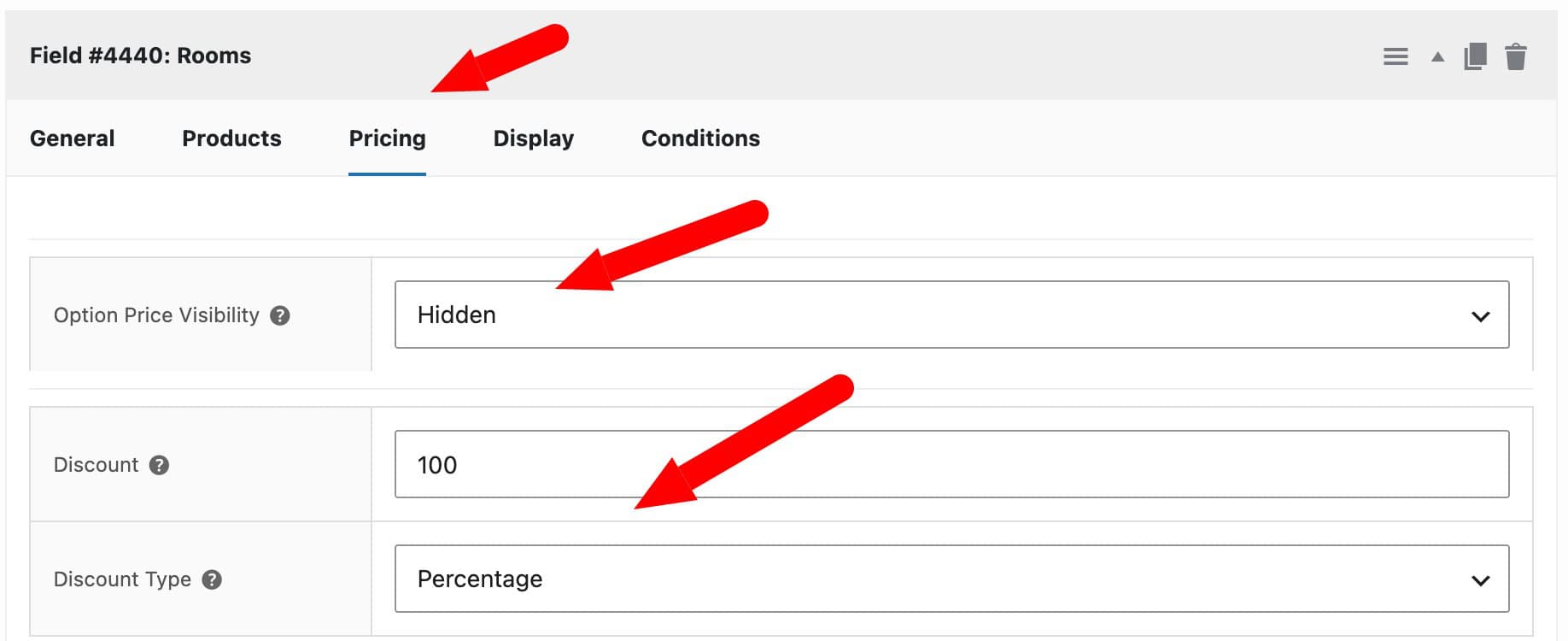
This discount will only be applied when rooms are booked as part of the bundle. Their standard pricing applies if they are booked individually.
Step 5: Optionally hide child products on the bundle product page
It might be that you don’t need or want the customer to see each room on the bundle page. To hide the child products:
- Click on the General tab
- Choose Hide from customer in the Field Visibility setting
How it looks to the customer
Visit the demo product here to see exactly how this works.
- The customer visits the Whole House product page.
- The calendar shows only dates when all three rooms are free.
- All three rooms appear pre-selected in the booking form and cannot be deselected.
- Clicking Add to Cart adds the whole house and all three rooms in a single action.
- If a room is already booked on a particular date, those dates are blocked – preventing any double-booking.
You can also see our WooCommerce accommodation booking tutorial for how to accept direct bookings for rentals.
Tutorial 2: Kayak and equipment hire (Time Slot bundle)
In this scenario you run a watersports hire centre. Customers can hire a kayak, a wetsuit, and a paddle separately, each available in two-hour time slots, or book the complete Kayak Package at a discount. Because each item is hired by the slot, you need the bundle’s availability to check time slots, not just dates.
Step 1: Create the equipment products
Create a Booking product for each item.
- Go to Products > Add New and name the first product Kayak.
- Select Booking as the product type.
- In the Bookings tab, set:
- Booking unit: Day
- Standard cost: Leave at 0 as pricing will come from the time slots
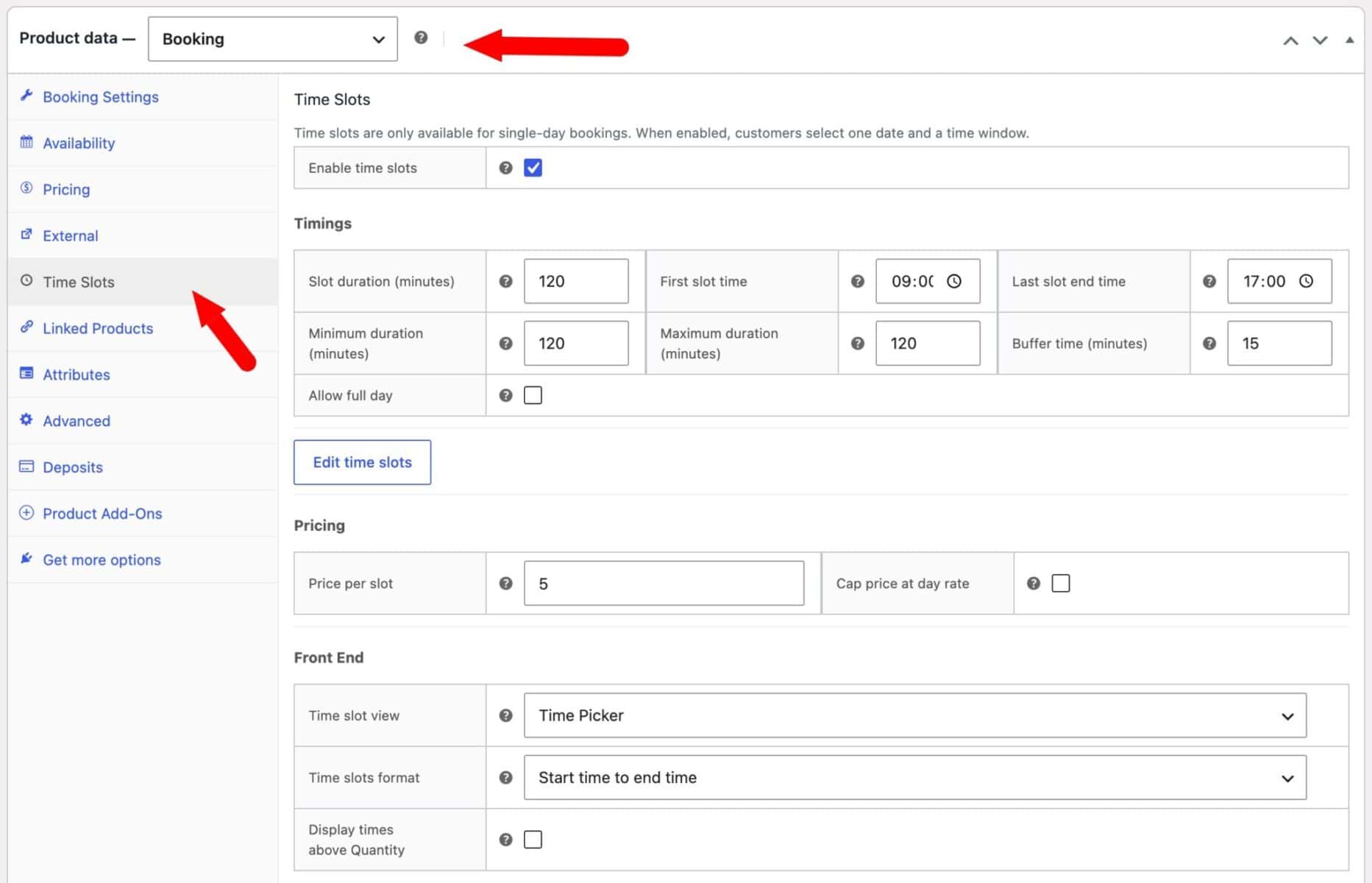
- Open the Timings tab and enable Time slots.
- Add your available slots — for example, 09:00–11:00, 11:00–13:00, 13:00–15:00, 15:00–17:00.
- Set a Slot price for each slot (e.g. $25 per two-hour session).
- Set Maximum bookings per slot to the number of available items that you have – e.g. if you have 10 kayaks, set this field to 10.
- Publish the product.
- Repeat for Wetsuit (e.g. $10 per session) and Paddle (e.g. $5 per session), using the same time slots.
As before, you can hide these individual products from your main shop catalog.
Step 2: Create the Kayak Package product
- Go to Products > Add New and name it Kayak Package.
- Select Booking as the product type.
- In the Bookings tab, set:
- Booking unit: Day
- Standard cost: Leave at 0
- Open the Timings tab and enable Time slots. Add the same slots as the individual products.
- Set a Slot price for the package. For example, set $35 for a session (a saving compared with hiring all three items separately at $40 total).
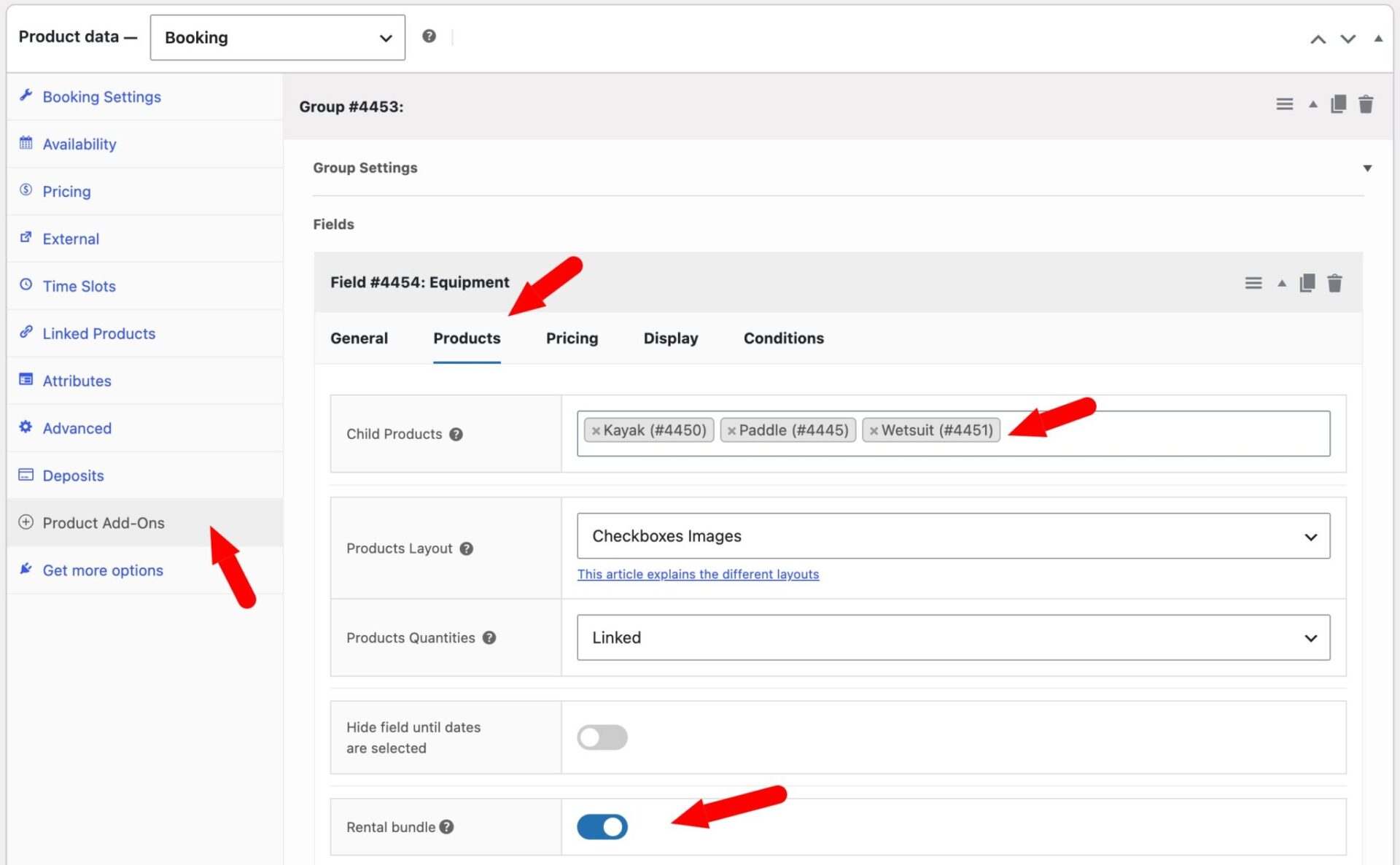
- Open the Product Add-Ons tab, add a Products field, and select the Kayak, Wetsuit, and Paddle as child products.
Step 3: Enable ‘Rental bundle’
In the Products tab of the field settings, check Rental bundle then save.
The Kayak Package’s time slot picker now automatically greys out any slot on which any of the three items is already booked. If the kayak is out on hire during the 11:00–13:00 session, that slot will be unavailable on the Kayak Package page – even if the wetsuit and paddle are free.
Step 4: Set bundle pricing
Because you’ve set a price rate for the Kayak Package in Step 2 above, you need to discount the price of the individual items when they are part of the bundle. This is to ensure that the customer only gets charged the Kayak Package rate:
- In the Products field settings, click the Pricing tab
- Set a 100% discount to ensure that only the Kayak Package rate applies:
- Enter 100 in the Discount field
- Choose Percentage in the Discount type field
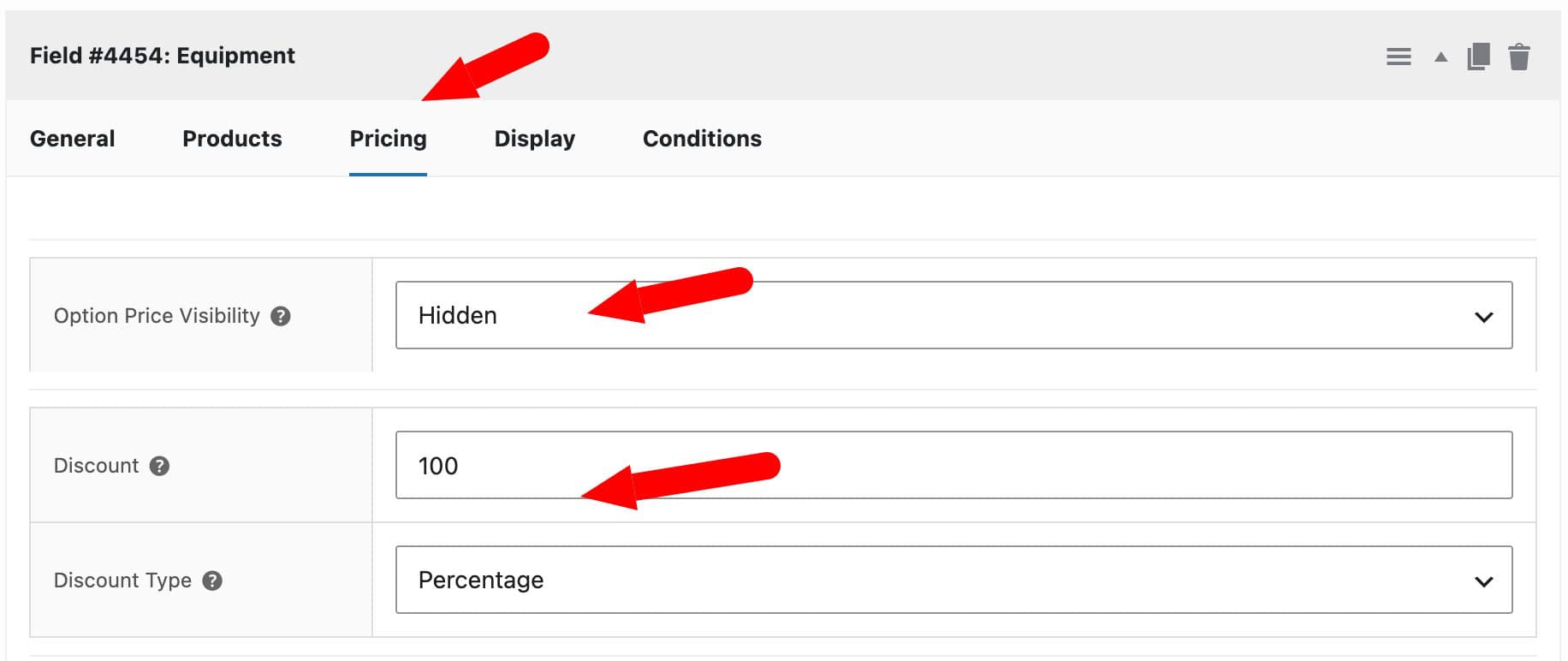
This discount will only be applied when items are booked as part of the bundle. Their standard pricing applies if they are booked individually.
How it looks to the customer
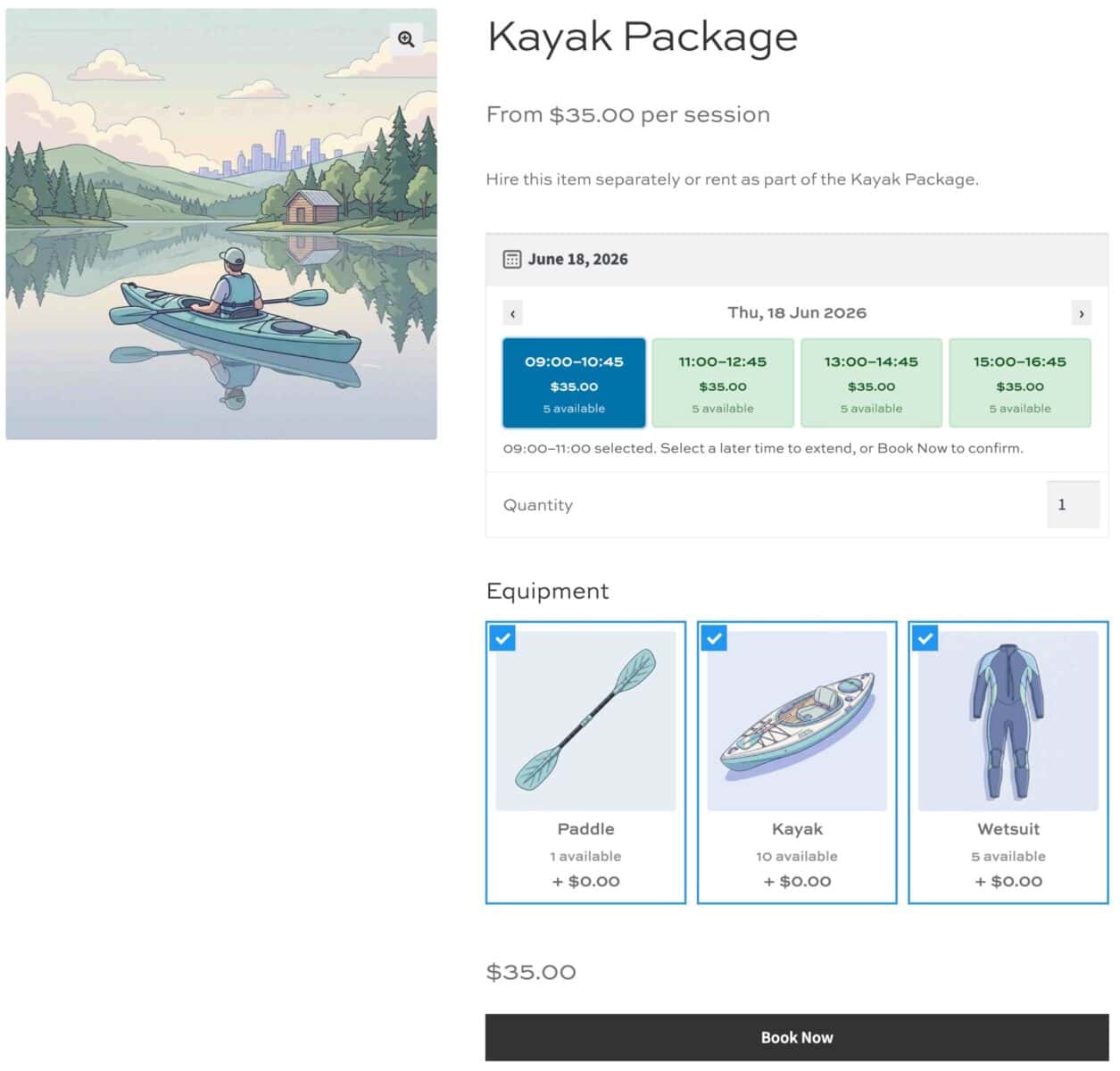
Check the demo product here. A slot on which even one item is fully booked does not appear as available – no partial bundles, no double-booking.
- The customer visits the Kayak Package page.
- They pick a date from the calendar.
- The time slot picker shows only slots when all three items are free.
- All three items appear pre-selected in the booking form and cannot be deselected.
- Clicking Add to Cart reserves the package and all three items for that slot in one action.
You can also check out our surfboard hire tutorial for more information on renting out watersports equipment through WooCommerce.
Tutorial 3: Group Ski Pass (Independent Quantities)
Tutorials 1 and 2 both use Linked quantities, where every child product is locked to the parent’s booking quantity. This tutorial covers Independent quantities, which suit bundles where the parent product represents a group booking or pass.
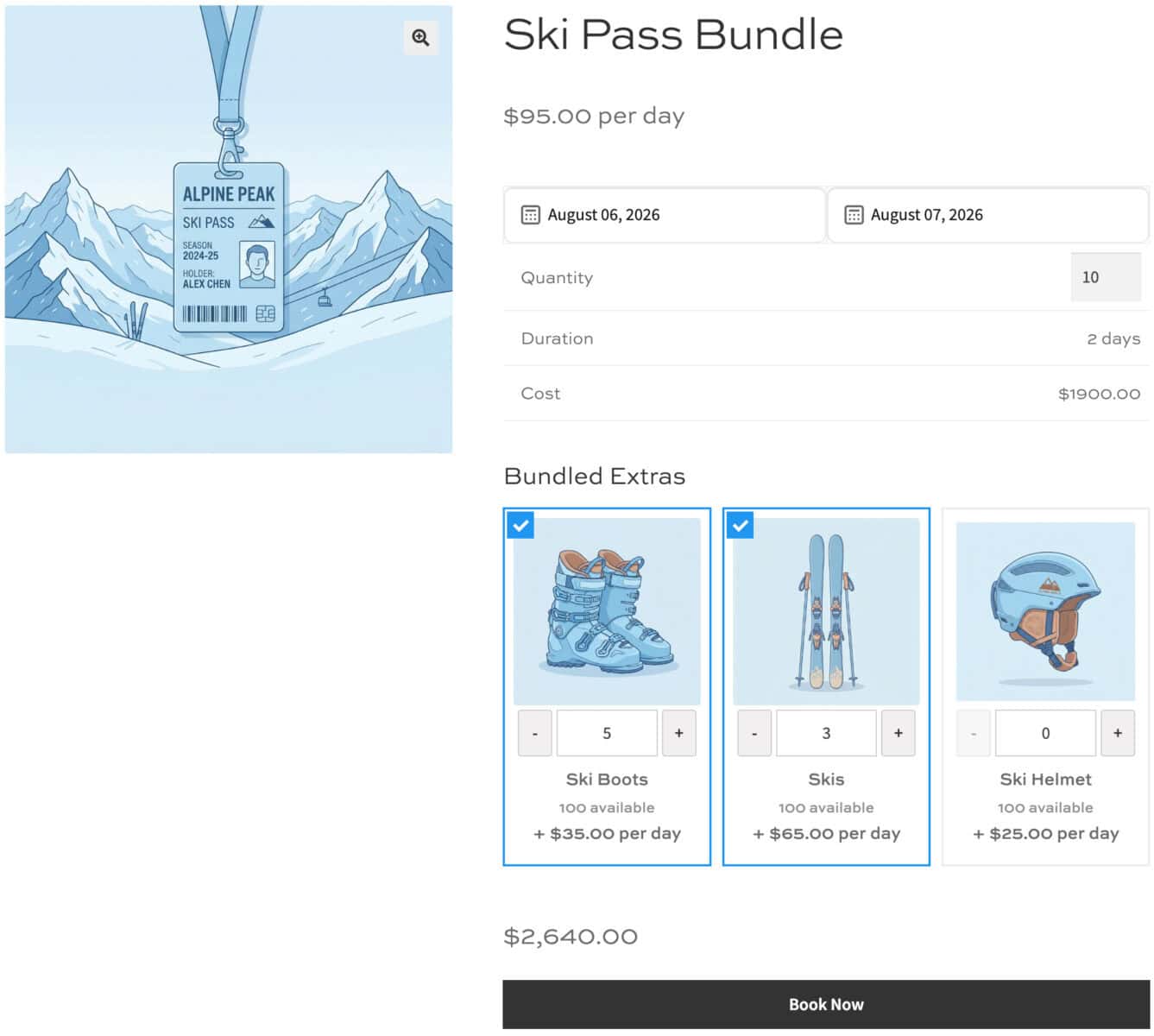
With Independent quantities, customers can mix and match which items they take. In this scenario, a ski hire shop sells a Group Ski Pass covering up to 4 people, valid for skis, boots, and helmets. Not every member of the group needs every item – some already have their own boots or helmet.
Step #1: Create the equipment products
Create a separate Booking product for Skis, Boots, and Helmet, each with its own availability and stock.
Step #2: Create the Group Ski Pass product
- Go to Products > Add New and name it Group Ski Pass
- Select ‘Booking’ as the product type
- In the ‘Bookings’ tab, set the standard price for the pass itself, and set ‘Maximum bookings’ to 4, matching the group size the pass covers
- Open the ‘Product Add-Ons’ tab, add a Products field, and select Skis, Boots, and Helmet as child products
You now have a Group Ski Pass product with the three equipment items attached as options.
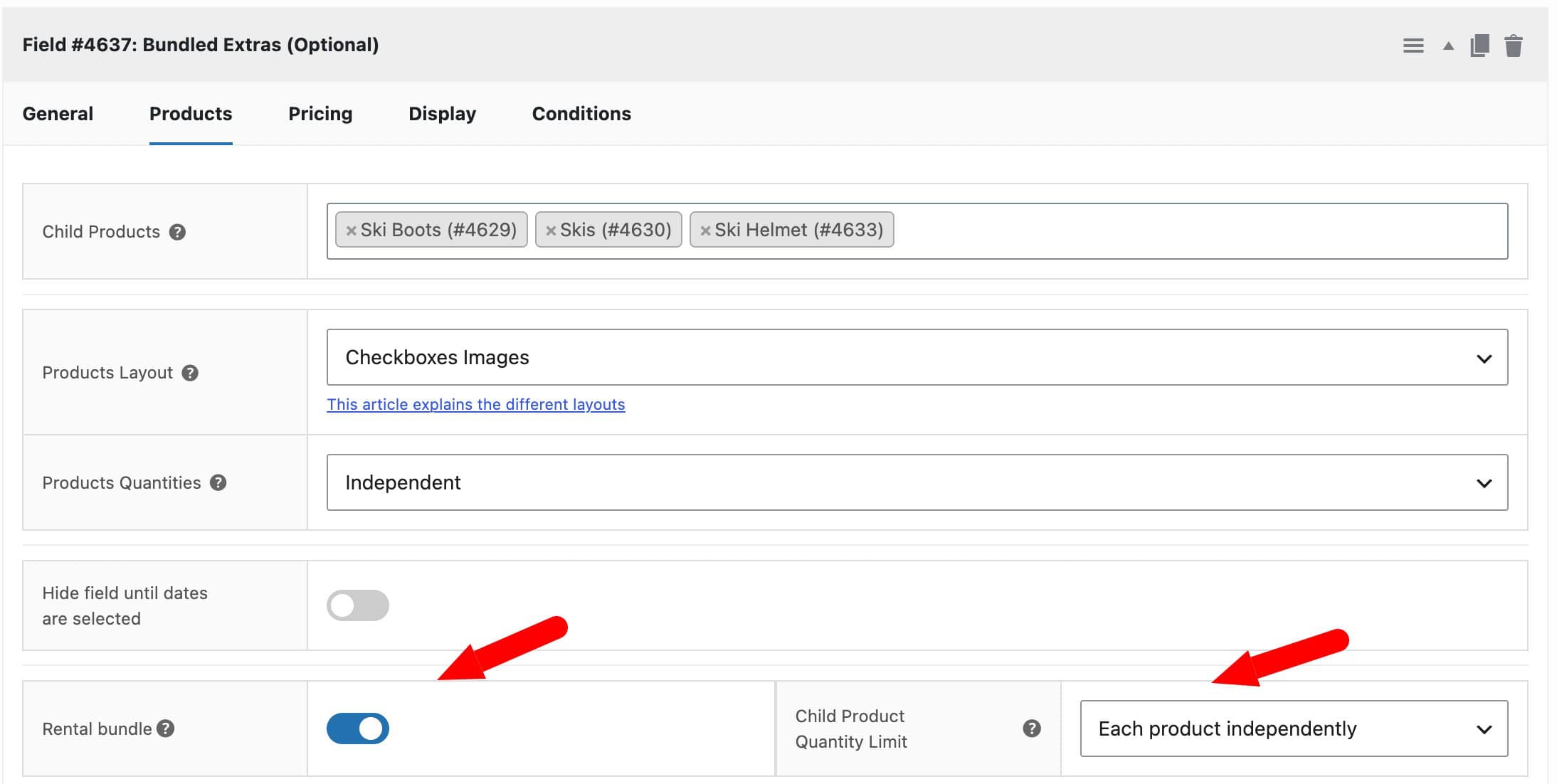
Step #3: Enable rental bundle and set products quantities to independent
- In the ‘Products’ tab of the field settings, check ‘Rental bundle’ and save
- Change ‘Products Quantities’ from ‘Linked’ to ‘Independent’
- Choose whether to select Total across all products or Each product independently in Child Product Quantity Limit. Choosing Total across all products means that the total quantity of child products chosen must not exceed the number of places booked. Choosing Each product independently means the user can choose quantities for each child product up to the number of places booked.
What does it look like to the customer?
Check the demo product here. The customer visits the Group Ski Pass product page and sets the quantity to, say, 4 for a group of four.
The customer can select Boots for two members of the group who are bringing their own, then also enter the quantity of Skis and Helmet as needed. The total quantity selected across all three products can’t exceed 4.
The calendar still blocks any date when a selected item isn’t available in the quantity required. Clicking ‘Add to Cart’ adds the pass and the selected equipment, in the quantities chosen, in a single action.
Independent quantities work with both date-based and time slot bundles, in the same way as Tutorials 1 and 2. The only difference is how child product selection and quantity are handled on the front end.
Other rental bundle scenarios
The same pattern works across a wide range of hire and rental businesses. Here are a few more examples to illustrate what’s possible.
Photography studio set A photography studio rents out a backdrop, a key light, and a reflector individually by the hour, but also offers a Portrait Set bundle. Enabling Rental Bundle means the bundle’s time slot picker only shows slots when all three pieces of kit are free – so if the key light is already booked for the 2pm session, the Portrait Set shows that slot as unavailable.
See our tutorial on how to sell photography sessions here.
Party equipment A party hire company rents out a bouncy castle, a popcorn machine, and a candy floss machine separately, but also sells a Kids’ Party Package. With Rental Bundle enabled, a customer booking the package can only pick a date when all three items are free. The bundle can be priced at a flat day rate while still checking the availability of each individual item.
Campervan and accessories A campervan hire company rents its vehicles alongside add-ons – a roof tent, a bike rack, and an awning – each of which can be hired alone or as part of a Full Adventure Kit. Rental Bundle ensures that if the awning is already out on hire, the Full Adventure Kit is blocked for those dates too, and when a customer books the kit, all accessories are reserved automatically.
See our tutorial on renting out a campervan in WooCommerce.
Sailing day trip A sailing school offers a Skippered Day Sail that includes a boat, a skipper’s time, and a set of safety equipment. Each resource is tracked as a separate bookable product with its own availability. Rental Bundle ties them together so a day sail can only be booked when all three are free, and the customer books the whole experience in a single step.
See our tutorial on WooCommerce boat hire here.
Conference room with AV equipment A venue rents out a conference room, a projector, and a PA system individually but also sells a Full Meeting Room package. With Rental Bundle enabled by time slot, a customer booking the package for a morning session can only do so if the room, projector, and PA are all free for that slot – preventing any partial or conflicting bookings.
Frequently Asked Questions
No. When a Rental Bundle is booked, each child product’s availability is blocked for those dates or slots. They will show as unavailable on the individual product pages too.
The parent product’s calendar or slot picker will block those dates or slots entirely. Customers cannot book a partial bundle.
The Rental Bundle setting is per Products field. You can add multiple Products fields to a product, but in most setups a single bundle field per product is recommended.
Yes. Set the Flat rate option on the parent product in the Bookings tab as normal. The bundle availability checking works independently of the pricing model.
Yes. For slot-based bundles, the parent and child products should have matching slot times. The plugin checks availability slot by slot, so if a child product doesn’t have a matching slot configured it will always appear unavailable for that slot.