Bookings for WooCommerce lets you reward customers who book for longer. For example, you can give your customers 10% off any booking of seven nights or more.
You can set discounts per product, using the ‘Discounts’ table on the product’s ‘Pricing’ tab, or, f you sell appointments or other time-based bookings, you can also create discounts for multiple slots from the ‘Time Slots’ tab. Both options allow you to set tiered discount rules.
Discounts can be a percentage, a fixed deduction from the overall booking cost or a fixed deduction per booking unit (e.g. $50 per day). You can decide whether to apply the discount for the whole of the booking or only after a certain time period (e.g. after 3 days).
This doc explains how to add both types of discount and how each setting affects the price.
How do you add a discount to a booking product?
Here’s how to add a discount for bookings that use day, night or week as the booking unit:
- Open the ‘Pricing’ tab
Edit your booking product and click the ‘Pricing’ tab.
- Add a row to the ‘Discounts’ table
Each row in the ‘Discounts’ table is one discount tier
- Enter the discount rate and type
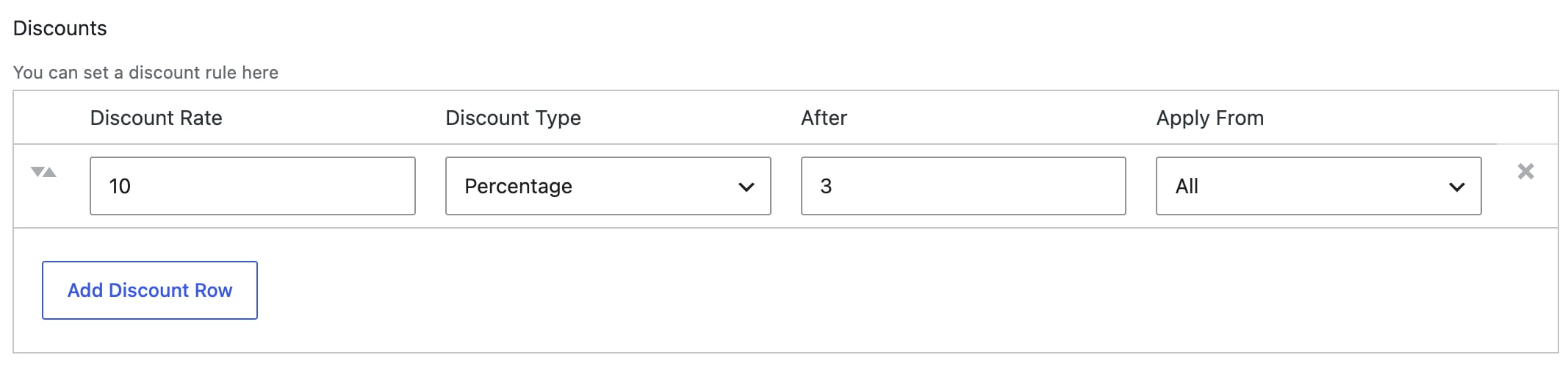
Enter a number in the ‘Discount Rate’ field. Then choose ‘Percentage’, ‘Fixed’, or ‘Per Unit’ from the ‘Discount Type’ field. This is the value of the discount – e.g. 10%
- Set the threshold
Enter the number of booking units in the ‘After’ field. The discount applies to bookings longer than this number of units – for example, if you want the discount to kick in after 3 days, enter 3 as the threshold
- Choose where the discount applies
Select ‘All’ in the ‘Apply From’ field to discount the whole booking. Select ‘Partial’ to discount only the units beyond the threshold. If you choose ‘All’, the discount will be applied to the total cost of the booking; if you choose ‘Partial’ only the section of the booking after the threshold will be discounted
- Update the product
Save your product. Customers who book for longer than the threshold will receive the discount automatically.
What does each discount setting do?
Each discount row has four settings:
| Setting | Description |
|---|---|
| Discount Rate | The size of the discount. Depending on the discount type, this is a percentage, a fixed amount, or an amount per booking unit. |
| Discount Type | How the discount is calculated: ‘Percentage’, ‘Fixed’, or ‘Per Unit’. |
| After | The number of booking units after which the discount applies. A value of 3 means the discount applies to bookings of more than three units. |
| Apply From | Whether the discount applies to the entire booking or only to the units beyond the threshold. |
A booking unit is whatever you’ve set as the product’s booking unit – a day, a night, or a week.
Which discount type should you use?
There are three discount types:
| Type | Description | Example |
|---|---|---|
| Percentage | Reduces the total booking cost by a percentage. | 10% off a $300 booking = $270 |
| Fixed | Deducts a fixed amount from the total booking cost. | $20 off a $300 booking = $280 |
| Per Unit | Deducts a fixed amount for every booking unit. | $5 per night off a 5-night booking = $25 off |
‘Percentage’ works well when your prices vary across the year, because the discount scales with the booking cost. ‘Per Unit’ is ideal if you want the saving to grow with the length of the booking.
What’s the difference between ‘All’ and ‘Partial’?
The ‘Apply From’ setting controls which part of the booking is discounted.
With All, the discount applies to the total cost of the entire booking. For example, a 10% discount on a 7-night booking at $50 per night reduces the price from $350 to $315. It reduces the price for all 7 nights of the booking.
With Partial, the discount applies only to the units beyond the threshold. If the threshold is 5 nights, only nights 6 and 7 of a 7-night booking receive the discount. This is great if you want to offer a ‘Book Two Nights and Get a Third Night Free’ type of discount.
‘All’ works well when you want to discount the whole booking once a customer reaches a target length. ‘Partial’ is ideal if you want to keep your standard rate for the first few units and only make extra units cheaper.
Here are some examples of how you could use each setting to incentivize your customers.
Example #1: Weekly stays at a holiday cottage
A holiday cottage charges $120 per night and wants to encourage longer stays. It charges the standard rate for the first six days then gives 10% off the whole booking for stays of seven nights or more:
- Discount Rate:
10 - Discount Type: ‘Percentage’
- After:
6 - Apply From: ‘All’
With this, a 7-night stay would cost $756 instead of $840. Because the discount covers every night, the saving is easy to promote as “10% off weekly stays”.
Example #2: Extra days on a campervan hire
A campervan hire company charges $80 per day. It keeps its standard rate for the first five days, then gives 25% off every day after that:
- Discount Rate:
25 - Discount Type: ‘Percentage’
- After:
5 - Apply From: ‘Partial’
A 10-day hire would cost $700 instead of $800. Days 1 to 5 are charged at $80 each, and days 6 to 10 are charged at $60 each.
Example #3: Longer rentals of camera equipment
A camera rental store charges $40 per day for a lens. It deducts $10 for each day beyond the third day:
- Discount Rate:
10 - Discount Type: ‘Per Unit’
- After:
3 - Apply From: ‘Partial’
A 7-day rental would cost $240 instead of $280. The first three days are charged at the standard rate, and the four extra days each receive $10 off.
Example #4: A flat saving on a coworking desk
A coworking space charges $25 per day for a hot desk. It takes $20 off any booking of more than four days:
- Discount Rate:
20 - Discount Type: ‘Fixed’
- After:
4 - Apply From: ‘All’
A 5-day booking would cost $105 instead of $125. The saving type is ‘Fixed’ which means the discount remains at $20 however long the booking is.
Can you create tiered discounts for bookings?
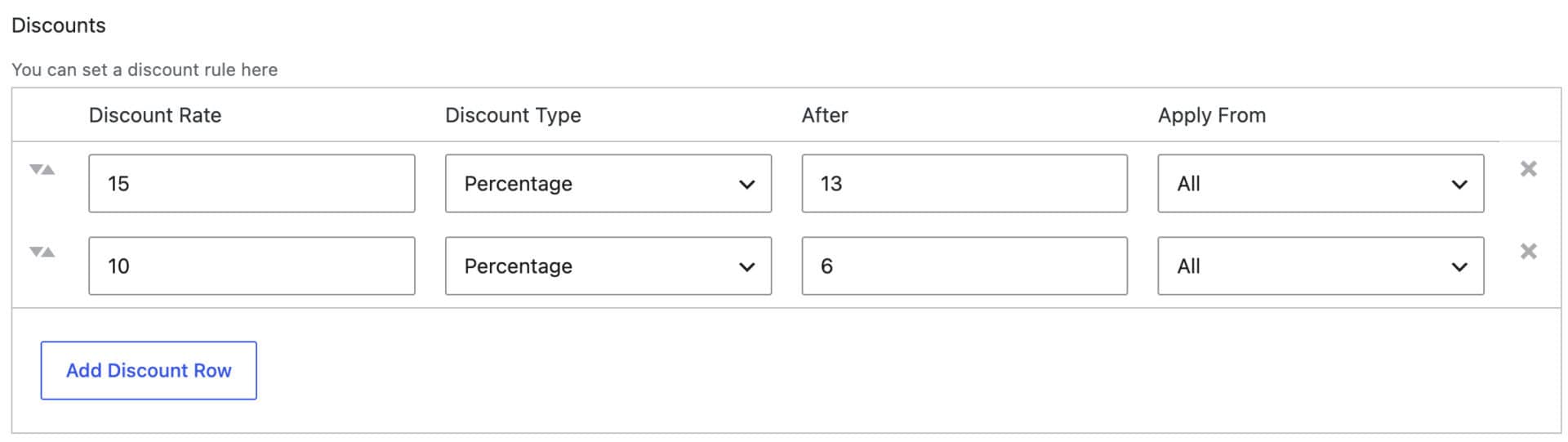
You can create tiered discounts by creating multiple discount tiers as above. Just list the rule with the highest threshold first. For example, put a 15% discount after 13 nights above a 10% discount after 6 nights. That way, a 14-night booking matches the 15% rule before it reaches the 10% rule.
How do you create discounts for appointments and time slots?
You can create discounts for customers who book multiple appointments or time slots.
Create the discounts for time slots in the ‘Slot discounts’ section of the ‘Time Slots’ tab – separate from the booking discounts on the ‘Pricing’ tab.
Slot discounts apply only to the slot cost. Before you start, make sure the product has time slots enabled and a price per slot. See Time slots for the full setup.
Here’s how to add a discount for multiple appointments or time slots:
Step #1: Enable time slots Set the ‘Booking unit’ to ‘Day’ on the ‘Booking Settings’ tab. Then check ‘Enable time slots’ on the ‘Time Slots’ tab.
Step #2: Set a price per slot Enter an amount in the ‘Price per slot’ field.
Step #3: Add a discount Click the ‘Add discount’ button in the ‘Slot discounts’ section.
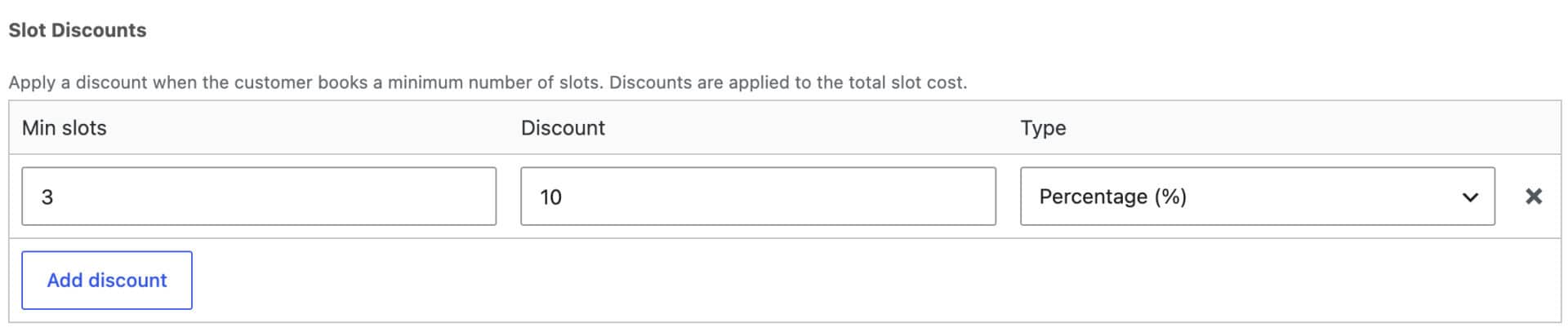
Step #4: Enter the discount settings Enter the minimum number of slots in the ‘Min slots’ field and the discount amount in the ‘Discount’ field. Then choose ‘Percentage (%)’ or ‘Fixed’ from the ‘Type’ field.
Step #5: Update the product Save your product. Customers who book at least the minimum number of slots will receive the discount automatically.
What does each slot discount setting do?
Each slot discount row has three settings:
| Setting | Description |
|---|---|
| Min slots | The minimum number of slots the customer must book for the discount to apply. |
| Discount | The size of the discount. |
| Type | ‘Percentage (%)’ deducts a percentage from the total slot cost. ‘Fixed’ deducts a fixed amount. |
Can you create tiered slot discounts?
You can add as many slot discount rows as you like. If a booking qualifies for more than one, the plugin applies the highest qualifying tier, so the order of the rows doesn’t matter.
For example, you could give 10% off 2 or more slots and 20% off 4 or more. At $30 per slot, a customer who books 5 slots receives the 20% discount and pays $120 instead of $150.
How do slot discounts work with the day rate cap?
If you’ve enabled ‘Cap price at day rate’, the plugin applies the cap first. It then calculates the slot discount on the capped amount.
For example, if the standard price is $100, 5 slots at $30 are capped at $100. A 20% slot discount then reduces the price to $80.
Examples of slot discounts
Here are some examples of how different businesses could set up discounts for time-based bookings like appointments or rentals.
Example #1: Tennis court hire
A tennis club charges $20 per one-hour slot. It gives 10% off when players book two or more slots:
- Min slots:
2 - Discount:
10 - Type: ‘Percentage (%)’
A 2-hour booking would cost $36 instead of $40. A single slot is charged at the standard $20.
Example #2: Tiered recording studio sessions
A recording studio charges $50 per slot and wants to reward longer sessions. It adds two discount rows:
- Row 1: ‘Min slots’
3, ‘Discount’10, ‘Type’ ‘Percentage (%)’ - Row 2: ‘Min slots’
6, ‘Discount’20, ‘Type’ ‘Percentage (%)’
A 4-slot session would cost $180 instead of $200. A 6-slot session qualifies for the higher tier and costs $240 instead of $300.
Example #3: A fixed saving on tutoring sessions
A tutor charges $35 per session slot. To encourage block bookings, they take $15 off when a student books four or more sessions:
- Min slots:
4 - Discount:
15 - Type: ‘Fixed’
A booking of four sessions would cost $125 instead of $140. The saving stays at $15 however many sessions the student books.
Example #4: Meeting room hire with a day rate cap
A meeting room costs $25 per slot, with a standard day rate of $150 and ‘Cap price at day rate’ enabled. The venue gives 10% off bookings of four or more slots:
- Min slots:
4 - Discount:
10 - Type: ‘Percentage (%)’
A 4-slot booking would cost $90 instead of $100, because it’s below the cap. An 8-slot booking would cost $200, but it’s capped at $150 and then discounted to $135.
For more on slot pricing and other pricing options, see Pricing in Bookings for WooCommerce.