With Bookings for WooCommerce, you don’t always need to show customers a calendar. If your event or other bookable product takes place on a single day or over a defined period, you can use the ‘Preset date’ setting to lock a product to a fixed date or date range. It’s ideal for products like:
- One-off workshops, classes or masterclasses
- Specific tour or trip departures
- Concerts, shows and other ticketed events
- Conferences, festivals and trade shows
- Holiday camps, retreats or courses that run over fixed dates
- Seasonal experiences, such as Christmas markets or summer pop-ups
- Products that are only available during a defined window
When you set a preset date, the date-selection calendar is removed from the front end and the date is selected automatically.
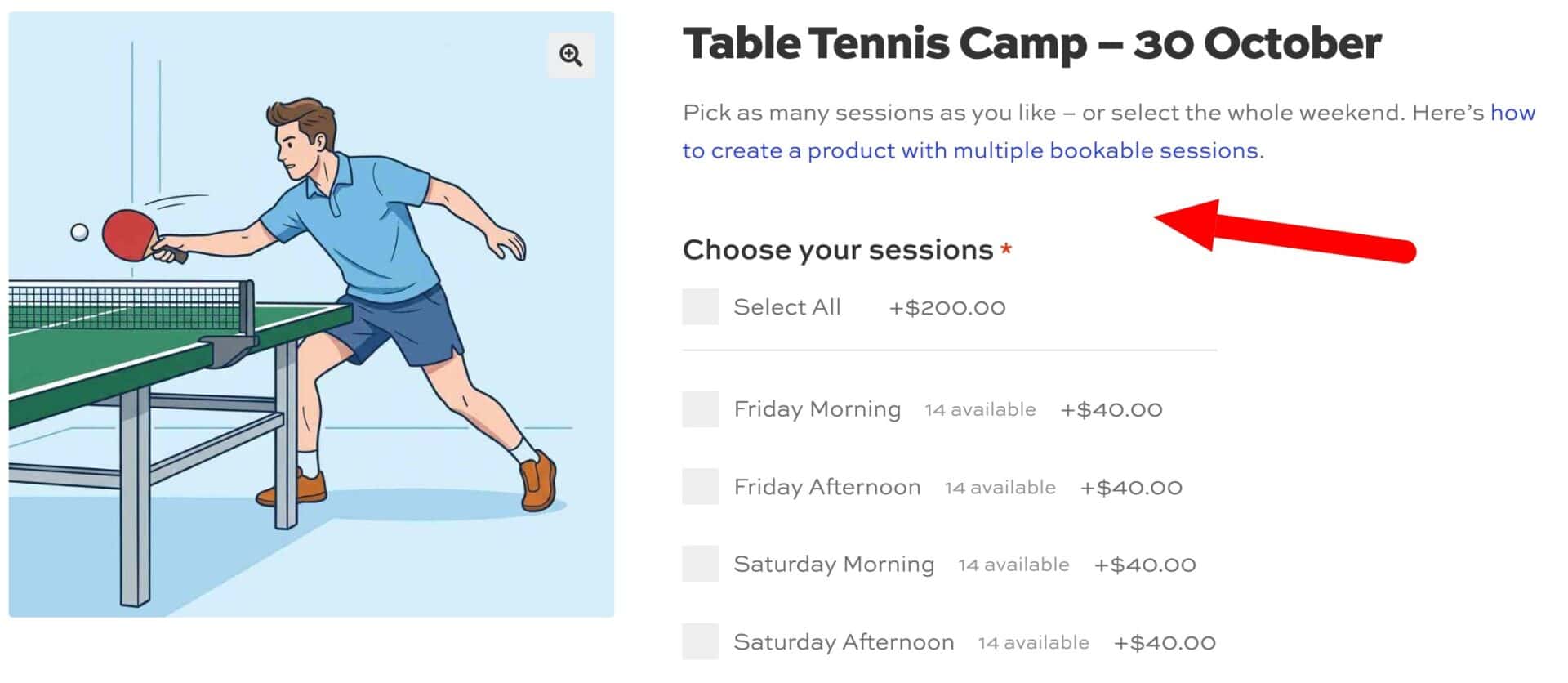
How do you define a preset date?
Step #1: Edit your product and go to the ‘Booking Options’ panel.
Step #2: Find the ‘Preset date’ field, which appears after the ‘Last bookable date’ field.
Step #3: Choose a start date and an end date using the two date pickers.
- For a single fixed date, set both fields to the same date
- For a fixed range, such as a three-day retreat that only runs once, set the start and end dates to match
Step #4: Save your product.
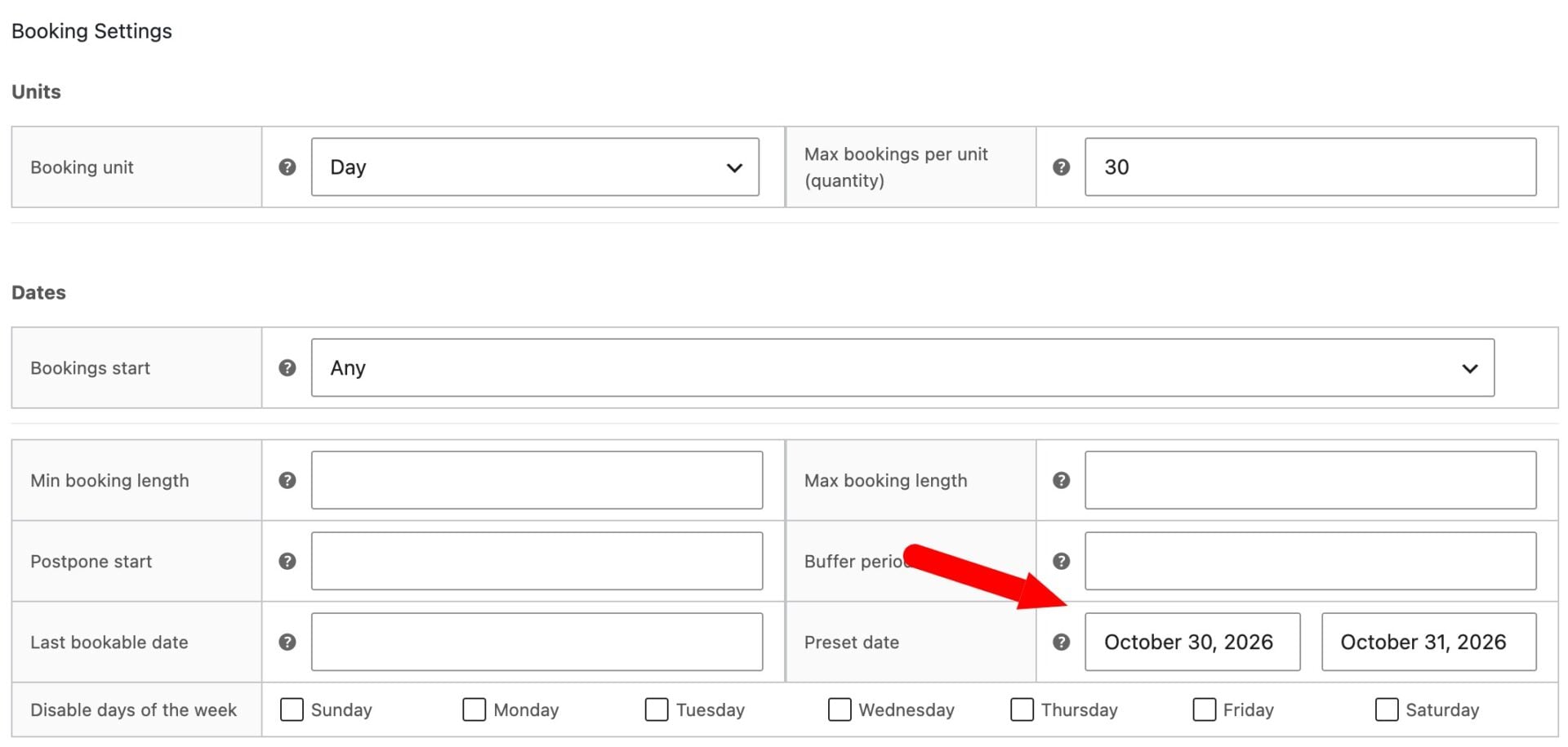
Your product is locked to that date or range. To disable the feature and restore the normal calendar, clear both fields.
What will customers see?
On the front end:
- The calendar is hidden: Customers can’t pick a date because it’s preselected for them
- Time slots still work: If Time Slots are enabled, the time-slot picker appears and works as normal. Preset date only fixes which days are available, not the time
- Cost calculates automatically: The booking cost is calculated against the preset date, just the same as if the customer had selected it