Advanced Calculations lets you use a lookup table so that users can choose their postcode/zip code from a dropdown list and get a price based on their location.
You can vary a product’s price, or add a surcharge, by delivery area by matching the customer’s chosen area against a lookup table. For example, you can charge more for remote areas or offer a discount within a local zone. The user can pick their zip code from a dropdown list and the price will be adjusted accordingly.
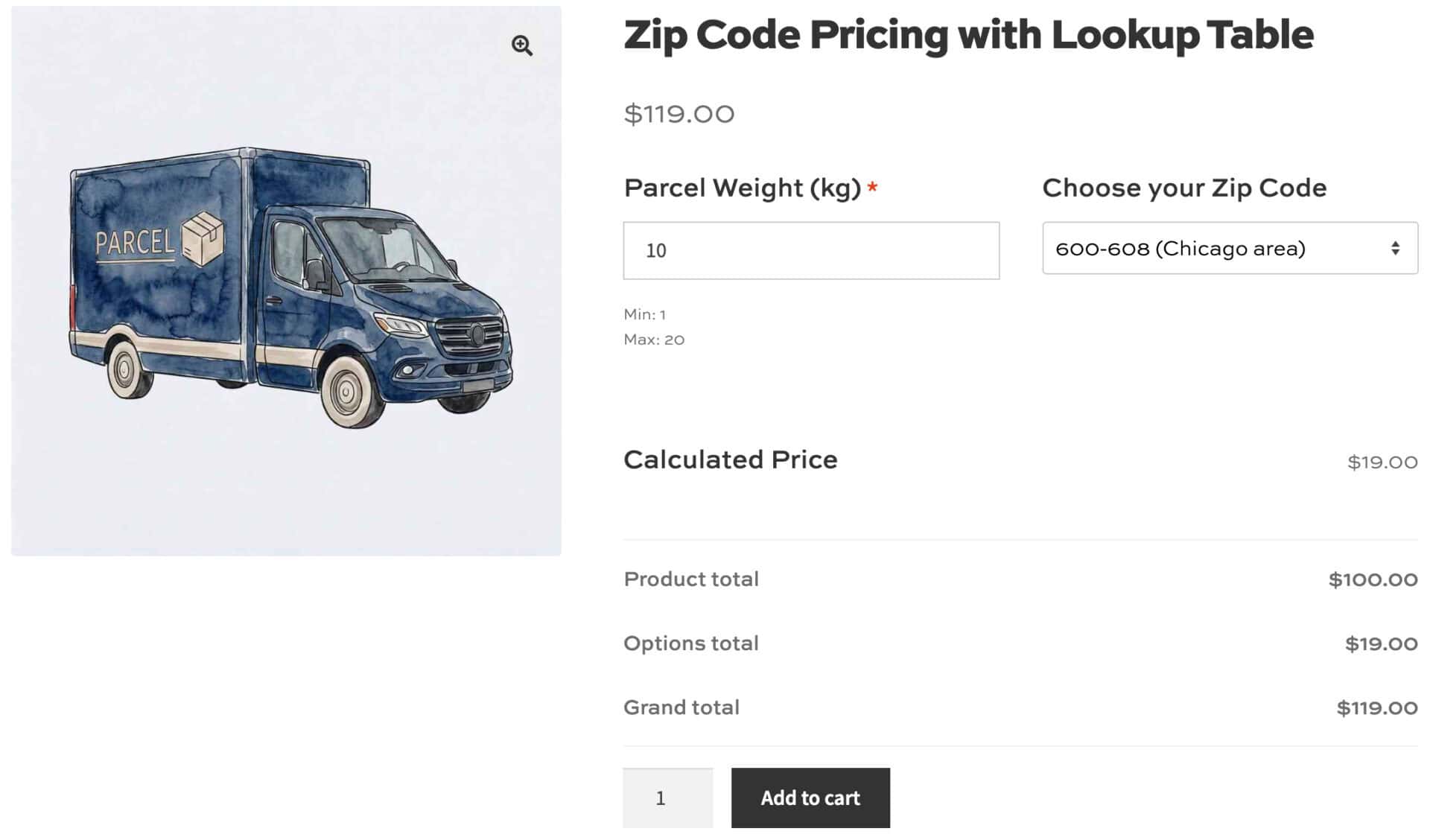
Get prices based on selected zip code
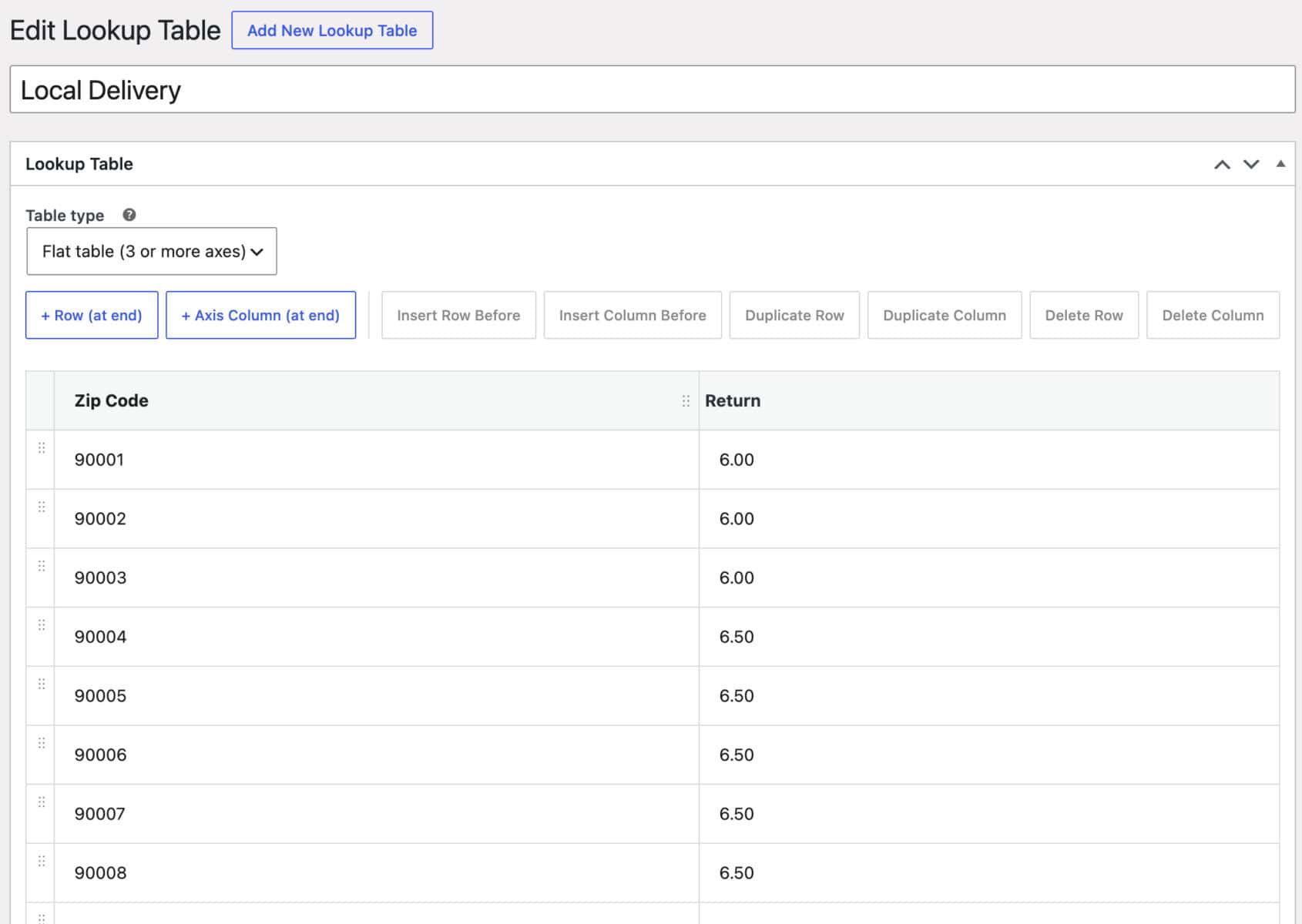
The simplest method is just to create a one-column lookup table that lists each zip code and the associated cost. See creating and editing lookup tables for how to build the table.
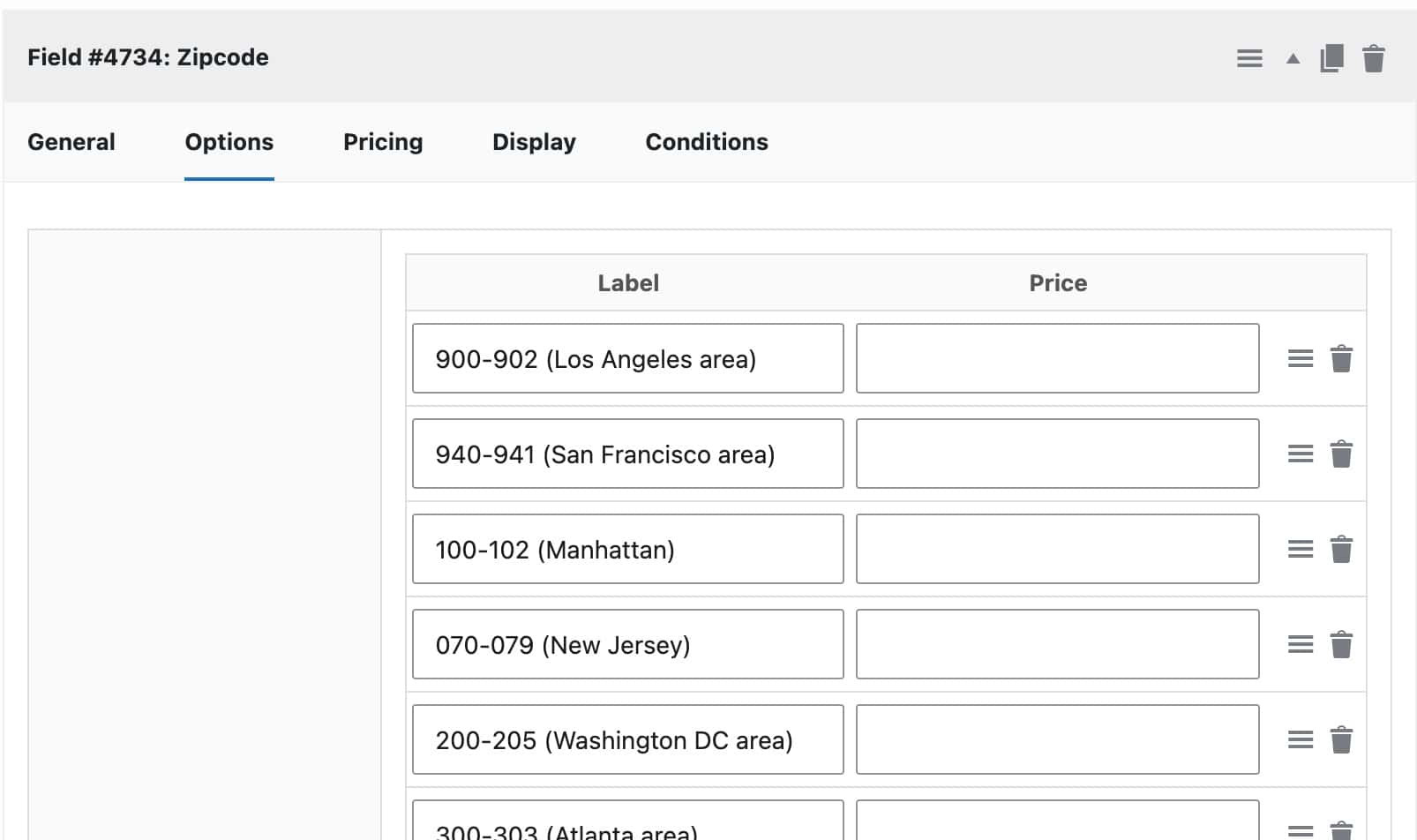
For example, if you are based around LA, you could create a list of local zip codes like this.
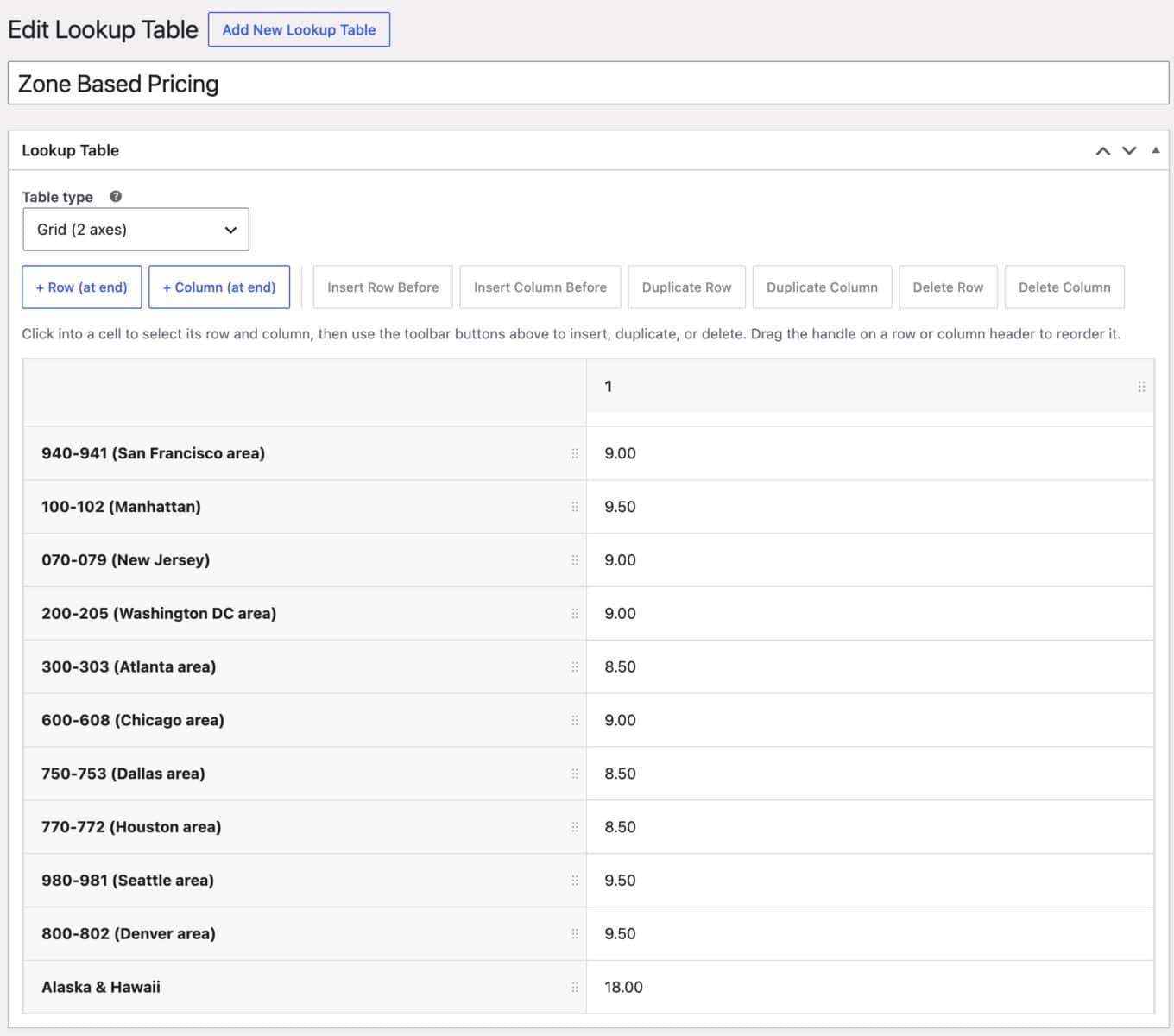
If you are delivering nationwide rather than just locally, you can use just the first part of the zip code to identify location.
US zip codes are organized geographically, so their first digits make a good basis for regional pricing. The first digit splits the country into broad national areas, and the first three digits identify a regional postal facility covering a metro area or region.
The same principle applies to most countries’ zip or post codes. For example, in the UK, postcodes are also geographic, and the ‘outcode’, the part before the space, is the natural equivalent of a US zip code’s three-digit prefix. For example, the outcode of SW1A 1AA is SW1A, representing a specific district.
Build your select field’s options around outcodes rather than full postcodes, such as ‘SW1A (Westminster)’ or ‘M1 (Manchester City Centre)’. The plugin can’t extract an outcode from a full postcode, so the customer needs to choose it from the list.
The local delivery approach works too. If you only deliver within one outcode, list the full postcodes you cover as the dropdown’s options.
Add extra parameters to your lookup table
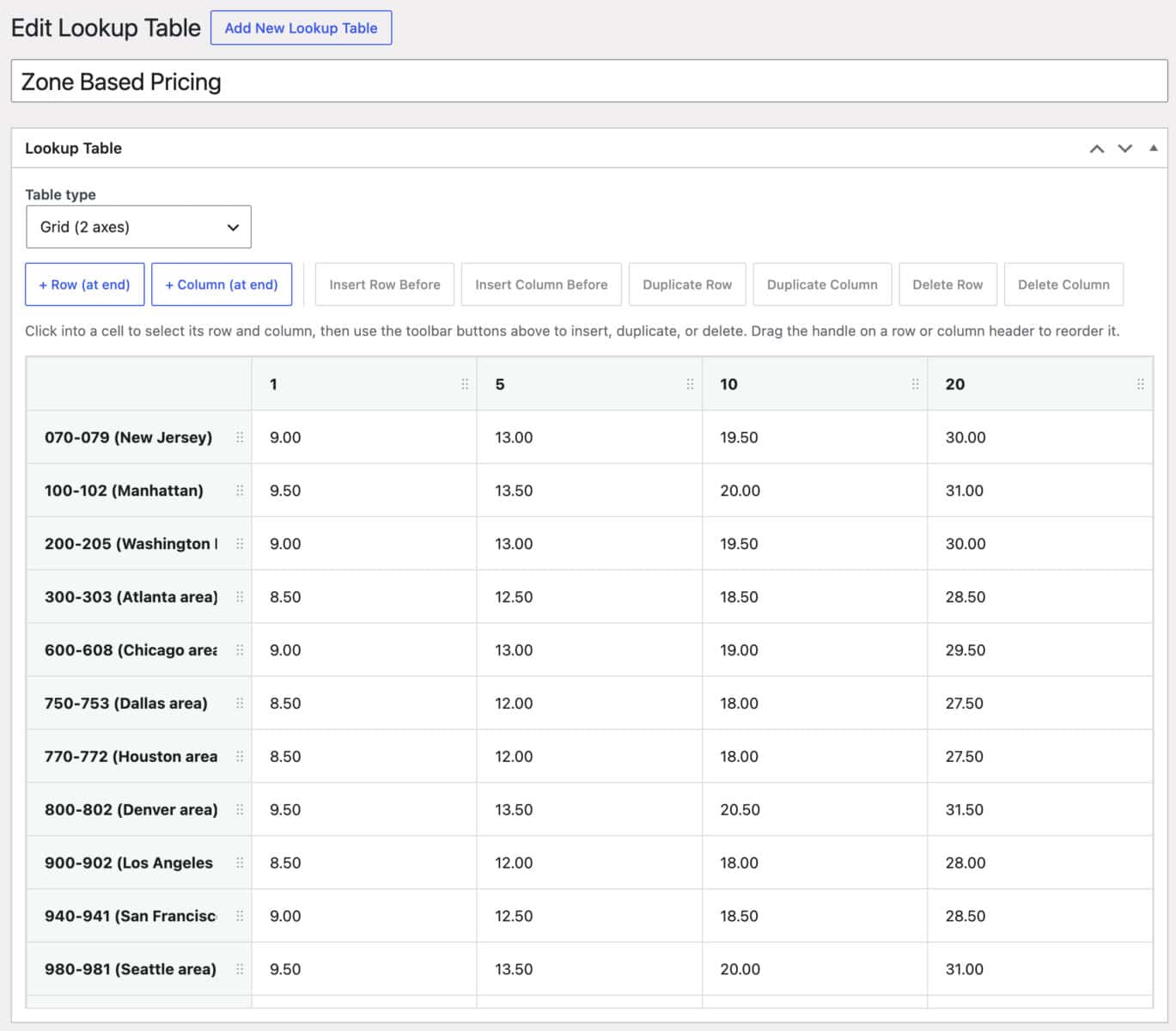
A single column lookup table like the examples above is perfect if you just to read a value off against the user’s selected zip code. But there might other parameters involved – for example, the price that the table returns might depend on the zip code and on a weight measurement entered by the user. To do, just create a lookup table with two or more axes. In the example below, the zip codes are listed down the y axis and the product weight is listed across the x.
How to look up a price for a specific zip code
Once you’ve created or uploaded your lookup table, you just follow the steps here to create your calculation field. In brief:
Step #1: Add a select field listing the delivery zones you want to price differently. Set each option’s ‘Label’ text to match exactly the labels in the lookup table.
Step #2: Add a calculation field with the formula {look_up_table}, then select your table under ‘Look Up Table’.
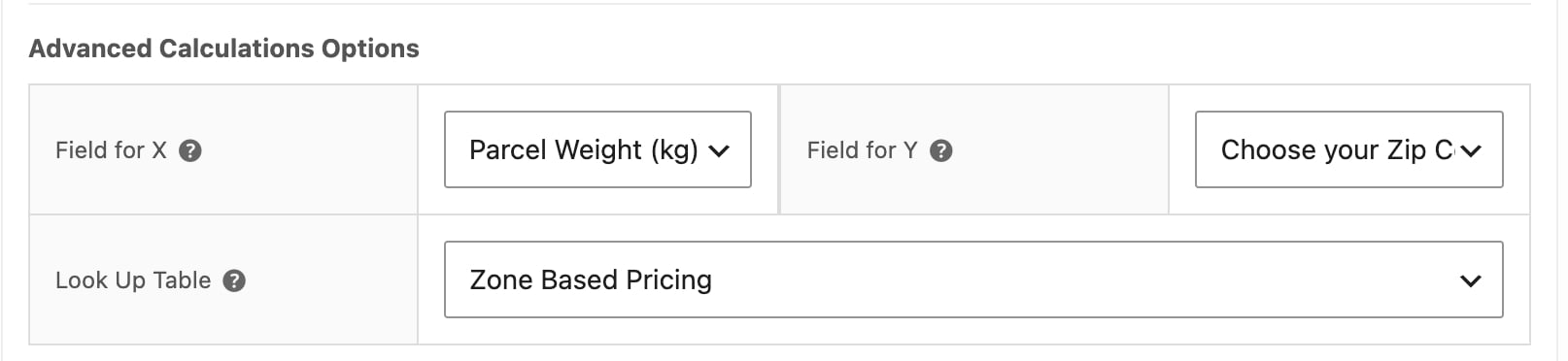
Step #3: If you have a single column lookup table that lists zipcodes vertically, then set ‘Field for Y’ to the delivery zone select field ID. Leave the ‘Field for X’ setting empty.
Choose the ‘(option label)’ version of the field so the plugin matches against the option’s text rather than its price. See Getting started with Advanced Calculations for more on setting up a lookup table calculation field.
If you have a lookup table that uses more than one axis like the example table above, ensure that the ‘Field for X’ and ‘Field for Y’ settings are pointing to the correct fields.
Your product will now return a price for each delivery zone the customer selects.
The demo product is here.