Advanced Calculations allows you to create lookup tables and use them on one or multiple products. So you can set your lookup table pricing once in a global group and apply it to as many products as you like. You don’t need to rebuild the fields or table for each product individually.
What is a global group?
A global group is a set of fields, such as select fields and calculation fields, that exists independently of any single product. You build the fields once in a global group, then use rules to choose which products the group appears on. Every product the group applies to gets the same set of fields automatically. See this article for a complete overview of global groups in Product Add-Ons Ultimate.
Lookup tables aren’t tied to any specific product, so they work well with global groups when you want to reuse the same pricing logic. For example, you can apply a size-based price table to a whole category of products.
How do you create and assign a global group?
To create a global group in Add-Ons Ultimate:
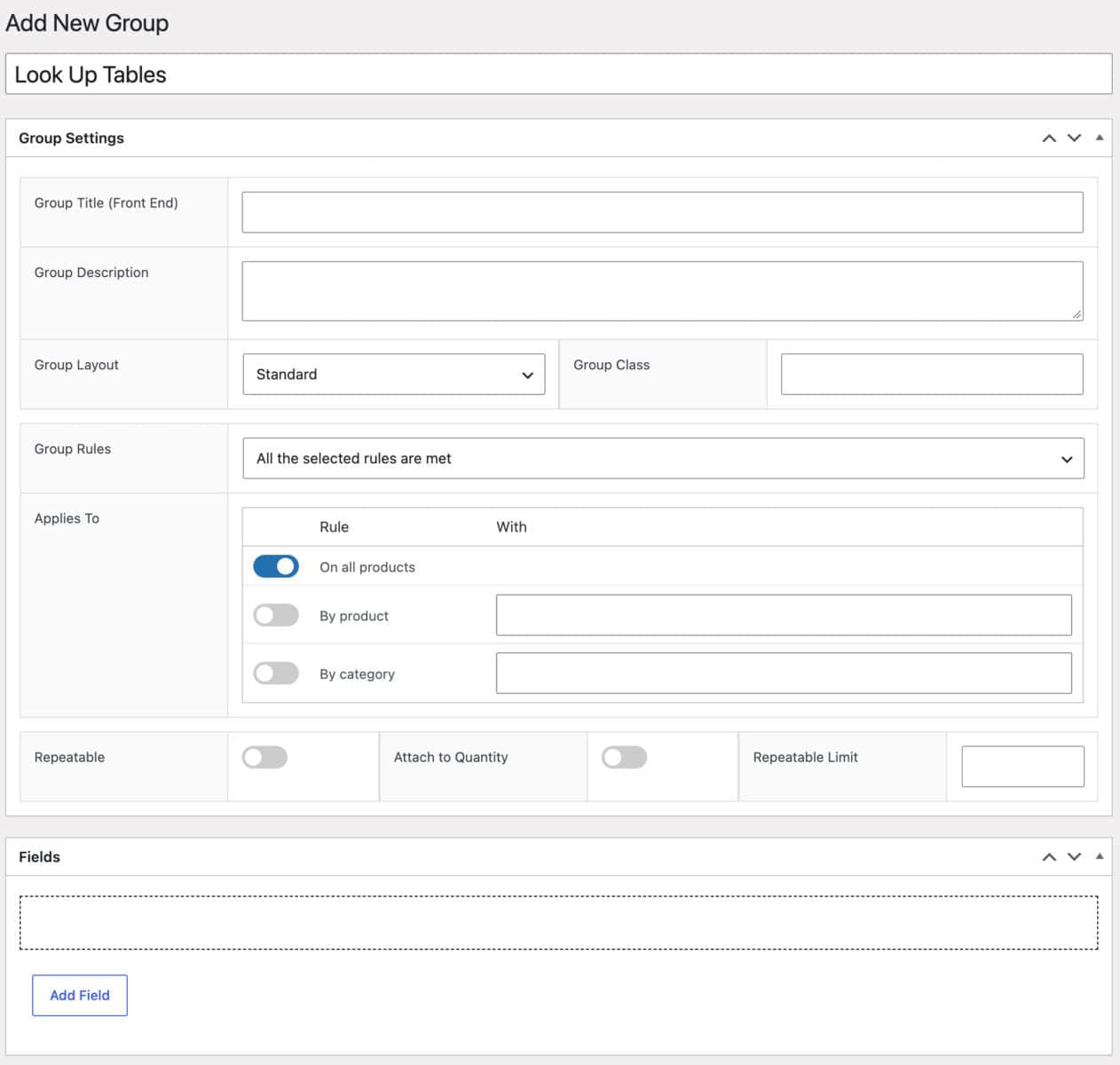
Step #1: Click ‘Global Groups’ under the plugin’s main menu in your WordPress dashboard, then click ‘Add Group’.
Step #2: Enter a title for the group.
Step #3: Choose which products the group applies to using ‘Group Rules’ in the ‘Group Settings’ box:
- On all products: applies the group to every product.
- By product: applies the group to specific products you pick from a search box.
- By category: applies the group to every product in the categories you choose.
You can combine multiple rules and choose whether all or any of them need to match.
Step #4: Add your fields in the ‘Fields’ box. This is where you’ll set up the lookup table field, covered in the next section.
Step #5: Publish the group.
Every product that matches your rules shows the group’s fields, without you needing to edit those products individually.
How do you add a lookup table field to the group?
You can set up the field in the same way as you would on a single product. See Getting started with Advanced Calculations for full details.
Likewise, create your lookup table(s) following the steps in this article. You only need to create them once even if you plan to use them in multiple products.
Step #1: Add a field in the group’s ‘Fields’ box, set its type to ‘Calculation’ and set the formula to {look_up_table}.
Step #2: Choose the table this field should use under ‘Look Up Table’.
Step #3: Set ‘Field for X’ and ‘Field for Y’, or the axis fields for a flat table.
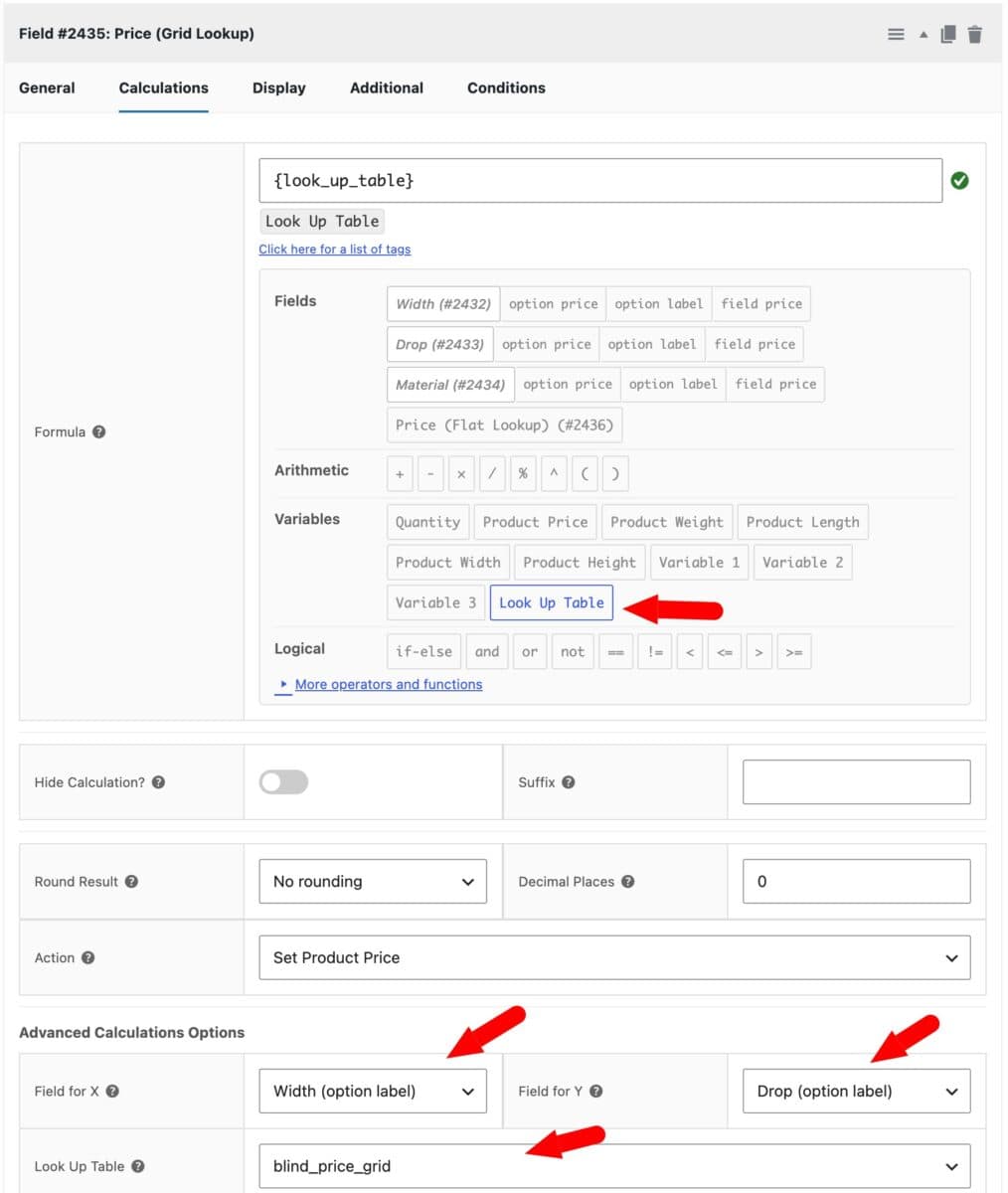
Your lookup table field is ready to use on every product the group applies to.