WooCommerce Product Add-Ons Ultimate lets you set prices dynamically using calculation fields. So you can create simple or complex formulas based on user inputs, including quantity, that will determine the product price. And because calculation fields allow for conditional logic, you can set quantity price breaks – e.g. charge a lower product price when the users chooses a higher quantity.
If you also have the Advanced Calculations extension active, you can use lookup tables to set price breaks. We’ll look at both methods in this document – plus a method for setting the price for a product based on quantity and other add-on fields.
Using formulas to set quantity price breaks
If you only have a few price breaks, you can use conditional logic with the calculation field formula to set prices. This is fine if you don’t have many products where you need to set this – otherwise it can become difficult to manage. In which case, take a look at the section below on using lookup tables.
Add a calculation field to your product
First, add a new calculation field to your product.
- Step #1: Edit your product and click the ‘Product Add-Ons’ tab in the ‘Product data’ section
- Step #2: Click ‘Add Group’ to create a new field group, then click ‘Add Field’ and select ‘Calculation’ from the ‘Field Type’ setting
- Step #3: Enter a label for the field, such as ‘Unit Price’
- Step #4: Click the ‘Formula’ box to open the formula builder panel. Use its buttons to insert variables, operators and functions without typing the syntax from memory.
The formula builder checks your syntax as you type and flags issues such as unbalanced brackets before you save.
How do you build a quantity break formula?
This method uses nested if-else (ternary) logic, with one condition for each pricing tier. This means that the field checks a condition (e.g. whether the quantity is less than 50) then applies a rule.
In this example, the following formula first checks if the product quantity is greater than or equal to 50. If it is, then the formula returns a value of 6; if it’s not, it does another check – this time to see if the quantity is greater than or equal to 10. If it is, the formula returns 8; otherwise, it just returns 10 as the base product price.
{quantity} >= 50 ? 6 : ({quantity} >= 10 ? 8 : 10)To build it:
- Insert
{quantity}from the ‘Variables’ row in the formula builder - Insert the ? and : symbols with the ‘if-else’ button in the ‘Logical’ row
- Wrap each nested condition in parentheses to keep the order of evaluation clear
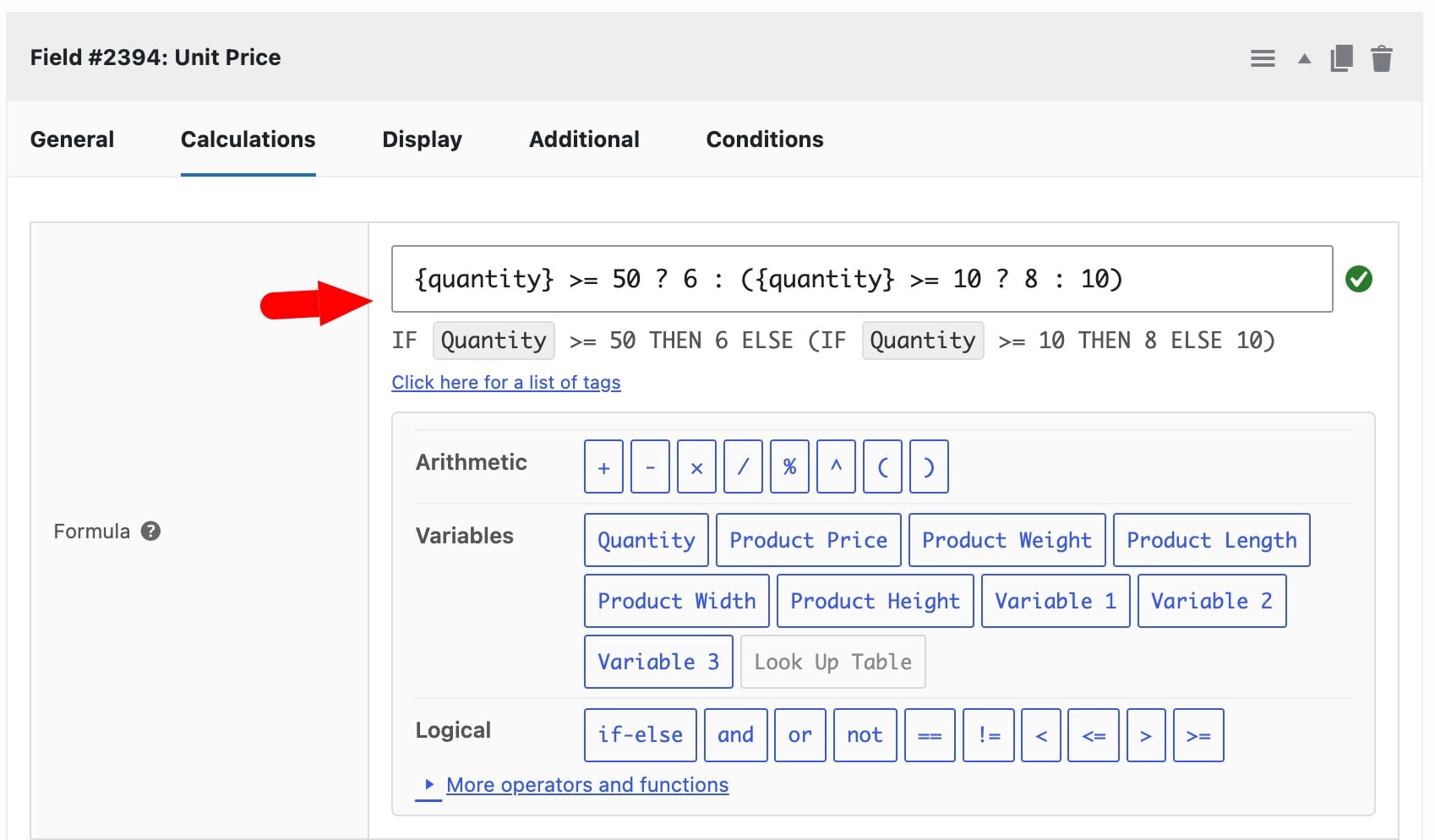
The plugin will display a readable version of the formula below the formula input field. It will also automatically parse and check the formula for syntax errors – the green tick shows that the formula is valid.
Use the formula result to set the product price
Once the formula is correctly entered, you can use the value that it returns to set the product’s base price. Just set the calculation field’s ‘Action’ to ‘Set Product Price’.
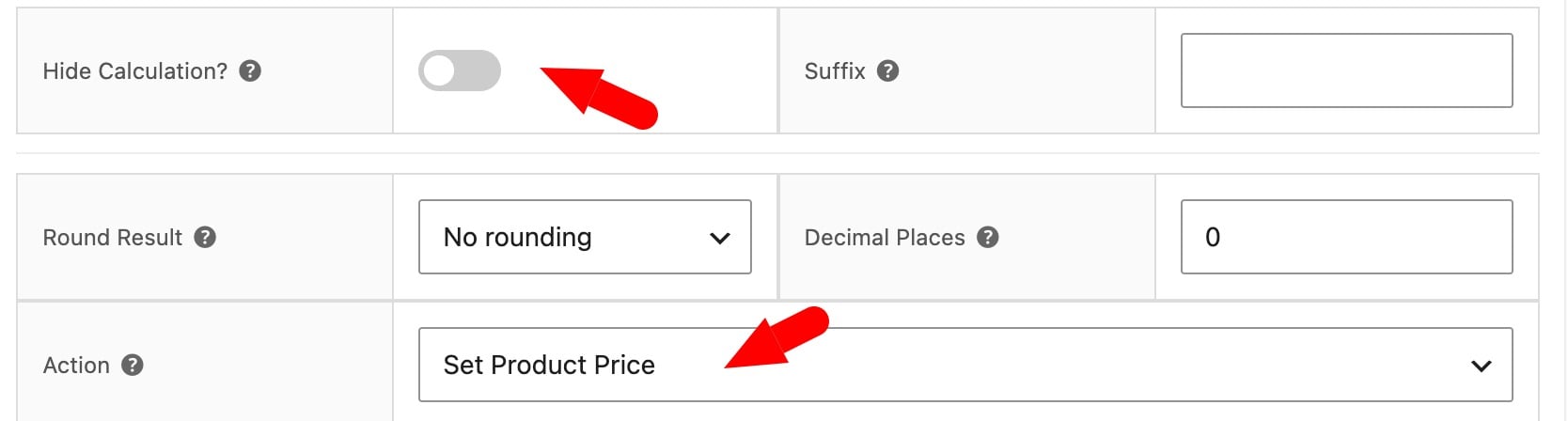
You can also enable the ‘Hide Calculation’ field if you don’t want the formula result to be displayed on the product page.
Save the product. Now, when the user updates the quantity, the calculation field will use the quantity to set the unit price and update the product price accordingly. So if the user selects a quantity of 50 or more, the product price will be set to $6; if they select a quantity between 10 and 50, the product will be set to $8; otherwise, the price will default to $10.
You can nest as many if-then statements as you wish in the formula.
Use a lookup table for quantity break pricing
Using formulas for price breaks is fine if you only have a couple of tiers or if you’re comfortable with complex if-then statements. However, a simpler method is to use lookup tables.
A lookup table lets you define pricing in a grid rather than through nested formula logic, which makes it much easier to create, read and manage. Lookup tables are part of the Advanced Calculations for Add-Ons Ultimate extension, so you’ll need that installed and activated alongside Product Add-Ons.
Step #1: Prepare your pricing table as a CSV
A lookup table can be uploaded as a CSV file or created directly in the WordPress dashboard at Product Add-Ons > Lookup Tables. In this table, we’ll add our quantities down the left-hand column and the associated price per unit in the right-hand column.
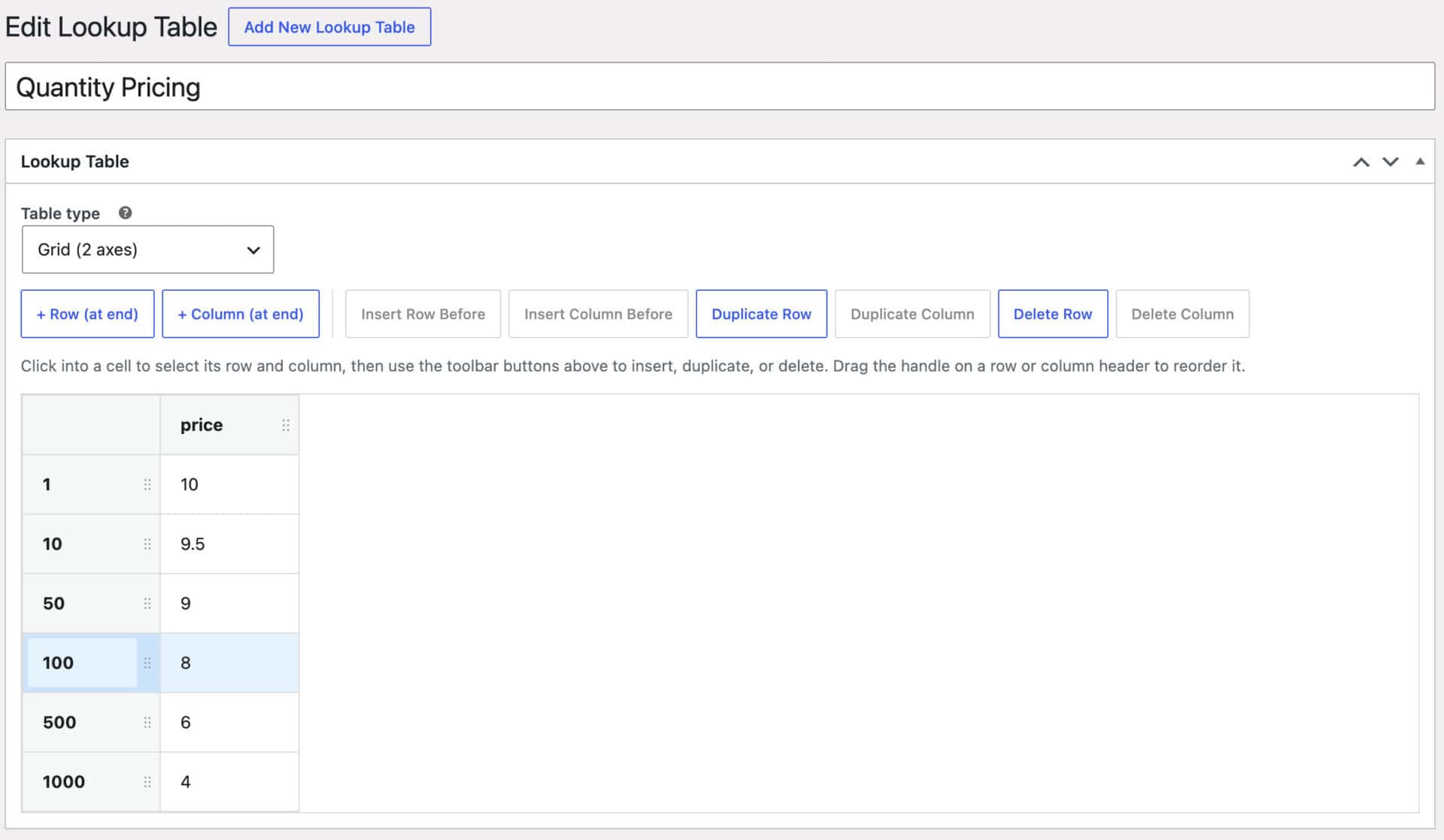
If a customer’s quantity falls between two breakpoints, the table uses the nearest breakpoint above it, so you don’t need to list every possible value.
You can also create the CSV in a spreadsheet application like Excel or Google Sheets.
Here’s a complete guide to using CSV files in Advanced Calculations.
Step #2: Create a calculation field to get the quantity
A lookup table’s X and Y inputs must point at another Product Add-Ons field, not at the native WooCommerce quantity box directly. To use quantity as an axis, add a calculation field that mirrors it:
- Click ‘Add Item’ and set the field type to ‘Calculation’
- Give it a label, such as ‘Quantity Mirror’
- Set its formula to just
{quantity} - Check ‘Hide Calculation?’ so customers don’t see this extra field on the product page
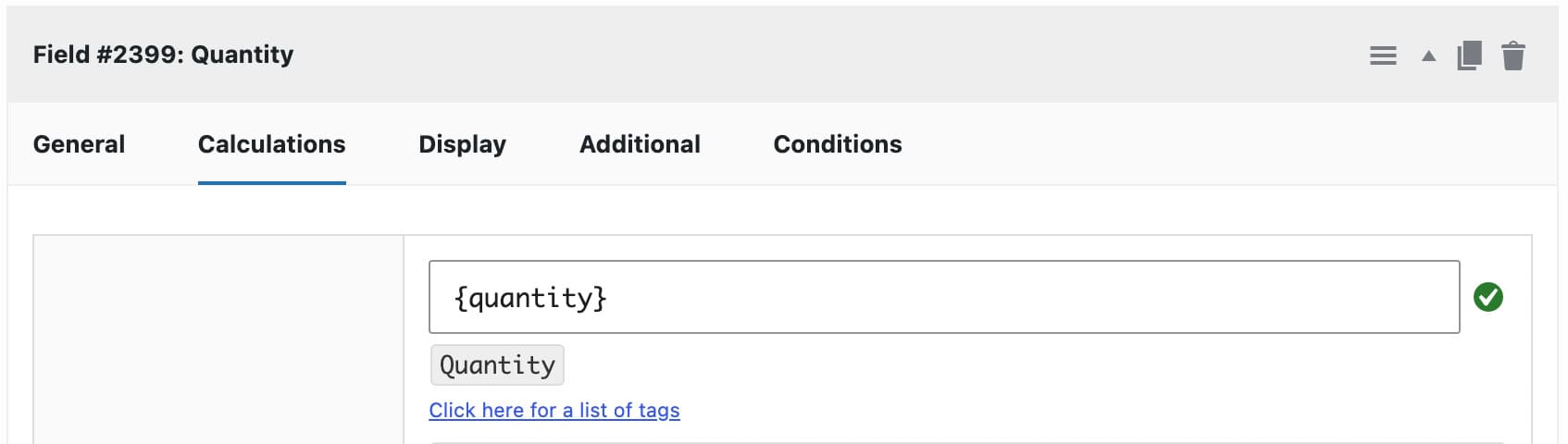
This field now tracks the quantity box and makes it available to other fields through its field ID. Now let’s point the lookup table at it.
Step #3: Point your pricing field at the table
Add another calculation field. On the ‘Calculations’ tab, click the ‘Look Up Table’ button in the formula builder. This inserts {look_up_table} and must be the only thing in the formula – it can’t be combined with other operators or variables.
- Select your table name from the ‘Look Up Table’ dropdown that appears
- Set the ‘Y Input’ field to the ID of the quantity mirror field you created in Step #3
- Leave ‘X Input’ blank, since this table only uses one axis
- Set ‘Action’ to ‘Set Product Price’ to ensure the value returned from the lookup table will set the product price
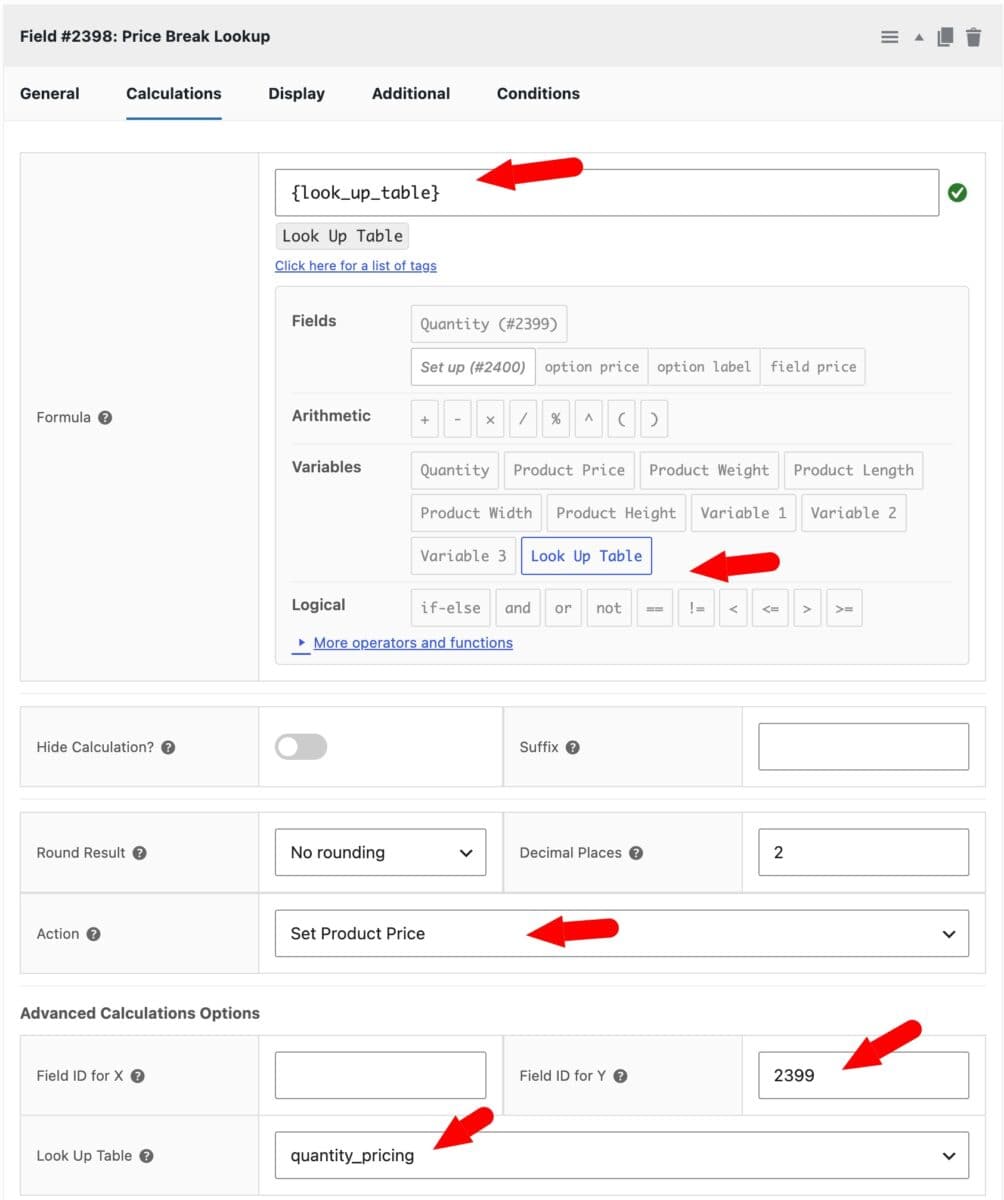
Save the product. Now, when the user updates the quantity, the plugin will check the value of the quantity field against the lookup table and use the value returned from the table as the product price.
If you’d like customers to see the pricing tiers up front, enabling the ‘Display table’ option shows the full grid on the product page so they can see exactly how pricing changes at each quantity level.
Setting quantity break prices with other add-on fields
The method above works perfectly if you are just setting the product unit price based on the quantity selected by the user. However, if you have other factors determining the product price – like other add-on fields – then you just need to make one simple change to the calculation field.
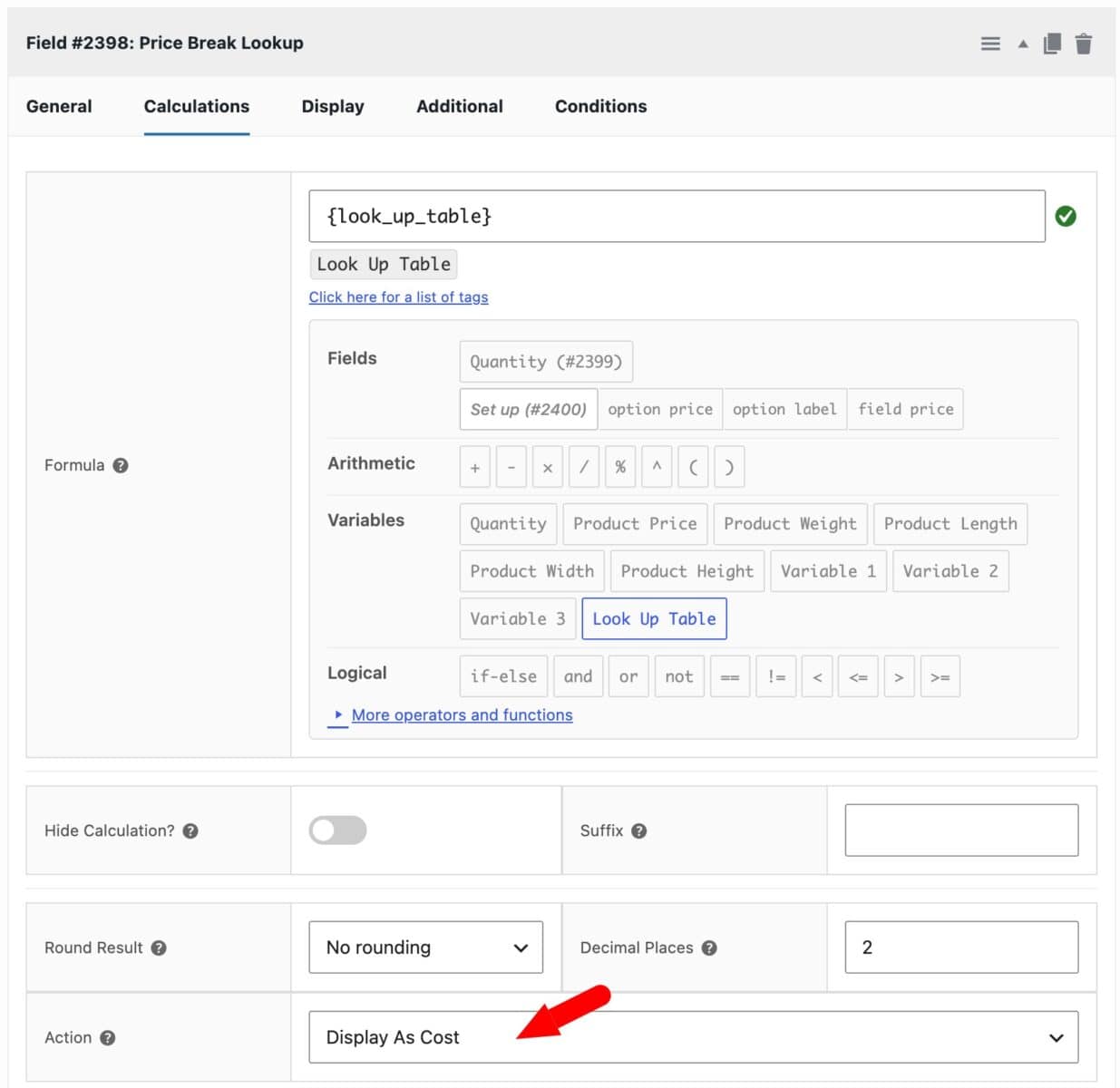
Set the ‘Action’ field to ‘Display as Cost’ on the calculation field that gets the value from the lookup table. This will still return the correct price point for the product based on the quantity and it will allow you to add costs from other add-on fields. The plugin will total them all up and set a price for the product based on quantity and add-on fields.