Lookup tables let you price products from a table of values instead of a mathematical rule. Your formula finds the value that matches the customer’s input and returns it.
This guide covers how to create lookup tables, populate them from a CSV or directly in WordPress, and edit, export and delete them.
What are lookup tables for?
Advanced Calculations for WooCommerce lets you build pricing formulas that react to the customer’s choices, calculate from measurements and apply tiered pricing. Lookup tables are ideal when a price doesn’t follow a clean formula.
For example:
- Size-based pricing: a price that varies by width and height, where cost doesn’t scale in a straight line as the product gets bigger.
- Material or finish surcharges: a fixed extra cost for each combination of material, color and finish.
- Freight or banding tables: values taken directly from a price list or rate card your business already uses.
- Any combination of choices that maps to a specific number: type the values in once instead of reducing them to an equation.
What’s the difference between grid and flat tables?
Every lookup table has a set of axes (inputs) and returns a single value for a given combination of those inputs. You can choose from two table types:
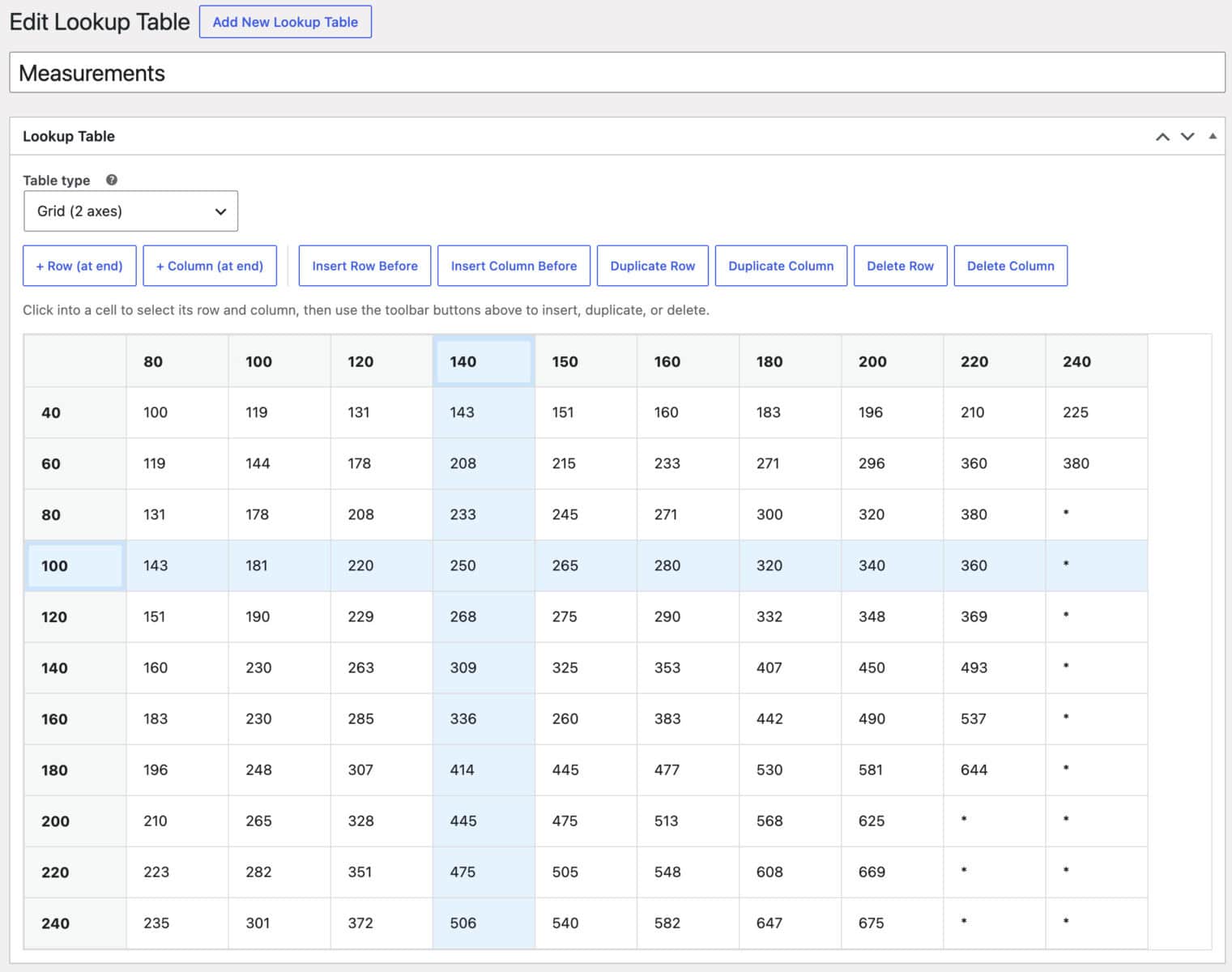
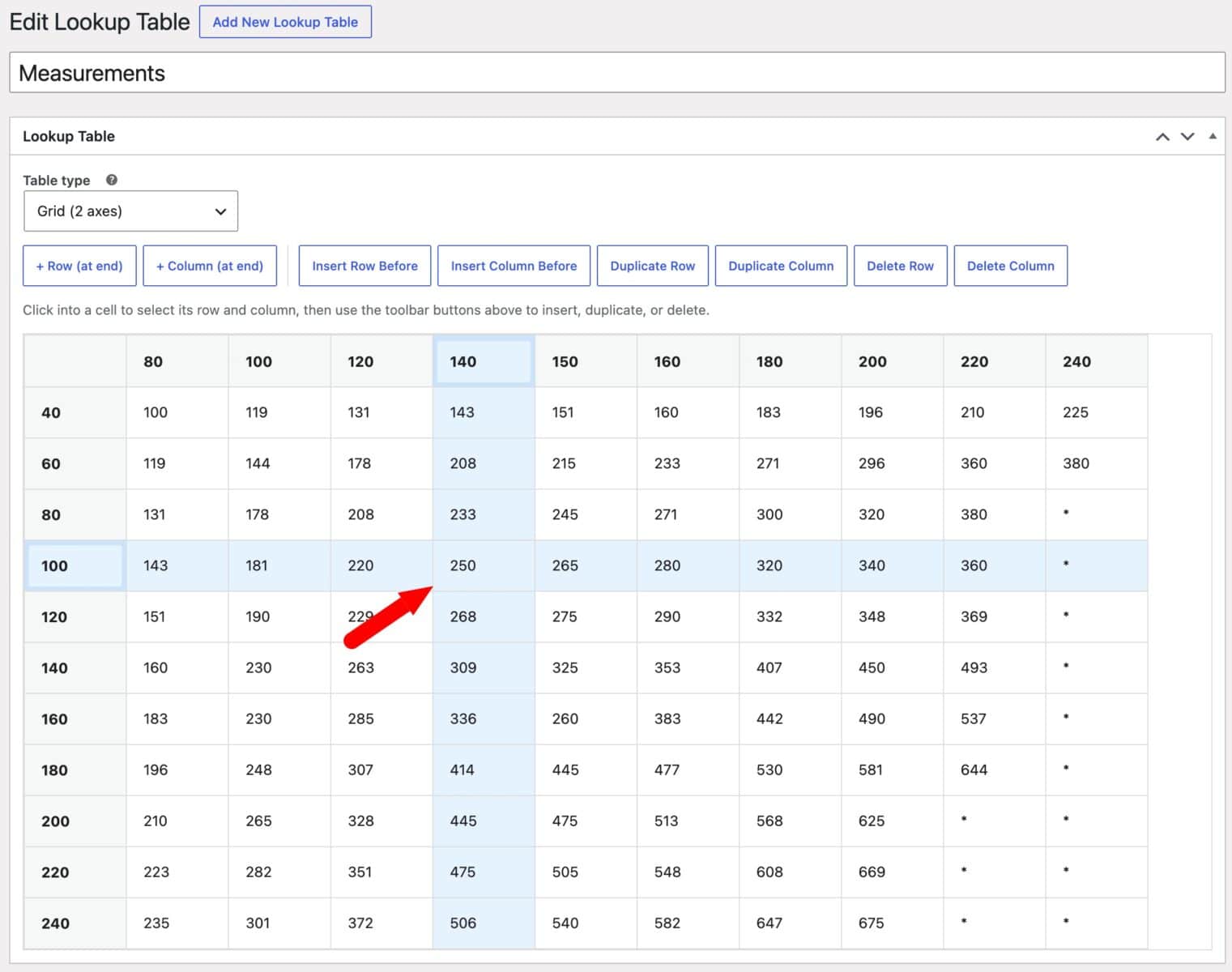
- Grid tables have exactly two axes, an X axis and a Y axis, laid out in rows and columns like a spreadsheet. The formula returns the value where the matching column and row meet.
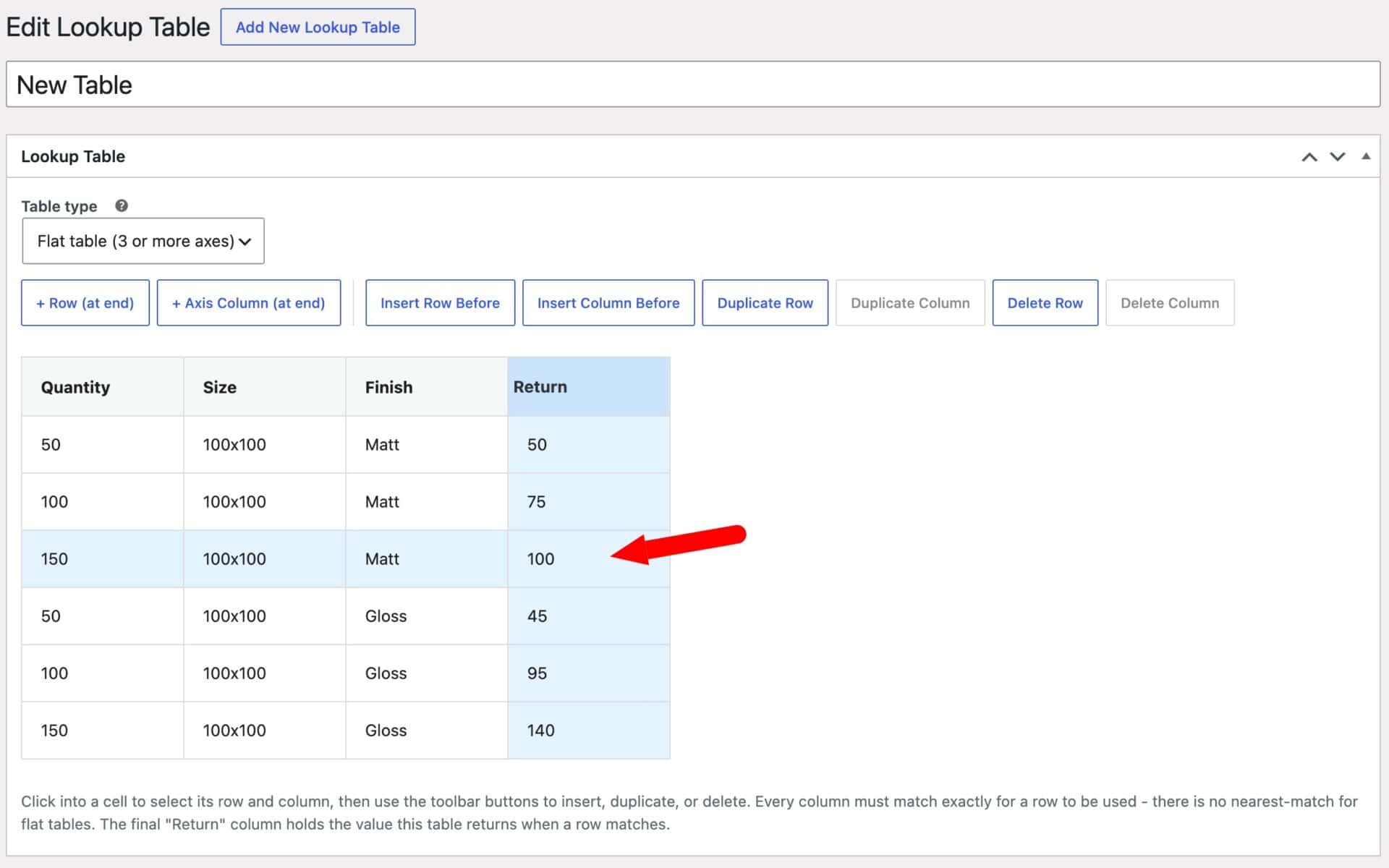
- Flat tables have three or more axes, stored as a list of rows. Each row holds one value for every axis plus a result value, and a row is only used when every axis value matches the customer’s input exactly.
Tables can hold numbers or text. Grid tables can match text axis values, such as a dropdown option like ‘Small’ or ‘Large’. Flat tables always match by exact value, whether it’s a number or text.
Once you’ve created a table, you reference it from a calculation field’s formula and map product fields to each axis. This is covered in the companion guide on using lookup tables in formulas.
How do you create a lookup table?
There are a couple of ways for you to create and edit your lookup tables.
Create a table directly in your WordPress dashboard
To create a new table directly in your site:
- Step #1: Go to Advanced Calculations > Lookup Tables in your WordPress dashboard.
- Step #2: Click ‘Add New Lookup Table’.
- Step #3: Enter a name for the table. The name only appears in your dashboard list, so it doesn’t need to match anything in a formula.
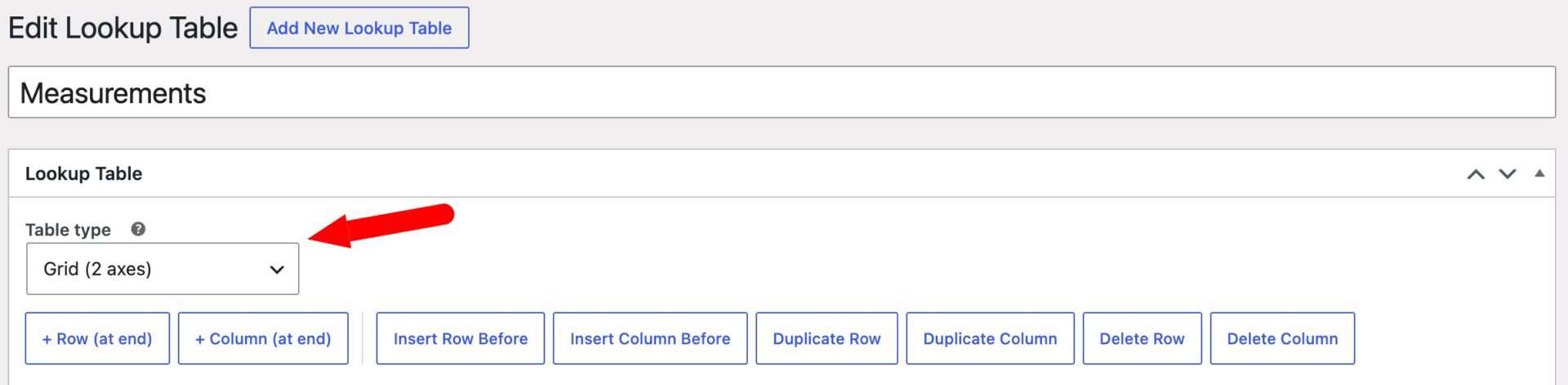
- Step #4: Choose an option from the ‘Table type’ field:
- ‘Grid (2 axes)’ for a standard row and column table.
- ‘Flat table (3 or more axes)’ for a table with three or more inputs.
- Step #5: Click ‘Publish’.
Your table is saved and ready for data. You can enter values directly in the dashboard or upload a CSV.
Upload a CSV file
If your data is already in a spreadsheet then uploading a CSV might be the fastest way to populate a table. You can even upload multiple tables from a single CSV.
Once uploaded, you can edit it directly in WP or you can upload a new CSV file.
- Step #1: Open the lookup table. A new table needs to be published once before you can attach a CSV to it
- Step #2: Click ‘Import File’ in the ‘Replace via CSV’ box in the sidebar and choose your .csv file
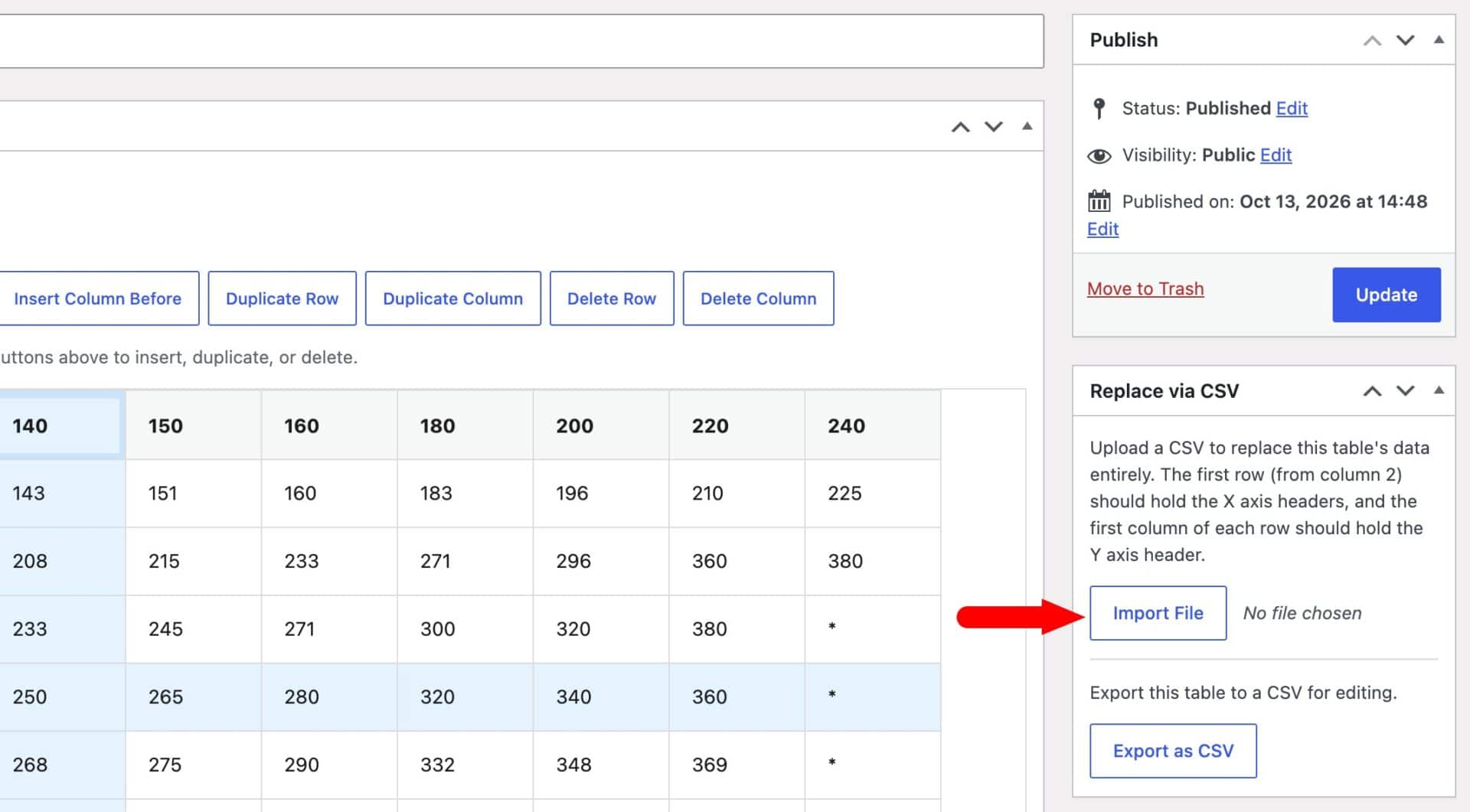
The file imports immediately, so you don’t need to click any other save button.
How should you format your CSV?
If you’re uploading CSVs, the plugin detects the format from the file’s header row, so the same import field works for both table types.
- Grid format: the first row holds the X axis headers from the second column onward. The first cell of each following row holds that row’s Y axis header. The top-left cell is ignored, so you can leave it blank
- Flat format: the first row holds a label for each axis column, with the final header cell reading ‘Return’. This is how the plugin recognizes a flat-format file. Each following row holds one value per axis column, plus the result value in the final column
If you’d like a sample CSV file, just let us know.
What happens to the table’s existing data?
Importing a CSV replaces the table’s data entirely rather than merging with it. The table type also switches automatically to match the file’s format, so you don’t need to set it before uploading.
Uploading multiple tables from a single CSV
If you have several lookup tables to bring in at once, you don’t need to create each one individually and upload multiple CSVs – so you can import them all in one go from a single file.
- Go to Advanced Calculations → Lookup Tables
- Click Bulk Import CSV, next to Add New Lookup Table at the top of the screen
- Choose your CSV file and click Import
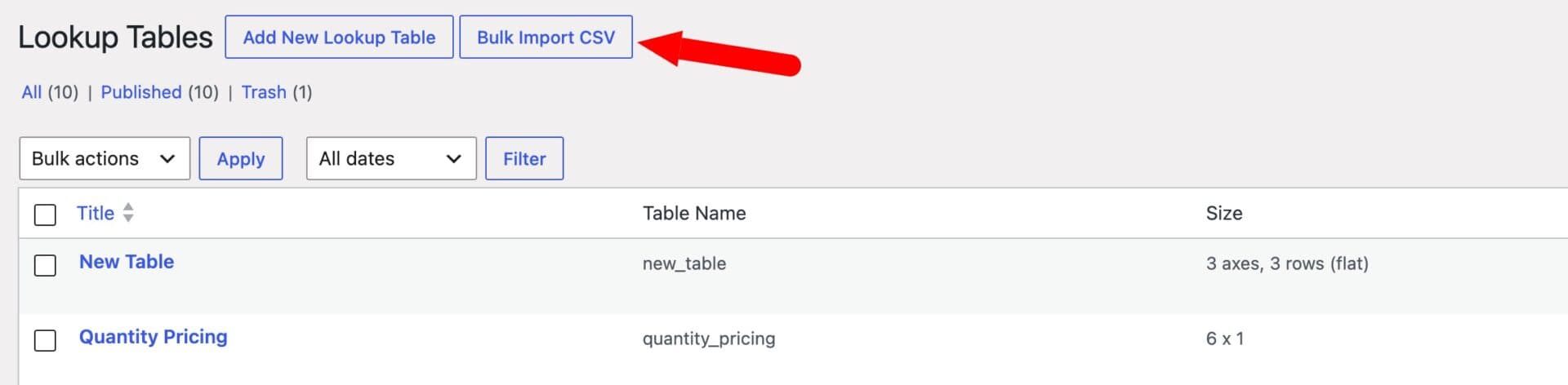
A bulk CSV holds multiple tables stacked one after another in the same file. The plugin detects where one table ends and the next begins by looking at the first cell of each row: whenever that cell contains a table name – any non-empty, non-numeric value – it marks the start of a new table, with every row underneath it belonging to that table until the next name is reached.
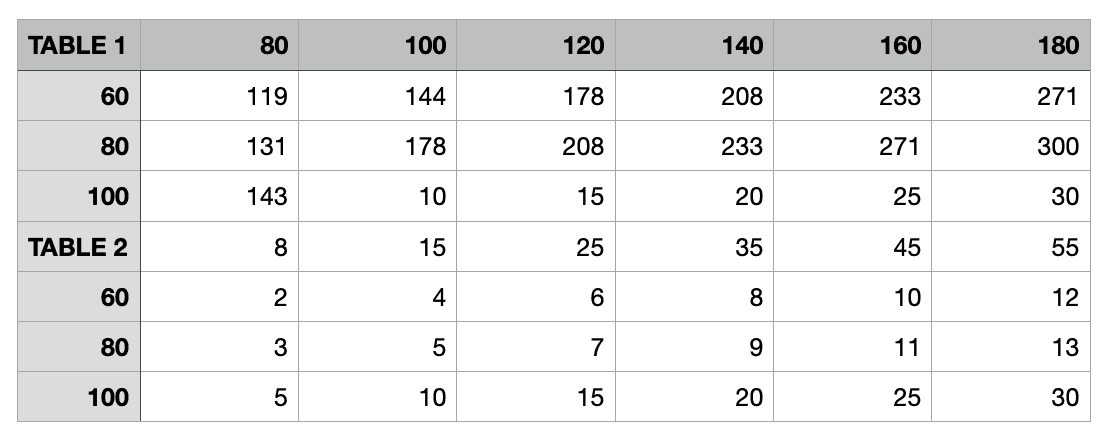
This produces two separate tables — table_1 and table_2. After importing, each table will be created as its own Lookup Table post.
A few things to keep in mind:
- Each table’s name (the top-left cell of its block) becomes that table’s identifier — the same name a calculation field’s formula will reference, so give each one something short, unique, and without spaces (e.g.
table_1rather than “Table 1”). - If a table with a matching name already exists, it’s updated in place rather than duplicated – this makes it easy to re-run a bulk import after correcting the data in your spreadsheet, without ending up with duplicate tables.
- Bulk import only supports the grid (2-axis) format – every table in the file is created or updated as a grid table. To import a flat (3+ axis) table, upload it individually from that table’s own edit screen instead (see “Uploading a CSV file” above).
- After importing, you’ll see a confirmation message showing how many tables were imported, with a link back to the Lookup Tables list to review them.
Troubleshooting CSV files
If you run into any problems importing your CSV files, check the following:
- Formatting: if you find that the CSV file uploads but doesn’t look right, please try converting your Excel file to a CSV file via this link: https://www.zamzar.com/convert/xls-to-csv/
- Ensure that your CSV is actually comma-separated. Don’t use semi-colons or other characters as the separator
How do you edit or update a lookup table?
Each lookup table has an editable grid, or a row list for flat tables, on its edit screen. You can change individual values without re-uploading a CSV.
How do you edit a grid table?
- Click into any cell, header, row label or column label and type to change its value.
- Click ‘+ Row (at end)’ or ‘+ Column (at end)’ to add rows or columns.
- Click into any data cell to select its row and column. This highlights them and activates the toolbar buttons above the table: ‘Insert Row Before’, ‘Insert Column Before’, ‘Duplicate Row’, ‘Duplicate Column’, ‘Delete Row’ and ‘Delete Column’.
- Drag and drop any row or column if you wish to reposition it in the table
- Click ‘Update’ or ‘Publish’ to save your changes.
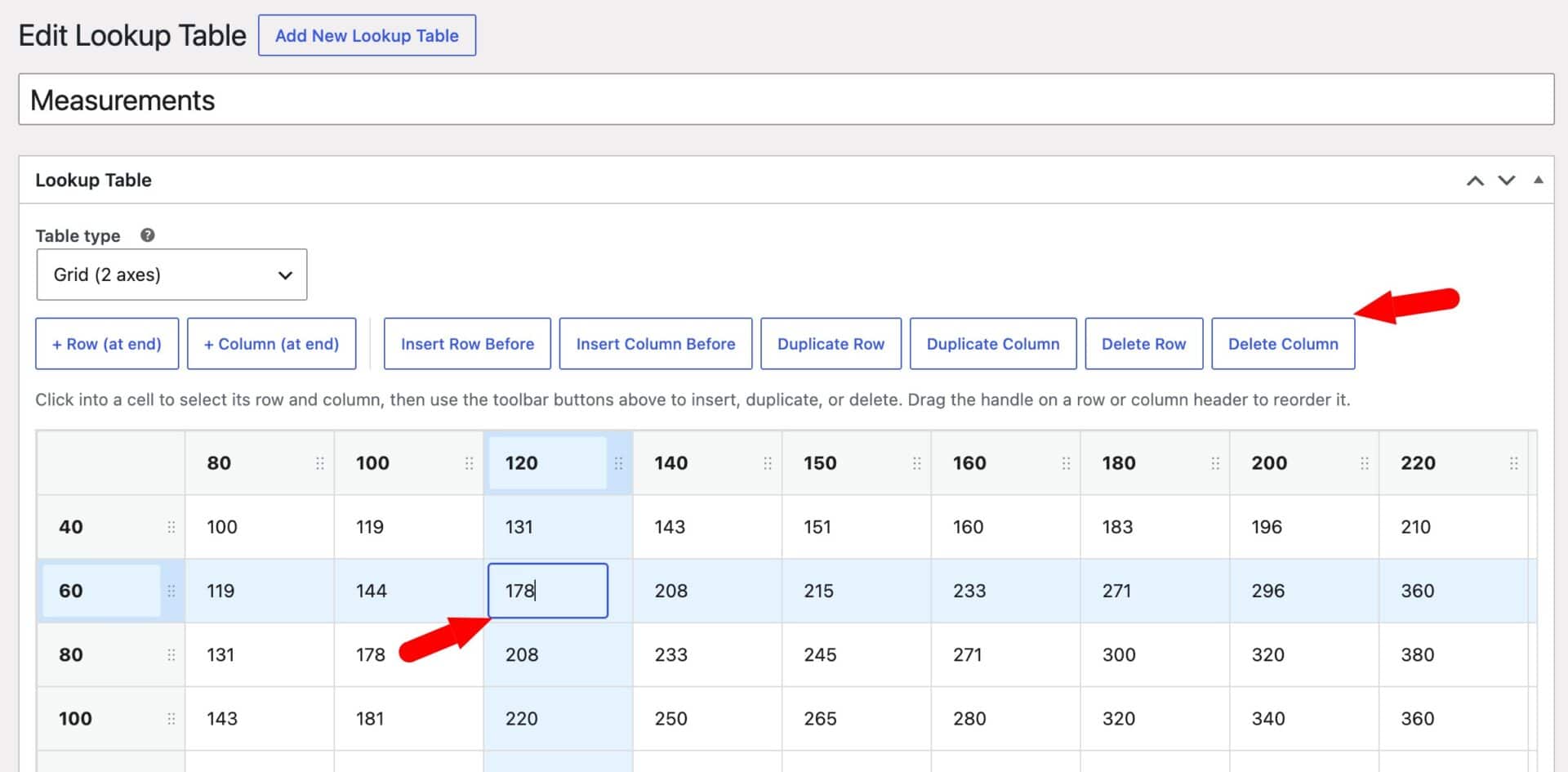
Clicking an axis header highlights that row or column for duplicating or deleting, but doesn’t activate the insert buttons. To insert a row or column, select a data cell first.
Tables of roughly 50 rows by 50 columns or more show a warning that editing in the browser may be slow. For tables this size, it’s usually quicker to export the table, edit it in a spreadsheet and re-upload it.
How do you edit a flat table?
- Click into any axis value, axis column label or the ‘Return’ column to change it.
- Click ‘+ Row (at end)’ or ‘+ Axis Column (at end)’ to add rows or axis columns.
- Click into any cell to select its row and column and activate the same toolbar buttons as the grid editor.
- Click ‘Update’ or ‘Publish’ to save your changes.
Row order doesn’t affect lookups in a flat table, because rows are matched by their values rather than their position. You can reorder rows freely.
Every axis value in a row must match exactly for that row to be used. Flat tables don’t match the nearest value, so enter text values with the same spelling and case the formula will compare against.
Can you switch a table’s type?
Yes. Use the ‘Table type’ dropdown near the top of the editor to switch between ‘Grid’ and ‘Flat table’ at any time.
Switching doesn’t delete the other type’s data, so you can switch back without losing work. However, each editor only shows and saves its own data, so it’s best to finish building a table in one type.
How do you export a table to CSV?
You can export any table to a CSV file, whether you originally created it from a CSV or in the dashboard.
- Step #1: Open the table.
- Step #2: Click ‘Export as CSV’ in the ‘Replace via CSV’ box.
The file downloads immediately in the same format as the table’s current type. You can edit it in a spreadsheet and re-upload it the same way.
Exporting is useful for bulk-editing large tables, backing up a table before making changes or moving a table to another site.
How do you delete a table?
Check that no calculation field’s formula references the table before you delete it. If you delete a table that a formula depends on, the formula stops returning a value.
Go to Advanced Calculations > Lookup Tables, hover over the table’s row and click ‘Trash’. To delete several tables, select them and choose ‘Move to Trash’ from the ‘Bulk actions’ dropdown.
You can restore trashed tables from the ‘Trash’ view, just like any other WordPress content.