You can use values from Advanced Custom Fields in your calculation fields when using Product Add-Ons Ultimate along with the Advanced Calculations extension. This works with both the free and premium version of ACF.
The Advanced Calculations extension allows you to pull ACF values into calculation field formulas. For example, you can add a product’s custom base_fee or weight_multiplier value to its price. There are some specific examples and use-cases for ACF fields in your calculation fields at the end of this document.
Tutorial: Incorporate ACF values in calculation fields
Here’s how to use values from ACF fields in your calculation formulas.
Step #1: Add a numeric ACF field to your product
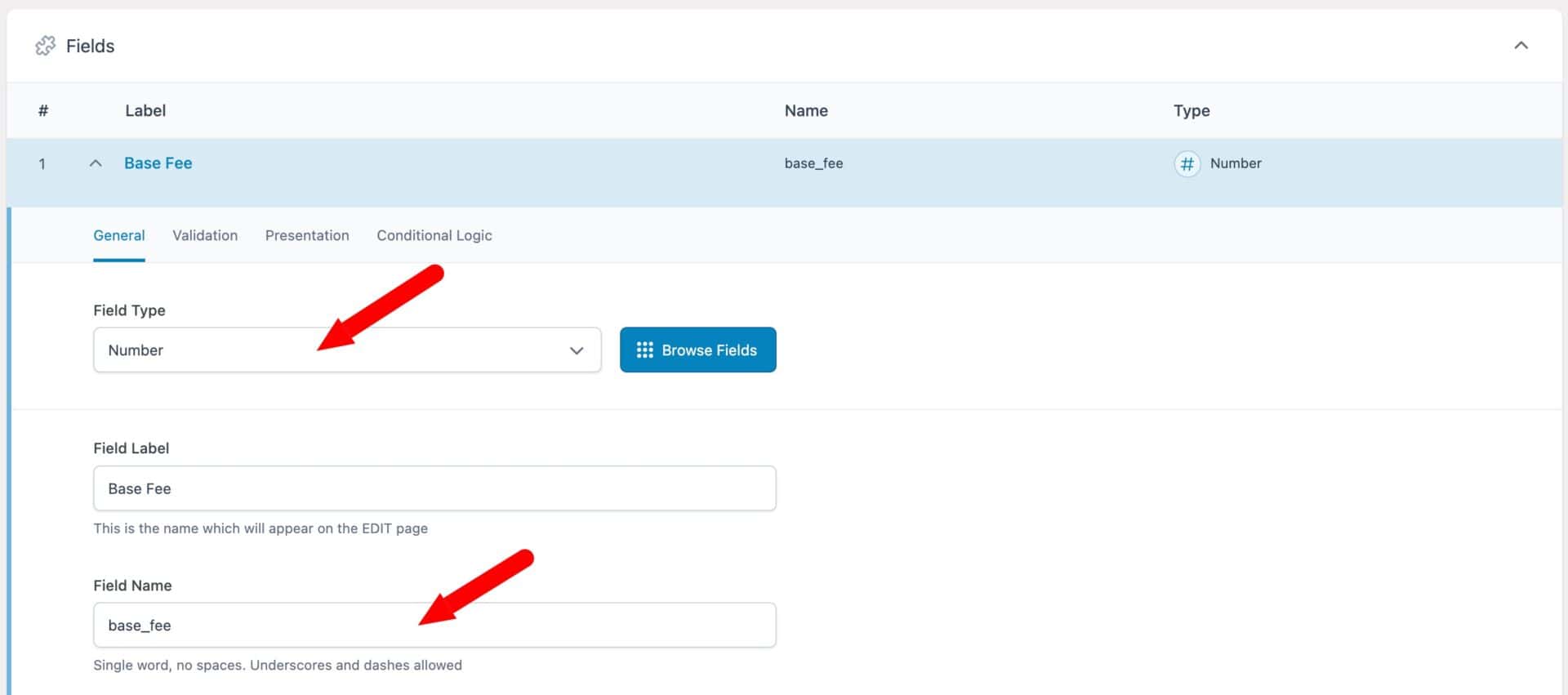
The first step is to create a numeric ACF field:
- Go to ACF > Field Groups and click ‘Add New’ to create a new ACF group
- Choose ‘Number’ from ‘Field Type’ then give the field a label, e.g. ‘Base Fee’
- The ‘Field Name’ setting should automatically populate with a sanitized version of the label, e.g.
base_fee - Add further number fields if you need them
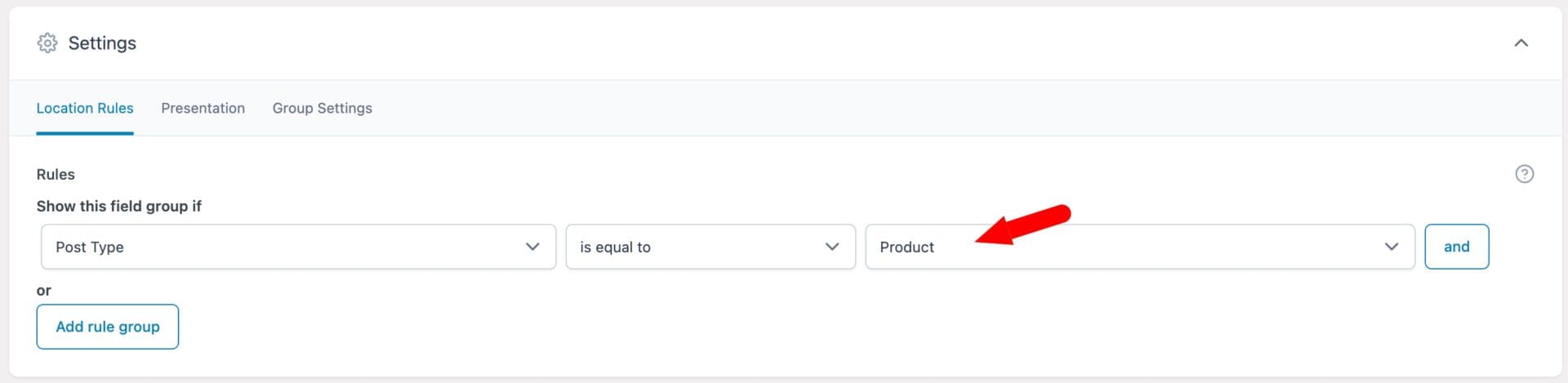
- In the Settings section, ensure that the field will display when the ‘Post Type’ is set to ‘Product’.
Only numeric ACF values can be used in calculations. Text, image and other non-numeric field types can’t be evaluated in a formula and will be ignored.
You now have a numeric ACF field that is ready to be populated on each of your product screens.
Step #2: Enter a value in your ACF field
Once you’ve saved your new ACF group, you’ll see a new section on each product edit screen.

Enter the value that applies to this product – so, in our example, we’ve entered 25 for the base fee for this product. ACF fields don’t automatically display on the front end – so they’re useful for setting values per product that the user doesn’t see.
Step #3: Reference the ACF field in your formula
To use the value of the ACF field in your calculation field formula:
- Create a new calculation field
- Click on the ‘Calculation’ tab and type in the reference to your ACF field. Add
acf_before the field’s name to reference it in a formula, e.g.:
{acf_your_field_name}Use the field’s name, not its label. For example, if the field’s name is base_fee, the tag is {acf_base_fee}.
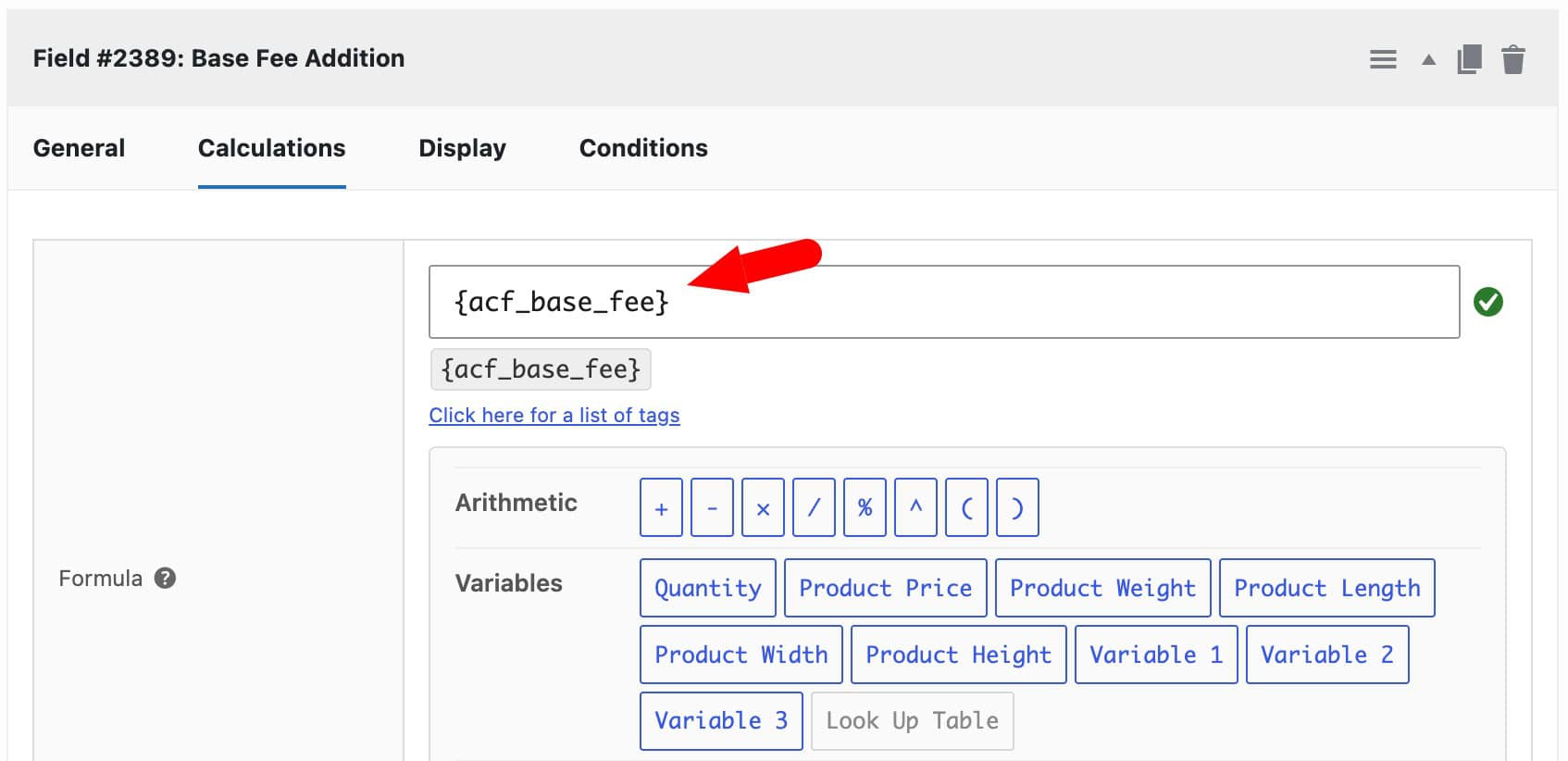
What does an example formula look like?
You can then include other variables and field references in your formula.
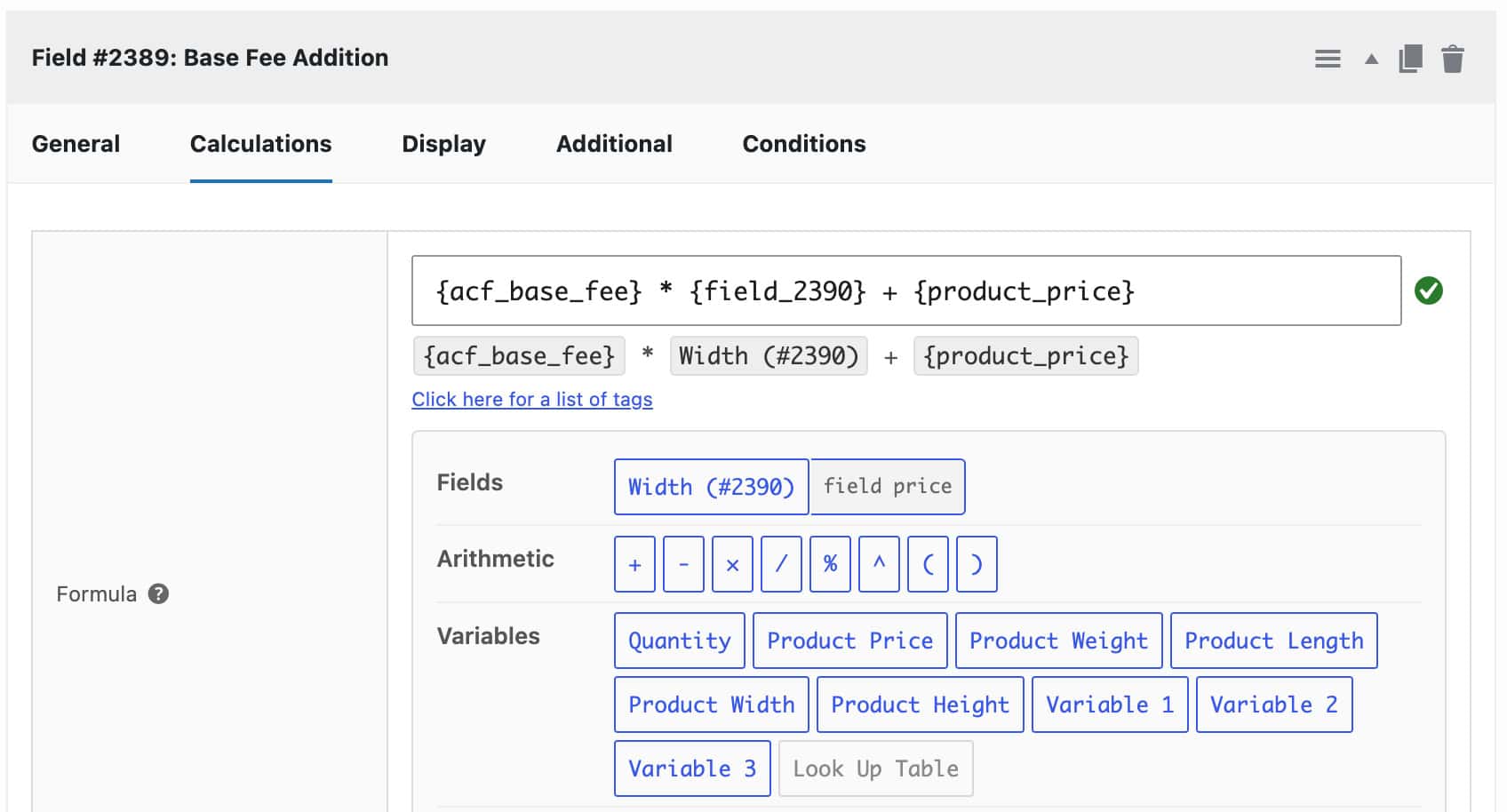
You can combine ACF tags with any other calculation tag. These include other fields such as {field_2}, product data such as {product_weight} and {product_price} and global variables such as {variable_1}.
You can include multiple ACF fields if you like.
You can also use standard operators and functions, including + – * / ( ), sqrt(), round(), min() and max().
Here’s a complete guide to functions and operators available in WooCommerce calculations.
Step #4: Save and test your product
Save the product and view it on the front end. If the result looks wrong, open your browser console and check for an unresolved {acf_...} tag.
An unresolved tag usually means:
- The ACF field name doesn’t match the formula. Check you’re using the field’s name, not its label
- The field isn’t assigned to that product
- The field’s value isn’t numeric
- The Advanced Calculations add-on isn’t active
Once the tag resolves, your formula is using the product’s ACF value.
What can you use ACF values for?
ACF values let you store a number on each product and use it in a shared formula. This is especially useful when one add-on group is applied to many products that each need a different rate or limit.
Here are a few example use-cases.
Example #1: Charge a different rate per square meter for each product
Add a price_per_sqm ACF field to each product, then create Width and Height Number fields. Set the Calculation field’s ‘Action’ to ‘Display As Cost’ and use this formula:
{field_1} * {field_2} * {acf_price_per_sqm}Each product charges its own rate per square meter, even when they share the same add-on group.
Example #2: Add a product-specific setup fee
Add a setup_fee ACF field for products with one-off costs, such as printing plates or embroidery digitizing. Set ‘Action’ to ‘Display As Cost’ and use this formula to add the fee to the per-item cost:
{acf_setup_fee} + {field_1} * {quantity}The setup fee is charged once per order line, while the per-item cost scales with the quantity.
Example #3: Set a minimum charge for each product
Add rate and min_charge ACF fields to each product. Set ‘Action’ to ‘Display As Cost’ and use max() to apply whichever is higher:
max({field_1} * {acf_rate}, {acf_min_charge})Small orders are charged the minimum, while larger orders are charged at the normal rate.
Example #4: Calculate shipping weight from material density
Add a density ACF field to products made from different materials, such as wood, steel or acrylic. Set ‘Action’ to ‘Add to Product Weight’ and multiply the customer’s dimensions by the density:
{field_1} * {field_2} * {field_3} * {acf_density}The shipping weight updates to reflect both the size the customer chooses and the material of the product.
Example #5: Work out how many units a customer needs
Add a coverage ACF field to products sold by coverage, such as paint, flooring or wallpaper. Set ‘Action’ to ‘Update Quantity’ and divide the customer’s area by the product’s coverage:
ceil({field_1} / {acf_coverage})The cart quantity updates to the number of tins, packs or rolls needed, rounded up to a whole unit.
Example #6: Apply a bulk discount from a product-specific threshold
Add a bulk_threshold ACF field to set the quantity where a discount starts for each product. Set ‘Action’ to ‘Set Product Price’ and use a ternary to apply 10% off above the threshold:
{quantity} >= {acf_bulk_threshold} ? {product_price} * 0.9 : {product_price}Each product can have its own discount threshold without separate formulas.