This is the complete guide to the operators, functions and variables you can use in the WooCommerce Product Add-Ons Ultimate calculation field. See this article for an introduction to calculation fields. You can also see a demo of all the operators and functions here.
Formulas are evaluated on the front end and {tag} placeholders are replaced with field values and product or order data when the formula runs.
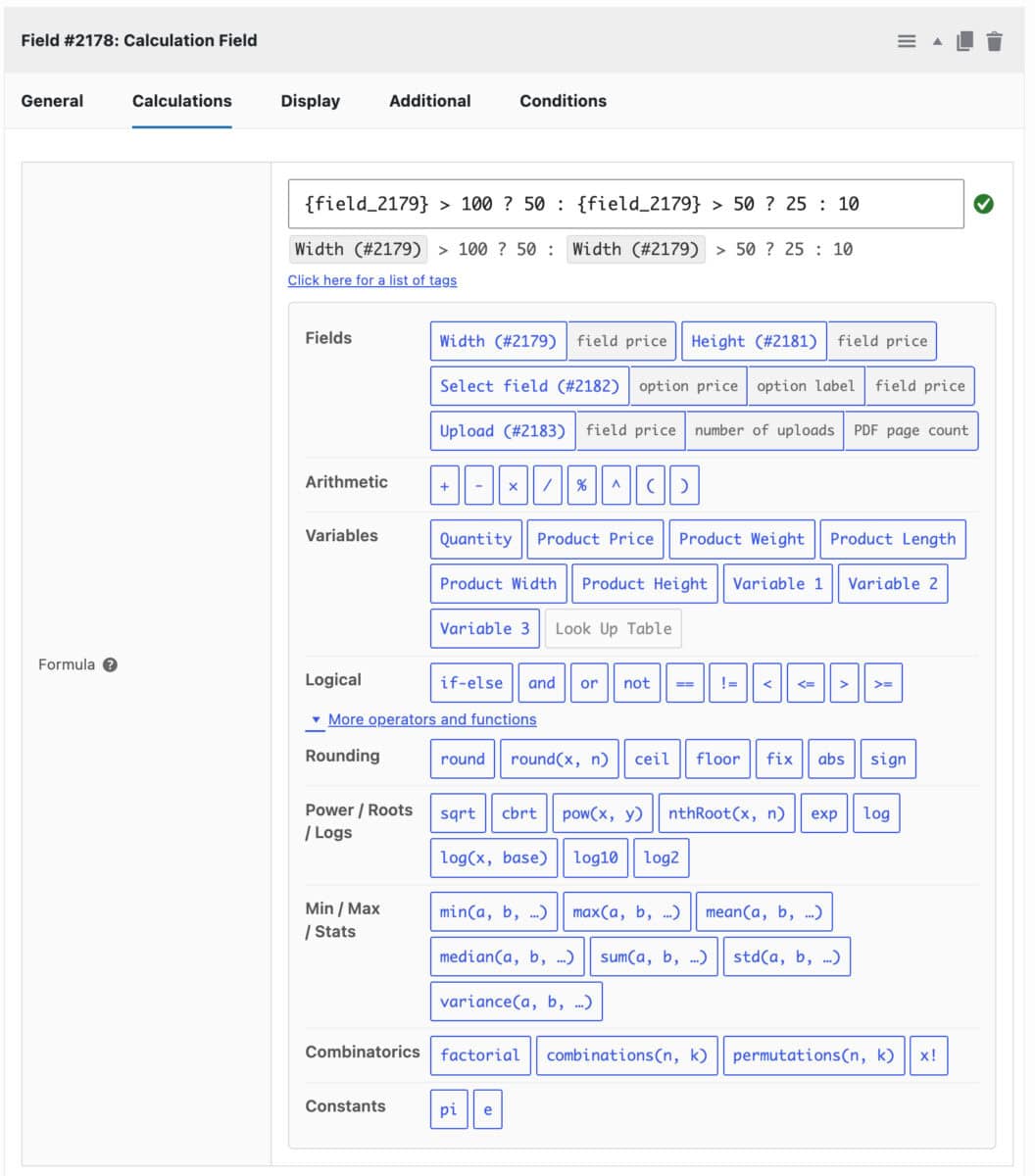
You’ll find every option below in the formula builder panel under the ‘Formula’ field. You don’t need to type anything manually into the formula field – all your available field tags, operators and functions are listed in the panel. Just click a button to add it to the formula.
Which arithmetic operators can you use?
All the arithmetic operators available in the plugin are listed in the table below.
| Symbol | Name | What it does |
|---|---|---|
| + | Addition | Adds two values |
| – | Subtraction | Subtracts the right value from the left |
| * | Multiplication | Multiplies two values |
| / | Division | Divides the left value by the right |
| % | Modulo | Returns the remainder after division, e.g. 7 % 3 = 1 |
| ^ | Power/exponent | Raises a value to a power, e.g. 2 ^ 3 = 8 |
| ( ) | Parentheses | Groups part of the formula so it’s calculated first |
Which variables can you insert?
Each variable inserts a {tag} that’s replaced with live data when the formula runs.
| Button | Tag | What it resolves to |
|---|---|---|
| Quantity | {quantity} | The quantity entered for this product |
| Product Price | {product_price} | The product’s base price |
| Product Weight | {product_weight} | The product’s weight from the ‘Shipping’ tab |
| Product Length | {product_length} | The product’s length from the ‘Shipping’ tab |
| Product Width | {product_width} | The product’s width from the ‘Shipping’ tab |
| Product Height | {product_height} | The product’s height from the ‘Shipping’ tab |
| Variable 1 / 2 / 3 | {variable_1} etc. | Custom global variables set in the plugin settings |
| Look Up Table | {look_up_table} | The field’s look-up table, used instead of a formula |
The {look_up_table} tag must be the entire formula and can’t be combined with anything else. It requires the Advanced Calculations for Add-Ons Ultimate extension. The button is disabled if that extension isn’t active.
How do you reference other fields?
Reference any other field on the product by including its ID in the tag. Each tag resolves against the field it references:
{field_1234}– the value of field #1234{field_1234_field_price}– that field’s own ‘Price’ setting{field_1234_option_price}– the price of the selected option in select, radio, checkbox group, image swatch and products fields{field_1234_option_label}– the ‘Value’ setting of the selected option. The older synonym {field_1234_option_value} also works{field_1234_weight},_length,_width,_heightand_quantity– read from the selected child product in Products and Product Categories fields only{field_1234_number_uploads}and_pdf_count– Upload fields only
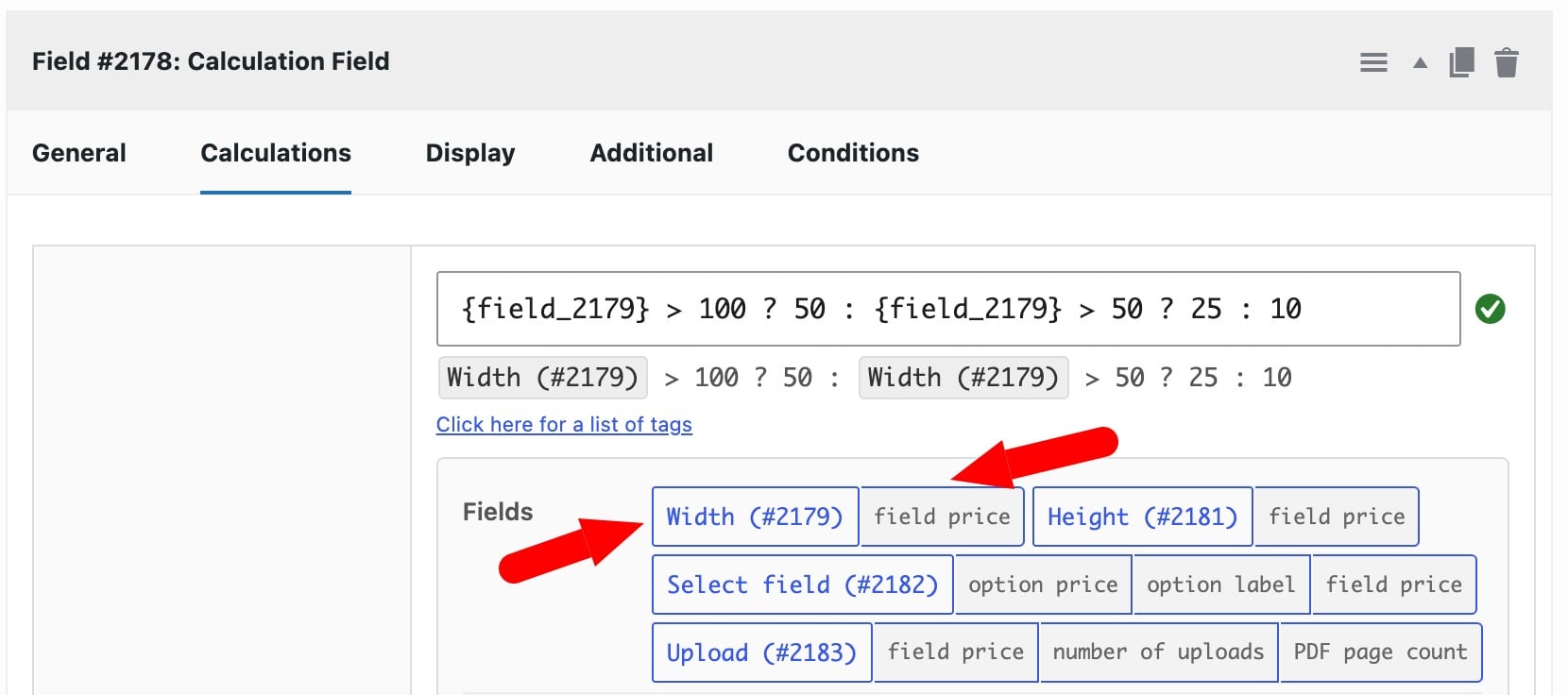
The ‘Fields’ row in the formula builder lists every other field on the product. It shows the relevant buttons for each field automatically, based on its type.
In the screenshot below, the Width (#2179) button refers to a number input field. Click on the Width (#2179) button itself to include the value of that input field in the formula; or click on the field price secondary button next to it to include the value of the field’s price in the formula.
Which integration variables are available?
These buttons only appear if the relevant plugin is active.
| Button | Tag | Requires |
|---|---|---|
| Booking Cost | {calculated_booking_cost} | Bookings for WooCommerce |
| Number of Units | {num_units_int} | Bookings for WooCommerce |
| Number of Bookings | {num_bookings} | Bookings for WooCommerce |
| Total Variations | {total_variations} | WooCommerce Bulk Variations |
How do logical operators work?
You can use logical operators to change the calculation based on conditions, such as the quantity ordered or the values customers enter.
| Symbol | Name | What it does |
|---|---|---|
| condition ? a : b | If-else (ternary) | Returns a if the condition is true, otherwise b. Nest it for else-if chains |
| and | Logical AND | True only if both sides are true |
| or | Logical OR | True if either side is true |
| not | Logical NOT | Reverses true/false |
| == | Equal to | True if both sides are equal |
| != | Not equal to | True if the sides are different |
| < | Less than | True if the left value is smaller |
| <= | Less than or equal to | True if the left value is smaller or equal |
| > | Greater than | True if the left value is larger |
| >= | Greater than or equal to | True if the left value is larger or equal |
For example, you could use these operators to:
- Waive a setup fee for orders of 50 or more:
{quantity} >= 50 ? 0 : 25 - Apply tiered discounts of 20% for 100+ items and 10% for 50+ items:
{quantity} >= 100 ? {product_price} * 0.8 : ({quantity} >= 50 ? {product_price} * 0.9 : {product_price}) - Add an oversize surcharge if either dimension is more than 2 meters:
{field_1} > 2 or {field_2} > 2 ? 30 : 0 - Add a surcharge only if both dimensions are more than 2 meters:
{field_1} > 2 and {field_2} > 2 ? 30 : 0 - Add a small-order fee for fewer than 10 items:
not ({quantity} >= 10) ? 5 : 0
Why does my logical formula show an error?
The and, or and not operators and bare comparisons return true or false, not a number. If one of these makes up the entire formula, the field will show an error.
Wrap the expression in a ternary to return a number instead. Use this:
{field_1} > 10 and {field_2} > 10 ? 1 : 0Not this:
{field_1} > 10 and {field_2} > 10Which rounding functions are available?
You can use rounding functions to keep prices, quantities and measurements to sensible values.
| Function | What it does |
|---|---|
| round(x) | Rounds to the nearest whole number |
| round(x, n) | Rounds to n decimal places |
| ceil(x) | Rounds up |
| floor(x) | Rounds down |
| fix(x) | Truncates towards zero by dropping the decimal part |
| abs(x) | Returns the absolute value by removing any minus sign |
| sign(x) | Returns -1, 0 or 1 |
For example, you could use rounding functions to:
- Charge for fabric by the full meter, so 2.3 meters is charged as 3:
ceil({field_1}) * 12 - Calculate how many boxes an order needs when each box holds 24 items:
ceil({quantity} / 24) - Give one free item for every 10 purchased:
({quantity} - floor({quantity} / 10)) * {product_price} - Keep a discounted price to two decimal places:
round({field_1} * {field_2} * 0.85, 2)
Which power, root and logarithm functions are available?
You can use these functions for geometric calculations and for prices that don’t scale in a straight line.
| Function | What it does |
|---|---|
| sqrt(x) | Square root |
| cbrt(x) | Cube root |
| pow(x, y) | x to the power of y, e.g. pow(2,3) = 8 |
| nthRoot(x, n) | The nth root of x, e.g. nthRoot(8,3) = 2 |
| exp(x) | e to the power of x |
| log(x) | Natural logarithm (base e) |
| log(x, base) | Logarithm of x to the given base |
| log10(x) | Logarithm base 10 |
| log2(x) | Logarithm base 2 |
For example, you could use these functions to:
- Price a square tile or panel by its area from a single side length:
pow({field_1}, 2) * 0.05 - Calculate the diagonal of a rectangular frame or screen from its width and height:
sqrt(pow({field_1}, 2) + pow({field_2}, 2)) - Work out the side length of a cube-shaped box from its volume:
cbrt({field_1}) - Add a setup fee that increases more slowly as the quantity increases:
50 + log({quantity}) * 20
Which minimum, maximum and statistics functions are available?
You can use these functions to set price floors and caps or to combine values from several fields.
| Function | What it does |
|---|---|
| min(a, b, …) | Smallest of the given values |
| max(a, b, …) | Largest of the given values |
| mean(a, b, …) | Average |
| median(a, b, …) | Middle value |
| sum(a, b, …) | Total |
| std(a, b, …) | Standard deviation |
| variance(a, b, …) | Variance |
For example, you could use these functions to:
- Set a minimum charge of 10, however small the order:
max({field_1} * 0.5, 10) - Cap a calculated price at 100:
min({field_1} * 2, 100) - Base a shipping fee on the longest of three dimensions:
max({field_1}, {field_2}, {field_3}) * 0.2 - Add up quantities entered across separate size fields:
sum({field_1}, {field_2}, {field_3}) * {product_price} - Average three measurements taken at different points, such as a curtain drop:
mean({field_1}, {field_2}, {field_3})
Which combinatorics functions are available?
You can use combinatorics functions when a price depends on how many ways items or people can be paired or ordered.
| Function | What it does |
|---|---|
| factorial(x) | Same as x!, e.g. factorial(4) = 24 |
| combinations(n, k) | Ways to choose k items from n, where order isn’t important |
| permutations(n, k) | Ways to choose k items from n, where order is important |
| x! | Factorial operator, e.g. 4! = 24 |
For example, you could use these functions to:
- Charge per match for a round-robin league where each team plays every other team once:
combinations({field_1}, 2) * 15 - Charge per match for a league with home and away fixtures:
permutations({field_1}, 2) * 15
Which constants are available?
You can use these constants in formulas for circular and curved products.
| Symbol | Value |
|---|---|
| pi | π (3.14159…) |
| e | Euler’s number (2.71828…) |
For example, you could use these constants to:
- Price a round table top by its area from the diameter:
pi * pow({field_1} / 2, 2) * 0.08 - Price edging or trim for a circular item by its circumference:
pi * {field_1} * 0.5