You can use calculation fields in WooCommerce Product Add-Ons Ultimate to set a product’s price, cost, quantity, weight, length, width or height from a formula – just like in an Excel spreadsheet cell. Formulas can reference other fields, the product’s own data and standard math operators and functions.
The plugin calculates the result in real time as the customer fills in the form fields on the product page.
Where do you add a formula?
You create your Excel-type formulas using calculation add-on fields. There’s a complete guide to creating calculation fields in WooCommerce here or just follow the basic steps below:
- Step #1: Click on the ‘Product Add-Ons’ tab in the ‘Product data’ section on your product edit screen
- Step #2: Click ‘Add Group’ then ‘Add Field’ and select ‘Calculation’ as the field type.
- Step #3: Click on the ‘Calculation’ tab and use the formula builder to create your formula. See below for more details on formulas
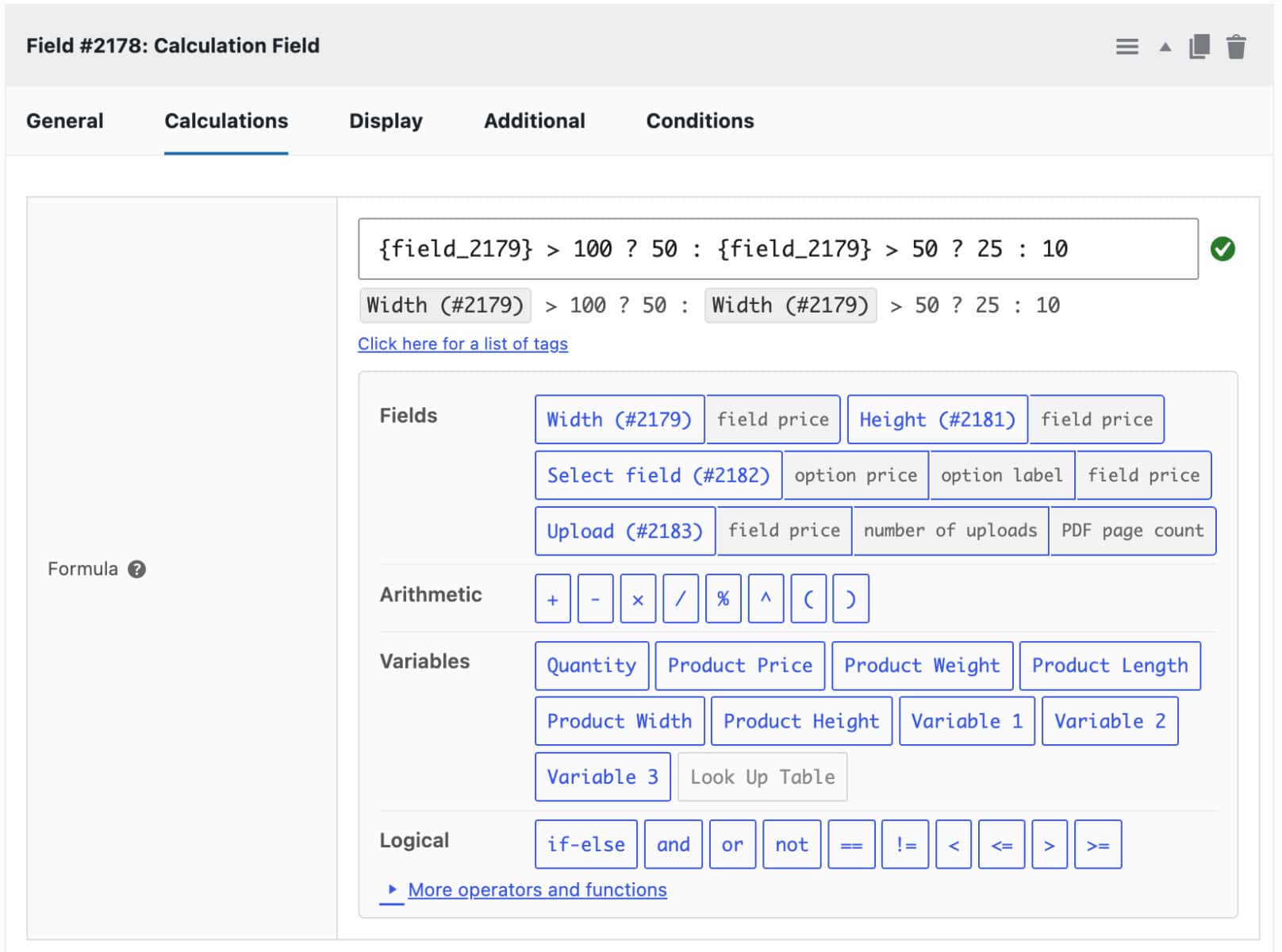
The formula builder panel under the ‘Formula’ field has buttons for inserting fields, operators, variables and functions without typing them from memory. It also shows a live preview and a validation message as you type.
How do you reference other fields in a formula?
To reference another field in a formula, just click on the field’s button in the ‘Fields’ row of the formula builder. ‘Number’ input fields can be referenced directly in formulas because they return a numeric value. In the image below you can see a button for a number field – Width (#2179). Other fields, e.g. upload fields, don’t return a numeric value directly; instead, you can obtain other values – e.g. the price assigned to the field, the number of files uploaded, etc. You can see these represented by secondary buttons.
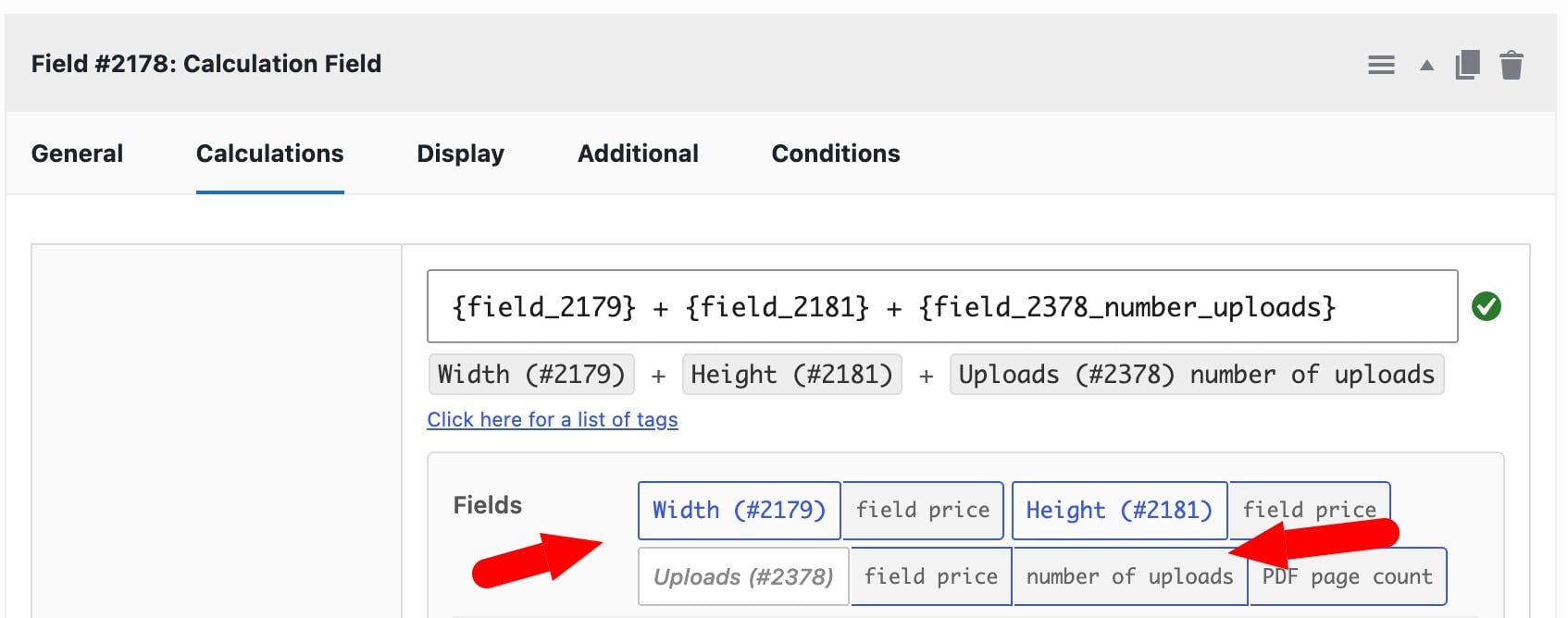
{field_2179} * {field_2181} * {field_2378_number_uploads}This multiplies the values entered by the user into ‘Width’ and ‘Height’ fields against the number of files uploaded to an upload field. It works like =A1*B1*C1 in Excel, but with field tags instead of cell references.
Which built-in variables can you use?
As well as being able to use values from fields, you can use several built-in tags in any formula, including:
{quantity}– the quantity entered for the product{product_price}– the product’s base price{product_weight},{product_length},{product_width},{product_height}– the product’s values from the ‘Shipping’ tab{variable_1},{variable_2},{variable_3}– custom global variables you set once in the plugin settings and reuse across formulas
Extra tags also appear if Bookings for WooCommerce or WooCommerce Bulk Variations is active. These include {calculated_booking_cost}, {num_units_int}, {num_bookings} and {total_variations}.
Which arithmetic and comparison operators can you use?
Just like Excel, Product Add-Ons Ultimate gives you multiple arithmetic and comparison operators to use in your formulas. There’s a complete guide here or refer to the table below.
| Operator | Meaning | Example |
|---|---|---|
| + | Addition | {product_price} + 5 |
| – | Subtraction | {product_price} - {field_1} |
| * | Multiplication | {field_1} * {field_2} |
| / | Division | {field_1} / {quantity} |
| % | Modulo (remainder) | 7 % 3 = 1 |
| ^ | Power | 2 ^ 3 = 8 |
| ( ) | Parentheses to control the order of operations | ({field_1} + {field_2}) * {field_3} |
You can also compare values with ==, !=, <, <=, > and >=.
Which rounding and number functions are available?
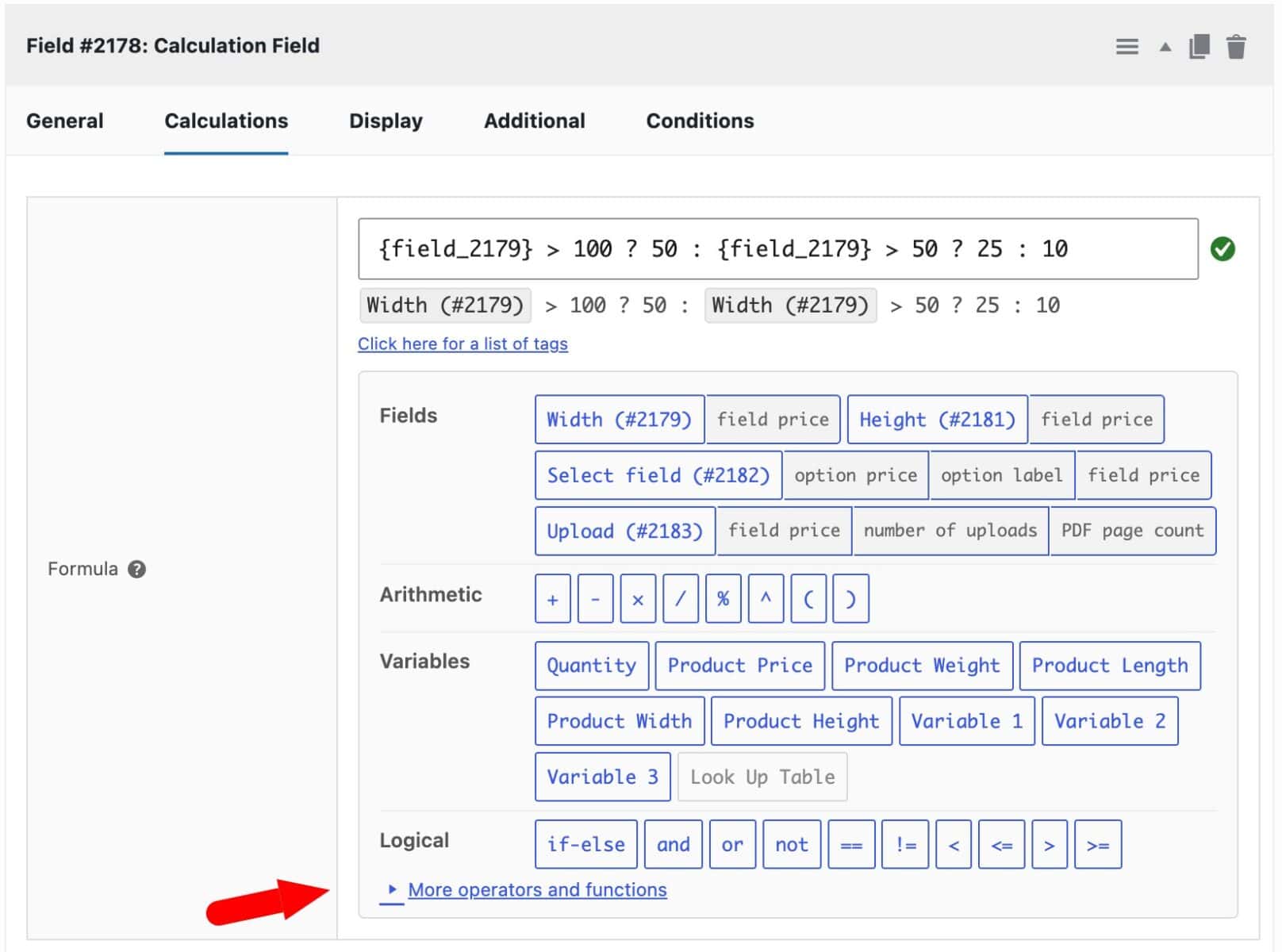
Click on the ‘More operators and functions’ toggle in the formula builder to see the full set of spreadsheet-style functions:
- Rounding:
round(),round(x, n)for n decimal places,ceil(),floor(),fix(),abs(),sign() - Powers, roots and logarithms:
sqrt(),cbrt(),pow(x, y),nthRoot(x, n),exp(),log(),log(x, base),log10(),log2() - Minimum, maximum and statistics:
min(a, b, …),max(a, b, …),mean(a, b, …),median(a, b, …),sum(a, b, …),std(a, b, …),variance(a, b, …) - Combinatorics:
factorial()or the ! operator,combinations(n, k),permutations(n, k) - Constants: pi, e
For example, this formula rounds a total up to the nearest whole number and adds a fixed callout fee:
ceil({field_1} * {field_2} * {field_3}) + 15How do you write conditional formulas?
Use the if-else conditional, written as a ternary, for the same logic as Excel’s IF() function. For example:
{quantity} > 10 ? {product_price} * 0.9 : {product_price}This means: if the quantity is more than 10, return the product price × 0.9, otherwise return the product price without any adjustment.
You can combine conditions with and, or and not:
{quantity} > 10 and {product_weight} > 5 ? {product_price} * 0.9 : {product_price}There’s an in-depth guide to using conditional logic in WooCommerce formulas here.
How do you chain calculation fields?
If you have complex formulas, you can use the result from one calculation field as an input to another calculation in order to break the formula into simpler steps. This works like referencing one cell from another in a spreadsheet.
Reference the first calculation field’s tag in the second field’s formula, the same way you’d reference any other field. For example, field 25 calculates a subtotal:
{field_1} * {field_2} * {field_3}A second Calculation field then applies a 20% surcharge to that subtotal:
{field_25} * 1.2The whole chain updates live when a customer changes an input. The first field recalculates, which triggers the second field to recalculate without refreshing the page.
What should you check when chaining fields?
Keep these points in mind:
- Place the field supplying the value before the field that uses it in the add-on group, so its result is available when the next formula runs
- Enable ‘Hide Calculation?’ on any field you only use as a working step. It still calculates and updates its value but isn’t displayed on the front end
- Build chains as long as you need, e.g. a third field could reference
{field_26}from the second. Keep each formula simple so it’s easier to debug if a result looks wrong
What happens after the formula runs?
Choose what the result does in each Calculation field’s ‘Action’ setting:
- Display As Cost – shows the result to the customer and adds it to the total
- Set Product Price – replaces the product’s base price
- Update Quantity – sets the cart quantity to the result
- Set Child Product Quantity – sets how many units of a selected child product to add
- Add to Product Weight, Length, Width or Height – useful for shipping calculations
You can also round the result up or down, set the number of decimal places and add a suffix such as ‘m²’ or ‘kg’ to display after the result.