The WooCommerce Product Add-Ons Ultimate plugin calculation field allows you to make calculations using formulas. The formulas can include values inputted by the user through other fields, as well as fixed values, the product price, product properties like dimensions and weight, and other variables that you can set.
There’s a demo product here.
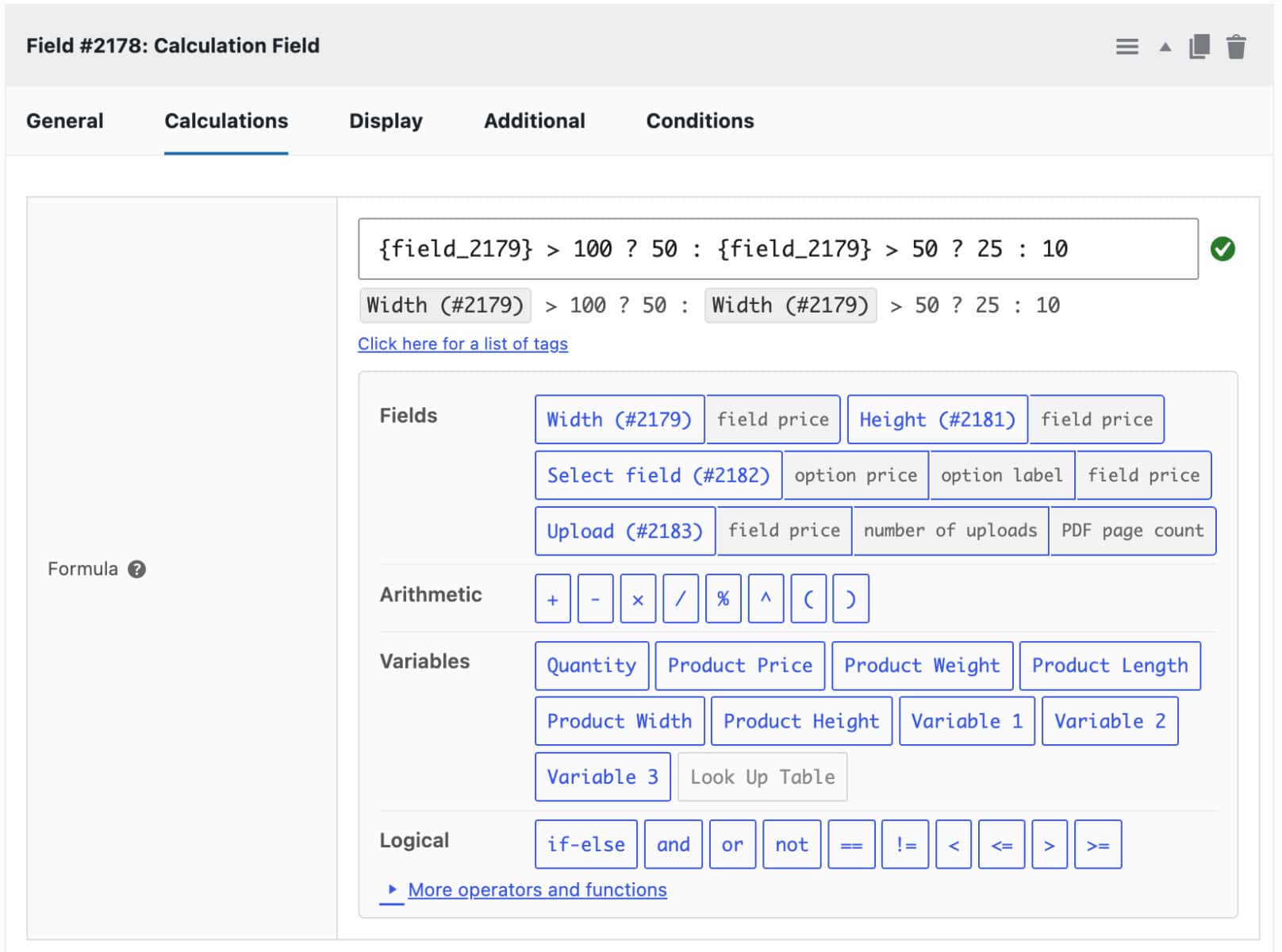
Formula panel builder
The calculation field has an easy to use formula builder panel featuring simple buttons for every possible element of your formula. Just select which fields, variables and operators you want and they’ll be automatically added to the formula.
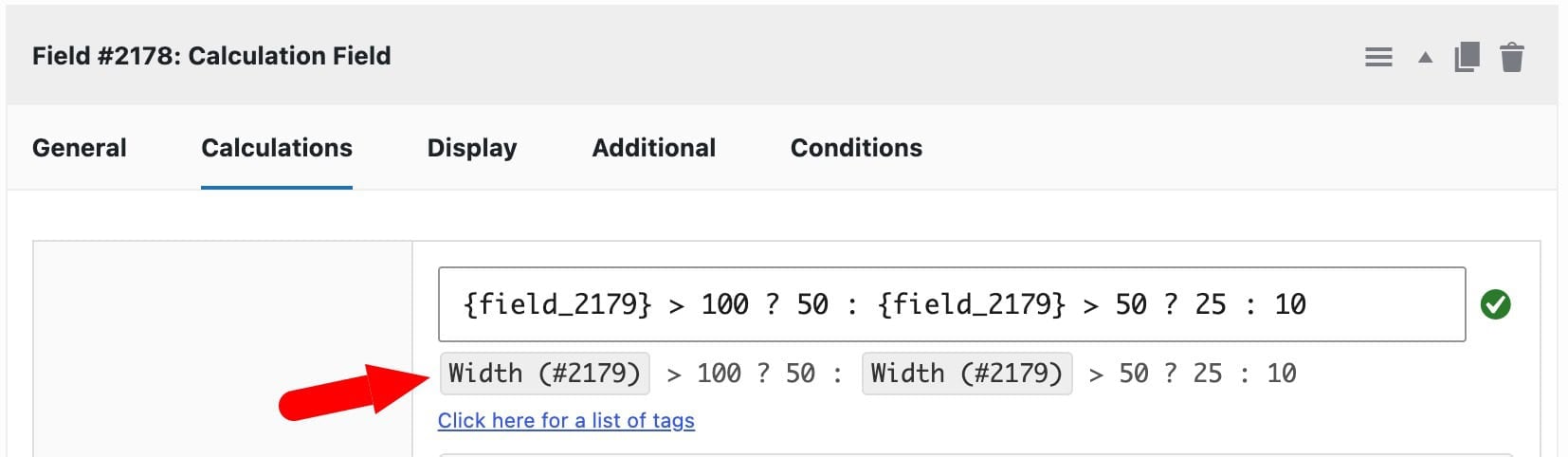
Readable formula preview
There’s a live preview underneath the Formula field which shows the field labels instead of {field} tags, making it easier for you to read the formula you’re working on.
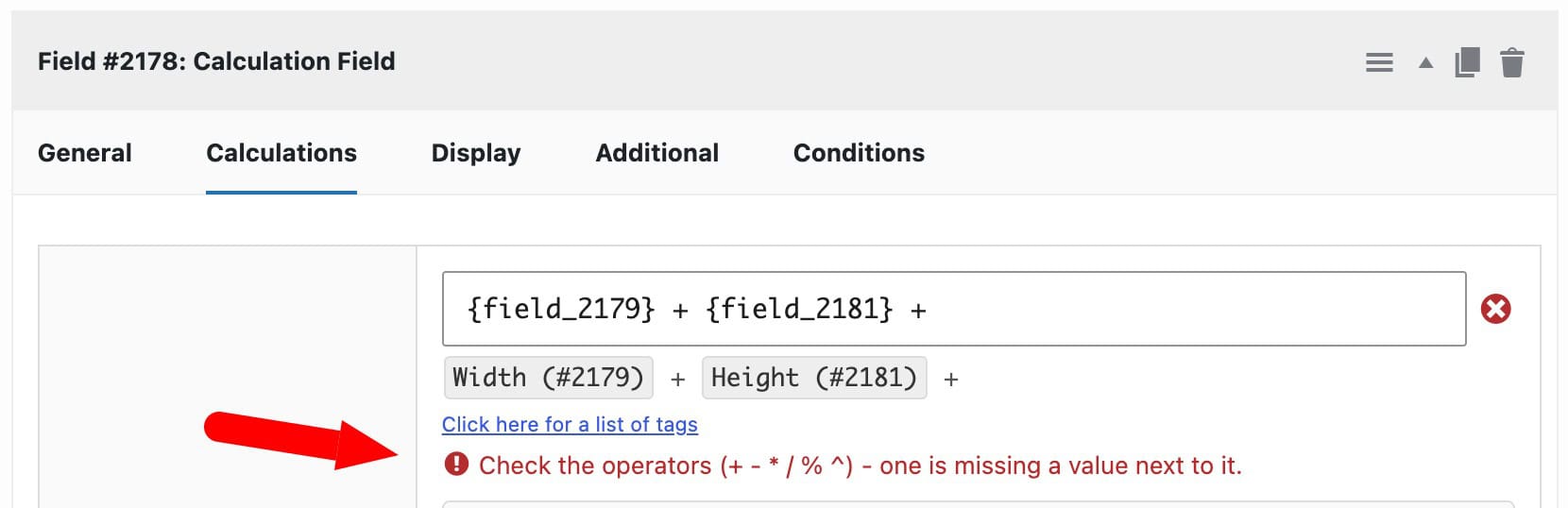
Live parser to validate formulas
Additionally, there’s a live parser which checks your formula and lets you know any potential issues. A simple tick/cross/warning icon next to the formula field gives you the status of your formula. If there are any issues (e.g. unbalanced brackets, stray commas, dangling operators, etc) or possible mistakes (e.g. an empty price setting referenced by the formula), it’s all spelled out below the formula preview.
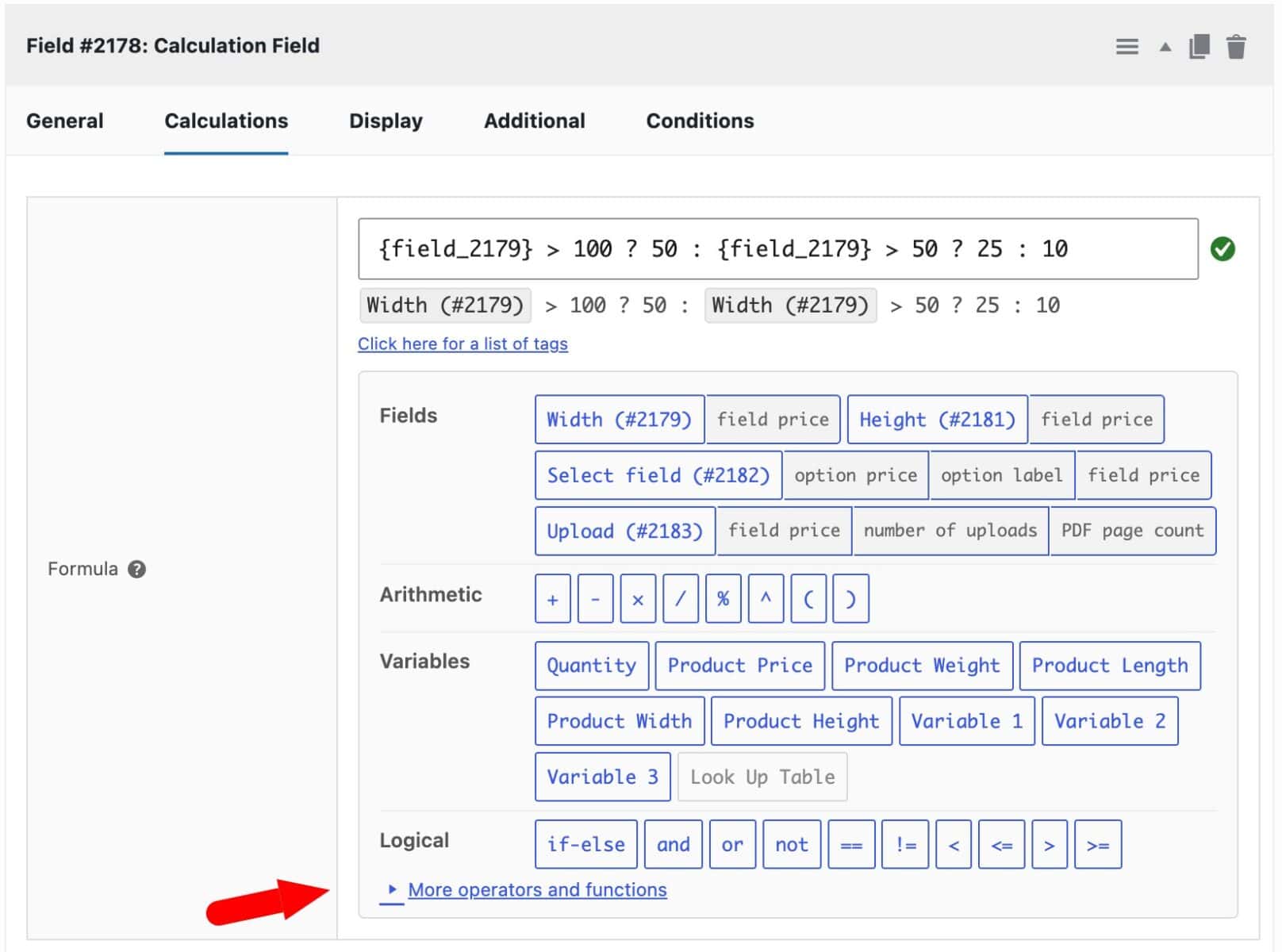
Expandable panel for more functions
Finally, certain functions are tucked away in a collapsible panel to save space.
How do you add a calculation field to a WooCommerce product?
To add a calculation field to your WooCommerce product:
- Add a new add-on field
Add a new field in the product’s ‘Add-Ons’ tab and select ‘Calculation’ from the ‘Field Type’ setting.
- Update the field settings on the ‘Calculations’ tab
Click the field’s ‘Calculations’ tab. This is where you’ll enter the formula and its settings.
You now have a Calculation field ready for a formula.
How do you write a formula?
You don’t need to write formulas manually. The formula builder panel allows you to select the field values and functions that you want in your formula automatically, greatly reducing the risk of errors.
As a simple example, let’s say you have already created two ‘Number’ fields on your product page – one for ‘Width’ and one for ‘Height’. You require a calculation field to sum the two values.
To do this:
- Click the button for the ‘Width’ field
- Click the ‘+’ button
- Then click the button for the ‘Height’ field
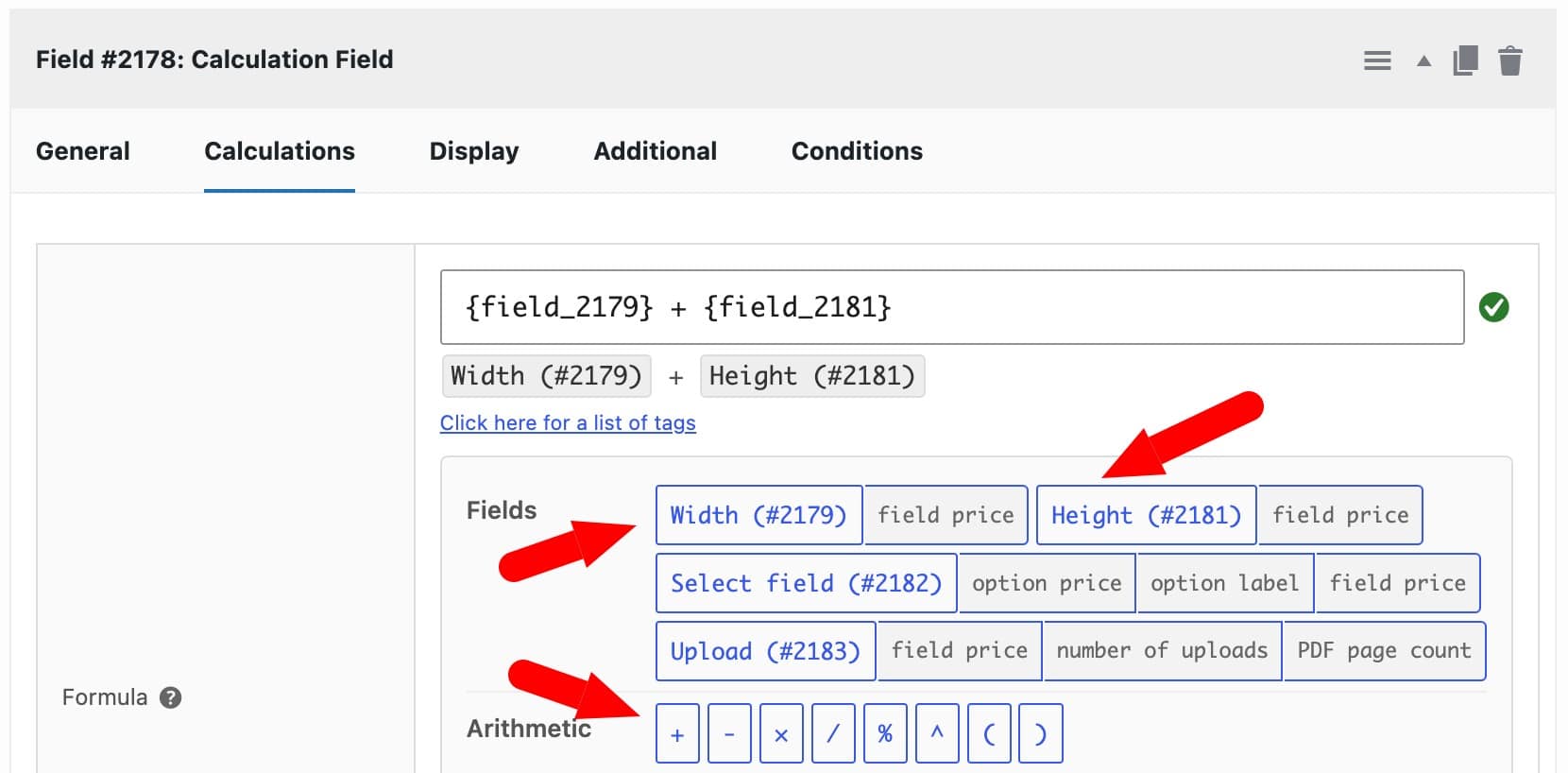
The formula field will be automatically updated to show the formula you’ve created, e.g.:
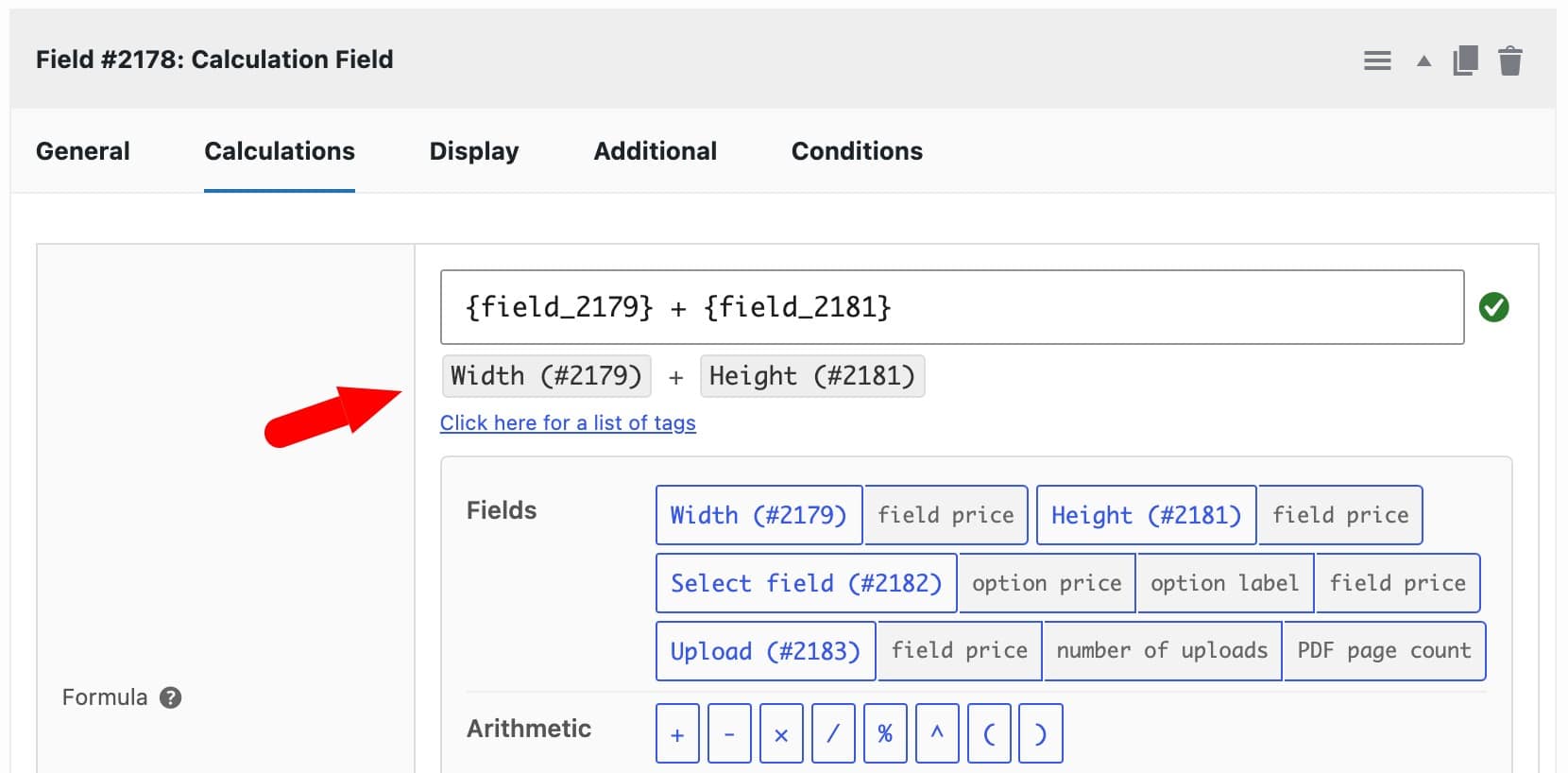
{field_2179} + {field_2181}The formula is validated and a green checkmark indicates there are no errors.
Below the formula input field, a more readable version of the formula is displayed that uses the field labels rather than just the field tags.
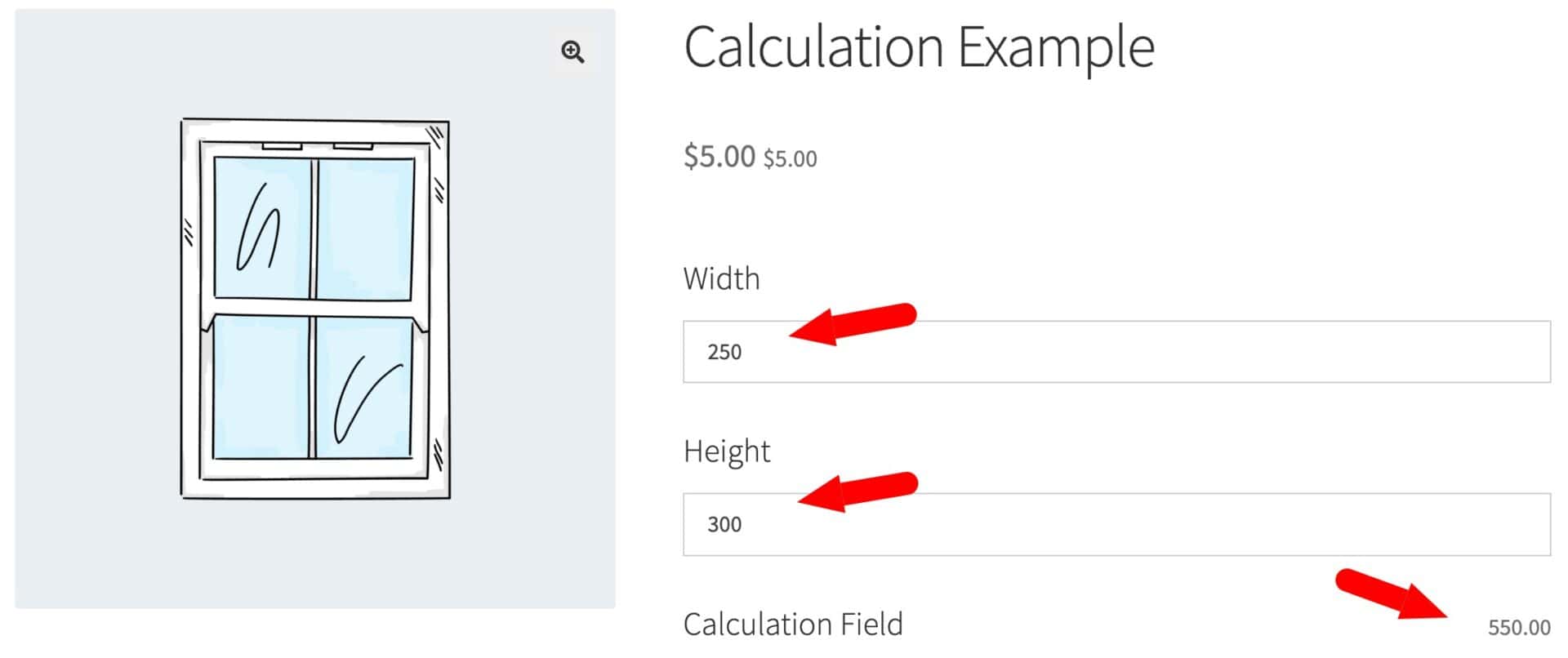
On the front end, the sum of the two values will be displayed.
How does the formula builder panel work?
Click any button in the panel under the ‘Formula’ box to insert it at the cursor position. This lets you build a formula without memorizing tag syntax or operator symbols.
The panel is grouped into these rows:
- Fields – one button per other field on the product, labeled with the field’s name and ID, e.g. ‘Width (#1234)’. Hover over a button to see what it inserts, such as the field’s entered value, its price or an option’s label, depending on the field type
- Arithmetic – + – × / % ^ and parentheses
- Variables – the quantity, the product’s own price, weight, length, width and height, three custom global variables set in the plugin settings and ‘Look Up Table’ if you have the Advanced Calculations add-on
- Integrations – tags from WooCommerce Bookings or WooCommerce Bulk Variations Product, shown only if that plugin is active
- Logical – comparisons (== != < > <= >=), and, or, not and an if-else (ternary) operator for conditional logic in formulas
- More operators and functions – rounding, powers, roots, logarithms, minimum, maximum, statistics, combinatorics and the constants pi and e. This row is collapsed by default
See this guide for a complete overview of the operators and functions available in the calculation field.
How do you check your formula?
The ‘Formula’ box checks your formula automatically as you type. A preview underneath shows the formula with {field} tags replaced by readable field names, so it’s easier to read back.
An icon next to the box shows the formula’s status:
- Tick – the formula is valid
- Cross – the formula has a syntax problem, such as unbalanced brackets, a stray comma or a missing operand
- Amber warning – the formula will run but is likely to give the wrong answer
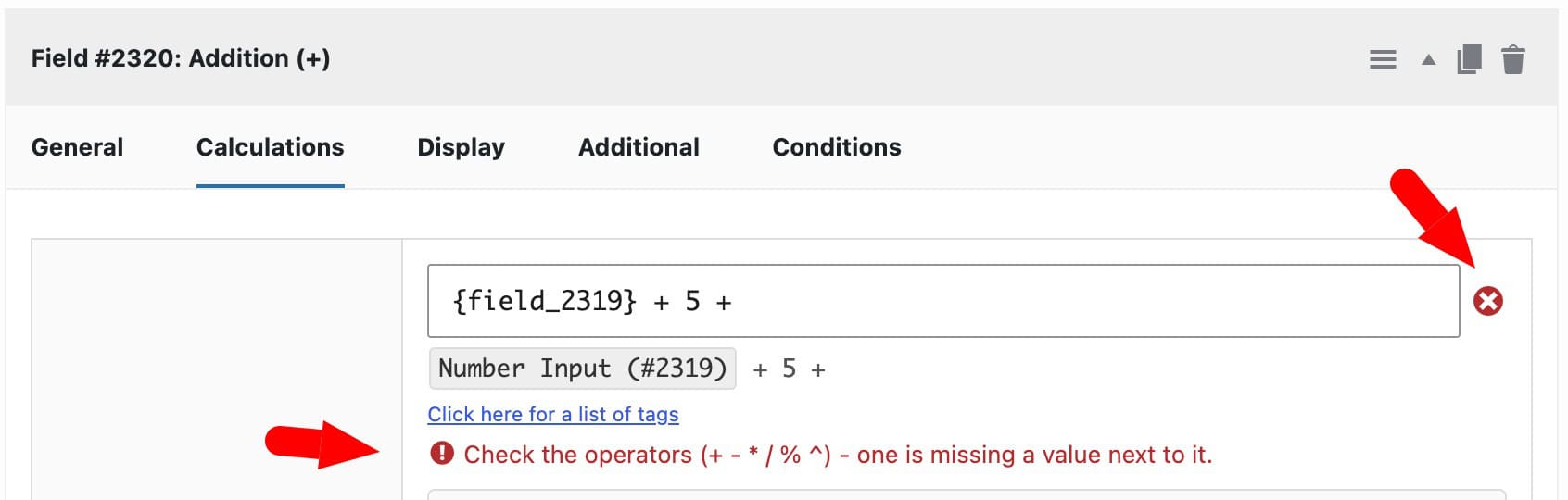
An amber warning appears if the formula:
- References a field whose ‘Price’ setting is empty
- References a field that’s been deleted
- Uses and, or, not or a comparison as the entire formula, which returns true or false rather than a number
How do you get a specific value from a field?
Different field types can return different values. For example, a number field or a calculation field return plain numeric values – so this is ideal for collecting values from customers, e.g. for measurements and dimensions. But it’s also possible to use other field values in calculations – e.g. the price of a selected field or the value of a selected option in a radio group or select field.
These additional values are available to you directly from the formula builder through secondary buttons associated with each field. So, for example, you can use the price of an input field and/or the number of files uploaded to an upload field in your formula.
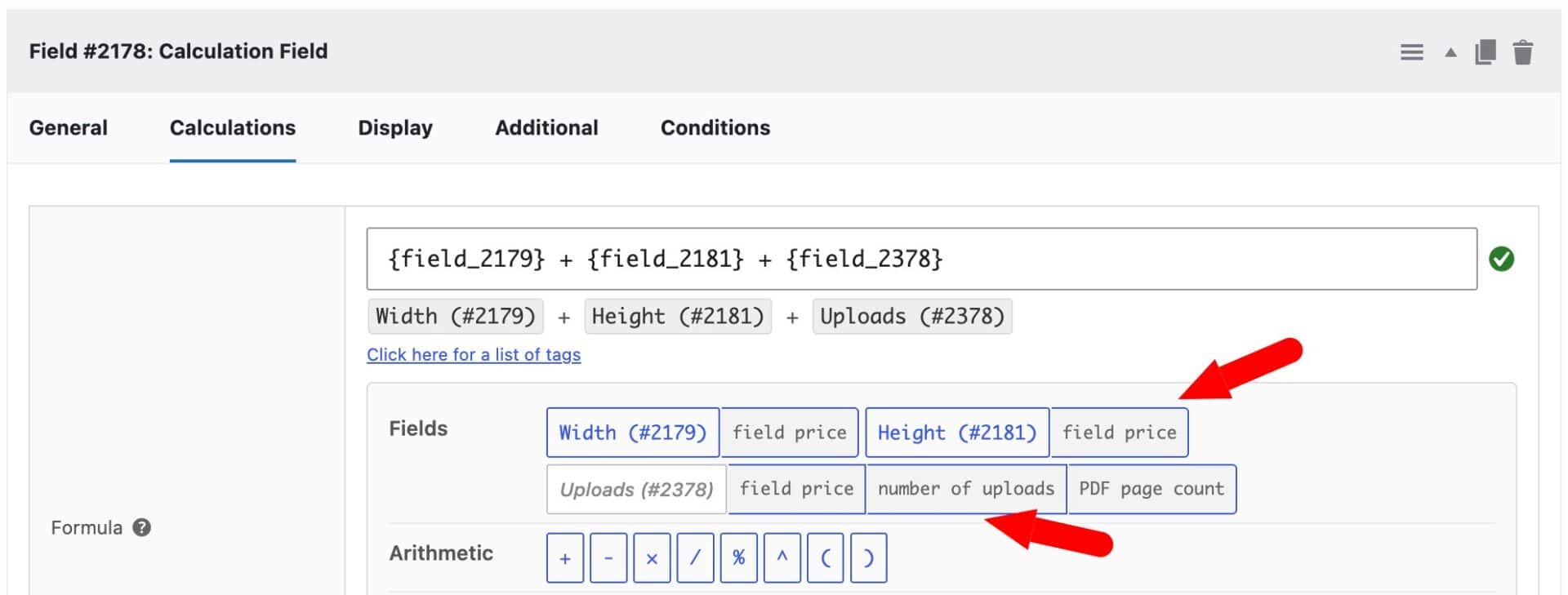
Here’s a list of the different values you can obtain from different field types.
| Tag | What it gives you | Available on |
|---|---|---|
{field_1234_field_price} | The field’s own ‘Price’ setting in its ‘Pricing’ tab | Checkbox, Checkbox Group, Radio, Select, Select Box, Swatch, Color Picker, Name Your Price, Products, Product Categories, Number, Text, Textarea, Date, Calendar List, Upload |
{field_1234_option_price} | The ‘Price’ setting of the selected option | Checkbox, Checkbox Group, Radio, Select, Select Box, Swatch, Color Picker, Name Your Price, Products, Product Categories |
{field_1234_option_label} | The ‘Value’ setting of the selected option. This is the same as the older {field_1234_option_value} tag | Same as {field_1234_option_price} |
{field_1234_weight} | The weight of the selected child product | Products and Product Categories only |
{field_1234_length}, {field_1234_width}, {field_1234_height} | The corresponding dimension of the selected child product | Products and Product Categories only |
{field_1234_quantity} | The quantity set for the selected child product when using the independent quantities layout | Products and Product Categories only |
{field_1234_number_uploads} | The number of files uploaded | Upload only |
{field_1234_pdf_count} | The total page count across all uploaded PDFs | Upload only |
How to get values from radio groups, swatches and select fields
Fields where the user can choose different options, like select fields, can return several values to a calculation field.
This example uses a Select field with two options:
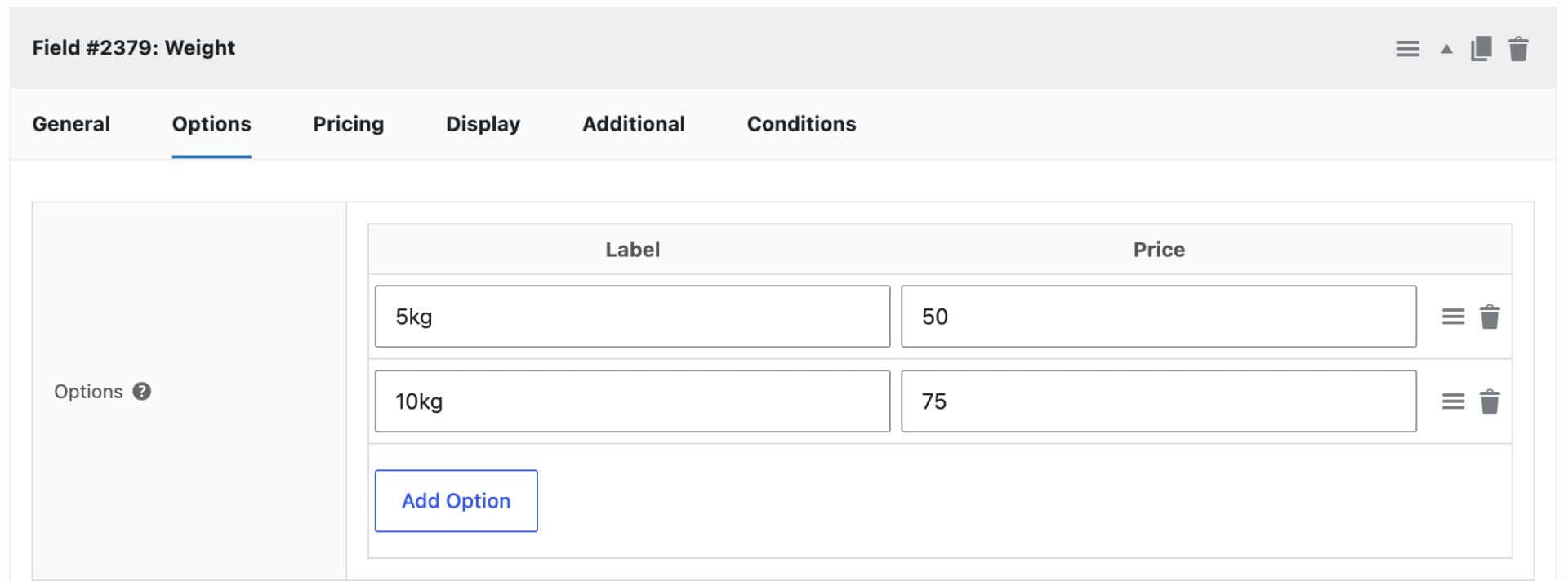
- Option 1 – Label: 5kg; Price: $50
- Option 2 – Label: 10kg; Price: $75
Each button returns a different value from the field:
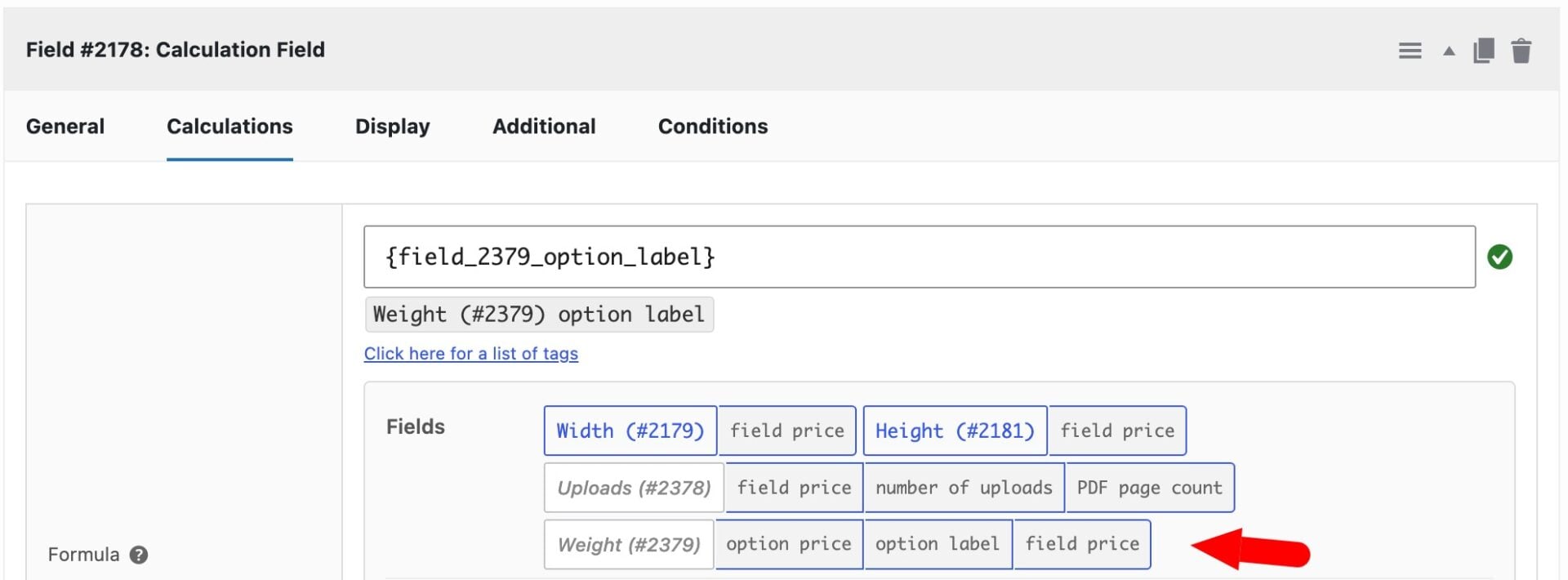
{field_1234_option_label}– the selected option’s value, e.g. 5 for the label ‘5kg’. Note that the label must start with a numeric value for this tag to work{field_1234_option_price}– the selected option’s price, e.g. 50 if the user selects ‘5kg’ from the example above{field_1234_field_price}– the field’s own flat ‘Price’ setting, separate from any option price. This is usually left blank if you have prices per option
What does each variable represent?
The ‘Variables’ row in the formula builder inserts tags that pull in data without referencing another field.
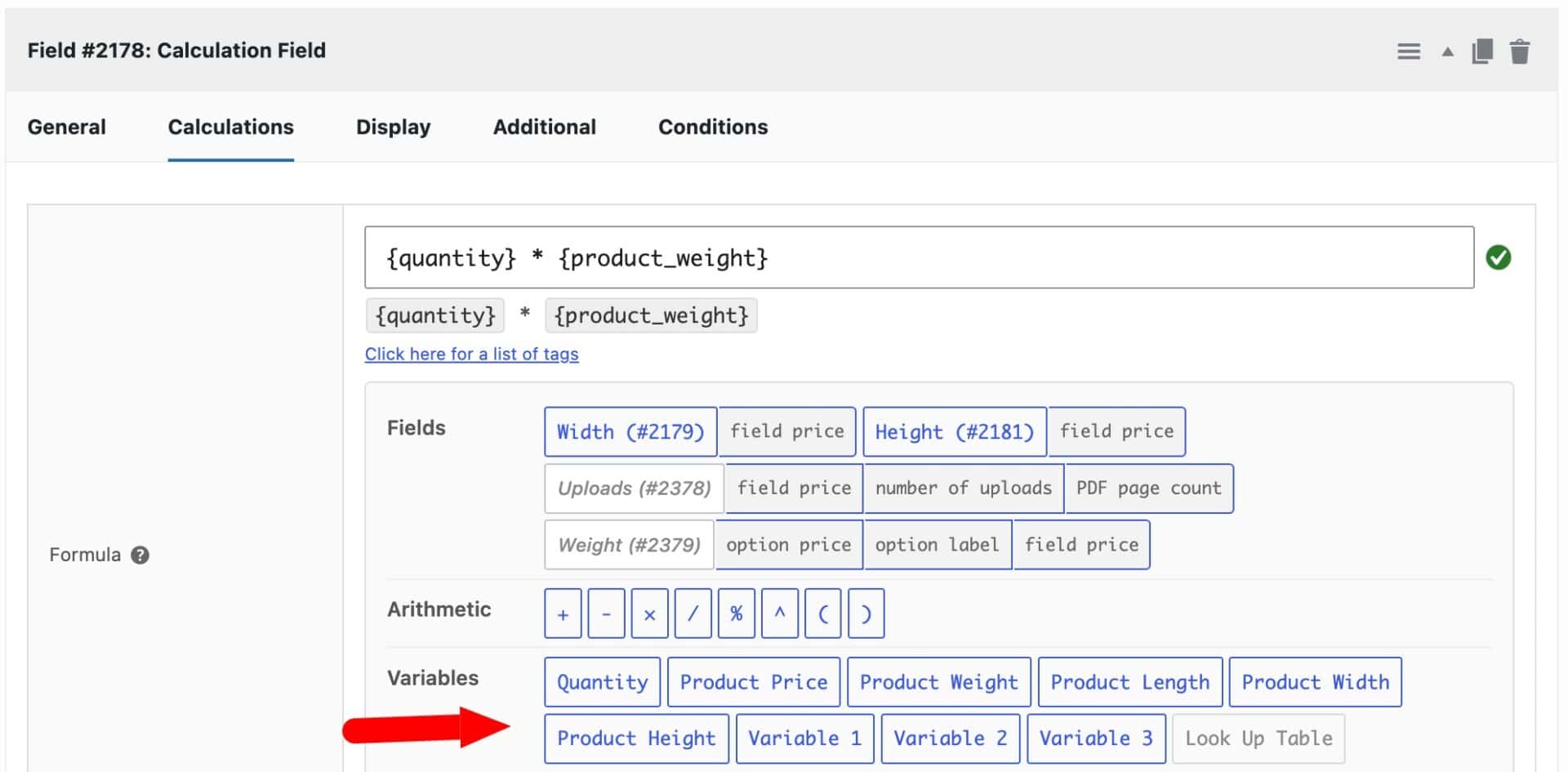
Here’s a list of the variables available in the calculation field formula:
| Tag | Represents |
|---|---|
{quantity} | The quantity the customer enters in the main WooCommerce quantity box, not a field in the ‘Add-Ons’ tab |
{product_price} | The product’s base price, set in the ‘General’ tab under ‘Product data’ |
{product_weight} | The product’s weight, set in the ‘Shipping’ tab |
{product_length} | The product’s length, set in the ‘Shipping’ tab |
{product_width} | The product’s width, set in the ‘Shipping’ tab |
{product_height} | The product’s height, set in the ‘Shipping’ tab |
{variable_1} | A global numeric value, the same for every product on the site, set in WooCommerce > Settings > Product Add-Ons > Calculations |
{variable_2} | A second global numeric value, set the same way as Variable 1 |
{variable_3} | A third global numeric value, set the same way as Variable 1 |
{look_up_table} | Tells the field to use its look-up table instead of evaluating a formula. It isn’t a value itself and must be the entire formula. Requires the Advanced Calculations add-on |
How do global variables work?
Variables 1, 2 and 3 are global, not per-product. You set each one once in the plugin settings and the same value is available to every formula on every product.
Use them for numbers you reference across many products, such as a shared surcharge, a conversion factor or a shipping rate. When the number changes, you update it in the settings instead of editing each product’s formula.
Set a value for each variable in WooCommerce > Settings > Product Add-Ons > Calculations before using it in a formula. If a variable has no value, its tag won’t resolve to a usable number.
Other calculation field settings
Hide Calculation?
Enable this setting to hide the calculated result from the customer on the front end. This is useful when the Calculation field only drives another setting, such as updating a quantity or weight.
Suffix
Enter text to show immediately after the calculated number on the front end. For example, entering ‘meters’ turns a result of 12.5 into ‘12.5 meters’.
Leave this blank for no suffix. The suffix isn’t applied when the result is shown as a price.
Round Result
Choose how to round the result:
- No rounding – show the exact result
- Round down – always round down to the nearest whole number
- Round up – always round up to the nearest whole number
You can also use the ‘Round’ function in the formula builder panel.
Decimal Places
Enter the number of decimal places to show, e.g. 2 for 12.50. This works alongside ‘Round Result’, which is applied first before the result is formatted to this many decimal places.
Action
Choose what the calculated result does:
| Option | Effect |
|---|---|
| — (no action) | Displays the result as a plain number, subject to the ‘Hide Calculation?’ and ‘Suffix’ settings |
| Display As Cost | Adds the result to the product’s price as an extra cost |
| Set Product Price | Replaces the product’s price with the result |
| Update Quantity | Sets the cart quantity field to the result |
| Set Child Product Quantity | Sets the quantity of a selected item in a Products field and reveals extra settings |
| Add to Product Weight | Adds the result to the product’s shipping weight |
| Add to Product Length / Width / Height | Adds the result to the corresponding product dimension |
Which settings appear for ‘Set Child Product Quantity’?
These settings only appear when ‘Action’ is set to ‘Set Child Product Quantity’:
- Products Field ID – the ID of the Products field whose selected item’s quantity should update
- Product ID – the ID of the child product to select automatically when the quantity updates
- Reverse Formula Field ID – the ID of another Calculation field containing the reverse formula, used to work backwards from the updated quantity to a source value
- Original Input Field ID – the ID of the number field to update with the reverse formula’s result
- Override Calculation? – lets the customer override the calculated quantity by editing the child product’s quantity field directly, instead of always following the formula
More information
There are several example products using calculation fields in this article.
You can also check out this video for an overview.