Bookings for WooCommerce has full support for multicurrency pricing – including automatic conversions between currencies and custom prices per currency. At the moment, the plugin supports the following plugins out of the box – but if you’re using a different multicurrency plugin, just contact us and we’ll add support for it:
- Aelia Currency Switcher for WooCommerce
- WPML Multilingual & Multicurrency for WooCommerce
- YayCurrency
Booking prices convert automatically to the customer’s selected currency when one of these plugins is active. The conversion uses that plugin’s exchange rate – or prices that you’ve set manually per product and per currency – and applies to date-range and time slot bookings.
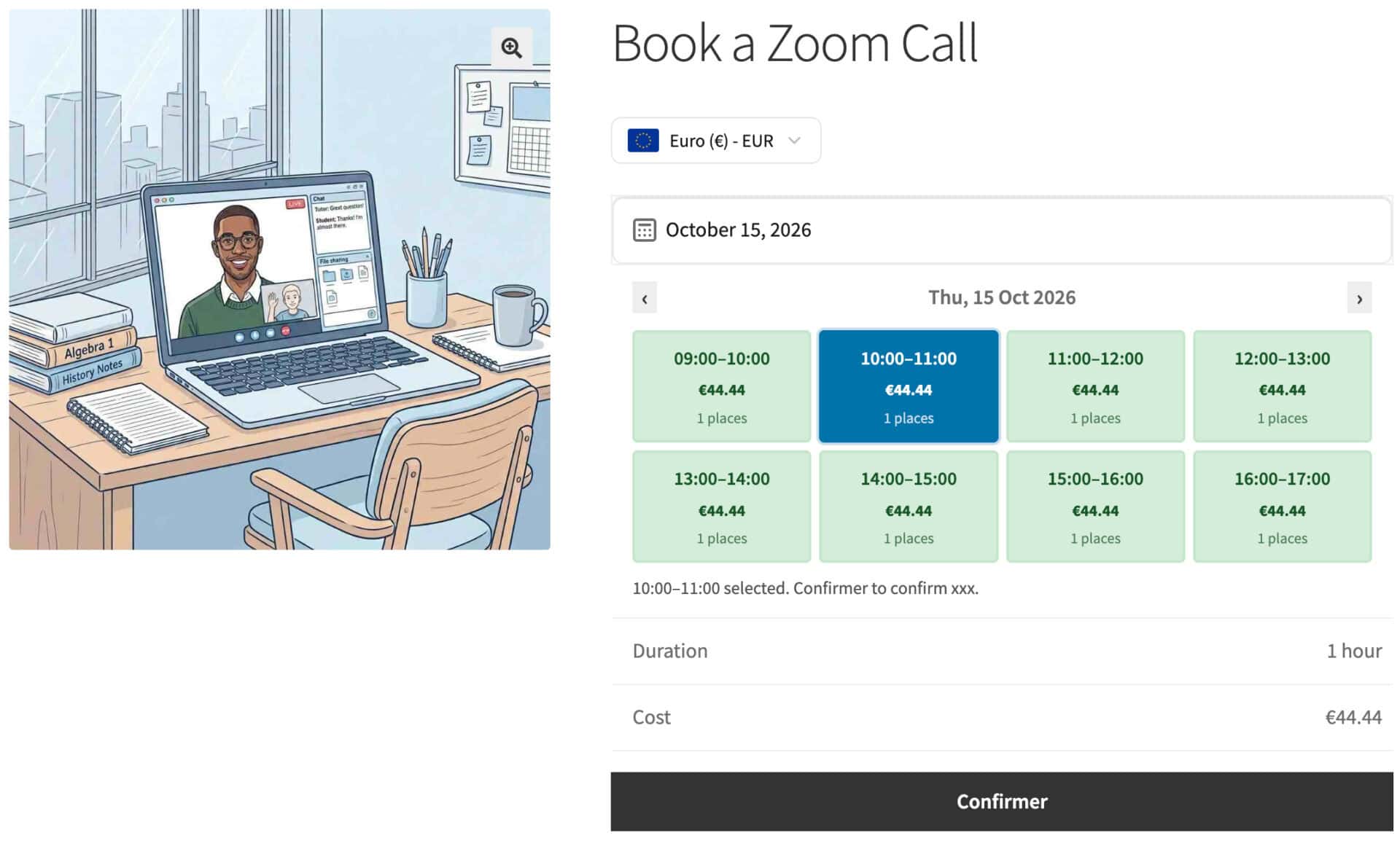
How do I set up each multicurrency plugin?
You don’t need to change any settings in Bookings for WooCommerce itself. Just set up your multicurrency plugin as normal.
Aelia Currency Switcher for WooCommerce
Step #1: Install and activate Aelia Currency Switcher.
Step #2: Go to WooCommerce > Currency Switcher and add the currencies you want to offer.
Step #3: Configure your exchange rate source, either a fixed rate or a live feed.
Booking prices will then convert automatically.
WPML Multilingual & Multicurrency for WooCommerce
Step #1: Install and activate WPML and the WPML Multilingual & Multicurrency for WooCommerce add-on.
Step #2: Go to WPML > Settings > Multicurrency and switch on ‘Enable the multicurrency mode’.
Step #3: Add the currencies you want to offer and set their exchange rates.
Booking prices will convert automatically once multicurrency is switched on.
YayCurrency
Step #1: Install and activate YayCurrency.
Step #2: Go to WooCommerce > YayCurrency and add the currencies you want to offer, with their exchange rates.
Step #3: Check that each currency is published or enabled in the list.
Booking prices will then convert automatically.
Can I set a manual price per currency?
Yes, you can set a fixed price for any currency on a per-product basis. By default, prices convert using your multicurrency plugin’s exchange rate, but you might prefer a round number. For example, you might want to charge €99 rather than whatever $110 converts to.
Step #1: Edit the booking product.
Step #2: Open the ‘Booking > Pricing’ tab.
Step #3: Enter a price for each currency you want to override in the ‘Prices per currency’ section. Leave a field blank to keep using the automatic conversion for that currency.
Step #4: Optionally set a manual price per currency for each Time Slot. If the product uses Time Slots, you’ll find these fields under ‘Booking > Time Slots > Pricing’.
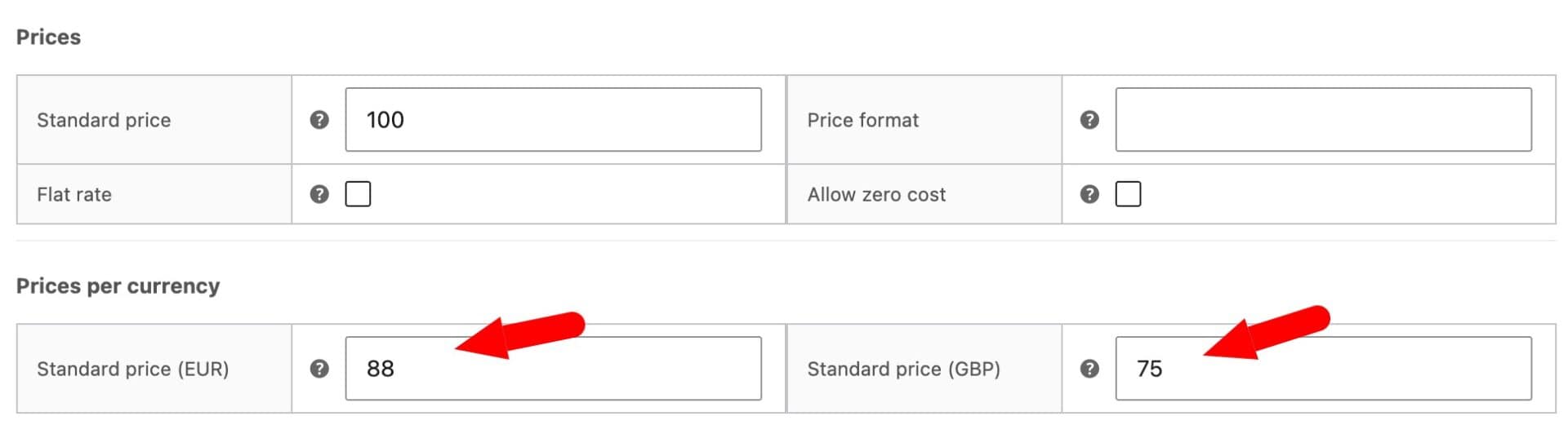
The ‘Prices per currency’ section will only appear when a supported multicurrency plugin is active. You also need at least one additional currency configured.