How to create a multilingual WooCommerce booking site (in just a few minutes)
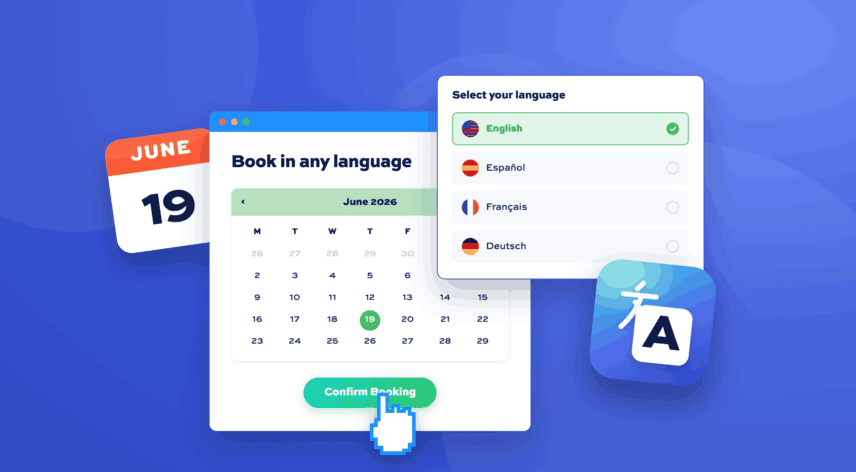
You can make a WooCommerce booking site multilingual in minutes. Bookings for WooCommerce comes with translations for multiple languages built in, so the moment you install the plugin, its booking interface will automatically display in the correct language for your site – including right-to-left languages. If you want to have more than one language available, you just need the right multilingual plugin. And the plugin also fully supports multicurrency bookings – so you can let your customers pay in different currencies.
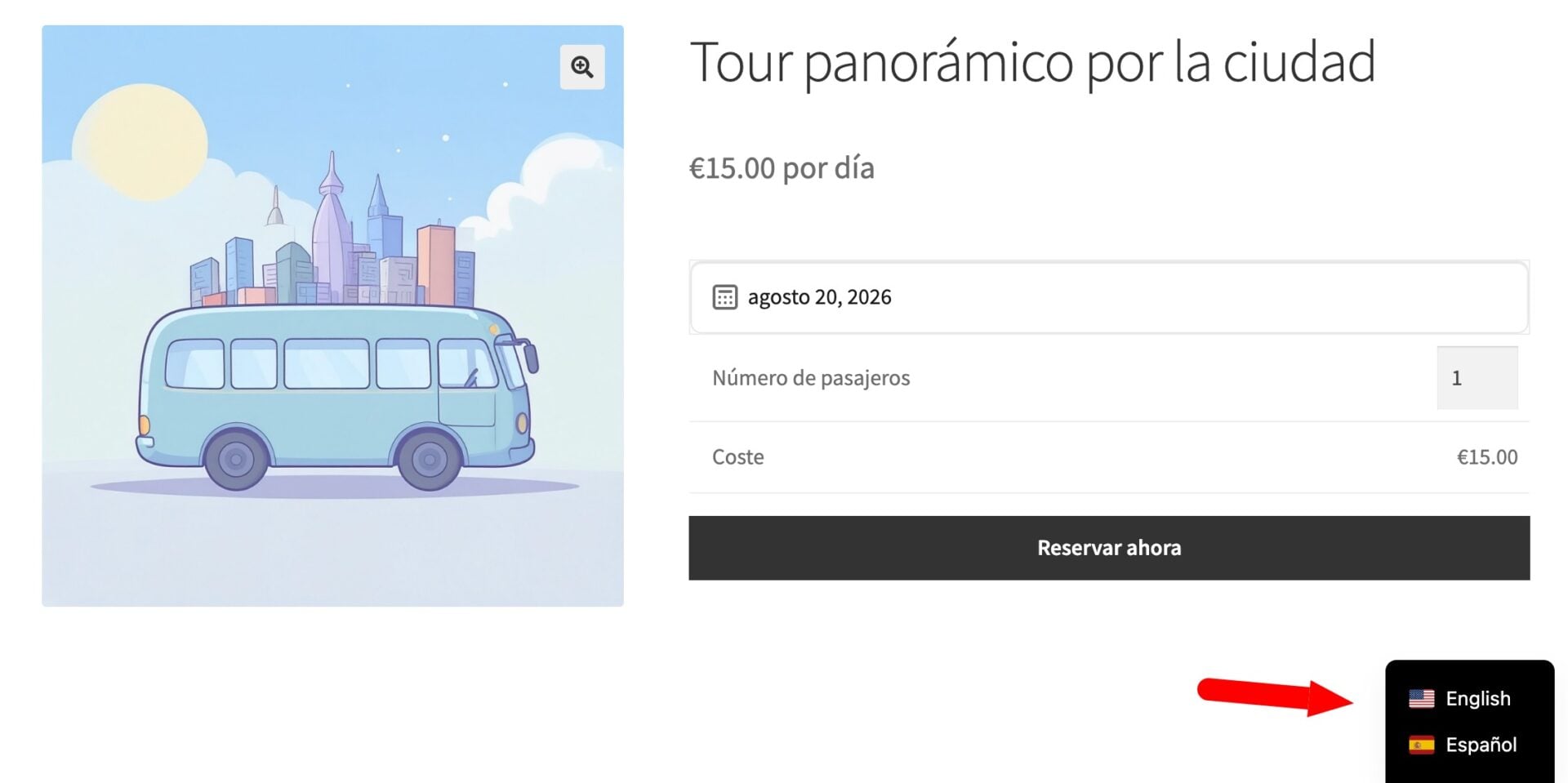
In this article, we’ll look at how to create a multilingual booking site in WooCommerce quickly and easily – so that your bookable products’ availability will always be correct – whatever language the customer books in. At the end, we’ll also cover how to implement multicurrency support on your booking site.
After reading this guide:
- Your customers will be able to:
- Browse your booking products and pick their dates in their own language
- Get through checkout without running into English-only text
- Pay for their booking in their local currency
- As the store owner, you’ll be able to:
- Let customers make their bookings in any of your site’s languages
- Ensure nothing gets double-booked
- Add any new languages you wish
- Add any new currency you wish
We’ll assume you already have WooCommerce and Bookings for WooCommerce installed and ready to go.
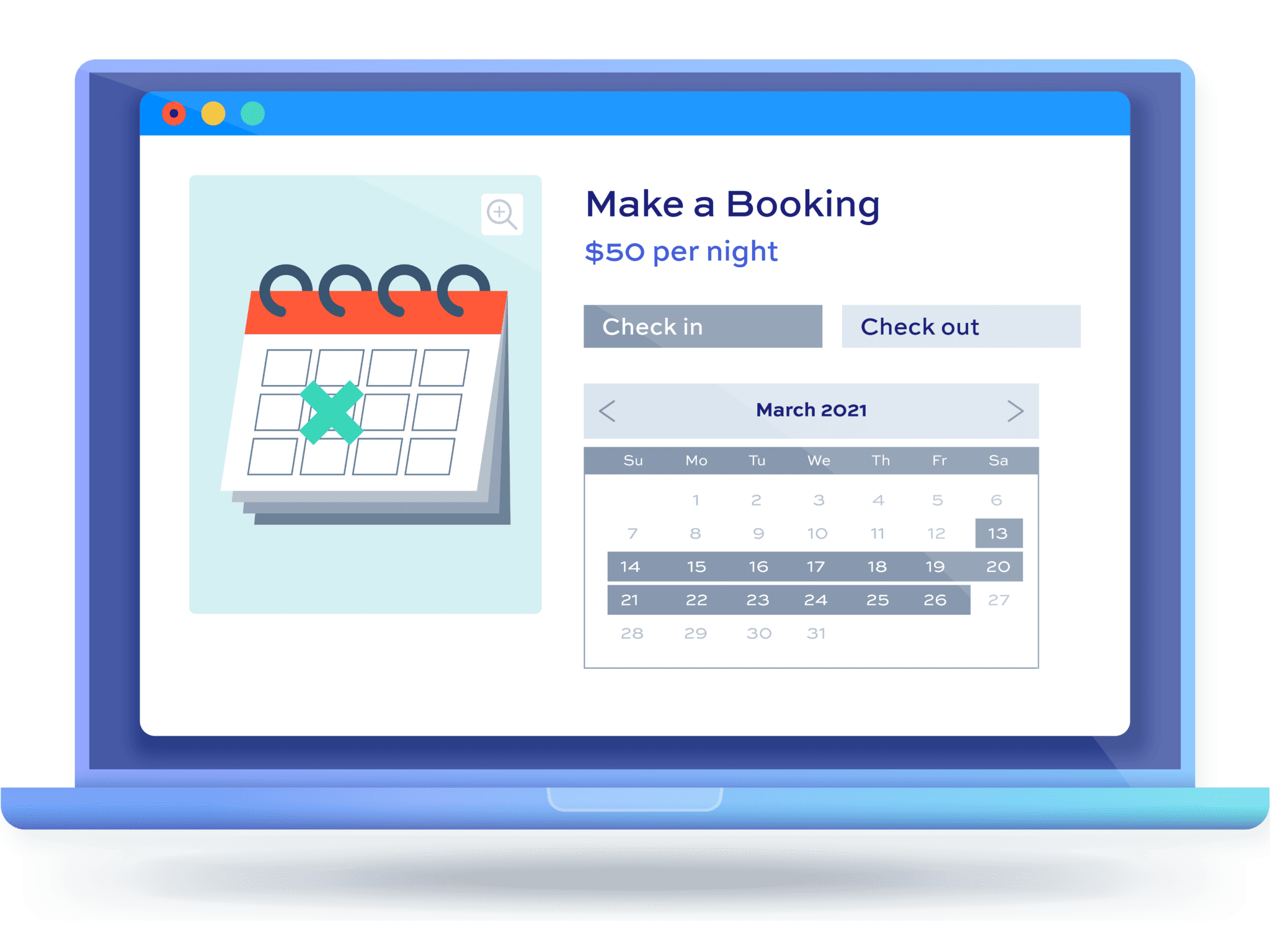
What are the advantages of a multilingual booking site?
Reaching customers in their own language ultimately means more revenue. According to RWS’s Unlocking Global Understanding report, which surveyed 6,500 consumers worldwide, over four in five customers won’t buy from a brand that doesn’t offer support in their own language. Every language you add opens your booking store to customers you couldn’t convert before.
As a customer, making a booking can be tricky at the best of times – but it’s much easier when all the information is in your own language. Offering multilingual booking pages removes one of the most common reasons people abandon a booking part-way through. When someone can read your availability, prices, and booking form in their native language, they can book with confidence.
Using the methods in this article, your bookable products’ availability is synced in one place, so nothing gets double-booked. A slot taken by a French-speaking customer shows as unavailable to everyone else straight away.
Which booking sites benefit most from going multilingual?
Any booking site that sells to visitors from outside its home market has the most to gain, which makes tourism and travel sites great fits. Their customers often book from abroad, before they arrive, and while reading in a second language.
Common examples include:
- Tour operators and activity providers, such as walking tours, boat trips, and guided experiences
- Equipment and gear hire in tourist areas, such as bikes, skis, paddleboards, and cameras
- Accommodation taking direct bookings, such as B&Bs, guesthouses, and holiday rentals
- Airport transfers, car hire, and other travel services
- Classes, workshops, and events that draw an international audience
If most of your bookings come from local customers who share your language, a multilingual site doesn’t matter so much. But if you sell to travelers or in a mixed-language city, offering their language removes a real barrier to booking.
What languages does Bookings for WooCommerce include?
Bookings for WooCommerce is fully translation-ready and ships with translations for several languages, including:
- Arabic (RTL)
- Dutch
- English
- French
- German
- Hebrew (RTL)
- Italian
- Portuguese
- Portuguese (Brazilian)
- Polish
- Spanish
If your site’s language matches one of these languages, the booking interface will appear in that language automatically. You can set your site language under Settings > General in the ‘Site Language’ field. Right-to-left (RTL) languages are fully supported.
If the language you want isn’t currently included, just ask us to include a translation in the next update. Create a pre-sales ticket here and let us know what language you need.
To translate the plugin yourself or just reword specific strings on the front-end, take a look at the options later in this article.
Which translation method should you use for your booking site?
The two plugins that we recommend to make your WooCommerce booking site multilingual almost instantly are TranslatePress and Weglot. Both get you to the same result – a site where your customers can pick from a list of languages that you offer and make their booking in their preferred language. Let’s look at both multilingual plugins.
TranslatePress
TranslatePress runs entirely on your own server. It translates your pages as they load, stores every translation in your site’s own database, and gives you a visual editor to manage them yourself. It also detects the translations that plugins and themes already ship with and reuses them automatically, so their interfaces come pre-translated for the languages those plugins support.
Pros and cons of TranslatePress
What works well:
- Your translations are stored in your own database, so you own them and they move with your site if you ever migrate it.
- It works with any theme or plugin, because it translates the rendered page rather than relying on how each plugin is coded.
- It reuses the existing translations that plugins and themes already include, so you don’t re-translate interfaces that are already covered.
- The visual, front-end editor lets you translate content in context and see exactly how each page looks.
- There’s a free version, and the core plugin is a one-time cost rather than an ongoing per-word charge.
What to keep in mind:
- You do more of the work up front than with Weglot, because you’ll need to translate the content on product pages, and automatic translation relies on connecting an engine like DeepL or Google Translate.
- Some features, including the SEO add-on and automatic translation, need the premium version.
Weglot
Weglot works from the cloud. It automatically detects all the content on your page, translates it through its own translation engine, and serves the translated version back – with very little hands-on work from you. Because it translates your site’s output directly, it supplies its own translations for everything on the page rather than drawing on the translations a plugin already includes.
Pros and cons of Weglot
What works well:
- Setup is fast – Weglot detects and machine-translates your content automatically, so your site can be live in multiple languages within minutes
- It’s hands-off, picking up and translating new content as you add it without any manual steps
- Translated pages are served from Weglot’s global network, so they load quickly for international visitors
- It handles multilingual SEO for you, including hreflang tags, translated URLs, and metadata
- Everything is managed from a single dashboard, with a visual editor for refining translations
What to keep in mind:
- You will need a premium plugin for WooCommerce
- It’s a subscription, priced by word count and number of languages, so the cost grows as your site does
- Your translations live on Weglot’s servers rather than your own, so they stop appearing if you end your subscription
- You have less granular control, since Weglot translates your page output with its own engine rather than using translations a plugin already provides
Let’s look at how to implement both multilingual plugins for a booking site.
How to create a multilingual booking site with TranslatePress
To use TranslatePress to make your bookings site multilingual, follow these steps:
Step #1: Install the plugins
If you don’t already have Bookings for WooCommerce and TranslatePress installed, install and activate them as the first step.
Step #2: Run the TranslatePress set up wizard
The TranslatePress wizard launches automatically after activating the plugin and will quickly let you configure your multilingual site. It allows you to:
- Choose which languages you want to support
- Configure the front-end language switcher so that customers can easily toggle between different languages
- Decide whether to enable automatic translations
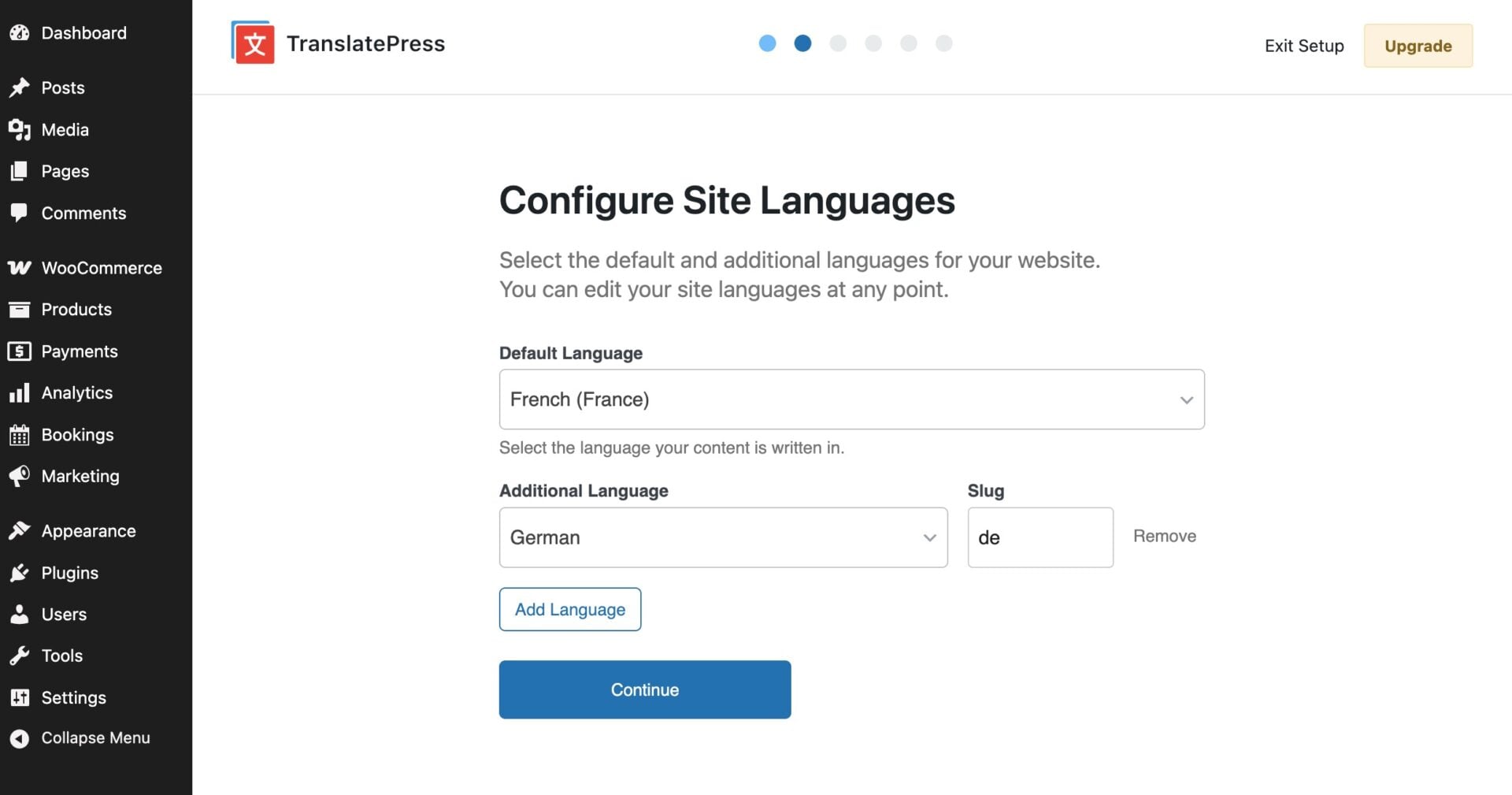
The wizard only takes a couple of minutes. Once you’ve completed it, your site is multilingual and ready to start accepting bookings.
Step #3: Create your first bookable product
To create your first bookable product in your site (f you haven’t done so already), refer to our support doc on how to create a bookable product. This will explain how to:
- Set your booking unit (e.g. hour, day, night, week)
- Configure minimum and maximum booking periods
- Set prices per booking unit
- Configure every other aspect of your bookable product

With your booking settings in place, you can use TranslatePress to translate the product content itself, including page title, content, short description, etc. Refer to this guide on how to translate WooCommerce products using TranslatePress. It includes a manual method and an automatic method using either Google Translate or Deepl.
Now that your bookable product has been created and translated, customers can start to make their bookings in the language of their choice.
How to create a multilingual booking site with Weglot
To use Weglot to make your bookings site multilingual, follow these steps:
Step #1: Install the plugins
If you don’t already have Bookings for WooCommerce and Weglot installed, install and activate them as the first step.
Step #2: Create an API key
Once you’ve activated Weglot, you’ll immediately be prompted to create an API key. This only takes a few seconds.
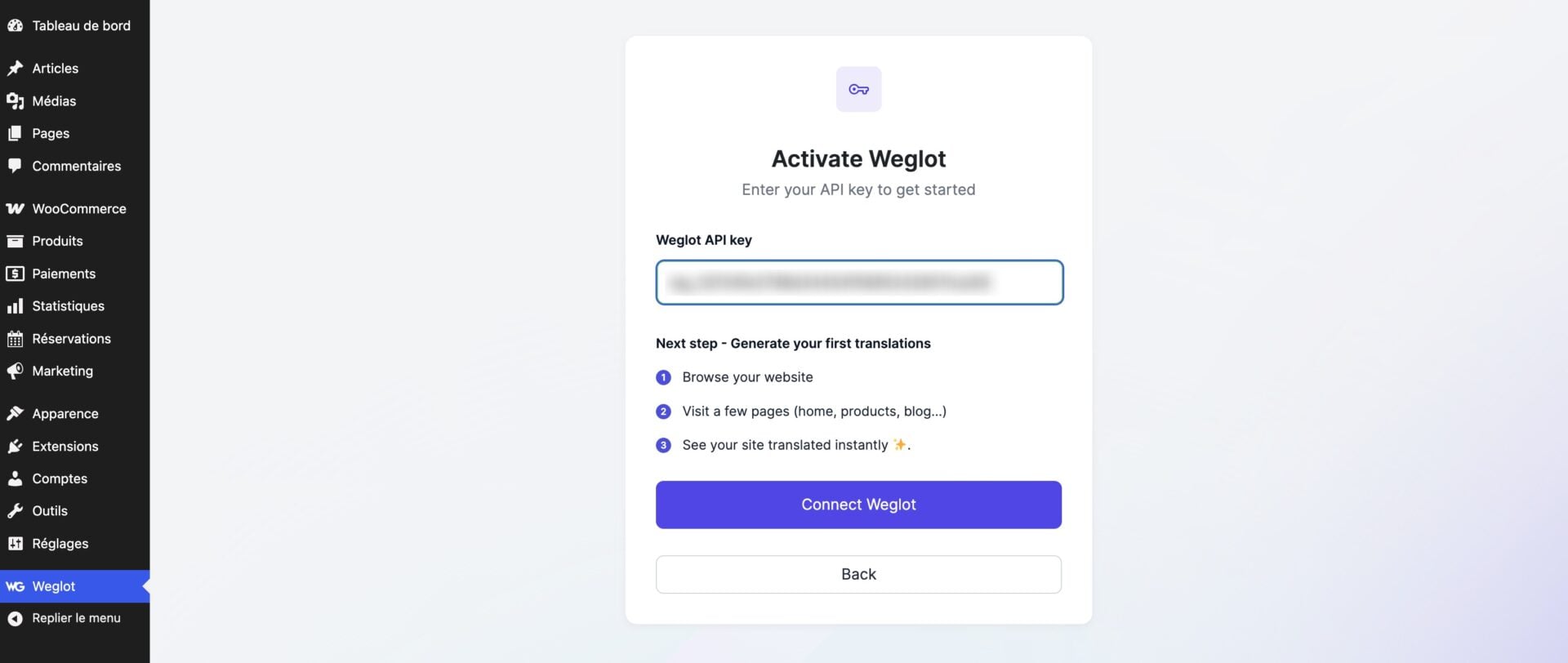
You’ll then be prompted to configure the plugin. This includes:
- Choosing which languages you want to support
- Configuring the front-end language switcher so that customers can easily toggle between different languages
Once you’ve completed these steps, your site is fully multilingual and all your content will be available to customers in your chosen languages.
Both these methods – TranslatePress and Weglot – are quick and painless. Now let’s look at how to run a single language booking site and how to translate Bookings for WooCommerce into your own language.
How do you translate Bookings for WooCommerce into your own language?
If your store only needs one language rather than a multilingual switcher, you have several options for translating Bookings for WooCommerce into your preferred language. If the plugin doesn’t already ship with the translation you want and you prefer to create the translation rather than ask us, take a look at the options below.
Option #1: Reword strings for a single-language site
Bookings for WooCommerce uses several text strings in fields on the front end – e.g. ‘Start Date’, ‘Book Now’, etc. If you want to translate or update these strings:
- Go to WooCommerce > Settings > Bookings > Calendar
- You’ll see a list of available labels with placeholder text
- Just update the labels you want to change
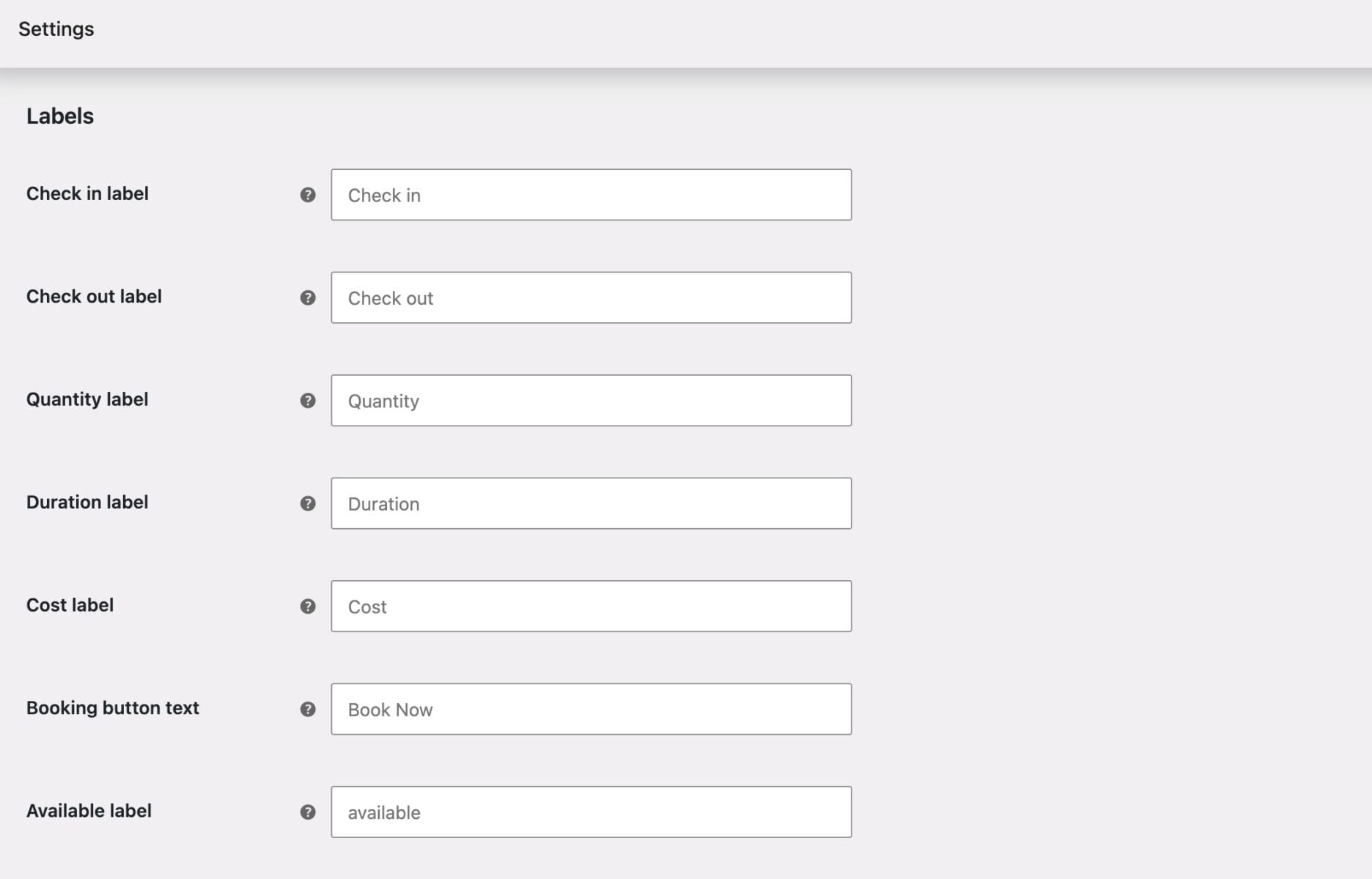
See this support doc for more information.
Option #2: Use Loco Translate to add extra languages
Loco Translate is an easy method because it works entirely inside your WordPress dashboard (and it’s free).
Install and activate it, then go to Loco Translate > Plugins and select ‘Bookings for WooCommerce’. Click ‘New language’, choose your language, and translate the strings in the built-in editor. Loco Translate saves the translation files in the right place for you, so there’s nothing to upload.
You can also take a look at this support document for a more detailed guide.
Option #3: Use Poedit to create a new translation file
Poedit is a desktop app for editing translation files directly. Open the plugin’s .pot template file in Poedit by browsing to bookings-for-woocommerce/languages/bfwc.pot, create a new translation for your language, and translate each string. Poedit generates the matching .mo file when you save, which you then upload to the /languages/ folder so WordPress can load it.
Whichever method you choose, translating the plugin only changes its wording – your bookings, availability, and settings will all stay exactly as they are.
How to accept bookings in multiple currencies in WooCommerce
Bookings for WooCommerce supports multicurrency pricing, so customers can see and pay for their bookings in their own currency. If you’re running a multilingual site then it’s likely that you’d want to offer multicurrency support as well – a customer booking in French would probably expect to pay in euros.
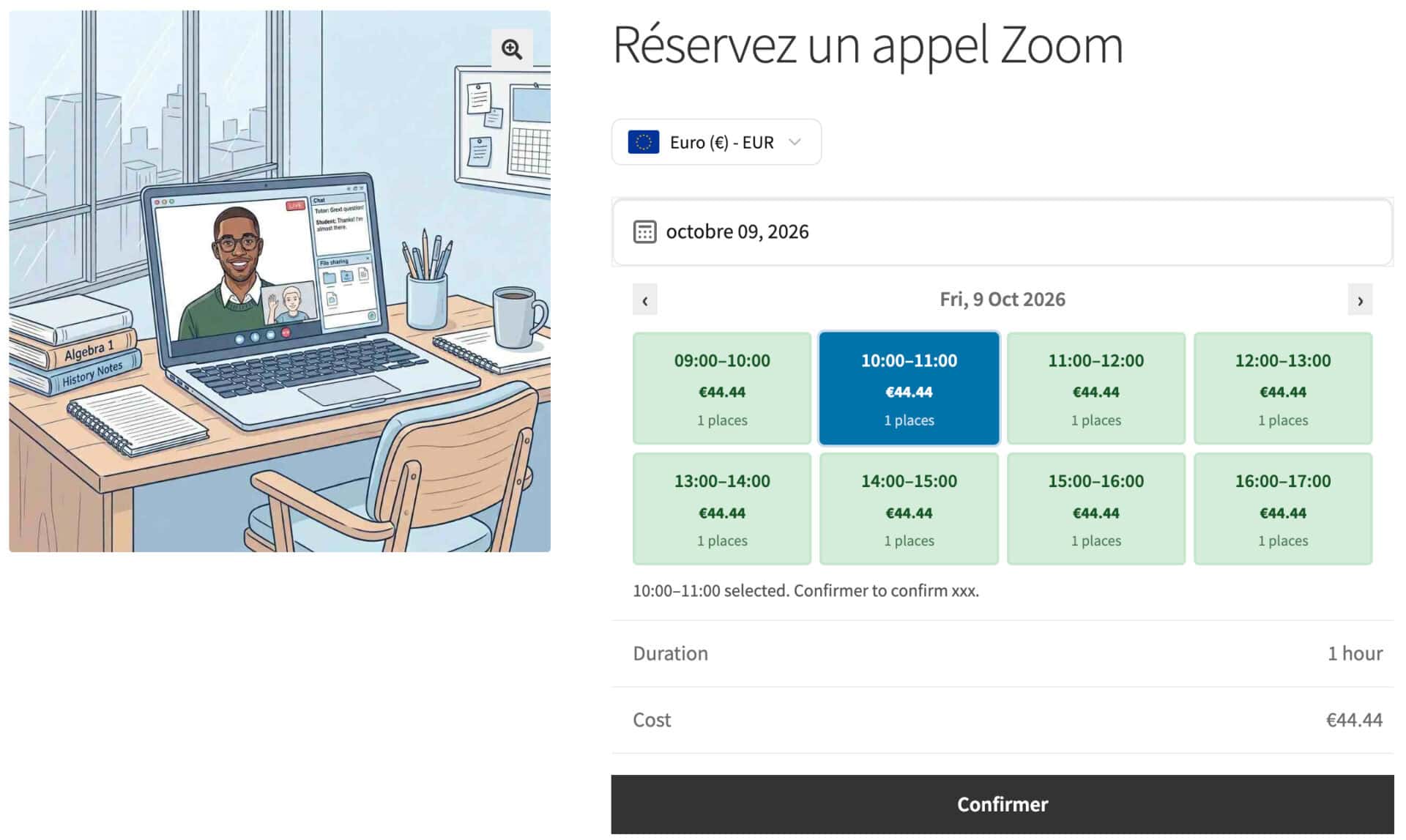
Most translation plugins don’t automatically support multicurrency as well so you’d need another plugin. There are many multicurrency plugins available – they tend to be lightweight and easy to install. Bookings for WooCommerce supports the following multicurrency plugins out of the box:
- Aelia Currency Switcher for WooCommerce
- WPML Multilingual & Multicurrency for WooCommerce
- YayCurrency
However, f you’re using a different multicurrency plugin, just contact us and we’ll add support for it for you – free of charge.
How do booking prices convert between currencies?
Booking prices convert automatically to the customer’s selected currency when one of these plugins is active. The conversion uses the multicurrency plugin’s exchange rate and applies to date-range bookings and time slot bookings and appointments.
You don’t need to change any settings in Bookings for WooCommerce itself. Just set up your multicurrency plugin as normal.
Can you set a fixed booking price for each currency?
Yes, you can set a manual price for any currency on a per-product basis. This is useful if you’d rather charge a round number than an exact conversion – for example, €99 rather than whatever $110 happens to convert to that day.
To set fixed booking prices per currency:
- Edit your booking product and go to the ‘Booking > Pricing’ tab.
- In the ‘Prices per currency’ section, enter a price for each currency you want to override. Leave a field blank to keep using the automatic conversion for that currency.
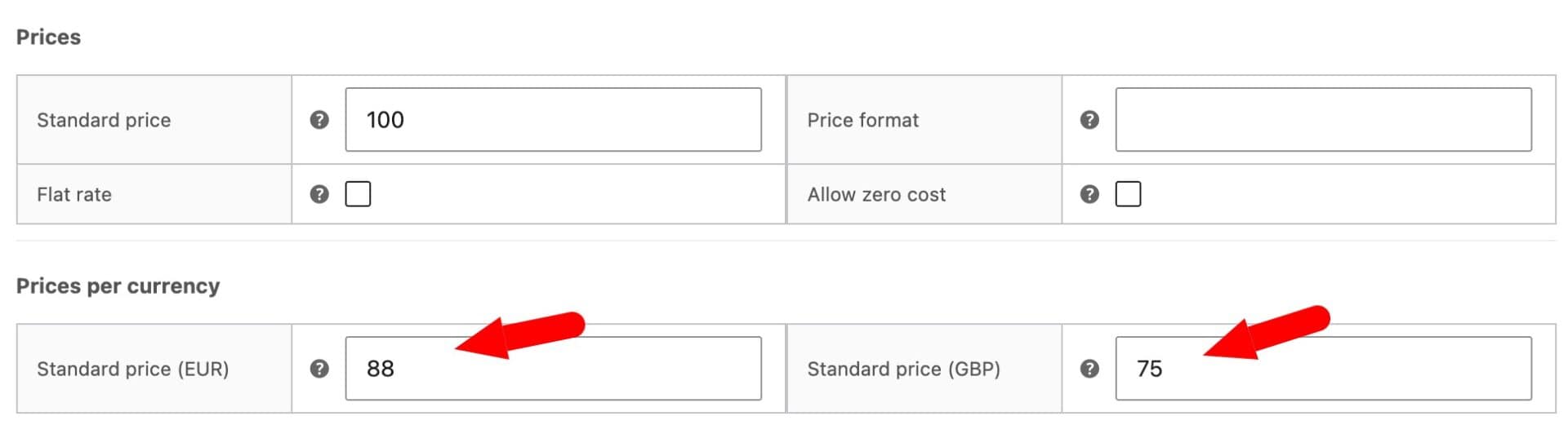
If the product uses Time Slots, you can also set a price per currency for each slot under ‘Booking > Time Slots > Pricing’.
The ‘Prices per currency’ section only appears when a supported multicurrency plugin is active with at least one additional currency set up.
For more information, see our support doc on multicurrency support for Bookings for WooCommerce.
FAQs
Combine Bookings for WooCommerce with a translation plugin. The booking plugin handles the bookings while plugins like TranslatePress or Weglot translate your store into other languages. Because you translate a single bookable product rather than duplicating it per language, availability stays in sync and the same slot can’t be double-booked across languages.
Set up your bookable products with Bookings for WooCommerce, then use TranslatePress or Weglot to translate them. The plugin’s own interface is already translated into several languages, so you only need to translate your own product content. Customers can then book in whichever language they’re browsing the site in.
The best setup combines a dedicated booking plugin with a dedicated translation plugin. Bookings for WooCommerce manages date-based bookings through standard WooCommerce products, and TranslatePress or Weglot translates the rest of your store. Your availability is shared across every language, with no duplicated products to fall out of sync.
Add a WooCommerce multi-currency (currency switcher) plugin so customers can view prices and pay in their own currency then use Bookings for WooCommerce to create your bookable products. The plugin uses standard WooCommerce product pricing – so your bookable products work with a currency switcher like any other product. And if your store is multilingual you can tie the currency to the customer’s language.
Multilingual bookings – recap
That’s how to create a multilingual WooCommerce booking site quickly and easily. We looked at why the plugin is multilingual out of the box, the two quickest ways to translate the rest of your store using TranslatePress and Weglot, and how to translate the plugin into a single language with Loco Translate or Poedit. We also looked at multicurrency support so you can accept bookings in different currencies as well as multiple languages.
Bookings for WooCommerce lets you accept date-based bookings through standard WooCommerce products, with shared availability calendars that keep bookings in sync whatever language the customer uses.
The plugin is compatible with all themes and page builders, including Astra, Flatsome, and Woodmart, and page builders like Elementor and Divi. If you have any questions, our world-class support team is on hand to help. And it’s backed by a 14-day money-back guarantee, so you can try it risk-free.