Bookings for WooCommerce is fully translatable (and already includes full translations for several languages including French, German and Spanish). To translate it to your own language, you’ll need a translation plugin like Loco Translate.
Or you can check out our article on how to create a multilingual booking site in WooCommerce.
How to translate Bookings for WooCommerce using Loco Translate
Here’s how to translate the plugin using Loco Translate.
Step #1: Select Bookings for WooCommerce
With Loco Translate activated:
- Navigate to the Loco Translate settings in your WP dashboard
- From the Home settings page, select ‘Bookings for WooCommerce’
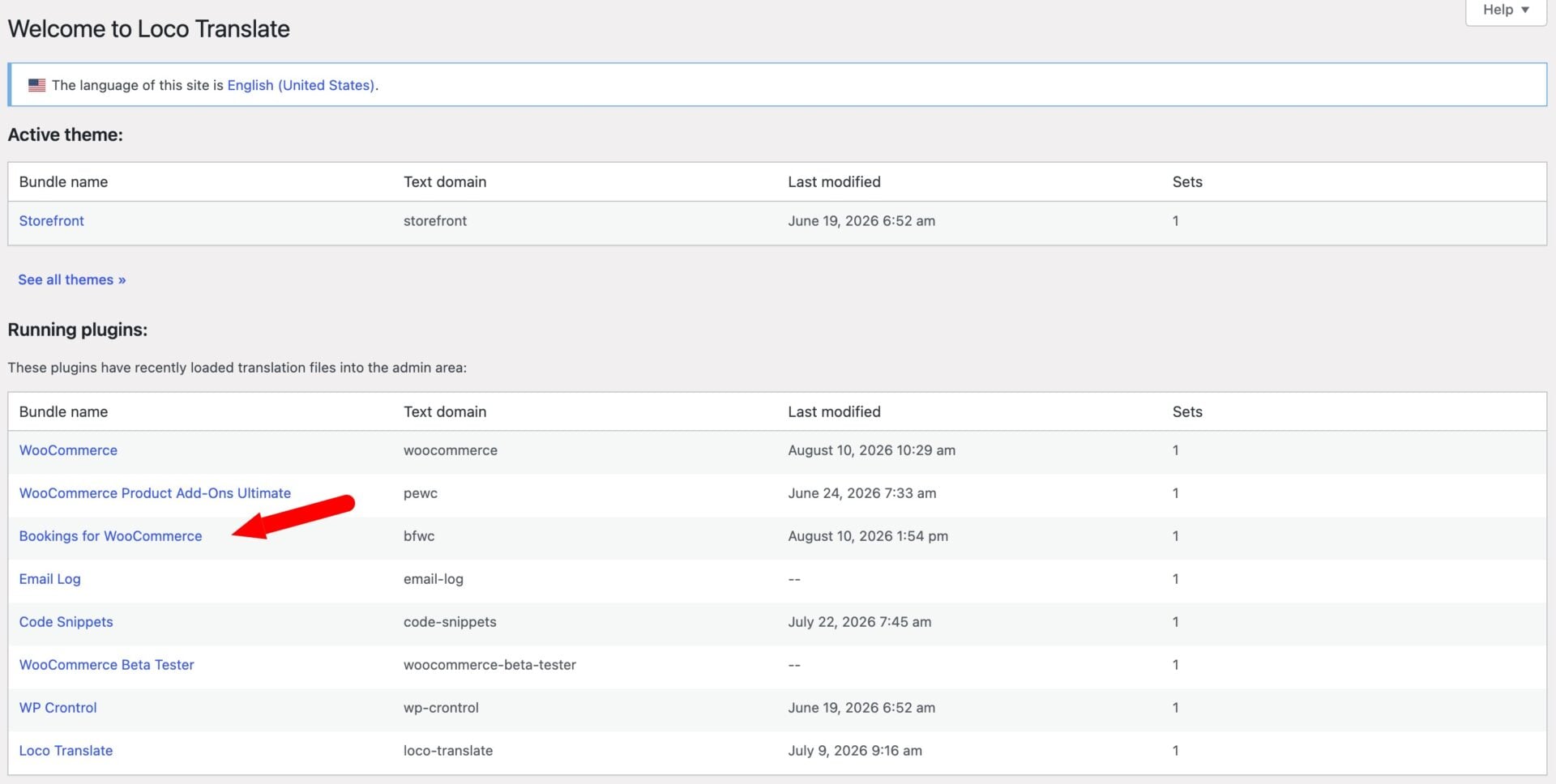
Step #2: Select the new language
From the next screen:
- Select ‘New language’
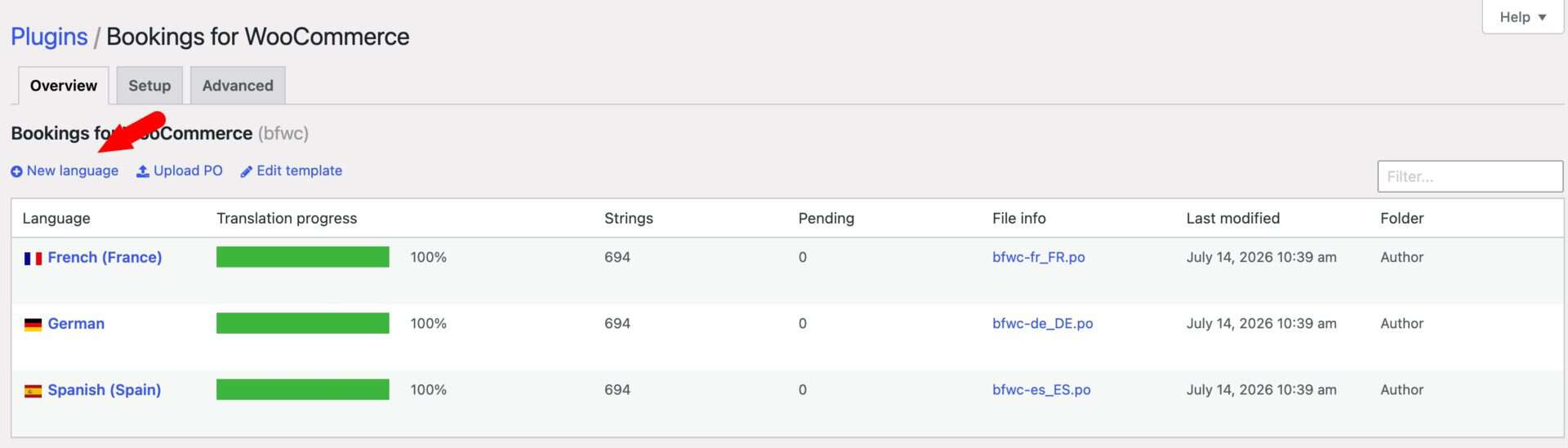
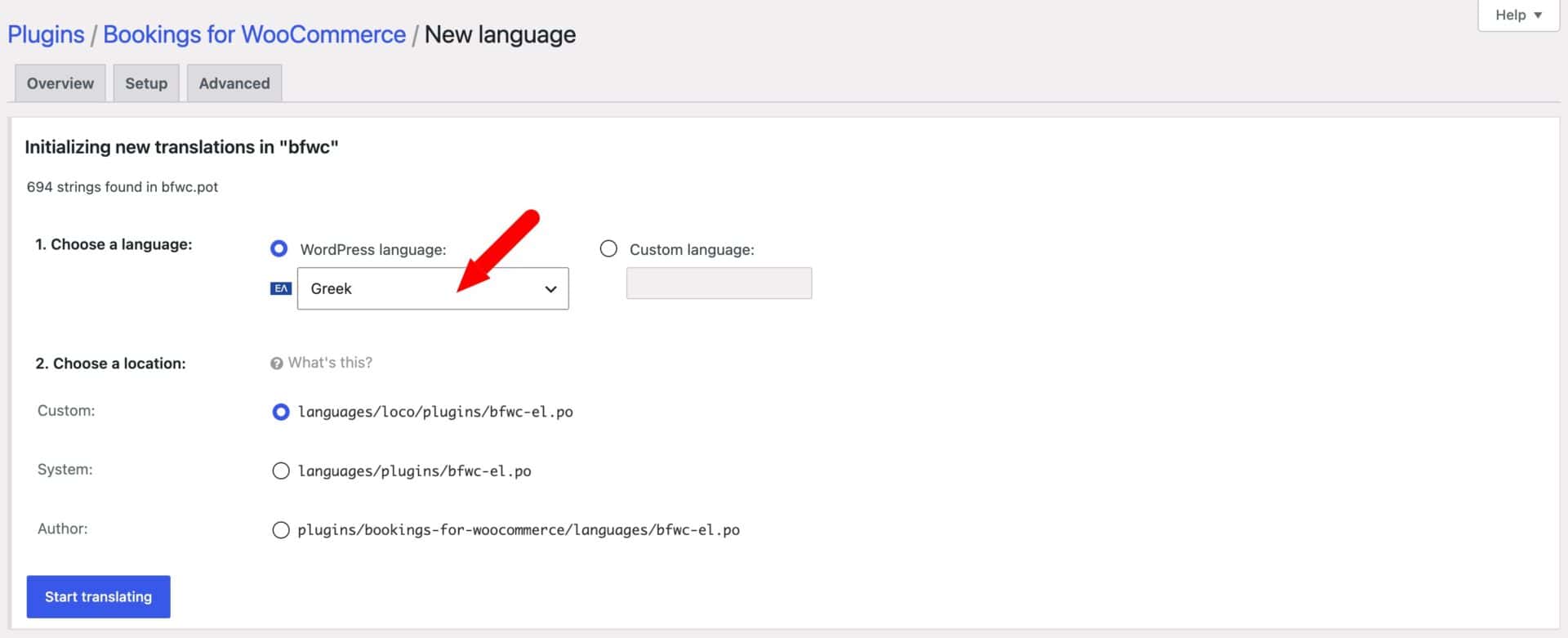
The screen will update:
- Select the language you wish to translate to
- Click ‘Start translating’
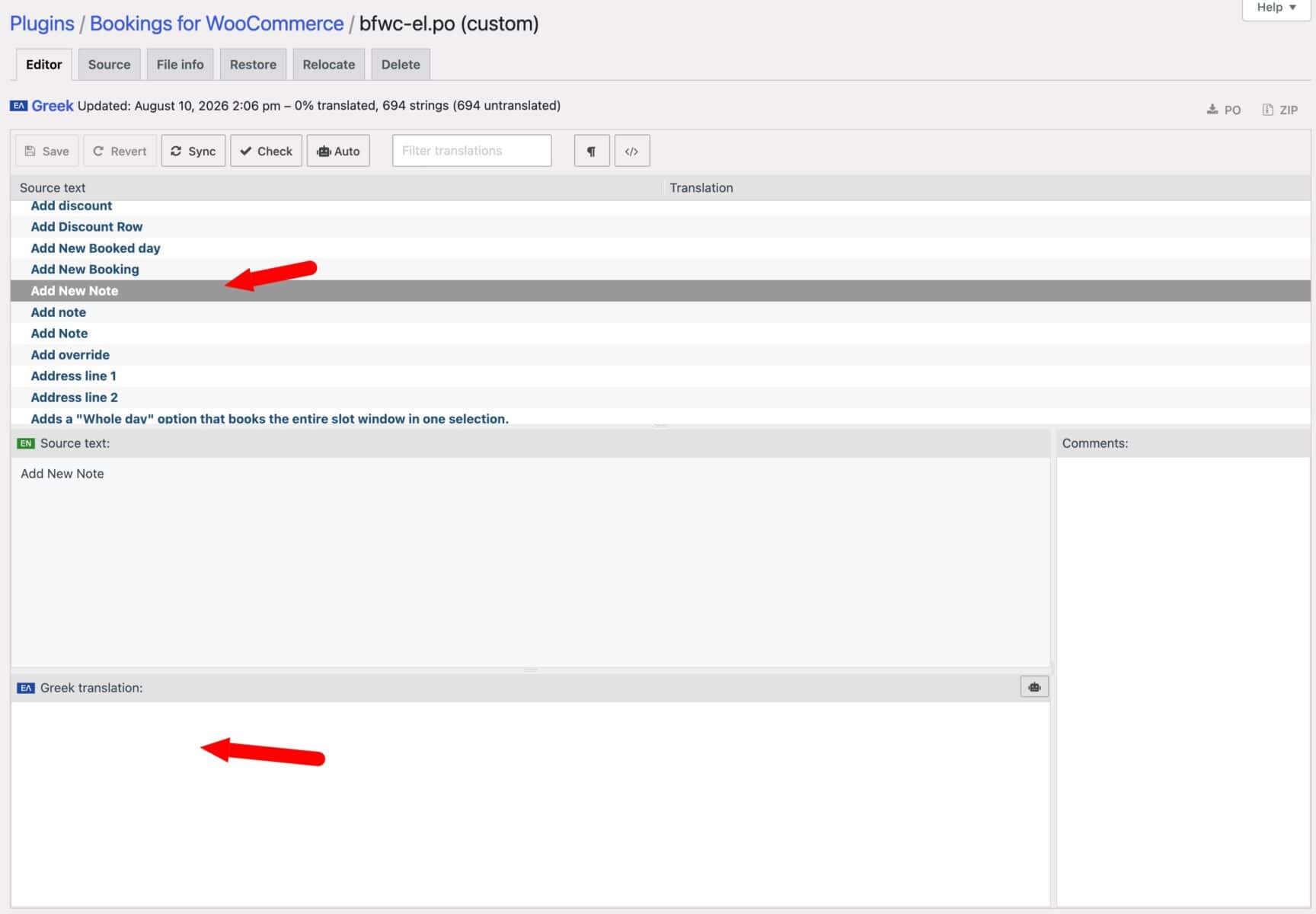
Step #3: Enter your translations
From the next screen:
- Select the string(s) you wish to translate
- Enter the translation in the ‘Translation’ field
How to use Poedit to create a new translation file
Poedit is a desktop app for editing translation files directly. Open the plugin’s .pot template file in Poedit by browsing to bookings-for-woocommerce/languages/bfwc.pot, create a new translation for your language, and translate each string. Poedit generates the matching .mo file when you save, which you then upload to the /languages/ folder so WordPress can load it.
Troubleshooting translations
If a label such as “Quantity” isn’t being translated even though your translation plugin (TranslatePress, Loco Translate, etc.) shows a correct translation for it, check the corresponding setting first: WooCommerce → Settings → Bookings, and look at the label field (e.g. “Quantity label”, “Check-in label”).
If a value has been typed directly into that field (rather than just displayed as a placeholder), it is saved as-is and displayed literally. As such, it will not be translated, regardless of language plugin or .mo file, because custom text always overrides the plugin’s built-in translatable default.
To restore your translation, clear the field and save the settings page so it falls back to the plugin’s default text, which can then be translated normally.