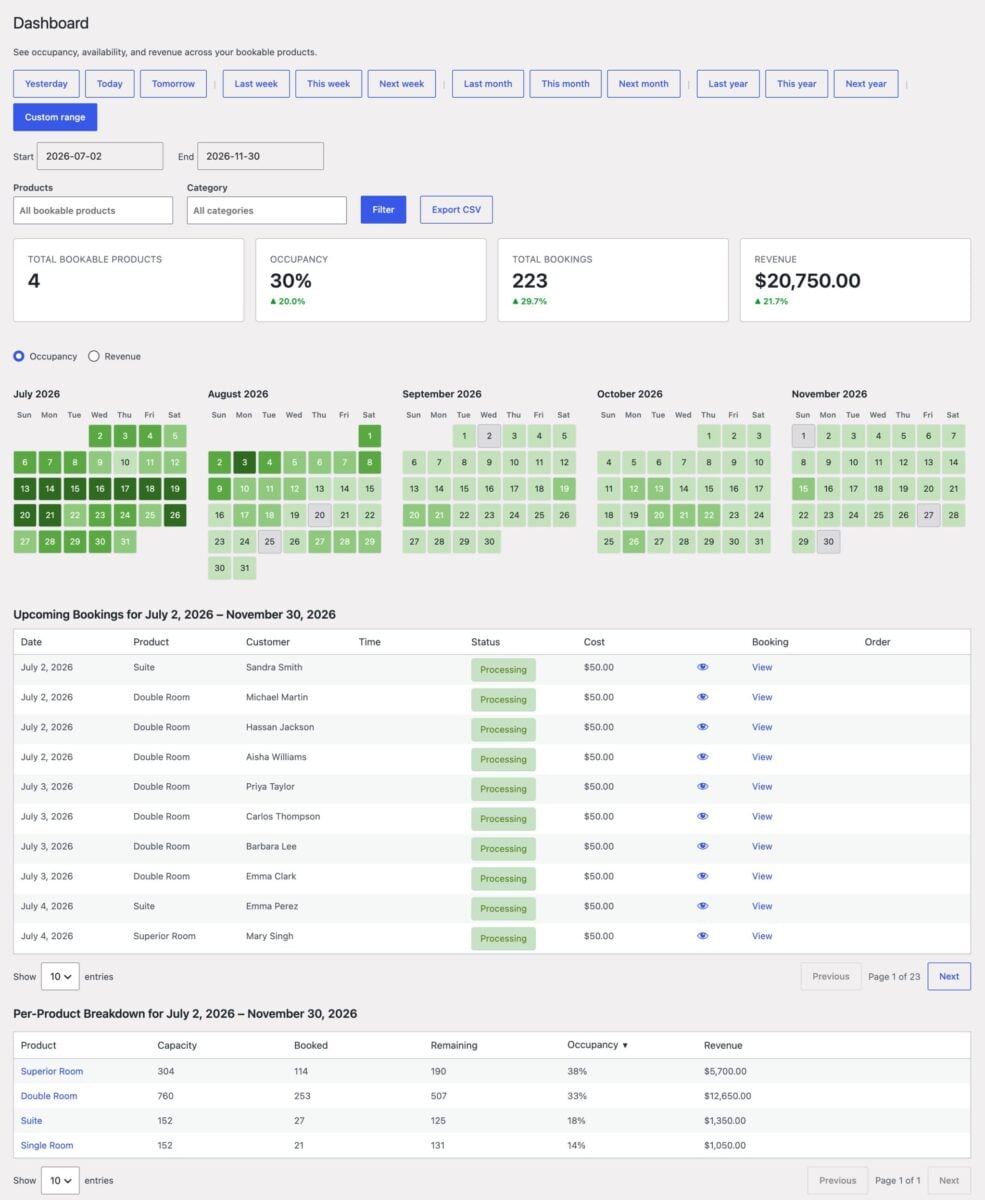
The dashboard in Bookings for WooCommerce gives you an at-a-glance view of occupancy, revenue, and upcoming bookings across all your bookable products. You can also add bookings manually and drill down into any date from here.
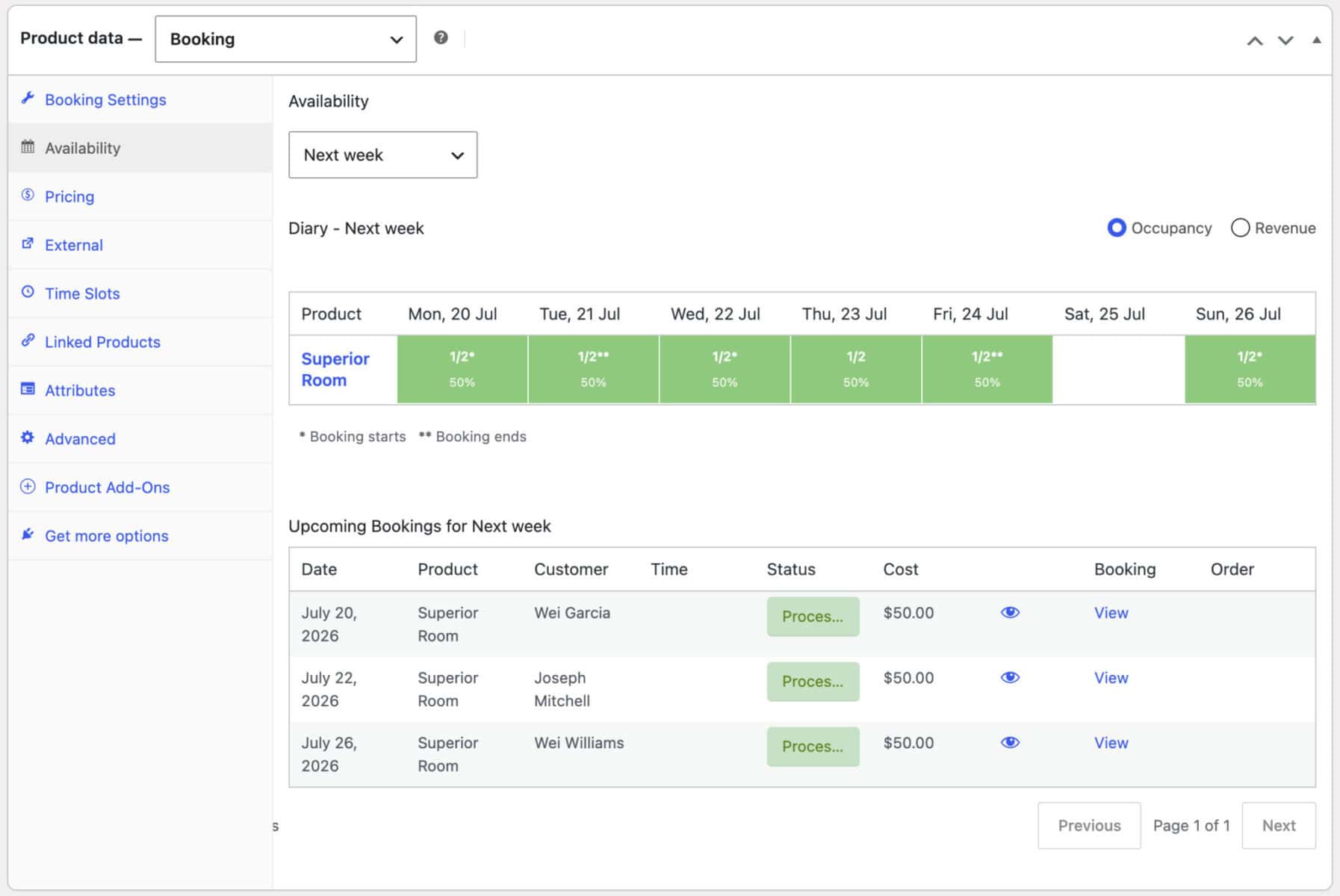
A scaled-down version of the same view is built into each product’s own ‘Availability’ tab, scoped to just that product.
You’ll find the full dashboard at Bookings > Dashboard in your WordPress admin menu.
Getting there
- Bookings > Dashboard – the full dashboard, covering every bookable product (or a filtered subset)
- Edit product > ‘Availability’ tab – the same views, scoped to a single product, embedded directly in the product editor
Choosing a date range
Along the top of the Dashboard is a row of date-range buttons:
- Yesterday / Today / Tomorrow
- Last week / This week / Next week
- Last month / This month / Next month
- Last year / This year / Next year
- Custom range – pick any start and end date with the date pickers that appear

Whichever range you choose, the Dashboard automatically shows the most useful view for that length of time:
| Range length | View shown |
|---|---|
| A single day | Diary – a time-grid for time-slot products, plus a list of bookings for day/night/week products |
| 2–7 days | Week diary – a grid of time rows × day columns |
| More than a week | Calendar – a full month-by-month grid, one cell per day |
This applies to custom ranges too. A custom range that spans one day behaves like ‘Today’, and a custom seven-day range behaves like ‘This week’.
Filtering by product or category
On the main Dashboard, two dropdowns let you narrow the view by product or category. This filter isn’t available on the per-product tab, since that’s always scoped to the one product you’re editing.
- ‘Products’ – pick one or more bookable products
- ‘Category’ – pick one or more product categories
Click ‘Filter’ to apply your selection. Everything on the page updates to reflect only the products or categories you’ve chosen – the summary tiles, the calendar or diary view, the per-product breakdown, and Upcoming bookings. Leave both fields blank to see every bookable product.
Summary tiles
At the top of the main Dashboard, four tiles give you a quick overview of the current range:
- Total bookable products – how many products are included in the current filter
- Occupancy – percentage of available capacity that’s booked, with an up, down, or flat indicator compared to the equivalent previous period
- Total bookings – number of bookings in range, with the same comparison indicator
- Revenue – total revenue from confirmed or processing bookings in range, with the same comparison indicator

These tiles don’t appear on the per-product ‘Availability’ tab, since they’re only meaningful when comparing across products.
The three views
Calendar
A month grid (or several months, for longer ranges), color-shaded by either ‘Occupancy’ or ‘Revenue’ – use the toggle above the grid to switch. Each day cell shows the day of the month, shaded from light for little or no activity to dark for fully booked or highest revenue in range.
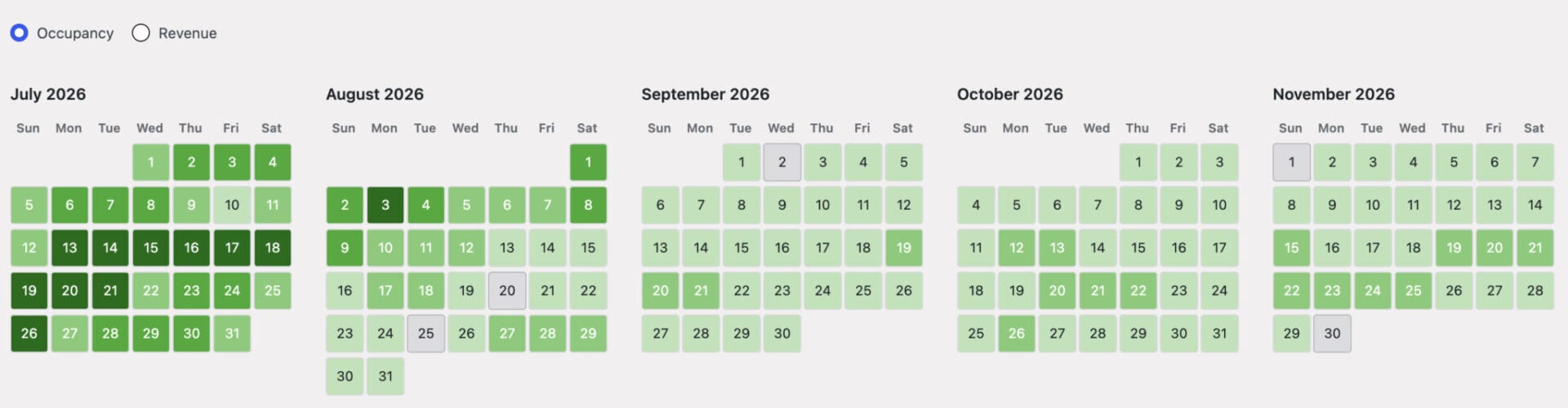
Click any day to open the day detail panel (see below).
Week diary
A grid with time-of-day rows down the left and one column per day in the range. Time-slot products contribute rows at their actual slot times, and day/night/week products are aggregated into a single ‘All day’ row.
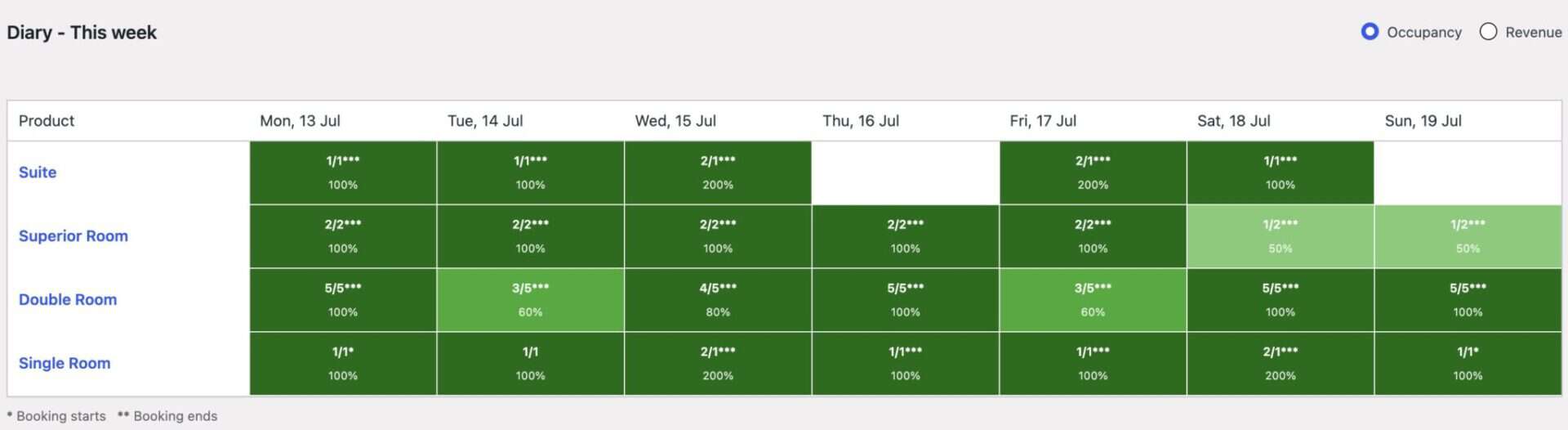
Cells are shaded the same way as the Calendar view. Clicking a cell opens the day detail panel for that specific date and time.
Diary
Used for single-day ranges. Time-slot products get their own time-grid, with one column per product and one row per time slot, so you can see exactly which slots are booked and which are free.
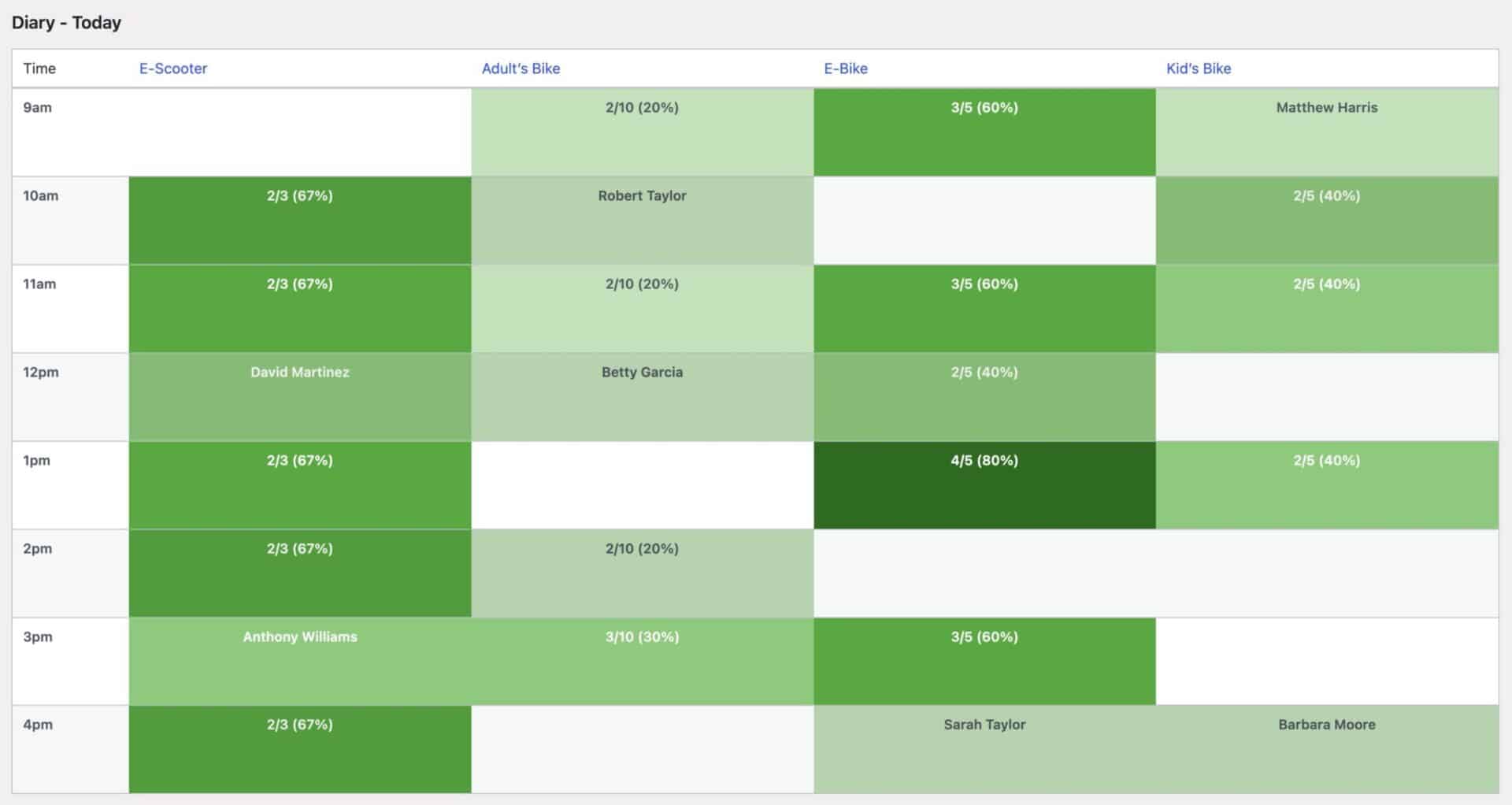
Day/night/week products are listed differently, each showing how many units are booked out of its total capacity. Individual booking tiles are flagged as ‘Check-in’, ‘Check-out’, ‘Single day’, or ‘Staying’ relative to the date you’re viewing.

Every product always appears in the Diary, even with zero bookings. Click a product’s row or an empty time slot to open the day detail panel and add a booking.
The day detail panel
Clicking any cell, row, or day in any of the three views slides in a panel from the right, showing:
- Every booking that falls on that date or time slot: product, customer, time, status, cost, and a link to view the booking
- One ‘Add booking’ button per product available in that context
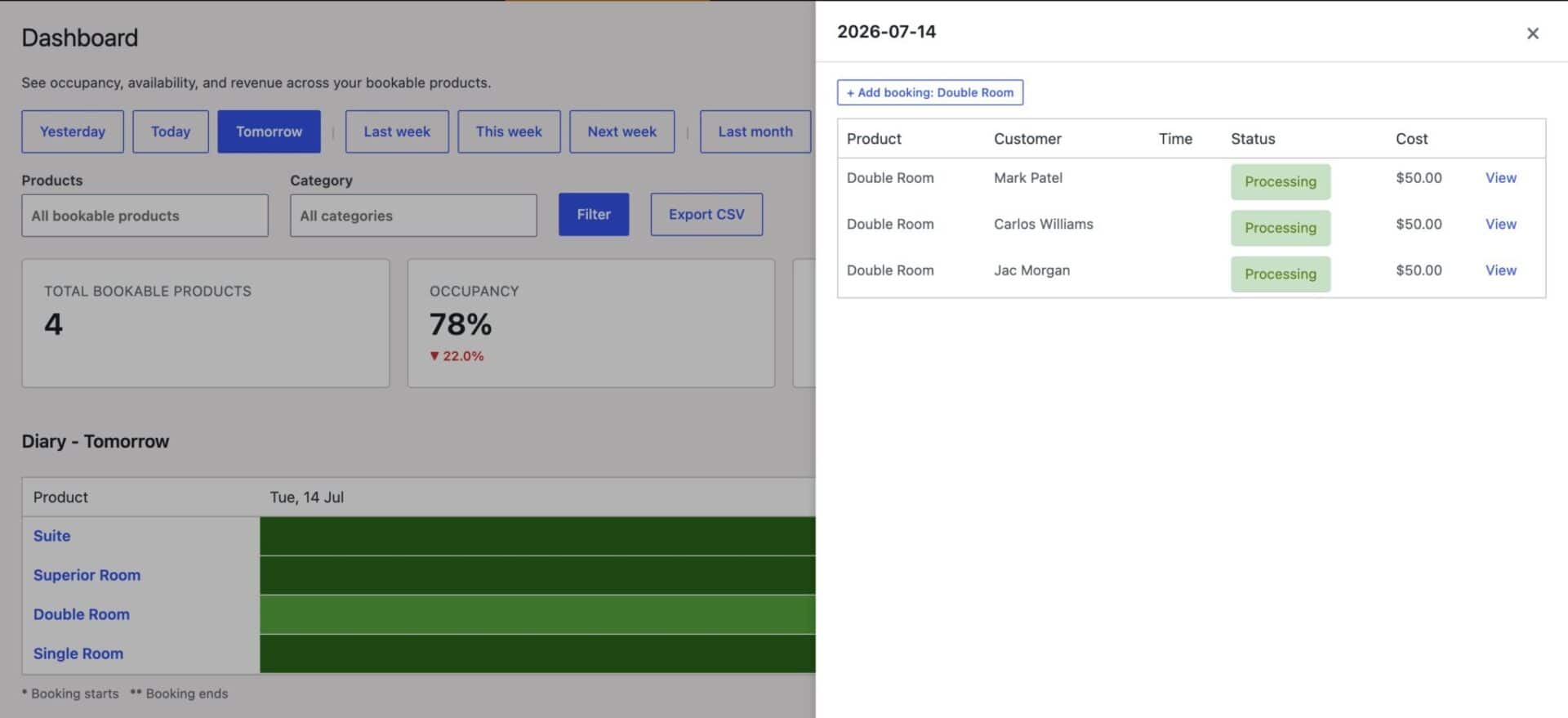
If you opened the panel from a day-range view, use the ‘Previous day’ and ‘Next day’ arrows on the panel header to step through adjacent dates without closing and reopening it.
Adding a booking manually
Click ‘Add booking’ next to a product name in the day detail panel to open the Add booking modal. The fields shown depend on whether the product uses time slots:
- Date – fixed to the date you clicked
- Start time / End time (time-slot products only) – the end-time dropdown only offers times with enough remaining capacity for your chosen quantity
- Quantity
- Price – calculated automatically from the product’s pricing, but you can override it
- Customer email – start typing to search existing customers; matches show their name and email so you can pick the right one, or type a new email to create one
- ‘Create a WooCommerce order for this booking’ – tick this to also generate a paid order for the booking, rather than just recording the booking on its own
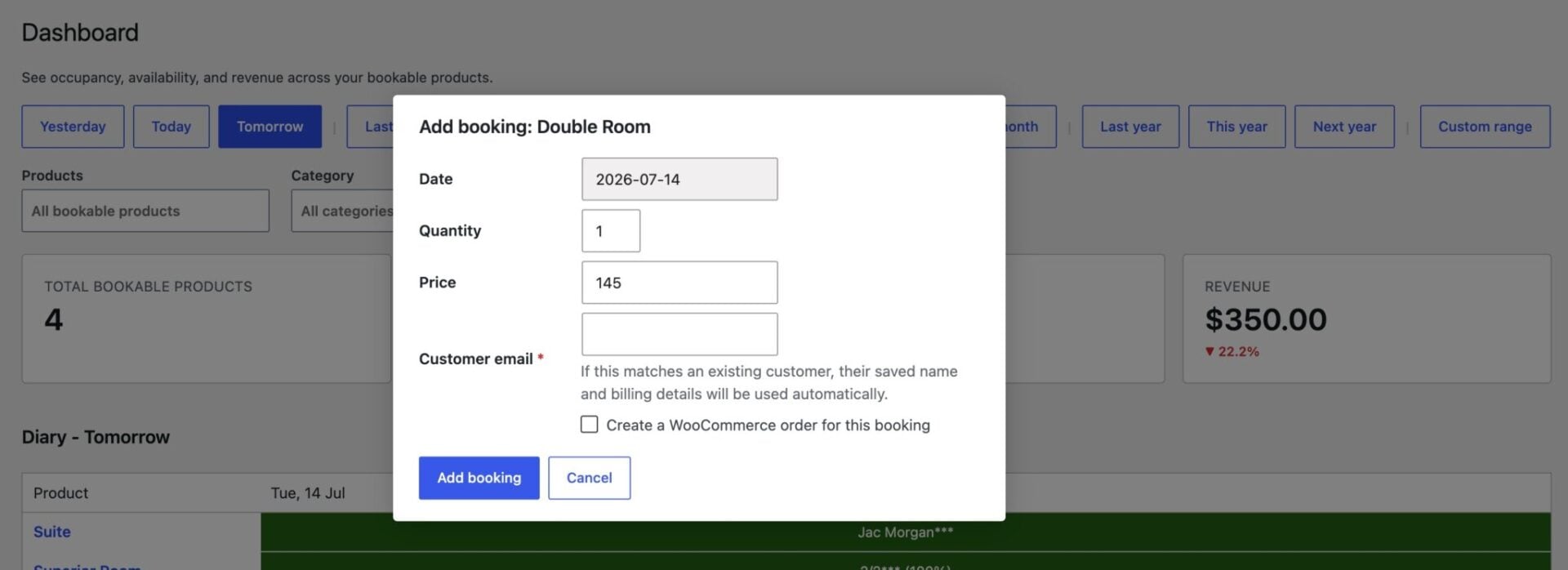
Availability is re-checked on the server when you save, so you can’t accidentally overbook a slot even if the page has been open for a while.
Upcoming bookings
Below the calendar or diary view, the Upcoming bookings table lists every booking within your current date range and product or category filter, soonest first. Each row shows:
- Date, product, customer, time, status, and cost
- ‘Booking’ – a preview icon that opens a quick summary (dates, customer name, email, phone, quantity, status, cost) without leaving the page
- A ‘View’ link to the booking’s edit screen, and an ‘Order’ link if a WooCommerce order was created for it (both open in a new tab)

The table is paginated. Use the page-size selector and ‘Previous’/’Next’ controls at the bottom if you have a lot of bookings in range.
Per-product breakdown
Only on the main Dashboard, a sortable table shows one row per bookable product, with its occupancy, bookings count, and revenue for the current range. Click a column heading to sort by it.

Products with zero bookings in a range that otherwise has activity are flagged, since that can indicate a visibility issue. Products near full capacity are flagged as a possible upsell opportunity.
Exporting
The ‘Export CSV’ button (main Dashboard only) downloads the currently filtered data as a CSV file, matching whatever date range and product or category filters are active on screen.
The Availability tab (per product)
Open any bookable product and click its ‘Availability’ tab to see the same Calendar, Week diary, and Diary views, along with the Upcoming bookings table, scoped to just that one product. This is useful for checking or managing a specific product’s bookings without leaving its edit screen.
A few differences from the main Dashboard:
- The date range is a dropdown (to save space) rather than a row of buttons, but offers the same choices
- There are no summary tiles, no ‘Products’/’Category’ filters, and no per-product breakdown table, since everything is already scoped to the one product
- The default view depends on the product type: time-slot products open on ‘Today’ so you immediately see the time-grid, while day/night/week products open on ‘This month’ so you see a full calendar grid
- Adding a booking refreshes just the tab’s view in place, rather than reloading the whole product-edit screen
Notes
The Dashboard replaces the older Bookings > Calendar page, which is deprecated and will be removed in a future version. Switch over to the Dashboard if you’re still using the Calendar page.
Access to the Dashboard, and the per-product ‘Availability’ tab’s data, requires the manage_options capability by default. This can be changed using the bfwc_dashboard_page_capability filter if you need to grant access to other user roles.