WooCommerce dynamic pricing: how to set rules that actually increase order value
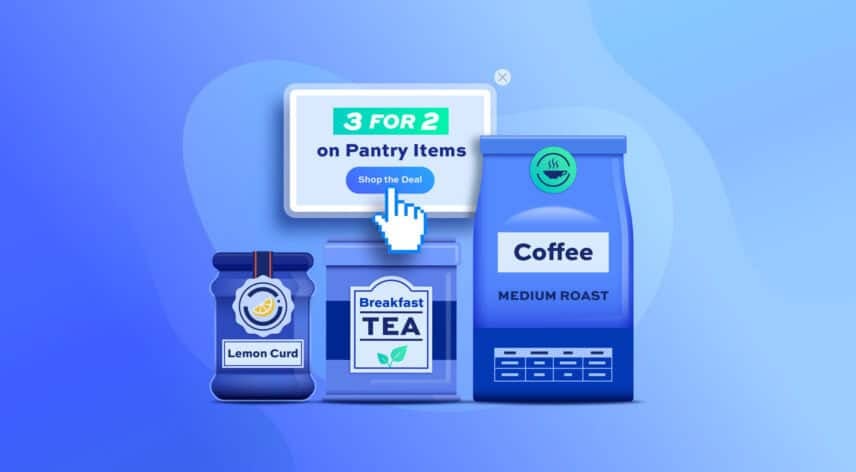
Dynamic pricing lets you set rules that automatically reward customers for spending more, so your average order value rises without you touching a single product price by hand. Buy more, save more. Spend a little extra, unlock a deal. The pricing adjusts itself at the cart, and customers see the saving the moment they qualify.
In this guide, you’ll set up the kind of rules that will increase order value, using the WooCommerce Dynamic Pricing and Discount Rules plugin.
After completing this tutorial, you’ll be able to:
- Create quantity-based discounts that reward bigger orders
- Set tiered pricing so the unit price drops as customers buy more
- Trigger discounts when a customer’s cart total hits a threshold
- Run BOGO and bundle deals to move more units per order
- Show live cart notices that nudge customers toward the next deal
Here are the main dynamic pricing rule types you can set up, and what each one does for order value:
| Rule | Example | Benefit for order value |
|---|---|---|
| Bulk discount | Buy 5 or more, get 10% off | Rewards larger quantities, so customers add more units |
| Tiered pricing | 1–4 units at $20, 5–9 at $18, 10+ at $15 | A lower unit price at each band encourages bigger orders |
| Bundle (Buy X for Y) | Buy 3 for $100 | Turns a single purchase into a multi-item one |
| Spend X Get Y | Spend $100, get a free hoodie | Gives customers a spend target to reach |
| Order total | Spend $200, get 10% off | Nudges customers to top up the whole cart |
| Discount on spend | Spend $1,000 on selected items, get $100 off | Rewards higher spend on your key ranges |
| BOGO | Buy one, get one free | Moves more units in a single order |
| Role-based pricing | Wholesale customers get 15% off | Grows high-value wholesale and B2B baskets |
As a bonus, we’ll also look at how to set role-based pricing for wholesale and B2B customers.
What is WooCommerce dynamic pricing?
Dynamic pricing means prices that change automatically based on conditions you set, rather than a single fixed figure per product. Those conditions can be the quantity in the cart, the cart total, the customer’s role, or their order history.
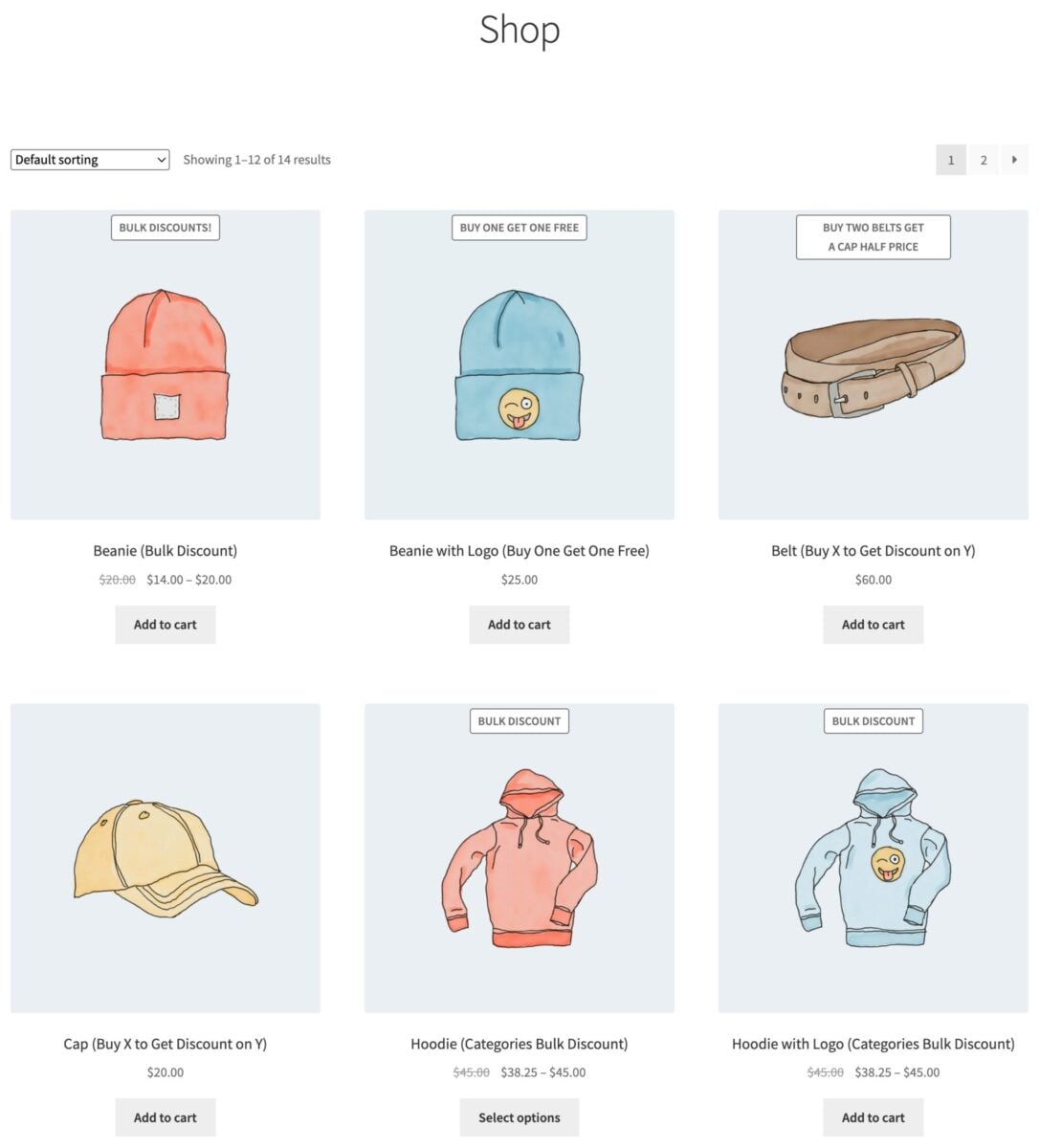
Every rule type is a lever for order value. A quantity discount pushes customers to add one more item; a spend threshold gets them to top up the cart to qualify; a bundle deal turns one purchase into three.
The point isn’t to discount for the sake of it. It’s to give customers a clear, rational reason to spend a little more than they planned.
Why doesn’t default WooCommerce do this?
Out of the box, WooCommerce only handles a single sale price per product and basic coupon codes. It can’t lower the unit price at higher quantities, react to the cart total, or apply a deal automatically without a code.
The WooCommerce Dynamic Pricing and Discount Rules plugin adds all of that. It lets you build pricing rules that apply automatically based on quantity, spend, category, user role, and more. It’s compatible with all themes and page builders, and it works with all WooCommerce payment gateways.
How to install Dynamic Pricing and Discount Rules
Once you’ve purchased Dynamic Pricing and Discount Rules:
- Download the plugin’s zip file by clicking on the link on your order confirmation screen or in your welcome email. You’ll receive the email automatically a few seconds after you’ve completed the purchase
- Go to Plugins > Add New in your WordPress dashboard
- Click on the ‘Upload Plugin’ button
- Drag and drop the plugin’s downloaded zip file into the ‘Choose File’ area and click ‘Install Now’
- When the plugin has uploaded, click the ‘Activate Now’ button
With the plugin activated, you’re ready to create your first rule. In this tutorial, we’ll assume that you already have WordPress and WooCommerce installed and ready to go.
How do you create a pricing rule in WooCommerce?
Every dynamic pricing rule starts in the same place and shares the same core settings. Once you understand these, every rule type in the rest of this guide is a small variation on the same form.
Go to WooCommerce > Fees and Discounts and click ‘Add New’ to create a rule.
From here, you’ll work through a handful of shared settings:
- Rule – the offer type, which sets what kind of deal you’re creating (Simple, Bulk Pricing, Buy X Get Y, and so on)
- Applies to – whether the rule covers all items, specific categories, or specific products
- Count by – whether items are totaled across the whole cart (‘All’) or product by product (‘Product’)
- Roles – which user roles the rule applies to, with an option to exclude roles
- Adjustment type – a fixed discount, percentage discount, fixed fee, percentage fee, or tiered price
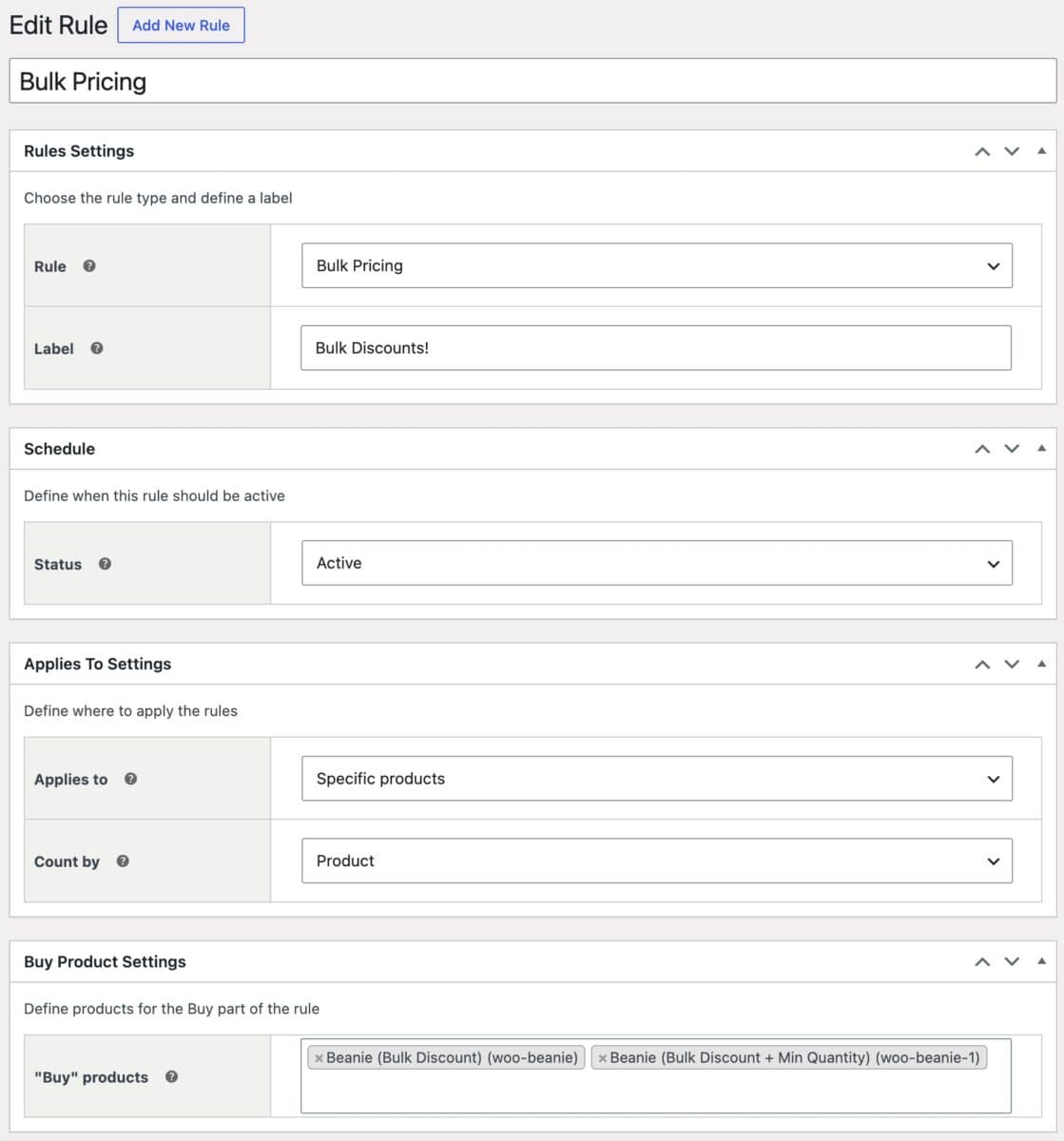
Set those, save, and your rule is live on the front end. Now let’s look at the rule types that do the most for order value.
Tiered and bulk pricing: how do you reward bigger quantities?
Quantity-based pricing is the most direct way to raise order value, because it rewards the exact behavior you want: buying more. The plugin handles this two ways – bulk pricing and tiered pricing.
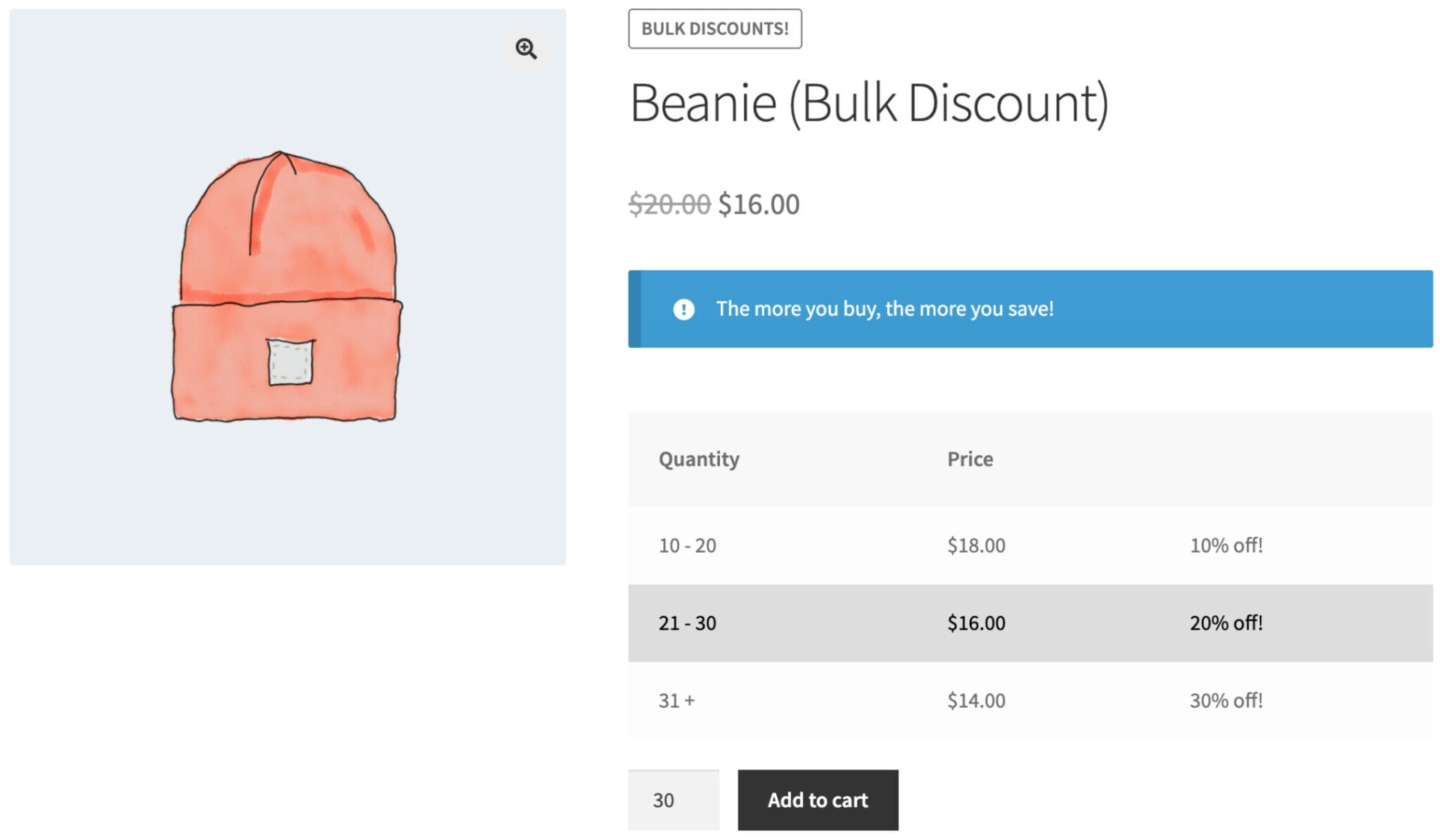
What’s the difference between bulk and tiered pricing?
Both reward customers for buying in larger quantities, but they set the price differently. Bulk pricing applies a discount off the base price once a quantity threshold is reached. Tiered pricing sets the exact unit price for each quantity band, regardless of the base price.
In practice, you build both with the same ‘Bulk Pricing’ rule type and the same ‘Tiers’ table. Then you just choose a different adjustment setting:
- A percentage or fixed discount adjustment makes the ‘Amount’ a discount off the base price. This is what most people mean by a bulk discount.
- A tiered adjustment makes the ‘Amount’ the actual price the customer pays per unit in that tier. This is what most people mean by tiered pricing.
As an example, take a product with a base price of $20 and three quantity bands: 1–4, 5–9, and 10 or more.
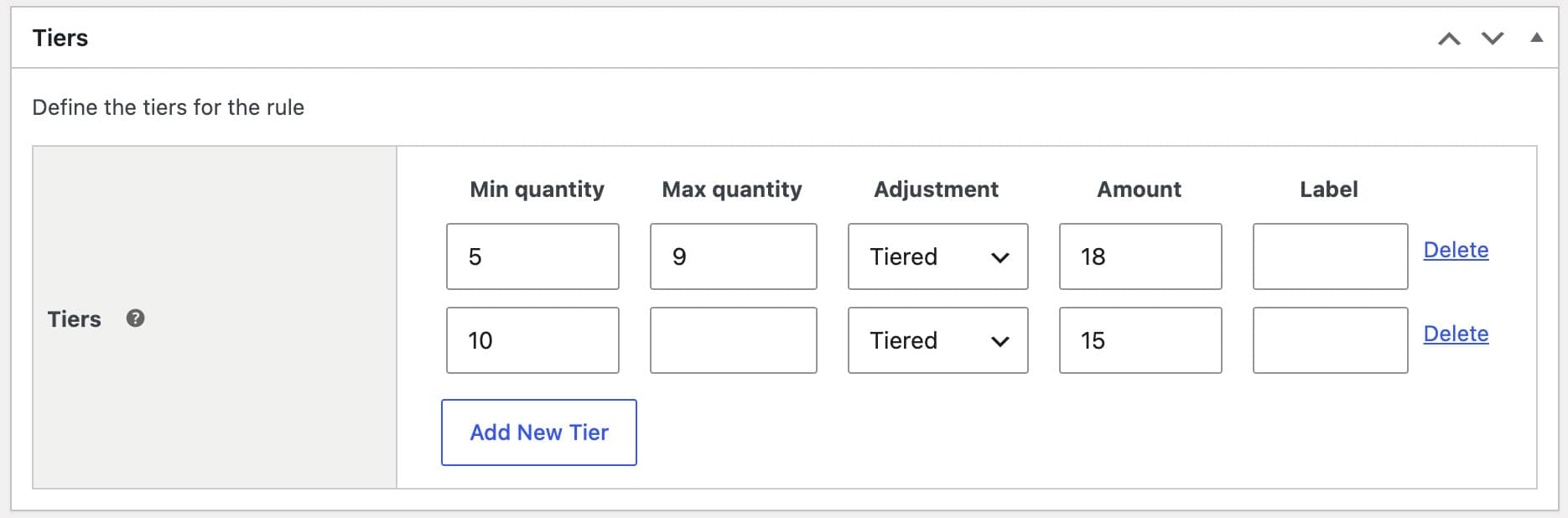
With bulk discounts, you’d leave 1–4 at full price, set 5–9 to 10% off, and set 10+ to 25% off. With tiered pricing, you’d leave 1–4 at the default price, then set 5–9 to $18 and 10+ to $15. Both give the customer the same prices: $20, $18, and $15.
When should you use each one?
Use bulk discounts when you think in percentages and want savings to track the base price, including any future price changes. They’re quick to set up and easy for customers to understand as a headline offer.
Use tiered pricing when you need exact prices per quantity band, such as a wholesale price list with round numbers.
How do you set up quantity pricing?
Choose ‘Bulk Pricing’ as the Rule type, then add a row to the ‘Tiers’ section for each quantity band. Each row sets the quantity range and the adjustment that applies to it.
For each tier, pick the adjustment type. Choose ‘Percentage discount’ or ‘Fixed discount’ for a bulk discount, or ‘Tiered’ if you want the ‘Amount’ to be the exact unit price for that band.
Two settings affect how the rule counts and applies. The ‘Count by’ setting decides whether quantities are totaled across the whole cart (‘All’) or per product (‘Product’), which matters when a tier should be reached by a single product rather than a mix. The ‘Fixed Adjustments’ setting, which applies to fixed values only, controls whether a fixed discount is applied once across the combined items or per qualifying product.
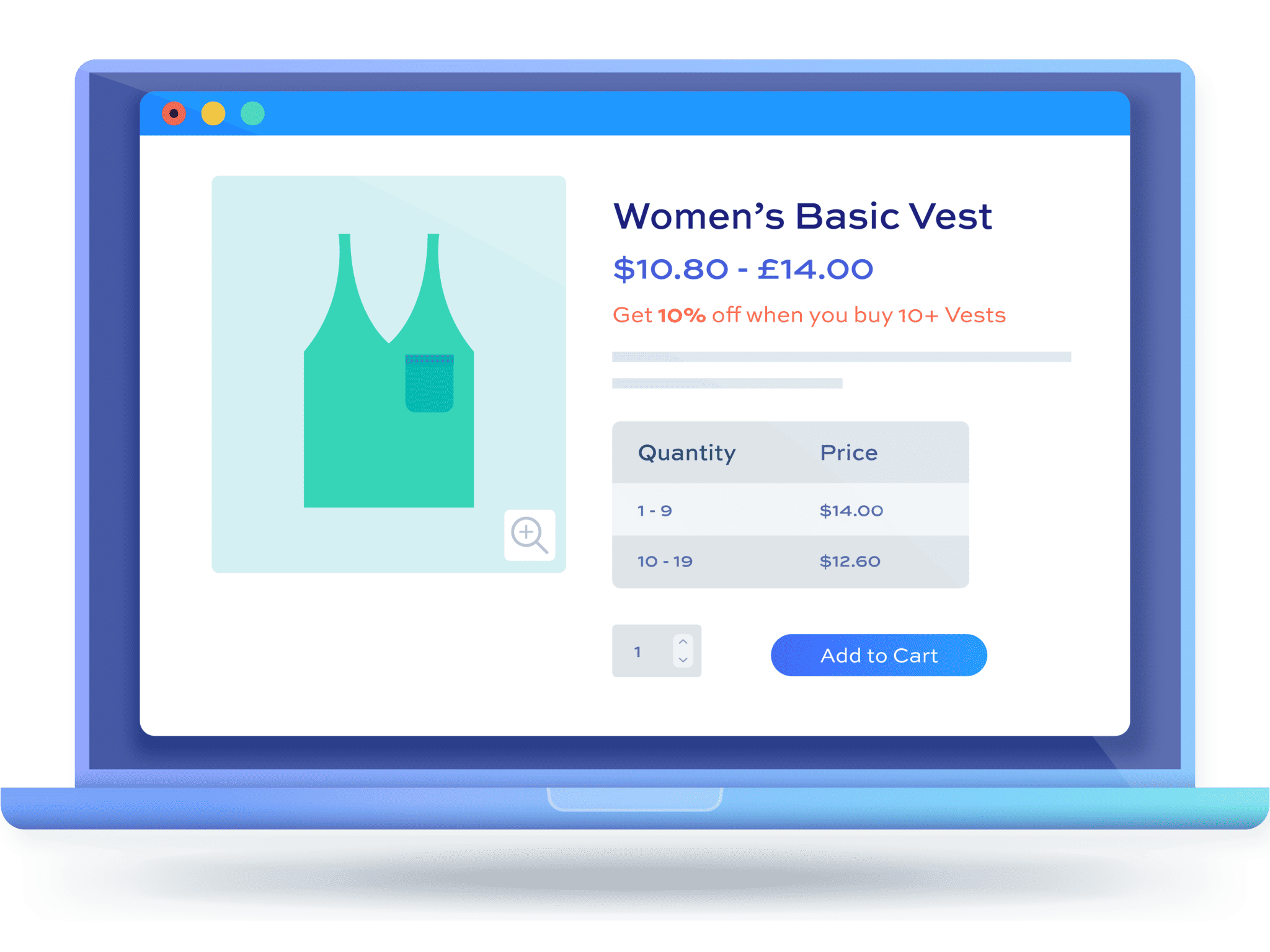
The plugin can also display your tiers in a pricing table on the product page. The table highlights the customer’s current tier as they change quantity, and updates the main price label to match. Seeing the next saving in black and white is often all it takes to add a few more units.
Save your rule. Now customers get a better unit price as they buy more, and they can see exactly what each quantity level costs. There’s a full walkthrough in our bulk discounts tutorial and our quantity discounts guide.
Buy X for Y: bundle pricing to increase purchased items
Bundle pricing packages several units together for a single price, like “buy 3 for $100.” It nudges customers from a single-item purchase toward a multi-item one, which lifts the basket in one move.
Choose ‘Buy X for Y Amount’ as the Rule type, then set how many items the customer needs to buy and the total price they’ll pay. Use ‘Applies to’ to limit the bundle to specific products or categories if you only want certain items to qualify.
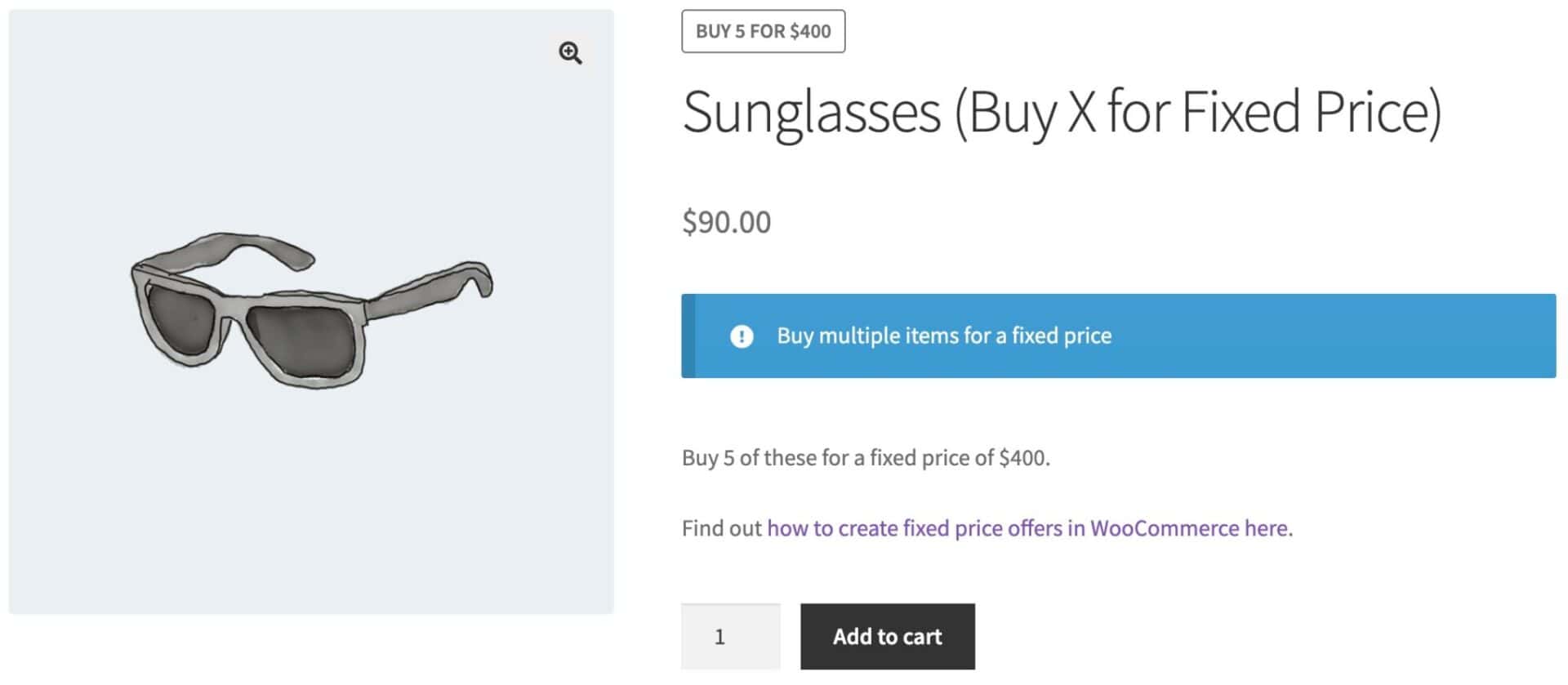
Save your rule. Customers now get a clear bundle price that makes buying several items feel like the smart choice rather than the expensive one.
Spend thresholds: Spend X Get Y, Discount on Spend, and Order Total rules
Spend-based rules tie the reward to how much is in the cart, which makes them the most powerful order-value lever of all. Instead of discounting a single item, you give customers a reason to top up the whole basket.
The plugin gives you three ways to do this:
- Spend X Get Y – the customer gets a free or discounted item once they spend a set amount, e.g. spend $100 and get a free hoodie
- Discount on Spend – a discount kicks in after a customer spends a set amount on specific items, categories, or everything
- Order Total – the whole cart total changes once it reaches a threshold, e.g. spend $200 and get 10% off
Pick the rule type that matches your goal, set the threshold and the reward, and save. Customers now have a concrete target to aim for, and many will add an item or two to reach it. There’s a step-by-step example in our discount by order total tutorial.
BOGO and free-gift offers
Buy-one-get-one and free-gift deals move more units and add perceived value without simply slashing your prices. They work well for clearing stock or pushing a hero product.
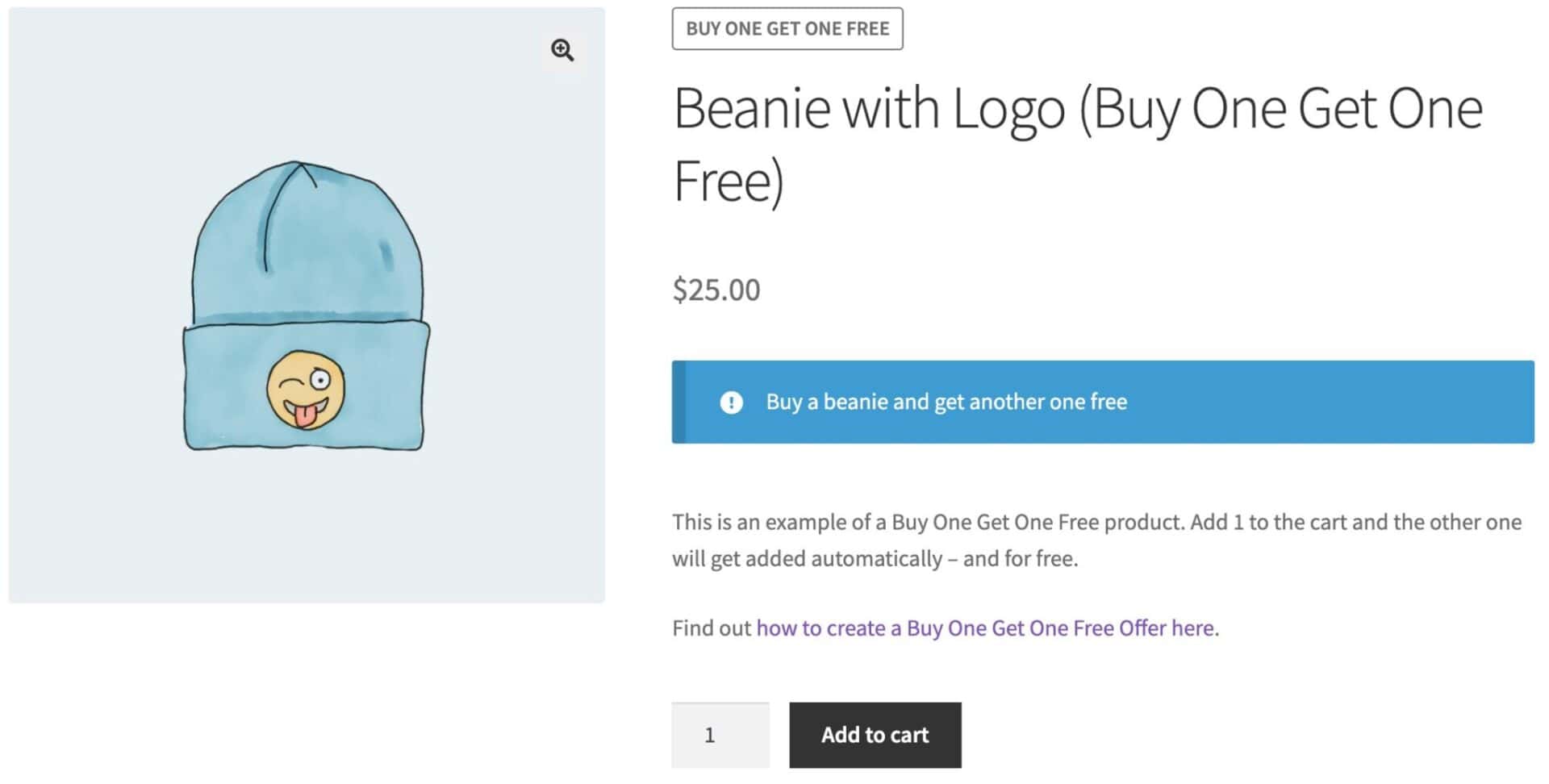
For a classic BOGO where the bought and free items are the same, you can choose ‘Buy X Get X’. If you want the free or discounted item to be different from the one purchased, you can choose ‘Buy X Get Y’ instead, which also lets you draw the “get” item from specific products or categories.
Set the ‘Buy’ and ‘Get’ quantities, then use ‘Max items’ to cap how many products qualify, or set it to 0 for no limit. Save your rule, and the offer applies automatically at the cart. Our BOGO tutorial covers this in detail.
Why are automatic discounts better than coupon codes?
Coupon codes create two problems for order value. A customer who spots an empty “coupon code” field often leaves to hunt for a code, and some never come back. Others only complete the order because they found a discount you never meant to offer that widely.
By contrast, dynamic pricing rules apply automatically at the cart, with no code to enter and no hunting required. The customer is incentivized by seeing the discounts on the product page itself, then clearly sees the better price once they qualify, which keeps them in the checkout flow and protects your margins.
Every rule in this guide works the same way, applying automatically the moment a customer qualifies.
Cart notices: how to nudge the customer
A rule only increases order value if customers know it exists. The plugin’s notices do exactly that, showing a message after a product is added to the cart that tells customers how close they are to the next deal.
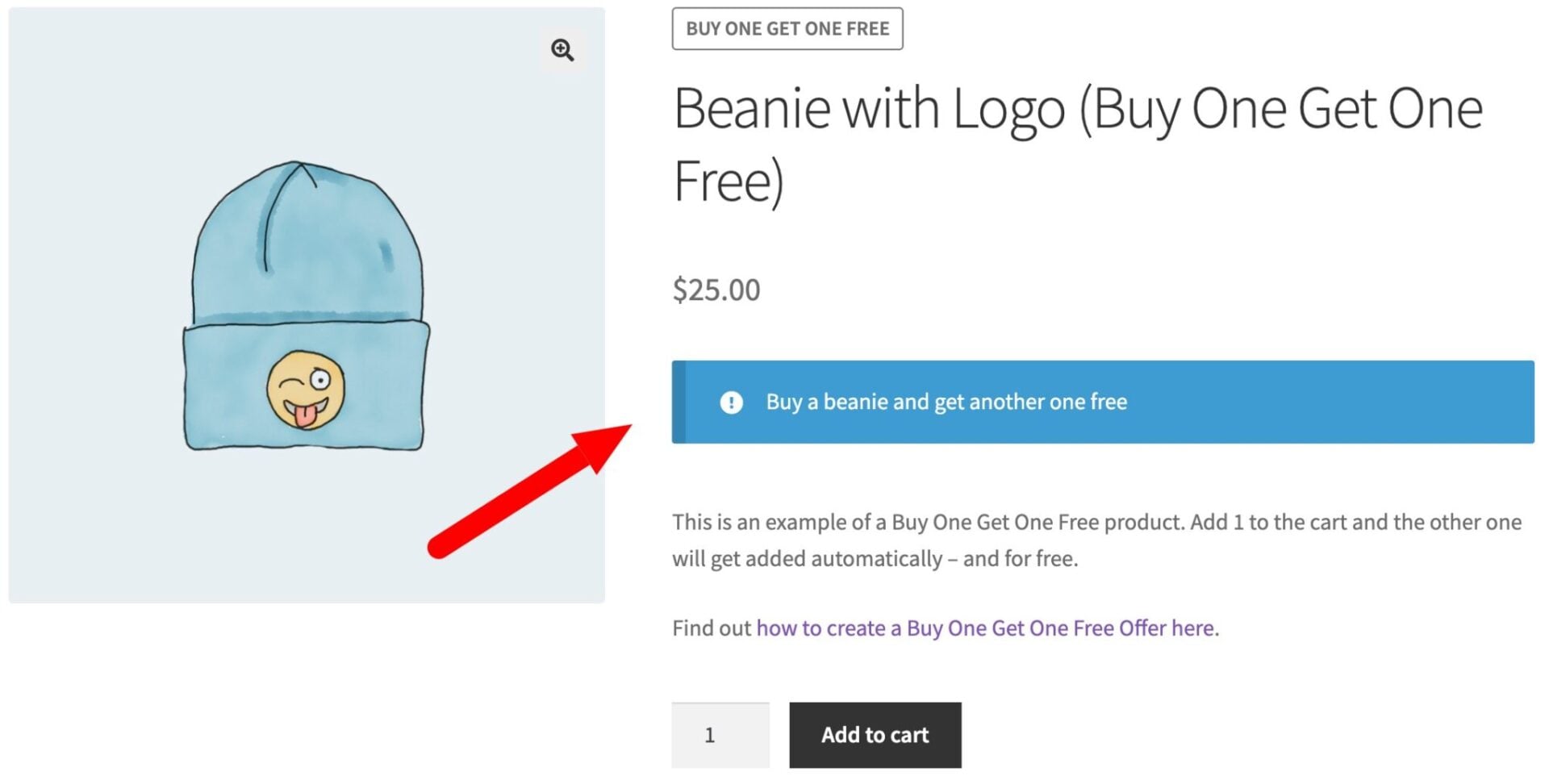
In the ‘Notices’ field, you can write a message using dynamic tags that update automatically:
{amount}– how much more the customer needs to spend to qualify{quantity}– how many more items they need to add{discount}– the value of the discount available{products}and{categories}– the products or categories that qualify
So a notice like “Spend {amount} more to get {discount} off” becomes “Spend $15 more to get 10% off” in front of the customer. That single line turns a passive rule into an active prompt, and it’s where a lot of the order-value gain actually comes from. You can set default notice content at WooCommerce > Settings > Fees and Discounts > Notices.
Bonus #1: role-based pricing for wholesale and B2B
Role-based pricing lets you set different prices for different user roles, which is ideal for growing high-value wholesale and B2B baskets. You can offer one set of customers a standing discount while everyone else pays the regular price.

In any rule, use the ‘Roles’ field to apply the rule to one or more roles, such as Wholesale. To give everyone a discount except one group, leave ‘Roles’ empty and add the group you want to exclude to the ‘Exclude roles’ field.
Save your rule, and your chosen roles see their pricing automatically whenever they’re logged in. There’s more in our role-based pricing guide.
Manage and prioritize your rules
Once you have a few rules running, you’ll want to control when they apply and which one wins if two overlap. The plugin handles both.
Each rule has a status: set it to ‘Active’ to run it, ‘Paused’ to switch it off while keeping the settings, or ‘Scheduled’ to start and stop it on dates you choose. Scheduling is handy for seasonal sales and limited-time promotions.
When more than one rule could apply to the same product, the plugin uses rule priority to decide which takes precedence, so you can stack a storewide offer alongside a category-specific one without conflicts.

I wanted something that offered bulk discounts and something that offered discounts to specific user roles throughout my site. The Dynamic Pricing and Discount Rules plugin fixed both of my problems with one plugin.
Dynamic pricing in WooCommerce – recap
In this guide, we looked at how to use dynamic pricing to set rules that increase order value in WooCommerce. We covered quantity-based bulk and tiered pricing, bundle deals, spend thresholds, BOGO offers, and the cart notices that nudge customers toward the next saving, all built with the Dynamic Pricing and Discount Rules plugin. We also looked at role-based pricing for wholesale and B2B, and how to schedule and prioritize your rules.
Dynamic Pricing and Discount Rules is compatible with all themes and page builders, including Astra, Flatsome, and Woodmart, and page builders like Elementor and Divi. If you have any questions, our world-class support team is on hand to help. And it’s backed by a 14-day money-back guarantee, so you can try it risk-free.