How to set up fitness class bookings in WooCommerce
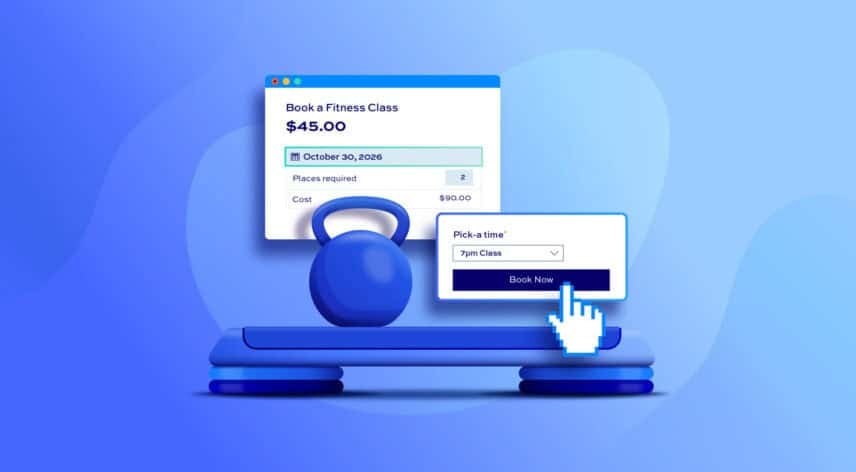
You can take online bookings for your fitness classes directly through WooCommerce, letting people reserve a spot at a specific time and pay upfront. This works whether you run a studio with group classes or you’re a personal trainer taking one-to-one sessions. All you need is the Bookings for WooCommerce plugin.
After completing this tutorial:
- Members and clients will be able to:
- Browse your schedule and pick a date
- Choose an available class or session time
- Reserve their spot and pay online
- As the studio owner, trainer, or admin, you’ll be able to:
- Set your weekly timetable
- Cap each session so it never overbooks
- Take payments through your existing WooCommerce gateways
- As a bonus, we’ll also look at how to:
- Sell extras like mat hire or a personal training session
- Cut down no-shows with calendar sync and buffer time
If you run a yoga or pilates studio specifically, our guide to yoga and pilates class bookings walks through that exact setup.
In this tutorial, we’ll assume that you already have WordPress and WooCommerce installed and ready to go.
Why take bookings for your classes online?
Demand for fitness classes is extremely high. Global gym memberships rose 6% in 2024 and 91% of operators expect revenue to grow again, according to the Health & Fitness Association.
Taking bookings for your fitness classes online will save you admin time, plus:
- Payment in advance. Booking online means your users are paying upfront – improving your cash flow.
- Improve attendance. When members pay and reserve upfront, they’re far more likely to turn up. Automatic reminders and buffer time between sessions keep your classes full and your day running on schedule.
- Save time. Members and clients book themselves in around the clock, so there’s no phone tag, no manual diary, and no chasing payment. You spend your time coaching rather than scheduling.
- Build loyalty. A smooth, professional booking experience makes people want to come back. The booking history also gives you the data to spot regulars, which is how a personal trainer turns one-off sessions into a steady client base.
Why use WooCommerce for fitness class bookings?
WooCommerce is the ideal platform for class bookings. You already have a store, a checkout, and your payment gateways in place, so adding bookings means installing one plugin rather than rebuilding your site.
Members book and pay on your own site, with no redirects and no third-party scheduling platform taking a cut. You keep the customer relationship, the data and the full booking fee.
Bookings for WooCommerce lets you accept time-based bookings through standard WooCommerce products. It’s compatible with all themes and page builders, and it works with every WooCommerce payment gateway.
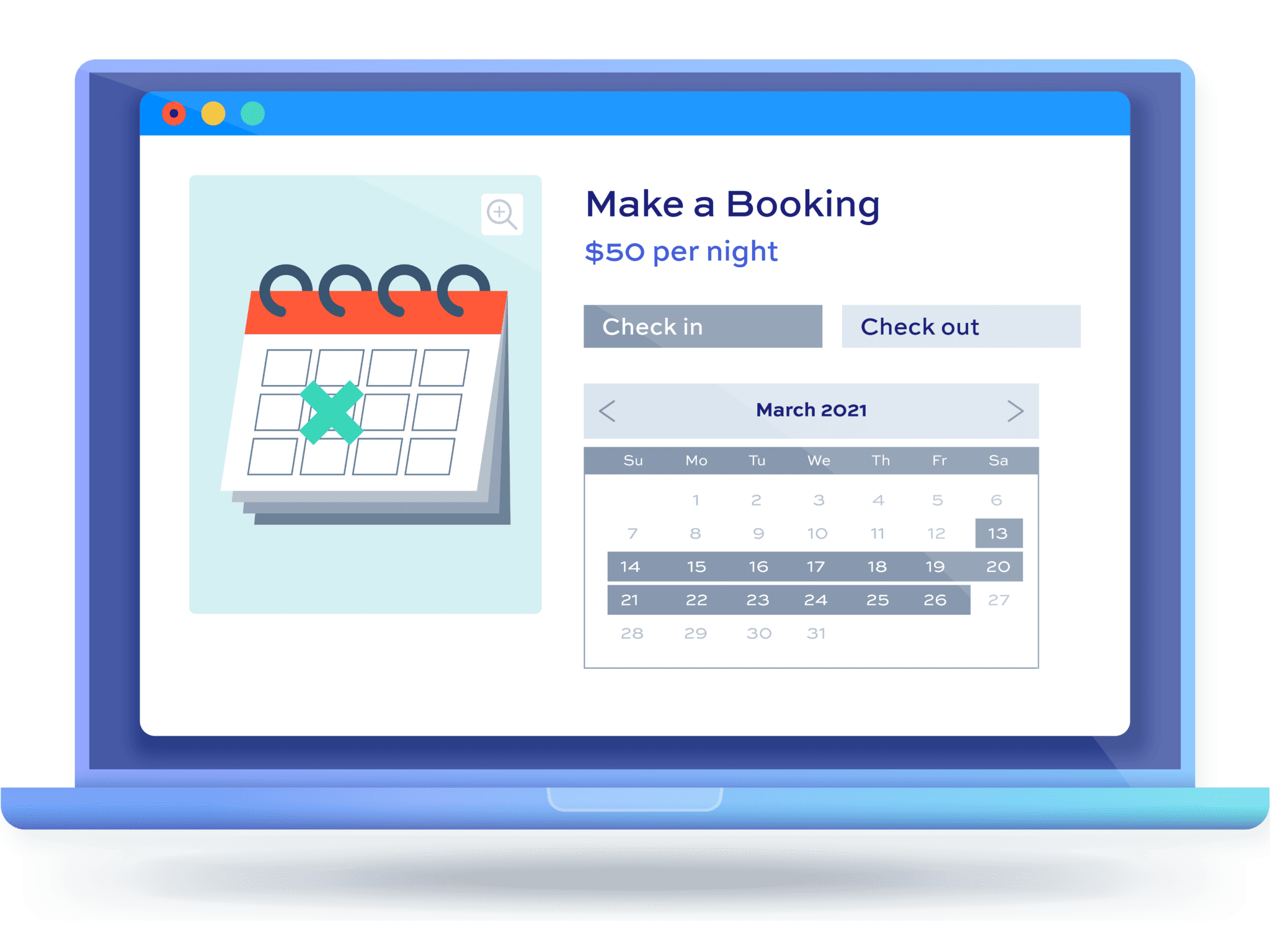
How to set up fitness class bookings in WooCommerce
Here’s a quick guide to accepting fitness class bookings in WooCommerce:
- Install Bookings for WooCommerce
Bookings for WooCommerce will turn standard WooCommerce products into bookable classes.
- Create a bookable product
Set up each class or session the same way you’d add any product.
- Set the booking unit, turn on time slots, and add buffer time
Switch the product to a daily schedule split into class-length slots, with breaks in between. Define the capacity for each class
- Add your class times
Build your weekly timetable, with different classes at different times on different days.
- Set capacity, price, and availability per time
Cap each class, charge more for premium sessions, and control which days and dates are bookable.
- Set your price, seasonal rates, and discounts
Set the standard price, adjust it for busy or quiet periods, and set any discounts
Now let’s take a more detailed look at each of those steps.
Step #1: Install Bookings for WooCommerce
Once you’ve purchased Bookings for WooCommerce:
- Download the plugin’s zip file by clicking on the link on your order confirmation screen or in your welcome email. You’ll receive the email automatically a few seconds after you’ve completed the purchase
- Go to Plugins > Add New in your WordPress dashboard
- Click on the ‘Upload Plugin’ button
- Drag and drop the plugin’s downloaded zip file into the ‘Choose File’ area and click ‘Install Now’
- When the plugin has uploaded, click the ‘Activate Now’ button
You now have Bookings for WooCommerce active on your site and you’re ready to create your first class.
Step #2: Create a bookable product
Create a separate bookable product for each class on your timetable, such as one for spin, one for Vinyasa yoga, and one for personal training. Giving each class its own product lets you set its own name, description, price, and capacity, and keeps your schedule easy to manage.
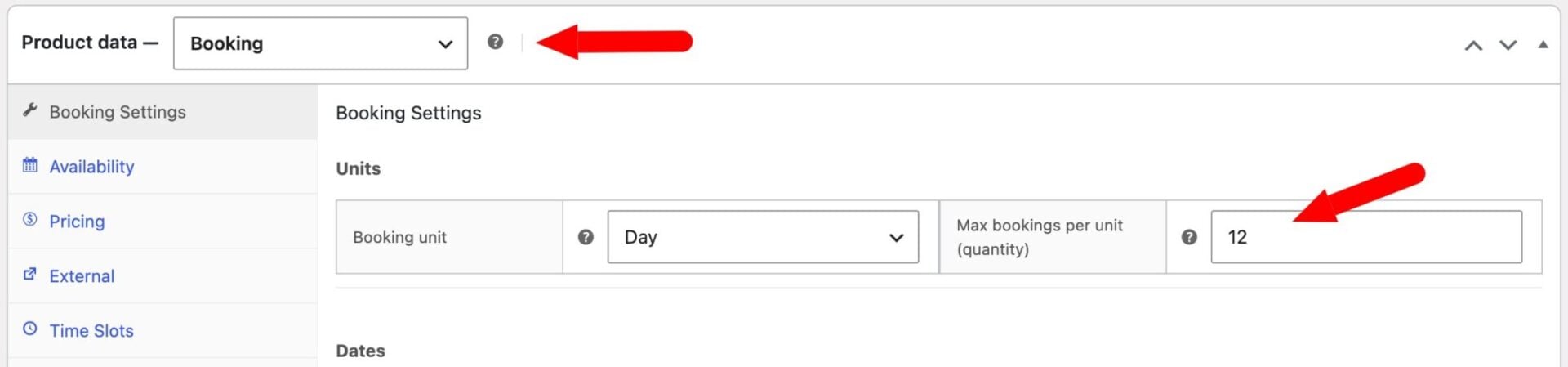
Go to Products > Add New, give your first class a name like ‘Vinyasa yoga’, and add a description. Select ‘Booking’ from the ‘Product type’ field in the ‘Product data’ section, and a set of booking tabs appears, ready for you to configure.
On the ‘Bookings Settings’ tab, ensure ‘Booking unit’ is set to ‘Day’. This tells the plugin that each session runs within a single day rather than spanning nights or weeks.
Set ‘Max bookings per unit (quantity)’ on the ‘Bookings Settings’ tab to the number of people the class can take. This is the field that defines your capacity, so enter 12 for a studio class with 12 places, or 1 for a personal trainer taking a single client per session.
Once a class reaches that number, it’s marked as full and blocked automatically, so it can never be overbooked.
You now have a bookable product for your first class. You can repeat these steps for each class once you’ve finished the setup below
Step #3: Set the booking unit, turn on time slots, and add buffer time
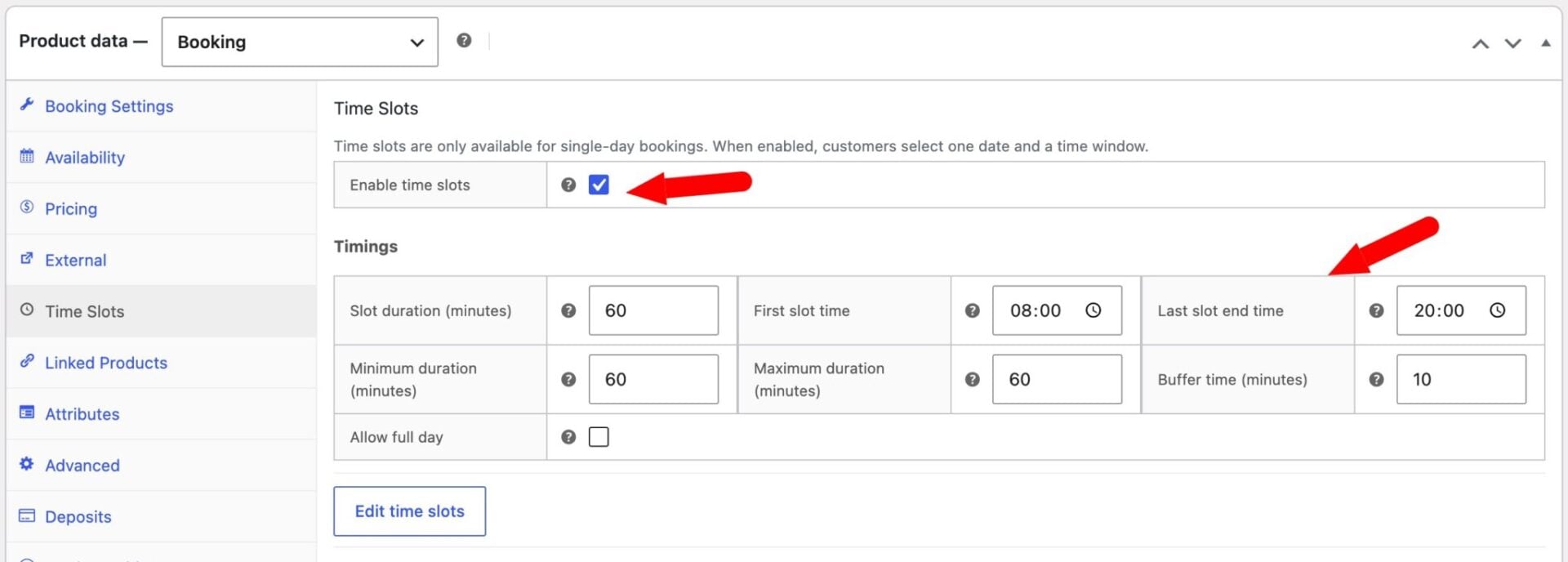
Open the ‘Time Slots’ tab and enable time slots. Set the slot duration to match your session length, such as 45 or 60 minutes, and enter the start and end times for your day. So if your first class is at 8am and the last one is at 8pm, you’d enter these in ‘First slot time’ and ‘Last slot end time’.
Add a buffer between slots if you need a few minutes to reset the room or catch your breath between sessions. For a personal trainer, this builds in a break between back-to-back clients.
Step #4: Set your class times
Once your slot duration and hours are set, Bookings for WooCommerce generates equal-length slots automatically, from the first slot time to the last slot end time. Each one becomes a bookable class time, so an hourly class running from 9am gives you a 9am, 10am, and 11am slot with no extra work.
If your timetable isn’t a simple regular interval, click ‘Edit Time Slots’ to open a table with one row per slot and customize each one. From here you can:
- Uncheck ‘Enabled’ on any slot you don’t run, so it never appears to members
- Edit a slot’s ‘Start time’ and ‘End time’ to change when it runs. Different end times also let you mix class lengths, such as 45-minute morning classes and 90-minute afternoon ones
- Use the ‘Days’ column to restrict a slot to certain days of the week, so your spin class can run Monday at 6pm, Wednesday at 7am, and Saturday at 10am
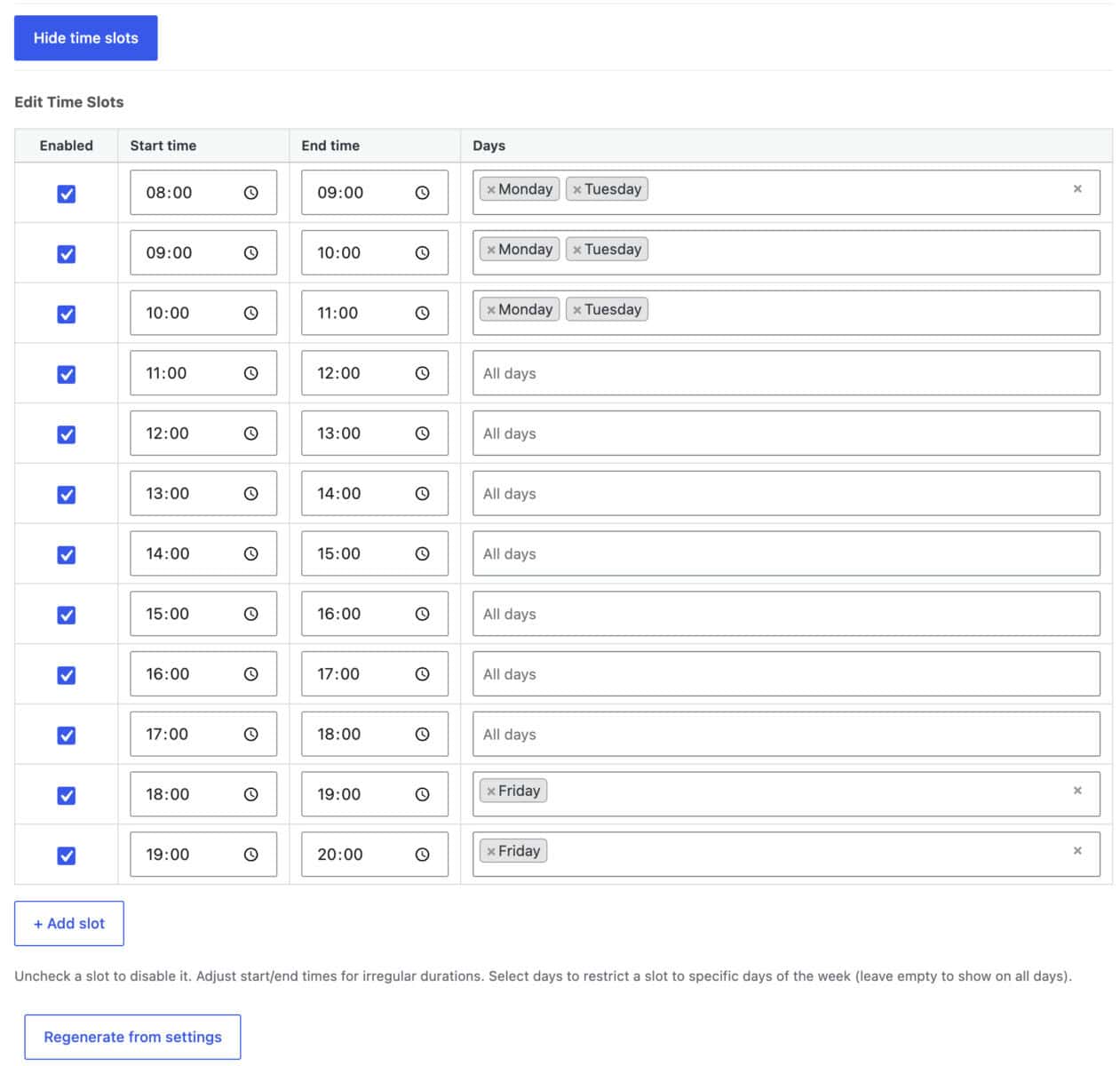
This suits a trainer who works different hours on different days too, such as early-morning and evening slots midweek and mornings only at the weekend.
Your class times are now in place. Now let’s set the price and availability for each one.
Step #5: Set capacity, price, and availability per time
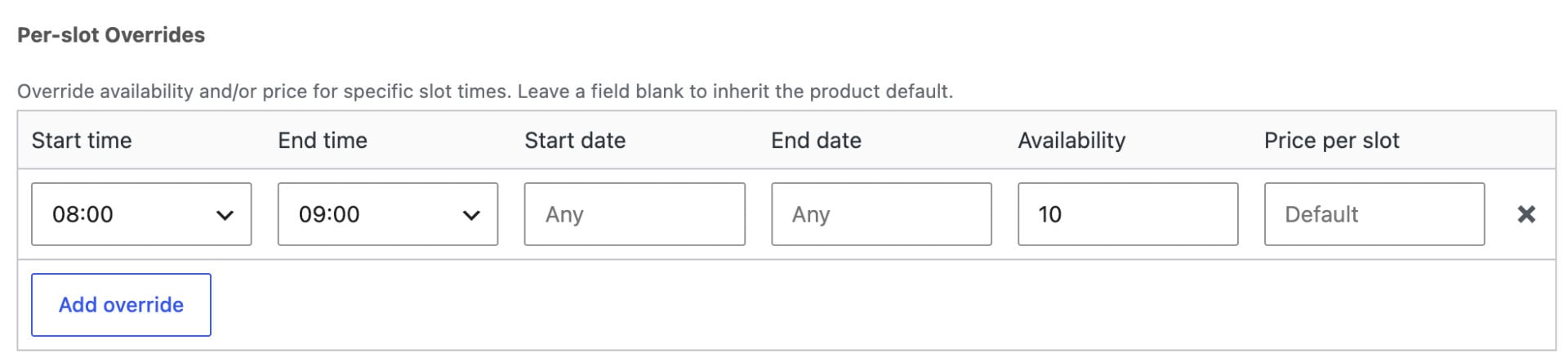
To treat individual times differently, add a per-slot override. This lets you cap a popular 6pm class lower than the rest, or charge more for a premium Saturday masterclass. In the example below, the capacity for the 8am session has been adjusted to 10.
Control which days each class runs using the day-of-week settings on your slots, and disable any day you’re closed, such as Sundays. This keeps your timetable accurate without creating separate products.
Block out specific dates, like public holidays or a studio refurbishment, by adding an override that marks them unavailable. Those dates won’t appear as bookable on the front end.
Your availability and capacity are now protected, and members can only book sessions that still have space. Now let’s set what they pay.
Step #6: Set your price, seasonal rates, and discounts
Enter the standard price per class in the cost field. This is what each member pays to reserve a single spot.

To charge more or less over a chosen period, add a date override for seasonal rates. You might run a lower new-year rate through January, or a premium price for a holiday bootcamp.
To reward members who commit, click the ‘Add discount’ button and set a percentage or fixed discount based on the number of classes booked. This is an easy way to sell a block of classes, such as 10% off when someone books five or more.
With your pricing set, let’s choose how the booking form looks to users.
Step #7: Style the booking form on the front end
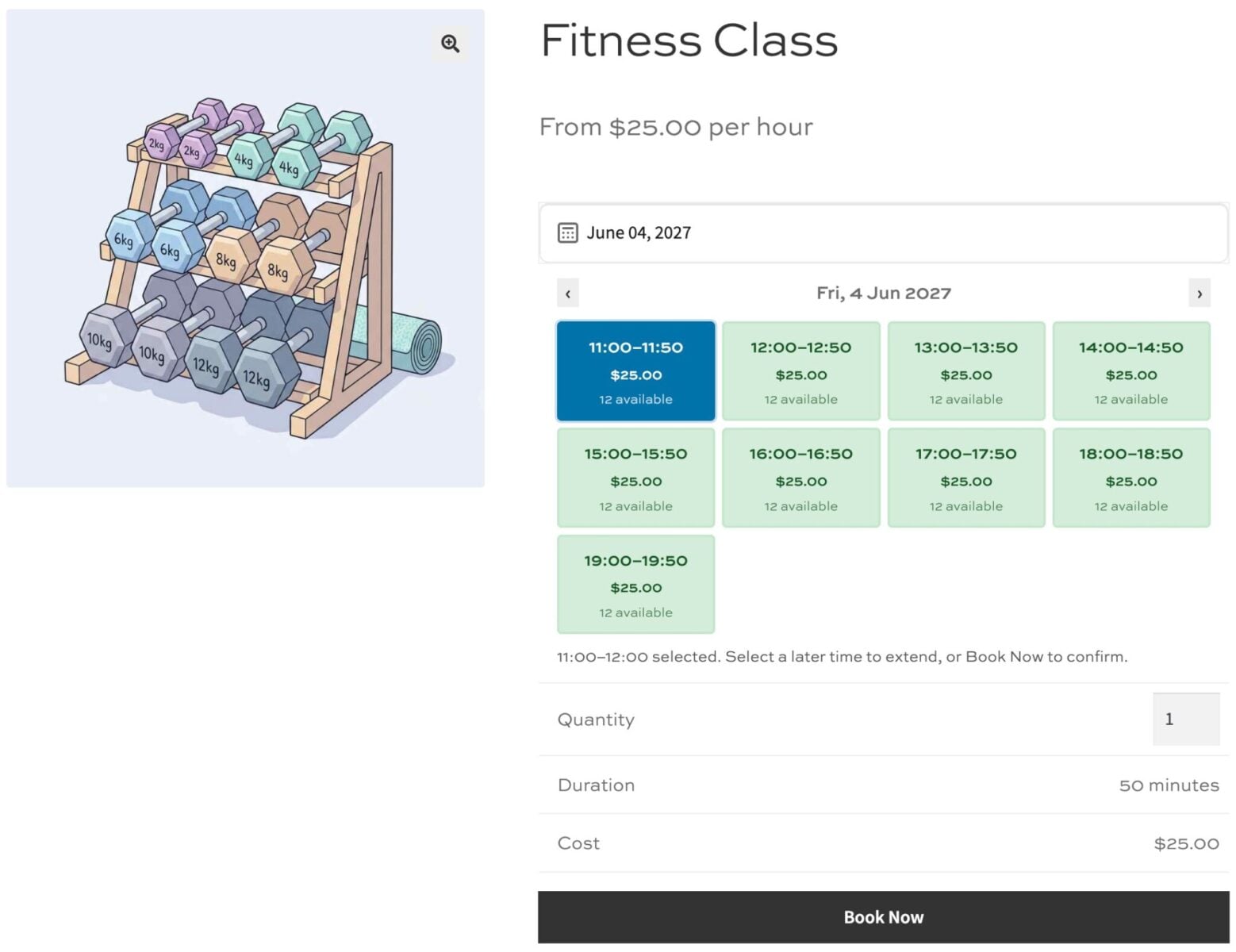
Choose how users pick their time on the ‘Time Slots’ tab using the ‘Time slot view’ setting. The ‘Time Picker’ view shows a visual grid of slots that members click to select, which is clearer than a plain dropdown for a busy timetable, while ‘Diary View’ lists slots vertically with availability at a glance.
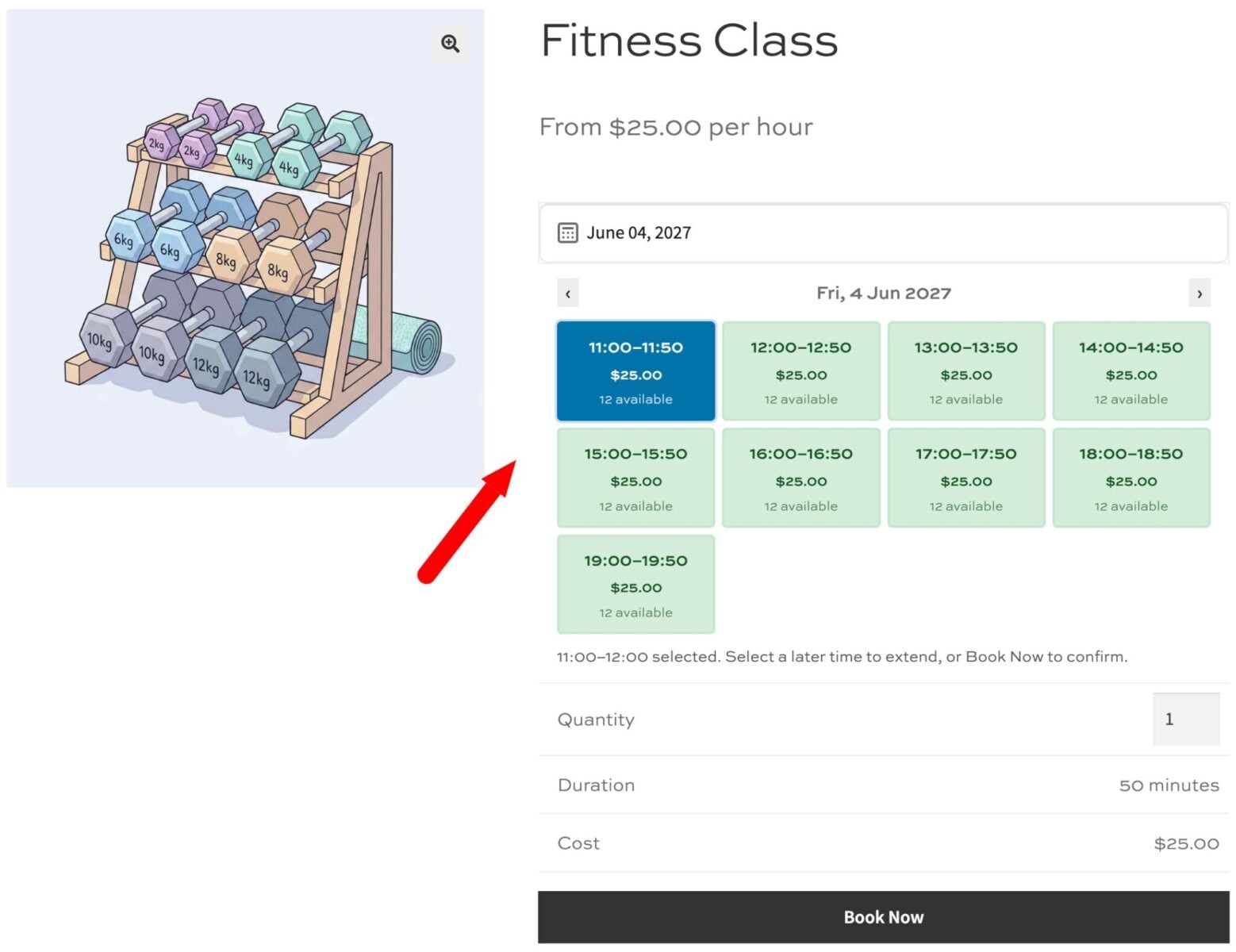
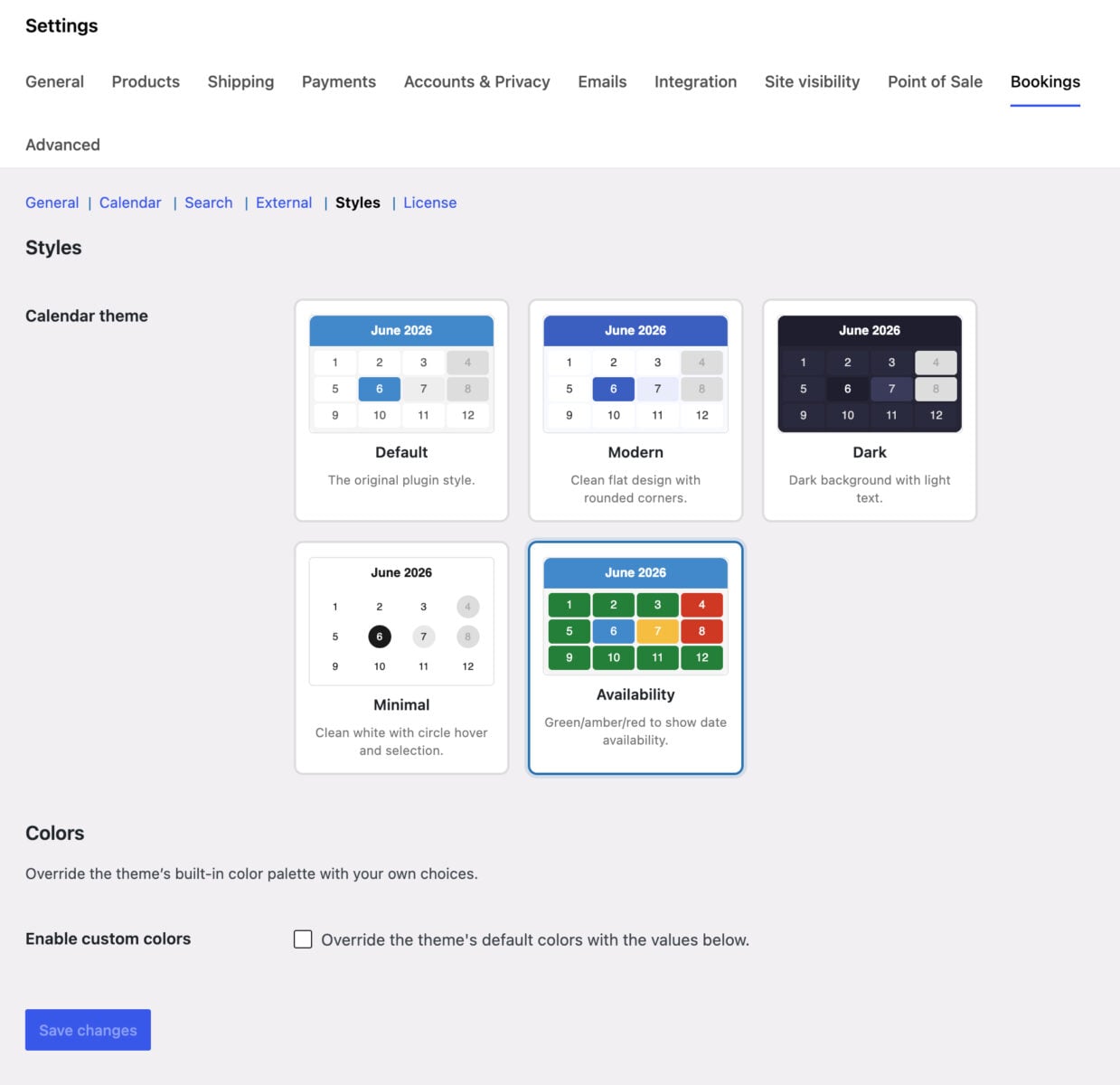
Match the date picker to your brand under WooCommerce > Settings > Bookings on the ‘Calendar’ tab. Choose a pre-built calendar theme, switch between light and dark styles, and set a primary color that carries through the highlighted, selected, and available dates.
Publish your product. Members can now pick a date, choose an available time, reserve their spot, select how many places they want, and pay online, while you stay in control of your schedule and pricing. There’s a demo product here.
How do you manage your fitness class bookings?
Once your classes are live, you can manage everything from your WordPress dashboard.
Manage orders
Every booking appears as a standard order under WooCommerce > Orders, alongside the rest of your store’s sales. You can view member details, take payment, issue refunds, and add order notes exactly as you would for any other product.
Add a booking manually
To take a phone or walk-in booking, go to Bookings > Add Booking, select the class, pick the date and time, set the quantity, and save. For a time-slot class, you can also book a spot directly from the product’s ‘Availability’ tab.
View your schedule
See how each day and week is shaping up under Bookings > Dashboard. Switch between a calendar, week diary, or single-day diary view depending on the date range you pick, and use the summary tiles at the top to check occupancy, bookings, and revenue at a glance.
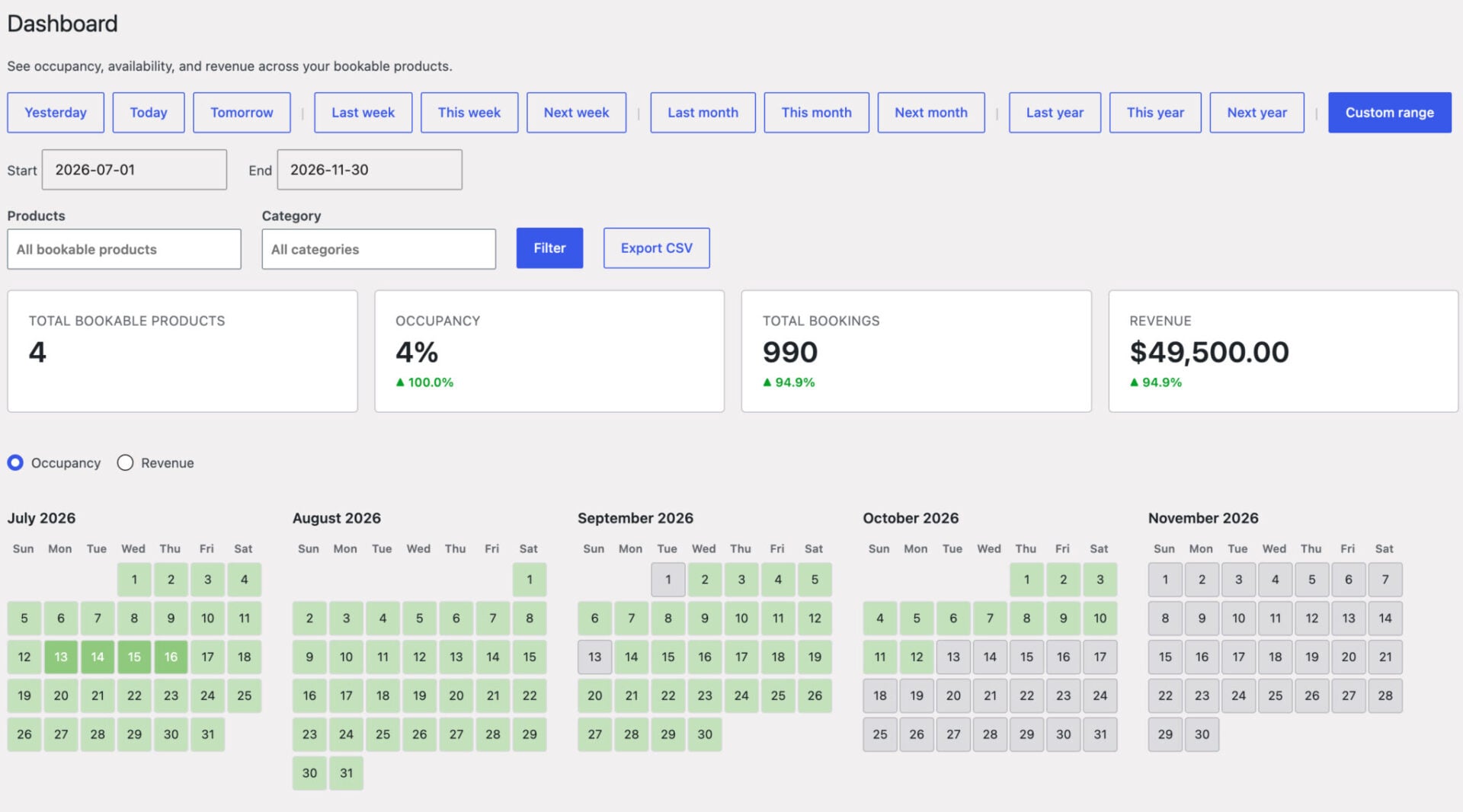
Click any day to open a panel with every booking for that date, plus an ‘Add booking’ button for each class. This gives you a single view of your whole timetable.
Bonus #1: Sell extras alongside each class
Increase your average order value by offering extras with each booking. Bookings for WooCommerce integrates with WooCommerce Product Add-Ons Ultimate so you can sell options like mat hire, a towel, or a one-to-one personal training session.
Mats are a limited resource, so the cleanest way to offer mat hire is to make the mat a bookable product in its own right. That way the plugin tracks how many mats are left for each class and never lets you hire out more than you own.
To add mat hire as a bookable resource:
- Create a ‘Mat hire’ product and set it as a ‘Booking’, with the same time slots as your class so it can be reserved for the same session
- Set ‘Max bookings per slot’ to the number of mats you own, so availability is capped to your real stock
- Add a price for the hire, or set it to 0 if mats are free
- On your class product, use Product Add-Ons Ultimate to add ‘Mat hire’ as a child product option
- Members tick ‘Mat hire’ when they book, and the plugin reserves a mat for that class
You can buy both plugins together at a discount in the WooCommerce Bookings and Product Add-Ons Bundle.
WooCommerce Bookings and Product Add-Ons Bundle
Create the ultimate bookings site in WooCommerce
Your classes now double as an upsell opportunity, with equipment stock managed automatically.
Bonus #2: Cut down no-shows
Reduce empty spots with a few built-in tools. Bookings for WooCommerce offers two-way Google Calendar sync, so every booking lands in your calendar and any change updates automatically.
Buffers give you turnaround time between sessions, and automatic confirmation emails remind members of the time and date they booked. Together these keep your schedule tidy and your classes full.
Bonus #3: Offer memberships and member pricing
If you sell memberships or class passes, pair Bookings for WooCommerce with Members Only. You can restrict certain classes to members, or hide bookings entirely until someone joins.
Members Only also lets you set member-only pricing and discounts, so your regulars pay less than drop-ins. It’s a simple way to reward loyalty and turn one-off visitors into members.

Very easy to setup, and is the only plugin I found that allows you to set a stock level. Bookings for WooCommerce solved a problem I had for this client who needed to allow people to not only select the days, but also a number of people for those days.
Frequently asked questions
Yes. Set the capacity per slot to your class size, or to 1 if you’re a personal trainer taking a single client per session. The same product handles both.
Set ‘Max bookings per slot’ to your capacity. Once a class is full, that time is blocked automatically, so no one can book beyond your limit.
Yes. Members pick a date and time on the product page and pay through your standard WooCommerce checkout, with no redirects and no third-party platform. It works with every WooCommerce payment gateway.
Yes. You can set discounts based on the number of classes someone books, and pair Bookings for WooCommerce with Members Only to run memberships and member-only pricing.
Yes. Bookings for WooCommerce is compatible with all themes and page builders, including Astra, Flatsome, Woodmart, Elementor, and Divi.
Fitness class bookings – recap
That’s how to set up fitness class bookings in WooCommerce. We looked at how to create a bookable product for your classes or sessions, set a daily schedule with time slots and buffers, add your class times, control capacity, pricing, and availability for each time, and apply seasonal rates and discounts. We also covered how to manage your bookings in the back end, sell extras like mat hire, and cut down no-shows.
All you need to get started is Bookings for WooCommerce, which turns standard WooCommerce products into bookable classes with time slots, per-class capacity, and flexible pricing.
Bookings for WooCommerce is compatible with all themes and page builders, including Astra, Flatsome, and Woodmart, and page builders like Elementor and Divi. If you have any questions, our world-class support team is on hand to help. And it’s backed by a 14-day money-back guarantee, so you can try it risk-free.