How to sell custom furniture in WooCommerce (with optional quote request system)
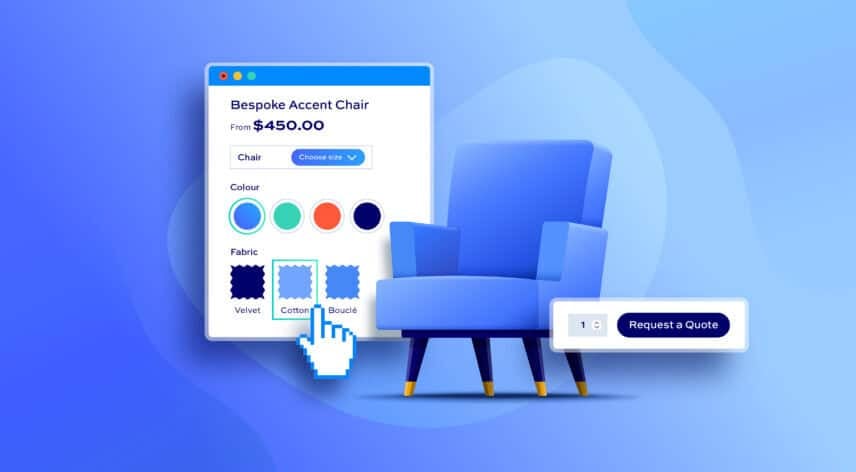
Furniture is one of the hardest product types to sell off the (designer) shelf. Customers want a specific fabric, a specific size, a specific finish, and fixed product listings don’t necessarily capture any of that. So this tutorial shows you how can let customers configure made-to-order furniture on the product page. The first part shows how to cost the product out on the page, using WooCommerce Product Add-Ons Ultimate. The second part optionally allows you to accept quote requests instead, using WooCommerce Request a Quote.
In case you were wondering, furniture eCommerce is one of the largest categories in online retail, generating an estimated $283.3 billion in global revenue in 2024 (Statista). A product configurator paired with or without a quote request system can help you turn demand into custom orders by making it easy for your customers to specify what they want directly on the product page.
After completing this tutorial:
- Users will be able to:
- Choose fabric, finish, and dimensions for a made-to-measure furniture item
- See their price update as they configure the product
- Add their configuration to a quote list and submit a request instead of buying at a pre-determined price
- As the store owner or admin, you’ll be able to:
- Control exactly which products and configuration options are available
- Hide prices on made-to-order items so customers ask for a quote instead
- Review each request, set your own price for that specific configuration, and send it back to the customer
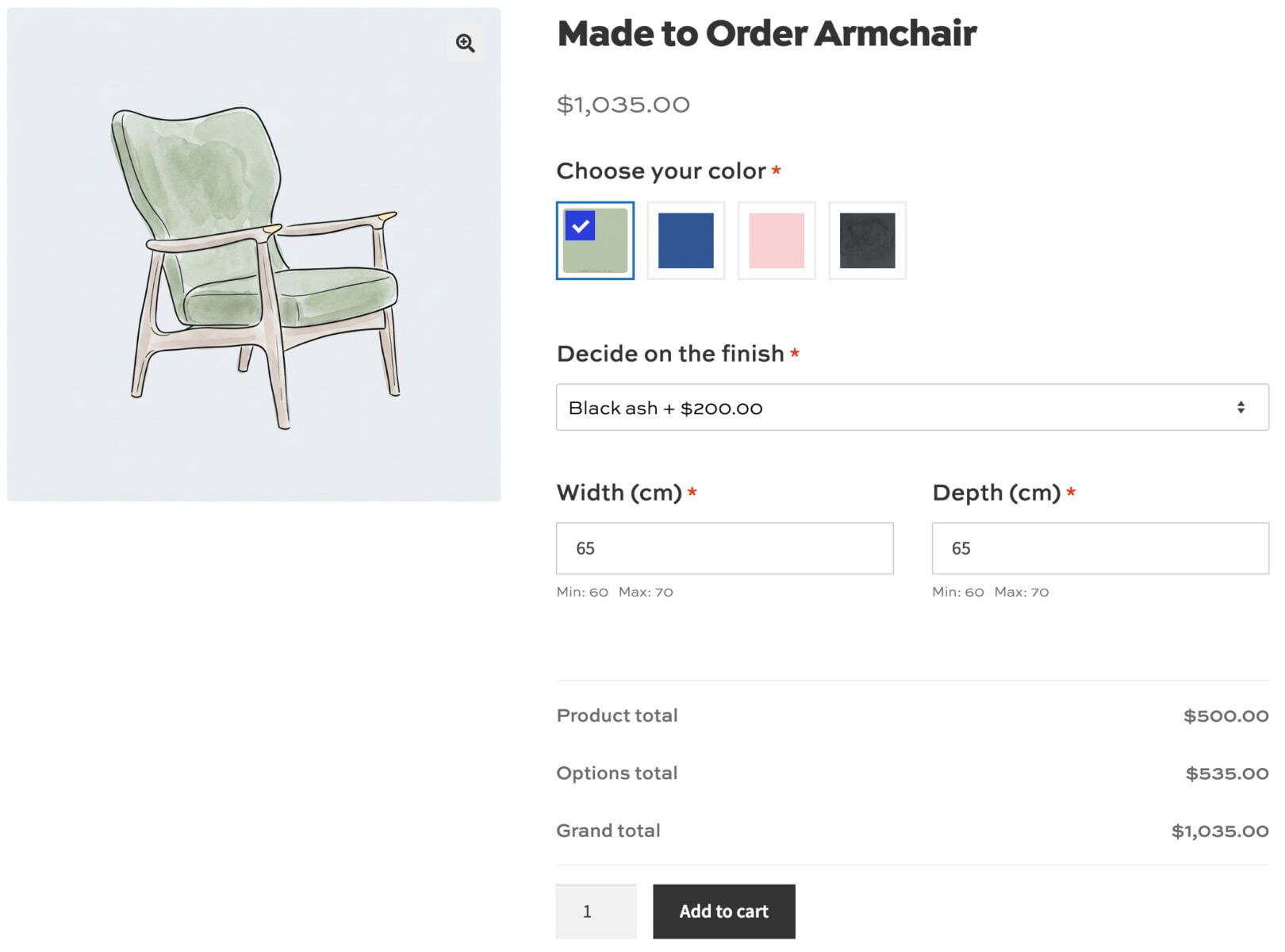
You can easily adapt the configurable fields in the demos to suit your own specific requirements. And there are some real world examples later in the article of sites that are using Add-Ons Ultimate for their made to measure furniture products.
In this tutorial, we’ll assume you already have WordPress and WooCommerce installed and ready to go.
Why is Add-Ons Ultimate the ideal plugin for custom furniture?
If you’re selling configurable furniture, you’ll probably want to give the user different types of choice on the same product: a visual choice like fabric or finish, a numeric choice like width or height, and a structural choice like arm style or internal layout.
WooCommerce variations aren’t flexible or powerful enough for this. Variations only work for a fixed set of predefined combinations, so you’d need to create a separate variation for every possible fabric, finish, and dimension a customer could choose, which quickly becomes unmanageable. Variations also don’t allow for open-ended input like custom width or height, or to calculate a price on the fly based on that input.
Instead, Add-Ons Ultimate has around 20 different field types, giving you complete flexibility in how you present choices to your customers.
Here are some common configuration requirements and how they map to different field types:
- Material, fabric, or finish – use Swatch fields (image, color, or text) so customers choose visually rather than from a plain list
- Custom width, height, or depth – use Number fields with minimum and maximum values matched to what you can actually produce
- Price that scales with size – use Calculation fields to turn those numbers directly into a price adjustment, a shipping weight, or both
- Structural choices like arm style, leg style, or orientation – use Radio Group or Select fields, since these are mutually exclusive choices
- Optional extras like storage drawers or LED lighting – use Checkbox or Checkbox Group fields, priced individually or as a flat fee
- Showing customers what they’re building – use the layered image feature
Because every field type can carry its own pricing rule, customers see a running price while they configure their product. And because the user can configure the product live on your product page, you don’t need long email conversations discussing their requirements.
Furniture categories and customizable elements
Almost any furniture category can be sold as customizable or made to order. Here are some common examples:
- Modular shelving and units – use number fields for measurements like width and height or to get the number of cubes, and swatches for shelf material
- Sofas and sectionals – use an image swatch for fabric or leather, and radio buttons for arm style and chaise orientation
- Dining tables – use a number field feeding a calculation field for length, and swatches for wood species and finish
- Wardrobes and fitted storage – use number fields for width and height to fit an alcove, and a dropdown for internal layout
- Beds and headboards – use a dropdown for size, a swatch for headboard fabric, and a checkbox for storage drawers
- Kitchen cabinetry and worktops – use number fields for dimensions, and swatches for door finish and worktop material
- Armchairs and upholstered seating – use swatches for fabric and leg finish, and number fields for custom dimensions
- Outdoor furniture – use number fields for dimensions to fit a specific patio or deck, and a swatch for timber or rattan finish
Calculation fields are extremely useful when you need to multiply width and height to get an area, or to turn a customer’s dimension inputs directly into a price. You can also build formulas that reference other add-on fields, the product’s quantity or price, or global variables, and use the result to set the product’s price, weight, or dimensions dynamically.
You can even extend Add-Ons Ultimate with Advanced Calculations to read values from lookup tables.
Part 1: Create a made-to-measure armchair in WooCommerce
We’ll use WooCommerce Product Add-Ons Ultimate to create a made-to-measure armchair as our example, letting customers choose the fabric, wood finish, and custom dimensions. In this section, the customer will be able to see the live price. In the next section, we’ll add the option to request a quote.
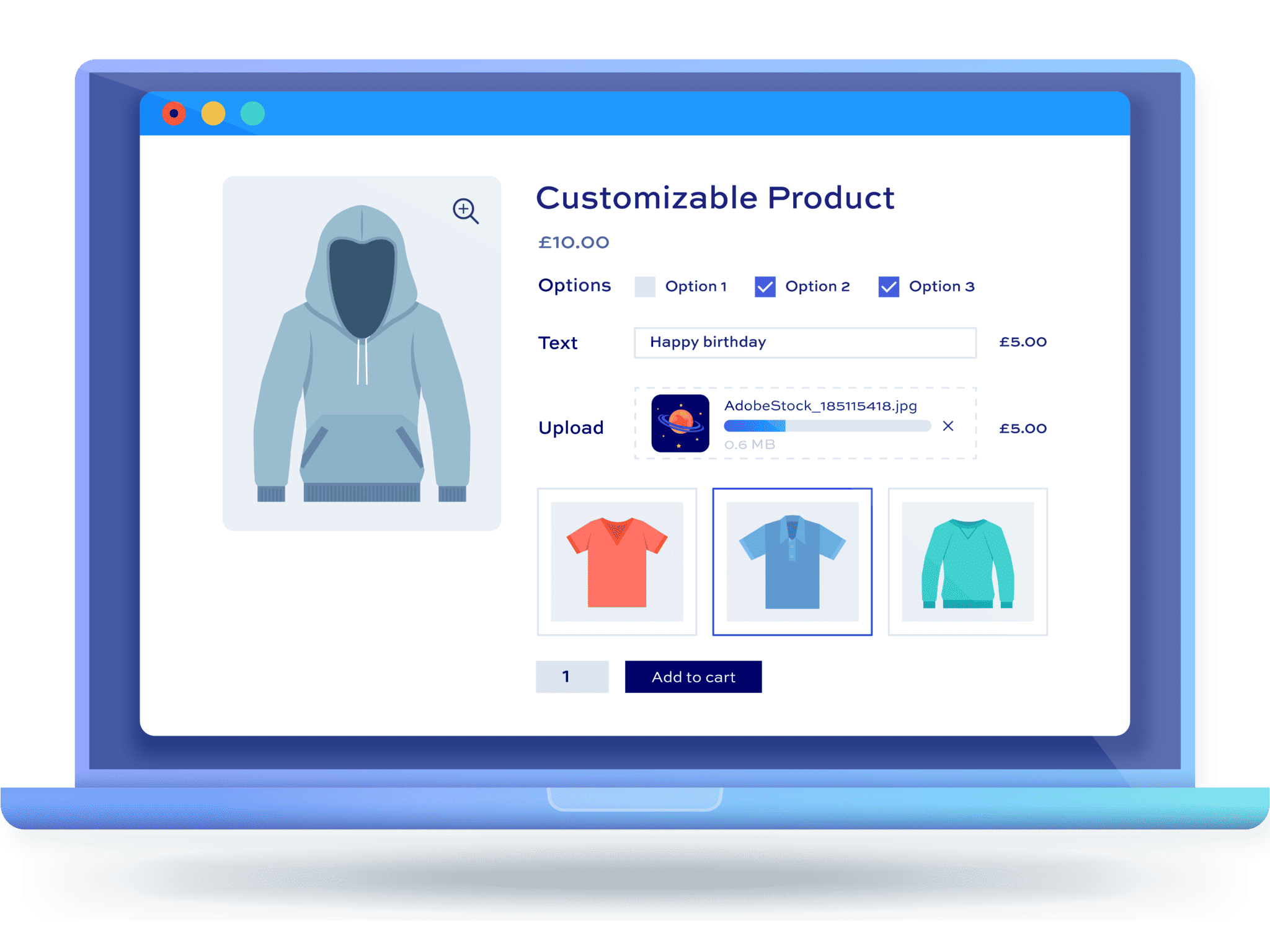
Once you’ve purchased the plugin:
- Download the plugin’s zip file by clicking on the link on your order confirmation screen or in your welcome email. You’ll receive the email automatically a few seconds after you’ve completed the purchase
- Go to Plugins > Add New in your WordPress dashboard
- Click on the ‘Upload Plugin’ button
- Drag and drop the plugin’s downloaded zip file into the ‘Choose File’ area and click ‘Install Now’
- When the plugin has uploaded, click the ‘Activate Now’ button
Now let’s look at how to create the add-on fields for customizable furniture. If you don’t want to step through this tutorial, you can also install the fields in this tutorial directly into your product by using the add-ons library. You can then edit the fields, include your own images, and add any extra fields.
There’s a demo product here so you can see how a configurator works from a customer’s point of view.
Step #1: Create your armchair product
Create a new simple product for your armchair as you would any other WooCommerce product. Add a base price to reflect your starting fabric and standard dimensions.
Publish the product. You now have a standard armchair listing, ready for add-on fields.
Step #2: Add a fabric swatch field
For our first field, we’ll let the user select the color/material of their custom armchair. We’ll use a ‘Swatch’ field for this so that the customer can see what they’re choosing first.
To add your first field:
- Go to the ‘Product Add-Ons’ tab in the ‘Product data’ section and click ‘Add Group’ then ‘Add Field’
- Select ‘Swatch’ as the field type and enter a label
- Enabled the ‘Required Field’ setting to ensure that the customer makes a selection
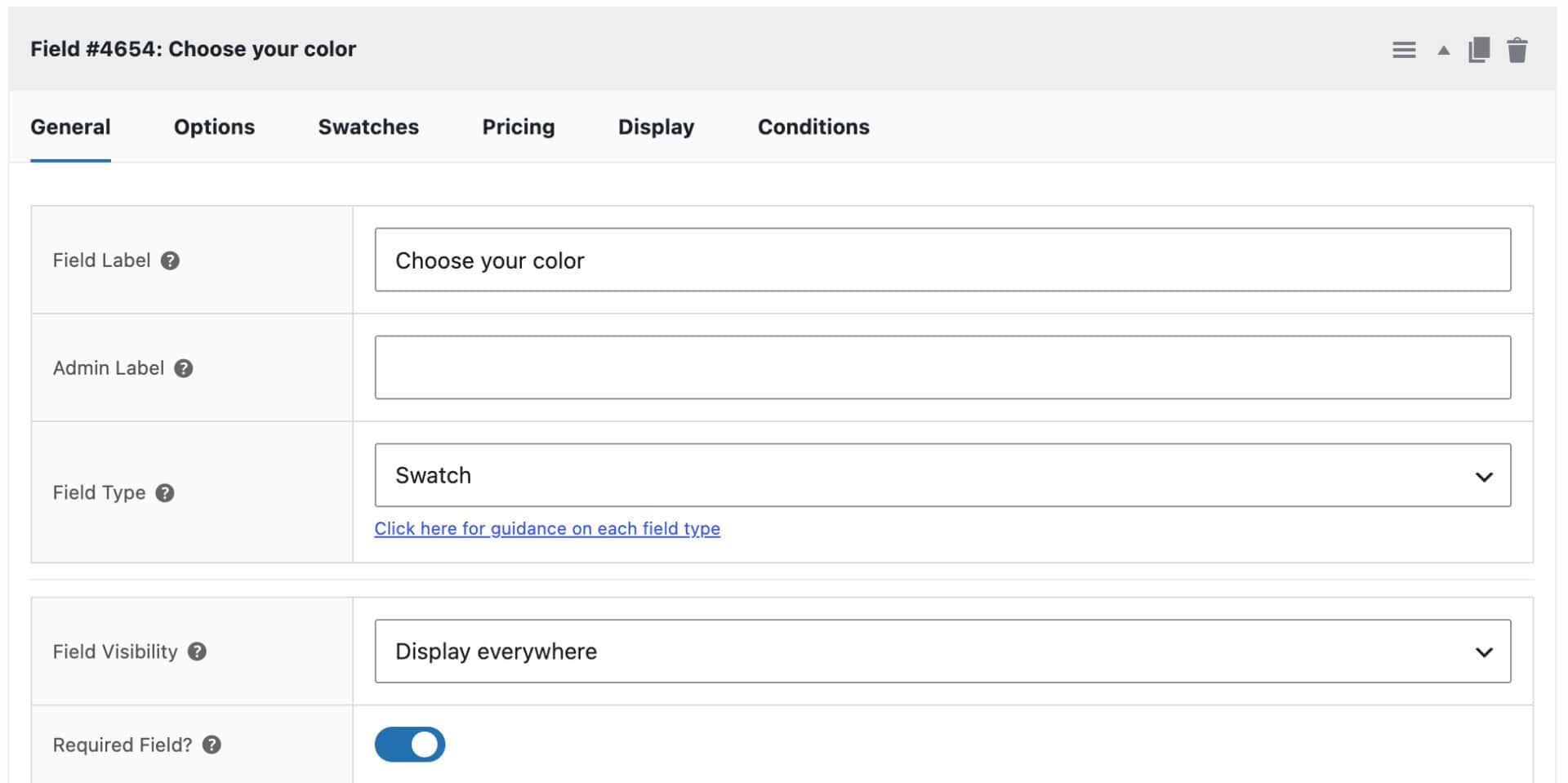
- Switch to the ‘Options’ tab
- Upload a thumbnail image for each fabric option, and give each one a price adjustment to reflect the cost difference between fabrics.
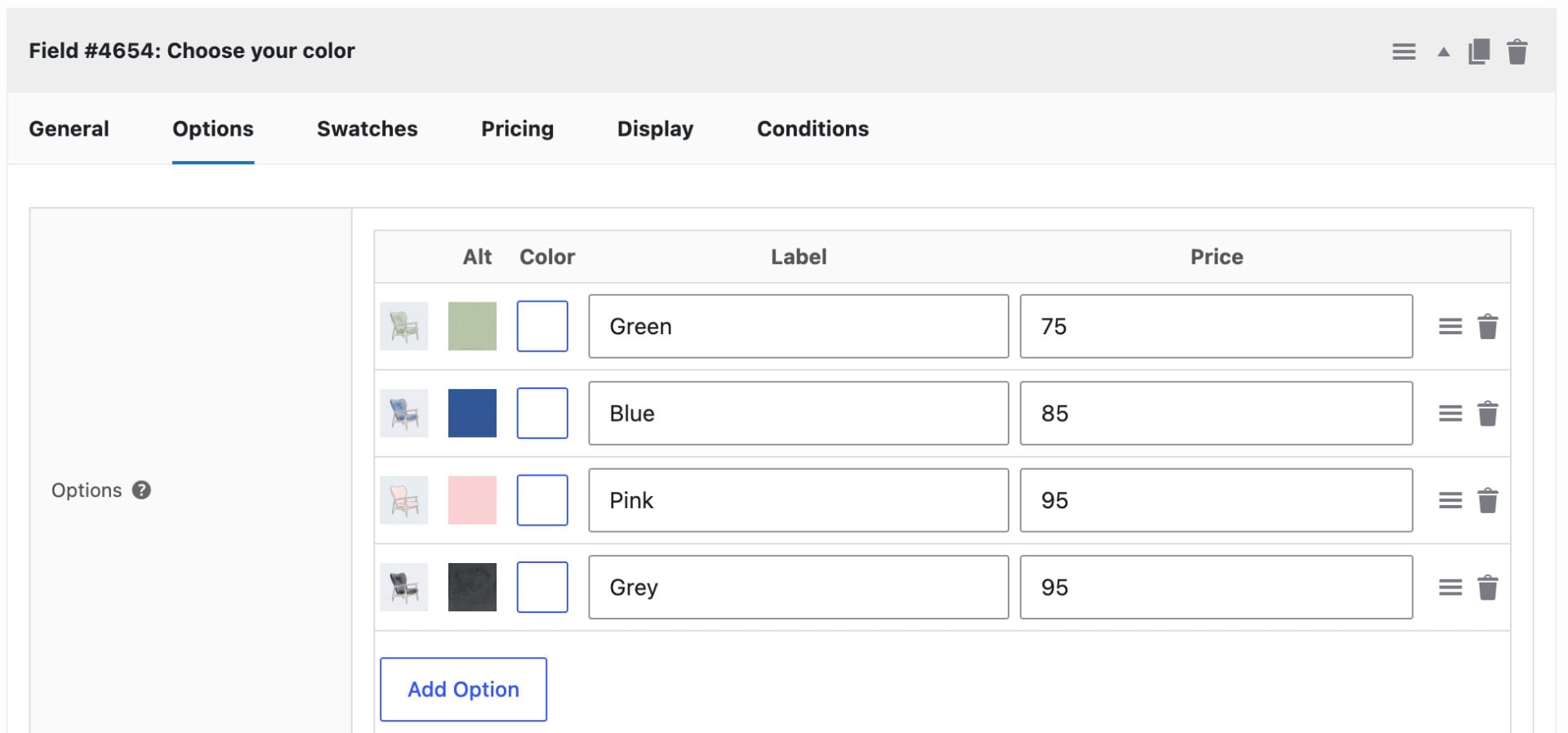
Save the product. Customers can now pick a fabric visually, with the price updating automatically based on their choice.
You can add as many types of swatch field as you like – so if your item of furniture has different color ways and/or material choices, add a field for each.
Step #3: Add a wood finish option
Let’s look at adding a different type of field – this time for users to select what type of wood to use from a select field (dropdown list):
- Click ‘Add Field’
- Choose ‘Select’ as the field type and enter a label
- Enable the ‘Required Field’ setting
- Switch to the ‘Options’ tab and enter the different options with prices if relevant
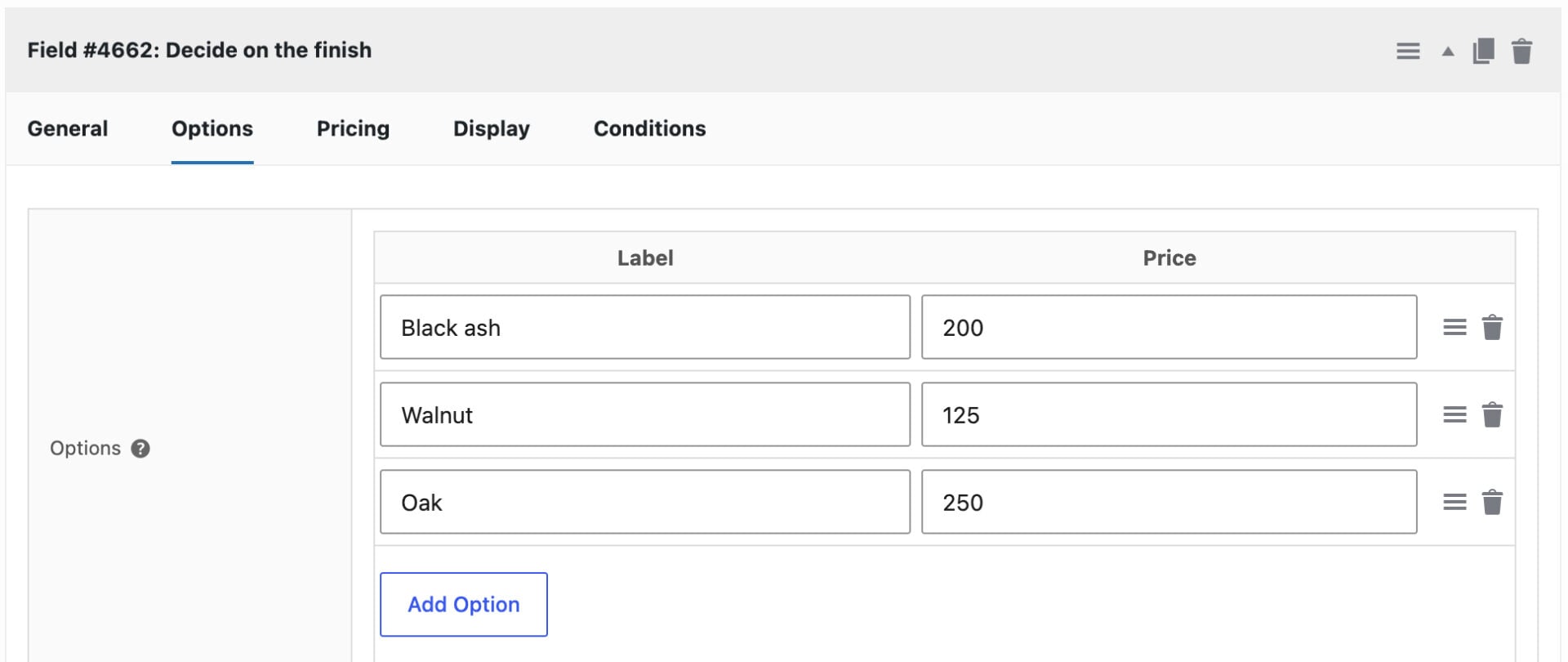
Publish your changes. Customers can now choose a wood finish alongside their fabric.
Step #4: Add custom dimensions with a calculation field
If you want users to be able to enter measurements or sizes, you can use a ‘Number’ field with parameters to ensure that the customer doesn’t enter values that are too high or too low.
In our example, the customer can choose the width and depth of the chair. To do this, we add two ‘Number’ fields, one for width and one for depth:
- Click ‘Add Field’ and enter a label
- Choose ‘Number’ as the field type and set ‘Required Field’
- On the ‘Number’ tab enter the upper and lower limits for customer measurements
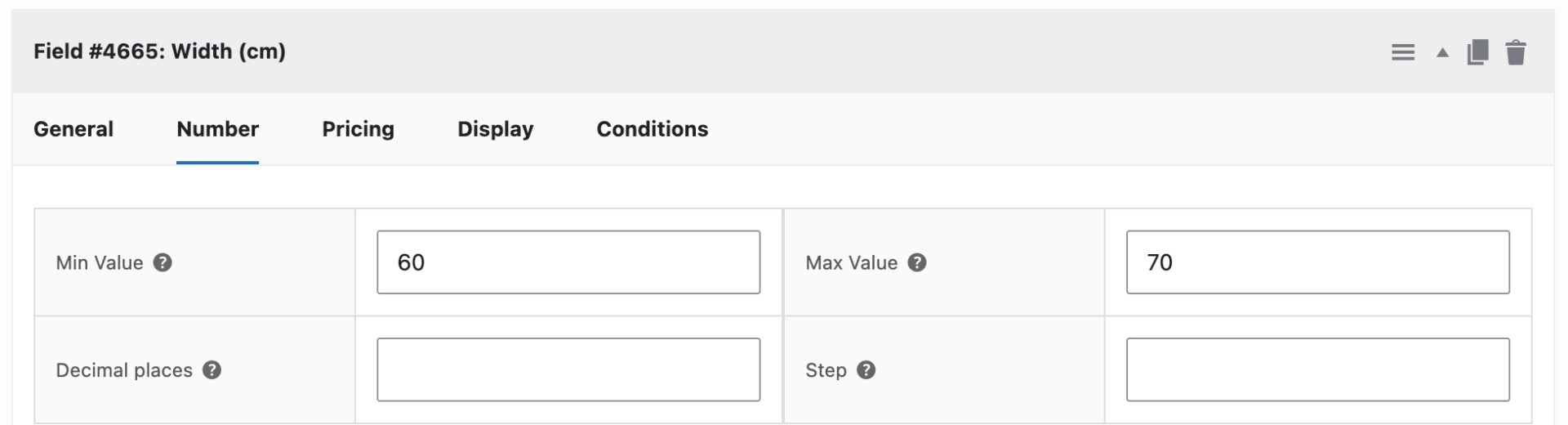
Finally, in our example product, we are calculating the finished price using a calculation field. Remember, if you want the user to submit a quote request, this is covered in the next section.
To add a calculation field:
- Click ‘Add Field’ and enter a field label
- Choose ‘Calculation’ as the field type
- On the ‘Calculations’ tab, enter your formula. In our example, we’re using a simple formula that sums the width and depth values then multiplies by 2:
( {field_4665} + {field_4666} ) *2
Your calculation will almost certainly be more complex and there is a complete guide on setting product prices by formula in this article.
Save your product. Now users can enter custom dimensions and see the price adjust automatically for anything outside your standard size, without you needing to quote each one manually.
Now let’s look at how to let customers request a price for their finished configuration, rather than buying immediately at a calculated price.
Part 2: Let customers request a quote for their configuration
With the armchair configured, the next step is to replace (or supplement) the ‘Add to cart’ button with an ‘Add to Quote’ button using the WooCommerce Request a Quote plugin, so customers submit their exact specification instead of checking out directly.
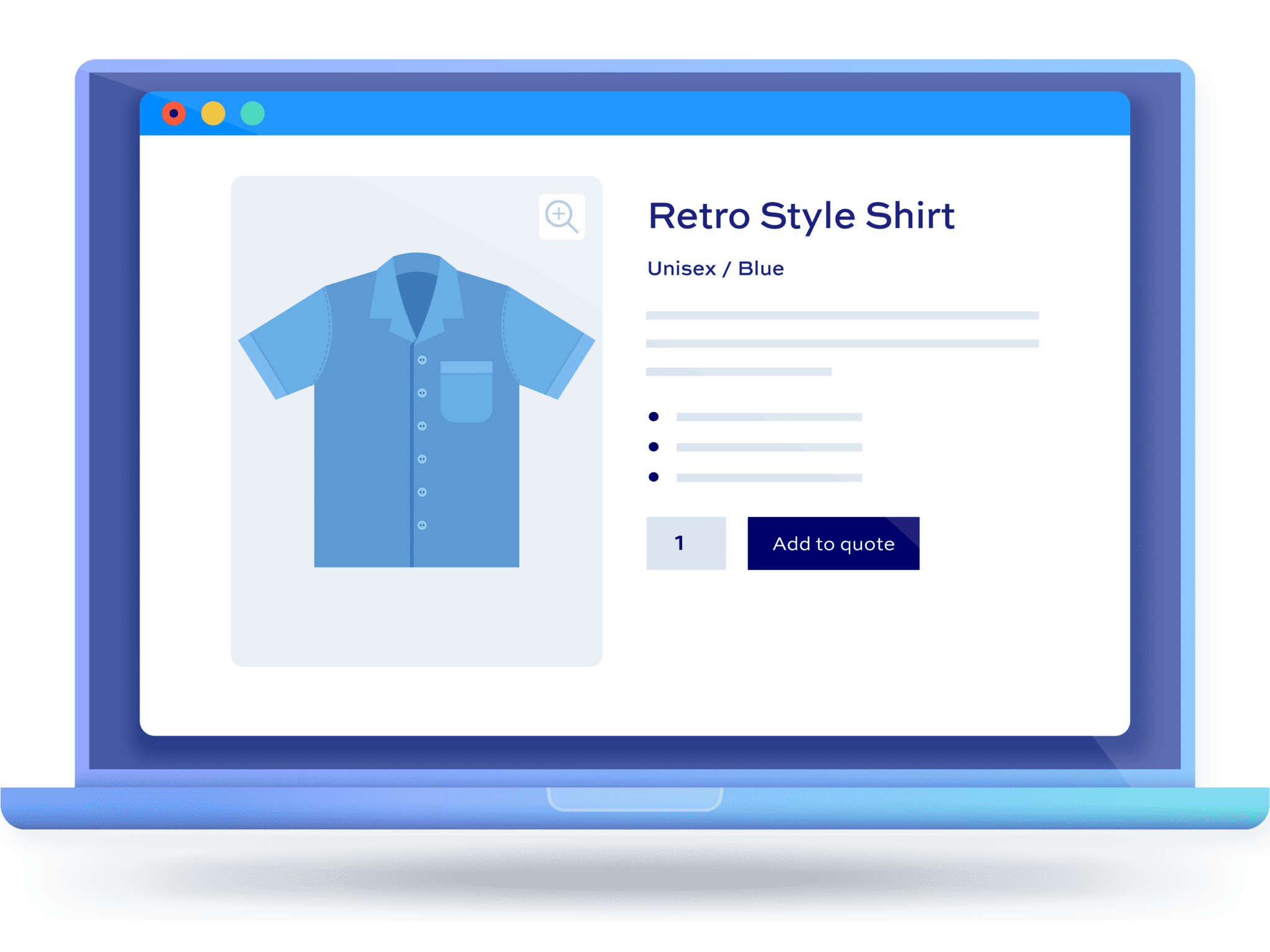
Once you’ve purchased Request a Quote:
- Download the plugin’s zip file by clicking on the link on your order confirmation screen or in your welcome email. You’ll receive the email automatically a few seconds after you’ve completed the purchase
- Go to Plugins > Add New in your WordPress dashboard
- Click on the ‘Upload Plugin’ button
- Drag and drop the plugin’s downloaded zip file into the ‘Choose File’ area and click ‘Install Now’
- When the plugin has uploaded, click the ‘Activate Now’ button
Activating the plugin automatically creates a Request a Quote page with the quote form shortcode already inserted, so you don’t need to build this yourself.
Step #1: Configure settings for quote requests
You can decide what products to enable quotes for, who can request quotes, whether or not to display pricing and many other options. To configure your quote settings:
- Go to WooCommerce > Settings > Request a Quote
- Use the ‘Enable Quotes on’ setting to choose which products in your store are quotable. For instance, you might have a category for made to measure furniture in which case you could choose ‘Specific Categories’ then specify which categories contain quotable products. Every other product in your store would have the standard WooCommerce checkout process
- If you want to restrict quotes to certain users, e.g. for wholesale users, then specify this in the ‘Enable Quotes for’ setting
- Enable ‘Hide prices on quotable items’ if you don’t want customers to see the prices of your quotable items.
- If you’d rather keep the calculated price visible and offer quoting as an extra option, leave this off, and turn on ‘Display the Add to Cart button’ as well.
- Optionally turn on ‘Attach PDF quote to email’ and upload your company logo so every customer receives a branded PDF alongside their quote email, itemizing their fabric, wood finish, and dimension choices.
Save your settings. Customers can now configure their armchair, add it to a quote list, and submit a request with their exact specification attached.
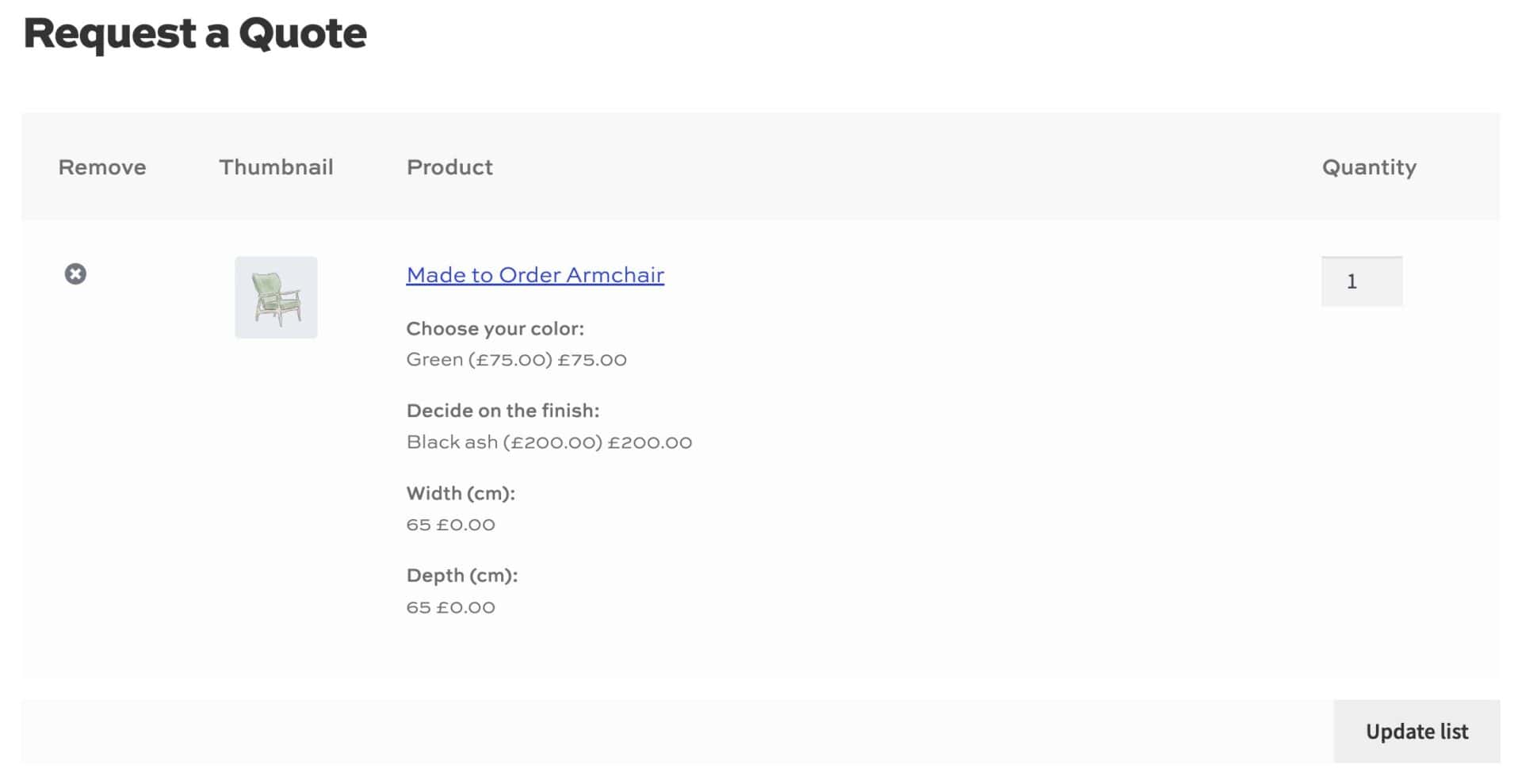
There’s a demo product with a quote request here so you can see how the quote flow works end to end.
Because WooCommerce Request a Quote is fully integrated with Add-Ons Ultimate, every fabric, wood finish, and custom dimension the customer selected carries through to the quote request automatically.
How do you manage quote requests?
When a customer submits a request, it appears in WooCommerce > Orders as a ‘Quote request’, with all their armchair configuration details attached as line item metadata. Open it to review, and if you need to adjust the price for that specific fabric or dimension combination, hover over the line item, click the pencil icon, enter your price, and click ‘Save’.
Once you’re happy with the price, choose ‘Send updated quote to customer’ from the ‘Order actions’ dropdown. This emails the customer their itemized quote along with a ‘Checkout now’ link, and the quote converts to a standard order the moment they pay.
Real-world examples
Here’s how other stores use Add-Ons Ultimate to sell made-to-order furniture and similar products.
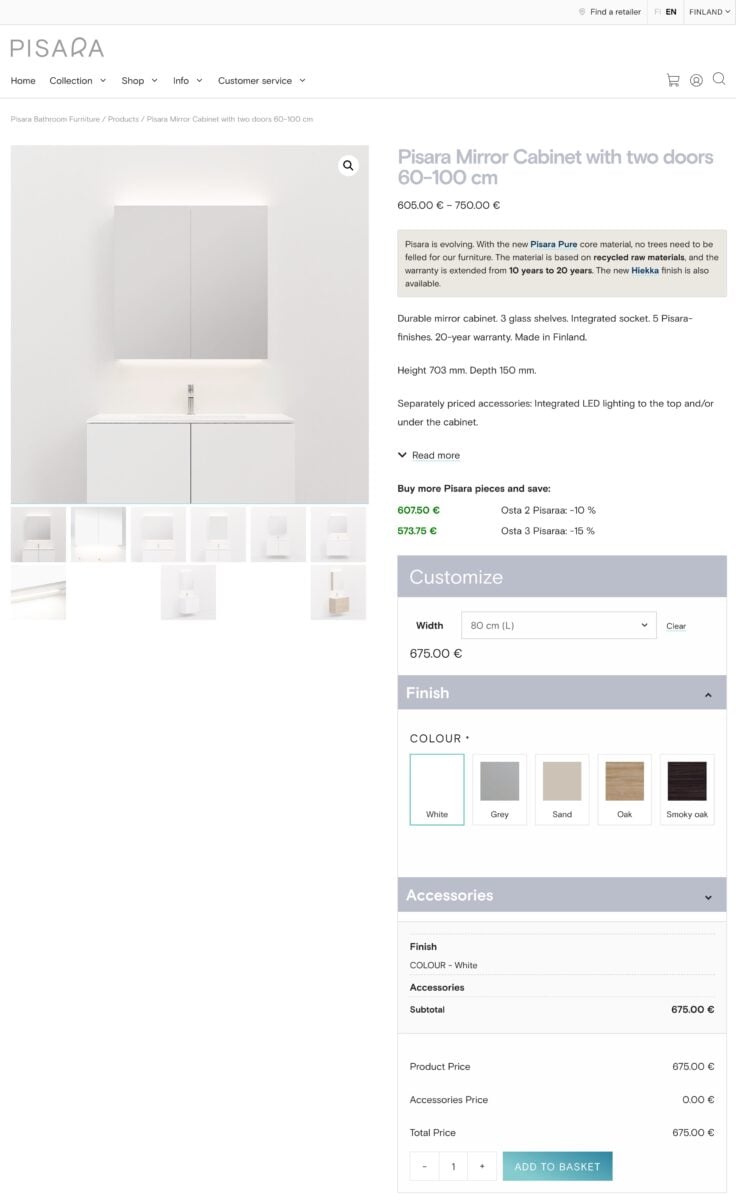
Pisara uses Add-Ons Ultimate to for their custom bathroom furniture. Customers can configure bathroom cabinets, choosing width, color, lighting, etc and seeing the cost update live on the product page.
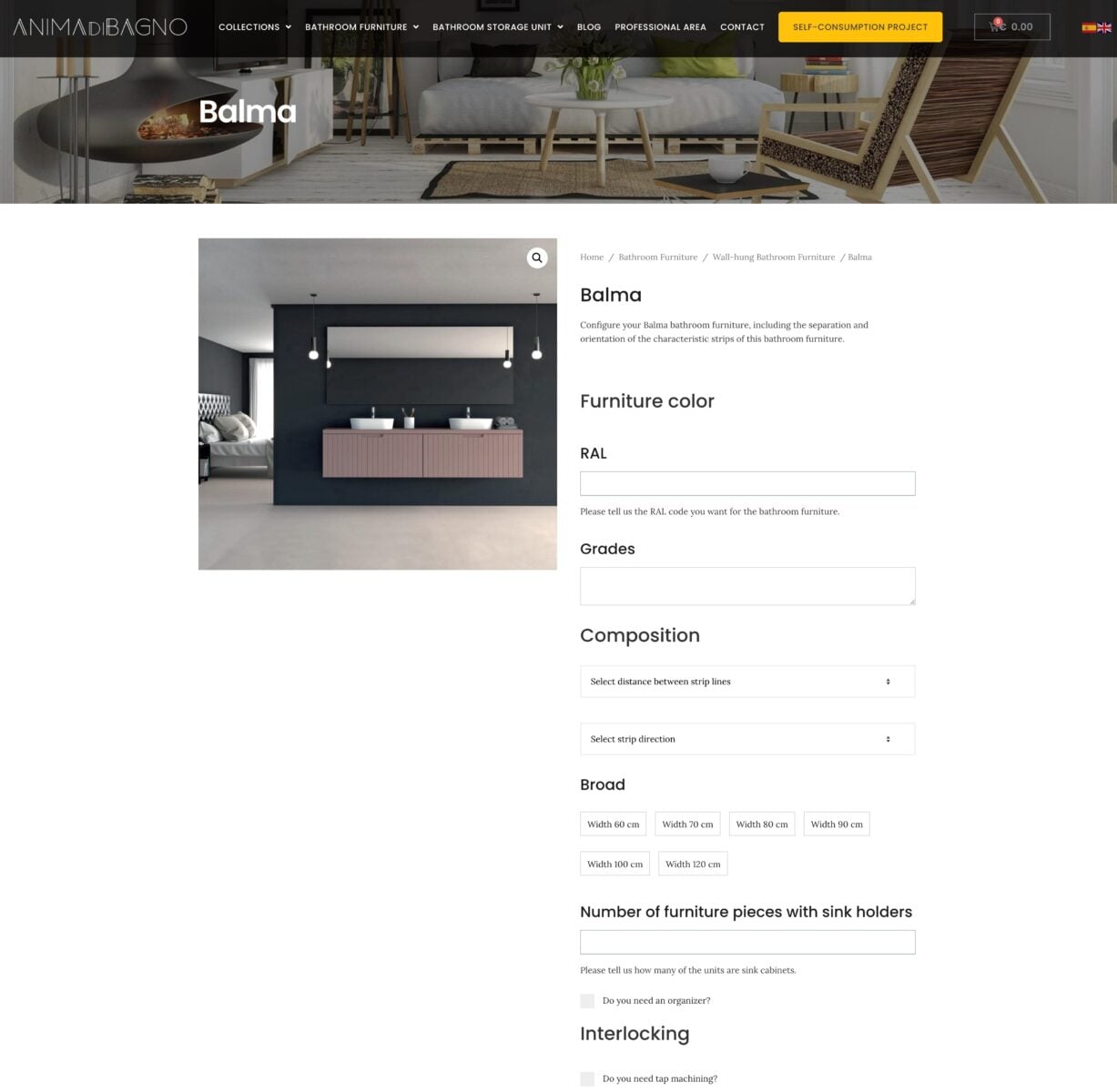
Anima Di Bagno also sell customizable bathroom furniture. Their product pages have multiple input fields and use conditional logic to hide and display fields based on user selections. Their customers can even configure the spacing and orientation of the striped pattern on their units.
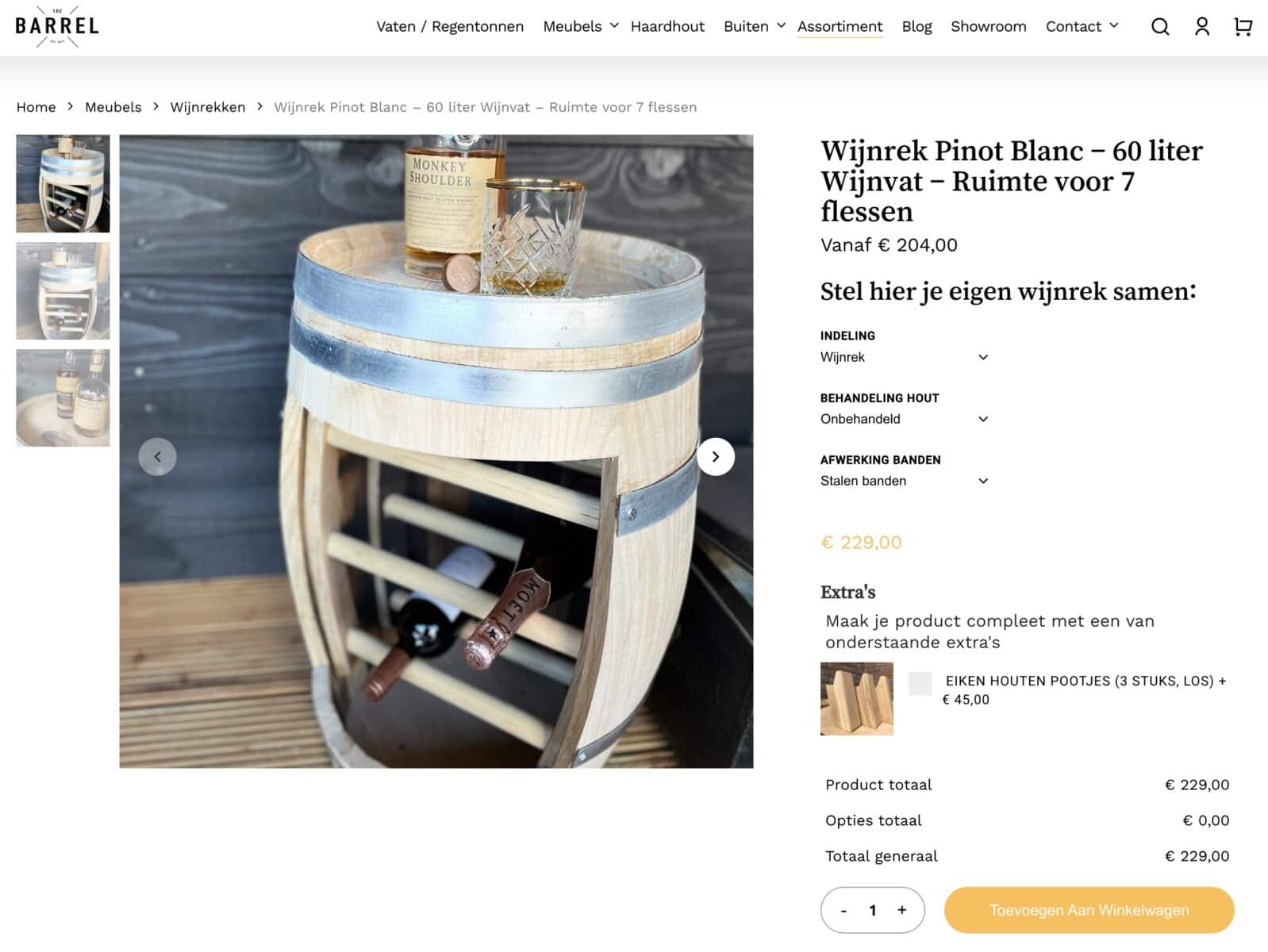
Finally, the whole purpose of allowing customers to configure your made to order furniture is to allow people to create something unique. The Barrel in the Netherlands have a unique product – they repurpose wine barrels into wine racks, letting customers choose the interior layout, wood treatment and steel band finish from dropdown fields, with a flat-fee checkbox add-on for a set of oak legs.

We use the plugins on four websites. The cardboard boxes websites use Add-Ons Ultimate and Request a Quote to enable a custom cardboard box builder page so that a customer can input the exact size they want as well as other options and request a quote from us.. The plugins were easy to install and there is good documentation- I am very happy with both plugins.
Custom furniture with a quote request system – recap
So that’s how to let customers configure made-to-order furniture and request a price for their exact specification, using WooCommerce Product Add-Ons Ultimate and WooCommerce Request a Quote together. We looked at building a configurable armchair with fabric swatches, a wood finish option, and calculation-based custom dimensions, then set up an optional quote flow so customers submit their configuration instead of buying at a fixed price. We also looked at managing incoming requests and how other furniture and made-to-order stores put the same approach to use.
Both plugins are compatible with all themes and page builders, including Astra, Flatsome, and Woodmart, and page builders like Elementor and Divi. If you have any questions, our world-class support team is on hand to help. Our plugins are all backed by a 14-day money-back guarantee, so you can try them risk-free.