WooCommerce Dynamic Pricing and Discount Rules can display a table of your quantity and discount tiers on the single product page. A single setting controls it, so there’s no shortcode or template editing needed.
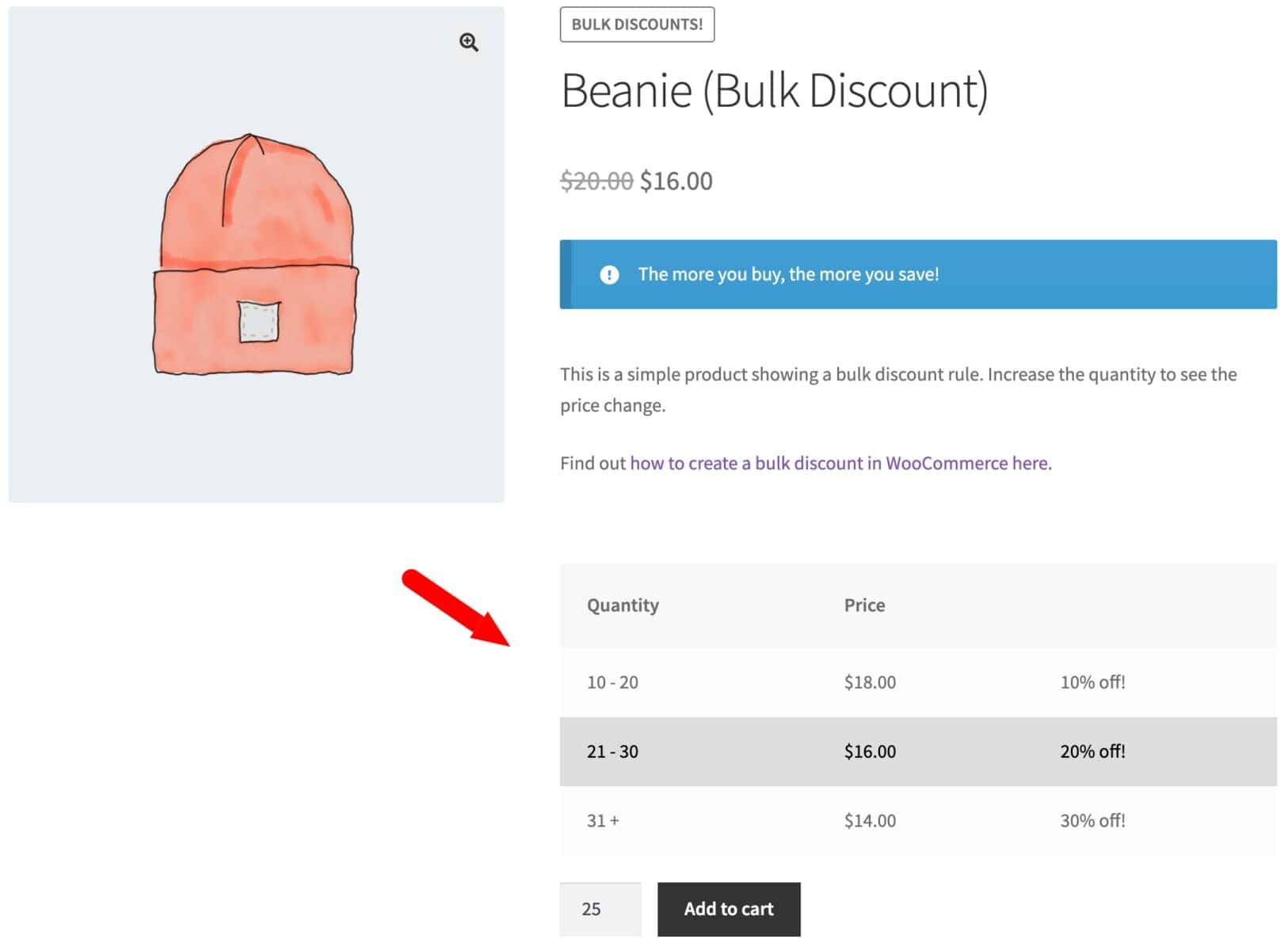
How do you enable the pricing table?
Here’s how to enable a pricing table on your WooCommerce product page to show the different bulk discount breaks.
- Enable the setting
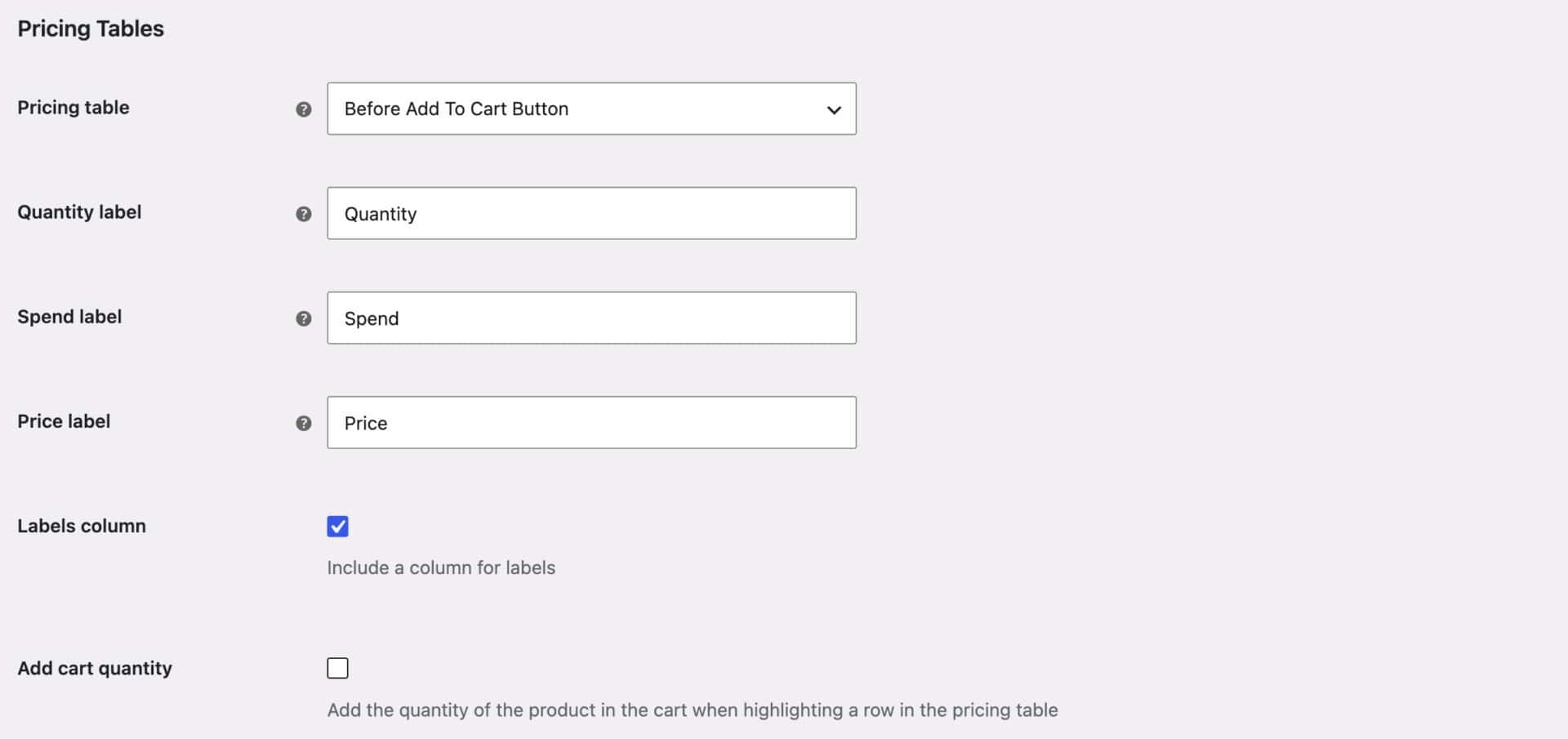
Go to WooCommerce > Settings > Dynamic Pricing and scroll to the ‘Pricing Tables’ section.
- Choose the pricing table location
Choose where the table should appear from the ‘Pricing table’ field:
– Before Add To Cart Button
– After Add To Cart Button
– Above Variation Dropdowns
– Below Product Price
The default is ‘Hide’, so the table won’t display until you choose a position. - Save your settings
Click ‘Save changes’
The table displays automatically on any product with an active Dynamic Pricing rule. It pulls the quantity or spend breakpoints and resulting prices from the rule you’ve already set up, so there’s nothing to configure per product.
How do you customize the table labels?
Set these options in the same ‘Pricing Tables’ section:
- Quantity label: heading for the quantity column (default ‘Quantity’)
- Spend label: heading for the spend column (default ‘Spend’)
- Price label: heading for the price column (default ‘Price’)
- Labels column: adds an extra column showing each tier’s custom label, if you’ve set one on the rule
- Add cart quantity: highlights the row matching the quantity in the customer’s cart or quantity field
What else should you know about the pricing table?
- The table reflects whichever Dynamic Pricing rules apply to the product. If a product has no matching rule, no table displays, even with the setting enabled.
- The active tier row is highlighted automatically based on the quantity in the cart. Developers can turn this off with the
wcfad_disable_pricing_table_highlightfilter. - Developers can add custom content immediately before or after the table with the
wcfad_before_pricing_tableandwcfad_after_pricing_tablehooks.