Cost of goods sold (COGS) is the amount you pay to buy or produce each product you sell. It includes things like the wholesale price, materials and manufacturing costs. Tracking COGS shows you how much profit you make on each sale.
WooCommerce Dynamic Pricing and Discount Rules has a unique feature: it allows you to set your product prices based on the COGS. This means you can easily build margin-based pricing – like adding a 40% markup on top of cost.
What do you need to use cost of goods pricing?
The ‘Based on’ option only appears on a rule if a cost of goods value is available on your site. The plugin looks for this value in two places – either WooCommerce’s own COGS feature or a third-party plugin:
- WooCommerce’s native Cost of Goods Sold feature, enabled under WooCommerce > Settings > Advanced > Features
- Cost of Goods for WooCommerce by Algoritmika (free or Pro)
If neither is active, the ‘Based on’ field is hidden. Every rule then calculates from the regular price as normal.
How do you set up a cost of goods rule?
Normally, rules in the plugin are based on products’ regular prices – for example, apply a 20% discount to a product’s price.
However, you can choose to use the COGS price (if available) as the basis for any price adjustment. This means you can apply a markup to multiple products using their COGS. So you can set a universal markup of 50% to all products in a certain category, for instance.
To set up a pricing adjustment rule based on cost of goods, select ‘Cost of goods’ in the ‘Based on’ dropdown under ‘Applies To Settings’ on the rule’s edit screen:
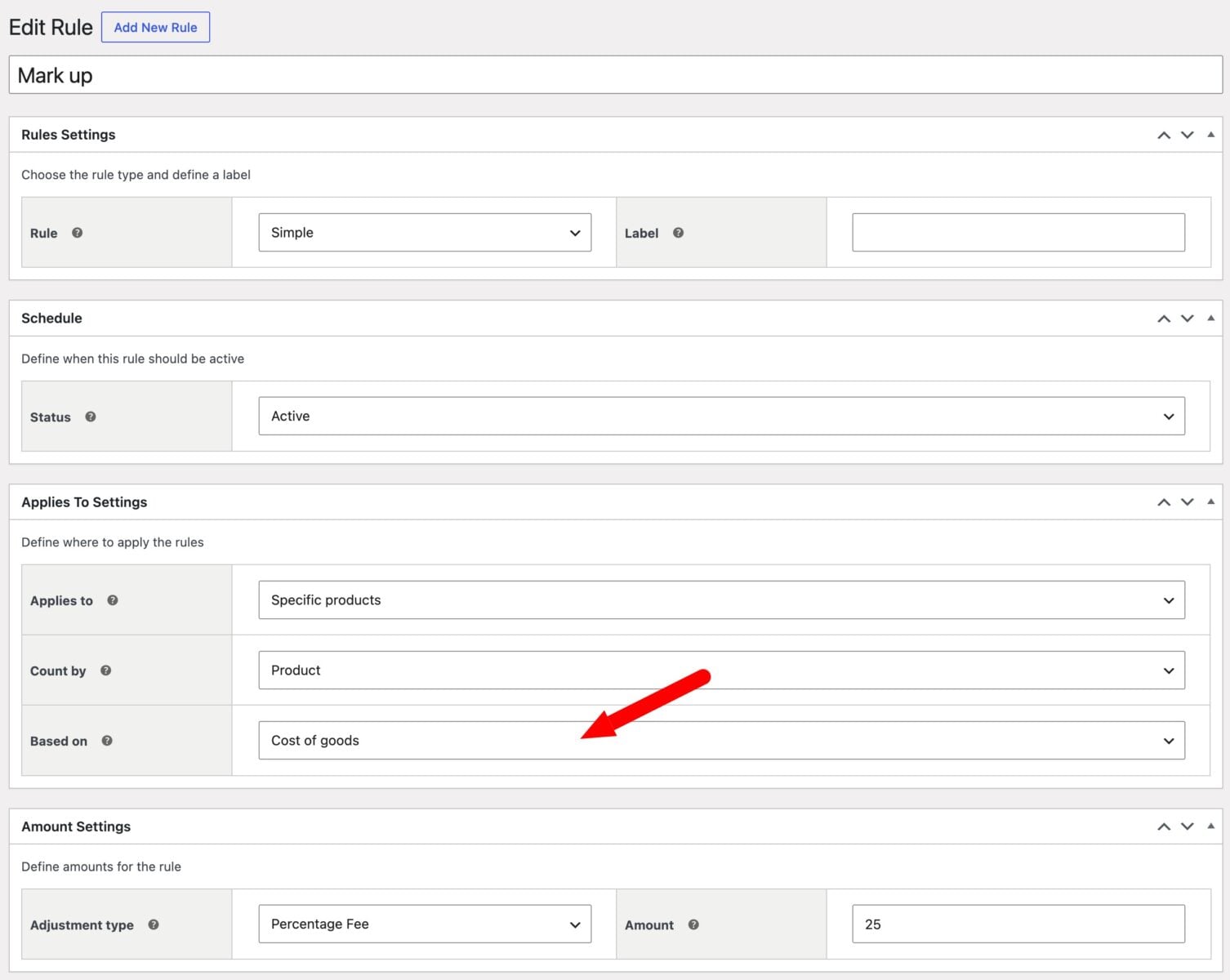
This works for both simple products and variations.
What happens when a product has no cost of goods value?
A rule set to ‘Cost of goods’ might apply to a product that has never had a cost entered. You can control what happens in this case from a site-wide setting.
Go to Dynamic Pricing and Discount Rules > Settings and choose an option from ‘When Cost of Goods is empty’:
- ‘Use the regular price as the adjusted price’ (default): the rule is skipped for that product, so it keeps its regular price with no adjustment
- ‘Use the regular price as the Cost of Goods’: the rule still applies, using the regular price in place of the missing cost value
How are cost of goods prices displayed?
Products adjusted by a cost of goods rule show the adjusted price only, without the “was/now” strikethrough format. This is because the original price in that comparison would be the cost of goods figure, not a price your customers would recognize.
The separate ‘show original price’ cart setting isn’t affected.
Which rule types support cost of goods pricing?
You can use cost of goods pricing with:
- Simple discount and fee rules
- Bulk and Spend (tiered) rules, including the product pricing table
- Cart-level rules with ‘Apply adjustment to’ set to ‘Cart Totals’, calculated per line item
What isn’t currently supported?
- Buy X Get Y rules that use an absolute price, since cost of goods doesn’t apply to a fixed target price
- Add-Ons Ultimate’s client-side tier recalculation on the product page, which doesn’t account for cost of goods