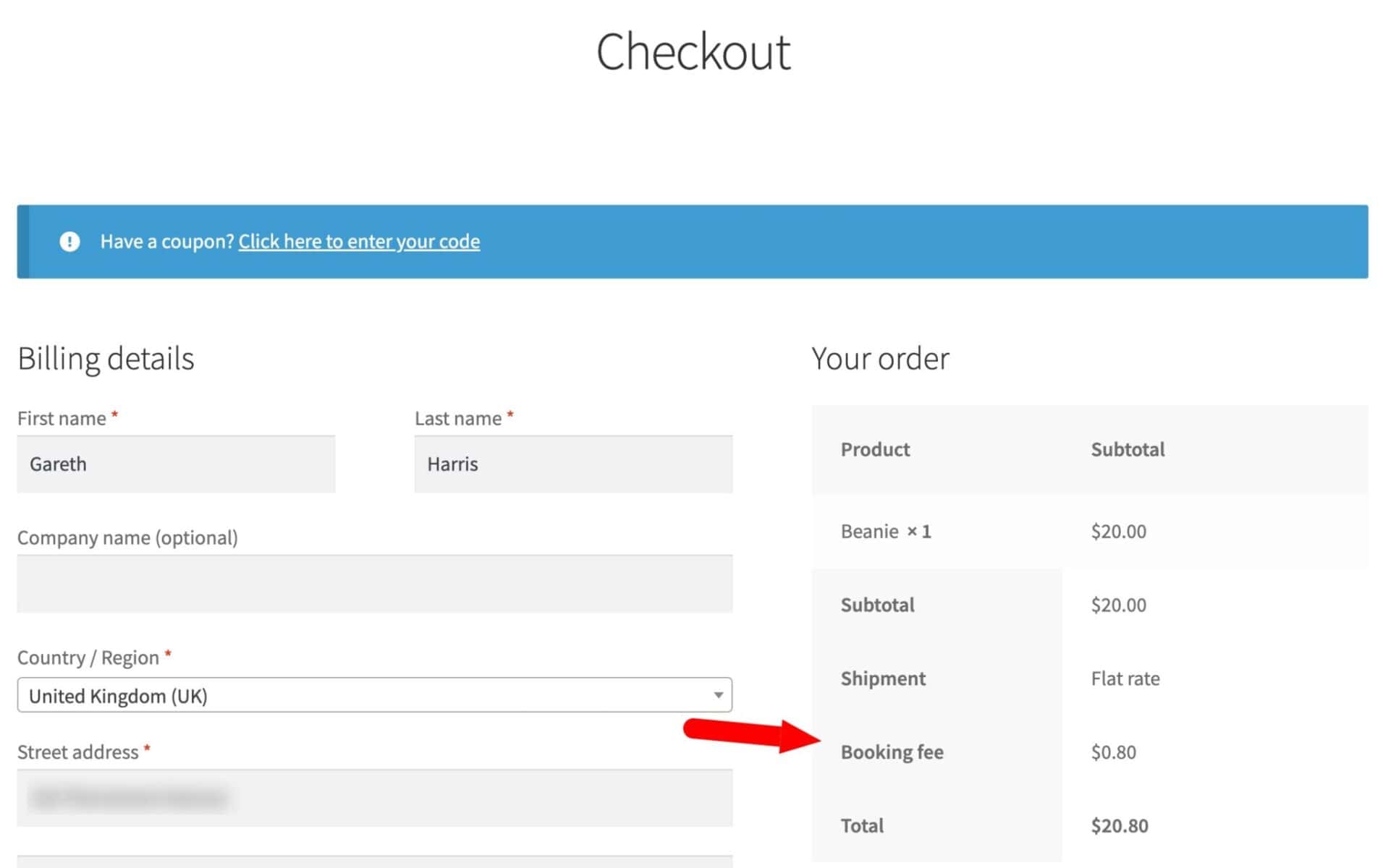
You can add a percentage-based booking fee to every order – for example, a 4% surcharge applied to the order total. Use the Discount on Spend rule type in WooCommerce Dynamic Pricing and Discount Rules to do this.
This displays the fee as a line in the cart totals, rather than adjusting individual product prices.
Steps
Step #1: Go to Dynamic Pricing Rules
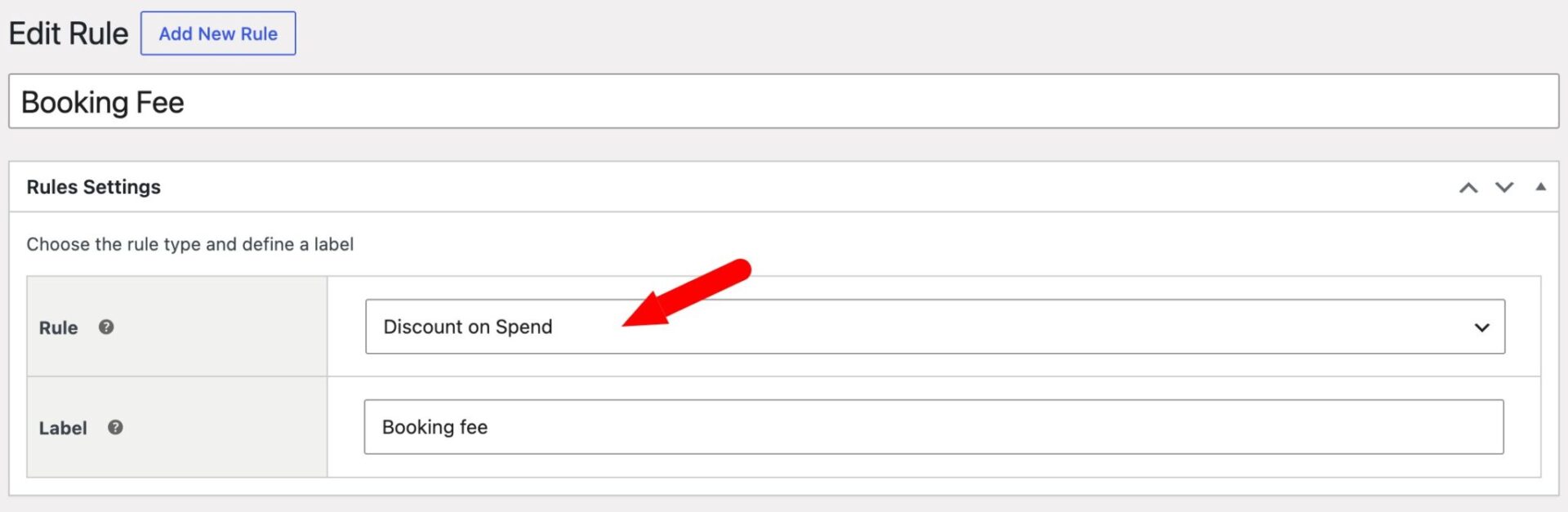
In your WordPress admin, go to WooCommerce > Dynamic Pricing Rules and click ‘Add New Rule’.
Step #2: Choose the rule type
Set the rule type to ‘Discount on Spend’.
Step #3: Configure the tier
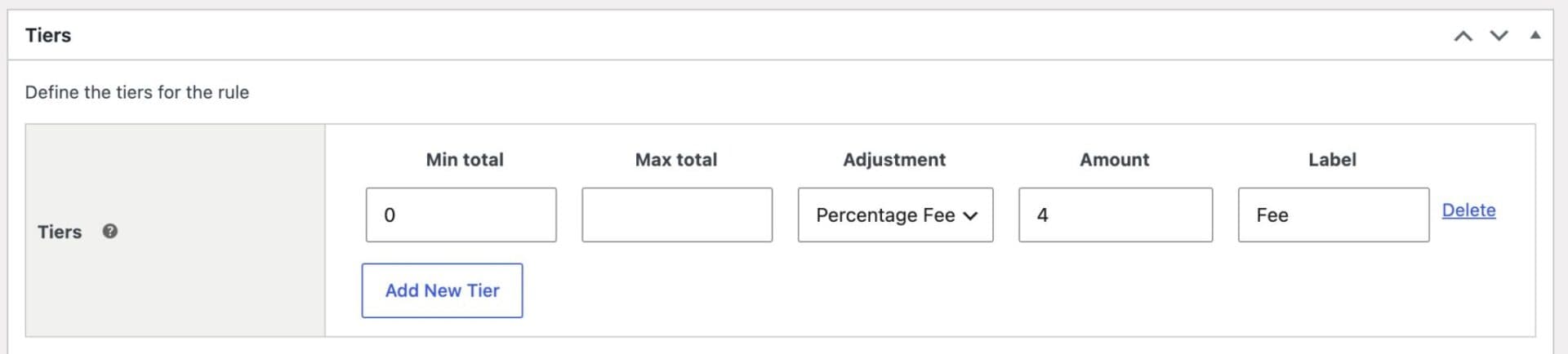
In the tiers table, add a single tier with the following settings:
| Min spend | Max spend | Type | Amount |
|---|---|---|---|
| 0 | Percentage Fee | 4 |
This ensures the fee applies to every order regardless of value.
Step #4: Set count by to all
Set ‘Count By’ to ‘All’. This is what causes the fee to appear as a single line in the cart totals, rather than being added to each product price individually.
Step #5: Add a label
Give the rule a label such as “Booking Fee”. This is the text that will appear next to the fee in the cart and checkout totals.
Step #6: Save the rule
Click ‘Save’. The booking fee now appears as a separate line in the cart subtotals on every order.