In Bookings for WooCommerce, you can show the availability of several bookable products on a single calendar using the [bfwc_availability_calendar] shortcode. Customers can see which products are free on each date, then click through to book.
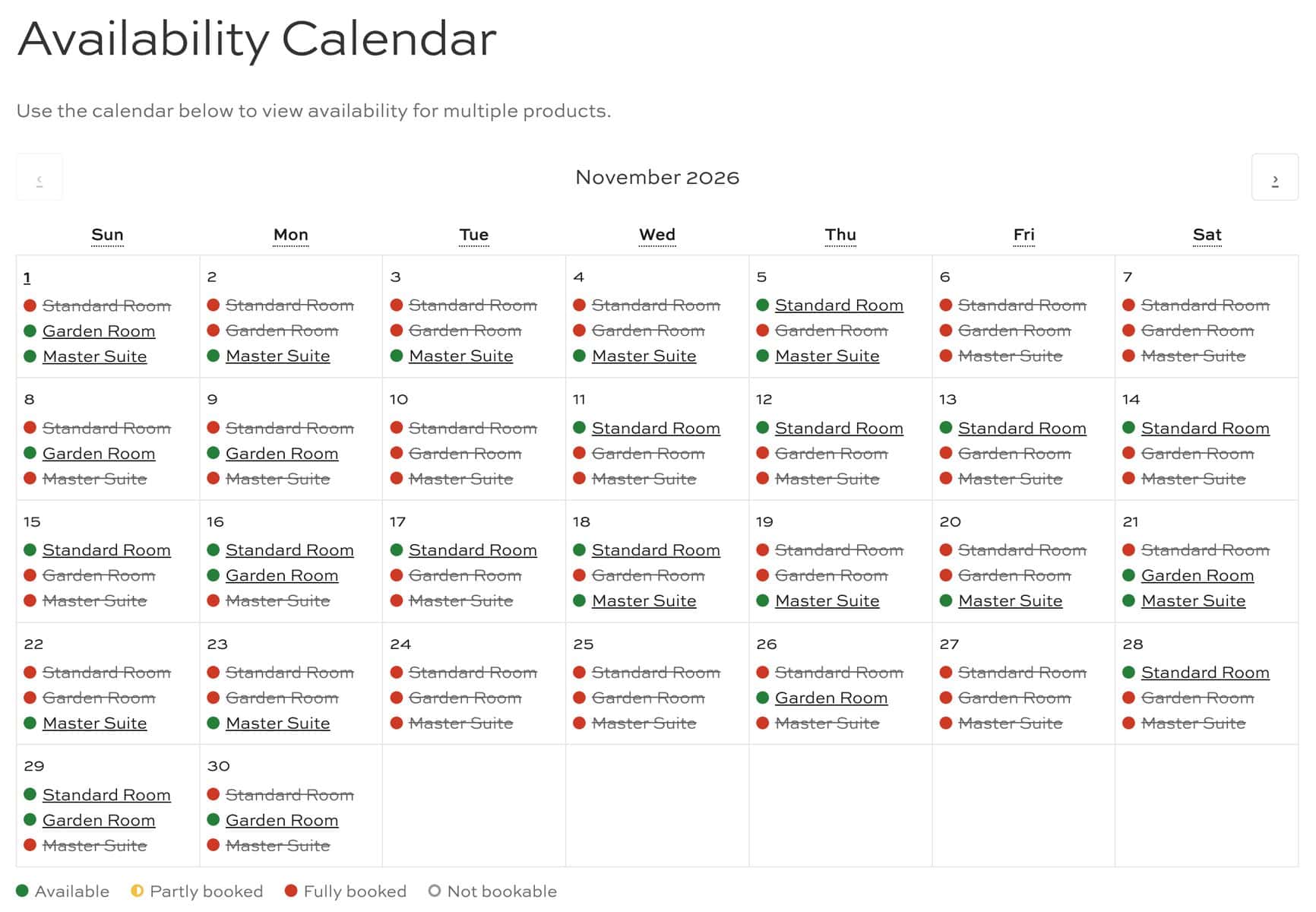
This helps users to:
- Compare the availability of several products on a month calendar
- Browse future months
- Click a product to open its page with that date selected
As the store owner, you can:
- Show all of your bookable products, selected products or specific categories on a single calendar
- Control how far ahead customers can browse
- Choose whether the calendar links to your product pages
Add the calendar to a page
Add the shortcode to any page and the calendar will show all of your bookable products.
Step #1: Add a Shortcode block
- Go to Pages > Add New, or open an existing page
- Add a ‘Shortcode’ block to the page
You now have somewhere to place the calendar.
Step #2: Enter the shortcode
Enter this shortcode in the block:
[bfwc_availability_calendar]
The calendar will now include all of your published bookable products.
Step #3: Publish your page
Save and publish your page. Customers can now check availability across your products from one page. Now let’s look at how to choose which products appear.
Choose which products appear
Option #1: Select specific products
Use the products attribute with a comma-separated list of product IDs. The products appear in the order you list them.
[bfwc_availability_calendar products="12,34,56"]
To find a product’s ID, go to Products > All Products and hover over its name.
Option #2: Select product categories
Use the category attribute with a comma-separated list of category slugs. The products appear in alphabetical order.
[bfwc_availability_calendar category="venues,rooms"]
To find a category’s slug, go to Products > Categories. If you use both attributes, products takes priority and category is ignored.
Shortcode attributes
| Attribute | What it does | Default |
|---|---|---|
products | Shows specific products, by ID | All bookable products |
category | Shows products in specific categories, by slug | All categories |
months | Sets how many months customers can browse, including the current month | 12 |
link | Links available products to their product pages; use no to remove the links | yes |
What will your customers see?
Customers see the current month, with each bookable product listed under each date. Past dates don’t list any products, and customers can use the arrows to move between months.
A colored dot shows the product’s status on that date, and a legend appears below the calendar:
| Status | Dot color | Meaning | Links to product? |
|---|---|---|---|
| ‘Available’ | Green | Nothing is booked on this date | Yes |
| ‘Partly booked’ | Yellow | Some places or time slots are booked | Yes |
| ‘Fully booked’ | Red | No places or time slots are left, or the date has been blocked | No |
| ‘Not bookable’ | Gray | The product can’t be booked on this date | No |
Hover over a product on a day-based booking to see how many places are left on partly booked dates. On screens up to 600px wide, the calendar displays as a list of dates and hides past dates.
How is availability worked out?
The calendar uses the same availability data as your product pages. Its statuses take into account your bookings and these settings:
- Disabled days of the week
- First and last bookable dates
- Unavailable dates, including dates blocked by ‘Custom Pricing’
- Buffers
- Dates imported from external calendars
Bookings made by a customer update the calendar for all customers, including multi-day bookings on each date they cover.
Example setups
These examples show how you can use the attributes for different types of business.
Example #1: Venue with several rooms
A venue hires out its Main Hall, Garden Room and Studio by the hour or by the day. List the rooms in the order you’d like them to appear:
[bfwc_availability_calendar products="101,102,103"]
A customer planning a Saturday event can see that the Main Hall is fully booked but the Garden Room is free. Clicking ‘Garden Room’ opens its product page with Saturday selected.
Example #2: Bike rental store
A bike rental store only wants to show bikes on its fleet page, not its accessories or guided tours. Put the bikes in a category with the slug bikes, then use:
[bfwc_availability_calendar category="bikes"]
Any new bike you add to the category will appear on the calendar automatically.
Example #3: Holiday cabins with a short booking window
A holiday park only takes bookings for the next six months. Use the months attribute to limit browsing:
[bfwc_availability_calendar category="cabins" months="6"]
Example #4: Availability display with no links
A community center wants to show room availability, but it takes bookings by phone. Remove the links from the calendar:
[bfwc_availability_calendar category="rooms" link="no"]
How does the calendar work with mixed duration bookings?
The calendar shows a date as ‘Partly booked’ as soon as any time slot is booked. If a product has mixed duration bookings enabled, that date can still be booked as a part day but not as a whole day.
When a customer clicks through, the product page opens with ‘Part day’ selected. They can then select ‘Full days’ and choose a date that’s completely free.
Change the start of the week
Go to WooCommerce > Settings > Bookings > Calendar, then update the ‘Start week on’ setting. The availability calendar uses the same setting as your booking calendars.
Bonus #1: Customize the calendar with code
Developers can use these filters to customize the calendar:
| Filter | What it changes |
|---|---|
bfwc_availability_calendar_status_labels | The status labels |
bfwc_availability_calendar_product_ids | The products shown |
bfwc_get_product_availability_for_range | A product’s availability for a date range |
bfwc_availability_calendar_month_html | The HTML for each month |
bfwc_requested_date_ymd | The date selected when a customer clicks through |
For example, this snippet changes ‘Partly booked’ to ‘Limited availability’:
add_filter( 'bfwc_availability_calendar_status_labels', function( $labels ) {
	$labels['partial'] = 'Limited availability';
	return $labels;
} );
Troubleshooting
The calendar says ‘There are no bookable products to show’. Check that the product IDs or category slugs are correct and that the products are published.
A product isn’t appearing. The calendar only shows products with the ‘Booking’ product type. It doesn’t show products set up as resources, because customers book those through a parent product.
A product has no link. Links only appear on ‘Available’ and ‘Partly booked’ dates. Also check that the shortcode doesn’t include link="no".
The date isn’t selected on the product page. The date won’t be selected if the customer can’t select it in that product’s calendar, or if the product has a preset date.
The availability looks out of date. Clear your site’s cache, then exclude the calendar page from page caching if the problem returns.