Bookings for WooCommerce has two separate buffer settings – for standard bookings and for time slot bookings.
How do buffers work for standard bookings?
Standard bookings are date-range bookings, such as nightly, daily or weekly rentals. To set a buffer for bookings:
- Click the ‘Booking
- Enter a value in the ‘Buffer period’ setting
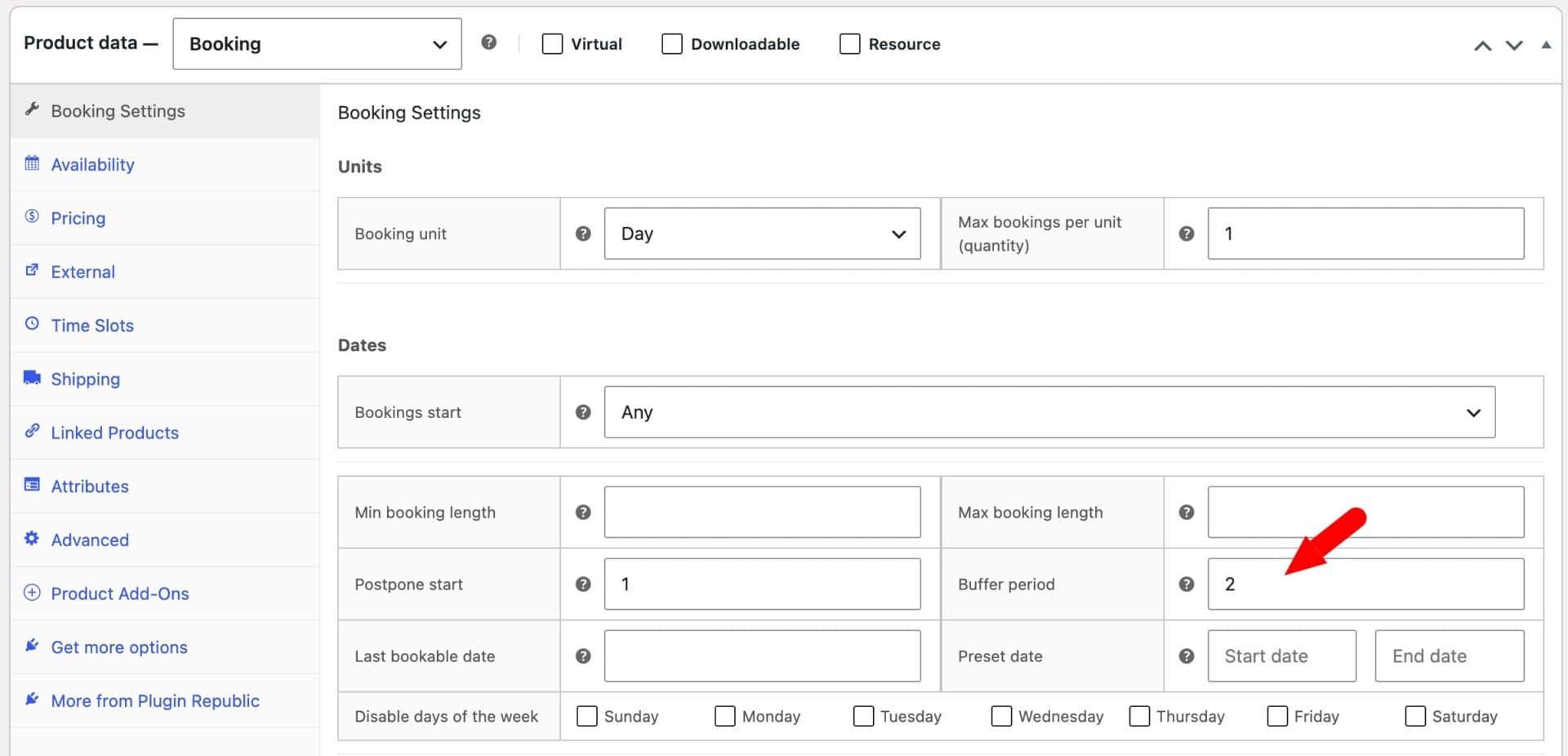
The buffer period is always set in days, up to a maximum of 6. It blocks out that number of calendar days immediately after a booking ends, so the next booking can’t start right away. So, for example, a 7-night rental ending on the 10th with a 2-day buffer also blocks the 11th and 12th – meaning the next guest can’t check in until the 13th.
It’s ideal for cleaning or turnaround time between rentals, such as holiday lets, equipment rentals and venues.
The ‘Postpone start’ setting
The ‘Postpone start’ setting is different from the buffer period. It controls how far in advance a customer must book – acting as a minimum notice period for the store owner.
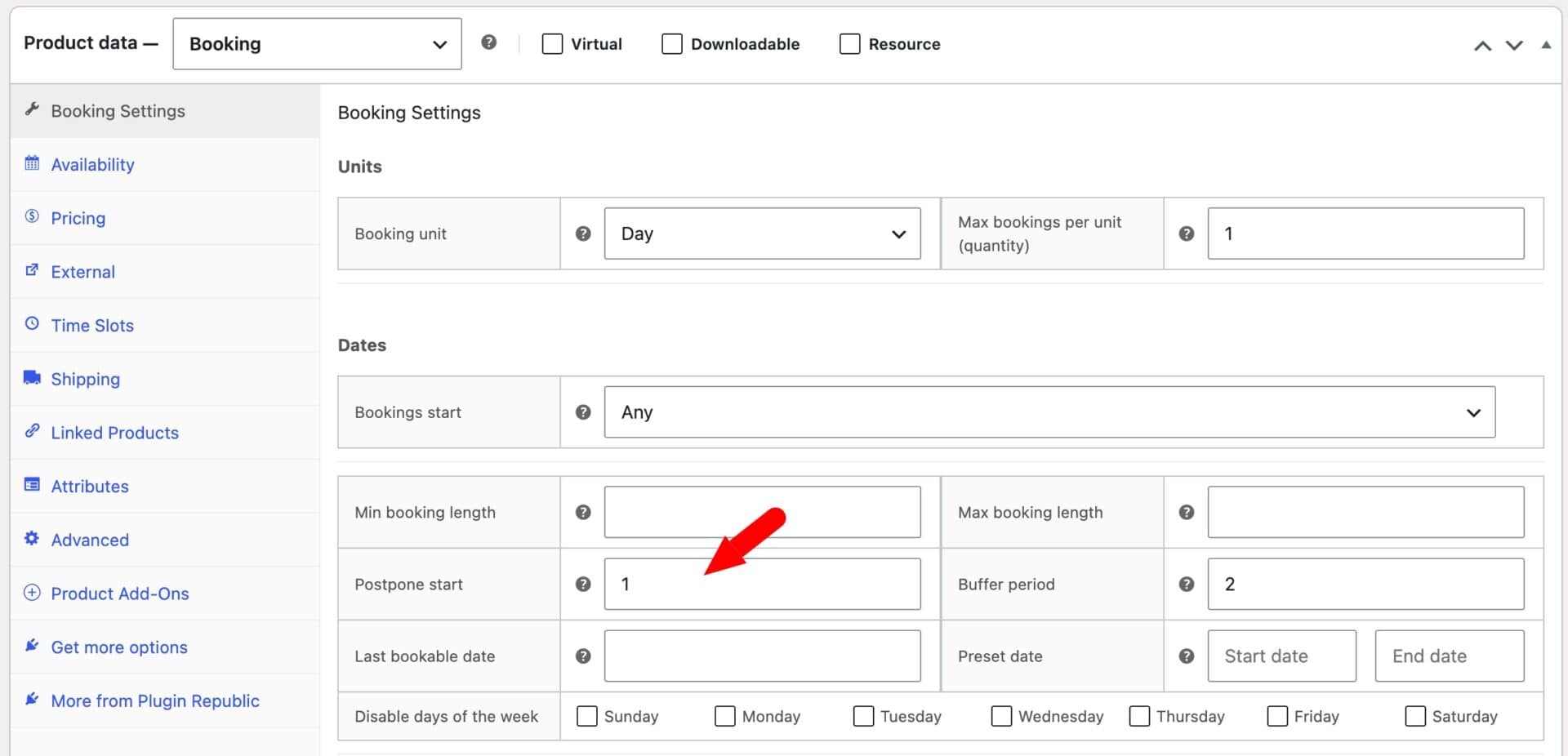
Enter a value in the ‘Postpone start’ field to prevent a booking from being made within that number of days. For instance, if you enter ‘1’ in the ‘Postpone start’ field, a customer will only be able to book the product a day from the current day. This means you can avoid getting short notice bookings if you don’t want them.
How do buffers work for time slot bookings?
Time slot bookings are hourly or session-based bookings. To set a buffer time for time slots:
- Click on the ‘Time Slots’ tab
- Enter a value in minutes in the ‘Buffer time’ setting
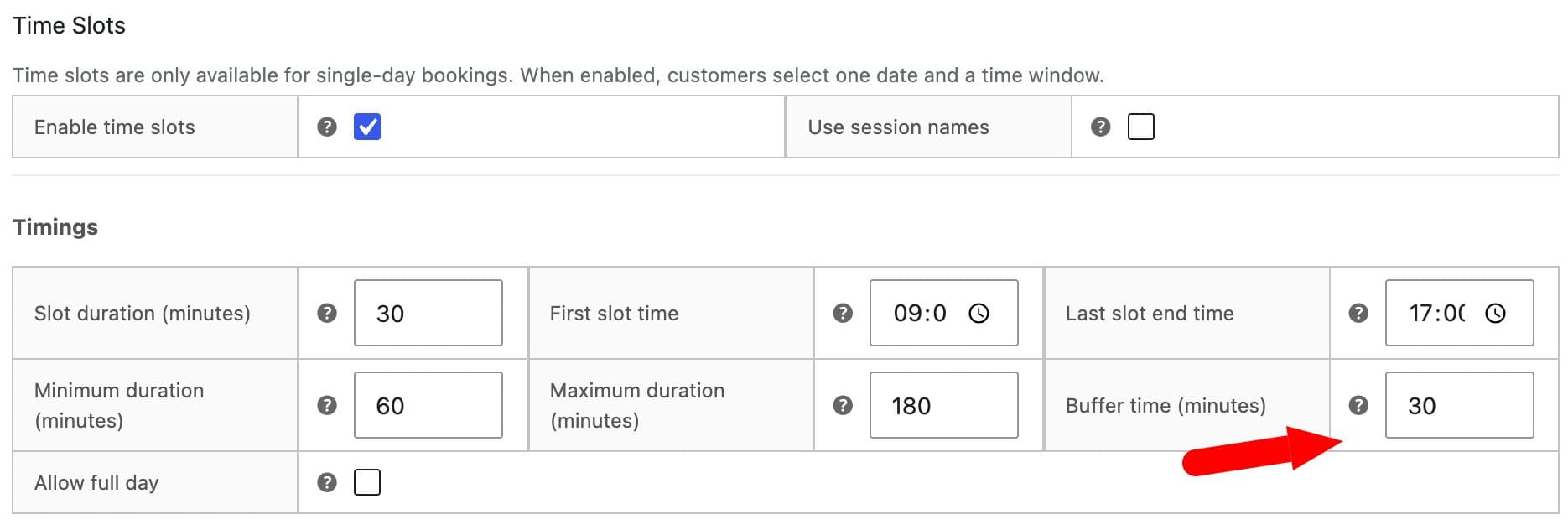
The buffer is set in minutes. By default, it’s capped at the duration of one slot.
How do you make the slot buffer block time?
Ensure that the ‘Enforce slot buffer as unavailable time’ setting is enabled in WooCommerce > Settings > Booking Settings > Calendar. This will ensure that the buffer period after each booking becomes unavailable – so the next customer can’t book until the buffer has passed.
This means that if a customer books several consecutive slots as one booking, the buffer is applied once, after the end of the whole booking. For example, if the customer books three 1-hour slots together from 9:00 to 12:00, a single buffer period will be applied after 12:00. So if the buffer period is 30 minutes, the next available time slot will be 12.30.
Enabling this setting also removes the cap on buffer length. This lets you set a cooldown longer than one slot, for example for equipment that needs extra time to reset.
Disabling ‘Enforce slot buffer as unavailable time’
If you disable ‘Enforce slot buffer as unavailable time’, the buffer only shortens the end time displayed for a slot. For example, a 60-minute slot starting at 9:00 with a 15-minute buffer displays as ‘9:00–9:45’ in the picker.
The next slot at 10:00 is still fully bookable. The buffer is purely cosmetic and doesn’t block any time.
Why does the next available slot start later than expected?
Customers can only start a booking at a slot start time. If your buffer isn’t a multiple of the slot duration, the next available start time rounds up to the next slot.
For example, with hourly slots and a 30-minute buffer, a 9:00–10:00 booking also blocks the 10:00 slot because 10:00–10:30 falls inside the buffer. The next bookable slot is 11:00, not 10:30.
If you need the next booking to start exactly 30 minutes later, set the slot duration to 30 minutes and the minimum booking duration to 60 minutes. The slot grid then includes a 10:30 start time.