Discount rules for WooCommerce: a breakdown of every rule type

WooCommerce doesn’t include discount rules out of the box. If you want anything beyond a manual coupon code, you need a plugin like WooCommerce Dynamic Pricing and Discount Rules to add proper discount rules for WooCommerce that apply automatically at checkout.
After reading this article, you’ll be able to:
- Understand the difference between a coupon and a discount rule
- Pick the right rule type for bulk pricing, BOGO offers, spend thresholds, and more
- Set up your own discount rules, step by step, with a guide to every setting
- Display your discounts on the front end and control how multiple rules interact
There’s a demo store here so you can see how the rules work on the front end.
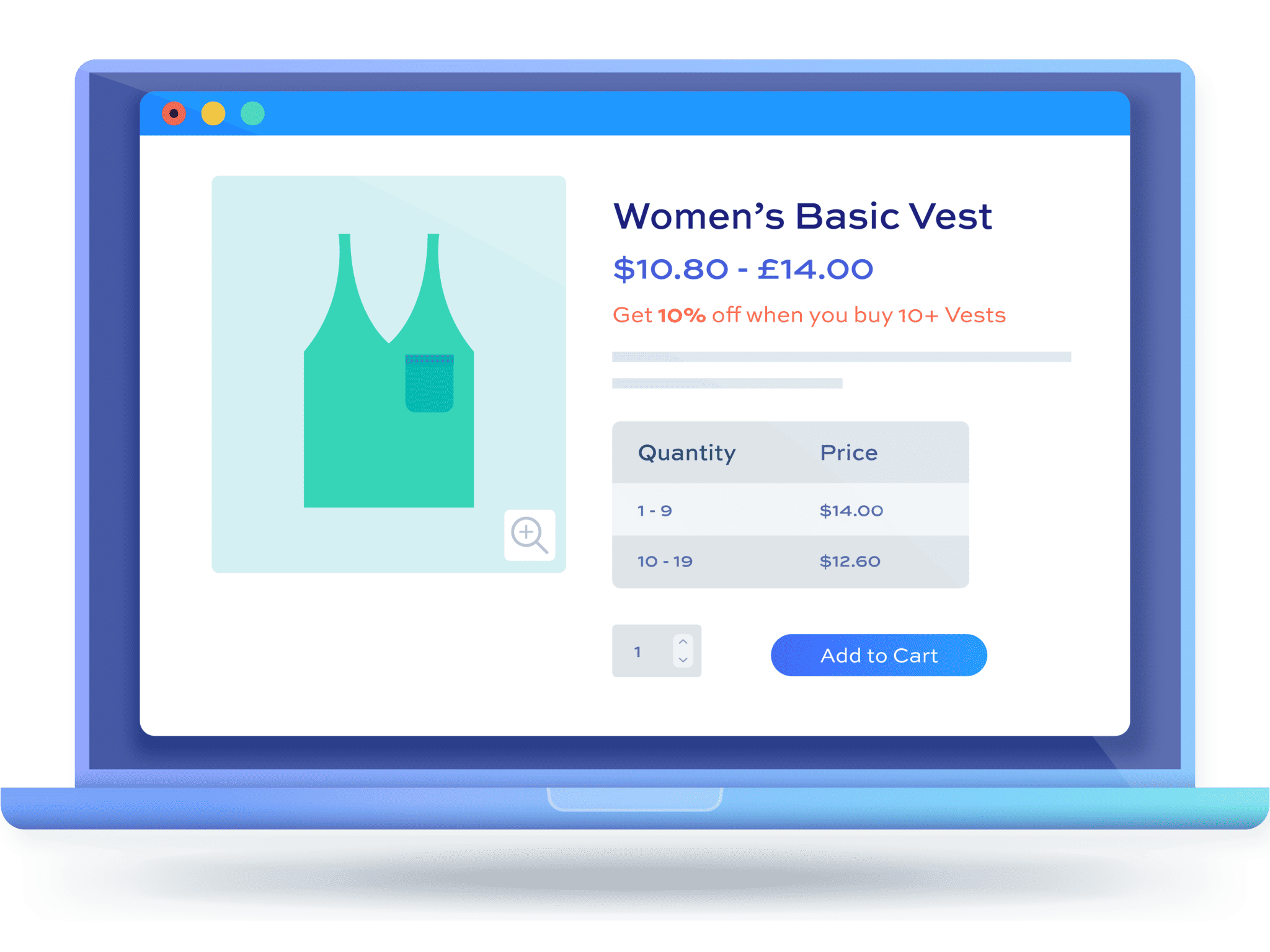
WooCommerce Dynamic Pricing and Discount Rules
Help your customers spend more
What are discount rules for WooCommerce?
A discount rule is a pricing instruction that applies automatically, without the customer needing to enter a code. You set it up once, and WooCommerce handles the rest from then on.
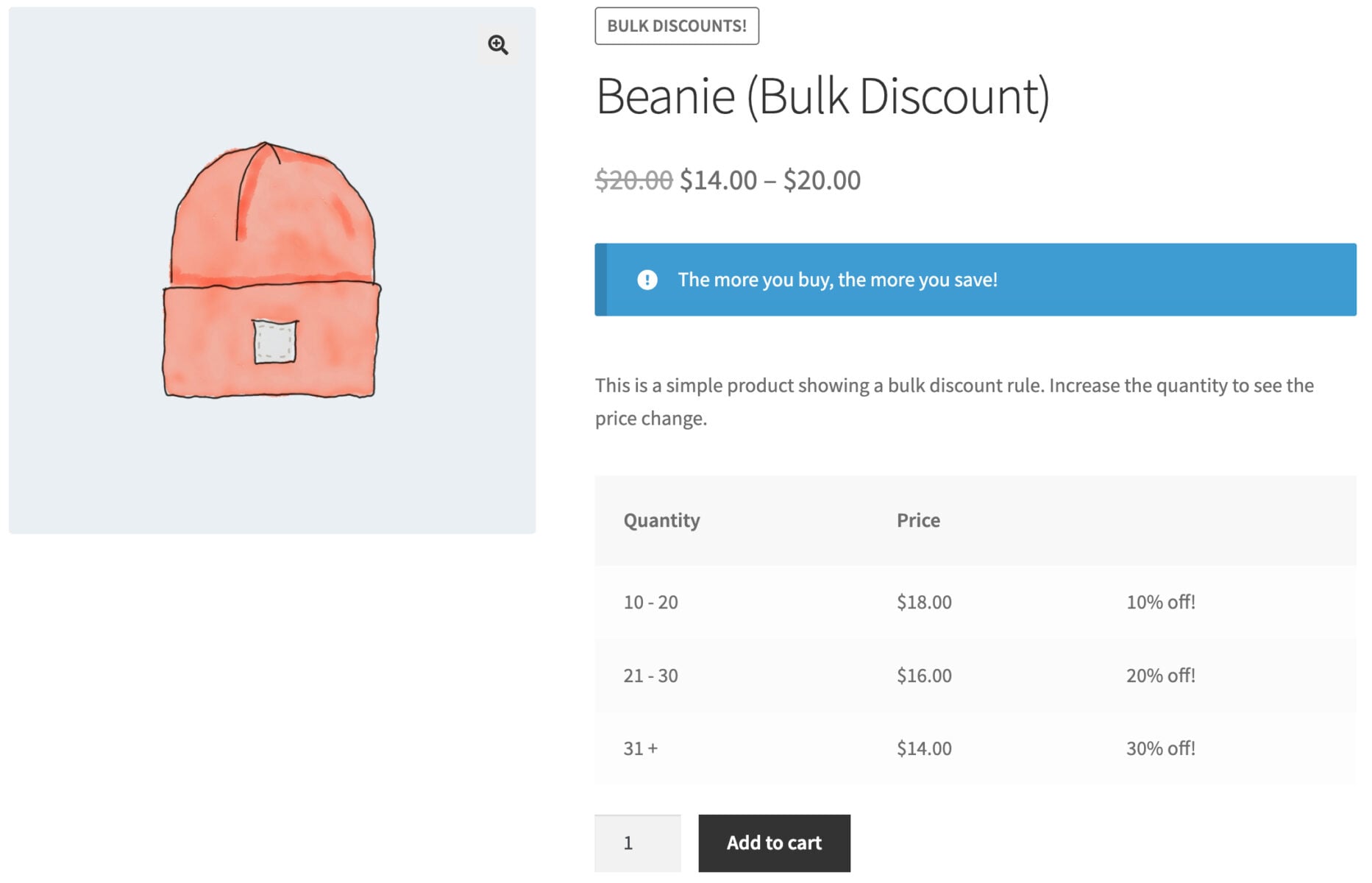
Every discount rule is really a combination of a few building blocks. Understanding these makes it much easier to configure the right rule for what you’re trying to achieve.
- Rule: This is the type of offer you’re creating – Simple, Bulk Pricing, Buy X Get X, and so on. It defines the shape of the discount, and is the first setting you choose when creating a rule
- Applies to: Which products are eligible for the rule – all products, specific categories, or specific products
- Adjustment type and amount: The actual size of the discount or fee – a fixed amount or a percentage
- Roles: An optional setting to restrict a rule to specific user roles, or exclude certain roles from it
- Schedule: Whether the rule is active immediately, paused, or set to start and stop automatically on specific dates
For example, say you want to offer 10% off, but only once a customer buys 10 or more of a product. You’d choose ‘Bulk Pricing’ as the Rule, add a tier for 10 or more items, and set the Adjustment type to ‘Percentage discount’ with an Amount of 10. Once a customer’s cart reaches that quantity, the discount applies automatically.
Why use discount rules for WooCommerce instead of coupons?
Coupons need a code the customer has to know and enter. That’s a barrier, and it means you’re relying on marketing to spread the code around, or on the customer remembering it at checkout.
Discount rules for WooCommerce remove that barrier. They apply automatically the moment a customer’s cart qualifies, which is why they’re often called WooCommerce auto apply discounts.
Discount rules can also be advertised directly on the front end, showing customers the discounted price and how much more they need to buy or spend to unlock a bigger saving. This encourages customers to add more to their cart. A coupon code can’t do this – it stays hidden until the customer thinks to apply it.
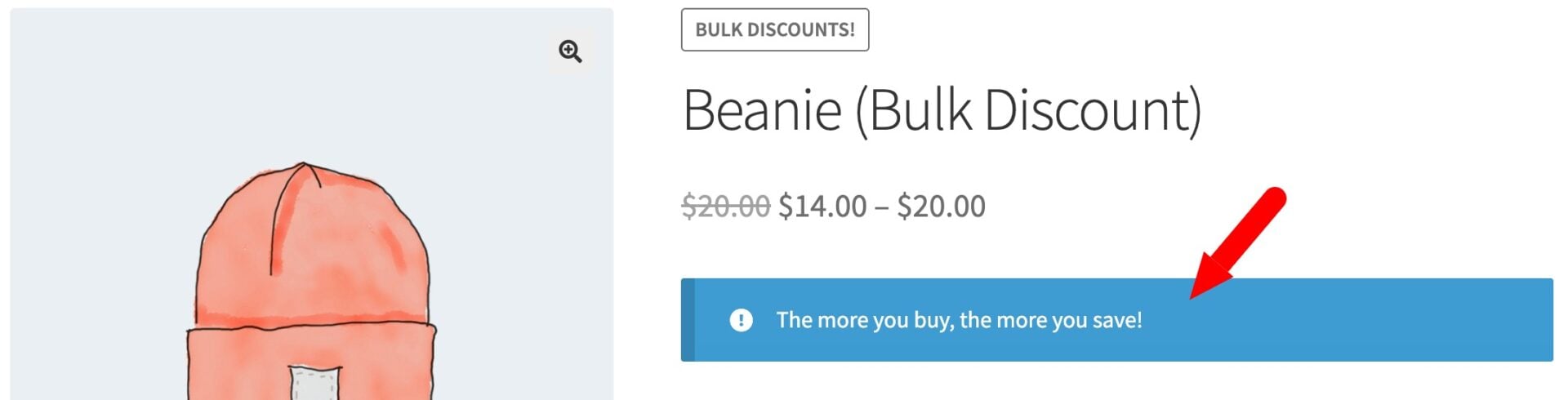
Rules also do things coupons can’t manage on their own. You can layer multiple rules together, schedule them to start and stop automatically, and restrict them by user role. A few examples make the difference clearer:
- A wholesale stationery supplier wants to offer registered trade customers 20% off storewide, without retail customers ever seeing a code to share around. A role-based discount rule applies the price automatically the moment a wholesale customer logs in, with no coupon involved
- A clothing boutique running a Black Friday sale doesn’t want staff logging in at midnight to activate it. A scheduled discount rule starts and stops automatically at the exact times they set
- A supplement store wants to encourage bigger orders without training customers to hunt for a discount code. A bulk pricing rule increases the discount automatically as quantity increases, so the incentive is visible in the cart rather than hidden behind a code
For stores that find coupon codes clunky to manage, discount rules are a more flexible WooCommerce coupon alternative.
What are the benefits of discount rules in WooCommerce?
Beyond removing the need for a code, discount rules give you a few practical advantages over manual pricing and coupons.
- Increased order value: Bulk, tiered, and spend-threshold rules give customers a clear incentive to add more to their cart to reach the next discount level
- Less admin: Once a rule is set up, it runs on its own. There’s no need to edit product prices manually for a sale, or generate and track coupon codes
- Targeted pricing: Rules can be restricted by user role, specific customer, category, or product, so you can run different pricing for wholesale, retail, and VIP customers from the same store
- Automatic scheduling: Sales can be set to start and stop at specific times, which is ideal for planned promotions like Black Friday or a seasonal clearance
- Customer loyalty: Purchase history and spend-based rules let you reward repeat customers automatically, without manually tracking who qualifies
Every WooCommerce discount rule type, with examples
WooCommerce Dynamic Pricing and Discount Rules gives you 10 distinct rule types. Each one solves a different pricing problem, and you can run several at once.
Simple discounts
A simple discount applies a straightforward percentage or fixed amount off some or all of your products. It’s the most direct way to run a sale.
For example, you could apply 15% off every product in your ‘Clearance’ category, or $5 off a single bestseller.
Bulk discounts
Bulk discounts reward customers for buying more of the same product. You set quantity breakpoints, and the discount increases at each one.
For example: 10% off when a customer buys 10 or more items, 20% off at 20 or more, and 30% off at 50 or more. You can display these tiers in a table on the product page, so customers see exactly what they’d save by adding more to their cart.
Tiered pricing
Tiered pricing works like bulk discounts, but instead of a percentage or fixed amount off, you set a fixed price per unit at each quantity level.
For example: $15 per item for 10 or more, $12 per item for 20 or more, and $10 per item for 50 or more. This works well for stores that want round, predictable per-unit pricing rather than a discount percentage.
BOGOF (Buy X Get X)
BOGOF rules give customers a free or discounted unit of the same product they’re already buying. ‘Buy One Get One Free’ is the classic version, but you can vary the ratio and the discount.
For example: buy two, get one half price, or buy four, get one at 10% off. You decide how many products qualify the customer and how many they receive at the adjusted rate.
Buy X Get Y
Buy X Get Y deals work the same way as BOGOF, but the free or discounted product is different from the one the customer bought.
For example: buy two polo shirts, get a free t-shirt, or buy three cushions, get a rug half price. This is useful for cross-selling products from a different category.
Spend X Get Y
Spend X Get Y deals reward customers once their cart reaches a certain value, rather than a certain quantity.
For example: spend $150, get $25 off, or spend $100, get a free gift added automatically to the cart. You can restrict which products qualify for the reward, and which products the spend has to be on.
Buy X for Y amount (bundle)
This rule type, sometimes called a bundle discount, lets customers buy a fixed number of items for one set price.
For example: 3 hoodies for $50, or 5 candles for $30. It’s a simple way to encourage customers to round their order up to a set quantity.
Discount on spend
Discount on spend deals apply a percentage or fixed discount based on how much a customer spends on specific products or categories, rather than the whole cart.
For example: spend $250 on products in your ‘Skincare’ category and get 10% off those items. This lets you run category-specific promotions without discounting the rest of the store.
Discount on cart total
Discount on cart total works on the overall value of the cart, regardless of which products are in it.
For example: spend $500 in total and get a 20% discount across the whole order. This is a good fit for storewide sales that reward bigger baskets.
Discount on purchase history
Discount on purchase history deals look at what a customer has bought before, not what’s currently in their cart.
For example: offer a discount on a customer’s first order to encourage conversion, or reward customers who’ve placed five or more previous orders. You can also base the rule on the total value of a customer’s past orders.
If you’d like to see these rules applied to a specific goal, our guide to increasing order value with WooCommerce dynamic pricing walks through a use-case-led setup
The best discount rules for WooCommerce plugin
If you’re looking for a single plugin that covers all 10 rule types above, WooCommerce Dynamic Pricing and Discount Rules is built to handle them without needing a separate plugin for bulk pricing, BOGO offers, and role-based pricing.
A few things set it apart:
- 10 rule types in one plugin: Simple, bulk, tiered, BOGOF, Buy X Get Y, Spend X Get Y, bundle, discount on spend, cart total, and purchase history discounts are all available from the same settings screen
- Role-based pricing: Rules can be restricted to specific user roles, specific users, or email domains, making it a good fit for stores that sell to both retail and wholesale customers
- Multiple rules at once: You can run several discount rules simultaneously, and control which one takes priority if more than one applies
- Front-end promotion: Discounts can be advertised with custom messages and notices, and bulk or tiered pricing can be displayed in a table on the product page
- Scheduling built in: Every rule can be set to start and stop automatically, so seasonal sales don’t need manual activation
- Works alongside your other plugins: It’s fully compatible with Product Add-Ons Ultimate and Members Only, so pricing rules stay consistent across your store
How to set discount rules in WooCommerce
Here’s how to set up a discount rule in WooCommerce. It only takes a few minutes.
- Install the plugin
Upload and activate WooCommerce Dynamic Pricing and Discount Rules like any other WordPress plugin.
- Enable dynamic pricing
Switch on the feature in WooCommerce > Settings > Fees and Discounts.
- Add a new rule
Choose a rule type and configure its settings.
- Set the discount and schedule
Define the amount, who it applies to, and when it runs.
Here’s each step in more detail.
Step #1: Install and activate the plugin
Once you’ve purchased WooCommerce Dynamic Pricing and Discount Rules:
- Download the plugin’s zip file by clicking on the link on your order confirmation screen or in your welcome email. You’ll receive the email automatically a few seconds after you’ve completed the purchase
- Go to Plugins > Add New in your WordPress dashboard
- Click on the ‘Upload Plugin’ button
- Drag and drop the plugin’s downloaded zip file into the ‘Choose File’ area and click ‘Install Now’
- When the plugin has uploaded, click the ‘Activate Now’ button
With the plugin activated, you’re ready to enable dynamic pricing and create your first rule.
Step #2: Enable dynamic pricing
Go to WooCommerce > Settings > Fees and Discounts and check the ‘Enable Dynamic Pricing’ checkbox. Save your settings.
This switches on the ‘Fees and Discounts’ menu where you’ll create and manage your rules.
Step #3: Add a new rule
Go to WooCommerce > Fees and Discounts and click ‘Add New’. This opens the settings screen for a new discount rule.
You’ll fill in a handful of settings to define what the offer is, who it applies to, and when it runs.
Step #4: Choose the rule type
The ‘Rule’ setting determines the type of offer you’re creating. Choose from Simple, Buy X Get X, Buy X Get Y, Spend X Get Y, Buy X for Y Amount, Bulk Pricing, Order Total, or Discount on Spend.
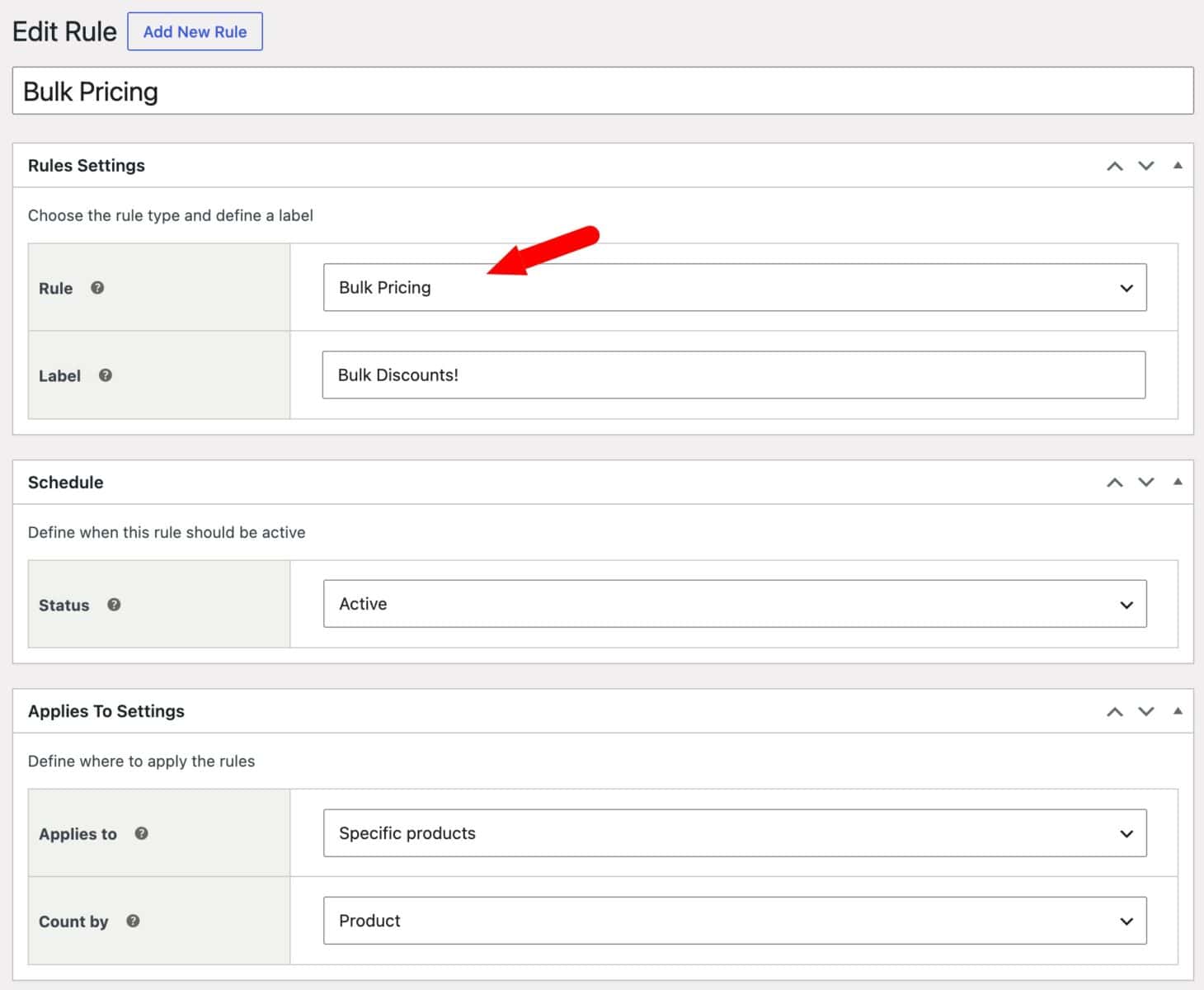
The fields shown further down the screen change depending on which rule type you choose. The subsections below cover the settings specific to each one.
Step #5: Add a label
Enter some optional text in the ‘Label’ field to advertise the offer, e.g. ‘Buy one get one half price’. This label can appear on the product’s price display.
Step #6: Set who the rule applies to
Use the ‘Applies to’ setting to choose whether the offer applies to all items, specific categories, or specific products. If you choose ‘Specific categories’ or ‘Specific products’, a new field appears where you select which ones are eligible.
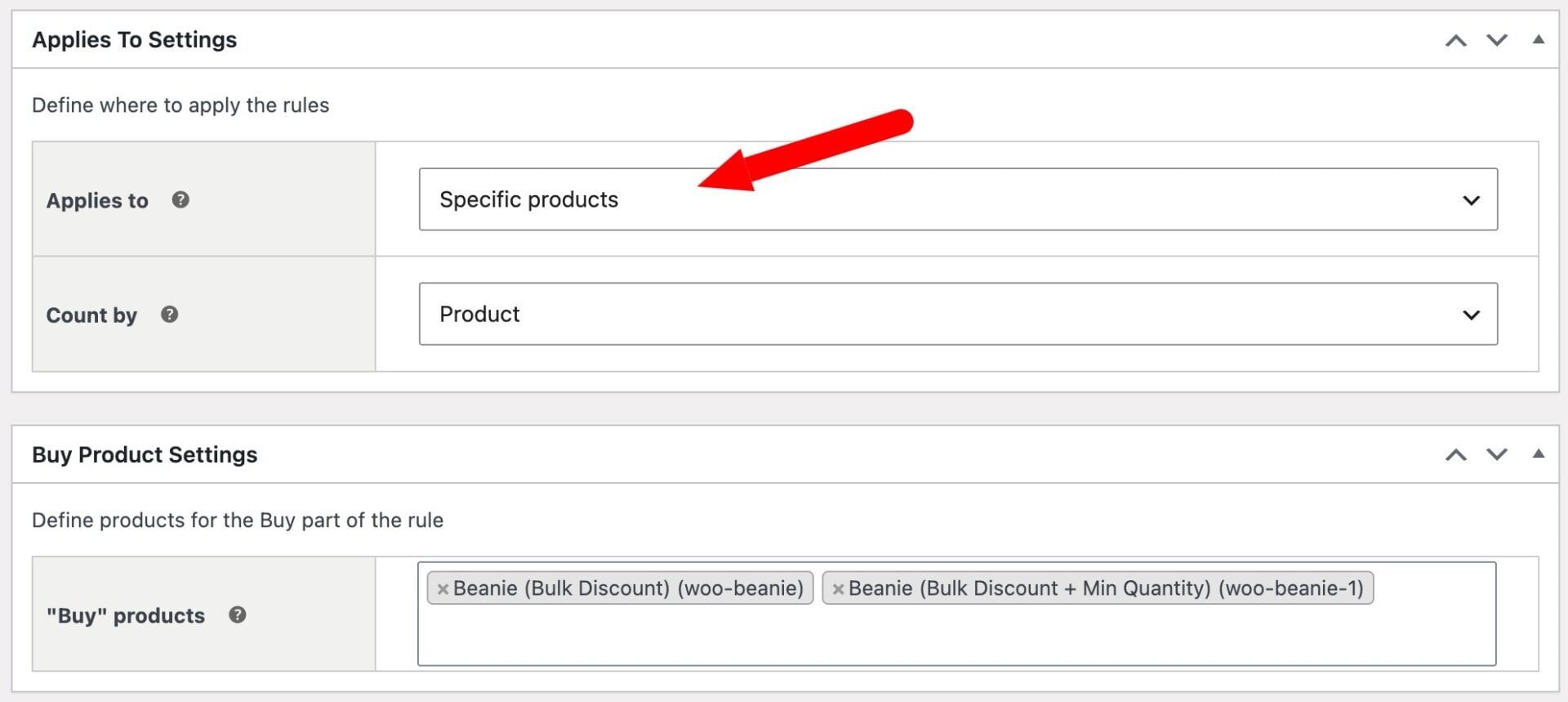
The ‘Count by’ setting then defines how items are counted to trigger the offer. Choose ‘All’ to total every item in the cart together, or ‘Product’ to check totals on a product-by-product basis. For example, in a ‘buy three, get one free’ offer, a customer with one banana, one apple, and one peach in their cart qualifies if ‘Count by’ is set to ‘All’, but doesn’t qualify if it’s set to ‘Product’, because no single product reaches a quantity of three.
Step #7: Restrict by role (optional)
If you want the rule to apply only to certain customers, add one or more roles to the ‘Roles’ field. You can also exclude roles – for example, leave ‘Roles’ empty to offer 10% off to everyone, then add ‘Wholesale’ to ‘Exclude roles’ so wholesale customers don’t receive it too.
Step #8: Set the discount amount
For Simple, Buy X Get X, Buy X Get Y, and Spend X Get Y rules, choose an ‘Adjustment type’ – fixed discount, percentage discount, fixed fee, or percentage fee – then enter the ‘Amount’. Depending on the adjustment type you choose, this will be a price value or a percentage.
Step #9: Schedule the rule
Set the rule’s status to Active to switch it on immediately, Paused to save the settings without applying them yet, or Scheduled to set start and stop dates and times.
Save the rule. It will now run automatically according to the settings you’ve chosen.
Simple discount settings
For a Simple rule, set the ‘Adjustment type’ and ‘Amount’ as described in Step #8, then choose which products it applies to in Step #6. No further settings are needed.
Bulk and tiered pricing settings
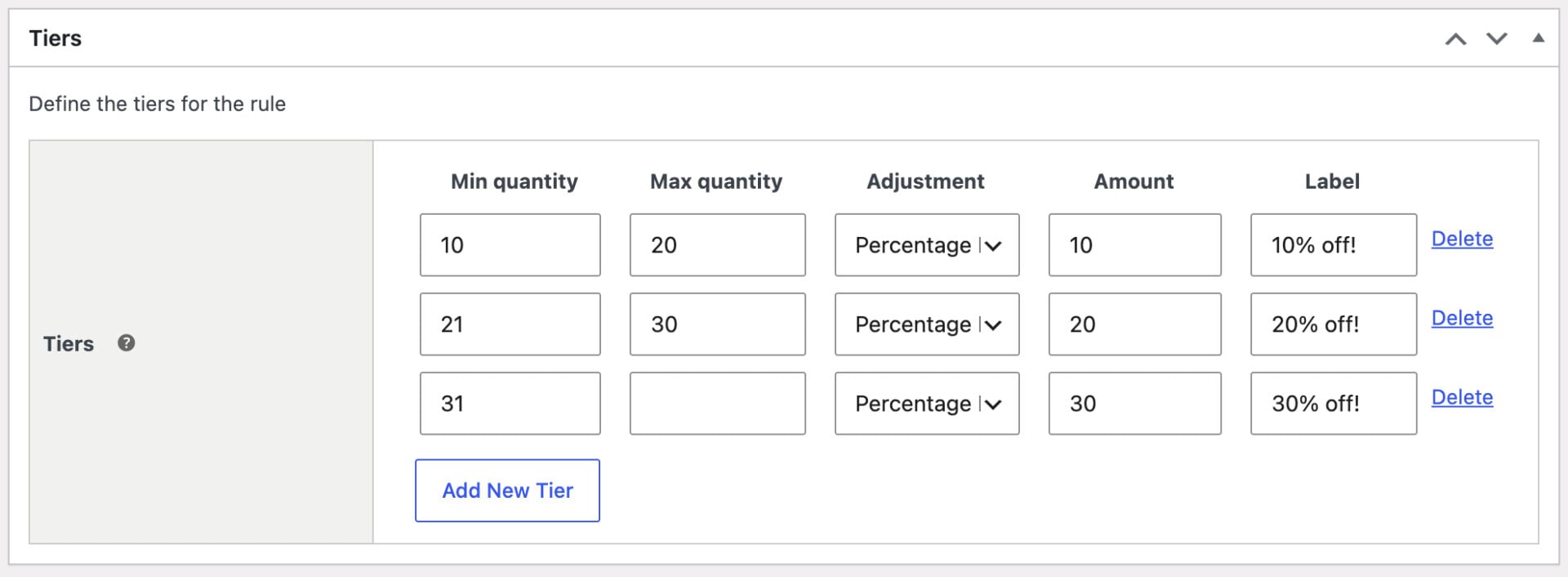
Choose ‘Bulk Pricing’ as the rule type to reveal the ‘Tiers’ section, where you create pricing tiers based on the quantity of product in the cart. Each row defines a quantity range and an adjustment.
Set the ‘Adjustment’ field to fixed discount, percentage discount, fixed fee, or percentage fee for a standard bulk discount, or choose ‘Tiered’ if you want to set a fixed price per unit at each quantity level instead of a percentage or fixed amount off. When you choose ‘Tiered’, the value you enter for each row is the actual product price for that tier, not a discount amount.
BOGOF (Buy X Get X) settings
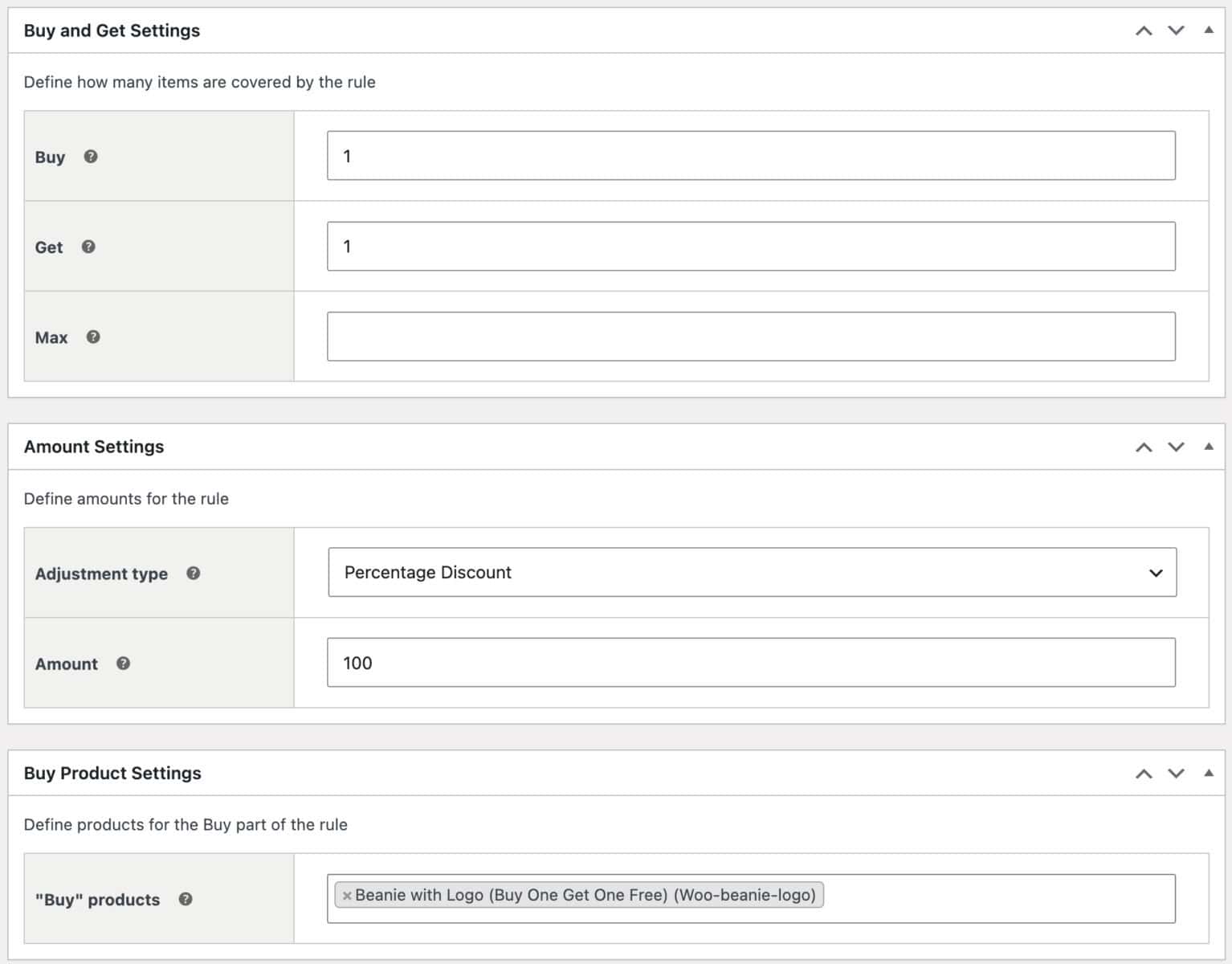
Choose ‘Buy X Get X’ as the rule type to reveal the ‘Buy’ and ‘Get’ fields. Enter how many items the customer needs to purchase in ‘Buy’, and how many items will be discounted in ‘Get’.
Use ‘Max items’ to cap how many products can qualify for the discount, or leave it at 0 for an unlimited number of qualifying items.
If you like, you can also automatically add the free product(s) to the cart. Just enable ‘Automatically add BOGO products’ in WooCommerce > Settings > Fees and Discounts > Dynamic Pricing.
Buy X Get Y settings
Choose ‘Buy X Get Y’ as the rule type to reveal the same ‘Buy’ and ‘Get’ fields as BOGOF, along with ‘Buy categories’ or ‘Buy products’ and ‘Get categories’ or ‘Get products’, depending on what you selected in ‘Applies to’. These let you define which products trigger the offer, and which products the discount is drawn from.
Spend X Get Y settings
Choose ‘Spend X Get Y’ as the rule type, then set the ‘Adjustment type’ and ‘Amount’ as in Step #8 to define the reward once the spend threshold is reached. Use ‘Applies to’ to restrict which products count towards the spend, and which products the reward applies to.
Buy X for Y amount settings
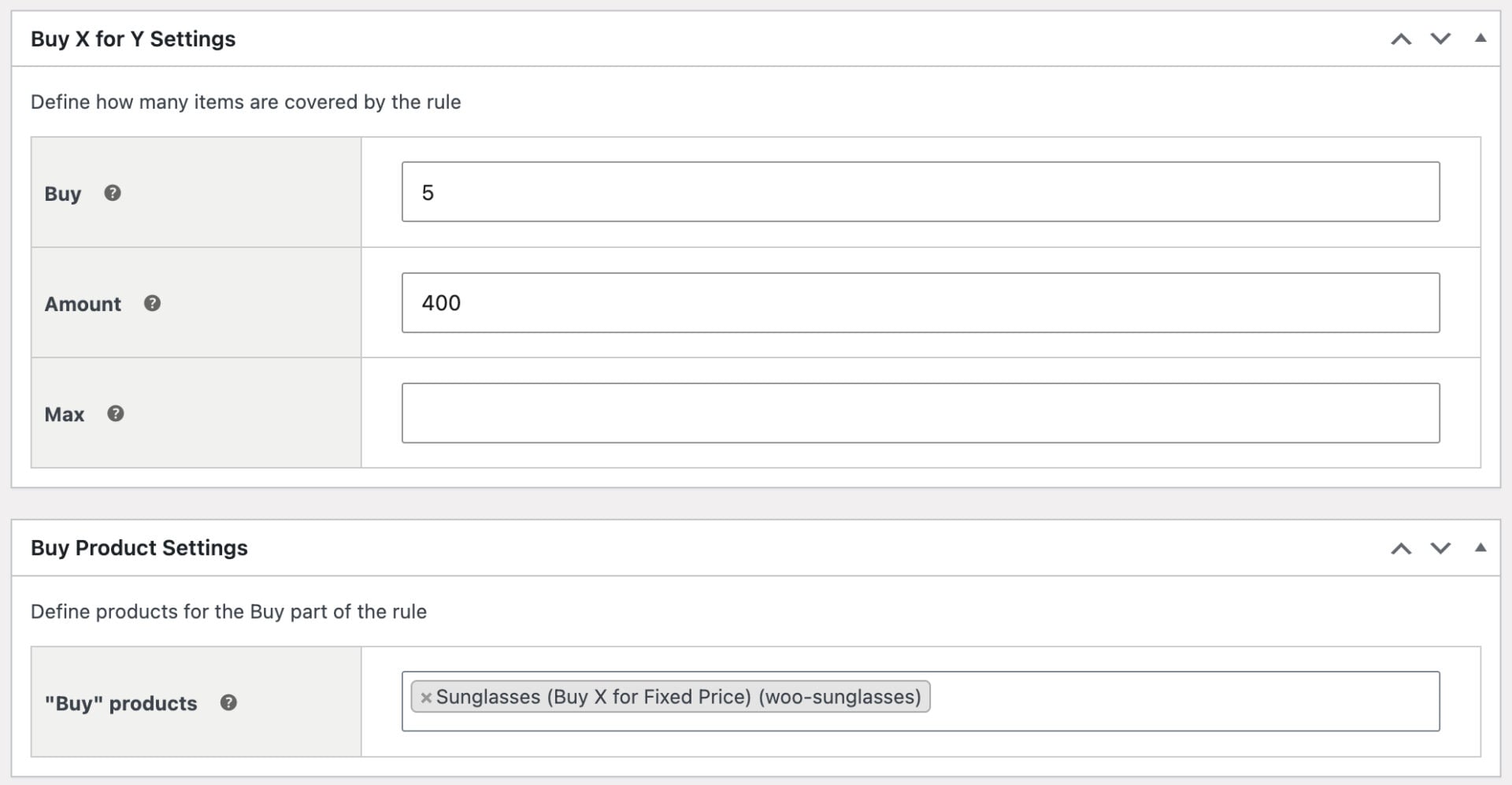
Choose ‘Buy X for Y Amount’ to create a bundle discount. Set how many items are required and the fixed price the customer pays for that quantity.
Discount on spend settings
Choose ‘Discount on Spend’ as the rule type, then use the ‘Applies to’ setting to define which products or categories the spend is calculated on. Set the ‘Adjustment type’ and ‘Amount’ to define the discount once the spend threshold is met.
Discount on cart total settings
Choose ‘Order Total’ as the rule type to create tiers based on the overall cart value, in the same way as bulk pricing tiers are based on quantity. Each tier defines a cart total threshold and the discount or fee that applies once it’s reached.
Discount on purchase history settings
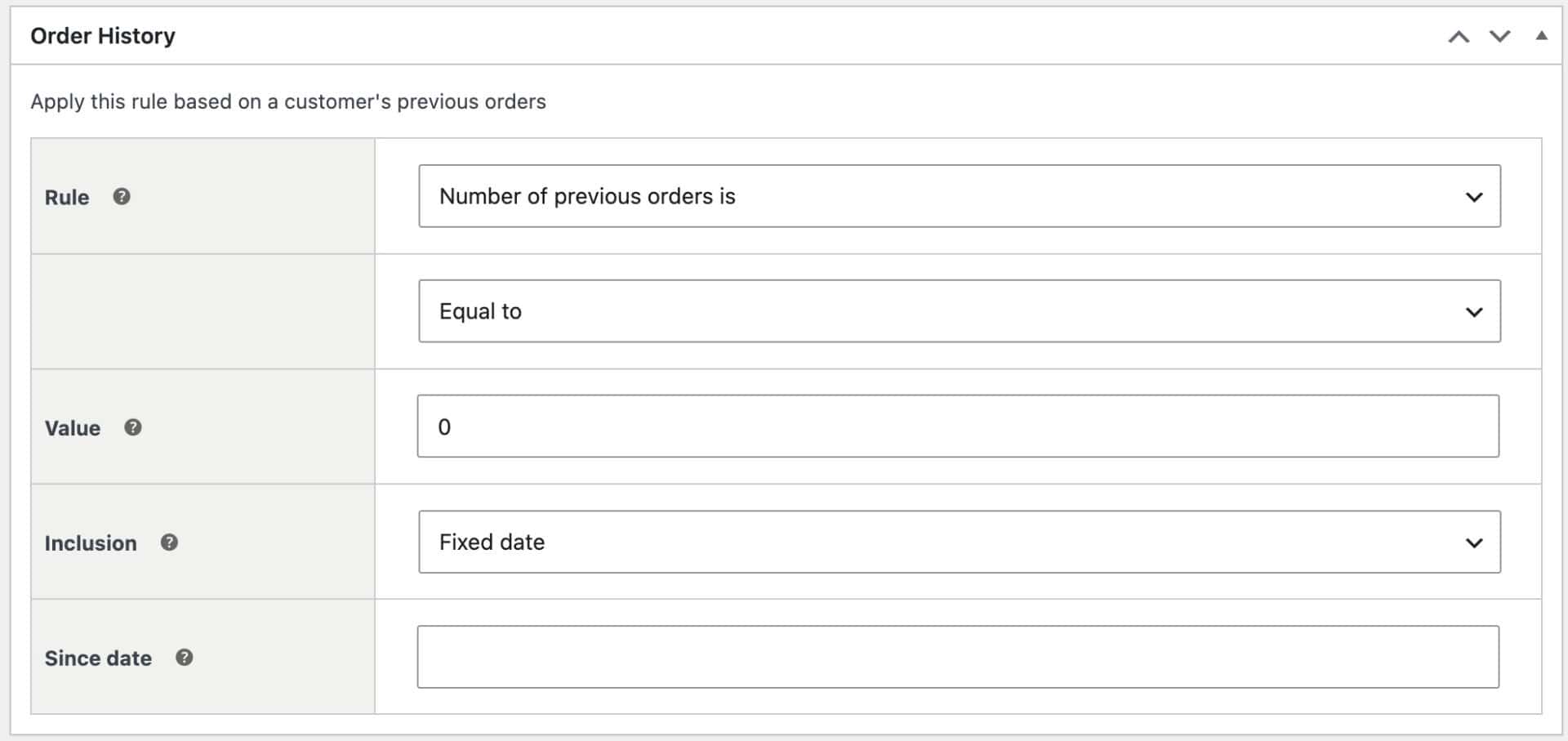
Use the ‘Order History’ section, available within the rule types above, to set conditions based on a customer’s previous orders on your store. This lets you build offers like a discount on a customer’s first order, or a reward once they’ve placed a set number of previous orders.
How to display discount rules on the front end
Once a rule is active, you’ll usually want to make sure customers actually notice it. Dynamic Pricing and Discount Rules gives you three ways to promote a discount on the front end: price formatting, messages, and notices.
How to format discounted prices
Go to WooCommerce > Settings > Fees and Discounts > Dynamic Pricing to control how discounted prices are displayed. The ‘Price format (product page)’ setting offers three options:
- Discounted price only: just the discounted price is shown
- Original with strikethrough and discounted price: the discounted price is shown next to the crossed-out original price, in the same style as a standard WooCommerce sale
- Range: a price range is shown, e.g. ‘from $10 to $15’, with a free text field to add supporting copy
Check ‘Display original price (cart)’ to show the same strikethrough treatment on the cart page.
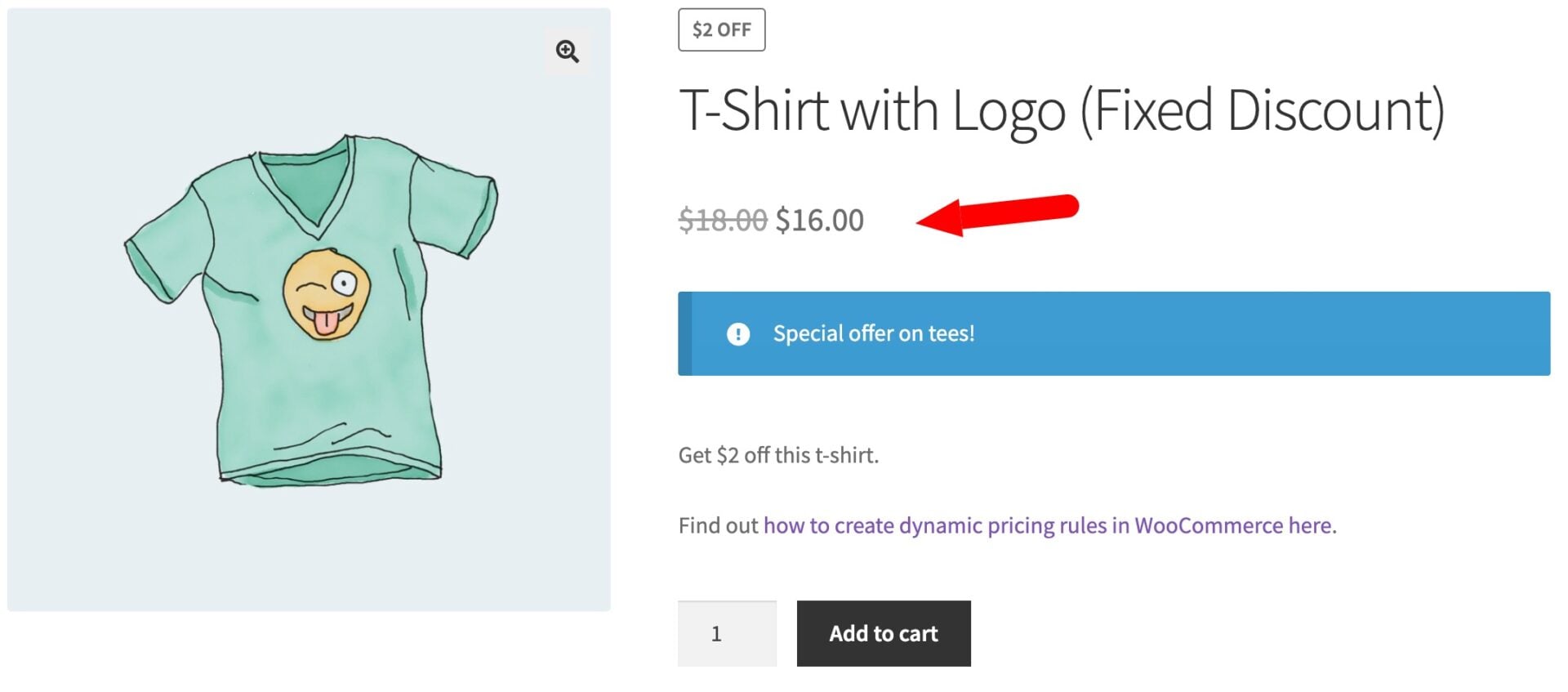
You can also enable ‘Add Sales flash’ to show the standard WooCommerce sale badge on discounted products, or set it to ‘Replace with label’ to show your rule’s ‘Label’ text on the badge instead.
Messages
The ‘Message’ field lets you add text to a product’s short description to let customers know about a deal before they’ve added anything to their cart. The message is styled to match your theme automatically.
Notices
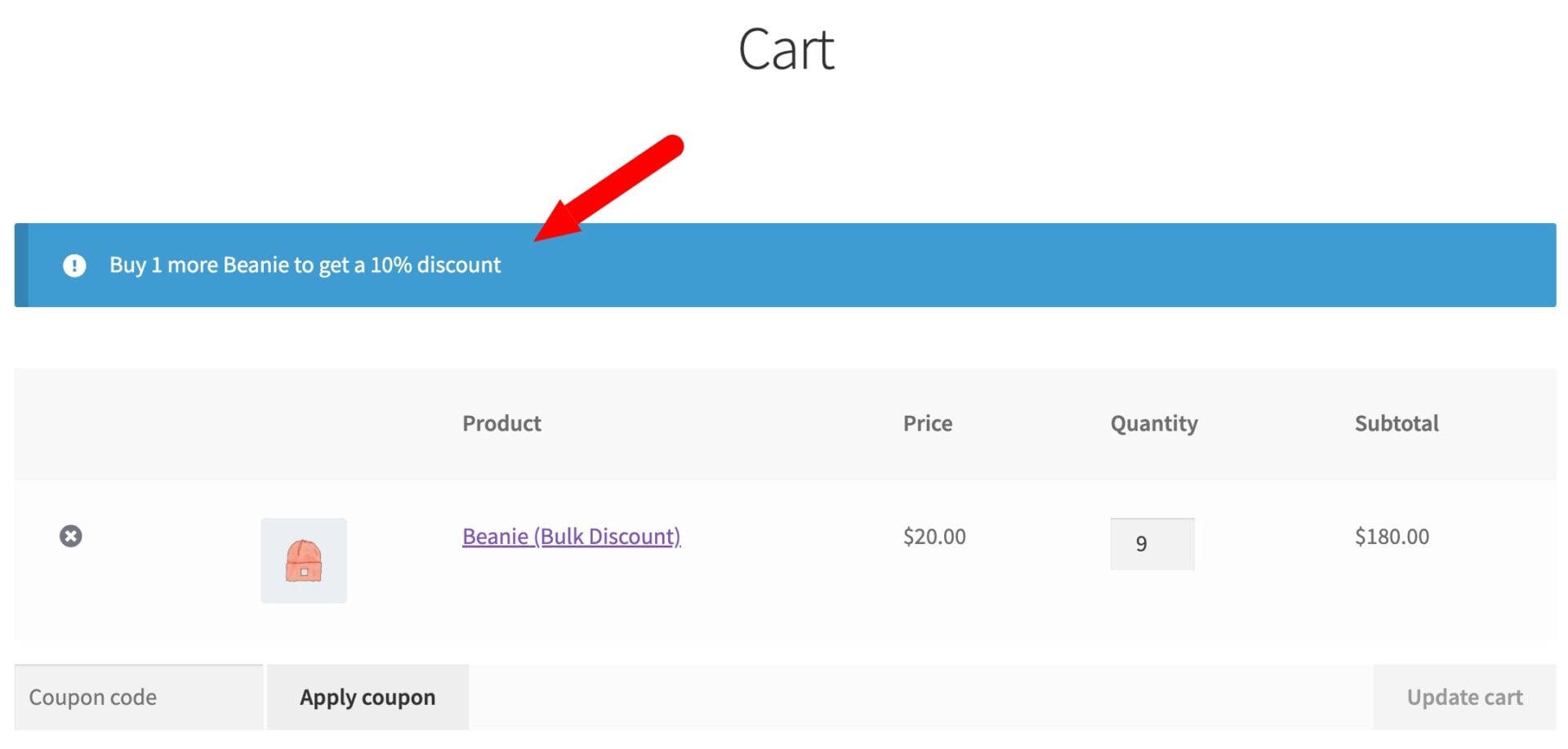
Notices appear after a customer has added a product to their cart, to tell them how many more items they need to add, or how much more they need to spend, to qualify for a deal. Notices can include dynamic tags that update automatically:
{amount}– the additional amount the customer needs to spend to qualify{quantity}– the additional quantity the customer needs to add to qualify{discount}– the value of the discount available{label}– the text entered in the rule’s ‘Label’ field{products}– a list of the products that qualify for the deal{categories}– a list of the categories that qualify for the deal
You can enable notices per rule, and set default notice content for all your rules in WooCommerce > Settings > Fees and Discounts > Notices.
Discounted cart line items
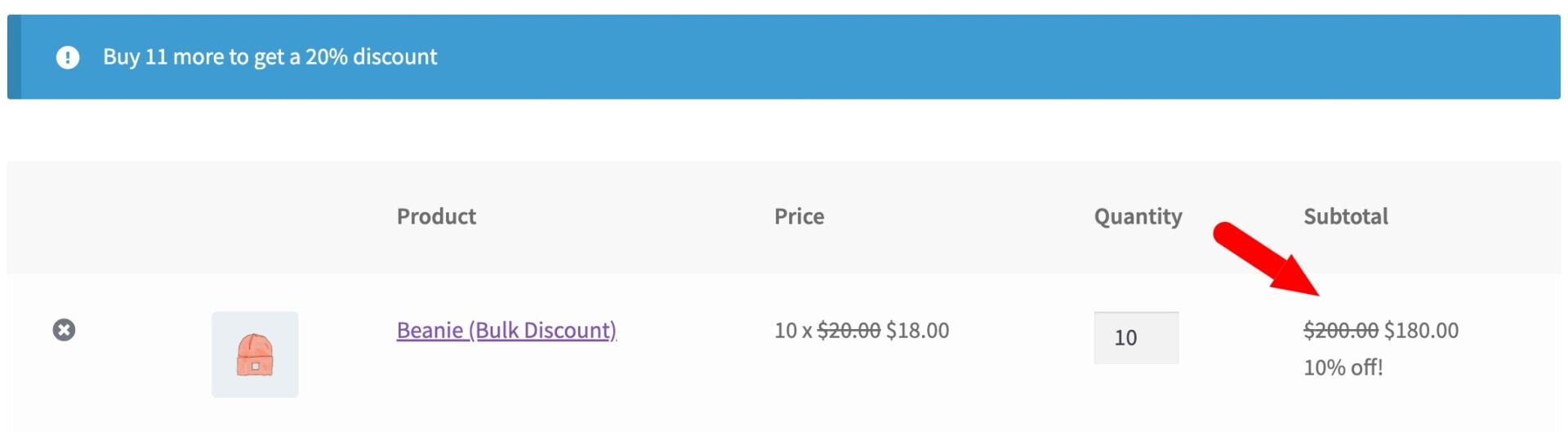
When a customer qualifies for a discount, the discounted price is displayed in the cart next to the original price with strikethrough.
Combining and prioritizing discount rules
You’re not limited to running one discount rule at a time. Dynamic Pricing and Discount Rules lets you run multiple rules simultaneously, and even apply more than one to the same product.
A few things to know about how rules interact:
- Only one discount of each rule type can apply to a given product. For example, only one ‘Simple’ discount can apply to a product at a time
- If multiple rules of the same type could apply to the same product, only the highest-priority rule takes effect
- Different rule types can apply together. For example, a 10% ‘Simple’ discount on everything in ‘Clothing’ and a ‘Buy two t-shirts, get one half price’ offer can both apply to the same product at once
- Rules that adjust the product price, like ‘Simple’ or ‘Bulk Pricing’, can apply alongside rules based on spend, like ‘Order Total’ or ‘Discount on Spend’
You can view every rule and its current status at WooCommerce > Fees and Discounts. To change priority, drag and drop rules into a new order using the ‘Sort’ icon in the ‘Priority’ column – the higher up the list, the higher the priority.

I wanted something that offered bulk discounts and something that offered discounts to specific user roles throughout my site. The Dynamic Pricing and Discount Rules plugin fixed both of my problems with one plugin.
Discount rules for WooCommerce – recap
So that’s a breakdown of all 10 discount rule types available for WooCommerce, how to set each one up, and how to display and prioritize them on your store using WooCommerce Dynamic Pricing and Discount Rules.. Between quantity tiers, spend thresholds, BOGO offers, and role-based pricing, most stores will find a combination that fits without needing a single coupon code.
WooCommerce Dynamic Pricing and Discount Rules is compatible with all themes and page builders, including Astra, Flatsome, and Woodmart, and page builders like Elementor and Divi. If you have any questions, our world-class support team is on hand to help. And it’s backed by a 14-day money-back guarantee, so you can try it risk-free.
WooCommerce Dynamic Pricing and Discount Rules
Help your customers spend more