How to set wholesale and B2B prices in WooCommerce

You can show trade, wholesale and retail customers different prices from the same WooCommerce store, with each customer seeing their own price as soon as they log in. But because WooCommerce only gives each product a single price, you’ll need an extra plugin to do this.
In this tutorial, we’ll show how to use the WooCommerce Wholesale & B2B Plugin Bundle to set storewide discounts, fixed trade prices and pricing tiers for your business customers.
And, if you’re wondering whether you need this for your business, 83% of B2B buyers prefer ordering or paying through digital commerce, according to a Gartner survey of 725 buyers.
After completing this tutorial:
- Business customers will be able to:
- Log in and see their own price on product pages, shop pages and in the cart
- See quantity breaks before they order
- Check out without tax if they’re tax-exempt
- As the store owner or admin, you’ll be able to:
- Set a storewide discount for each type of business customer
- Set fixed trade prices for individual products, variations and accounts
- Run several wholesale tiers from the same catalog
- As a bonus, we’ll also look at how to:
- Set B2B prices from cost of goods
- Show retail prices alongside trade prices
- Let business customers request a quote
What’s the difference between wholesale and B2B pricing?
Wholesale pricing is usually volume-led: resellers buy in bulk and pay less per unit than retail customers. B2B pricing is broader and might include negotiated rates for individual accounts and tax-exempt business buyers.
What do you need to set wholesale and B2B prices in WooCommerce?
The WooCommerce Wholesale & B2B Plugin Bundle lets you set different prices for different customers from a single catalog. It’s compatible with all themes and page builders.
With the bundle, you can:
- Set prices by user role, individual customer or email domain, so you can define prices for a whole company at once
- Give each role a storewide discount, or enter fixed trade prices and sale prices for individual products and variations
- Choose from ten types of pricing rule, including tiered and bulk pricing with a pricing table on the product page
- Set wholesale prices as a markup on cost of goods, or reward customers based on their order history
- Exempt business customers from tax by role and show them your retail price alongside their trade price
- Hide prices from guests and approve trade accounts before they can see your wholesale prices
- Apply trade prices to product options and lookup tables when you pair it with Product Add-Ons Ultimate, available separately
The bundle includes three plugins. In this tutorial, we’ll mainly use two of them:
- Members Only to create user roles for your trade and wholesale customers
- Dynamic Pricing and Discount Rules to set what each role pays
The third plugin, Product Table Ultimate, adds bulk order forms. If you’re setting up the rest of a B2B store, including registration, catalog restrictions, order forms and buying teams, there’s a complete WooCommerce B2B guide here.
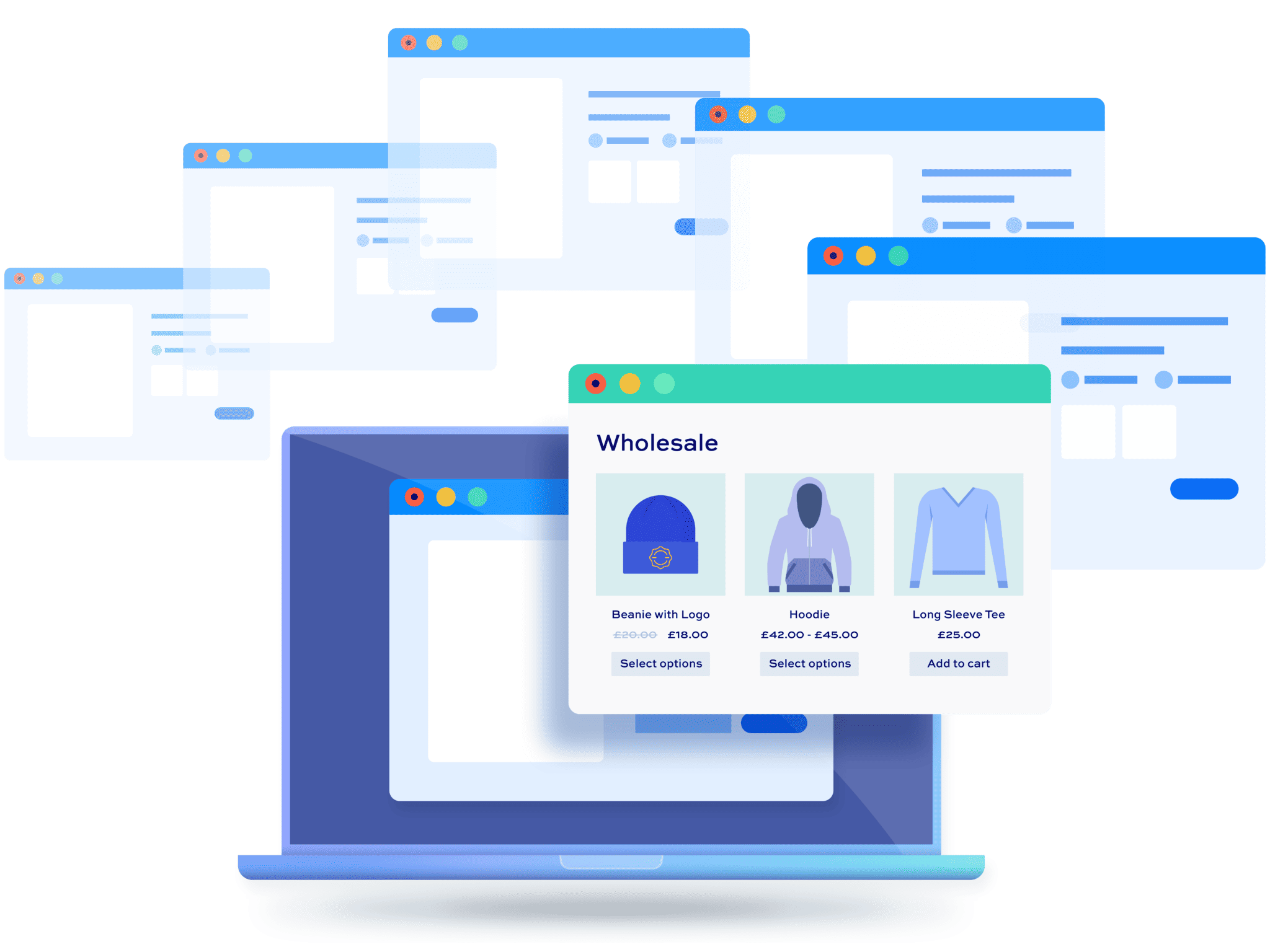
WooCommerce Wholesale & B2B Plugin Bundle
Create a wholesale or B2B store in WooCommerce
For further B2B functionality, WooCommerce Minimum Maximum Quantity and Order is available separately from the bundle. It sets minimum or maximum quantities and order values by product, category or user role.
In this tutorial, we’ll assume that you already have WordPress and WooCommerce installed and ready to go.
What are the steps to set wholesale and B2B prices?
Here’s how to set up wholesale and B2B pricing with the Wholesale & B2B Plugin Bundle.
- Step #1: Install the Wholesale & B2B Plugin Bundle Upload and activate each plugin in the bundle from your WordPress dashboard.
- Step #2: Create user roles for your business customers Add a role for each group of customers you want to price differently, such as ‘Trade’ or ‘Wholesale Gold’.
- Step #3: Choose how to set your B2B prices Set a global discount for each role, create pricing rules for different customers and products, enter fixed trade prices for simple products and variations or price by email domain.
Here’s each step in more detail.
Step #1: Install the Wholesale & B2B Plugin Bundle
Once you’ve purchased the Wholesale & B2B Plugin Bundle:
- Download the plugins’ zip files by clicking on the links on your order confirmation screen or in your welcome email. You’ll receive the email automatically a few seconds after you’ve completed the purchase
- Go to Plugins > Add New in your WordPress dashboard
- Click on the ‘Upload Plugin’ button
- Drag and drop the first plugin’s zip file into the ‘Choose File’ area and click ‘Install Now’
- When the plugin has uploaded, click the ‘Activate Now’ button
- Repeat for the other plugins in the bundle
With the plugins activated, you can create roles for your business customers.
Step #2: Create user roles for your business customers
Create a separate user role for each group of business customers you want to price differently. WooCommerce comes with a single ‘Customer’ role, which your retail customers will keep.
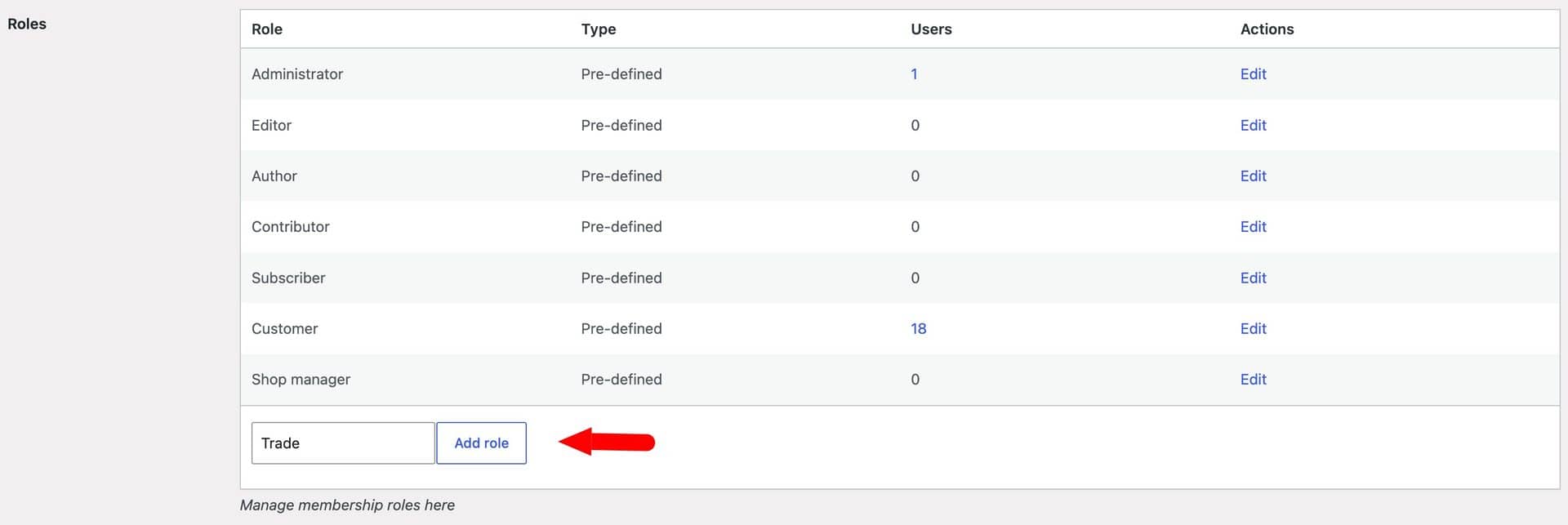
- Go to Members Only > User Roles
- Enter the name of your new role in the ‘Roles’ field, e.g. ‘Trade’
- Click ‘Add role’
Repeat this for each pricing tier you need, such as ‘Wholesale Silver’ and ‘Wholesale Gold’.
To check new business accounts before they see your prices, tick the ‘Needs Approval’ column against the role at Members Only > Registration. There’s a full tutorial on approving new user registrations here.
You now have a role for each type of business customer. Now let’s set what they pay.
Step #3: Choose how to set your B2B prices
There are five ways to set prices for your business customers. You can:
- Set a blanket discount for each role across your whole catalog
- Create pricing rules that give different customers different discounts on different products
- Enter fixed trade prices for simple products
- Enter fixed trade prices for variations
- Set prices for everyone at a company by their email domain
Or you can apply a combination of all five. Let’s look at each one in turn.
Option #1: Set a global discount by user role
If a user role gets the same rate across your whole catalog, you can use a global discount. For example, trade customers might get 10% off every product.
- Go to WooCommerce > Settings > Fees and Discounts
- Check the ‘Enable User Role Pricing’ option and click ‘Save changes’
- Click the ‘User Role Pricing’ tab
- Select a percentage or fixed adjustment for each role in the ‘Adjustment’ field and enter the amount in the ‘Amount’ field
- Click ‘Save changes’
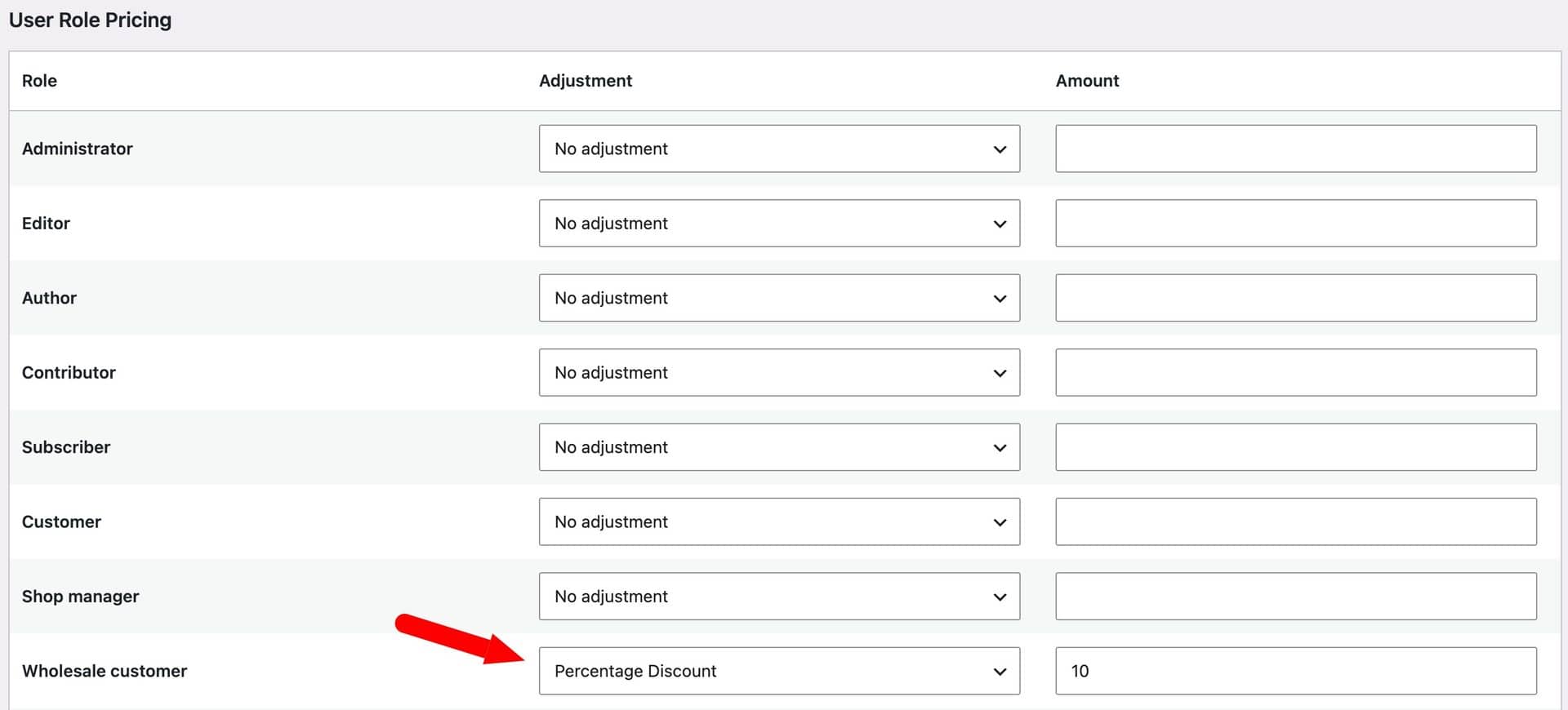
Log in with a test account for the role and you’ll see the adjusted price on product pages, shop pages and in the cart. Retail customers and guests still see your standard prices.
Option #2: Create pricing rules for different customers and products
If different customers should get different discounts on different products, you can use pricing rules. For example, trade customers might get 10% off consumables and 15% off equipment, while a hotel group with negotiated terms gets a deeper discount than your other trade accounts.
- Go to WooCommerce > Fees and Discounts and click ‘Add New’
- Select a rule type in the ‘Rule Settings’ section, e.g. ‘Simple’ for a straightforward percentage or fixed discount
- Choose who the rule applies to: one or more roles, or individual customers in the ‘Users’ setting
- Choose which products the rule applies to: all products, specific categories or specific products
- Publish the rule
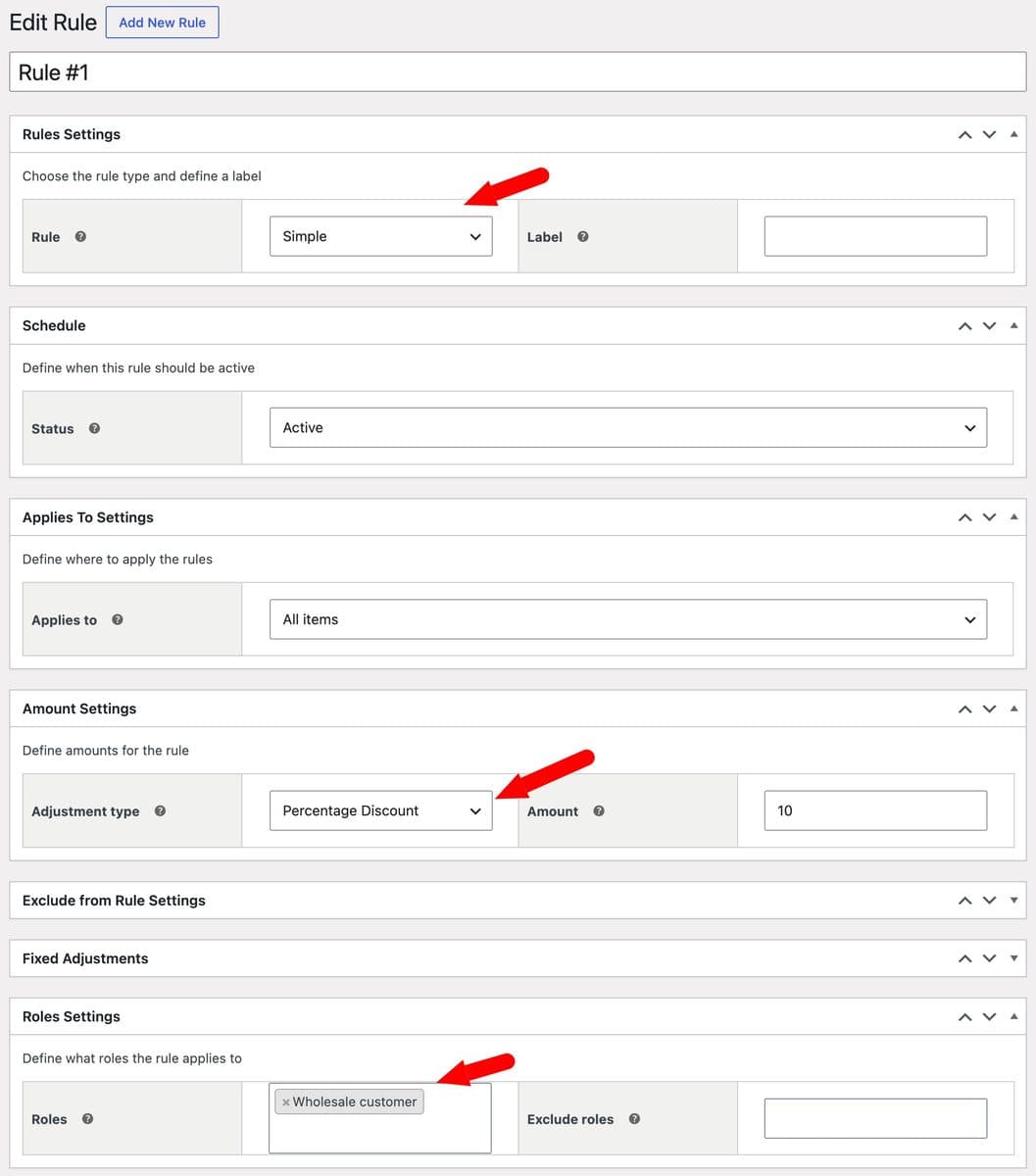
Create as many rules as you need. Each rule only applies to the customers and products you selected, so everyone else keeps their standard price.
Option #3: Set fixed trade prices for simple products
If you need more flexibility than a blanket percentage discount, you can set a fixed price per product – e.g. for items with tight margins or agreed trade list prices.
- Go to WooCommerce > Settings > Fees and Discounts and make sure the ‘Enable User Role Pricing’ option is checked
- Click the ‘User Role Pricing’ tab
- Enter the roles that need their own price fields in the ‘Role Price Fields’ setting
- Click ‘Save changes’

Edit any product and you’ll see an extra price field for each role you entered. Enter the trade price, and optionally a role-based sale price if you want to run a trade-only promotion.
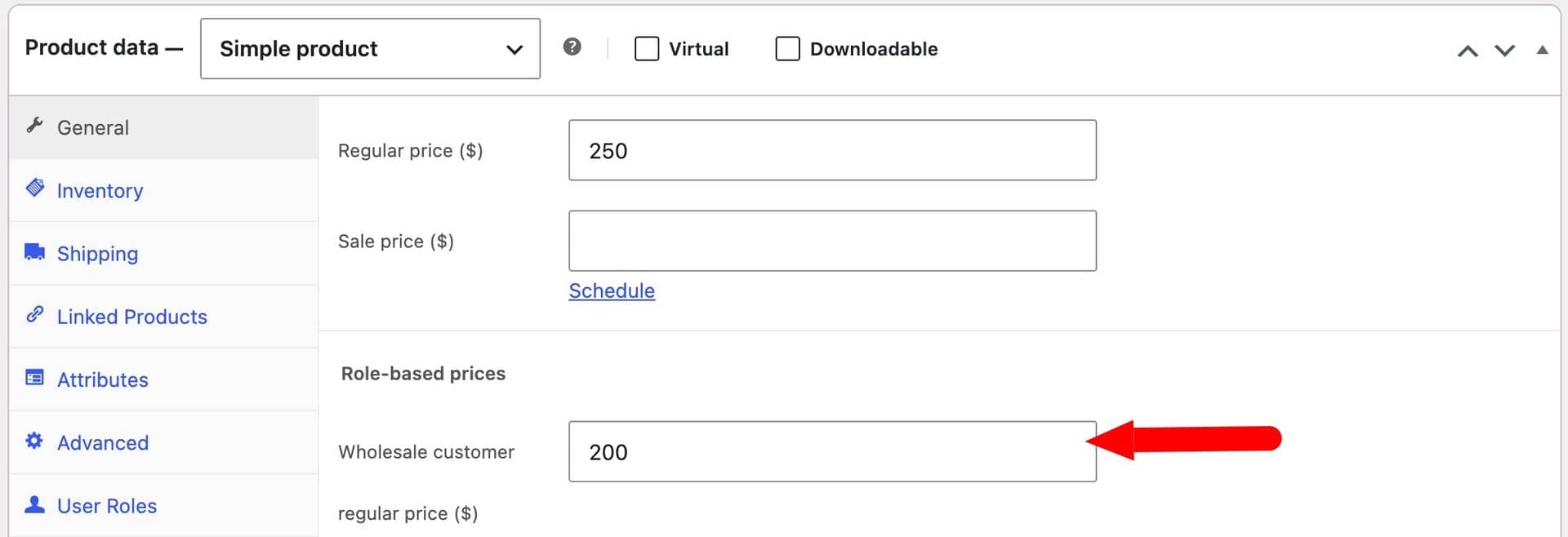
Update the product. Trade customers now pay the fixed price you entered for that item.
Option #4: Set fixed trade prices for variations
Global discounts and pricing rules also apply to variable products and their variations. If you need a fixed trade price for each variation, you can enter one in the same way as for simple products. For example, a countertop supplier might charge trade customers different rates for granite and marble in the same size.
- Go to WooCommerce > Settings > Fees and Discounts > User Role Pricing
- Check the ‘Role-based prices for variations’ option
- Make sure your roles are listed in the ‘Role Price Fields’ setting and click ‘Save changes’
Open the ‘Variations’ tab in the ‘Product data’ section of a variable product. Each variation now has a price field for each role, so you can enter its trade price and update the product.
Your trade customers now see the right price for whichever variation they select.
Option #5: Set prices by email domain
If everyone at a company should get the same price, you can define a pricing rule by email domain instead of user role. For example, a rule for @acmehotels.com would apply to every buyer who registers with an Acme Hotels email address, without you assigning each one a role.
- Go to WooCommerce > Fees and Discounts and click ‘Add New’
- Select a rule type in the ‘Rule Settings’ section and set the discount
- Enter the company’s email domain as the customers the rule applies to
- Choose which products the rule applies to and publish the rule

New buyers from that company get the right price as soon as they log into the site.
That’s how to set wholesale and B2B prices in WooCommerce. Now let’s look at how to build pricing tiers.
How do you create B2B and wholesale pricing tiers?
Pricing tiers give your biggest customers better rates. Here’s an example structure:
| Customer type | Role | Price |
|---|---|---|
| Retail | Customer | Full price |
| Trade | Trade | 10% off |
| Wholesale Silver | Wholesale Silver | 15% off |
| Wholesale Gold | Wholesale Gold | 20% off, plus quantity breaks |
For example, a product that retails at $50 would cost a Wholesale Gold customer $40. An order of 12 would come to $480 before any quantity breaks apply.
Option #1: Set tiers by role
Create a role for each tier in Step #2, then give each role its own adjustment rule using Option #1 in Step #3. This is the quickest way to run several tiers across your whole catalog. It’s perfect if each user role has a specific discount across all your products – e.g. all ‘Wholesale Gold’ customers get a 15% discount, all ‘Wholesale Silver’ get a 10% discount, etc.
Option #2: Add quantity breaks for B2B roles
Create a rule that lowers the price as quantities increase and scope it to your business roles. Quantity breaks combine with role-based pricing, so a wholesale customer gets bulk discounts on top of their role’s rate.
- Go to WooCommerce > Fees and Discounts and click ‘Add New’
- Select ‘Bulk Pricing’ in the ‘Rule Settings’ section
- Enter your business roles in the rule’s roles setting
- Add a tier for each quantity break, e.g. 10 or more units and 50 or more units
- Publish the rule
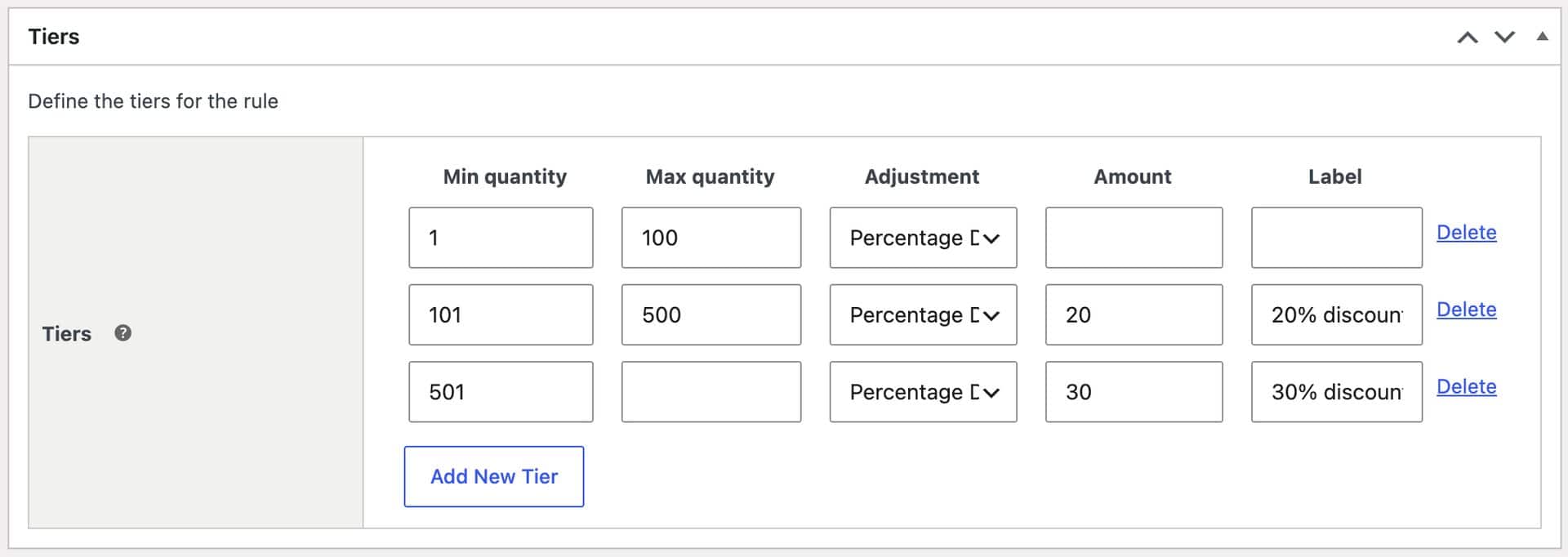
You can also display the tiers in a pricing table on the product page, so buyers can see what they’d pay at each quantity.
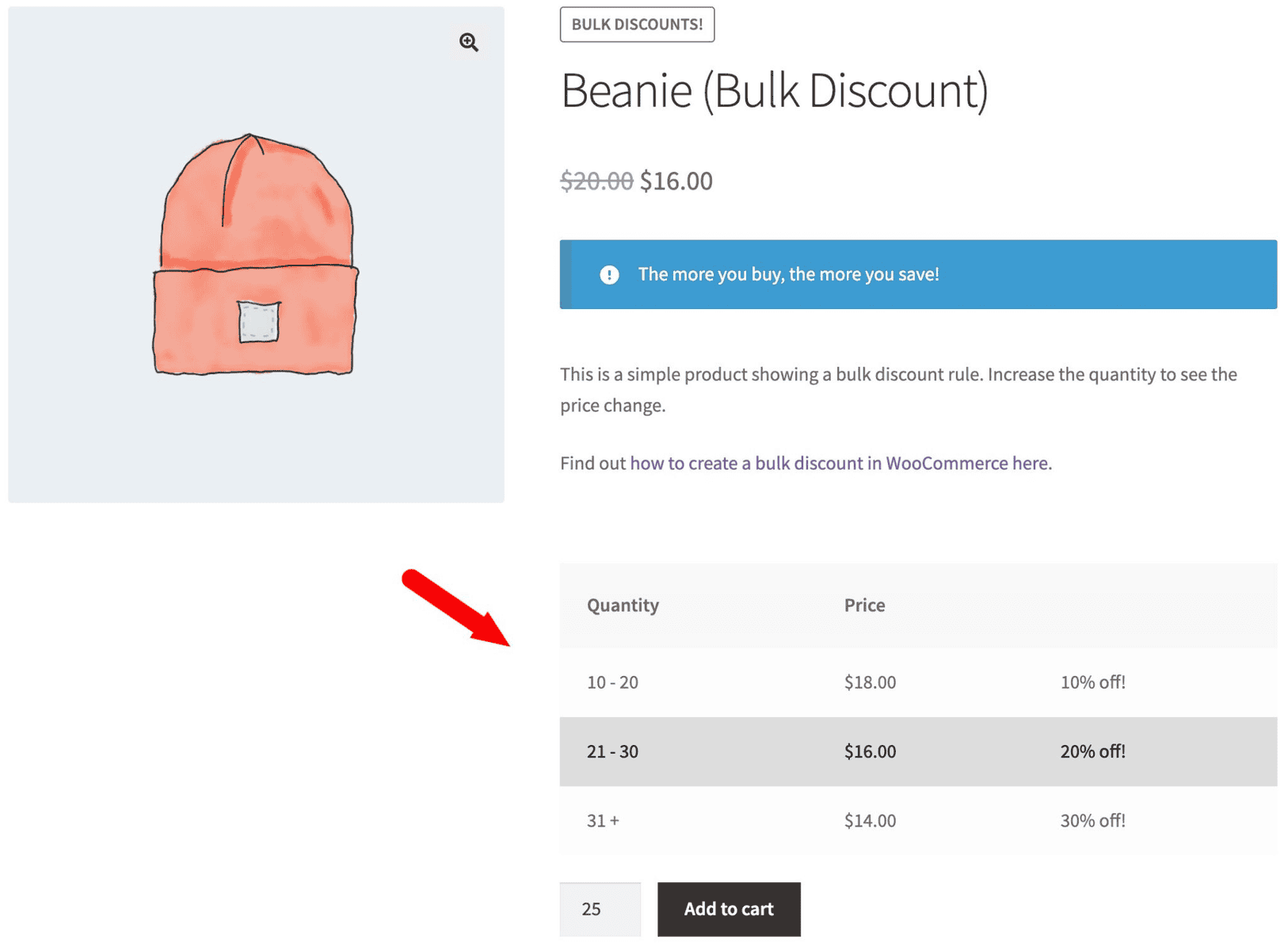
There’s more detail on tiered pricing rules here.
Option #3: Set different B2B discounts per category
Apply a discount rule to specific categories instead of your whole catalog. For example, trade customers might get 10% off consumables but 15% off equipment.
Create a separate rule for each category and select the roles it applies to. This lets you protect margins on lines where you can’t afford a deeper discount.
Which businesses need B2B and wholesale pricing?
Most stores that sell to other businesses need more than one price per product. Here are three common setups.
Example #1: Trade-only distributors with several buyer tiers
A janitorial supplies distributor might sell only to businesses, with independent cleaners on the ‘Trade’ role and facilities management companies on ‘Wholesale Gold’. Every visitor needs an account, and each tier sees its own price.
Example #2: Brands selling retail and B2B from one store
A coffee roaster can sell bags of beans to the public at full price while cafés buy the same beans at trade rates. Retail visitors never see the trade price, and the roaster only maintains one catalog.
Example #3: Suppliers with negotiated contract accounts
A workwear supplier might agree an annual rate with a construction firm. A pricing rule for that customer from Step #3 gives that firm its contract price without changing prices for other trade customers.
Bonus #1: Set B2B prices from cost of goods
Base wholesale prices on cost rather than retail price if you work to a fixed margin. Dynamic Pricing and Discount Rules can calculate a rule’s adjustment from a product’s cost of goods instead of its regular price.
The plugin supports WooCommerce’s built-in Cost of Goods Sold feature, which you can enable at WooCommerce > Settings > Advanced > Features. It also works with the Cost of Goods for WooCommerce plugin.
Set the rule’s ‘Based on’ setting to use cost of goods, then enter your markup. Use the ‘When Cost of Goods is empty’ setting to choose whether products without a cost skip the rule or fall back to the regular price. There’s a full guide to setting prices using cost of goods here.
Bonus #2: Exempt B2B customers from tax
Remove tax for business customers who are tax-exempt so they see the correct price throughout your store.
- Go to WooCommerce > Settings > Fees and Discounts > Tax
- Enter the roles you want to exempt in the ‘Tax Exempt Roles’ field
- Click ‘Save changes’

Customers with those roles now see tax-free prices. Check each customer’s exemption status before you assign them the role.
Bonus #3: Show retail prices alongside trade prices
Show your retail price next to the trade price so business customers can see their saving and price their own stock. Go to WooCommerce > Settings > Fees and Discounts > User Role Pricing and check the ‘Display each role prices’ option.
Each role’s price then appears in a list on the product page. You can style the list with CSS to match your theme.
Bonus #4: Hide prices until B2B customers log in
Hide prices from guests if your trade prices shouldn’t be public. Members Only can hide prices and the ‘Add to cart’ button from logged-out visitors, or hide wholesale-only products entirely.
There’s a step-by-step walkthrough in the catalog section of our WooCommerce B2B guide.
Bonus #5: Let B2B customers request a quote
Some B2B orders depend on negotiation rather than a fixed price. WooCommerce Request a Quote replaces ‘Add to cart’ with an ‘Add to quote’ button for the products, categories or roles you choose.
Once you’ve agreed a price, you can convert the quote into an order. Request a Quote isn’t part of the bundle and is available separately.
Bonus #6: Set B2B prices for product add-ons
Charge business customers a different rate for extras like engraving or printing with WooCommerce Product Add-Ons Ultimate. The plugin is available separately from the bundle.
- Go to WooCommerce > Settings > Product Add-Ons
- Enter your business roles in the ‘Role-based Pricing’ field
- Click ‘Save changes’
Each add-on field now has an extra price field for each role. For example, an engraving option could cost $50 for retail customers and $40 for wholesale buyers.
WooCommerce wholesale and B2B pricing – recap
So that’s how to set wholesale and B2B prices in WooCommerce. We looked at how to create roles for your business customers and set a storewide discount for each one. We then added fixed trade prices for products, variations and individual accounts and built pricing tiers with quantity breaks.
The WooCommerce Wholesale & B2B Plugin Bundle shows every business customer the right price automatically, from the first page they visit through to checkout.
The WooCommerce Wholesale & B2B Plugin Bundle is compatible with all themes and page builders, including Shoptimizer, Woodmart and Flatsome, and page builders like Elementor and Divi. If you have any questions, our world-class support team is on hand to help. And it’s backed by a 14-day money-back guarantee, so you can try it risk-free.
WooCommerce Wholesale & B2B Plugin Bundle
Create a wholesale or B2B store in WooCommerce