WooCommerce bookings vs WooCommerce appointments: what is the difference?
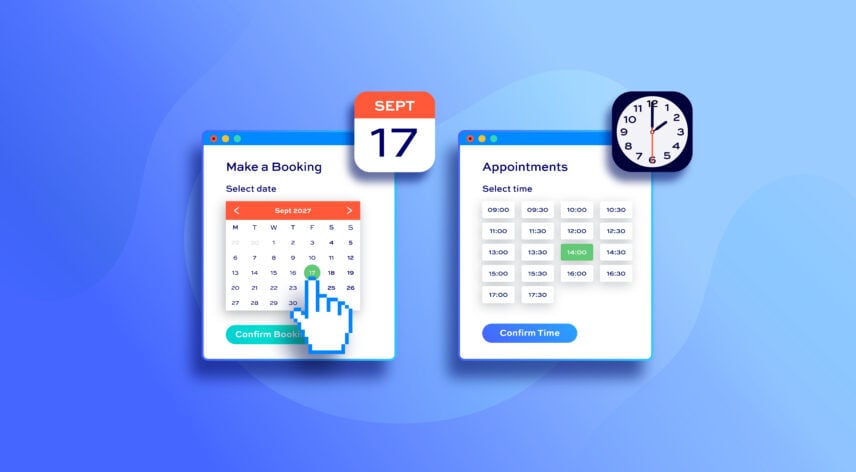
A booking reserves an item, space or service for one or more days, nights or weeks – for example, bike rentals, holiday lets or equipment hire. An appointment reserves a specific time slot on a specific day, often with a person or for a service – for example, haircuts, consultations or tutoring sessions.
Depending on your business, you might need to use one or both of these methods. WooCommerce doesn’t have a bookings or appointments feature itself – so you’ll need to find the best WooCommerce booking plugin for your needs. Bookings for WooCommerce allows you to accept date-based and time-based bookings and reservations online – making it ideal for both bookings and appointments.

Very easy to setup, and is the only plugin I found that allows you to set a stock level. Bookings for WooCommerce solved a problem I had for this client who needed to allow people to not only select the days, but also a number of people for those days.
In this article, we’ll look at:
- What bookings and appointments have in common
- What the differences are
- A side-by-side comparison of the two
- When to use bookings, appointments or both, with real business examples
- How to set up bookings and appointments in WooCommerce with a single plugin
And if you’re wondering whether it’s worth investing in online booking, a GetApp survey found that 94% of respondents would be more likely to choose a new service provider if that provider offered online booking.
Why do bookings and appointments look like the same thing?
Bookings and appointments look the same because both let customers pick a date from a calendar, reserve it and pay at checkout. That’s why lots of WooCommerce scheduling plugins use the two terms interchangeably.
What do bookings and appointments have in common?
Both types of WooCommerce calendar booking rely on:
- A calendar date-picker on the product page, so customers can see what’s available
- Availability rules, such as blocked dates, disabled days of the week and a notice period before bookings can start
- Capacity limits, so you never take more bookings than you can handle
- Payment through the standard WooCommerce checkout, using any payment gateway
- Automatic email notifications to confirm and remind customers about their booking
- A back-end view where you can manage, edit and add bookings manually
What sets bookings and appointments apart?
Let’s take a look at the main differences between the two methods.
What unit of time is used?
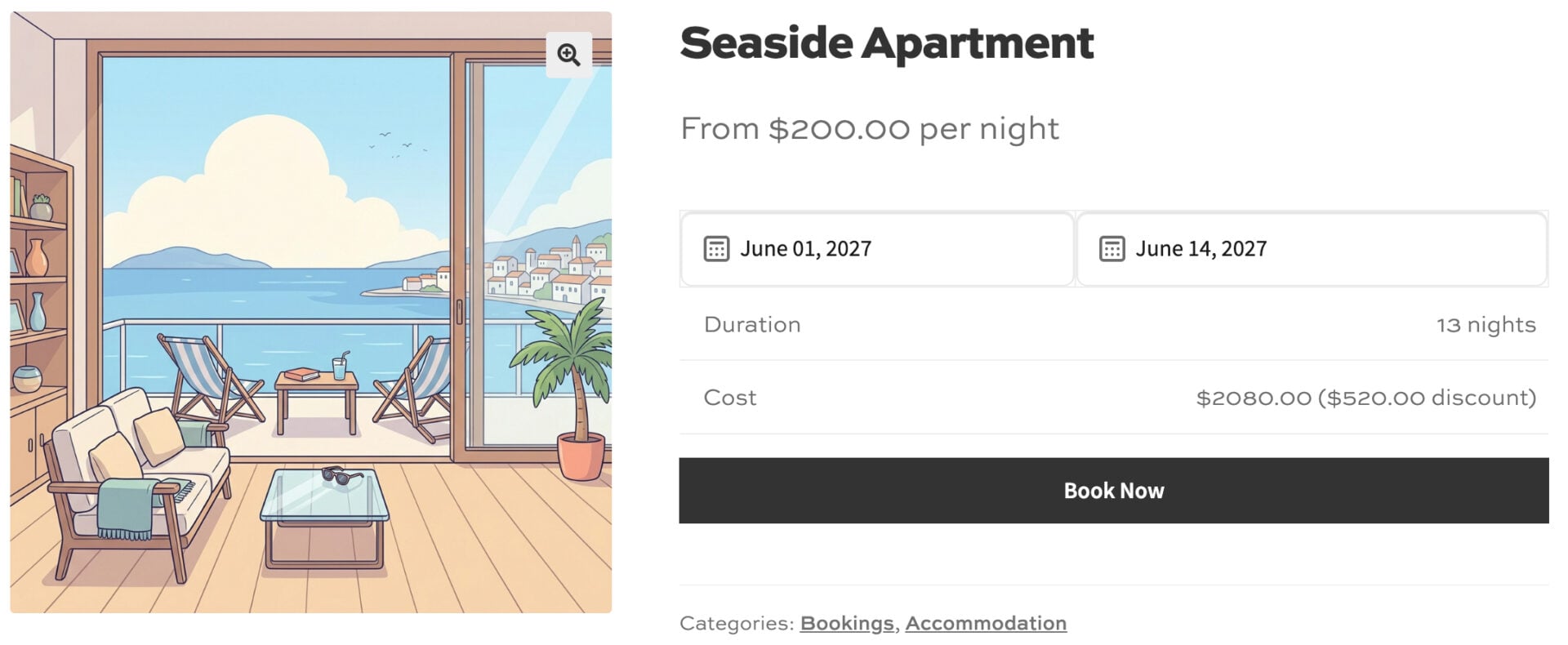
The main difference between bookings and appointments is the unit of time. Bookings are measured in days, nights or weeks, whereas appointments are measured in minutes and hours within a single day.
So a customer might hire a car for three days, stay in a cabin for four nights or rent a boat for a week. For appointments, the customer picks a date first, then a time – e.g. for a haircut or consultancy call.
What is the customer reserving?
With a booking, the customer is often reserving a thing: a kayak, a holiday cottage or a set of power tools. The item is unavailable to anyone else for the dates they’ve chosen.
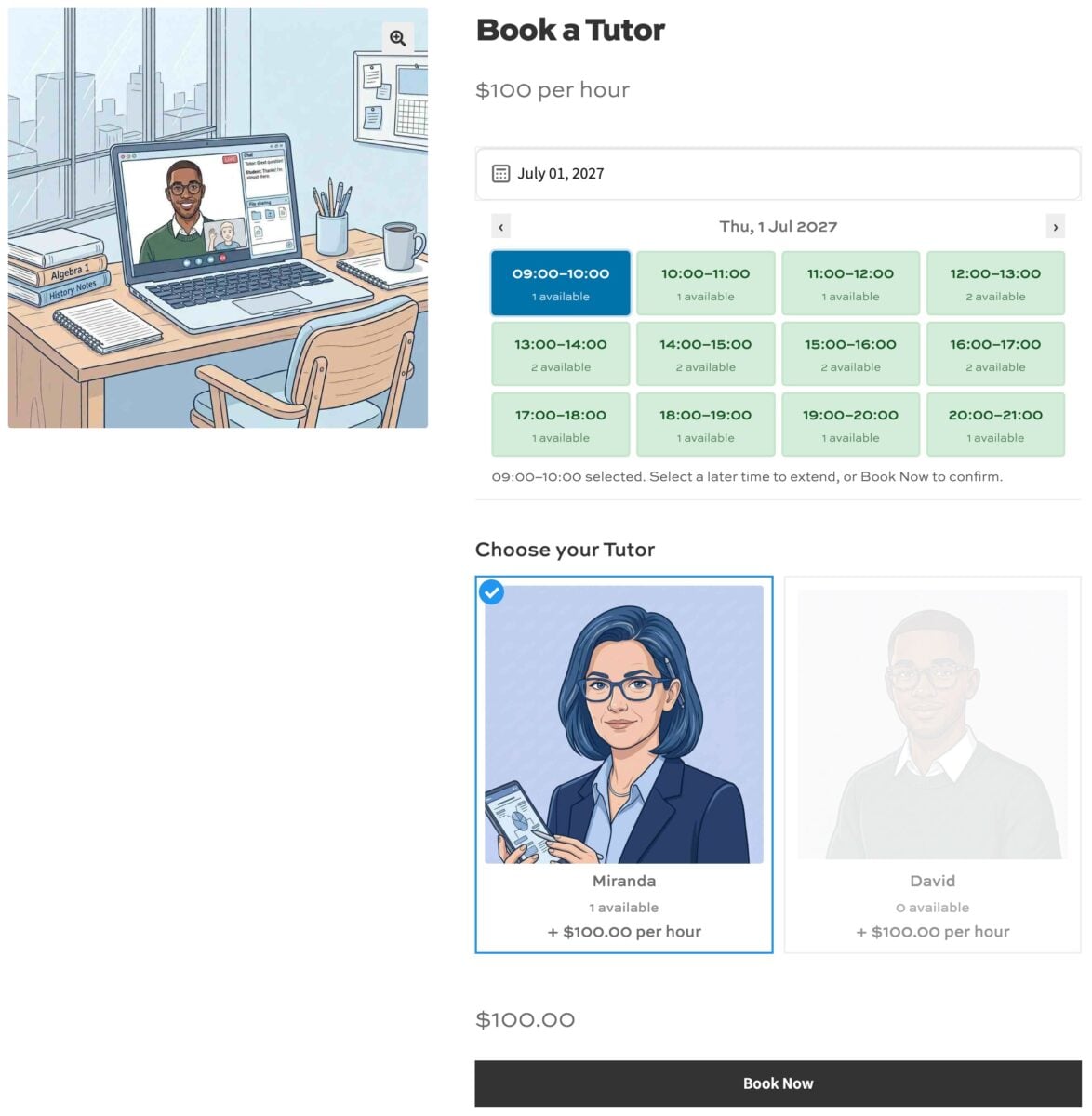
With an appointment, the customer is usually reserving someone’s time or a service. E.g. a 45-minute massage, a one-hour coaching call or a 30-minute dental check-up are all appointments.
Who chooses the duration?
Bookings usually let the customer decide how long they need. They pick a start date and an end date, within any minimum or maximum you set.
Appointments are usually fixed-length slots defined by the business. A salon might offer 30-minute slots from 9am to 5pm, and the customer simply chooses which one suits them.
How is capacity counted?
Booking capacity is based on the number of units you have. If you own five bikes, you can accept five bike bookings for any given day.
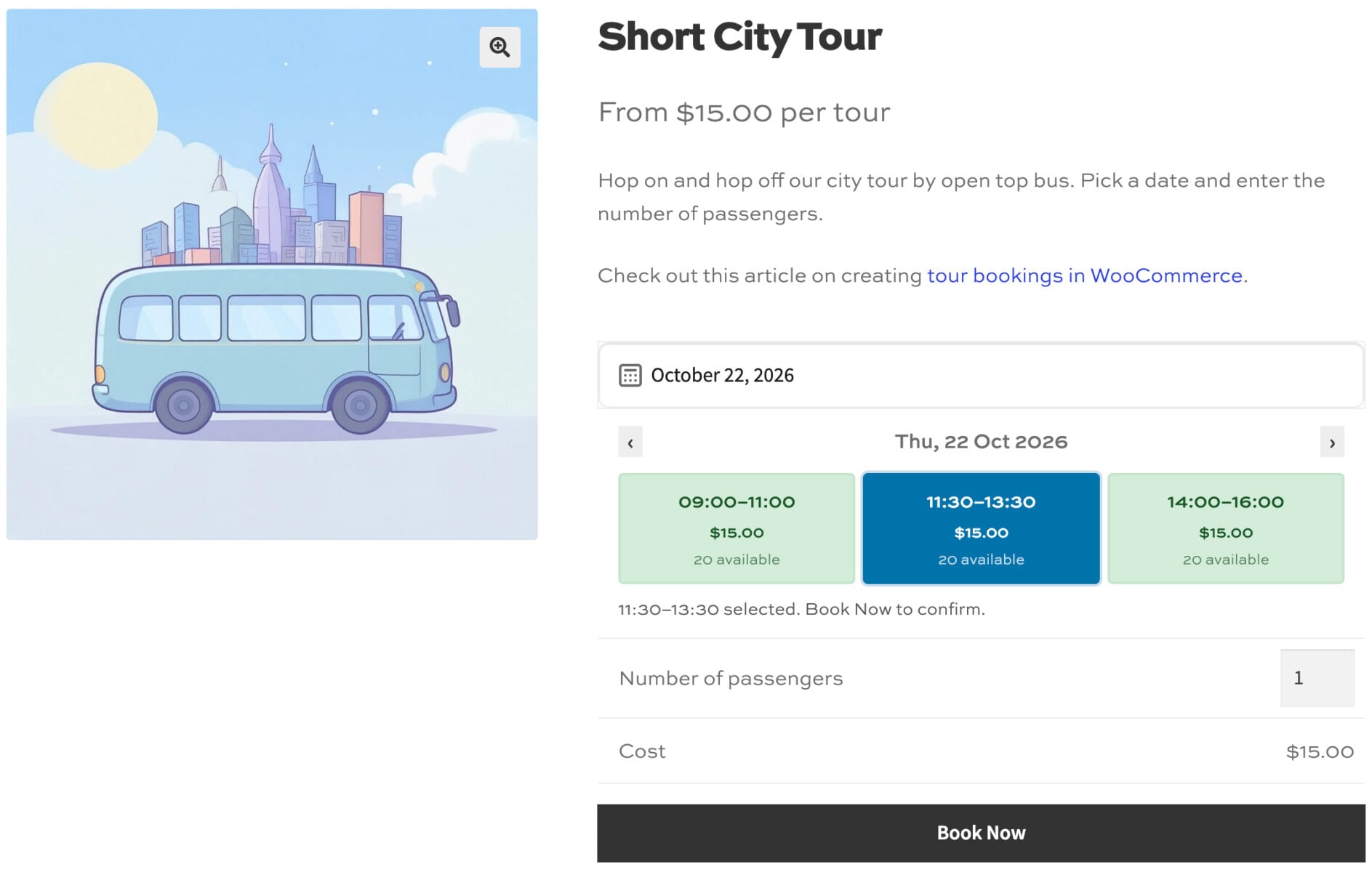
Appointment capacity is based on places per slot. A one-to-one consultation has one place per slot, while a pottery class might have eight.
How is pricing calculated?
Bookings are priced per day, night or week. Rental businesses often add seasonal rates for peak periods and discounts for longer stays.
Appointments are priced per slot. If customers can book several consecutive slots, you might want to cap the total so a full day never costs more than the day rate.
How much turnaround time is needed?
Bookings might need buffer days between customers – so a holiday let would need cleaning and a van might need servicing before it goes out again.
Appointments need buffer minutes instead. A therapist might need 15 minutes between clients to write up notes and reset the room.
Which calendars need to stay in sync?
Bookings for rentals and accommodation often need to sync with platforms like Airbnb, Booking.com and VRBO. If a date is booked on one platform, it needs to be blocked everywhere else to avoid double bookings.
Appointments usually need to sync with Google Calendar, so staff can see their bookings alongside the rest of their schedule. Online appointments might also need a video call link, such as a Zoom meeting.
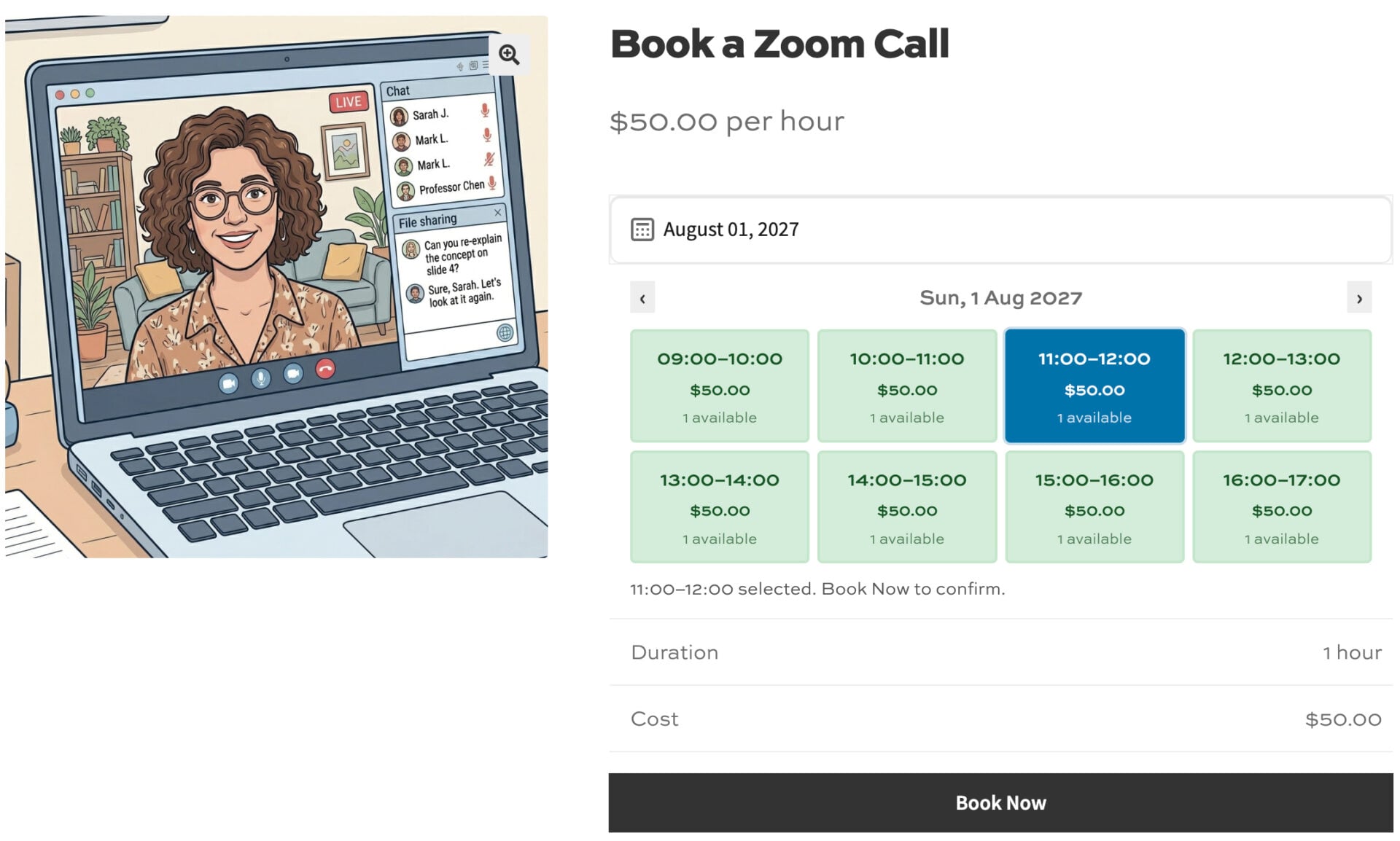
Bookings vs appointments – comparison table
Here’s how the two compare side by side, and how Bookings for WooCommerce handles each one.
| Feature | Bookings | Appointments | How Bookings for WooCommerce handles it |
|---|---|---|---|
| Typical use | Rentals, accommodation, equipment hire | Services, consultations, classes | Both, from the same ‘Booking’ product type |
| Time unit | Days, nights, weeks | Minutes, hours | ‘Day’, ‘Night’ or ‘Week’ booking units, plus time slots of any length in minutes |
| Calendar layout | Separate start and end calendars or a single calendar | Date picker followed by a time selector | Dual or single calendar, plus six time slot views |
| Duration | Minimum and maximum number of days | Slot length, multiple slots or a whole day | Min and max booking length, multi-slot bookings and an ‘Allow full day’ option |
| Capacity | Number of units available | Places per slot | ‘Max bookings per unit’, with per-slot overrides |
| Pricing | Seasonal rates, day-of-week pricing, longer-stay discounts, flat rate | Price per slot, multi-slot discounts, day-rate cap | All of these, plus user-role pricing |
| Turnaround | Buffer days | Buffer minutes | ‘Buffer period’ for date-based bookings, ‘Buffer time’ for time slots |
| Calendar sync | Airbnb, Booking.com, VRBO | Google Calendar, Zoom | iCal import and export, Google Calendar sync and Zoom integration |
| Extras | Insurance, cleaning fees, equipment | Add-on treatments, materials | Product Add-Ons Ultimate integration |
| Shared resources | Rooms, equipment | Staff members | ‘Resource’ product type, tracked centrally across products |
When should you use bookings, appointments or both?
When are bookings the best option?
Bookings are ideal when customers are renting or reserving something for one or more days. For example:
- Bike and car rental: customers choose pick-up and return dates, and you track how many vehicles are available. See our guides to bike rental and car rental in WooCommerce
- Hotels, B&Bs and holiday lets: guests book by the night, and your availability syncs with Airbnb and Booking.com. See our guide to accommodation bookings
- Equipment and venue hire: party marquees, camera gear or a village hall booked by the day or week
When are appointments the best option?
Appointments work well when customers are booking a service for a set amount of time. For example:
- Salons and spas: clients choose a treatment and a 30- or 60-minute slot
- Consultants and coaches: clients book a one-hour call, with a Zoom link sent automatically in their confirmation email
- Tutors and driving instructors: students book lessons at set times each day
- Photographers: clients reserve a two-hour portrait session
Our guide to WooCommerce appointments walks through a full appointments setup using a spa as an example.
When do you need both?
Some businesses might need to sell both bookings and appointments. For example:
- Co-working spaces: hourly hot desks alongside weekly or monthly passes
- Hire shops: paddleboards by the hour, with a ‘whole day’ option for customers who want them longer
- Yoga studios: named sessions like ‘Beginner Class’ alongside multi-day retreats. See our guide to yoga class bookings
Businesses like these need a WooCommerce booking plugin that handles both. Running two separate systems means two sets of settings, two calendars to check and more chance of a double booking.
How do you set up bookings and appointments in WooCommerce?
The Bookings for WooCommerce plugin lets you accept both date-based bookings and time-based appointments through standard WooCommerce products. It’s compatible with all themes and page builders, and it works with all WooCommerce payment gateways.
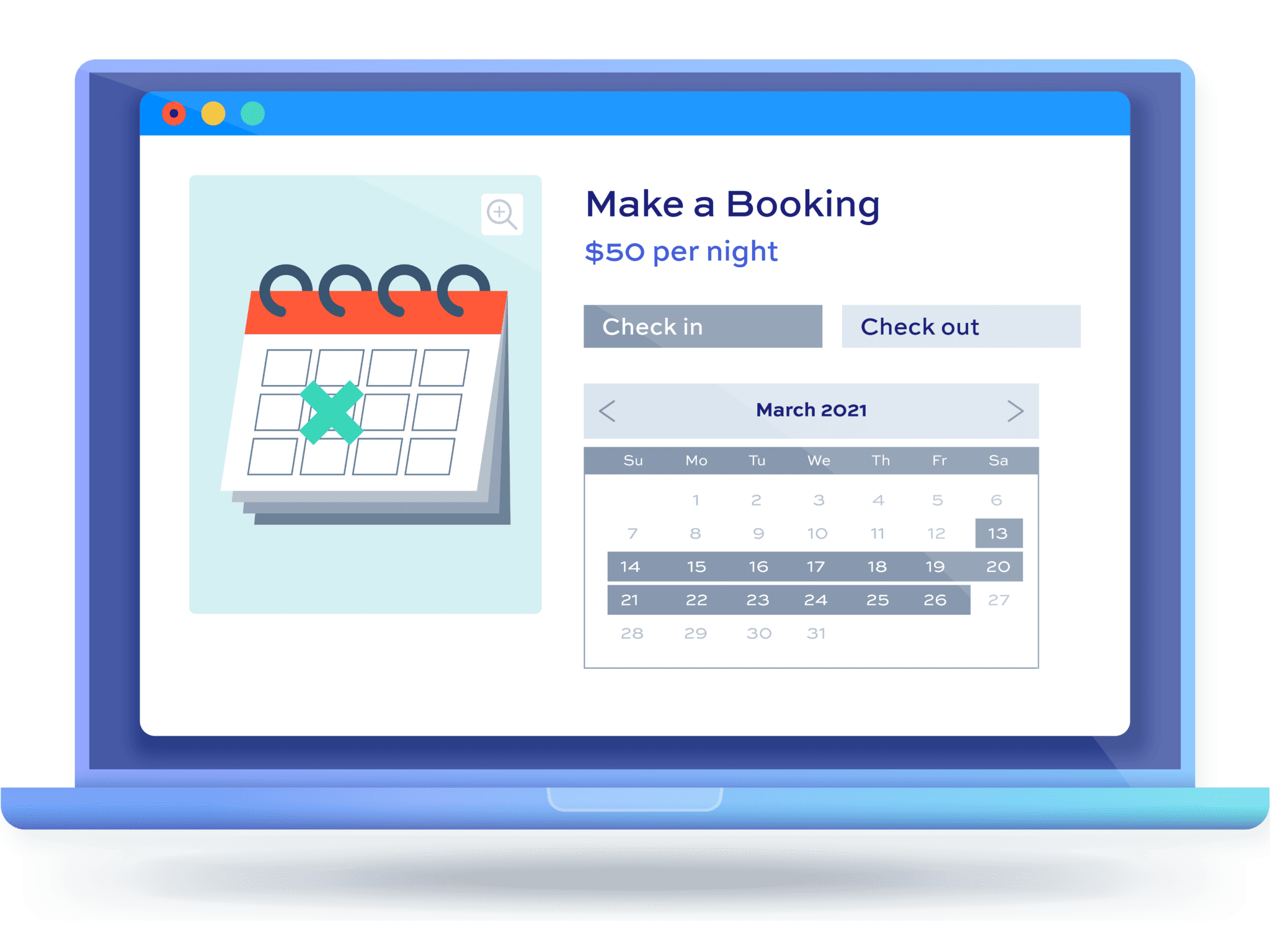
There’s a demo store here so you can see it in action.
Here’s how to set up a date-based booking and a time-based appointment in WooCommerce:
- Install Bookings for WooCommerce
Upload and activate the plugin from your WordPress dashboard
- Create a date-based booking product:
Set the product type to ‘Booking’, then choose a booking unit, duration, capacity and price
- Add time-slot options if required
If you’re making an appointments product, enable time slots, then set your slot length, opening hours and price per slot
Here’s each step in more detail. In this tutorial, we’ll assume that you already have WordPress and WooCommerce installed and ready to go.
Step #1: Install Bookings for WooCommerce
Once you’ve purchased Bookings for WooCommerce:
- Download the plugin’s zip file by clicking on the link on your order confirmation screen or in your welcome email. You’ll receive the email automatically a few seconds after you’ve completed the purchase
- Go to Plugins > Add New in your WordPress dashboard
- Click on the ‘Upload Plugin’ button
- Drag and drop the plugin’s downloaded zip file into the ‘Choose File’ area and click ‘Install Now’
- When the plugin has uploaded, click the ‘Activate Now’ button
With Bookings for WooCommerce activated, you can create your bookable products in the same way you would any other product.
Step #2: Create a date-based booking product
Let’s start with a date-based booking, such as a bike rental:
- Go to Products > Add New and enter your product name and description
- Select ‘Booking’ from the product type dropdown in the ‘Product data’ section
- Choose ‘Day’, ‘Night’ or ‘Week’ in the ‘Booking unit’ field on the ‘Booking Settings’ tab
- Enter the number of bikes you have in the ‘Max bookings per unit (quantity)’ field
- Set a ‘Min booking length’ and ‘Max booking length’ if you want to limit how long customers can book for
- Enter a ‘Buffer period’ if you need time between bookings for cleaning or servicing
- Enter your ‘Standard price’ per unit
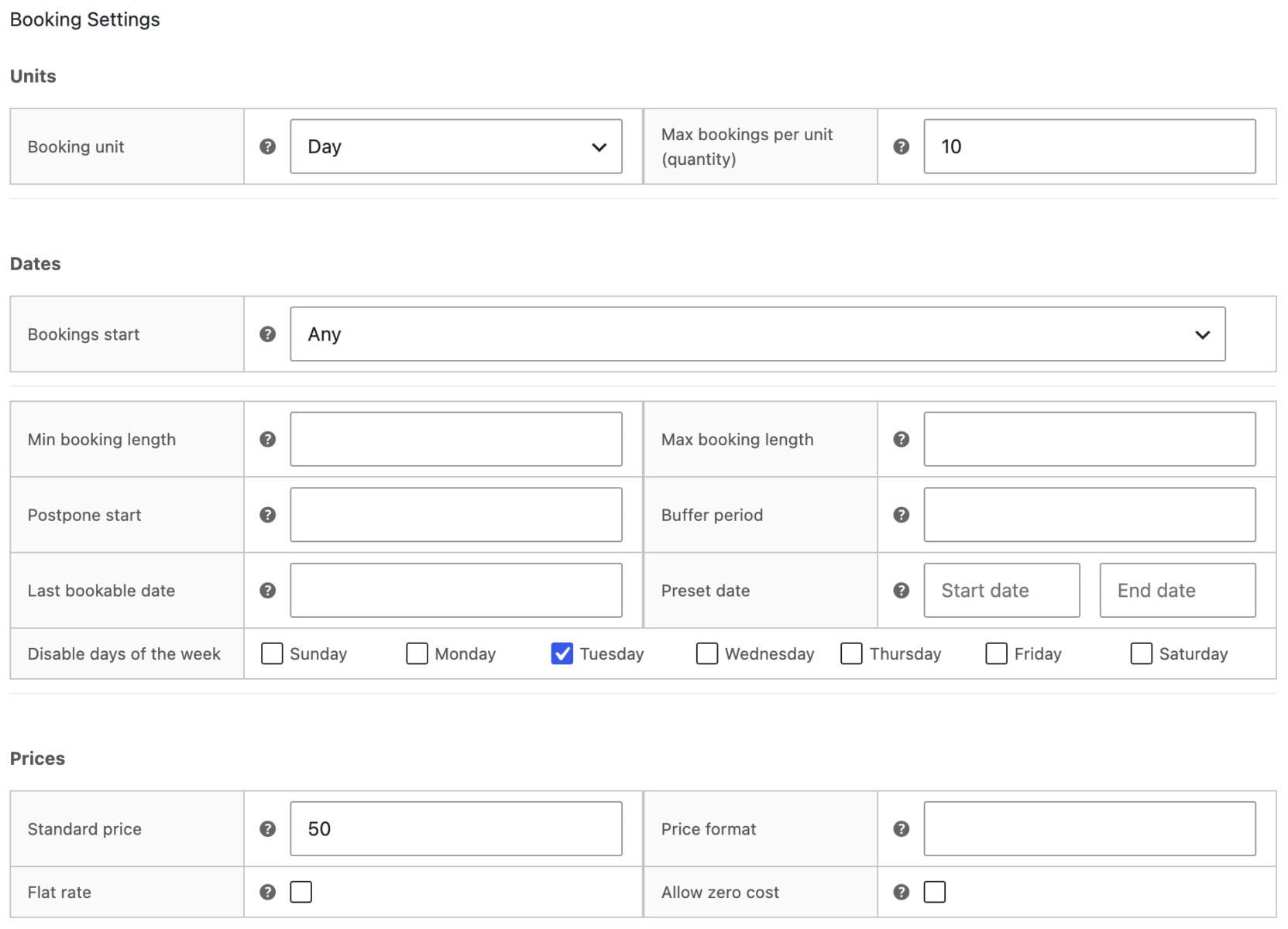
Publish your product. You now have a bookable product where customers can pick their dates from a calendar and see the cost calculated automatically.
You can also add seasonal rates and longer-stay discounts on the ‘Pricing’ tab, and sync with Airbnb, Booking.com or VRBO on the ‘External’ tab. Now let’s look at how to set up an appointment.
If you don’t need time-based appointments, you can just stop at this stage. Otherwise, proceed to Step #3.
Step #3: Create a time-based appointment product
Appointments use the same ‘Booking’ product type with the same initial set-up as Step #2 above, then with time slots enabled:
- Create a new product and select ‘Booking’ as the product type
- Choose ‘Day’ in the ‘Booking unit’ field on the ‘Booking Settings’ tab
- Check ‘Enable time slots’ on the ‘Time Slots’ tab
- Enter your ‘Slot duration (minutes)’, ‘First slot time’ and ‘Last slot end time’. For example, 60-minute slots from 09:00 to 17:00
- Set a ‘Minimum duration (minutes)’ and ‘Maximum duration (minutes)’ to control how many slots customers can book in one go
- Enter your ‘Price per slot’
- Choose one of the six options in the ‘Time slot view’ field, such as ‘Time Picker’ or ‘Diary View’
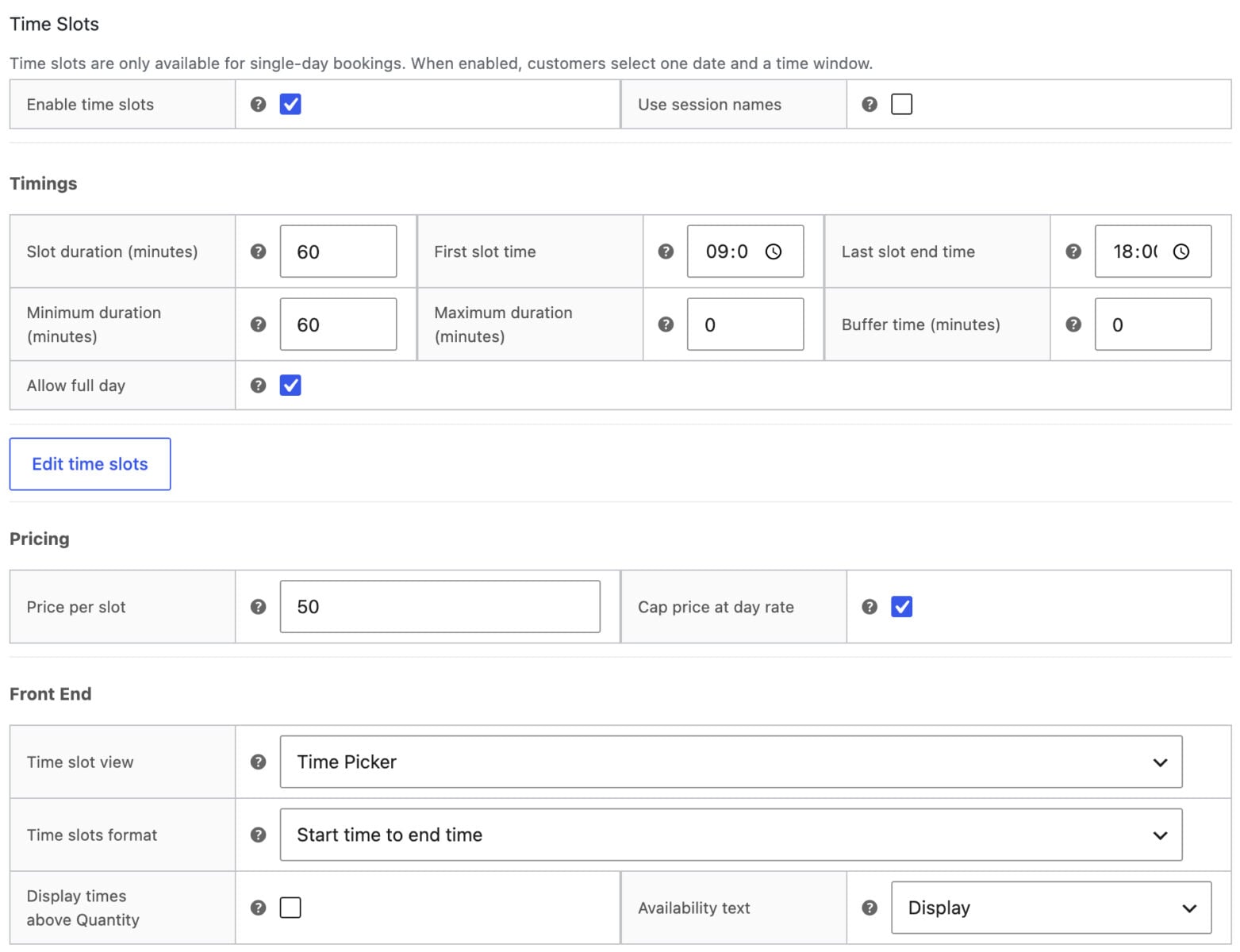
Save and publish your product. Now customers can choose a date, pick an available time slot and add their appointment to the cart.
If you want customers to book the whole day in one click, check ‘Allow full day’ and ‘Cap price at day rate’. You can also use per-slot overrides to change the price or availability of individual slots.
Step #4: Optionally add extras, deposits or Zoom meetings
Bookings for WooCommerce works with companion plugins and integrations to increase the value of each booking:
- Extras and upsells: use Product Add-Ons Ultimate to offer options like insurance, cleaning fees or add-on treatments, charged per booking or per unit
- Shared resources: create a ‘Resource’ product, such as a staff member or a projector, and attach it to several bookable products so it’s never double-booked
- Deposits: use Deposits and Part Payments to take a deposit at the time of booking and collect the balance later
- Online appointments: connect Zoom to schedule a meeting automatically and send the link in the customer’s confirmation email
You now have bookings and appointments running side by side in the same store. Once they’re up and running, you’ll want to be able to manage them from the back end.
How do you manage your bookings and appointments?
The Bookings Dashboard lists every booking and appointment across all your products. It also shows occupancy, revenue and upcoming bookings for each product.
Color-coded calendar, week and day views make it easy to spot gaps and fully booked products. Click any date to add a manual booking for phone or walk-in customers – availability is checked automatically, so you can’t overbook.
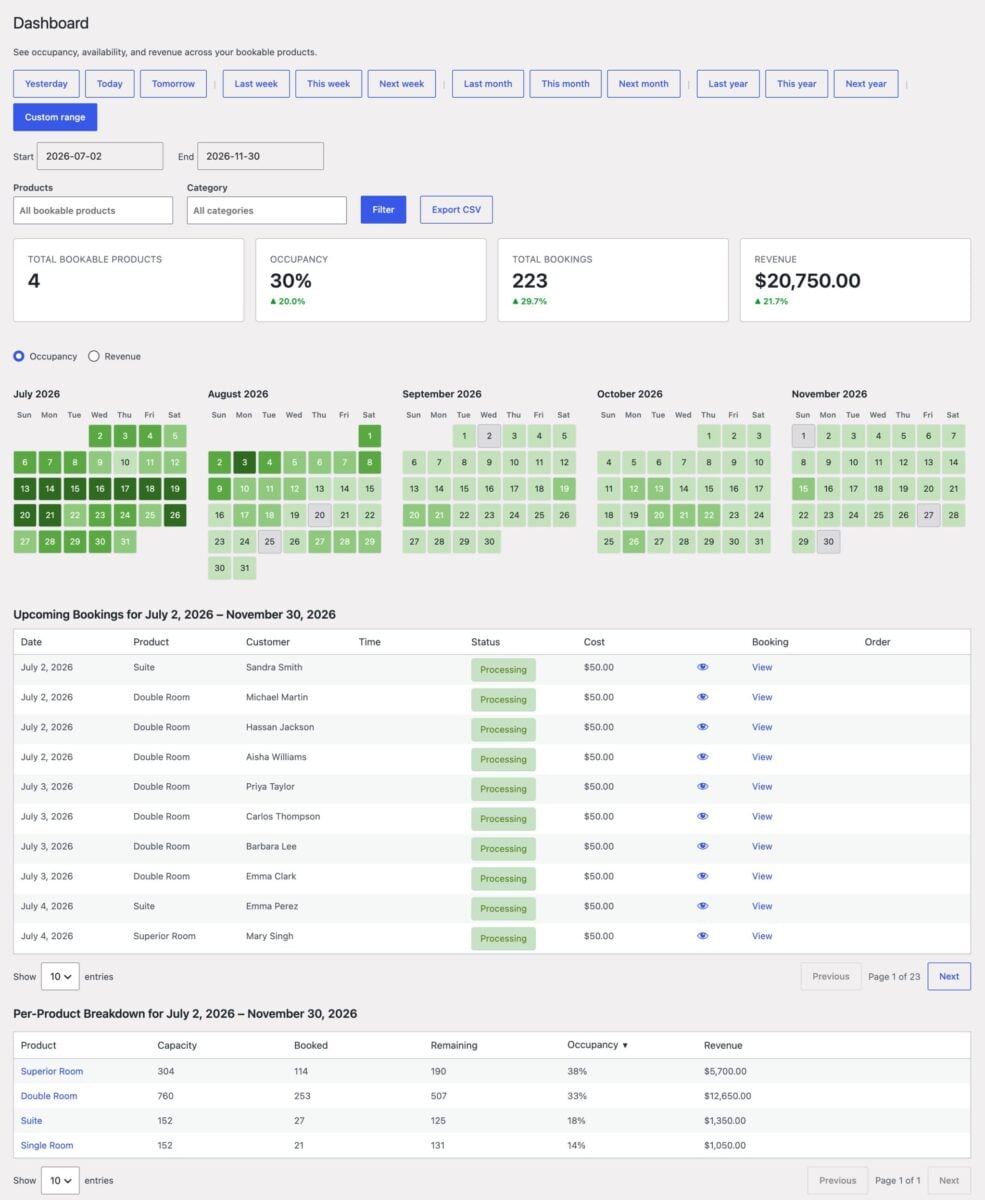
You can also filter the dashboard by product or category and export the results to CSV. If you’d rather focus on a single product, open its ‘Availability’ tab in the product editor.
FAQs
No, WooCommerce doesn’t include booking or appointment features on its own. You’ll need a plugin like Bookings for WooCommerce, which adds a ‘Booking’ product type to your store.
Date-based booking lets customers reserve something for one or more days, nights or weeks by picking a start and end date. Time-based booking lets customers pick a date and then a time slot within that day, such as a 30-minute appointment.
Yes. Bookings for WooCommerce uses the same ‘Booking’ product type for both – you just enable time slots on any product that needs appointments.
Set the booking unit to ‘Day’, then check ‘Enable time slots’ on the ‘Time Slots’ tab. Enter 60 in the ‘Slot duration (minutes)’ field and set a ‘Price per slot’.
Bookings for WooCommerce creates a Google Calendar event automatically when a booking is placed. If you edit or cancel the booking, the calendar event updates too.
A bookable product is a WooCommerce product that customers book for specific dates or times instead of buying outright. It has extra settings for availability, duration, capacity and pricing.
If you only need one type of booking, check that the plugin supports the booking unit you need – days, nights, weeks or time slots. If you need both date-based bookings and time-based appointments, choose a plugin that handles both from the same product type. Our comparison of WooCommerce bookings alternatives looks at the main options side by side.
WooCommerce bookings vs appointments – recap
In this article, we looked at the difference between WooCommerce bookings and appointments. Bookings reserve an item or space for days, nights or weeks, while appointments reserve a time slot for a service within a single day.
Bookings for WooCommerce handles both from a single product type. You can offer daily, overnight and weekly rentals alongside time-based appointments, with pricing rules, calendar sync and a dashboard for managing every booking and appointment.
Bookings for WooCommerce is compatible with all themes and page builders, including Astra, Flatsome and Woodmart, and page builders like Elementor and Divi. If you have any questions, our world-class support team is on hand to help. And it’s backed by a 14-day money-back guarantee, so you can try it risk-free.