Flexible Product Fields vs Product Add-Ons Ultimate – which is better for WooCommerce?

Flexible Product Fields and Product Add-Ons Ultimate both let you add custom fields, paid options and dynamic pricing to WooCommerce products. The main differences between the two plugins are related to more complex functionality.
If you’re researching Flexible Product Fields by WP Desk, this guide shows what it does well, where it falls short and when Product Add-Ons Ultimate is the better fit. Personalization is now a baseline expectation: 71% of consumers expect companies to deliver personalized interactions, according to McKinsey.
In this article, you’ll find out:
- What makes a product fields plugin flexible
- How Flexible Product Fields compares with our own plugin, Product Add-Ons Ultimate
- Which plugin is the best fit for your store
- Which other alternatives are worth considering
- How to set up flexible product fields step by step
There’s a demo site here so you can see flexible product fields in action.
What makes a product fields plugin flexible?
Both plugins add extra fields to the product page. To compare them properly, it might help to know what separates a basic fields plugin from a flexible one.
Field types. Text fields, dropdowns and checkboxes cover the basics. Flexible plugins add file uploads, date pickers, swatches, calculation fields and fields that use other products as options.
Pricing methods. Some plugins will offer flat fees, percentages and quantity-based prices, plus one-time fees that don’t multiply with quantity. The most flexible plugins also support per-character pricing, negative prices, name your price fields and formulas.
Calculations and lookup tables. Calculation fields let you price products from customer inputs, for example width × height × price per square foot. Lookup tables handle price grids that a single formula can’t.
Conditional logic. Conditions show or hide fields based on what the customer has already selected. Stronger plugins also let you set conditions on attributes, quantity, user role or entire groups of fields.
Assignment rules. You should be able to create fields once and assign them to specific products, categories or your whole store. This saves hours if lots of your products need the same fields.
Layouts. Long forms convert better when they’re broken up. Accordions, tabs, steps and modal windows keep the product page clean.
Order data. Every value the customer enters needs to reach the cart, checkout, emails and the admin order screen. This is essential for fulfilling personalized orders.
Comparison summary
Flexible Product Fields covers the core field types well, especially in its PRO version. Product Add-Ons Ultimate goes further on pricing, calculations, layouts and conditional logic.
| Feature | Flexible Product Fields (free) | Flexible Product Fields PRO | Product Add-Ons Ultimate |
|---|---|---|---|
| Field types | 18 | 22, including date and file upload | 20+, including calculation, products and swatches |
| Fixed and percentage pricing | No | Yes | Yes |
| Quantity-based and flat-rate pricing | No | Yes | Yes |
| Name your price | No | No (separate Custom Price plugin) | Yes |
| Calculation fields and formulas | No | No | Yes |
| Lookup tables | No | No | Yes (Advanced Calculations extension) |
| Conditional logic | No | Yes, based on checkbox, select and radio fields | Yes, based on field values, attributes, quantity, cost and user role |
| Assignment | Specific products | Products, variations, categories, tags or all products | Specific products, categories or all products |
| Group layouts | Single list | Accordion steps (Multistep add-on) | List, accordion, tabs, steps or modal |
| Child product fields | No | No | Yes |
| Image and text preview | No | No | Yes (Image Preview and Text Preview extensions) |
| Multi-currency and WPML | Currency switchers and WPML | Currency switchers and WPML | WPML certified; Aelia, CURCY and WooCommerce Multicurrency |
| Price from | Free | £59 | $79/year |
What is Flexible Product Fields?
Flexible Product Fields by WP Desk adds extra fields to WooCommerce products. It’s available as a free plugin on WordPress.org with a paid PRO version.
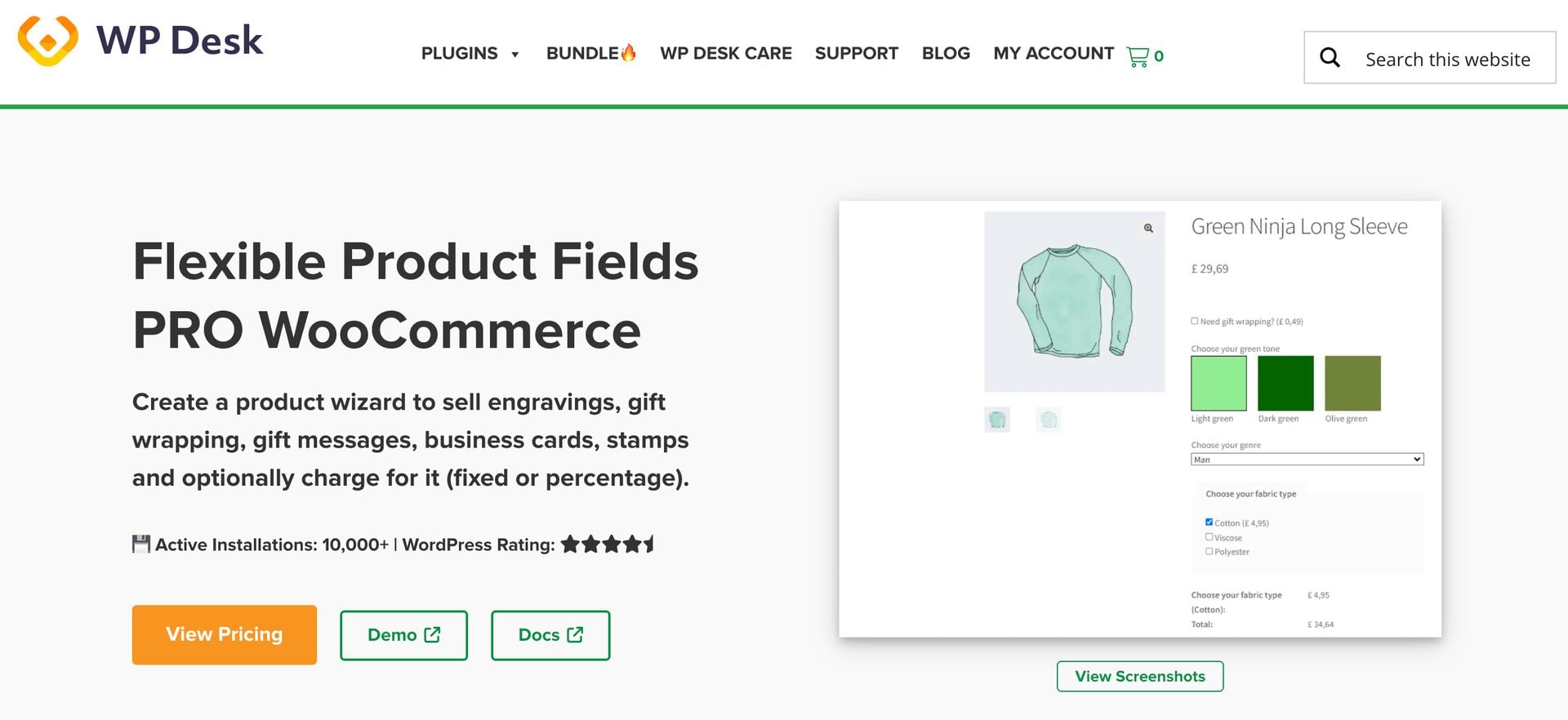
The free version includes 18 field types and lets you assign field groups to specific products. Pricing, conditional logic, the date and file upload fields and assignment by category, tag or variation all need PRO.
With Flexible Product Fields, you can:
- Add text, textarea, number, email, URL, checkbox, toggle, multi-checkbox, multi-images, select, multi-select and radio fields
- Use radio with images, radio with colors, time, color, heading, paragraph, image and HTML fields
- Collect dates and file uploads (PRO)
- Charge fixed or percentage prices, per item or as a one-time fee (PRO)
- Show fields based on checkbox, select and radio fields within the same group (PRO)
- Assign fields to products, variations, categories, tags or all products (PRO)
- Send ready-made configurations to customers with the ‘Save product config’ button
Flexible Product Fields integrates with other WP Desk plugins. Flexible Quantity can multiply a field’s price by a measurement, and the Multistep and Booking Calendar add-ons extend the product form.
What is Product Add-Ons Ultimate?
WooCommerce Product Add-Ons Ultimate is our product fields plugin for WooCommerce. It’s been in active development since 2017 and it’s rated 4.8 on Trustpilot.

With Product Add-Ons Ultimate, you can:
- Choose from 20+ field types, including text, upload, date picker, color picker, swatches, number range sliders and information fields
- Use other products as options with Products and Product Categories fields, keeping their inventory, SKUs and weights
- Build calculation fields with a formula builder and over 40 functions and operators
- Charge flat rate, quantity-based, percentage, per character, per uploaded file, negative, name your price and role-based prices
- Show or hide fields and groups based on field values, attributes, quantity, cost, log-in status and user role
- Display groups as a list, accordion, tabs, steps or modal window
- Add repeater fields, a progress bar, editing from the cart and on-page validation
- Install preconfigured fields from the add-ons library and import or export fields between products and sites
The extensions take things further. Advanced Calculations adds lookup tables and ACF values in formulas, while Image Preview and Text Preview let customers see their customizations on the product image. The plugin also integrates with other Plugin Republic plugins, for example Bookings for WooCommerce and WooCommerce Request a Quote.
How do Flexible Product Fields and Product Add-Ons Ultimate compare?
Which has more field types?
Flexible Product Fields PRO has 22 field types and Product Add-Ons Ultimate has 20+, so it’s close. The difference is in what those fields can do.
Product Add-Ons Ultimate includes calculation fields, number range sliders, Name Your Price fields and Products fields. Flexible Product Fields has none of these, so you can’t use other products as options or calculate values from customer inputs.
Which has more flexible pricing?
Flexible Product Fields PRO supports fixed and percentage prices, charged per item or once per order. It can multiply a price by a measurement but you would need to add the Flexible Quantity plugin.
Product Add-Ons Ultimate includes per-character pricing, per-file pricing, negative prices, name your price and role-based prices out of the box. You can also set prices with formulas or read them from lookup tables, which suits made-to-measure products.
Which has better conditional logic?
Conditional logic in Flexible Product Fields needs PRO. Conditions can only be triggered by checkbox, select and radio fields, and only within the same field group.
Product Add-Ons Ultimate lets you set conditions on field values, attributes, product quantity, cost, log-in status and user role. You can also apply a condition to an entire group and chain dependencies across multiple fields.
Which offers more layout options?
Flexible Product Fields displays fields as a single list before or after the ‘Add to cart’ button. The separate Multistep add-on splits longer forms into accordion steps.
Product Add-Ons Ultimate includes list, accordion, tabs, steps and modal layouts as standard. You can also set one, two or three column layouts within each group.
How much do they cost?
Flexible Product Fields has a free version on WordPress.org, and PRO starts from £59. Product Add-Ons Ultimate doesn’t have a free version.
Product Add-Ons Ultimate costs:
- Single site: $79/year or $199 lifetime
- Pro (up to 10 sites): $119/year or $299 lifetime, with free setup of your first product
- Agency (up to 50 sites): $349/year or $899 lifetime, with free setup of your first product
All Product Add-Ons Ultimate licenses come with a 14-day money-back guarantee.
Which plugin should you choose?
Flexible Product Fields is a good fit if you only need text inputs and a few paid checkboxes. It’s also worth considering if you already use other WP Desk plugins like Flexible Quantity or Flexible Checkout Fields.
Product Add-Ons Ultimate is the better choice if:
- Your prices depend on customer inputs like width, height or length
- You want to use existing products as options, with inventory and SKUs intact
- You sell personalized gifts or prints and want per-character or per-file pricing
- You need conditional logic based on attributes, quantity or user role
- You want tabs, steps or a modal window to organize longer forms
What are the other Flexible Product Fields alternatives?
A few other plugins are worth knowing about if you’re comparing options:
- Product Add-Ons by Woo: The official extension covers basic paid extras like gift wrapping and engraving, but it doesn’t include conditional logic
- Extra Product Options & Add-Ons by ThemeComplete: A feature-dense plugin with formula pricing and lookup tables, with a steeper learning curve
- Advanced Product Fields by Studio Wombat: A lightweight plugin with a builder modeled on Advanced Custom Fields
- PPOM by Themeisle: A large field library in PRO, with a free version to start with
For a full comparison of these plugins, see our roundup of the best advanced product fields plugins for WooCommerce.
How do you add flexible product fields with Product Add-Ons Ultimate?
You can add flexible product fields to any WooCommerce product in a few minutes with Product Add-Ons Ultimate. (If you can’t wait even a few minutes, then you can use the add-ons library to instantly create add-on fields for over 40 different product types.)
Here’s a quick overview of the steps to add flexible product fields to WooCommerce:
- Install Product Add-Ons Ultimate
Upload and activate the plugin, then enter your license key.
- Create a group
Add a group to a single product or create a global group for multiple products.
- Add your fields
Choose from 20+ field types and configure each one.
- Set prices
Assign a price to each field or option and choose how it’s charged.
- Add conditional logic
Optionally show or hide fields based on what the customer selects
- Choose a layout and test
Pick a layout for your groups and test the product from the front end.
And here’s each step in more detail. In this tutorial, we’ll assume that you already have WordPress and WooCommerce installed and ready to go.
Step #1: Install Product Add-Ons Ultimate
Once you’ve purchased WooCommerce Product Add-Ons Ultimate:
- Download the plugin’s zip file by clicking on the link on your order confirmation screen or in your welcome email. You’ll receive the email automatically a few seconds after you’ve completed the purchase
- Go to Plugins > Add New in your WordPress dashboard
- Click on the ‘Upload Plugin’ button
- Drag and drop the plugin’s downloaded zip file into the ‘Choose File’ area and click ‘Install Now’
- When the plugin has uploaded, click the ‘Activate Now’ button
Go to WooCommerce > Settings > Product Add-Ons > License to enter your license key and click ‘Activate this licence’. The plugin is now active and you’ll receive automatic updates.
Step #2: Create a group
Product Add-Ons Ultimate organizes fields into groups. You can add groups to a single product or create global groups that apply to many products.
- Edit the product where you want to add fields
- Click the ‘Product Add-Ons’ tab in the ‘Product data’ section
- Click ‘Add Group’ and give your group a title, for example ‘Personalization’
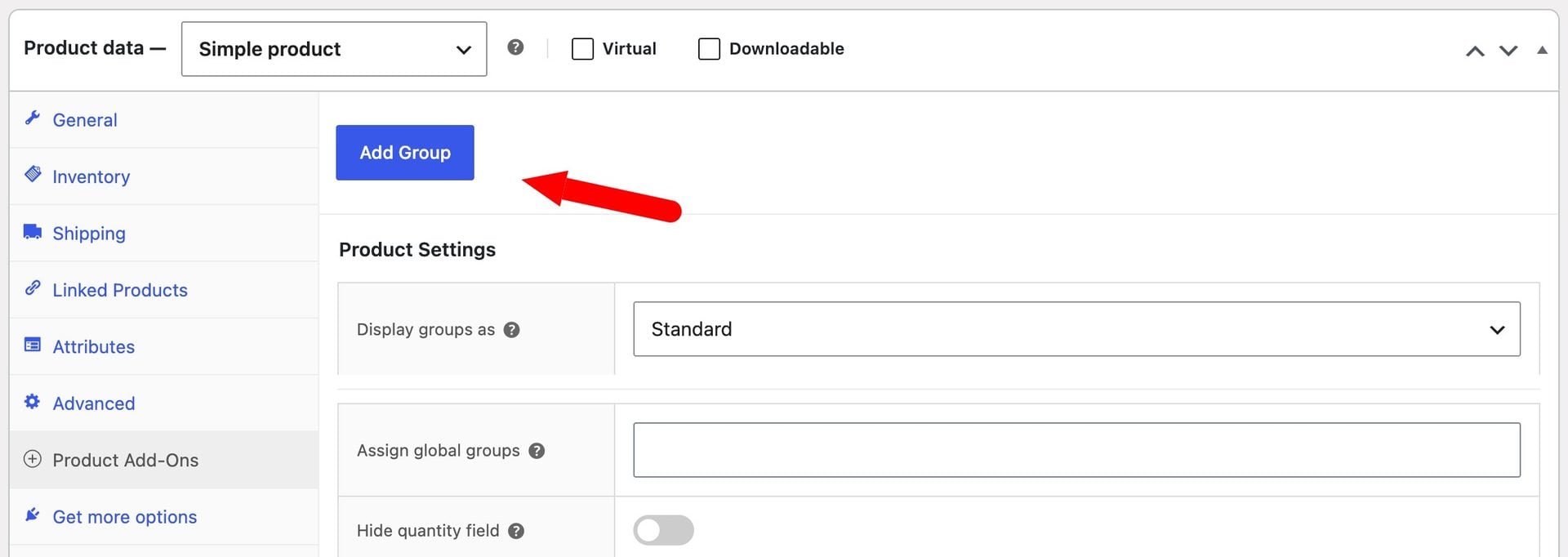
To use the same fields across multiple products, go to Product Add-Ons > Global Add-Ons instead. You now have an empty group ready for your fields.
Step #3: Add your fields
Click ‘Add Field’ within your group, then choose a field type. For example, a text field for engraving, a select field for materials or an upload field for artwork.
- Enter a label for the field
- Set the field as required if customers must complete it
- Add any options, images or default values
- Set character limits or permitted file types where relevant
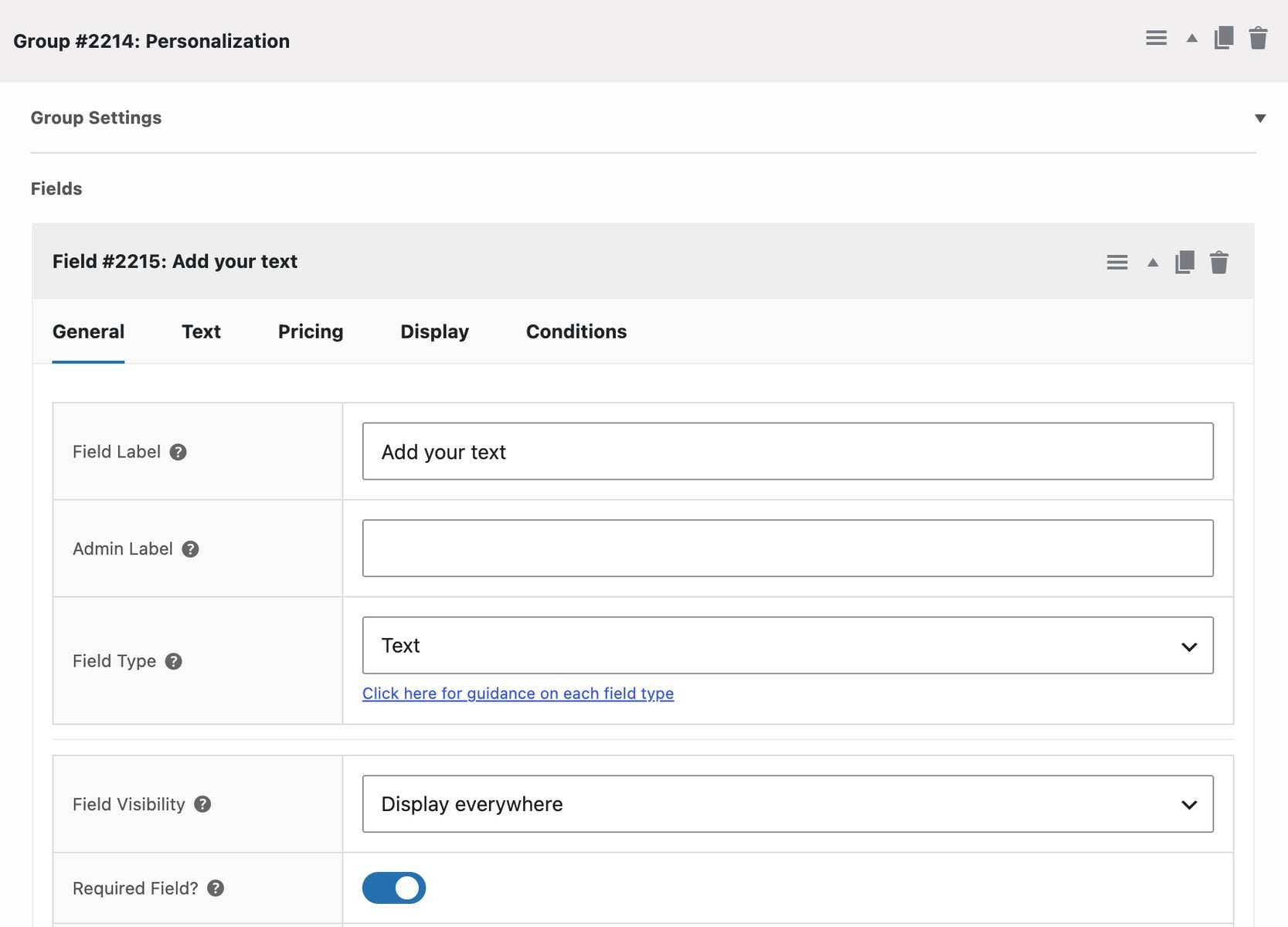
Save the product. Customers can now see your custom fields on the product page.
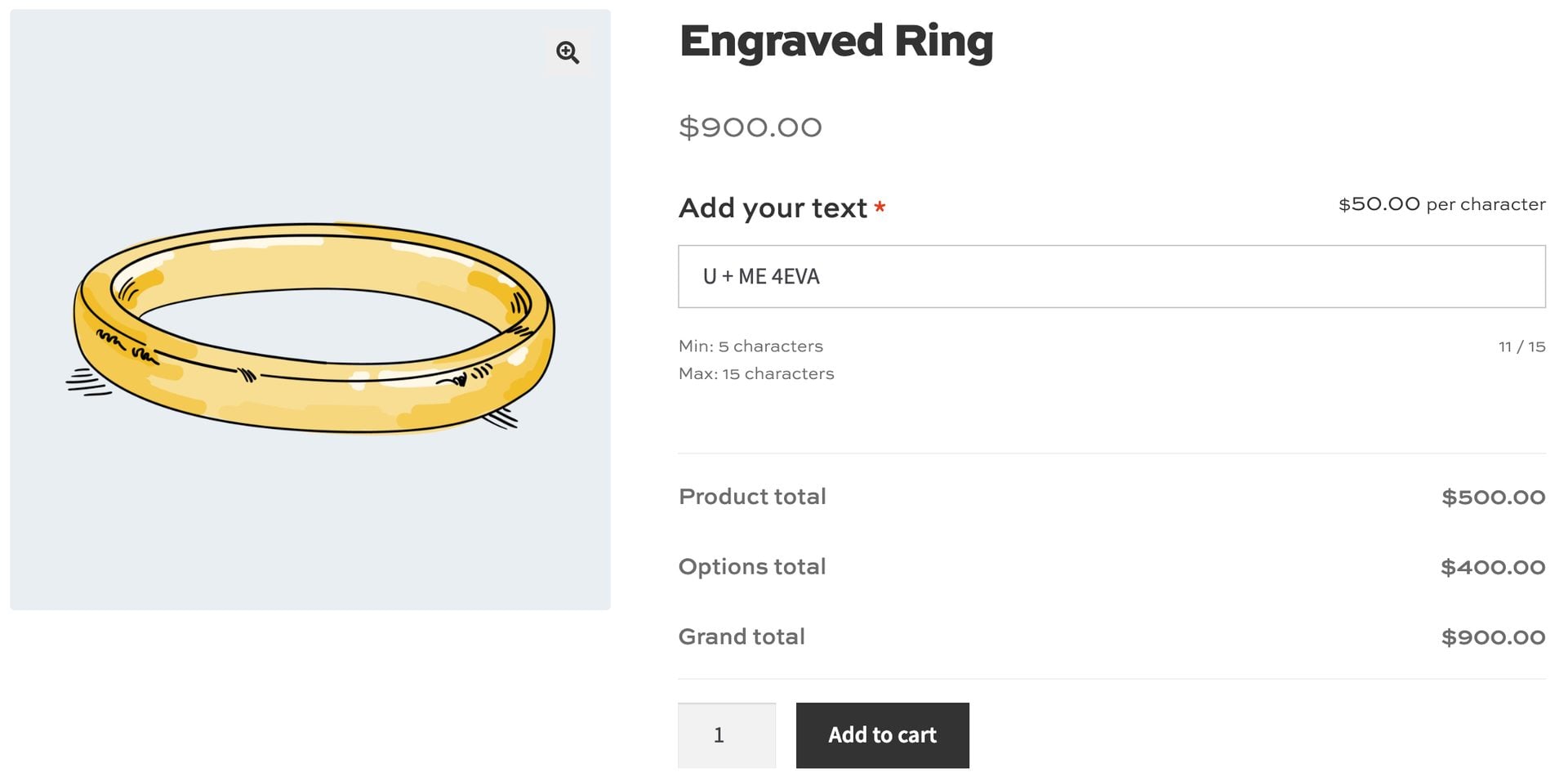
Step #4: Set prices
Click on the ‘Pricing’ tab and enter a value in the ‘Field Price’ setting to charge for a field, or set a price against each option. Use a negative value to reduce the product price.
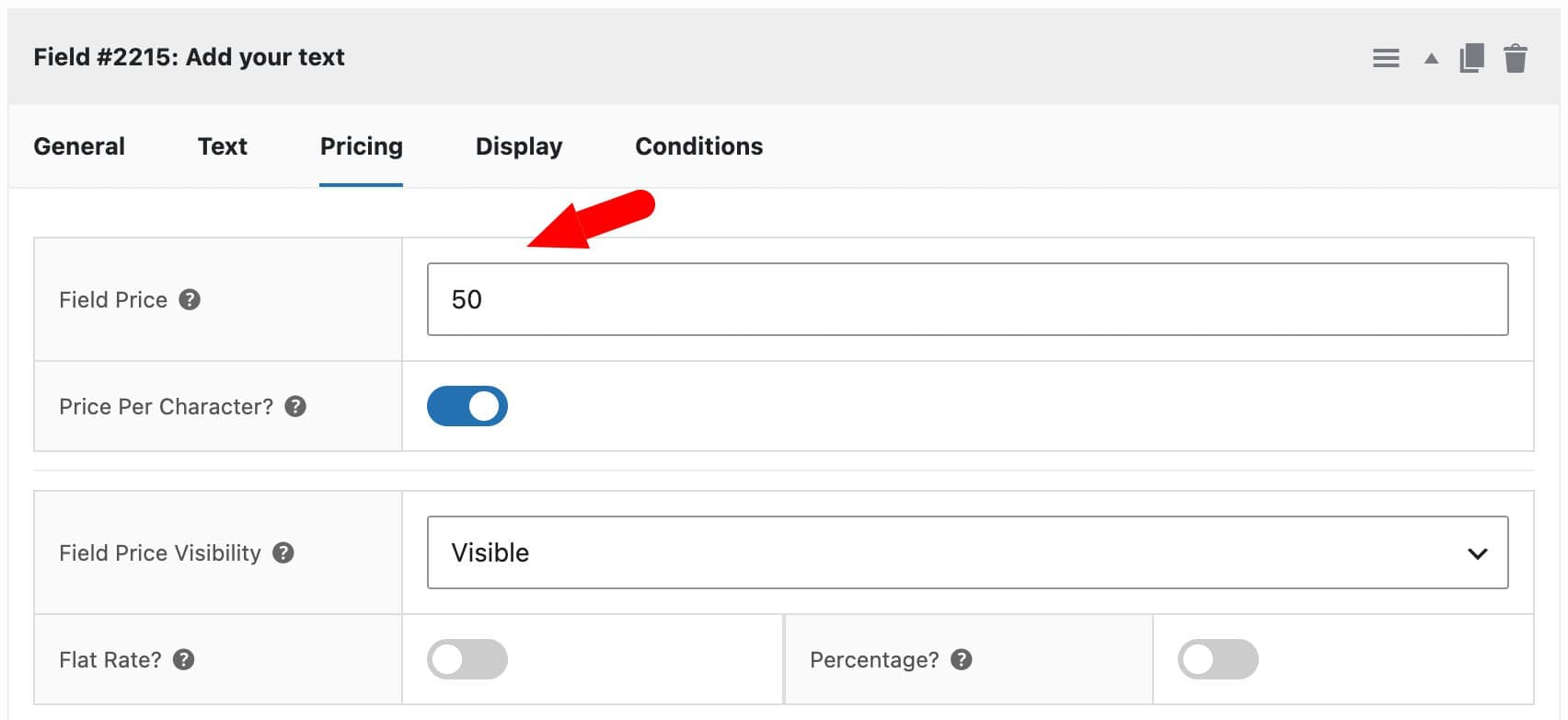
- Choose whether the price is multiplied by the product quantity or charged once as a flat rate
- Charge per character for text fields or per file for upload fields
- Use a Name Your Price field to let customers set their own price
The product price now updates automatically as customers make their selections.
Step #5: Optionally add conditional logic
Click the ‘Conditions’ tab on the field you want to show or hide. Select whether to show or hide the field, then choose the field and value that triggers it.
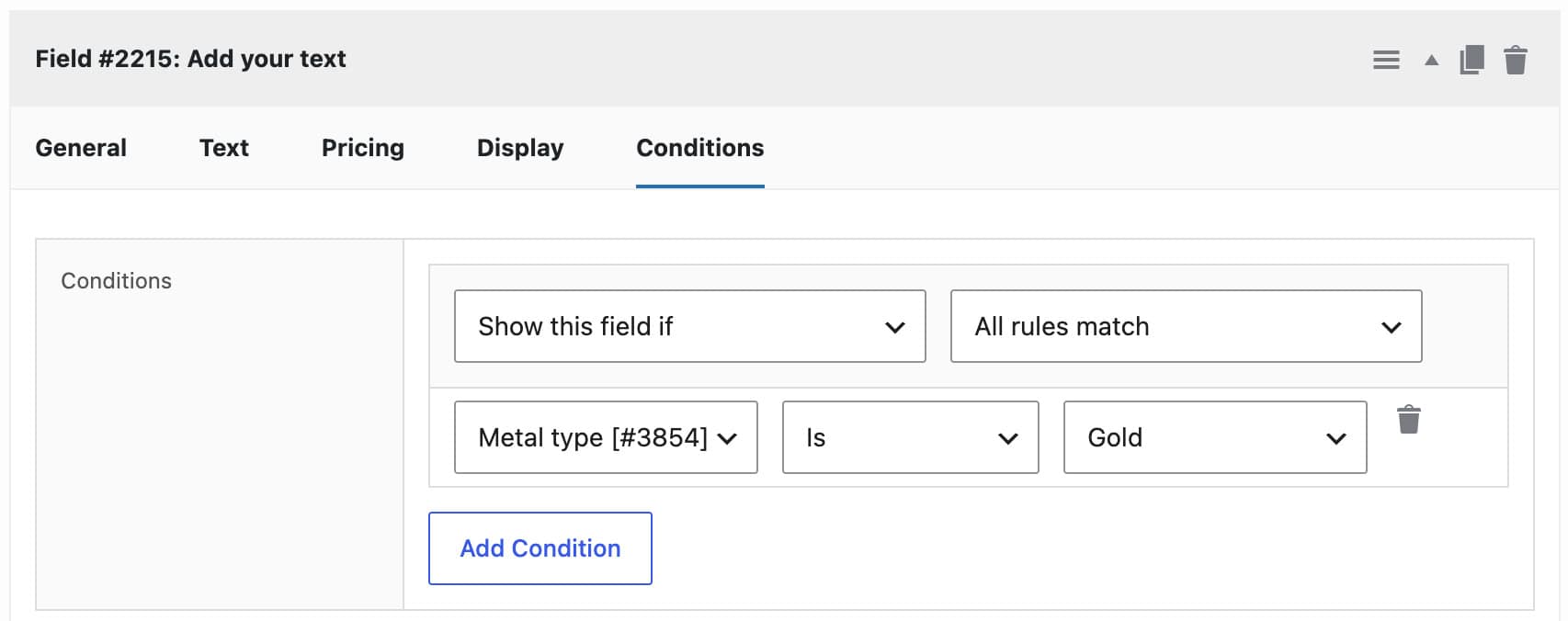
You can also set conditions based on attributes, product quantity, cost or user role. Customers will now see only the fields that are relevant to their choices.
Step #6: Optionally add a calculation field
Add a field and select ‘Calculation’ as the field type. Use the formula builder to combine values from other fields, for example a width field multiplied by a height field.
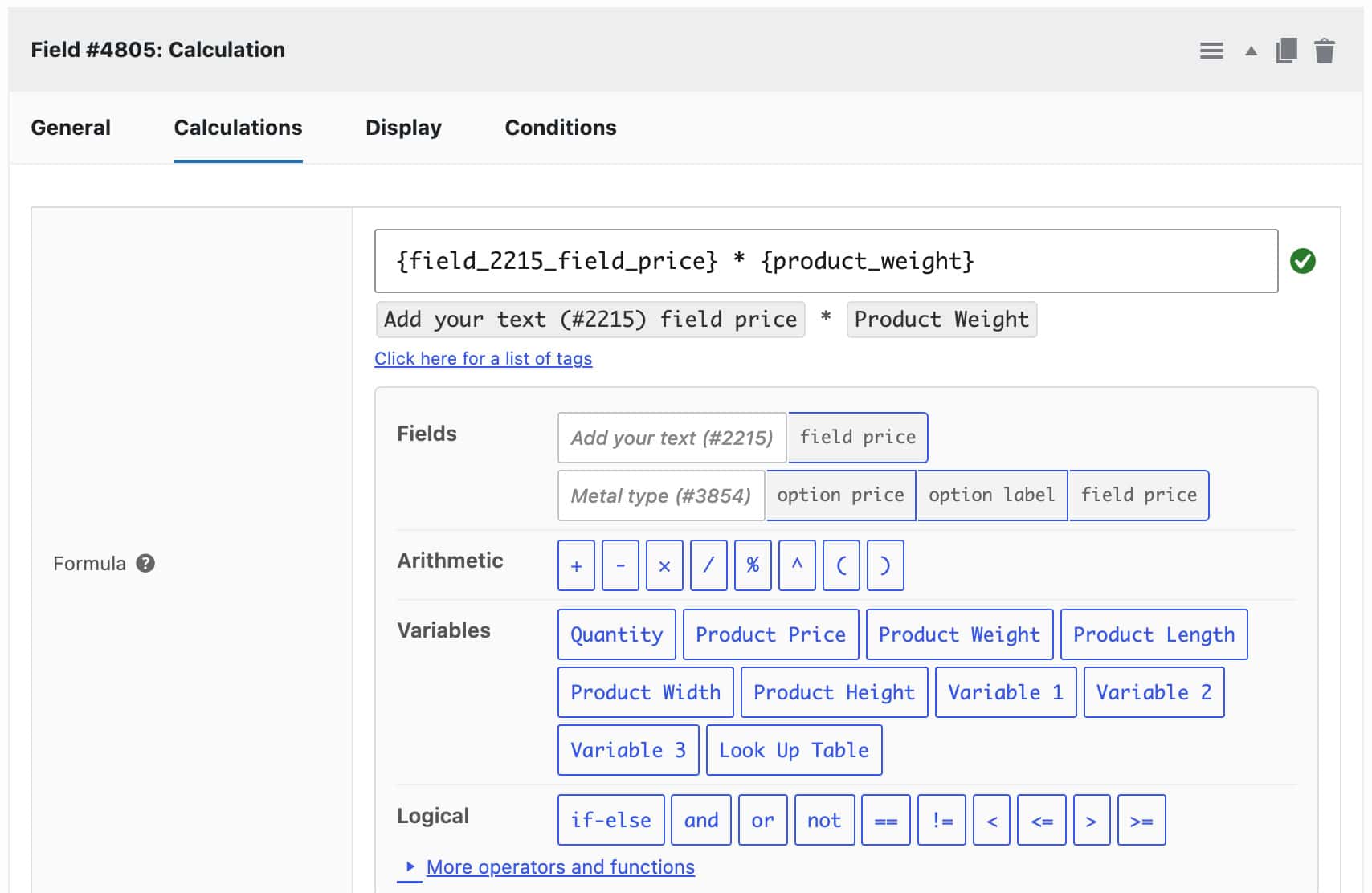
You can use the result to set the product price, product weight or dimensions. Now your product price is calculated directly from the customer’s inputs.
Step #7: Choose a layout and test your product
Choose how your groups are displayed: as a single list, an accordion, tabs, steps or a modal window. Longer forms work well as steps or tabs.
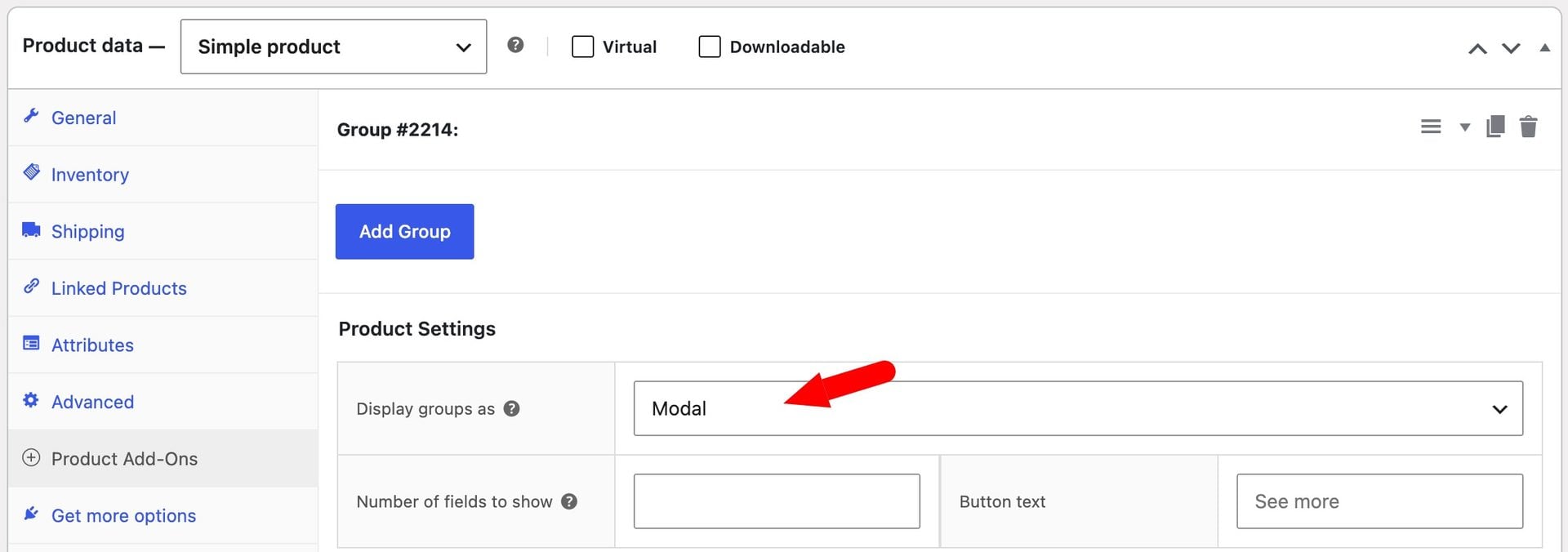
Save and publish your product, then visit it on the front end.

I’d tried other plugins before, but this was the best solution for me. A really great service and great technical support. The response of support was very fast and exact what I need for my project. The whole process was simple and very professional. Congratulations on your work!
FAQs
Flexible Product Fields has a free version on WordPress.org with 18 field types. Pricing, conditional logic, date and file upload fields and assignment by category or tag need the PRO version.
Not on its own. It can multiply a field’s price by a measurement when used with WP Desk’s Flexible Quantity plugin, but it doesn’t have calculation fields or formulas. Product Add-Ons Ultimate includes calculation fields and formula-based pricing.
No. Flexible Product Fields is a WP Desk plugin, while Product Add-Ons Ultimate is made by Plugin Republic. Product Add-Ons Ultimate adds calculation fields, lookup tables, Products fields, more pricing methods and more group layouts.
Yes. You’ll need to recreate your fields in Product Add-Ons Ultimate, and global groups let you apply them to many products at once. Existing orders keep the field data customers entered.
Flexible Product Fields vs Product Add-Ons Ultimate – recap
In this article, we compared Flexible Product Fields and Product Add-Ons Ultimate on field types, pricing, conditional logic, layouts and cost. We also looked briefly at other alternatives and set up flexible product fields step by step.
Flexible Product Fields is a good choice for simple fields, especially in stores that already use WP Desk plugins. WooCommerce Product Add-Ons Ultimate is the more flexible option, with calculation fields, Products fields and every major pricing method.
Product Add-Ons Ultimate is compatible with all themes and page builders, including Astra, Flatsome and Woodmart, and page builders like Elementor and Divi. If you have any questions, our world-class support team is on hand to help. And it’s backed by a 14-day money-back guarantee, so you can try it risk-free.