In Bookings for WooCommerce, the ‘People’ types feature lets customers say who a booking is for, such as 2 Adults and 1 Child, and pay a different price for each type. You define your types once, then enable them on each product with its own limits and prices.
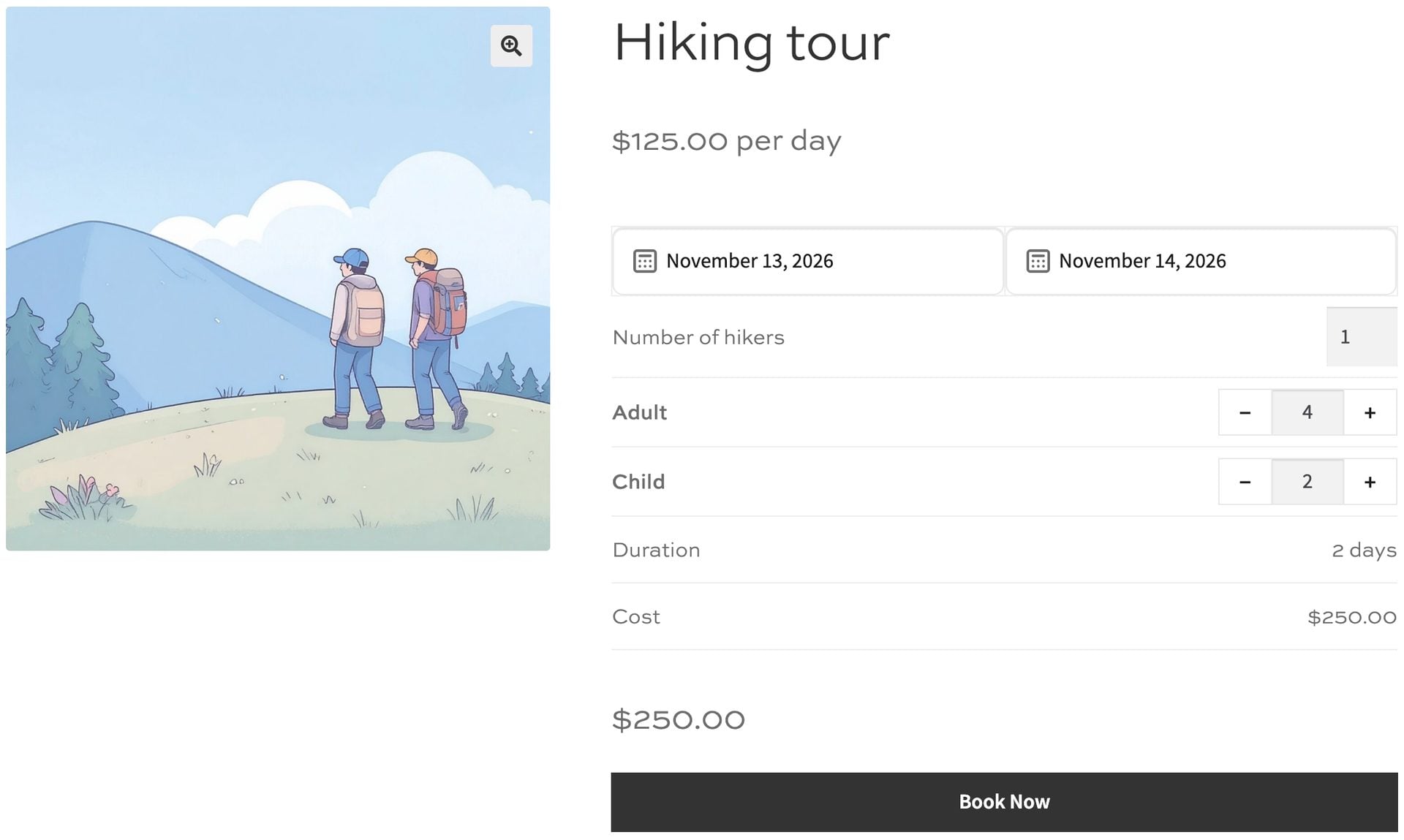
This means that with the ‘People’ feature, your customers will be able to:
- Choose how many people of each type are in their booking
- See the price for each type on the product page
- See their people and prices in the cart and checkout
And you, as the store owner or admin, will be able to:
- Charge per person, per person per day or a one-off fee for each type
- Set minimums, maximums and ratio rules, such as at most 3 Children per Adult
- Cap the total number of people on each day, night, week or slot
- See people on your orders, bookings, emails, exports and calendar events
How is ‘People’ different from the ‘Max bookings per unit’ setting?
The ‘People’ feature is completely different from the existing ‘Max bookings per unit’.
For example, say you rent out 4 identical cabins. You would set ‘Max bookings per unit’ to 4 – to represent the number of cabins you have available. Then, separately, you can define the number of people allowed per cabin – e.g. 3 adults and 3 children.
Or, if you have one wedding venue that can accommodate 200 people, you set ‘Max bookings per unit’ to 1 and ‘Max people per booking’ to 200.
Set up your people types
Your people types are shared across all your products, so you only need to create them once. You can choose which ones to use on a per-product basis.
Step #1: Go to Bookings > People. Your store starts with two types: Adult and Child.
Step #2: Edit your types. Click ‘Add people type’ to add more, such as Senior or Infant. Each type has these settings:
| Setting | What it does |
|---|---|
| ‘Label’ | The name customers see, such as Adult. Each active type needs a unique label |
| ‘Description’ | Optional text shown under the field on the product page, such as Ages 3–12 |
| ‘Default min’ | Prefills the minimum when you first enable the type on a product |
| ‘Default max’ | Prefills the maximum. Leave it blank for no limit |
| ‘Default price’ | Prefills the price. Leave it blank for a price of 0 |
The ‘Products’ column shows how many products use each type.
Step #3: Drag the types into order. This order is used on your product pages and People tabs.
Step #4: Click ‘Save changes’. You now have a list of types that’s ready to enable on any booking product.
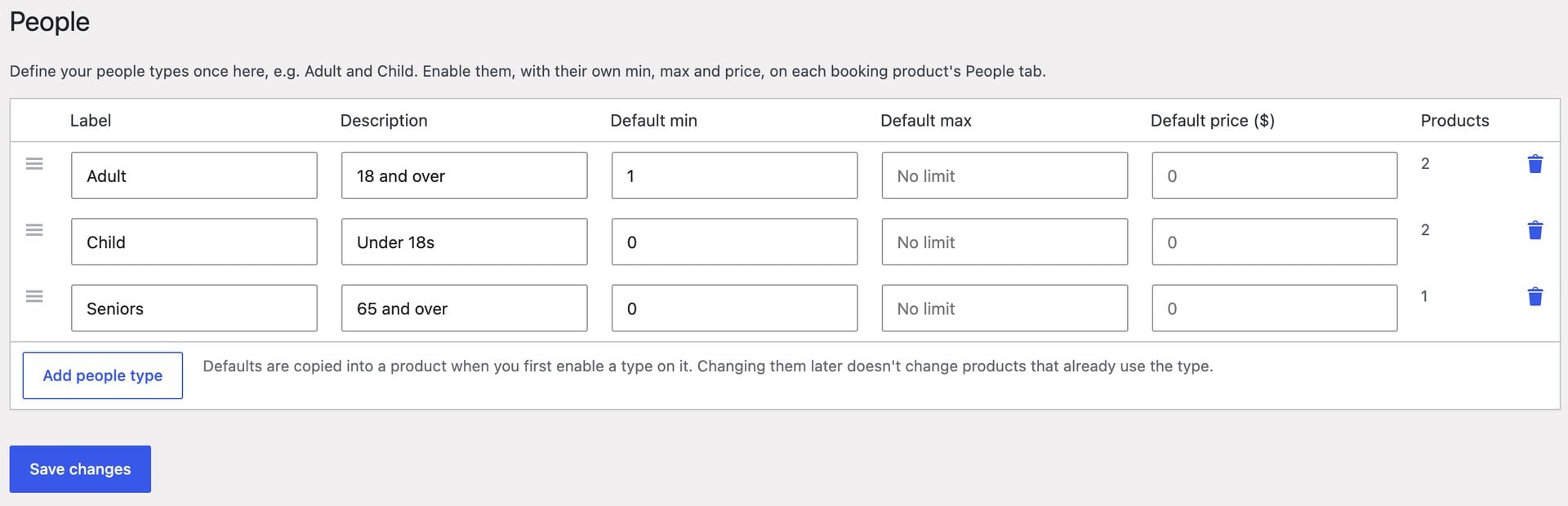
Defaults are only copied into a product the first time you enable a type on it. Changing a default later doesn’t change products that already use that type.
Rename, delete and restore types
Renaming a type updates your product pages and new bookings. Existing bookings and orders keep the label they were booked with.
Deleting a type depends on whether a product uses it:
- A type that’s enabled on a product is archived, not deleted. It disappears from product pages, but existing bookings and orders still show it
- A type that isn’t enabled on any product is removed
Open the ‘Archived’ list at the bottom of the page and click ‘Restore’ to bring a type back. Its saved settings on your products return with it.
Enable people on a product
To enable the ‘People’ feature on a bookable product:
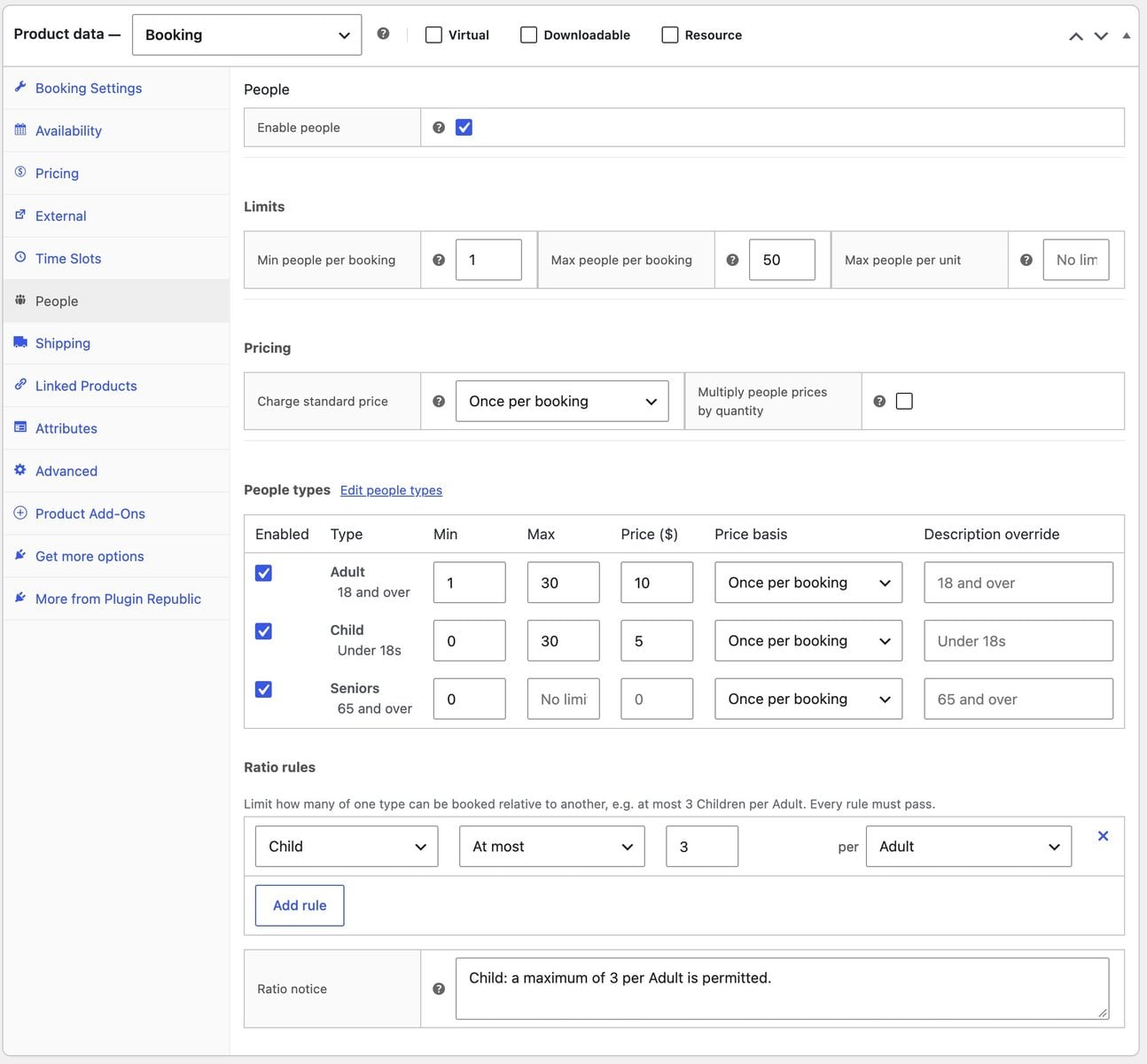
Step #1: Edit your product and click the ‘People’ tab in the ‘Product data’ section. This tab is available on booking products, but not on Resource products.
Step #2: Check ‘Enable people’. The rest of the settings will appear.
Step #3: Set your limits.
| Setting | What it does |
|---|---|
| ‘Min people per booking’ | The lowest combined total of all types. The default is 1 |
| ‘Max people per booking’ | The highest combined total of all types. Leave it blank for no limit |
| ‘Max people per unit’ | A cap on total people across all bookings for each day, night, week or slot. Leave it blank for no cap |
Step #4: Set your pricing.
| Setting | Options |
|---|---|
| ‘Charge standard price’ | ‘Once per booking’, ‘Per person’ or ‘Don’t charge’ |
| ‘Multiply people prices by quantity’ | When checked, people prices are multiplied by the booking’s Quantity. Otherwise, they’re charged once, whatever the Quantity |
Step #5: Enable your people types. Check ‘Enabled’ for each type you want to offer on this product, then set its values:
| Column | What it does |
|---|---|
| ‘Min’ | The fewest people of this type that the customer can select |
| ‘Max’ | The most people of this type that the customer can select. Leave it blank for no limit |
| ‘Price’ | The price for one person of this type |
| ‘Price basis’ | ‘Per booking unit’ multiplies the price by the number of days, nights, weeks or slots. ‘Once per booking’ charges it once |
| ‘Description override’ | Replaces the type’s description on this product only |
Step #6: Save your product. Customers can now choose people on your product page, and the booking cost will include their prices.
Now let’s look at how the prices combine.
How is the cost calculated?
The total has two parts, which are worked out separately and then added together:
Total = (standard cost × 'Charge standard price') + people prices
The standard cost is what the plugin calculates without people. Unless an example says otherwise, they all use this booking:
- Standard price: $100 per night, for 3 nights
- People: 2 Adults at $20 and 1 Child at $10
- Quantity: 1
Charge standard price
This setting controls how many times the standard cost of $300 is charged. These examples use the ‘Per booking unit’ price basis, which makes the people prices $150 (3 nights multiplied by $50 – 2 adults at $20 each and 1 child at $10).
| ‘Charge standard price’ option | Standard cost | People prices | Total |
|---|---|---|---|
| ‘Once per booking’ | $300 | $150 | $450 |
| ‘Per person’ | $300 × 3 people = $900 | $150 | $1,050 |
| ‘Don’t charge’ | $0 | $150 | $150 |
‘Once per booking’ still charges for every night. It only means the cost isn’t multiplied by the number of people.
If you select ‘Per person’, each person pays the standard rate plus their type’s price. For a simple per-head rate, set your type prices to 0. In this example, the total is $900.
Price basis
This setting controls whether a type’s price is charged for every unit or just once. These examples use ‘Once per booking’ for the standard cost.
| Price basis | People prices | Total |
|---|---|---|
| Both types ‘Per booking unit’ | (2 × $20 × 3) + (1 × $10 × 3) = $150 | $300 + $150 = $450 |
| Both types ‘Once per booking’ | (2 × $20) + (1 × $10) = $50 | $300 + $50 = $350 |
| Adult ‘Per booking unit’, Child ‘Once per booking’ | (2 × $20 × 3) + (1 × $10) = $130 | $300 + $130 = $430 |
Quantity
The Quantity always multiplies the standard cost. ‘Multiply people prices by quantity’ decides whether it multiplies the people prices too. In these examples, the customer books 2 cabins:
| ‘Multiply people prices by quantity’ | Standard cost | People prices | Total |
|---|---|---|---|
| On | $300 × 2 = $600 | $150 × 2 = $300 | $900 |
| Off | $300 × 2 = $600 | $150 | $750 |
Discounts
Percentage discounts come off people prices at the same rate as the standard cost. If only part of the booking qualifies, people prices get the same overall percentage saving. Fixed and per-unit discounts come off the standard cost, and only come off people prices if you’ve selected ‘Don’t charge’.
| Discount | ‘Charge standard price’ | Standard cost | People prices | Total |
|---|---|---|---|---|
| 10% off the whole booking | ‘Once per booking’ | $270 | $135 | $405 |
| 10% off nights after the first 2 | ‘Once per booking’ | $290 | $145 | $435 |
| $50 fixed | ‘Once per booking’ | $250 | $150 | $400 |
| $50 fixed | ‘Per person’ | $250 × 3 people = $750 | $150 | $900 |
| $50 fixed | ‘Don’t charge’ | $0 | $150 – $50 = $100 | $100 |
| $5 per night | ‘Once per booking’ | $285 | $150 | $435 |
| $5 per night | ‘Don’t charge’ | $0 | $150 – $15 = $135 | $135 |
With ‘Per person’, the discount is multiplied along with the standard cost. In the table above, the $50 discount saves the customer $150.
Custom pricing
Custom Pricing changes the standard cost only. People prices stay the same on every date.
For example, if Saturday costs $150, the standard cost is $100 + $150 + $100 = $350. Adding people prices of $150 makes the total $500.
Flat rate
Flat rate changes the standard cost only, so people prices can still increase with the number of units. These examples use a flat rate of $250 for the 3 nights:
| ‘Charge standard price’ | Price basis | Standard cost | People prices | Total |
|---|---|---|---|---|
| ‘Once per booking’ | ‘Per booking unit’ | $250 | $150 | $400 |
| ‘Once per booking’ | ‘Once per booking’ | $250 | $50 | $300 |
| ‘Per person’ | ‘Per booking unit’ | $250 × 3 people = $750 | $150 | $900 |
Time slots
Each slot counts as one unit. These examples use 3 slots at $30, with 2 Adults at $5 and 1 Child at $2:
| Price basis | Standard cost | People prices | Total |
|---|---|---|---|
| ‘Per booking unit’ | $90 | (2 × $5 × 3) + (1 × $2 × 3) = $36 | $126 |
| ‘Once per booking’ | $90 | (2 × $5) + (1 × $2) = $12 | $102 |
Tax and currency
People prices follow the same tax and currency rules as the standard cost. These examples start from the $450 booking:
- Tax: If you enter prices excluding tax and display them including 20% tax, the total becomes $360 + $180 = $540
- Multicurrency: With YayCurrency, WPML Multicurrency or Aelia at a rate of €0.90 to $1, the total becomes €270 + €135 = €405
Zero totals
A booking that totals 0 can only be added to the cart if ‘Allow zero cost’ is enabled on the product. For example, this applies if you select ‘Don’t charge’ and the Adult and Child prices are both $0.
Add ratio rules
Ratio rules limit how many of one type can be booked relative to another. Let’s look at how to add one.
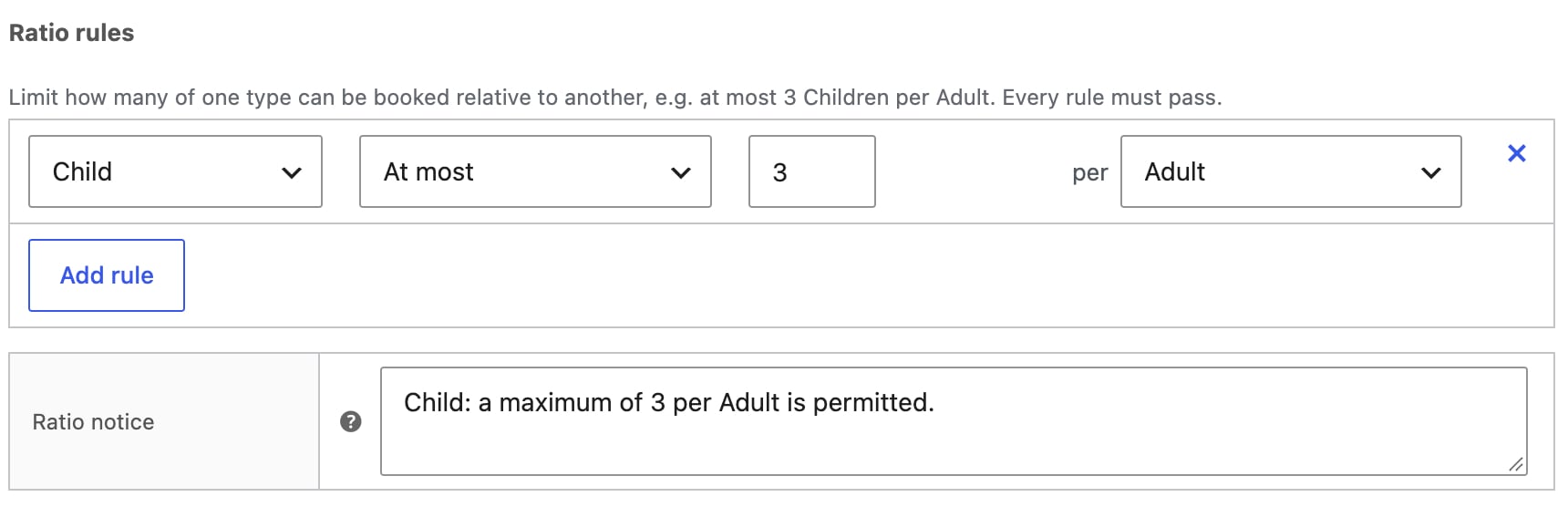
Step #1: Click ‘Add rule’ under ‘Ratio rules’ on the People tab.
Step #2: Build your rule. Choose the type, ‘At most’ or ‘At least’, a number and the ‘per’ type.
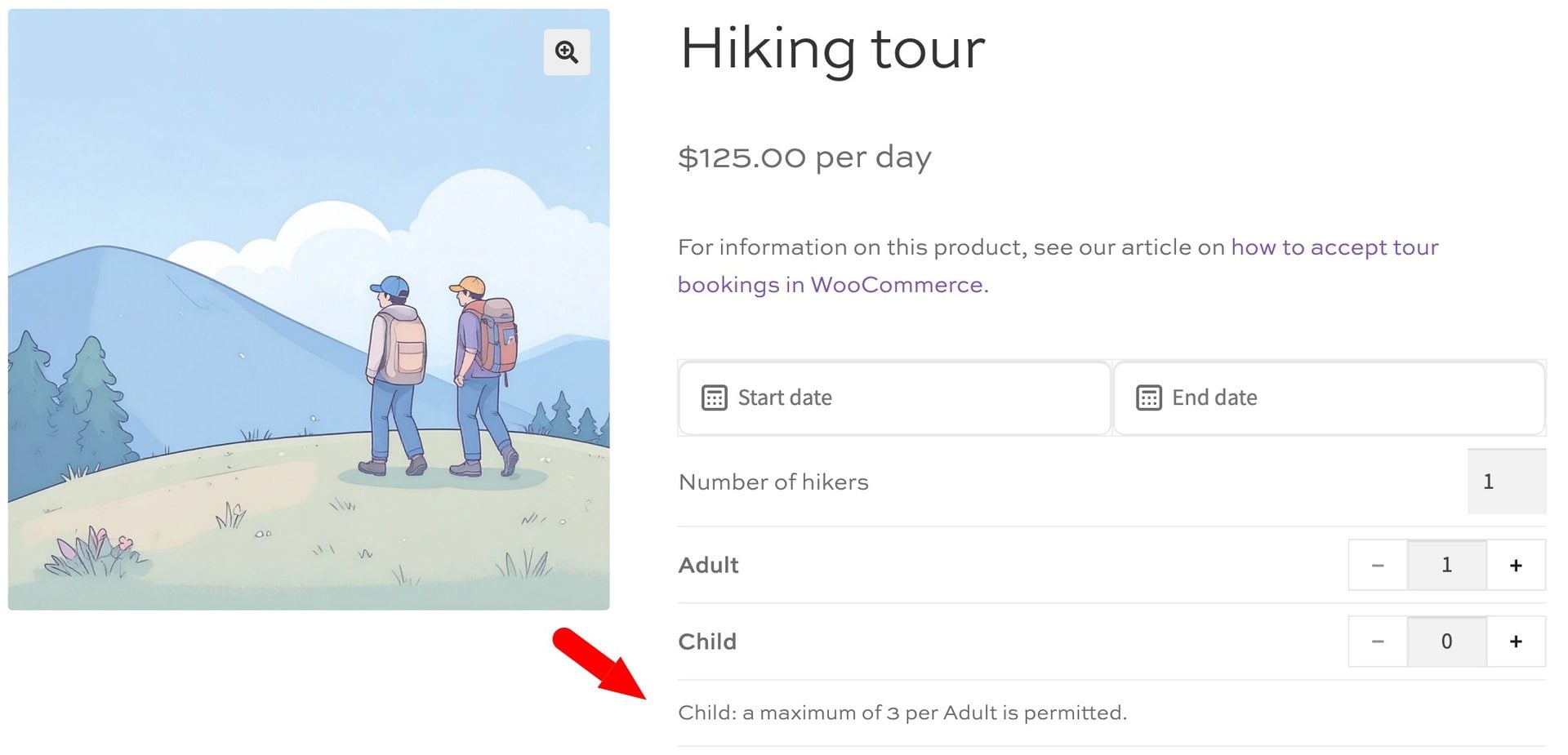
Step #3: Check the ‘Ratio notice’. A text area appears below your rules, filled in automatically:
Child: a maximum of 3 per Adult is permitted.
This notice appears with the people fields on your product page. It updates as you change your rules until you edit it yourself. Clear the text to show no notice.
Step #4: Save your product. Customers now have to meet every rule before they can add the booking to their cart.
| Rule | Check | With 2 Adults |
|---|---|---|
| At most 3 Child per Adult | Children can’t exceed 3 × Adults | Up to 6 Children |
| At least 1 Adult per Infant | Adults must be at least 1 × Infants | Up to 2 Infants |
A rule is ignored on your product page if it uses a type that’s disabled on the product or archived. You’ll see a warning icon next to these rules in the People tab.
What checks run when you save a product?
You’ll see an error notice when you save if any of these apply. Your entered values are kept.
- ‘Enable people’ is on, but no type is enabled
- A type’s minimum is higher than its maximum
- ‘Min people per booking’ is higher than ‘Max people per booking’
- The types’ minimums add up to more than ‘Max people per booking’
- The types’ maximums add up to less than ‘Min people per booking’
- A ratio rule compares a type with itself or has no valid number
- A ratio rule uses a type that isn’t enabled
You’ll also see a warning in two more cases:
- No combination of people can meet your limits and rules together
- ‘Don’t charge’ is selected, no enabled type has a price and ‘Allow zero cost’ is off
Limit the total people with ‘Max people per unit’
‘Max people per unit’ caps the total people across all bookings on each unit. It works alongside ‘Max bookings per unit’, and both limits must pass.
For example, say you run a campsite with 20 pitches, and your license allows 60 guests per night across the whole of the site. Set ‘Max bookings per unit’ to 20 (for the number of pitches) and set ‘Max people per unit’ to 60 (for the maximum number of people allowed on site at any one time). Each booking has a Quantity of 1 and takes one pitch.
A family of 5 books a pitch for Saturday night, leaving 19 pitches and 55 guest places available.
Either limit can be reached first, depending on who books:
- 12 families of 5: These bookings fill all 60 guest places, so Saturday can’t take any more guests even though 8 pitches are still free
- 20 couples: These bookings fill all 20 pitches, so Saturday can’t take any more bookings even though 20 guest places are still free
A new booking must fit within both limits. If 2 pitches and 3 guest places are left, a group of 3 can book, but a family of 5 can’t.
- Multi-day bookings count on every unit they cover, and the lowest remaining number becomes the limit
- Time slot products apply the cap to each slot
- Cancelled and removed bookings no longer count
- The cap is checked on the product page, at add-to-cart and at checkout
What do customers see?
Customers see one field for each enabled people type, directly below the ‘Quantity’ field. Each field has − and + buttons, the type’s label and price, and its description. For example, Adult – $40 per night, or Child – $20.
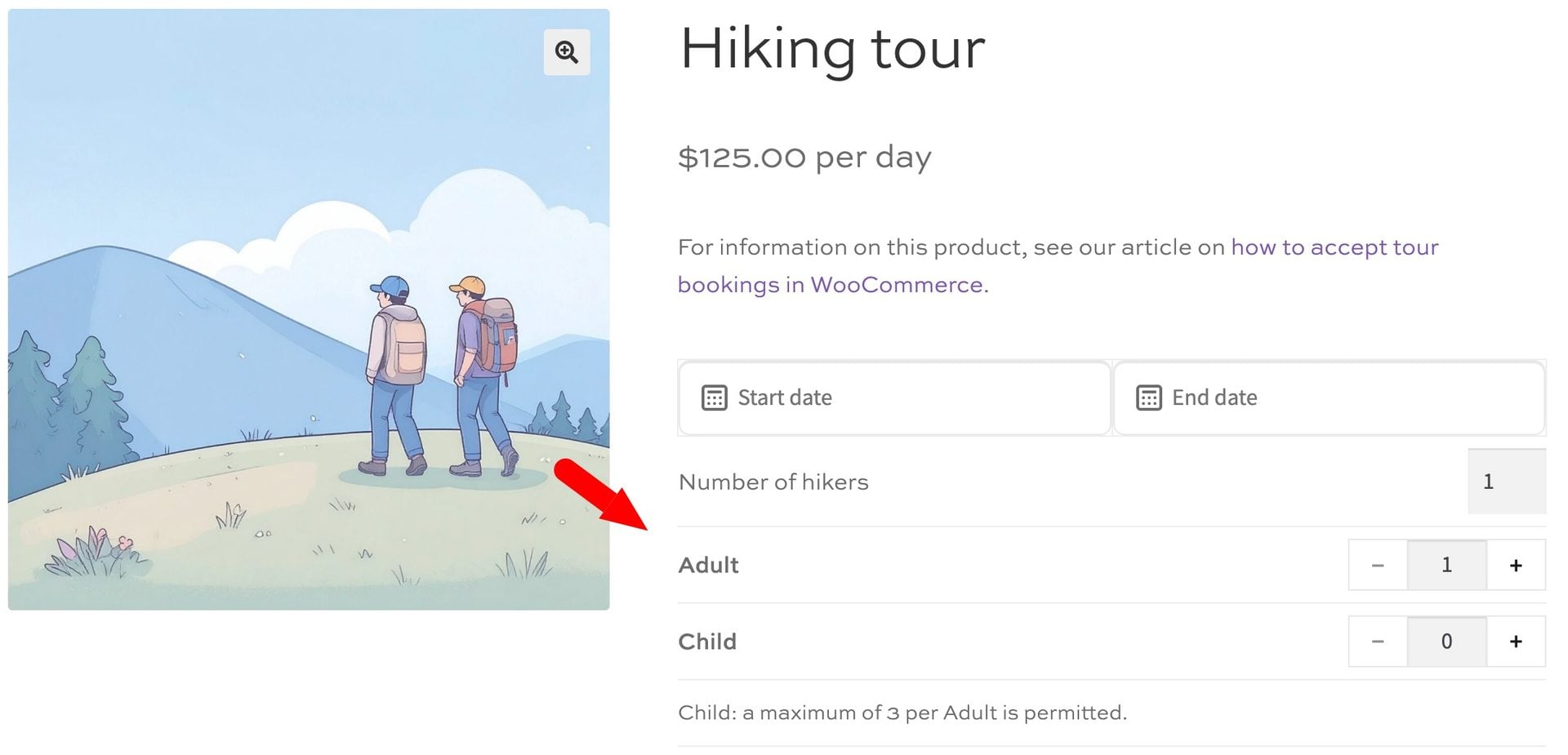
- Each field starts at the type’s minimum
- The + button is disabled when another person would go over a type maximum, the overall maximum, the people remaining or an ‘At most’ rule
- The − button is disabled at the type’s minimum
- The cost updates as customers change the numbers
- People fields follow your ‘Hide until dates selected’ setting
- Prices next to the fields are hidden if you’ve hidden the cost field
If a selection isn’t valid, a message appears below the fields and the customer can’t add the booking to their cart:
| Situation | Message |
|---|---|
| Below a type’s minimum | Please select at least 1 Adult. |
| Above a type’s maximum | You can select up to 4 Child. |
| Below the overall minimum | This booking needs at least 2 people. |
| Above the overall maximum | This booking allows up to 8 people. |
| ‘At most’ rule broken | You can book up to 3 Child per Adult. |
| ‘At least’ rule broken | This booking needs at least 1 Adult per Infant. |
| Above the people remaining | Only 5 places are left for your selected dates. |
People and prices are always checked again on the server, so an edited form can’t change what’s charged.
Manage people in the back end
Once you’ve got your products up and running, you’ll want to be able to see people from the back end. Every booking stores a copy of its people, labels and prices, so later changes to your settings don’t affect past bookings.
| Location | What you’ll see |
|---|---|
| Cart and checkout, including the blocks | Adult: 2 x $40.00/night |
| Order screen, order emails and the My Account order view | Adult: 2 |
| Bookings list | A ‘People’ column, such as 3 (2 Adult, 1 Child) |
| Booking edit screen | A ‘People’ panel with editable numbers |
| My Bookings account tab | One line per type |
| Bookings > Dashboard | People on each booking in the day panel, plus people booked against ‘Max people per unit’ |
| Bookings > Export and the CSV email attachment | A People total column and one column per type |
| Google Calendar events | One line per type in the event description |
Add the {people} placeholder to the ‘Content’ setting of your automatic booking emails to include one line per type.
Add or edit people on a booking
You can enter people when you create a booking from Bookings > Add Booking or from the ‘Add booking’ action on the Dashboard. The fields use the product’s limits, and you can go over them after confirming a warning.
On an existing booking, changing people updates the people remaining under ‘Max people per unit’. It doesn’t change ‘Max bookings per unit’ availability or the order total, so you’ll see a notice if the order may need adjusting.
The price in the Dashboard’s ‘Add booking’ window doesn’t include people prices, so check it and edit it if you need to.
Scenarios
Let’s look at some ways you could set this up.
Example #1: A cabin with a nightly rate and guest charges
You charge $100 per night for the cabin, plus a charge for each guest.
- Set ‘Booking unit’ to ‘Night’ and the standard price to $100
- Select ‘Once per booking’ for ‘Charge standard price’
- Enable Adult at $20 and Child at $10, both ‘Per booking unit’
A booking for 2 Adults and 1 Child for 3 nights costs $300 + (($40 + $10) × 3) = $450.
Example #2: A walking tour priced per person
Your tour has no base price, only a ticket for each person.
- Select ‘Don’t charge’ for ‘Charge standard price’
- Enable Adult at $40 and Child at $20, both ‘Once per booking’
- Set the Adult ‘Min’ to 1 so that every booking includes an adult
A booking for 2 Adults and 1 Child costs $80 + $20 = $100.
Example #3: A climbing session with one rate for everyone
Everyone pays the same rate per slot, so you only need one type.
- Add a type called Climber at Bookings > People
- Set the slot price to $25
- Select ‘Per person’ for ‘Charge standard price’
- Enable Climber with a price of 0
A booking for 3 Climbers for 1 slot costs $25 × 3 = $75.
Example #4: Hotel rooms with a guest charge per room
Customers can book more than one room, and each room has a guest charge.
- Set the standard price to $100 per night
- Select ‘Once per booking’ for ‘Charge standard price’
- Check ‘Multiply people prices by quantity’
- Enable Adult at $15, ‘Per booking unit’
A booking with a Quantity of 2 and 2 Adults for 1 night costs $200 + (2 × $30) = $260. With ‘Multiply people prices by quantity’ unchecked, it costs $200 + $30 = $230.
Example #5: A family activity that needs supervision
Children must be accompanied, and the group can’t be too large.
- Enable Adult with a ‘Min’ of 1, and Child with a ‘Min’ of 0
- Set ‘Max people per booking’ to 8
- Add the rule: Child, ‘At most’, 3, per Adult
With 2 Adults, the Child + button stops at 6. If the customer then removes an Adult, they’ll see a message and can’t add the booking to their cart until they fix it.
Example #6: A boat trip with limited seats
Your boat holds 30 people, however many separate bookings that takes.
- Set ‘Max people per unit’ to 30
- Enable your people types
If existing bookings on that date total 25 people, the next customer can select up to 5. If one of those bookings is cancelled, its people become available again.
Charge add-ons per person
Add-on fields from Product Add-Ons Ultimate can be priced per person, with a different price for each type. For example, you could charge for breakfast at a different rate for adults and children.
Step #1: Edit your add-on field and enable ‘Price per person?’
Step #2: Optionally enter a price for each type. Leave a price blank to use the field’s price.
Step #3: Save your product. Customers now see each type’s price under the field’s label, and the total updates as they change their people.
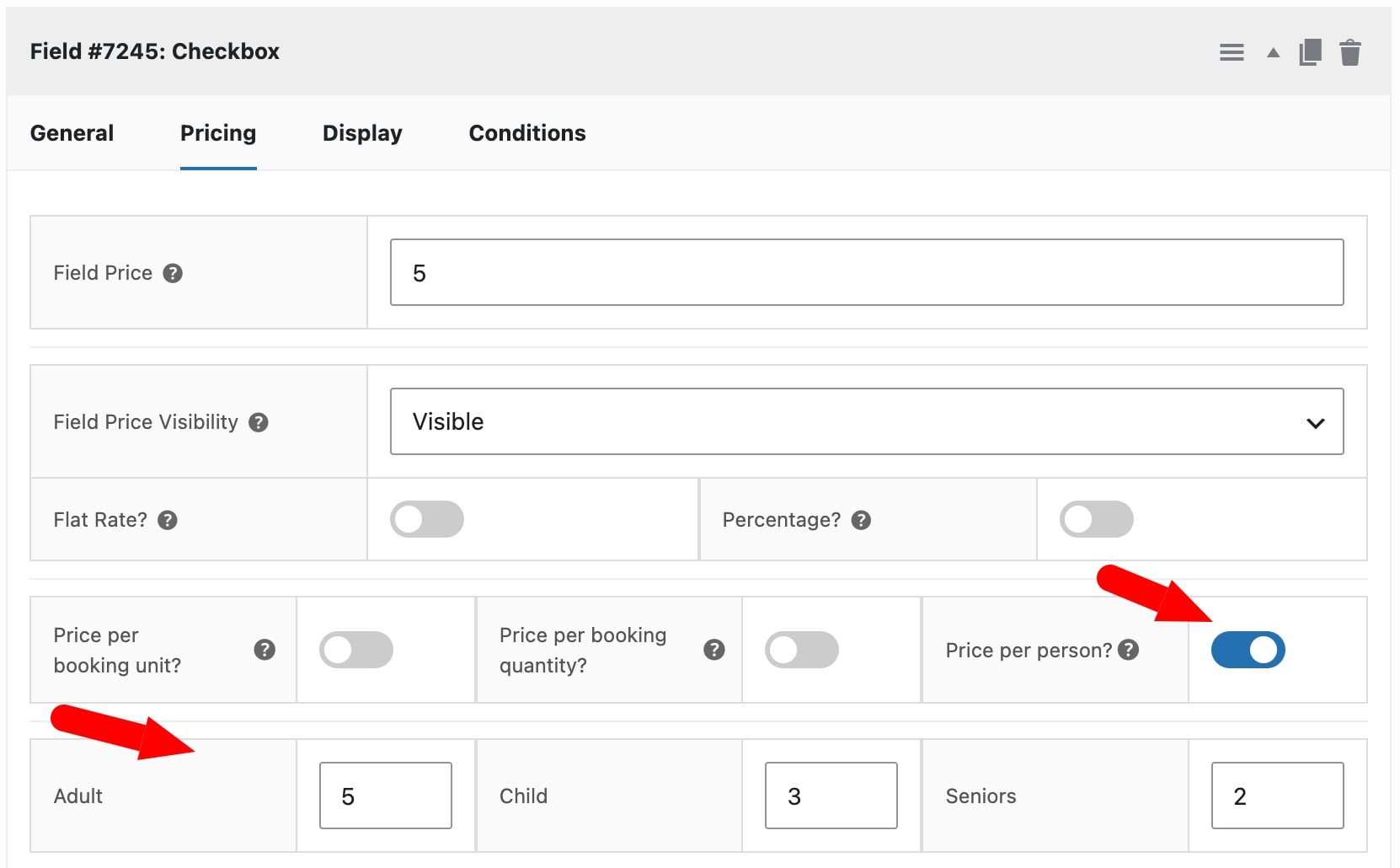
For a field priced at $5, with Child set to $3, 2 Adults and 1 Child add $13. With no type prices set, the same 3 people add $15.
- ‘Price per booking unit?’ multiplies the price by the number of units as well
- Option prices on checkboxes, selects and radios can’t vary by type, so they’re multiplied by total people
- ‘Price per person?’ has no effect on Products, Product Categories or Name Your Price fields, or on prices based on characters or formulas
What are the limitations?
- Resource products: People aren’t available on them
- Child products: People aren’t available on bookable child products or rental bundle children. The parent product can use people
For developers: actions and filters
| Hook | Type | Purpose |
|---|---|---|
bfwc_people_types | Filter | Change the global types |
bfwc_product_people_settings | Filter | Change a product’s People settings. Arguments: $settings, $product_id |
bfwc_people_cost | Filter | Change the people prices before tax and conversion. Arguments: $cost, $selection, $product_id, $units |
bfwc_validate_people | Filter | Add or change validation errors. Arguments: $errors, $selection, $product_id |
bfwc_people_display_lines | Filter | Change the per-type lines. Arguments: $lines, $snapshot |
bfwc_people_ratio_notice | Filter | Change the ratio notice. Arguments: $notice, $product_id |
bfwc_people_label | Filter | Change the ‘People’ label on panels, columns and exports |
bfwc_people_slot_unit_label | Filter | Change the word ‘slot’ in people prices. Arguments: $label, $product_id |
bfwc_people_page_capability | Filter | Change who can access Bookings > People. The default is manage_options |
bfwc_after_people_fields | Action | Output content after the people fields. Argument: $product_id |