WooCommerce Product Add-Ons Ultimate allows you to use conditional logic inside a calculation field’s formula through if/then/else operators.
How do you add if/then/else logic to a formula?
Use the if-else ternary operator in any calculation field’s formula:
condition ? value_if_true : value_if_falseFor example, this formula applies a 10% discount if the quantity is more than 10:
{quantity} > 10 ? {product_price} * 0.9 : {product_price}This means: IF the quantity is more than 10 THEN (represented by the ? symbol) use the product price × 0.9 ELSE (represented by the : symbol) use the normal price. It’s the same logic as Excel’s IF() function with different syntax. See this article for more on how to create Excel-type formulas in WooCommerce.
To add an if/then/else operator to your formula, just click the if-else button.
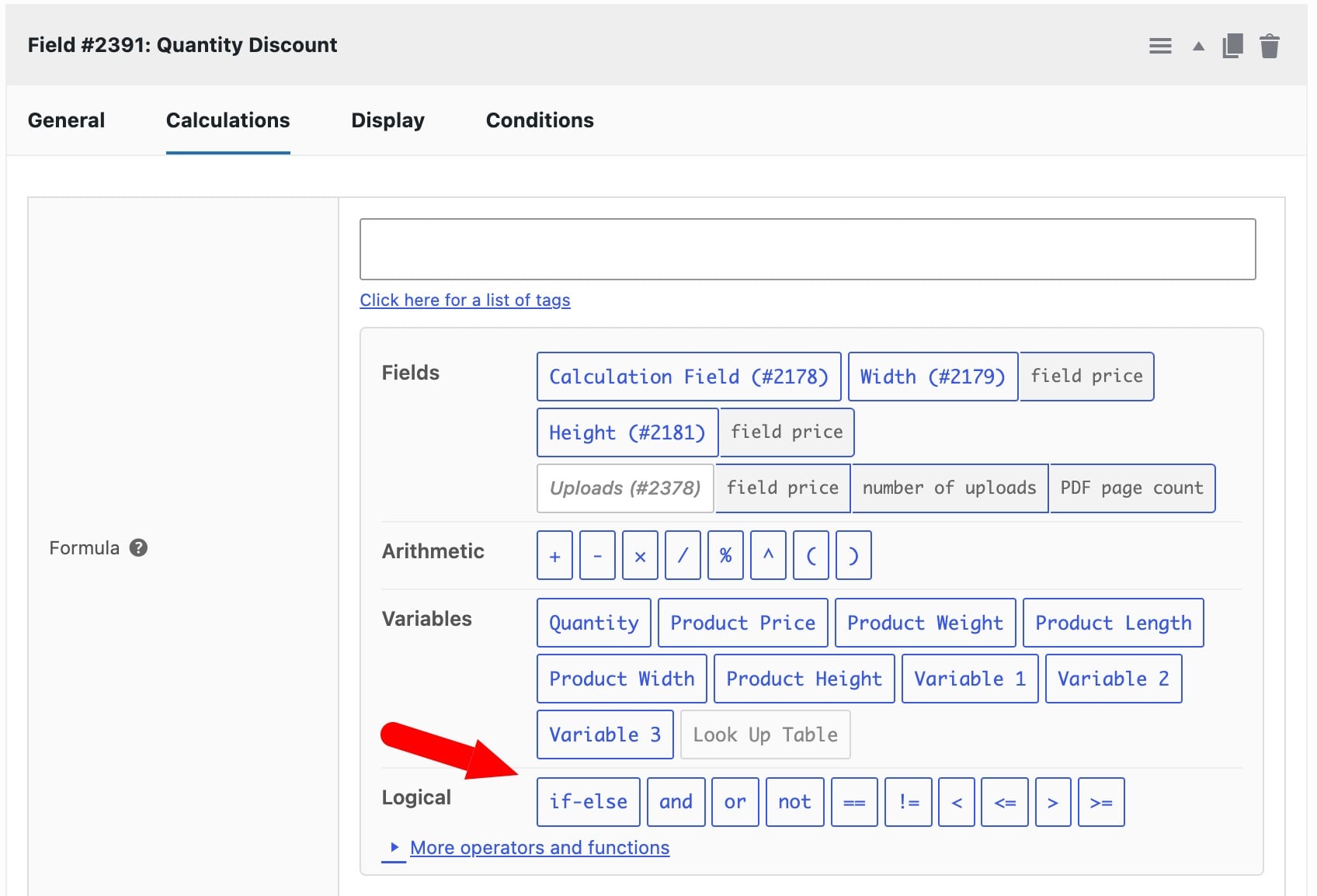
The correct symbols will be automatically added to your formula field:
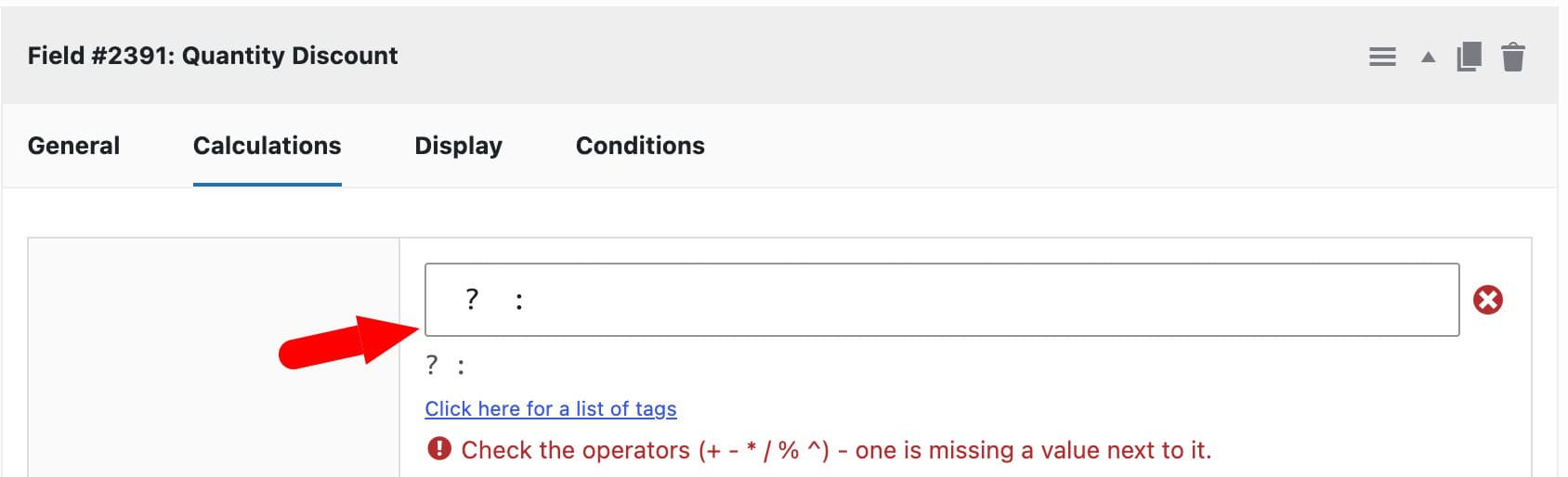
Now you just need to click into the correct part of the formula and enter each component:
- Click to the left of the
?symbol and enter the condition that must be met. In our example, it’s{quantity} > 10 - Click between the
?and:symbols to define what value is returned if the condition is true: e.g.{product_price} * 0.9 - Click to the right of the
:symbol and define what value to return if the condition is false: e.g.{product_price}
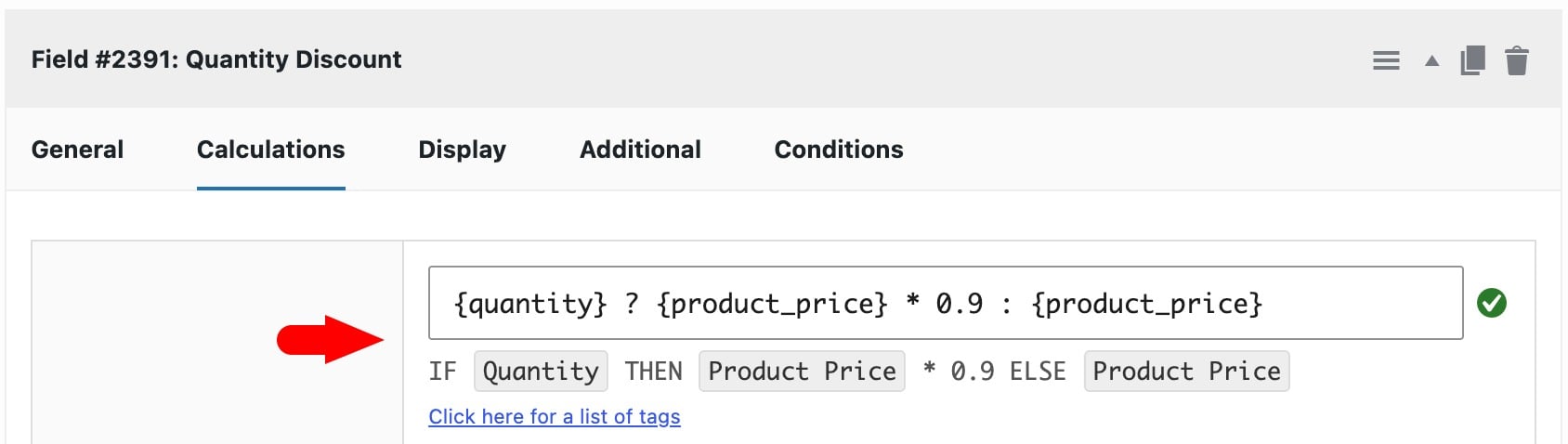
Here’s the complete formula. Note the natural language version in the preview line below. This helps to read your formulas when compiling them. There’s also a parser that automatically checks your formula and displays a validation symbol.
Which comparison operators can you use?
Here’s a list of the comparison operators that you can use in creating conditions.
| Operator | Meaning |
|---|---|
| == | Equal to |
| != | Not equal to |
| < | Less than |
| <= | Less than or equal to |
| > | Greater than |
| >= | Greater than or equal to |
How do you combine conditions?
Use and, or and not to combine multiple conditions in one formula, for example:
{quantity} > 10 and {product_weight} > 5 ? {product_price} * 0.9 : {product_price}This only applies the discount when both conditions are true: the quantity is over 10 and the weight is over 5. Swap and for or if either condition on its own should trigger the discount.
How do you nest conditions?
You can nest ternaries to handle more than two outcomes, similar to nesting IF() statements in a spreadsheet:
{quantity} > 50 ? {product_price} * 0.8 : ({quantity} > 10 ? {product_price} * 0.9 : {product_price})This gives a 20% discount above 50 units, 10% above 10 units and the full price otherwise.
Check the formula builder’s live preview as you add each condition. Nested ternaries get harder to read as they grow, so the preview helps you confirm each stage does what you expect.
How do you chain calculations for multi-step logic?
If your formulas are becoming too complex, you can chain calculation fields. This means that you can split conditional logic across multiple calculation fields and use the result from one field in the next field.
Reference the first calculation field’s tag in the second field’s formula. For example, field 25 calculates a subtotal:
{field_1} * {field_2} * {field_3}A second field then applies a 10% discount if the subtotal is more than 100:
{field_25} > 100 ? {field_25} * 0.9 : {field_25}The whole chain updates live when a customer changes an input. The first field recalculates, which triggers the second field to recalculate without refreshing the page.
What should you check when chaining fields?
Keep these points in mind:
- Place the field supplying the value before the field that uses it in the add-on group, so its result is available when the next formula runs
- Enable ‘Hide Calculation?’ on any field you only use as a working step. It still calculates and updates its value but isn’t displayed on the front end
- Build chains as long as you need, e.g. a third field could reference
{field_26}from the second. Splitting logic into separate steps makes it much easier to debug than one long nested formula
Using fields hidden by conditions in calculation formulas
If you have a complex page with some fields hidden by conditions, you might find that your calculation fields are no longer returning a value. This can happen if you are using a value from a hidden field in the calculation. To fix this, see this article.