WooCommerce Request a Quote plugin: full feature guide

The WooCommerce Request a Quote plugin lets customers add products to a quote list instead of buying straight away, then send you a request for pricing. This guide covers what the plugin does, how to configure it, when it makes sense instead of standard checkout, and how other stores are using it.
After reading this guide:
- Customers will be able to:
- Add products to a quote list using an ‘Add to Quote’ button
- Submit a custom quote request form with their details and any special requirements
- Check out directly from the quote email once you’ve sent them a price
- As the store owner or admin, you’ll be able to:
- Choose exactly which products, categories, or tags are quotable
- Restrict quote requests to guests, logged-in users, or specific user roles
- Hide prices, edit them per quote, and send a branded PDF quote automatically
There’s a demo here so you can see how the quote flow works from a customer’s point of view.
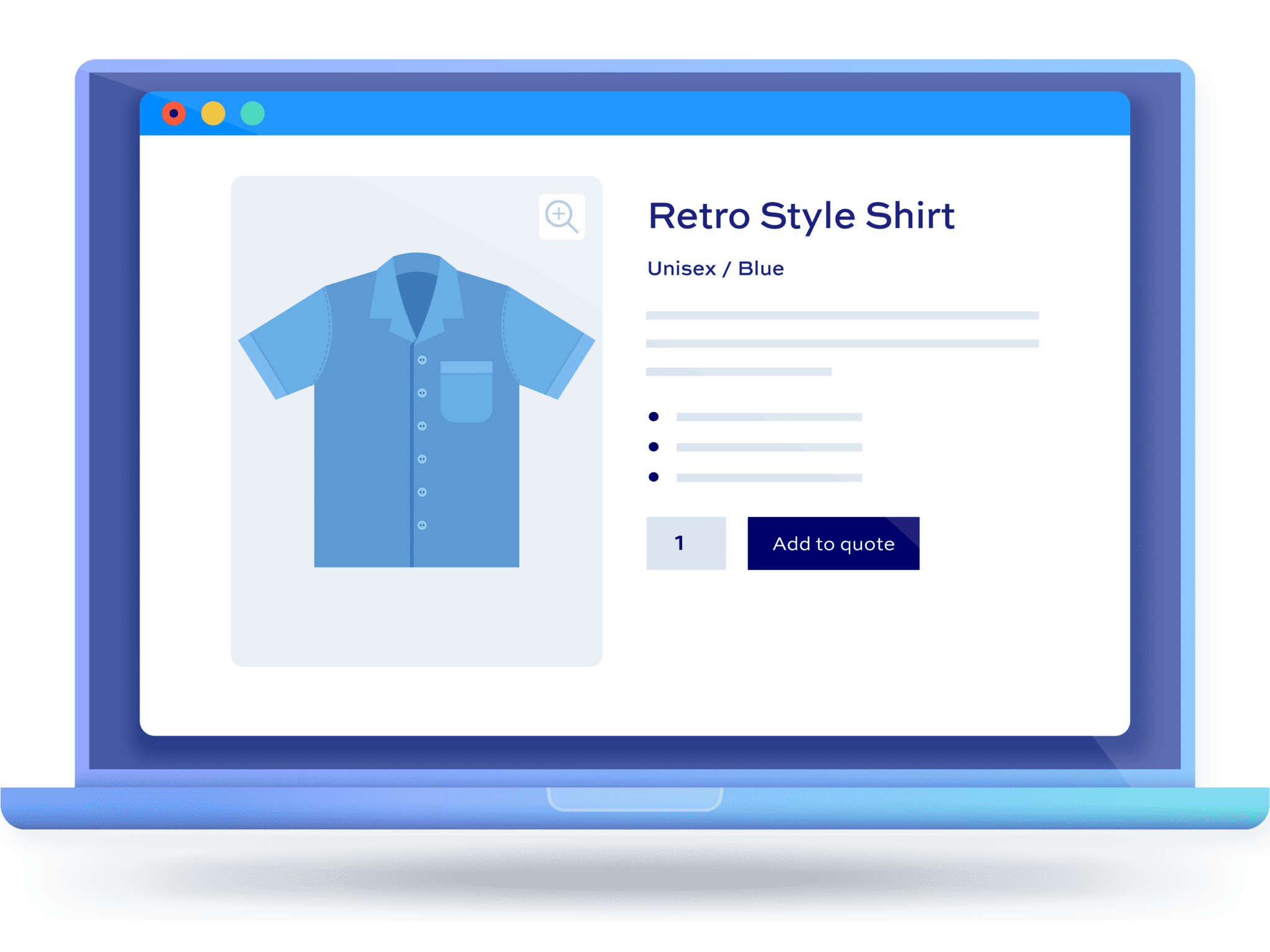
In this guide, we’ll assume you already have WordPress and WooCommerce installed and ready to go.
What does WooCommerce Request a Quote do?
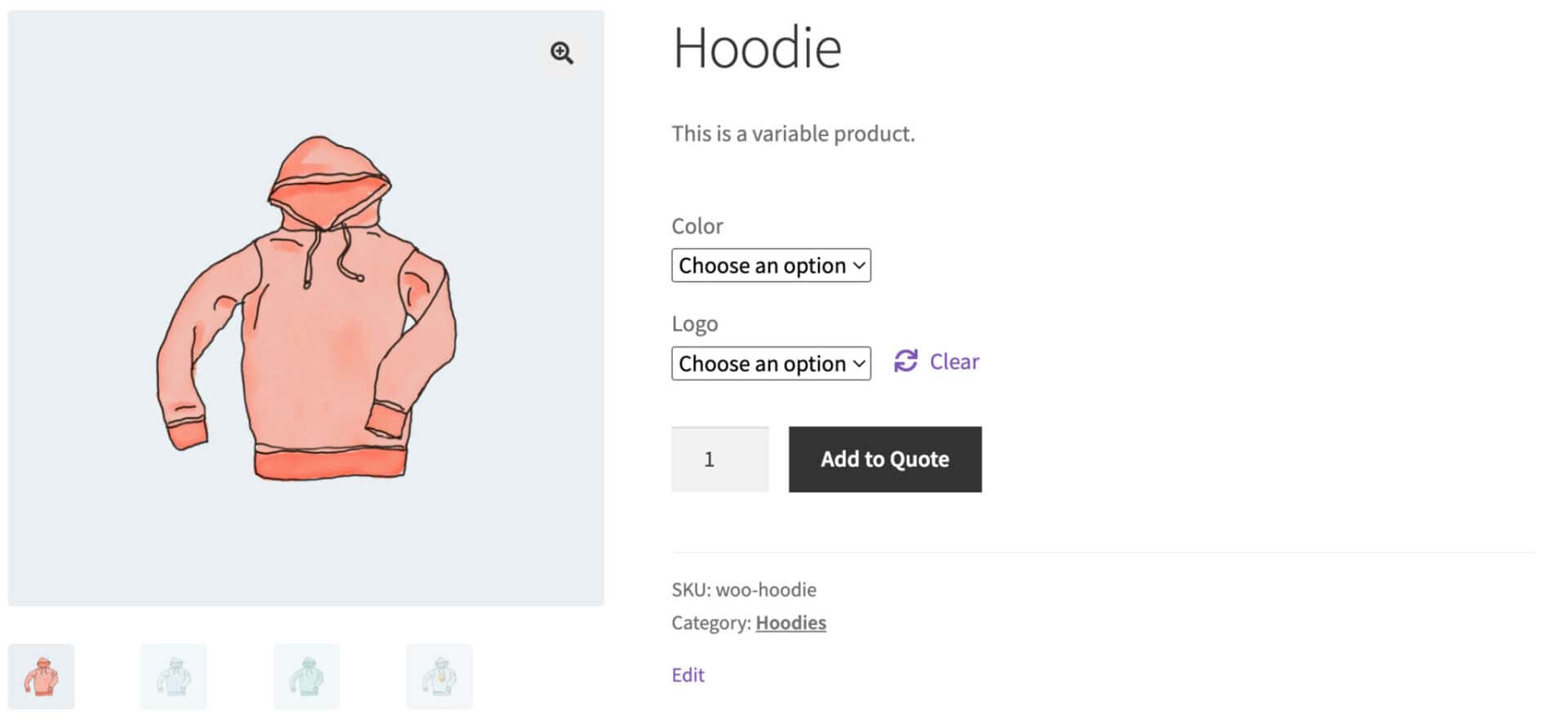
The WooCommerce Request a Quote plugin replaces (or sits alongside) the standard ‘Add to cart’ button with an ‘Add to Quote’ button. Customers pick the products they’re interested in, submit a request form, and you send back a price by email.
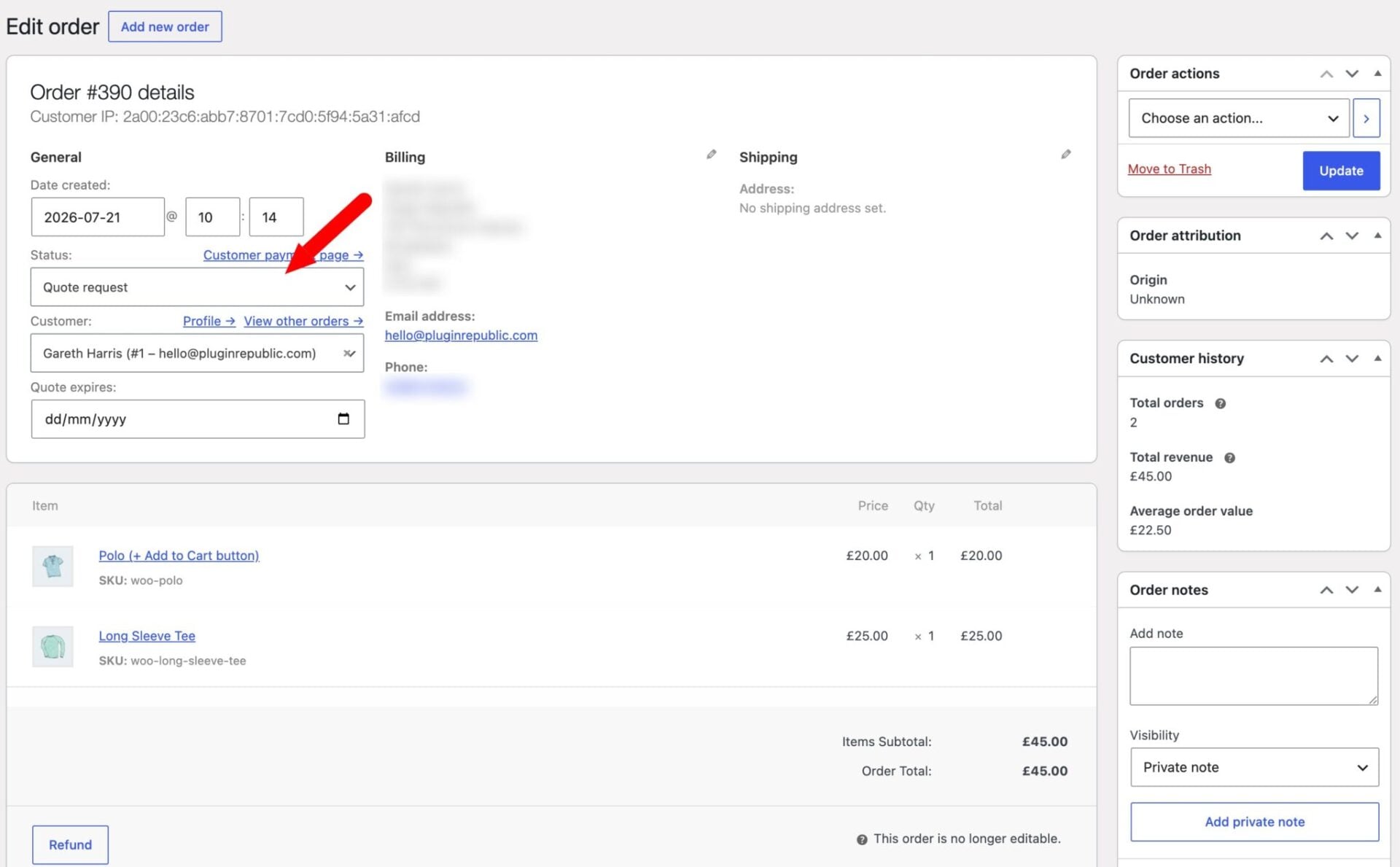
Every quote request lands in your WooCommerce Orders screen as a ‘Quote request’, so you manage it the same way you manage a normal order. You can edit the price of each line item before sending the quote back, attach a branded PDF, and set quotes to expire automatically after a set number of days.
The B2B e-commerce market is projected to reach $28.03 trillion in 2026 and grow at a 20.9% CAGR through 2033, and quote-based buying is a big part of how that volume moves online. The global business-to-business e-commerce market size was valued at USD 24.1 trillion in 2025 and is projected to grow from USD 28.0 trillion in 2026 to USD 105.9 trillion by 2033, at a CAGR of 20.9% from 2026 to 2033</cite> (Grand View Research). For stores selling in bulk, wholesale, or custom pricing, a request-a-quote flow is often what turns that hesitation into a sale.
Choose which products customers can quote for
With WooCommerce Request a Quote, you can decide exactly which products get the ‘Add to Quote’ button. Turn it on across your whole store, on individual products you pick yourself, or on everything within chosen categories or tags.
That gives you the choice between running quoting as a store-wide feature, or keeping it to the handful of items where pricing does actually vary – like bulk orders or made-to-order goods, say – while everything else stays on standard checkout.
Control who can request a quote
WooCommerce Request a Quote also lets you decide who even sees the option: all visitors, only logged-in customers, only logged-out guests, or a specific user role. Specific user roles is mostly useful for B2B and wholesale stores, since they’re more likely to offer quotes for trade accounts while retail customers keep buying normally.
There’s a sensible default for guests too – if someone enters an email that’s already registered, they’re prompted to sign in first, which keeps quote requests tied to the right account. You can relax that and let guests quote under a registered email without signing in, with the request linked to their account automatically.
Build a fully customizable request form
The quote request form isn’t fixed either – you can customize it with drag and drop fields, no code required. Built-in fields like first name, last name, company, email address, and phone number are ready to go from the start, and you’re free to relabel, reorder, or make any of them optional.
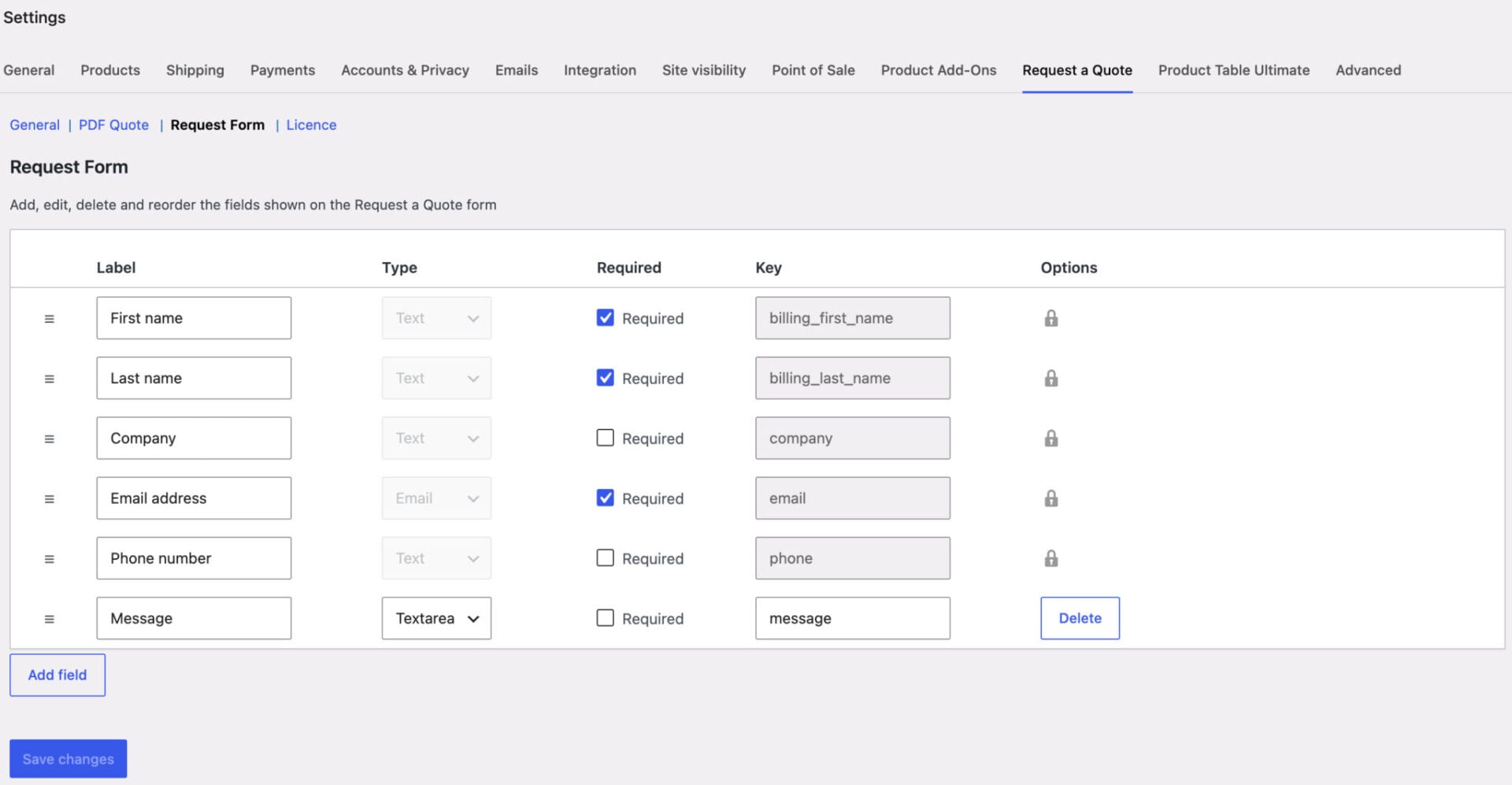
If you need more than the basics, you can add your own text, textarea, email, checkbox, or select fields for anything specific to your business, like a delivery date or a project brief.
Automate quote delivery
Once a request comes in, WooCommerce Request a Quote lets you decide how hands-on you want to be. Turn on auto send and quotes go out the moment a customer submits a request, or leave it off and handle each one yourself from a pending order.
You can also set quotes to expire after a chosen number of days, weeks, or months, with reminder emails going out beforehand to nudge customers toward checkout. The quote email includes a ‘Checkout now’ button, so paying is a single click once they’re happy with your price.
Send professional PDF quotes
If you want your quotes to look the part, turn on PDF attachments and every customer email goes out with a branded PDF alongside it. It carries your company logo next to your store address, a ‘Prepared for’ section with the customer’s details, and a full breakdown of every line item and total.
This is especially helpful for B2B buyers who are used to receiving formal quotations.
Control account and checkout options
You also get some say over how customers move from quote to checkout. Automatically create an account for anyone who submits a request, or let guests quote without ever registering – whichever suits how much friction you want in that process.
You can have customers redirected straight to the Request a Quote page the moment they add a quotable product, and reopen an expired quote at any time just by editing the ‘Quote expires’ date on the order.
Get pricing flexibility
Pricing is entirely up to you with WooCommerce Request a Quote. You can hide prices on quotable products so customers only find out the cost by asking, or keep prices visible and offer quoting as an extra option – you can even show ‘Add to Cart’ alongside ‘Add to Quote’ so customers choose whether to buy now or ask for a price first.
Because every quote is saved as a pending order behind the scenes, you’re free to adjust prices manually or apply special pricing before sending anything back to the customer.
Go further with WooCommerce quotes
None of this locks you into a particular setup – WooCommerce Request a Quote works with every theme, including block themes, and every page builder. It also plays nicely with the rest of the Plugin Republic lineup: pair it with Product Add-Ons Ultimate so that customers can request quotes for personalized products, add-ons included, or with Dynamic Pricing and Discount Rules so your existing bulk and role-based pricing carries straight through to the quote form.
On top of that, it’s fully translatable and works with multilingual and multicurrency plugins, so it holds up whichever markets you sell into.
How do you set up WooCommerce Request a Quote?
Follow these steps to install WooCommerce Request a Quote and configure it so customers can add products to a quote list and submit a request.
- Choose which products are quotable
Decide whether all products, specific products, or specific categories or tags show the ‘Add to Quote’ button.
- Choose who can request a quote
Decide whether all users, logged-in users, logged-out users, or specific user roles can request a quote.
- Optionally hide prices on quotable items
Hide prices on products that customers can only get by requesting a quote, and choose whether to show the ‘Add to Cart’ button alongside it.
- Configure quote expiry and reminders
Set quotes to expire after a chosen period, and send customers a reminder email before they do.
- Build your quote request form
Customize the fields on your quote form with drag and drop.
- Optionally turn on PDF quotes
Attach a branded PDF quote to the customer’s email automatically.
Here’s each step in more detail.
Once you’ve purchased WooCommerce Request a Quote:
- Download the plugin’s zip file by clicking on the link on your order confirmation screen or in your welcome email. You’ll receive the email automatically a few seconds after you’ve completed the purchase
- Go to Plugins > Add New in your WordPress dashboard
- Click on the ‘Upload Plugin’ button
- Drag and drop the plugin’s downloaded zip file into the ‘Choose File’ area and click ‘Install Now’
- When the plugin has uploaded, click the ‘Activate Now’ button
Activating the plugin automatically creates a Request a Quote page with the quote form shortcode already inserted, so you don’t need to build this yourself. For the settings, go to WooCommerce > Settings > Request a Quote.
Step #1: Choose which products are quotable
Use the ‘Enable Quotes on’ setting to decide which products show the ‘Add to Quote’ button. Choose from ‘All Products’, ‘Specific Products’, ‘Specific Categories’, or ‘Specific Tags’, depending on how much of your catalog should be quotable.
If you choose ‘Specific Products’, open each product you want to include and check the ‘Enable Request a Quote’ option. This gives you full control over which items customers can quote for and which stay on standard checkout.
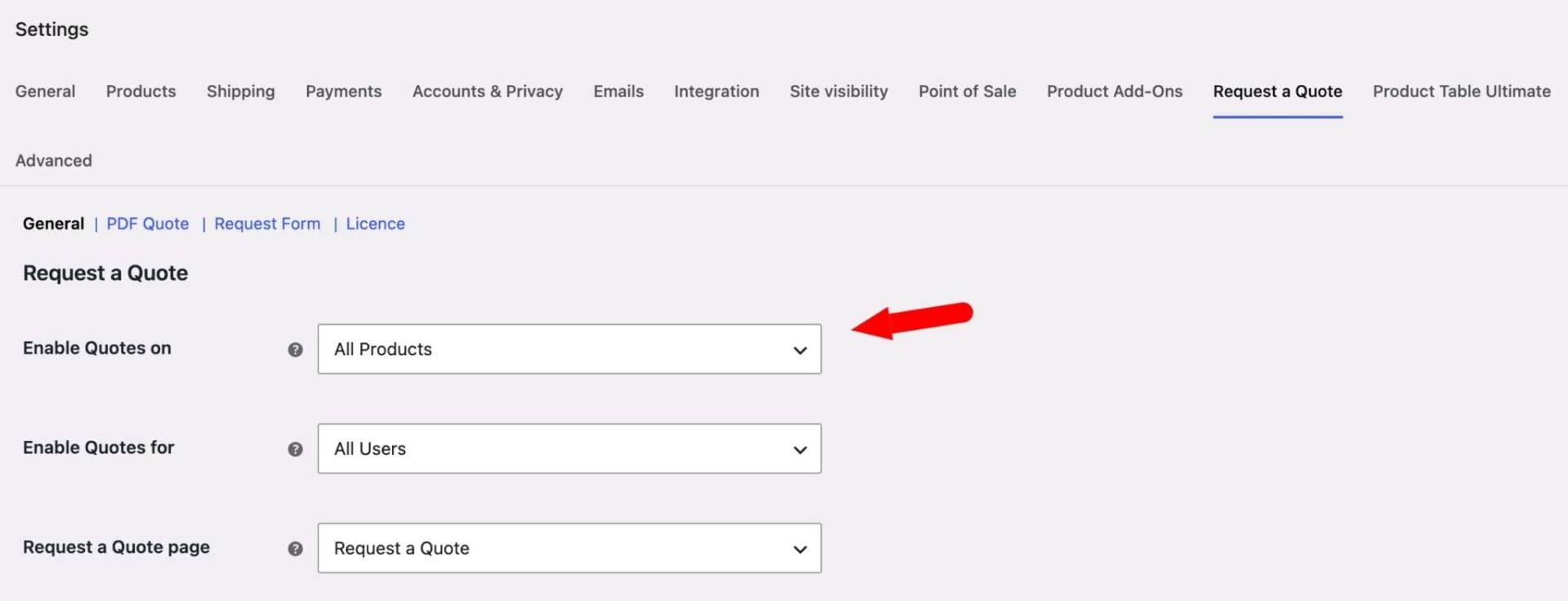
Step #2: Choose who can request a quote
Use the ‘Enable Quotes for’ setting to decide who sees the quote option: ‘All Users’, ‘Logged-In Users’, ‘Logged-Out Users’, or ‘Specific User Roles’. You now have quoting scoped to the right products and the right customers.
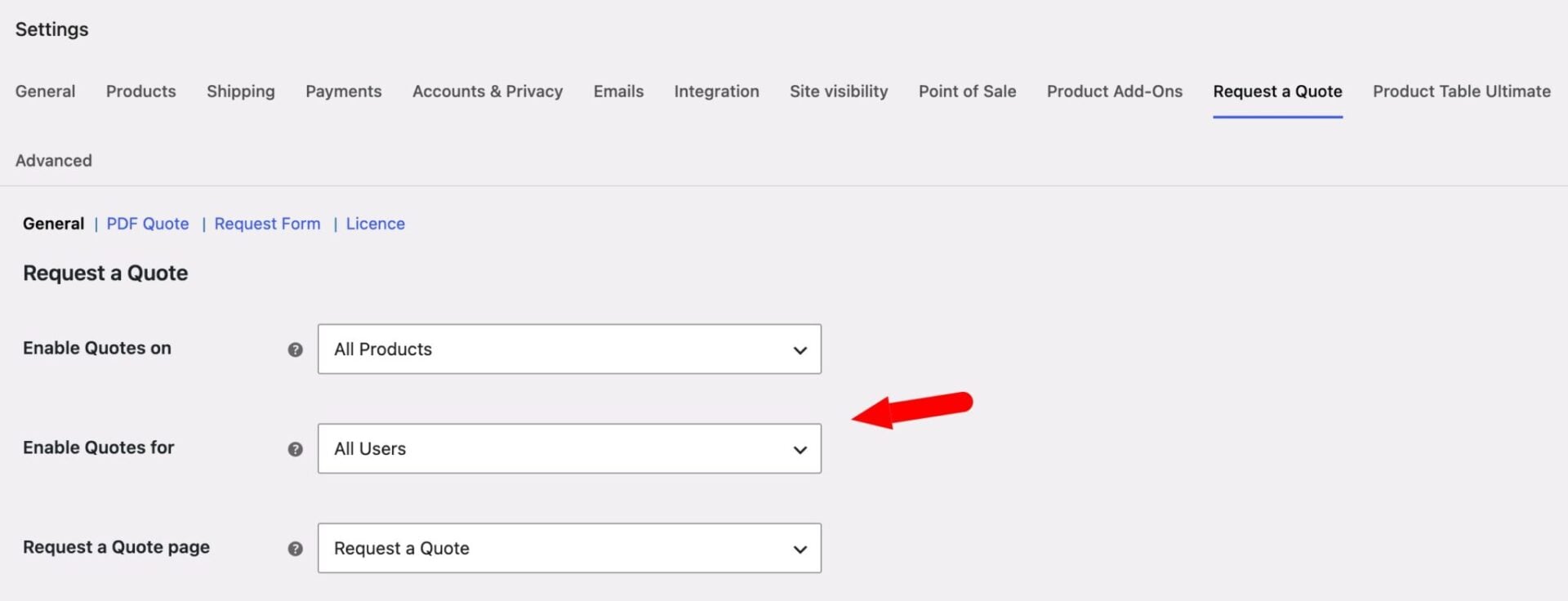
Step #3 (optional): Hide prices on quotable items
Check the ‘Hide prices on quotable items’ option to remove prices from products that customers can only get by requesting a quote. This works well when your pricing genuinely depends on quantity, specification, or negotiation.
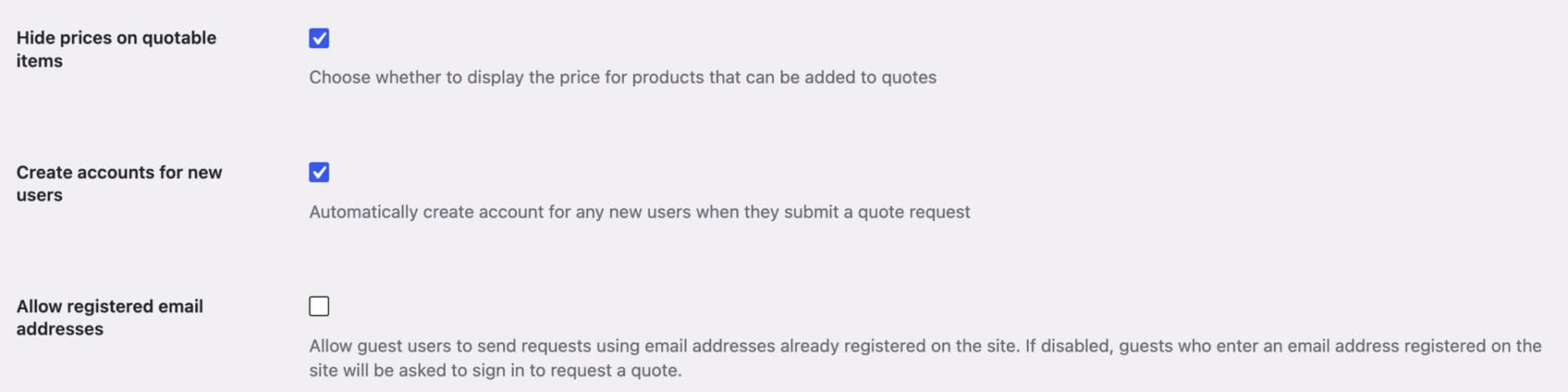
If you’d rather keep prices visible and just offer quoting as an extra option, leave this off. Turn on ‘Display the Add to Cart button’ as well if you want customers to choose between buying now or asking for a price first.
Step #4: Configure quote expiry and reminders
Turn on ‘Enable quote expiry’ if you want quotes to stop being payable after a set period. Set ‘Expires after’ to a number, then choose ‘Days’, ‘Weeks’, or ‘Months’ as the unit – 14 days is a common starting point.
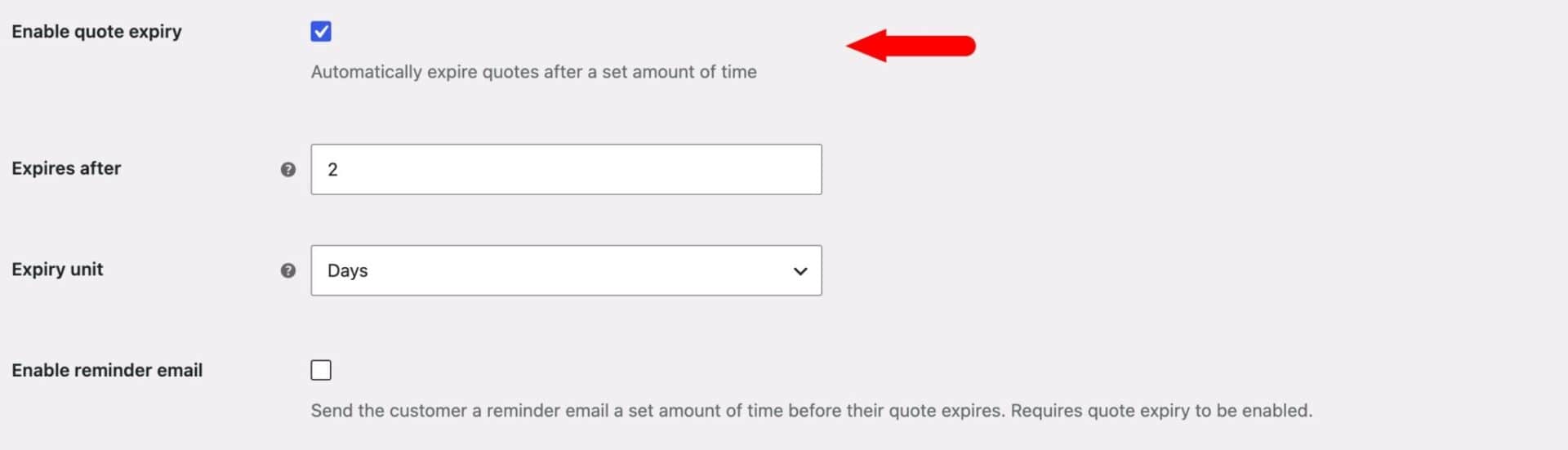
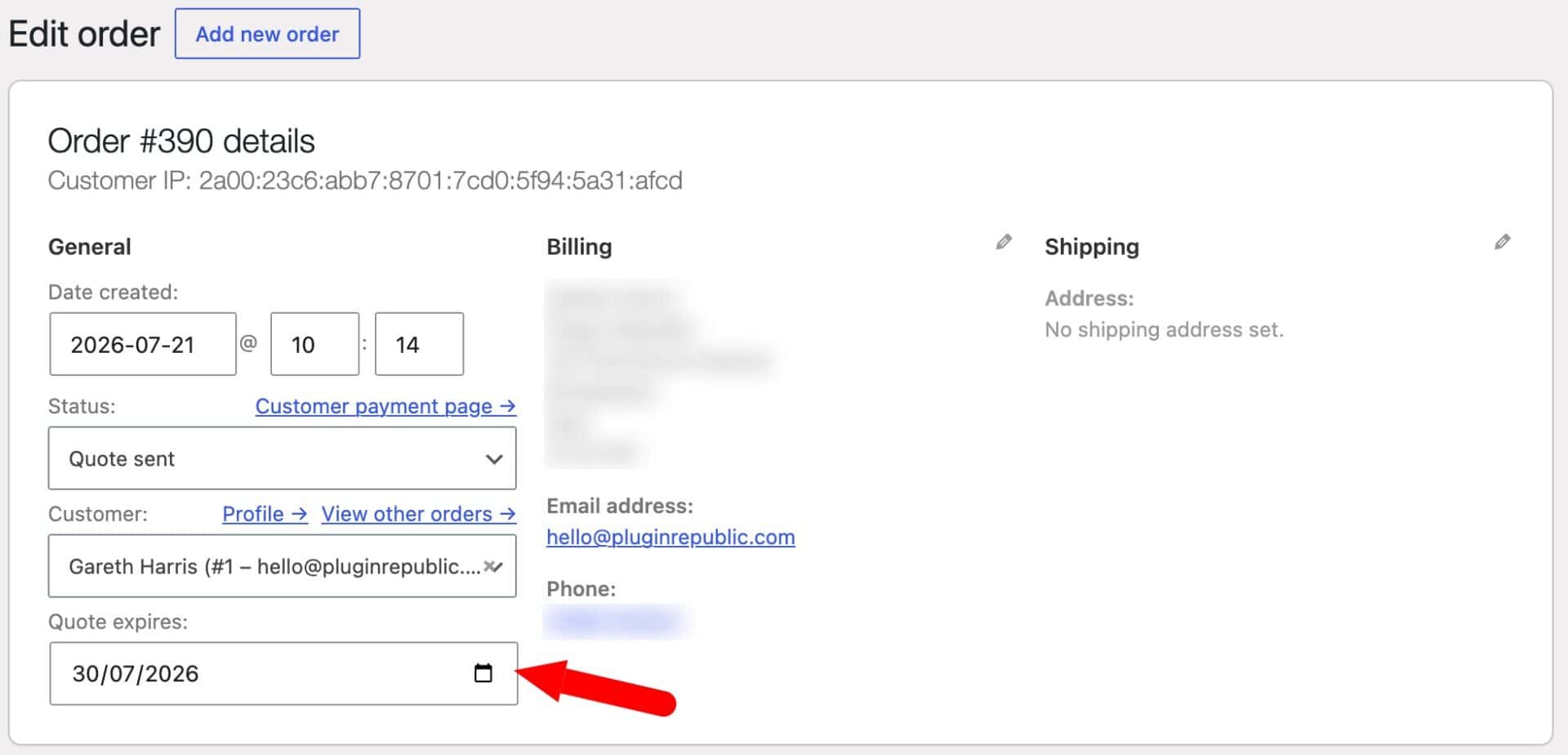
Once a quote expires, its status changes to ‘Quote expired’ and the ‘Checkout now’ link in the customer’s email stops working. If a customer needs more time, open the order and edit the ‘Quote expires’ date – extending it into the future automatically reopens the quote and reactivates the checkout link.
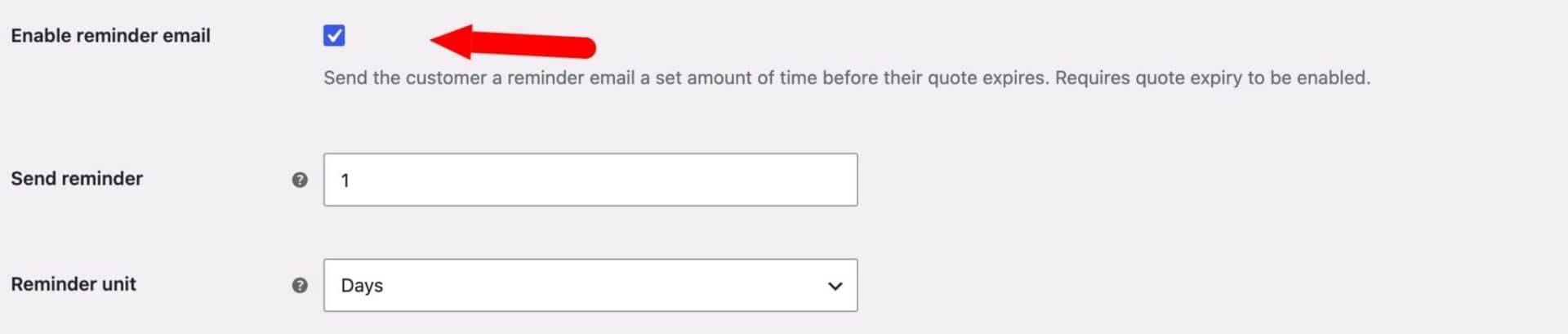
Enable the ‘Quote reminder email’ setting to prompt customers before their quote expires. For example, with expiry set to 14 days and the reminder set to send 3 days before that, the customer gets a nudge with plenty of time to check out.
Step #5: Build your quote request form
Use the Request Form tab to customize the fields on your quote form with drag and drop. Reorder fields by dragging the handle on the left of each row, edit any field’s label or required status, and add new text, textarea, email, checkbox, or select fields as needed – a VAT number, delivery date, or project details field are common additions for B2B forms.
You now have a form that collects exactly what you need from customers, on top of the built-in billing fields.
Step #6 (optional): Turn on PDF quotes
Turn on ‘Attach PDF quote to email’ to automatically send a branded PDF alongside the customer’s quote email. Upload your company logo under ‘Upload company logo’ so it appears next to your store address at the top of every PDF.

Save your settings once you’re happy with the general, expiry, form, and PDF options. Customers can now add quotable products to their list and submit a request, and you’re ready to manage what comes in.
What other settings can you configure?
The steps above cover the settings most stores need, but there are a few more worth knowing about.
Request a Quote page. This setting defines which page carries the [pr_raq_form] shortcode. It’s set automatically when you activate the plugin, so you’ll rarely need to touch it unless you rebuild the page yourself.
Create accounts for new users. Turn this on to automatically create an account for any new user who submits a quote request, rather than leaving them as a guest.
Allow and link registered email addresses. By default, a guest entering an email that’s already registered is prompted to sign in before submitting a request. Enabling ‘Allow registered email addresses’ lets them submit without signing in, and ‘Link registered email addresses’ then ties that request to the matching account automatically.
Always show quote form. The quote form is normally hidden from logged-in customers who’ve already submitted a request. Turn this on to keep the form visible regardless of whether they’ve submitted before.
Redirect to Quote Form. Turn this on to send customers straight to the Request a Quote page as soon as they add a quotable product, instead of showing an ‘Added to quote’ message on the page they’re already on.
Apply DPDR discounts. If you also have WooCommerce Dynamic Pricing and Discount Rules installed, an Integration tab appears with this setting. Turn it on to apply your existing bulk and role-based pricing rules to products on the quote form, so quoted totals reflect the same discounts customers would see in the regular cart.
How do you manage quote requests?
When a customer submits a quote request, you’ll receive an email notification just as you would for a new order, and a new ‘Quote request’ appears in WooCommerce > Orders. Click on it to open and edit it in exactly the same way as a standard order.
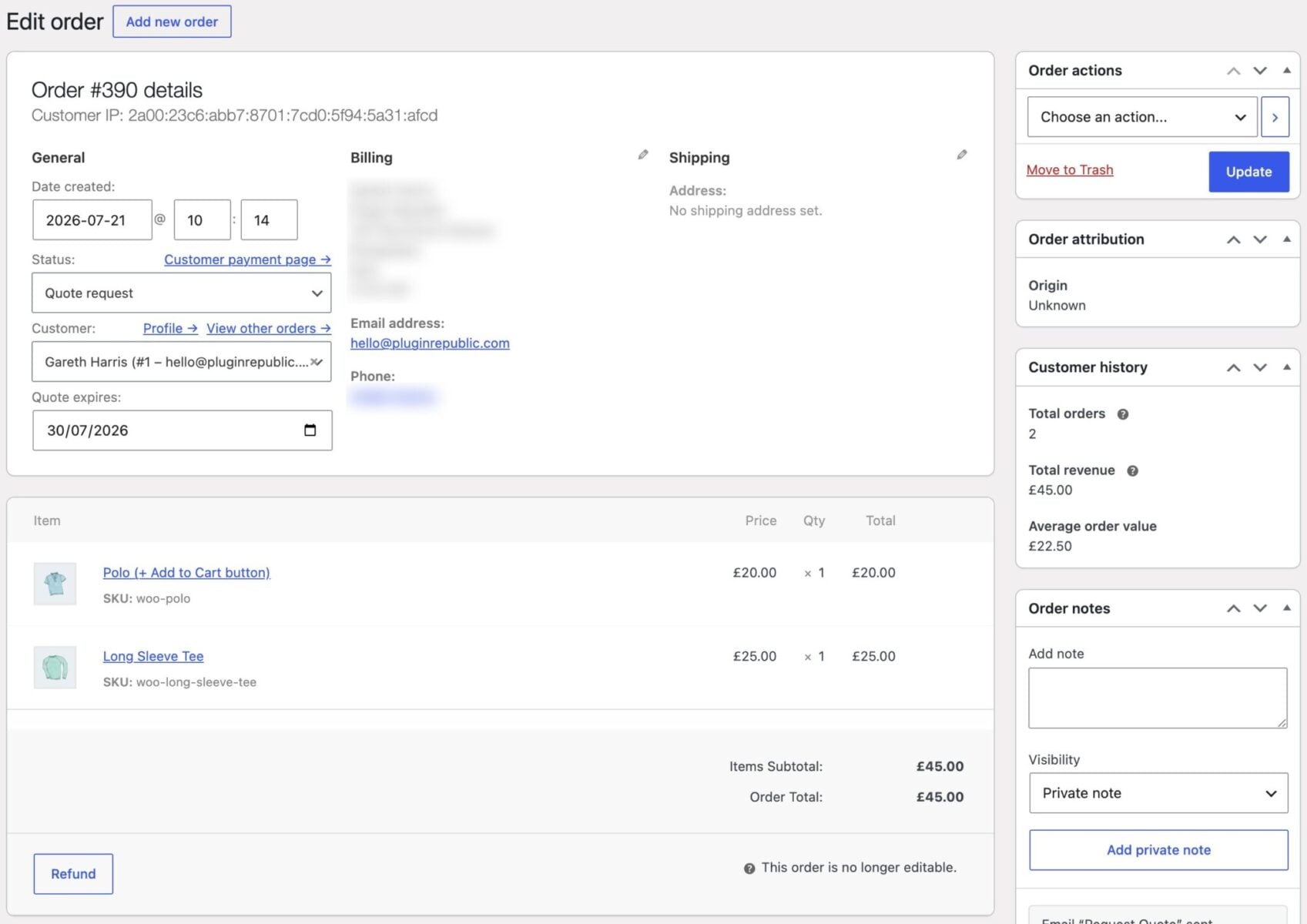
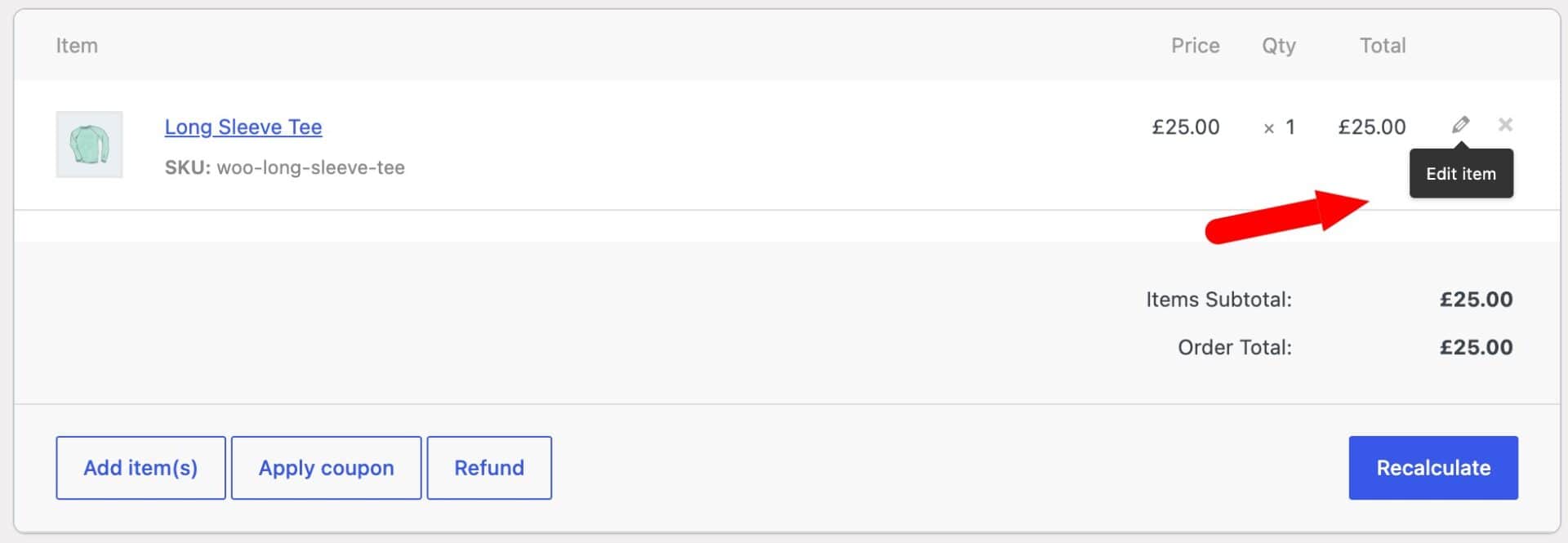
By default, each line item carries your normal product price. If you need to adjust pricing for that specific customer, hover over the line item, click the pencil icon, enter the new price, and click ‘Save’.
When you’re ready to send the quote, choose ‘Send updated quote to customer’ from the ‘Order actions’ dropdown and click ‘Update’. This emails the customer a breakdown of every item and price, along with a ‘Checkout now’ link that takes them straight to a dedicated payment page.
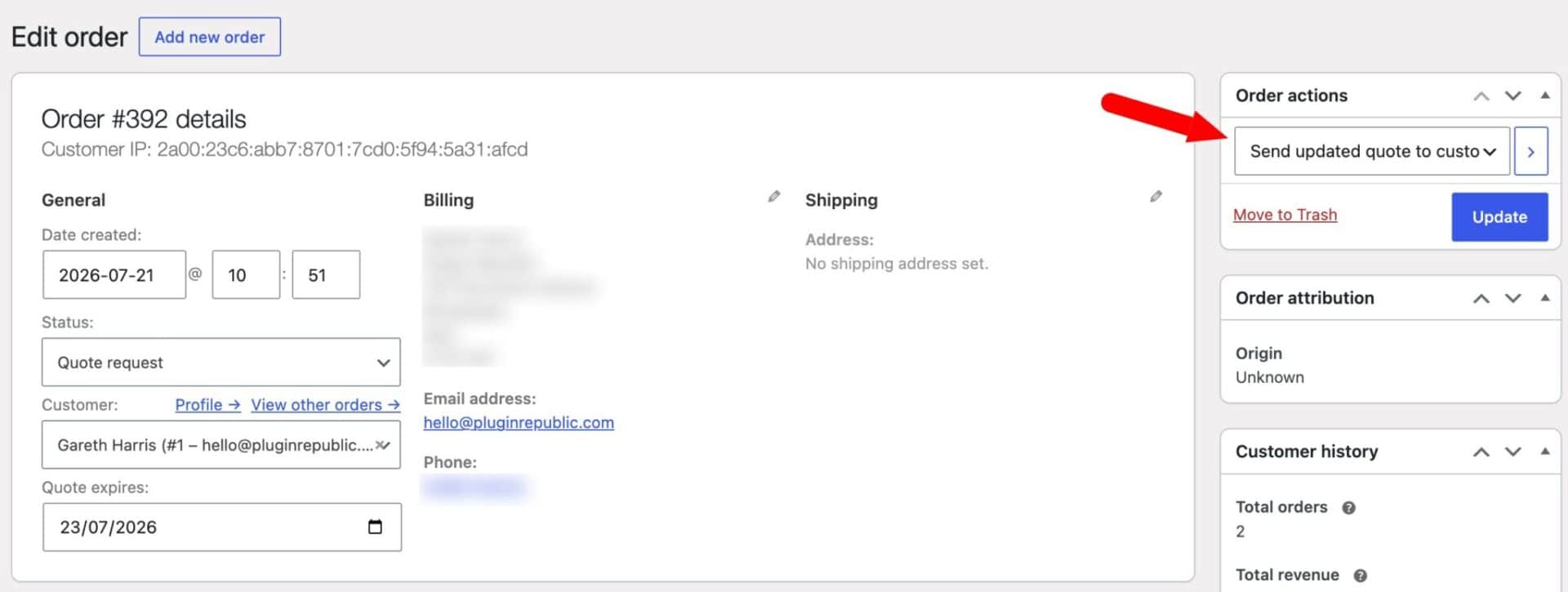
Customers can’t change the order at this point – they pay exactly what you’ve quoted. Once they pay, the quote converts to a standard order automatically, and you process it the same way as any other sale.
How do you manage Request a Quote emails?
WooCommerce Request a Quote sends up to three emails during the life of a quote: ‘Request Quote’ to notify you of a new request, ‘Your Quote’ to send the customer their priced quote, and ‘Quote Reminder’ to nudge them before it expires. Each one is a standard WooCommerce email, so you edit it in the same place as your other order emails: WooCommerce > Settings > Emails.

Click ‘Manage’ next to any of the three to turn it on or off, set a custom recipient (Request Quote only), or change its subject, heading, and email type. The overall look – logo, colors, footer text – is controlled from the ‘Email sender options’ and ‘Email template’ settings at the top of that same screen, and applies across all your WooCommerce emails.
If you need to change the wording or layout of a specific quote email beyond what those settings allow, you can override its template in your theme, the same way you’d override any WooCommerce email template. Copy the relevant file from the plugin’s templates/emails/ folder into yourtheme/woocommerce/emails/, then edit the copy – a developer can help if you’re not comfortable editing PHP or HTML yourself.
When should you use Request a Quote instead of standard checkout?
Standard WooCommerce checkout works well when your pricing is fixed and every customer pays the same. Request a Quote earns its place when price depends on something checkout can’t calculate on its own – quantity breaks, custom specifications, or which customer is asking.
Reach for it when you’re selling in bulk or wholesale and want different pricing for trade accounts than for retail customers. It’s also useful for personalized or made-to-order products where a standard price tag doesn’t reflect what each order actually costs to fulfil.
Finally, it suits any store where capturing the lead matters more than an instant sale – for example, high-value items where customers expect to talk to someone before buying. In each case, the goal is the same: replace pricing uncertainty with a conversation that leads to a sale instead of an abandoned cart.
Use case examples
WooCommerce Request a Quote works well as a standalone plugin, but it also combines with other Plugin Republic plugins to cover more specialized scenarios. Here’s how different types of stores put it to use.
B2B and wholesale stores. Hide standard prices from wholesale accounts and replace ‘Add to cart’ with ‘Add to Quote’ for that user role only, while retail customers keep normal checkout. A catering supplies wholesaler, for example, could offer trade accounts negotiated pricing on bulk orders while walk-in retail customers pay standard prices – you can then apply your existing Dynamic Pricing and Discount Rules to that quote form automatically.
Personalized or made-to-order products. Combine Request a Quote with Product Add-Ons Ultimate so customers can specify exactly what they need – dimensions, materials, or custom text – and request a quote for that specific configuration, add-on pricing included. This is exactly how Cardboard Boxes (N.I.) Ltd uses the two plugins together, letting customers enter the exact box dimensions they need and request a price for that custom spec – the same approach suits bespoke furniture makers, sign and print shops, or custom cabinetry businesses.

We use the plugins on four websites. The cardboard boxes websites use Add-Ons Ultimate and Request a Quote to enable a custom cardboard box builder page so that a customer can input the exact size they want as well as other options and request a quote from us.. The plugins were easy to install and there is good documentation- I am very happy with both plugins.
Bulk or project-based orders. Let customers build up a list of several products at once, then submit it as a single request, rather than negotiating item by item. This suits builders’ merchants supplying materials for a whole job, print shops quoting on multi-item stationery orders, or office fit-out suppliers pricing up furniture and equipment for an entire workspace.
Businesses that need a conversation before a sale. For big-ticket or specification-heavy products, a quote request captures the lead and gives you a chance to clarify requirements before quoting a price, rather than losing the customer to an empty cart. Commercial kitchen equipment suppliers, industrial machinery dealers, and event or AV hire companies all tend to work this way, since the right price depends on details that are easier to talk through than to price automatically.
How does WooCommerce Request a Quote compare to other plugins?
Several other plugins offer a request-a-quote flow for WooCommerce. Here’s how WooCommerce Request a Quote compares with Addify, YITH, WebToffee, and the free Get a Quote Button plugin on the features that matter most for B2B and wholesale stores.
| Feature | WooCommerce Request a Quote (Plugin Republic) | Request a Quote for WooCommerce (Addify) | Request a Quote for WooCommerce (YITH) | WooCommerce Request a Quote (WebToffee) | Get a Quote Button (WPBean) |
|---|---|---|---|---|---|
| Starting price | From $69/year | From $69/year | Free; premium plan required for most B2B features | From $69/year | Free; paid Pro add-on available |
| Free version | No | No | Yes | No | Yes |
| Rules by product, category, or tag | Yes | Yes | Premium only | Yes | Product, category, tag, and featured/out-of-stock filters (Pro) |
| Restrict by user role | Yes | Yes | Premium only | Yes | Pro only |
| Hide prices and/or Add to cart | Yes, optional per product | Yes | Yes (all products in free; per-product needs Catalog Mode add-on) | Yes | Pro only (‘Price on request’) |
| Customer can offer their own price | No – you set the price per quote | Yes | No | Yes | No |
| Branded PDF quotes | Yes, built in | Yes | Premium only | Yes, via free mPDF add-on | No |
| Quote expiry and reminder emails | Yes | Not stated | Premium only | Yes | No |
| Converts to a standard WooCommerce order | Yes, via checkout link | Yes, by admin or customer | Yes, in premium | Yes | No – submits via contact form, not order-based |
| Native Add-Ons Ultimate integration | Yes | No | No | No | No |
| Money-back guarantee | 14 days | 30 days | Not stated | 30 days | N/A (free) |
The free plugins are a reasonable starting point if you just need a contact-form popup or a basic quote button on a handful of products. Once you need per-role pricing rules, PDF quotes, expiry handling, and quotes that convert straight into WooCommerce orders, a dedicated paid plugin like Request a Quote, Addify, or WebToffee tends to save more time than it costs.
WooCommerce Request a Quote – recap
So that’s what the WooCommerce Request a Quote plugin does and how to set it up and manage it. We looked at the full feature set – quotable product rules, user restrictions, custom forms, PDF quotes, expiry and reminders – then walked through configuring those settings and handling quote requests as they arrive in your Orders screen. We also looked at when a quote-based flow beats standard checkout and how it compares with other plugins on the market.
WooCommerce Request a Quote is compatible with all themes and page builders, including Astra, Flatsome, and Woodmart, and page builders like Elementor and Divi. If you have any questions, our world-class support team is on hand to help. And it’s backed by a 14-day money-back guarantee, so you can try it risk-free.