In the WooCommerce Product Add-Ons Ultimate plugin global add-ons give you the ability to create groups of Product Add-Ons fields and apply them to multiple products in one go. You still create fields in exactly the same way so, if you haven’t already done so, please read this article on creating your first field.
Creating global add-ons
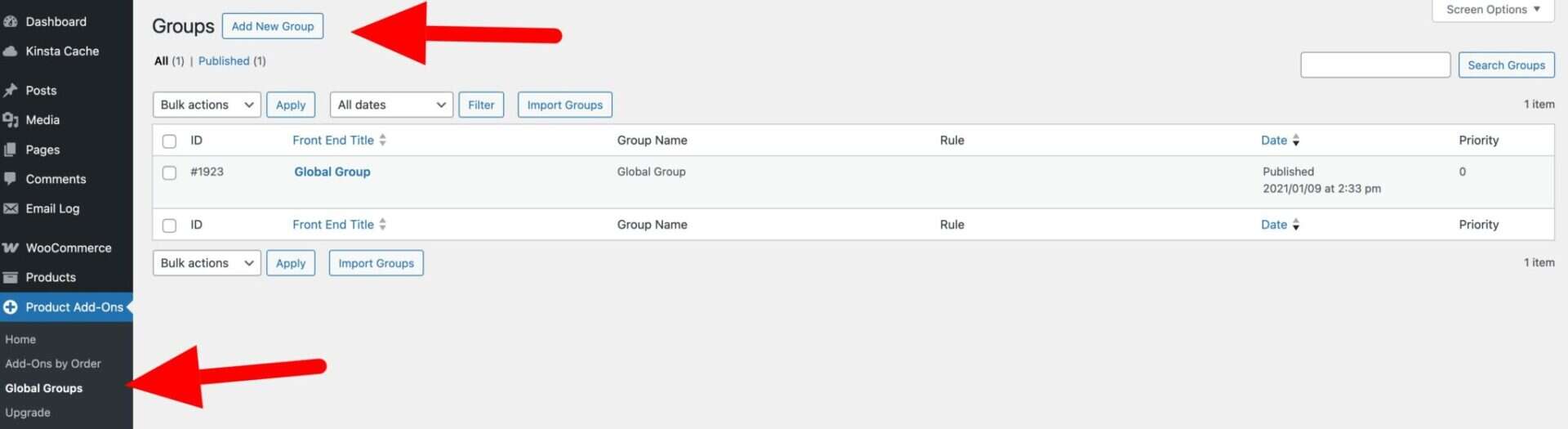
To create a new global group, go to Product Add-Ons > Global Groups. All your existing global groups will be listed there. To create a new global group, click ‘Add New Group’.
You’ll see a layout similar to creating a group at product level.
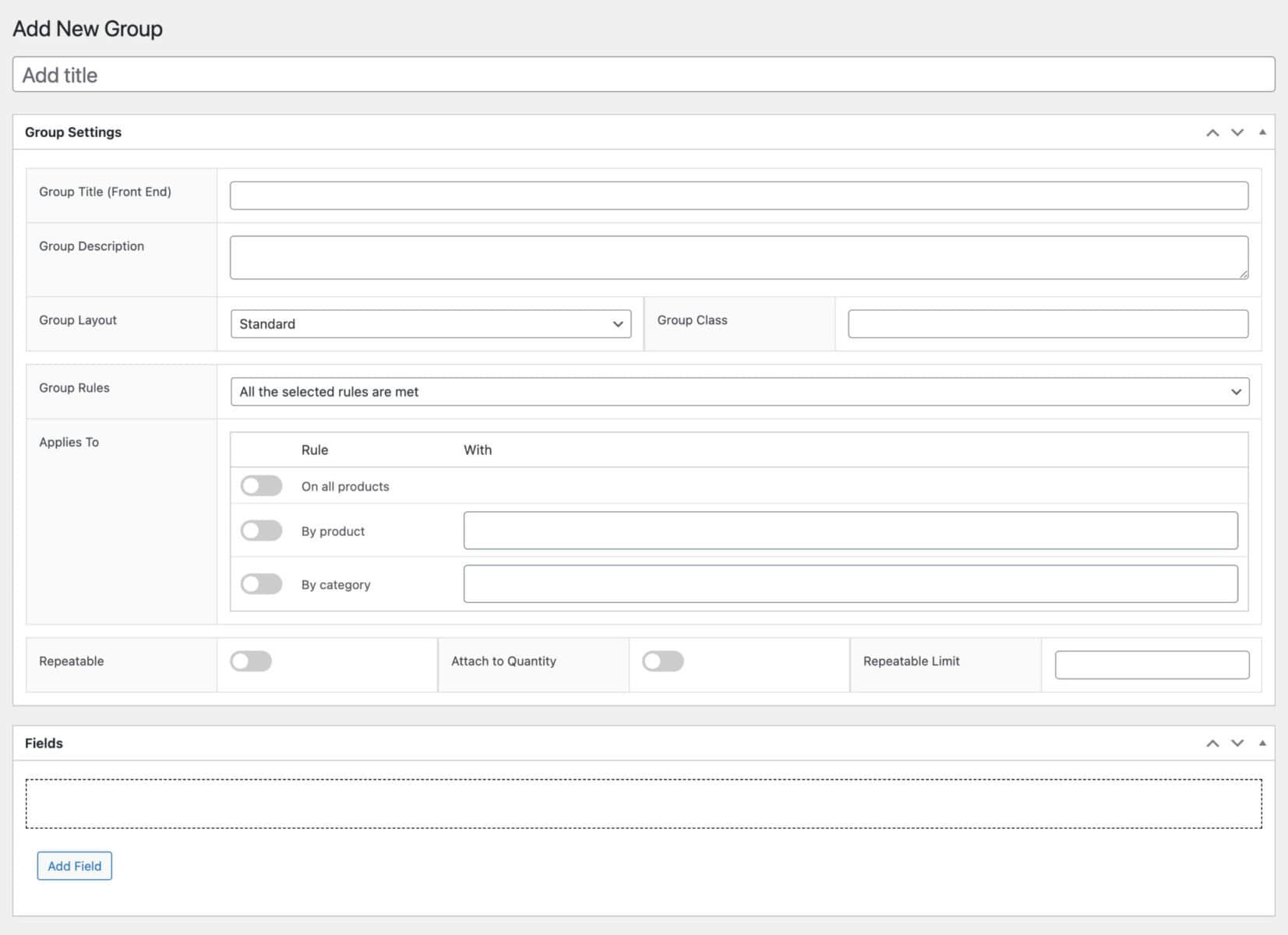
Group settings
Apart from a couple of exceptions, global group settings are the same as product-level group settings.
Content and layout settings
- Group Title – this is the main title field (where it says ‘Add title’). Enter a title here that will be used on the back end to help you identify the group when editing it
- Group Title (Front End) – optionally enter a title for the group that will appear on the front end
- Group Description – optionally enter some additional text to appear under the title to help the user understand the group
- Group Layout – see this article for an explanation of group layouts
- Group Class – enter a class name to be added to the group wrapper element. This helps you style individual groups more easily i f you wish
Group rules settings
Once you’ve completed the settings above, you can define where this group will be displayed.
- Group Rules – select from either ‘All the selected rules are met’ or ‘Any of the selected rules are met’. The rules are defined in the ‘Applies To’ setting
- Applies To – choose from the following options
- Display on all products – choose this if you want the group to be displayed on all product pages
- Display for a list of specified products – choose this option if you want to display the group on specific products. You can select the products in the box next to the switch
- Display if the product belongs to a list of specified categories – choose this option if you want to display the group on products belonging to specific categories. You can select the categories in the box next to the switch
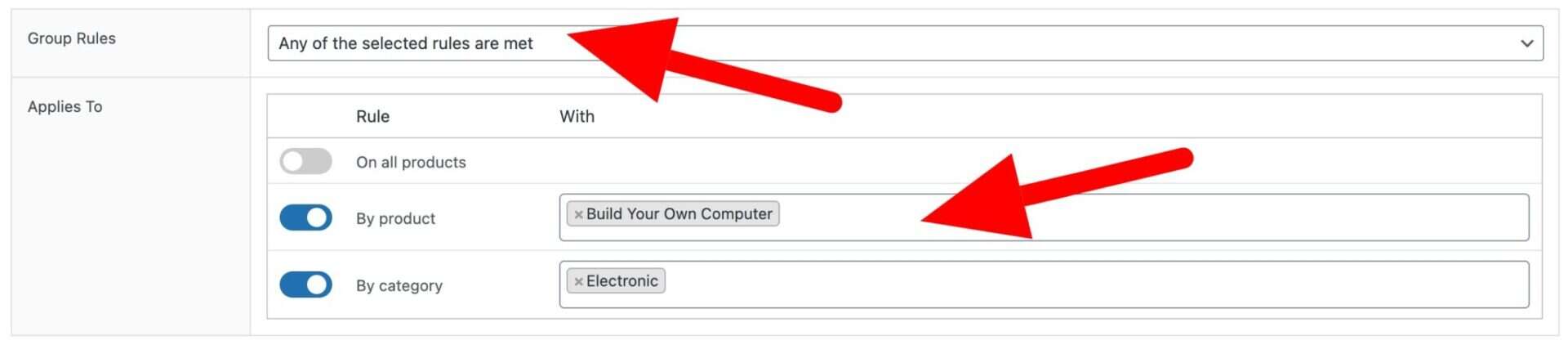
In the screenshot above, our group will be displayed on products that are either ‘Build Your Own Computer’ or in the ‘Electronic’ product category.
Repeatable group settings
See this article for information about how to make groups and their fields repeatable.
Create global fields
Once you’ve set up your global group settings, you can add fields. Just click the ‘Add Field’ button.
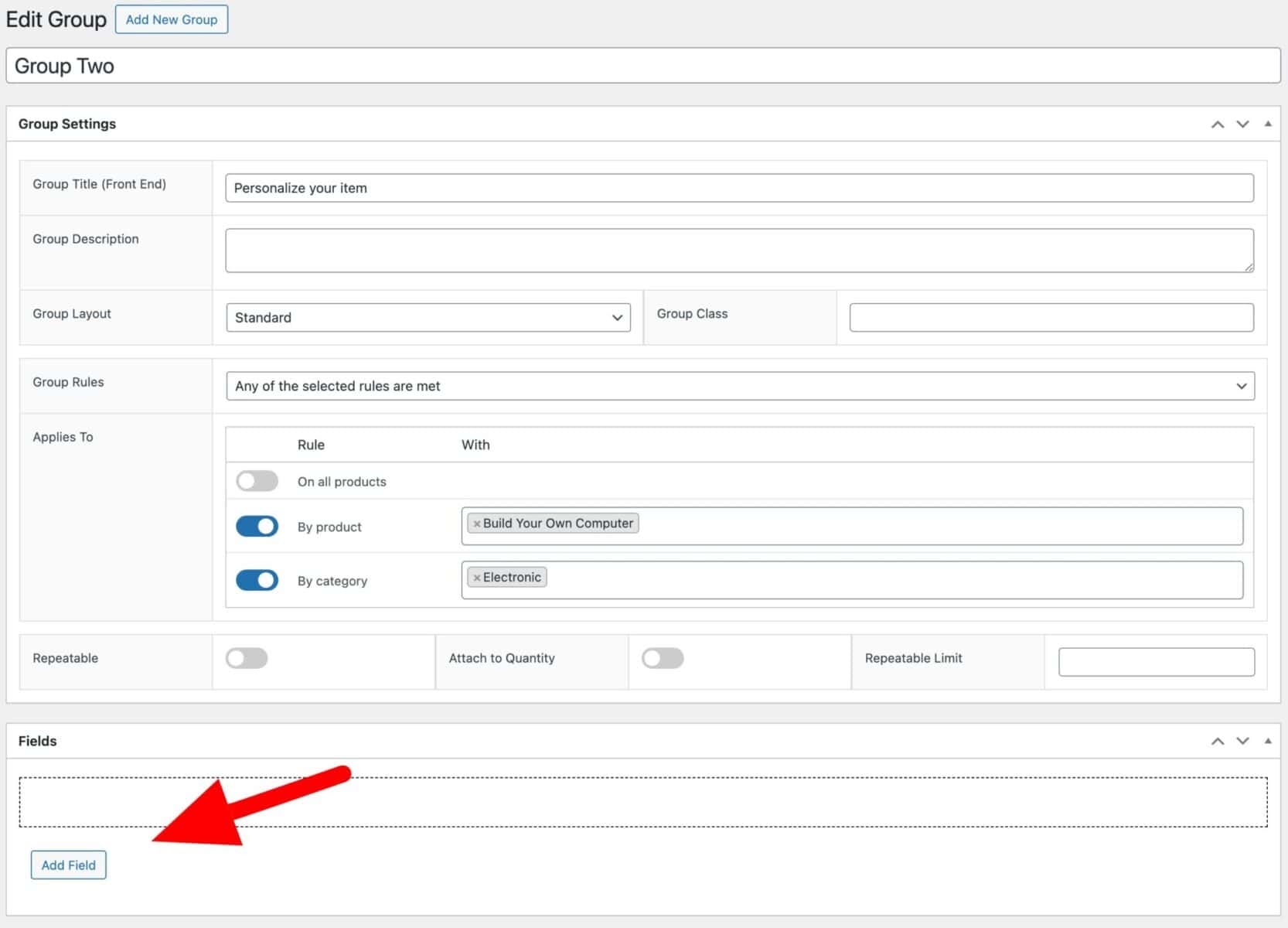
You create fields for global groups in exactly the same way that you do for individual products. Check this article for how to add a field.
Export fields to different groups
If you’d like to copy or export fields from one group to another, check this article.
Use tag or attribute for global group(s)
If you want to display global groups by tag or attribute instead of by category, you can use this snippet:
| <?php | |
| /** | |
| * Display global groups according to attribute or taxonomy | |
| * Use attributes for specific group ID | |
| */ | |
| function prefix_filter_global_categories_taxonomy( $tax, $group_id, $group, $rule ) { | |
| // Return the slug of the taxonomy you wish to use instead of product category | |
| if( $group_id == 1234 ) { | |
| return 'pa_colour'; | |
| } | |
| return $tax; | |
| } | |
| add_filter( 'pewc_filter_global_categories_taxonomy','prefix_filter_global_categories_taxonomy', 10, 4 ); |