In Text Preview, you can fill your text with a gradient, such as a rainbow effect, using the text gradient setting. The gradient appears on the live preview and on the composite image saved with the order.
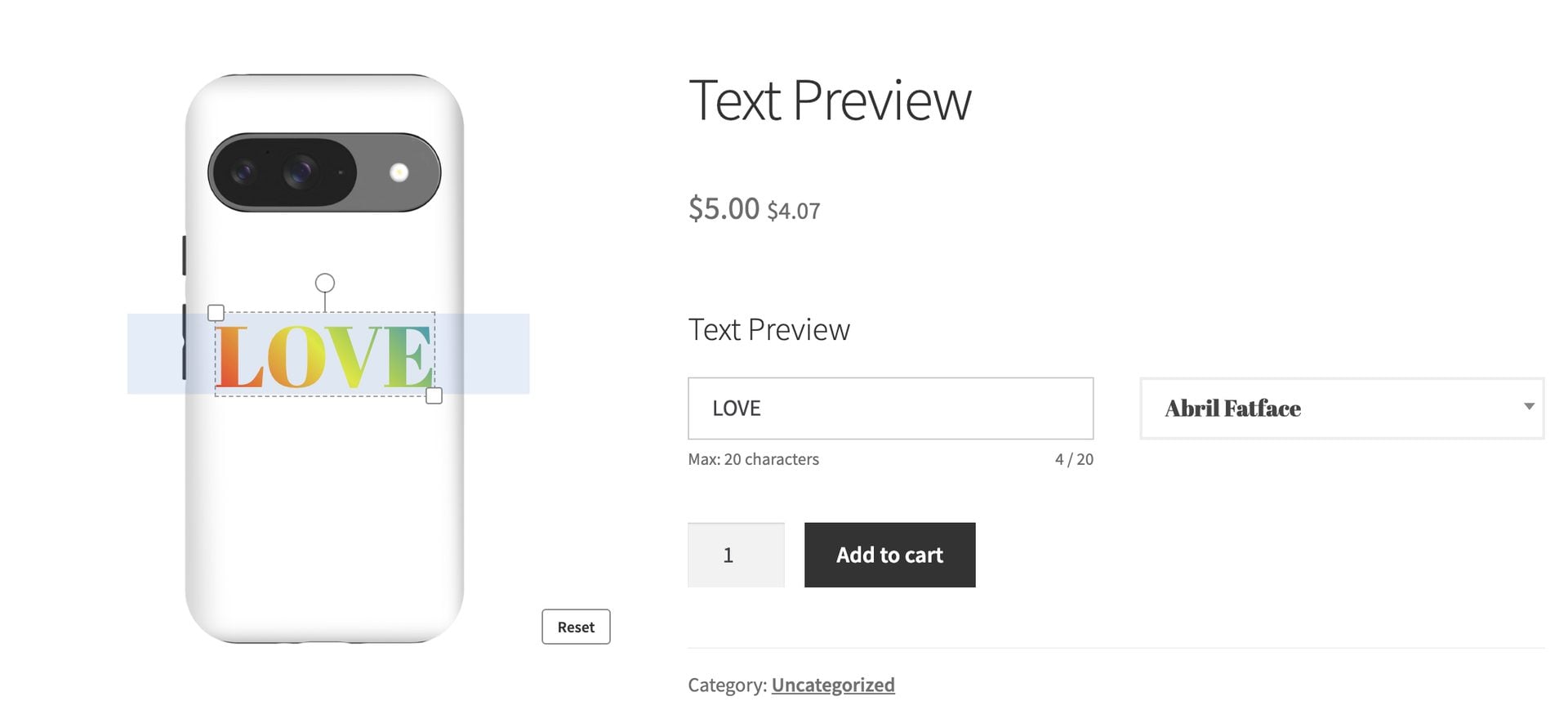
Step #1: Open your Text Preview field and go to the ‘Text Preview – Color Options’ section.
Step #2: Enable the ‘Enable text gradient?’ setting.
Step #3: Enter two or more hex colors in the ‘Gradient colours’ field, separated by commas. For example, #ff0000, #ffff00, #0080ff.
Step #4: Enter a direction in degrees in the ‘Gradient angle’ field. An angle of 90 runs left to right and 180 runs top to bottom.
Save your product. Your customers will now see the gradient on the text as they type.
What else should I know?
- The gradient replaces the default text color, so customers can’t choose a color with the color picker or swatch fields on this field.
- The field uses its default text color if ‘Gradient colours’ contains fewer than two valid hex colors.
- The gradient spans the width of the customer’s text, so short text still shows all your colors.
- The gradient follows the text if customers rotate it.
- The composite image can differ slightly from the preview for text that wraps onto several lines and for top-to-bottom gradients.