Bookings for WooCommerce uses five native statuses to track each booking through the standard order lifecycle. You can also enable three optional statuses to track bookings once they’re underway.
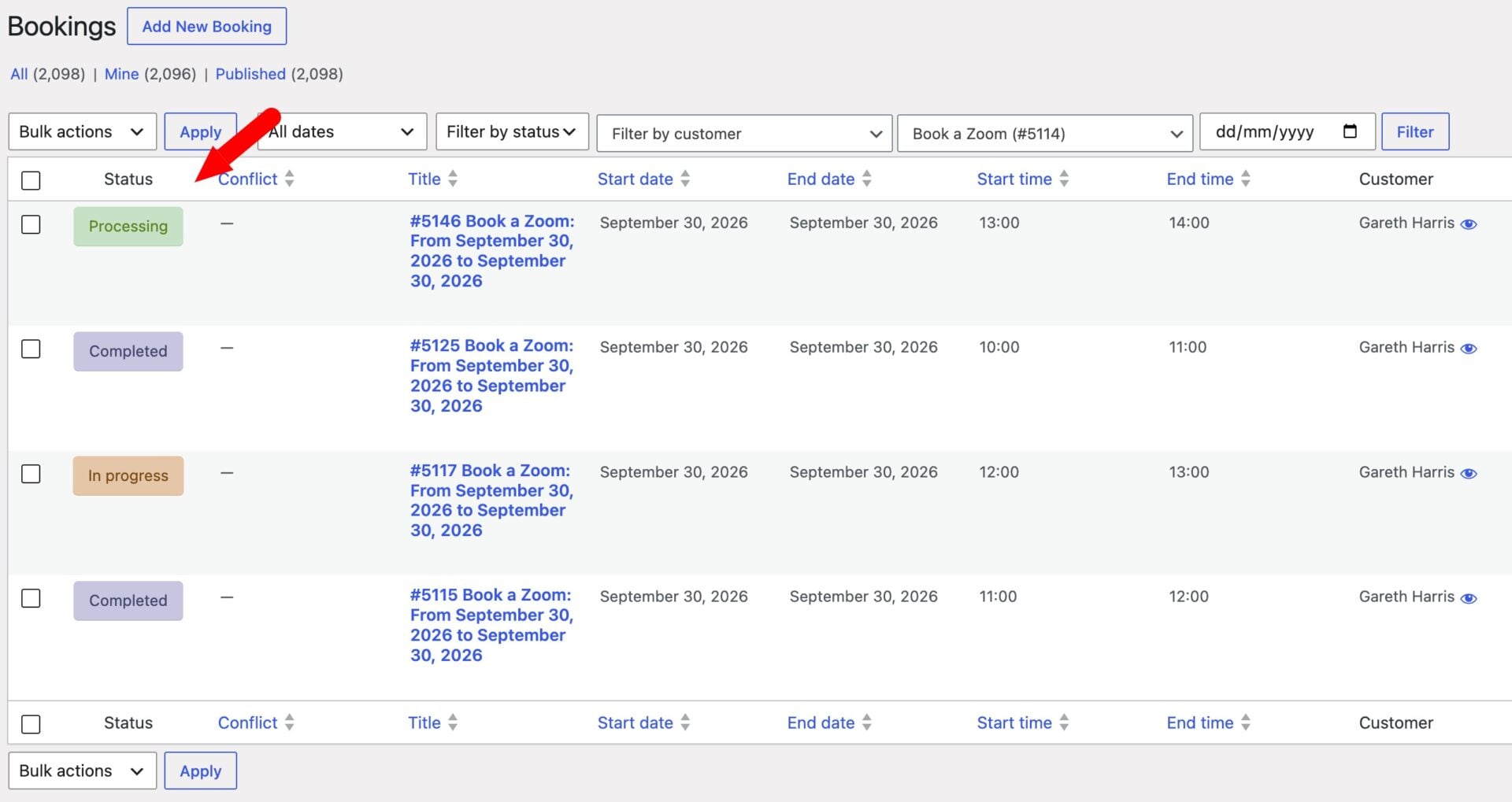
Native booking statuses
Native statuses always exist and can’t be configured.
| Status | Meaning |
|---|---|
| Pending | The booking is in the customer’s cart but the order hasn’t been placed yet. |
| Processing | The order has been placed and payment is being processed, or the order is on-hold or processing in WooCommerce. The booking will go ahead but the order isn’t complete yet. |
| Confirmed | The linked WooCommerce order has been marked Completed. The booking is fully confirmed, paid for, and ready to go. |
| Cancelled | The booking was cancelled, either manually by an admin or because the linked order was cancelled or refunded. Availability for its dates is released. |
| Removed | The booking was removed before it was confirmed, typically because an abandoned cart booking expired or was deleted before checkout. Availability is released. |
Optional booking statuses
Optional statuses can be enabled individually and you can give each of them a custom label. Go to WooCommerce > Bookings > Statuses to set up the additional booking statuses.
- Tick the ‘Enable’ checkbox for each optional status you want to use
- Enter a custom label for each enabled status. The label field only appears once its ‘Enable’ checkbox is ticked
- Enter a custom label for conflicts
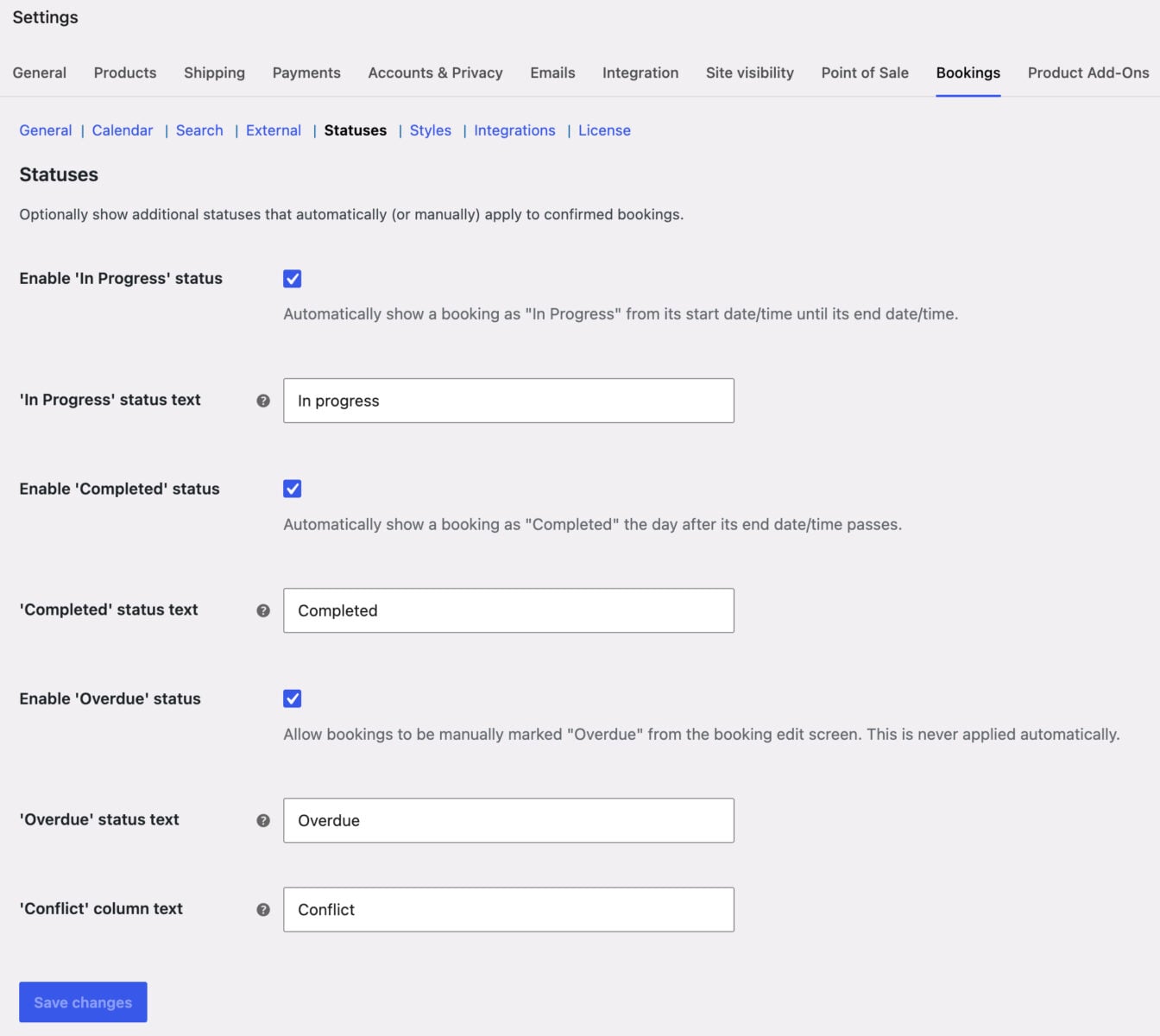
Optional statuses only apply to bookings that are already Confirmed or Processing. They never affect Pending, Cancelled, or Removed bookings.
In Progress booking status
‘In Progress’ means the booking is currently underway – its start date or time has arrived and its end hasn’t elapsed yet. If it’s a rental item then it’s currently out with the customer; if it’s an accommodation booking then the guests are already relaxing.
In Progress has no effect on availability. The booking already blocks its dates once it’s Confirmed or Processing, so this is purely a display change. You can’t set or override it manually.
Completed booking status
‘Completed’ means the booking’s end date or time has passed and the rental period is over. If enabled, the status can be set to ‘Completed’ in two ways:
- Automatically – as soon as the booking’s end time/date has passed, its status will be set to ‘Completed’
- Manually – the store owner can update the status to ‘Completed’ via the dropdown in the sidebar metabox on the booking’s edit screen
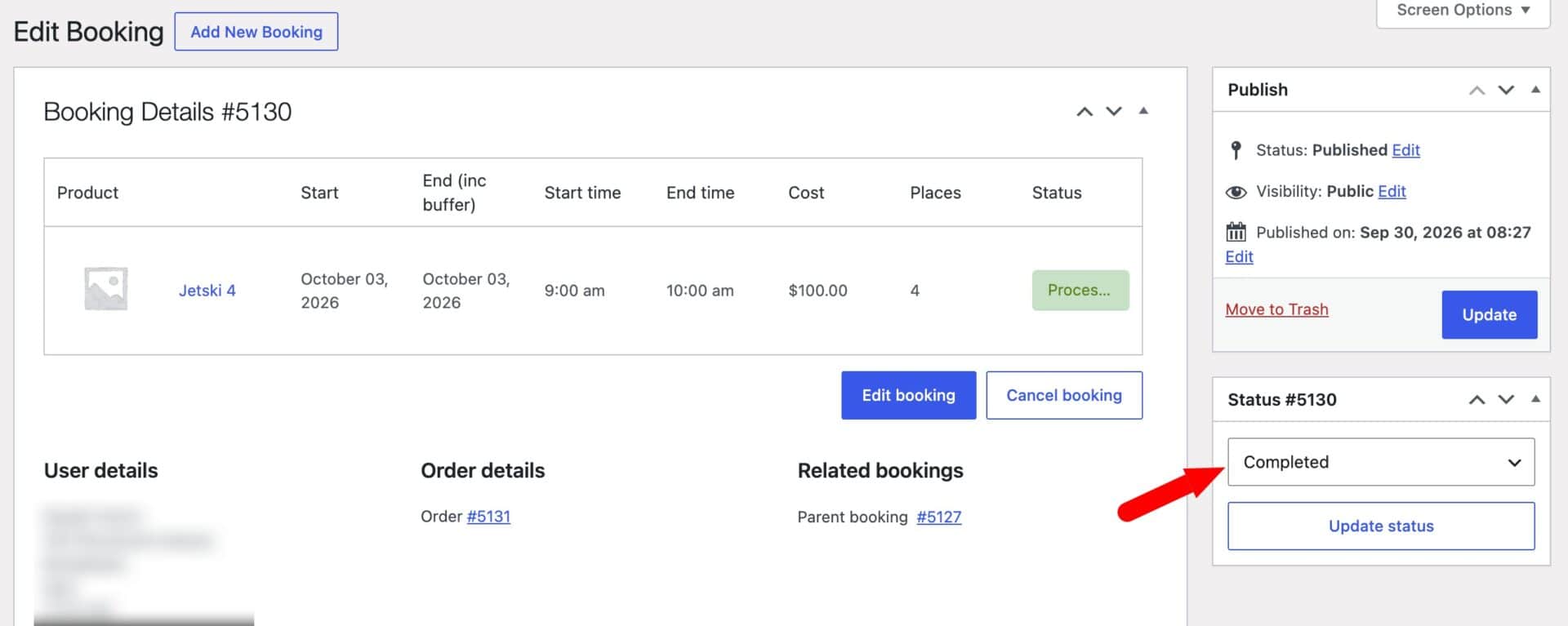
Automatic completion doesn’t affect availability, since the booking’s blocked range already ends on schedule. If you mark a booking Completed before its scheduled end, the remaining dates are freed immediately so the item can be booked again straight away.
Overdue booking status
The ‘Overdue’ booking status means an item wasn’t returned or the booking period wasn’t fulfilled as expected. You set it manually from the status dropdown on the booking’s edit screen – it’s never triggered automatically.
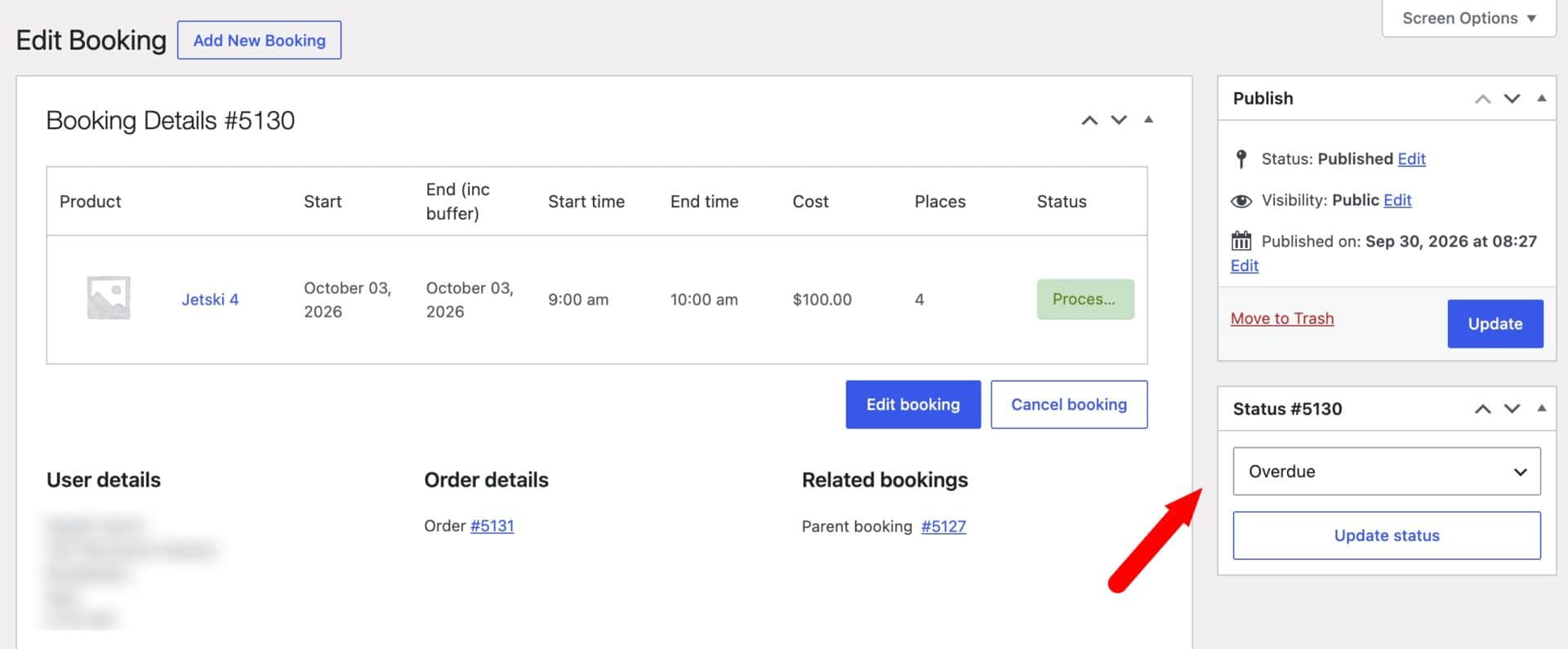
Marking a booking overdue reduces the product’s booking capacity by one unit for as long as it stays overdue. It doesn’t extend the booking’s own dates. You can do that by editing the booking instead.
- For a single-unit product, the product becomes fully unavailable until the booking is resolved
- For a multi-unit product, the number of units associated with the overdue booking becomes unavailable and the rest stay bookable
If the reduced capacity means another existing booking now exceeds what’s available, that booking is flagged as a conflict.
When an overdue item is finally available again – e.g. the rental item is returned to you – you can mark it ‘Completed’ from the same dropdown. This restores the product’s capacity and clears any resulting conflicts.
How do optional statuses work with bundles?
Status changes cascade from a parent booking to its child bookings. If a booking is part of a product bundle, marking the parent Overdue or Completed applies the same status to all its child bookings and their products automatically.
Conflicts
A conflict is a flag, not a booking status. It appears when an Overdue booking has reduced a shared product’s capacity and another booking’s availability is now at risk.
Conflicts show in their own column on the bookings list, on the affected booking’s edit screen, and in admin notices. They’re calculated live on every page load and disappear automatically once the overdue booking is resolved.

You can customize the conflict label in WooCommerce > Bookings > Statuses.