You might want to display your product’s add-on fields in a modal window to keep long product pages compact and easy to scan. Customers just need to click a ‘Personalize this’ or ‘Customize this product’ button to launch the modal. This keeps some or all of the add-on fields off the main product page and moves them into a popup instead.
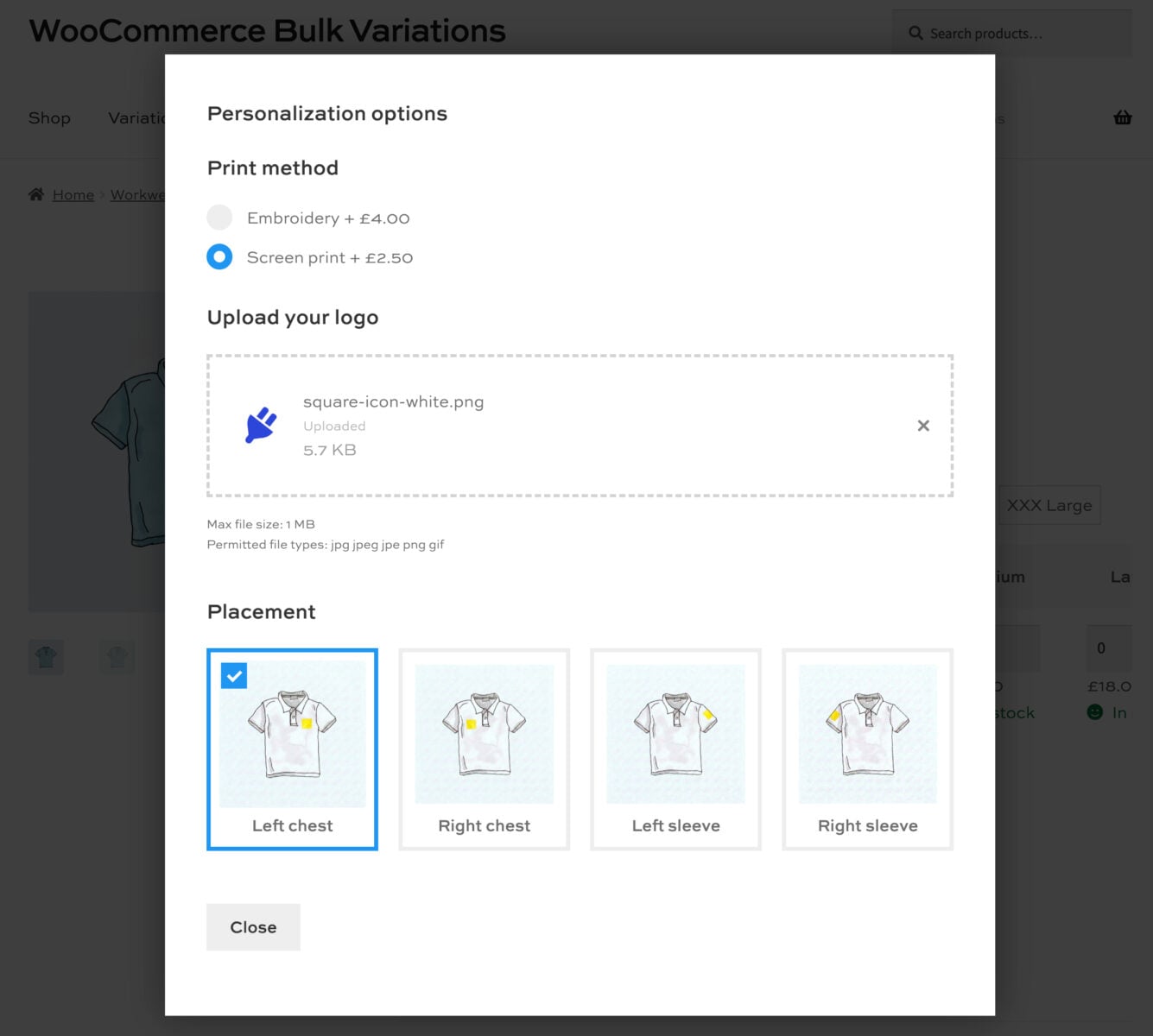
This is ideal for products with lots of add-on options. By default, Product Add-Ons Ultimate shows every add-on field directly on the product page, one after another. But you can enable a ‘modal’ layout if you prefer to keep your add-on fields off the page.
How do you enable the modal display?
On the ‘Product Add-Ons’ tab in the ‘Product data’ section, you’ll see the ‘Display groups as’ setting below your list of fields. (See this article for more information on options to display your fields.)
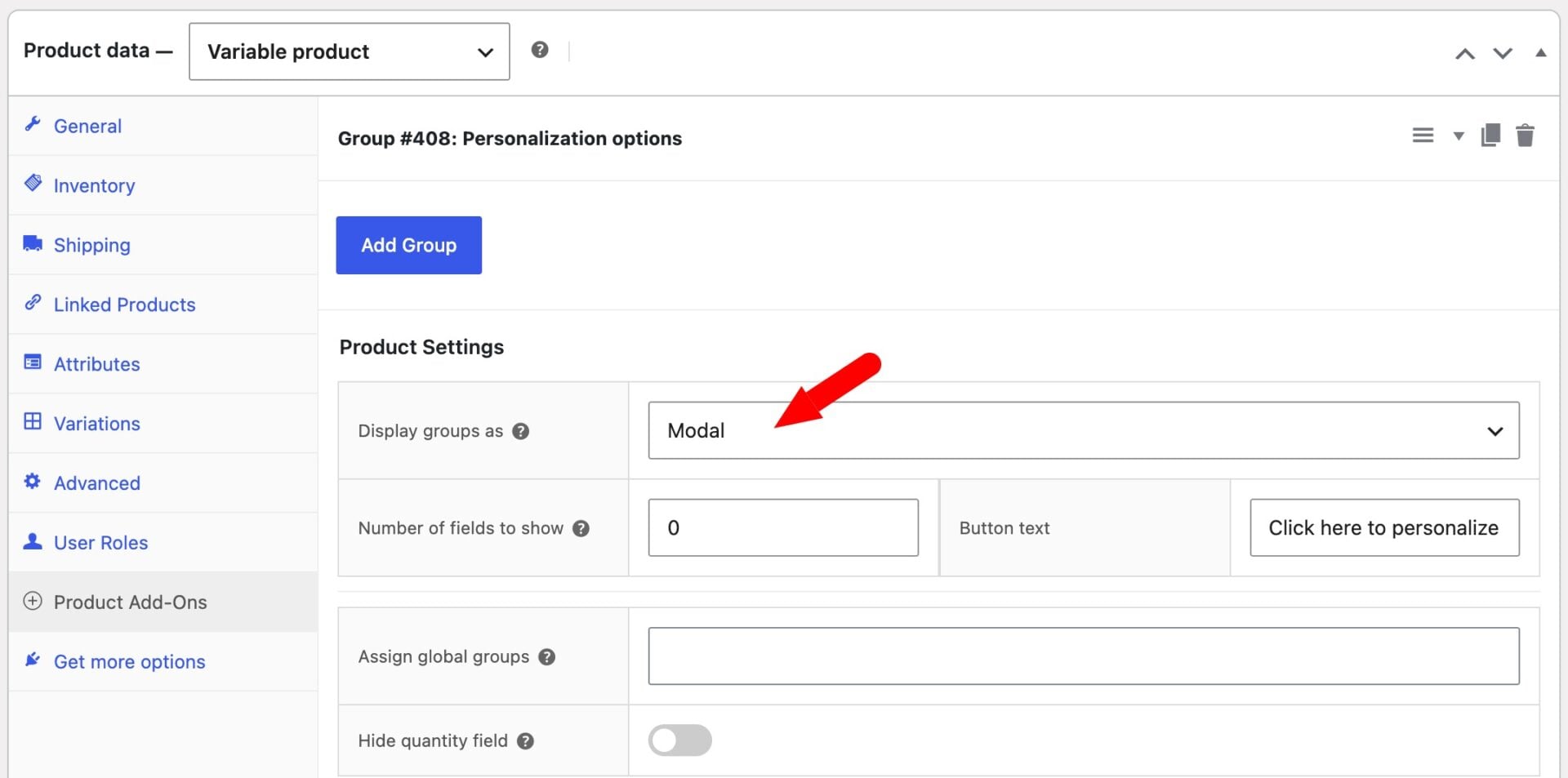
Select ‘Modal’ from the ‘Display groups as’ field in the ‘Product Settings’ section. Two additional fields will appear below it, which let you control how the modal works.
Enter a number in the ‘Number of fields to show’ field. This sets how many add-on fields appear directly on the product page before the rest move into the modal. You can leave this value as ‘0’ if you want all your fields to display in the modal popup and none on the product page. Or, you could enter ‘2’ if you want your first two fields to display on the product page and the rest in the modal window.
Enter a label in the ‘Button text’ field, for example ‘Customize this’. If you leave it blank, the button will use the default text, ‘See more’. This is the text for the button that the user will need to click to launch the popup.
Click ‘Update’ to save your product. You now have a product whose add-on fields will display neatly in a modal window.
What will customers see on the front end?
Customers will now see a cleaner product page with just a button to launch the personalization options.
If you have required fields and the user tries to add to cart without launching the modal and completed the fields, validation error messages will display as normal.
Styling the modal window
The plugin adds the pewc-lightbox-active class to the <body> element while the modal is open. You can use this class to target custom CSS at the page when the modal is active.
The modal itself contains a clone of the add-ons form.