Bookings for WooCommerce gives you several ways to set the price of a booking product, from a simple unit rate to seasonal rules, day-of-week adjustments, volume discounts, and time-slot pricing. This document covers every pricing option and explains how they interact.
Standard price
The Standard price is the starting point for every booking product. You set it on the Booking Settings tab, under the Prices heading.
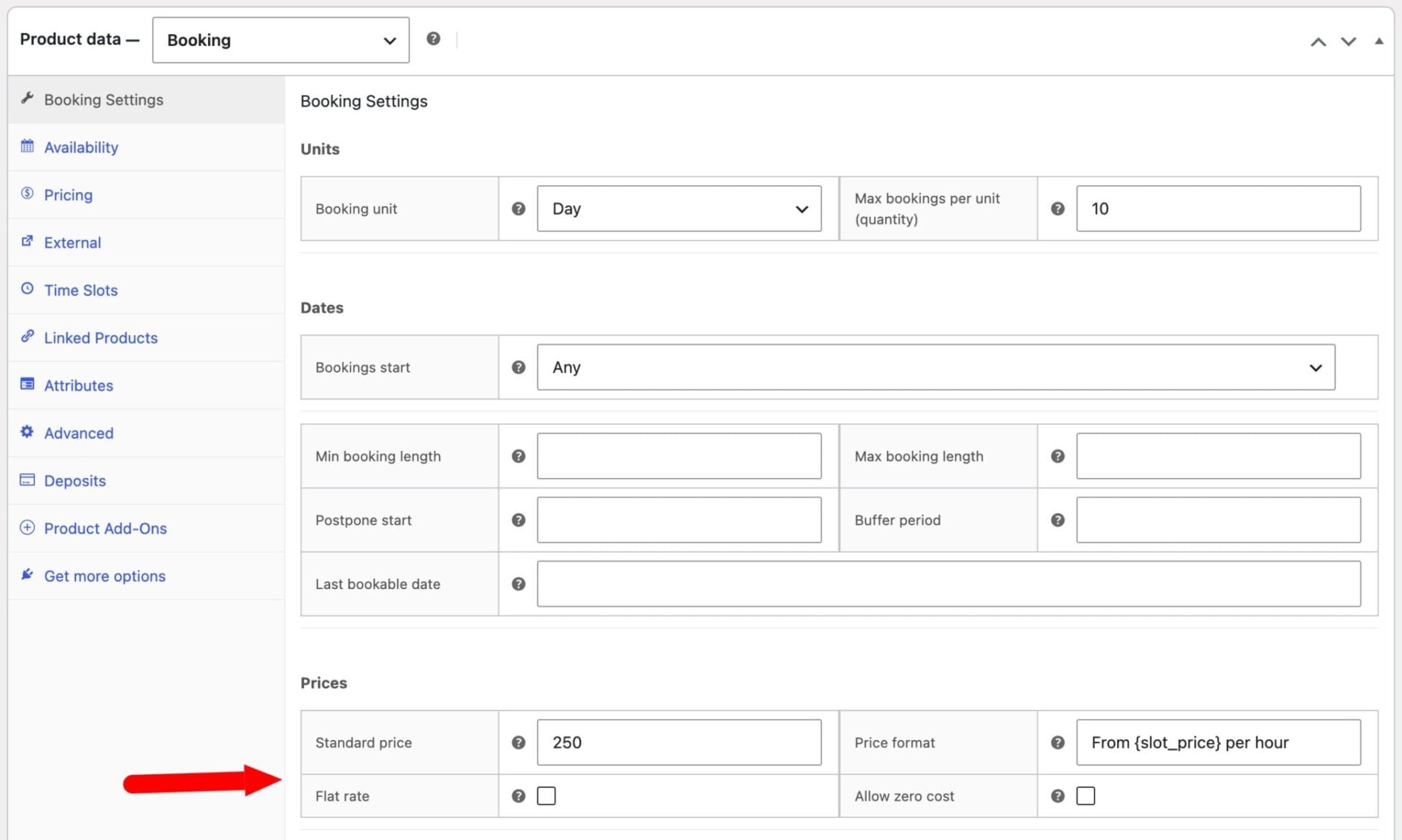
The pricing options include:
| Setting | Description |
|---|---|
| Standard price | The price charged per booking unit (day, night, or week). A five-day booking at $50 per day costs $250. |
| Price format | Custom text to display in the price label. Use {price} as a placeholder for the calculated price — for example, From {price} or {price} per night. |
| Flat rate | When enabled, the standard price is charged once for the whole booking, regardless of its length. A three-day booking at $200 flat rate still costs $200. |
| Allow zero cost | Permits a booking to be added to the cart even when the calculated price is zero. Useful for free bookings or enquiry-only products. |
Simple booking price examples
Here are some simple examples of setting booking prices.
Price per night
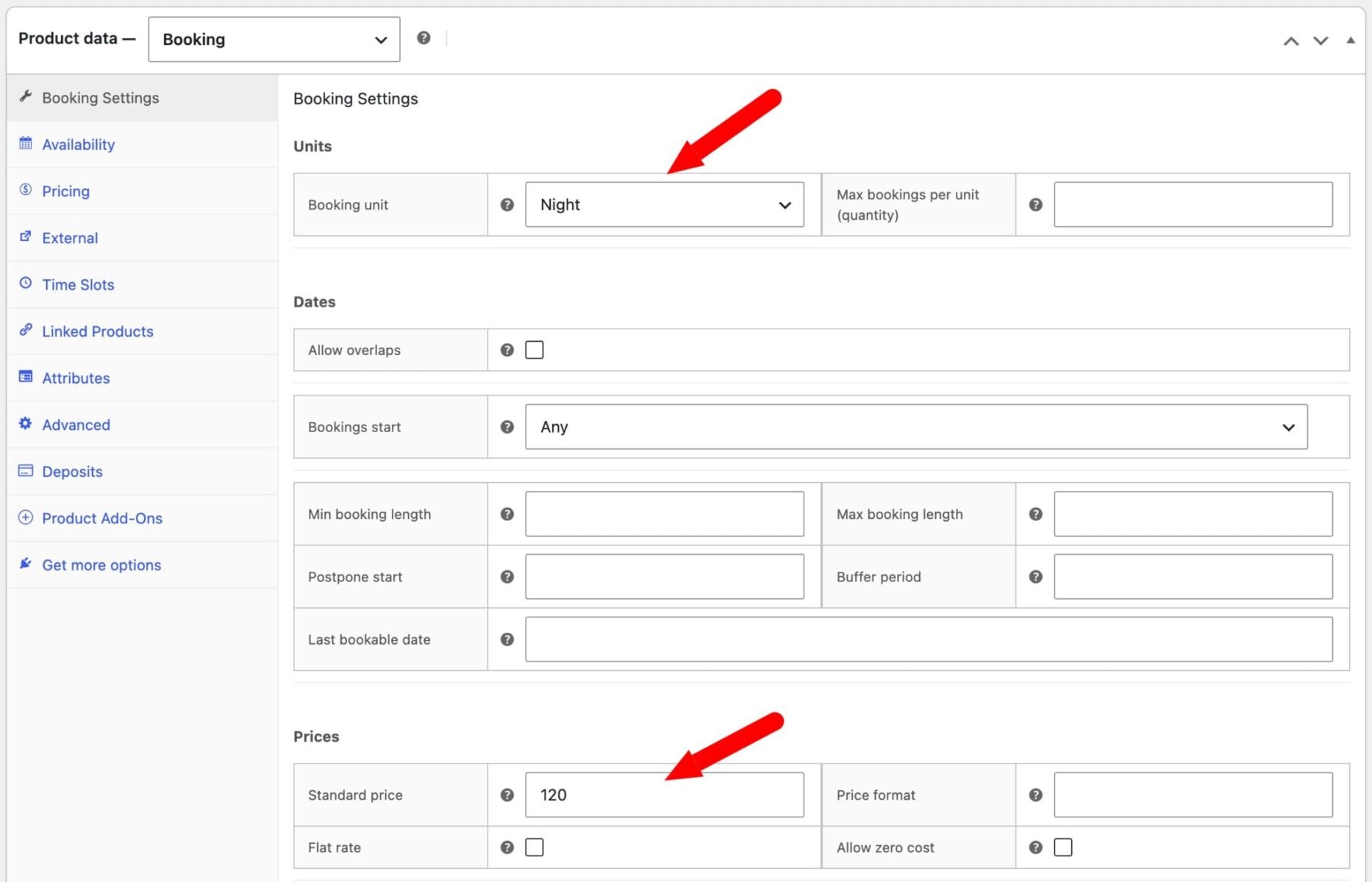
A holiday cottage charges $120 per night. Set the Booking unit to Night and the Standard price to 120. A customer booking 3 nights is charged $360.
Price per week
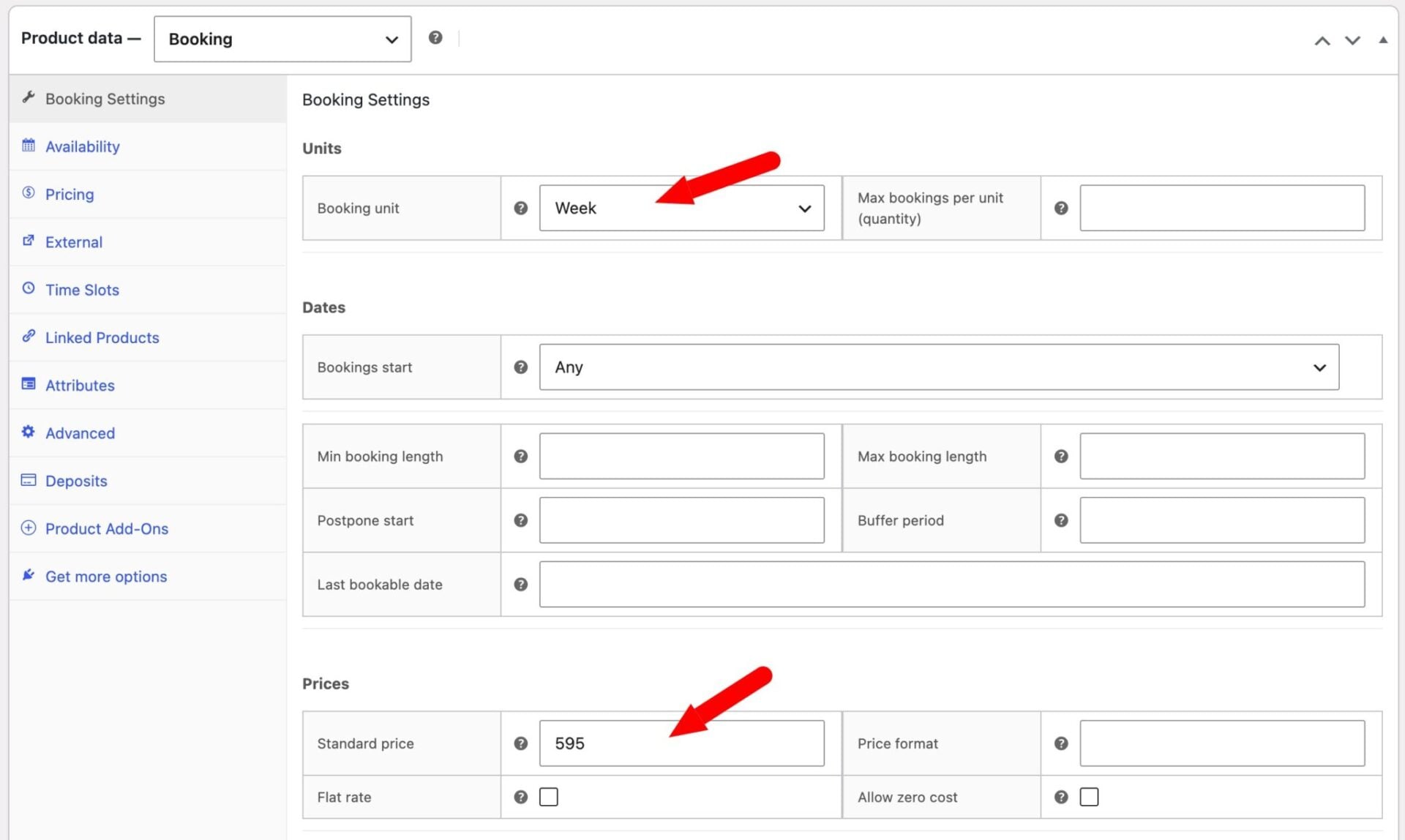
A campervan hire company charges $595 per week. Set the Booking unit to Week and the Standard price to 595. A customer booking 2 weeks is charged $1,190.
Flat rate weekend stay
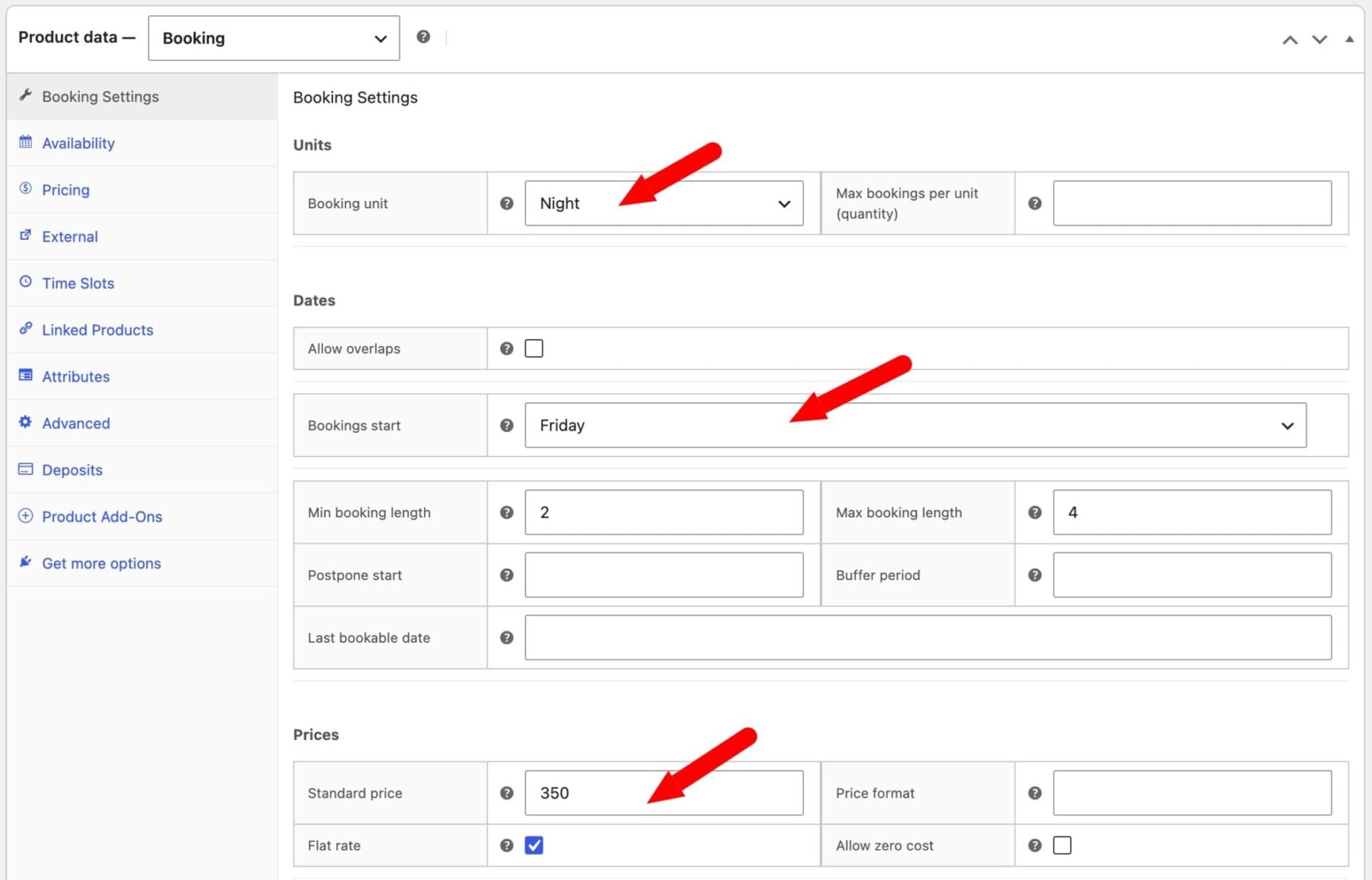
A boutique hotel offers a weekend break where guests can arrive Friday and stay 2 to 3 nights, all at the same price of $350:
- Set the Booking unit to Night, the Standard price to
350 - Enable Flat rate
- Set Bookings start to Friday
- Set the minimum booking length to
2and the maximum to 3
Whatever length the customer selects within that range, the total is always $350.
Role-based pricing
If your store serves customers with different pricing tiers – for example, members and non-members – you can set a separate standard price for each user role. You can define which roles should have separate prices by going to WooCommerce > Settings > Bookings then selecting the roles in the Roles field.
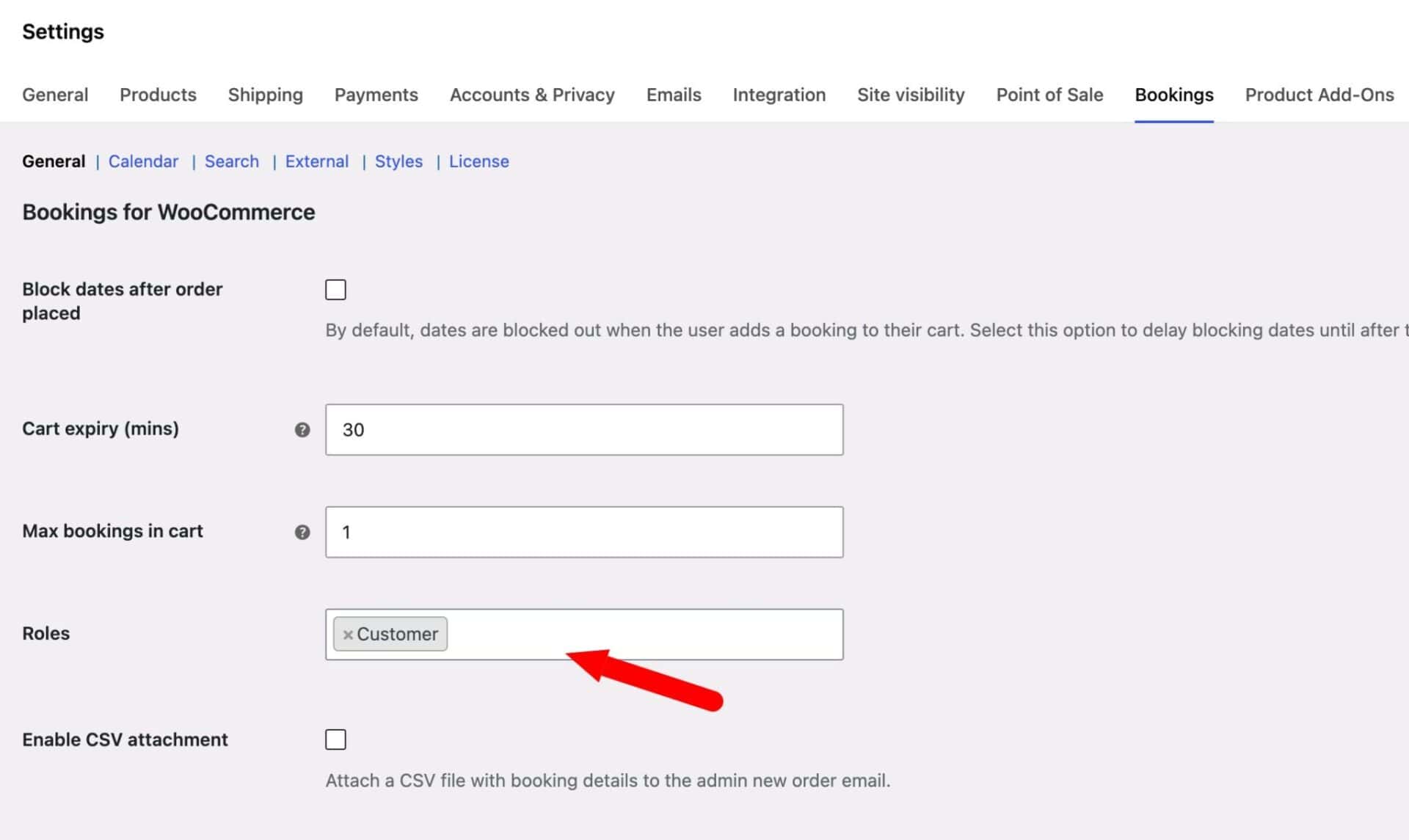
Role-based price fields will then appear on the Booking Settings tab beneath the standard price field.
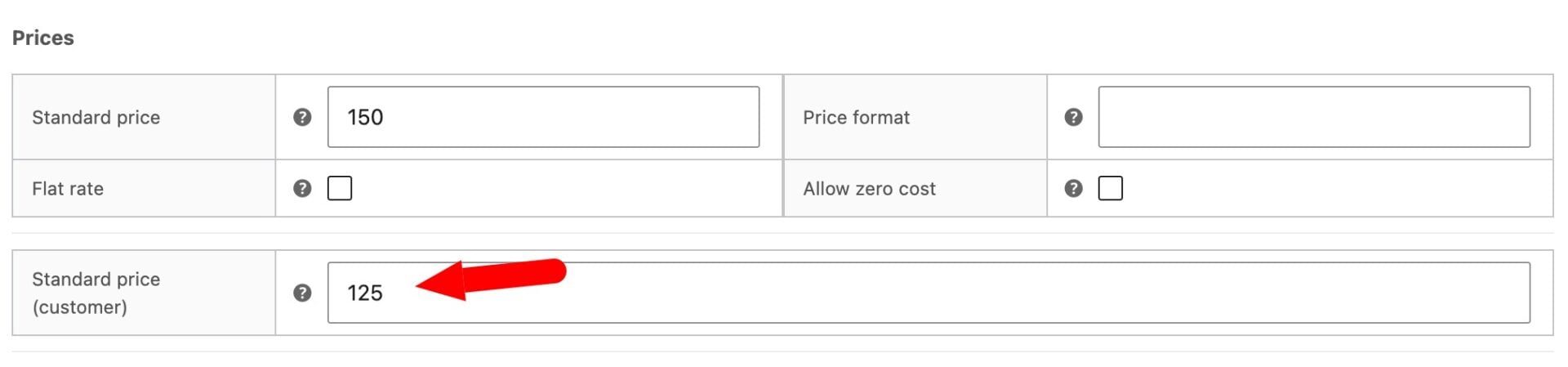
When a logged-in user’s role matches one of your configured roles, that price is used instead of the default standard price. If no role-based price is set for that product, the price will fall back to the standard price.
Custom pricing
The Custom Pricing table on the Pricing tab lets you override the standard price for specific date ranges. Common uses include seasonal rates, holiday surcharges, and off-peak discounts.
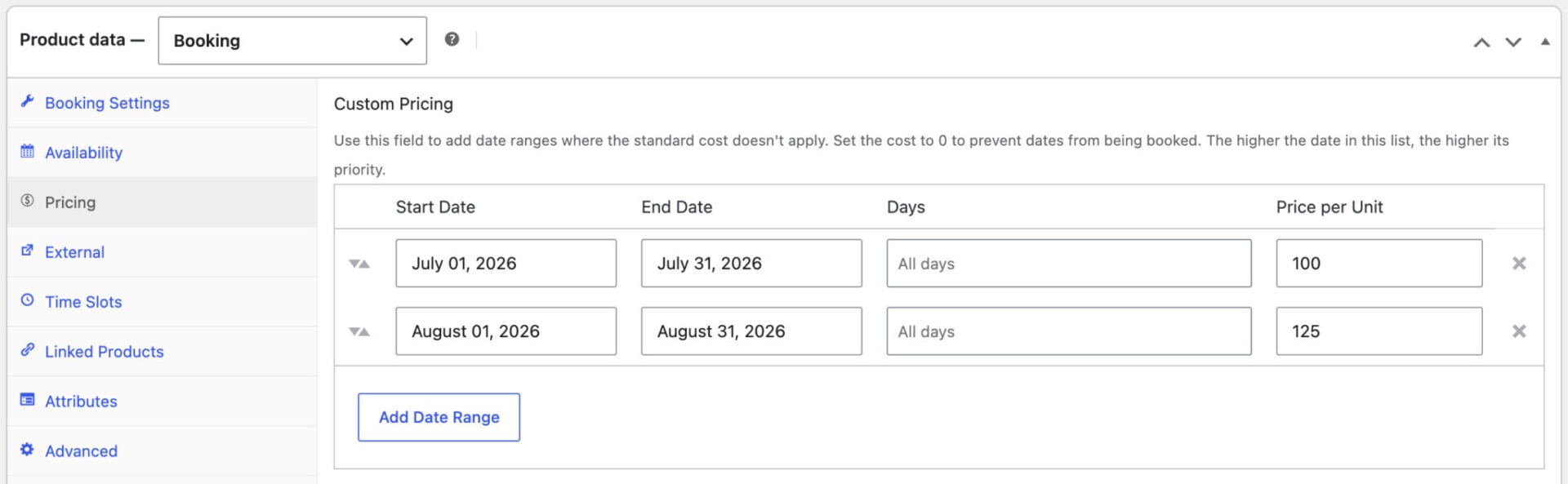
Each row in the table defines one pricing rule with the following columns:
| Column | Description |
|---|---|
| Start Date | The first date this rule applies. |
| End Date | The last date this rule applies (inclusive). |
| Days | Optionally restrict the rule to specific days of the week. Leave blank to apply it to all days within the date range. |
| Price per unit | The price charged per booking unit for dates that match this rule. |
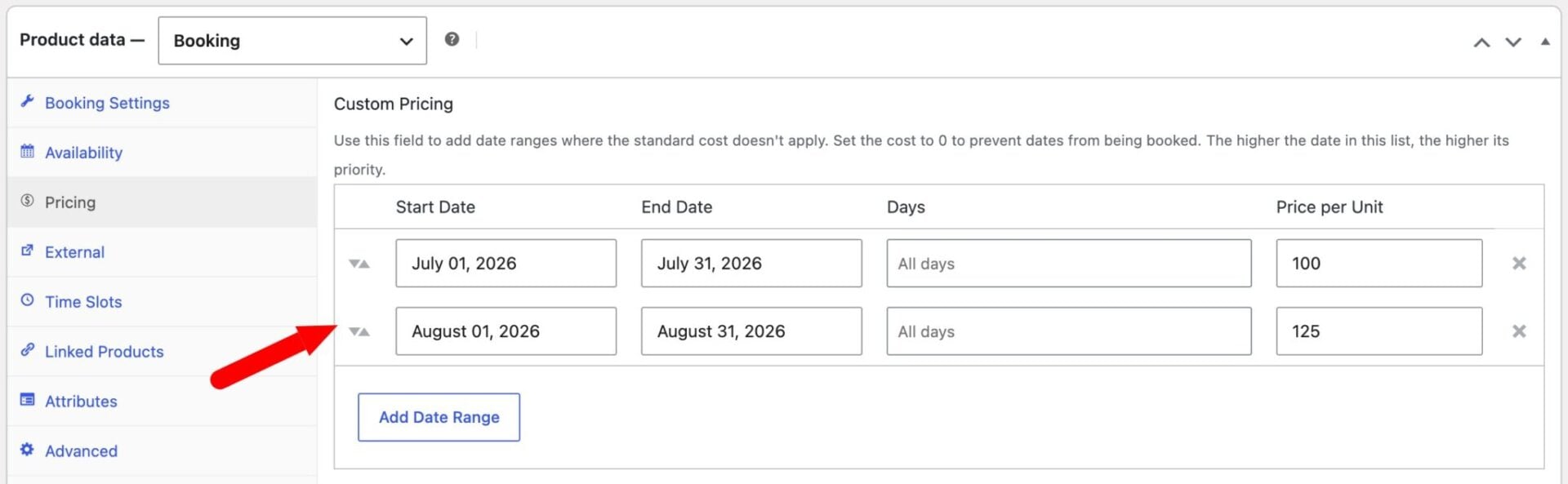
Rules are applied from the top of the list downward. The first rule that matches a given date is used. Drag rows to reorder them and change priority.
How to set seasonal prices for bookings
To vary the price of bookings according to the time of year:
- Click the Add Date Range button
- Enter the Start Date and the End Date
- Enter the adjusted Price per Unit
In the settings below, the booking will cost $100 per day during July and $125 per day during August.
How to charge different prices per day of the week
To charge different prices on specific days of the week – for example, higher rates on the weekend – add a custom pricing row with no start or end date restriction but with the relevant days selected in the Days column. In the example below, the booking costs $150 on Saturdays and Sundays.
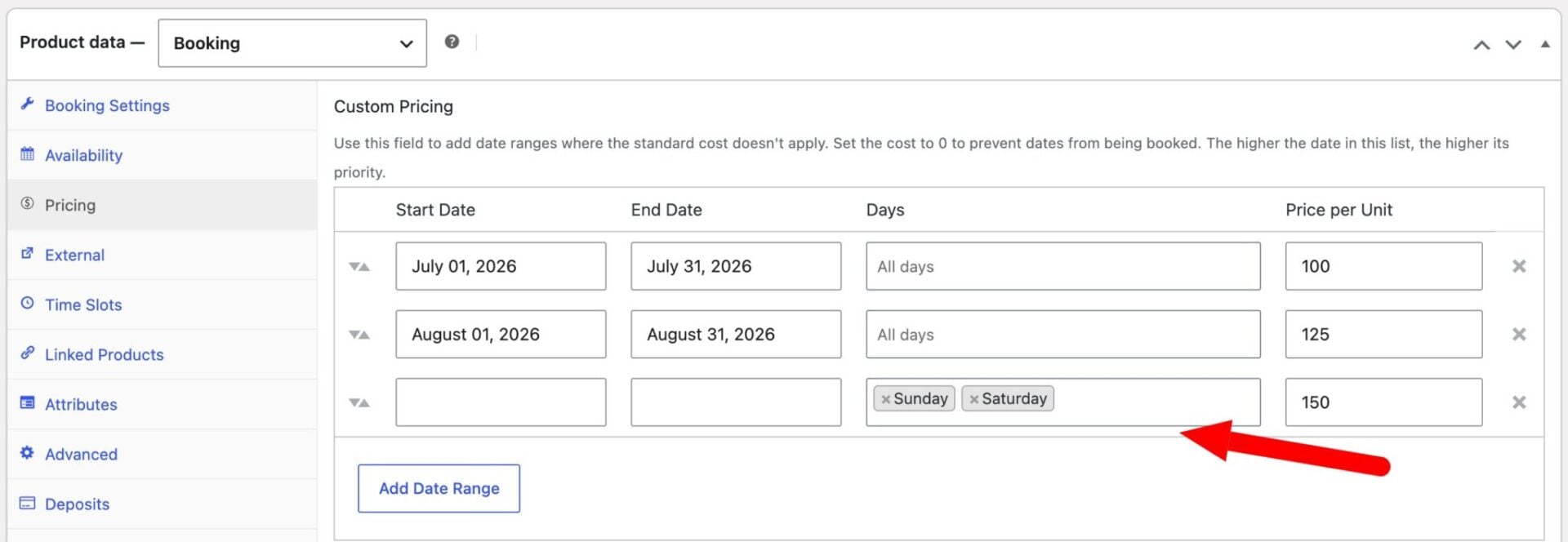
You can also combine a date range with a day restriction to cover, say, Saturdays in July only.
How the price is calculated
For a multi-day booking, the plugin checks each day individually against the custom pricing rules and sums the results. If a five-day booking covers some days at the standard rate and some at a seasonal rate, each day is priced according to whichever rule applies to it.
When Flat rate is enabled on the Booking Settings tab, the plugin uses the custom pricing rule that matches the start date of the booking (or the standard price if no rule matches) and applies it as a single flat charge.
Blocking dates
Setting the price to 0 on a custom pricing row prevents those dates from being booked. This is equivalent to marking them unavailable.
Discounts for bookings
The Discounts table on the Pricing tab lets you apply a discount when a customer books for a minimum number of units – for example, 10% off bookings of seven nights or more.
See this article for a more detailed guide to discounts in Bookings for WooCommerce.
Each discount row has four columns:
| Column | Description |
|---|---|
| Discount Rate | The size of the discount – a number representing a percentage, a fixed amount, or a per-unit amount depending on the type selected. |
| Discount Type | How the discount is calculated. See the table below. |
| After | The number of booking units after which the discount kicks in. A value of 3 means the discount applies to bookings of more than three units. |
| Apply From | Whether the discount applies to the entire booking or only to the units beyond the threshold. |
Discount types
There are three types of discount type:
| Type | Description | Example |
|---|---|---|
| Percentage | Reduces the total booking cost by a percentage. | 10% off a $300 booking = $270 |
| Fixed | Deducts a fixed amount from the total booking cost. | $20 off a $300 booking = $280 |
| Per Unit | Deducts a fixed amount for every booking unit. | $5 per night off a 5-night booking = $25 off |
Apply From
- All: the discount applies to the total cost of the entire booking. A 10% discount on a 7-night booking at $50/night ($350 total) gives $315.
- Partial: the discount applies only to the units beyond the threshold. If the threshold is 5 nights, only nights 6 and 7 receive the discount.
Only one discount rule applies per booking. If you have multiple rows, the plugin uses the first matching rule.
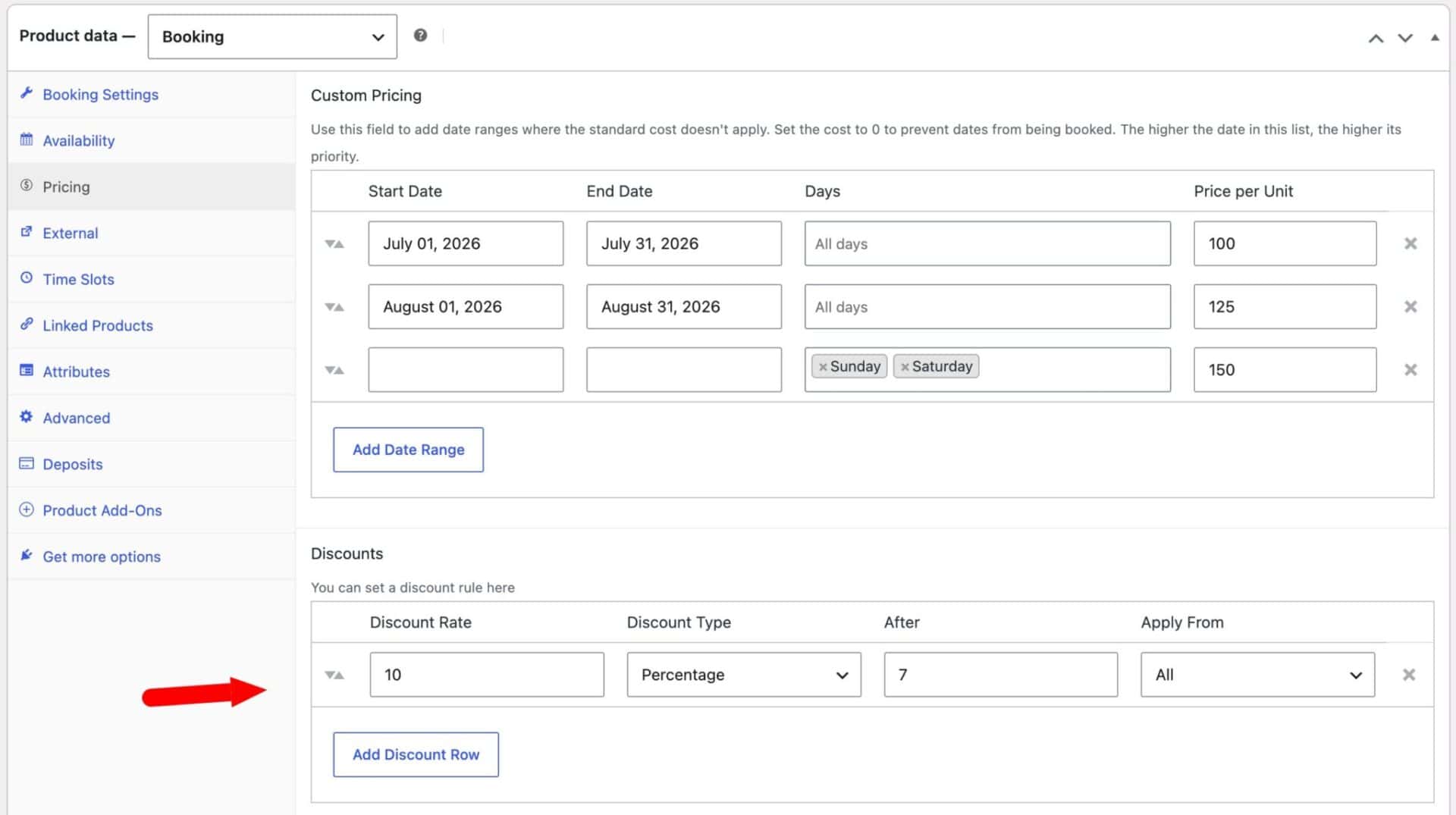
In the example below, the user will receive a discount of 10% on their entire booking if they book for 7 days or more.
Time slot pricing
When time slots are enabled on the Time Slots tab, a separate set of pricing controls becomes available. These work alongside (and in some cases override) the standard and custom pricing settings described above.
Price per slot
The Price per slot field sets the cost charged for each slot unit the customer books. If a customer books two consecutive slots at $30 per slot, the total is $60.
Leave this field blank to fall back to the standard day rate instead. In that case, any number of slots booked on a given day is charged at the standard price for that day.
Cap price at day rate
Enabling Cap price at day rate ensures that the total slot cost never exceeds the standard price for the day. If a customer books enough slots to exceed the day rate, the standard price is charged instead. This is useful when you want to encourage full-day bookings.
Per-slot overrides
The Per-slot Overrides table lets you set a different price (or availability limit) for specific slot times, optionally within a date range. Use this to charge more for popular slots, less for off-peak ones, or different rates during seasonal periods.
Each override row has the following columns:
| Column | Description |
|---|---|
| Start time | The start of the slot this override applies to. |
| End time | The end of the slot this override applies to. |
| Start date | The first date this override applies. Leave blank to apply on all dates. |
| End date | The last date this override applies. Leave blank to apply on all dates. |
| Availability | Overrides the default number of bookings available for this slot. Leave blank to use the product default. |
| Price per slot | The price charged for this slot. Leave blank to use the default slot price. |
You can add as many override rows as you need. A slot that matches an override uses that override’s price; any slot that does not match falls back to the default Price per slot setting.
Seasonal slot pricing
To charge a different slot price during a particular period, add an override row with a Start date and End date and set the price you want for that window. Leave the availability field blank if you are only adjusting the price.
Day-of-week slot pricing
Time slot overrides apply to specific time ranges rather than days of the week directly. To vary prices by day, set up separate override rows for the same time range on each relevant date window, or use custom pricing rules (on the Pricing tab) to adjust the underlying day rate, which the slot pricing will then work against.
Slot discounts
The Slot Discounts table applies a discount to the total slot cost when a customer books a minimum number of slots. This is separate from the booking-level discounts on the Pricing tab and applies only to slot costs.
| Column | Description |
|---|---|
| Min slots | The minimum number of slots the customer must book for the discount to apply. |
| Discount | The size of the discount. |
| Type | Percentage (%) or Fixed amount. |
You can add multiple slot discount rows to create tiered discounts – for example, 10% off when booking 2 or more slots, and 20% off when booking 4 or more.
Pricing with WooCommerce Product Add-Ons Ultimate
If you use WooCommerce Product Add-Ons Ultimate alongside Bookings, you can attach additional costs to a booking – for example, equipment hire, insurance, or catering.
Standard extras pricing
Add-on fields with a price set in Add-Ons Ultimate behave exactly as they do on non-booking products: the extra cost is added to the booking cost in the cart total.
Price per booking unit
Each extra field in Add-Ons Ultimate gains a Price per booking unit? toggle when the parent product is a booking product. When this is enabled:
- The field’s price is multiplied by the number of booking units and the number of bookings in the cart.
- For example, an extra priced at $10 with Price per booking unit enabled, added to a 5-night booking, costs $50.
- If the customer has selected a quantity of 2 bookings, the total extra cost is $100.
The per-unit label is displayed automatically next to the field price on the product page (for example, $10 per night) so customers know how the cost scales.
Rental Bundle pricing
The Rental Bundle setting is available on a Products field in WooCommerce Product Add-Ons Ultimate. When enabled, all child products in the field are automatically added to the cart alongside the parent booking product, and the parent’s calendar or slot picker is blocked whenever any child product is unavailable.
From a pricing perspective:
- The parent product is priced using its own booking cost – standard rate, custom pricing rules, discounts, and slot pricing all apply as normal.
- Each child product is added to the cart at its own price. You can apply a discount to each child product within the Products field settings to reward customers for booking the bundle – for example, 20% off each item when booked as part of the package.
- The discount on child products can be set as a percentage, fixed amount, or per-unit amount. It is applied automatically when the bundle is added to the cart.
- The customer sees the parent product total and each child product itemised at its (discounted) price.
For a full walkthrough of setting up a Rental Bundle, see How to Create a Rental Bundle in WooCommerce.