Product Add-Ons Ultimate allows you to accept measurements from users, e.g. for the length of a material. You might want to allow users to choose their units, e.g. feet or meters, then convert from one to another.
To do this, you can give the user the choice of which unit using a radio group or select field, then using the options’ ‘Price’ field to set a conversion multiplier. You can then set the ‘Option price visibility’ setting to ‘Value only’ so the multiplier can be used purely for the formula and never shown to the customer or added to the cart.
Convert between units using add-on fields
Here’s how to do it.
Step #1: Create a radio group field
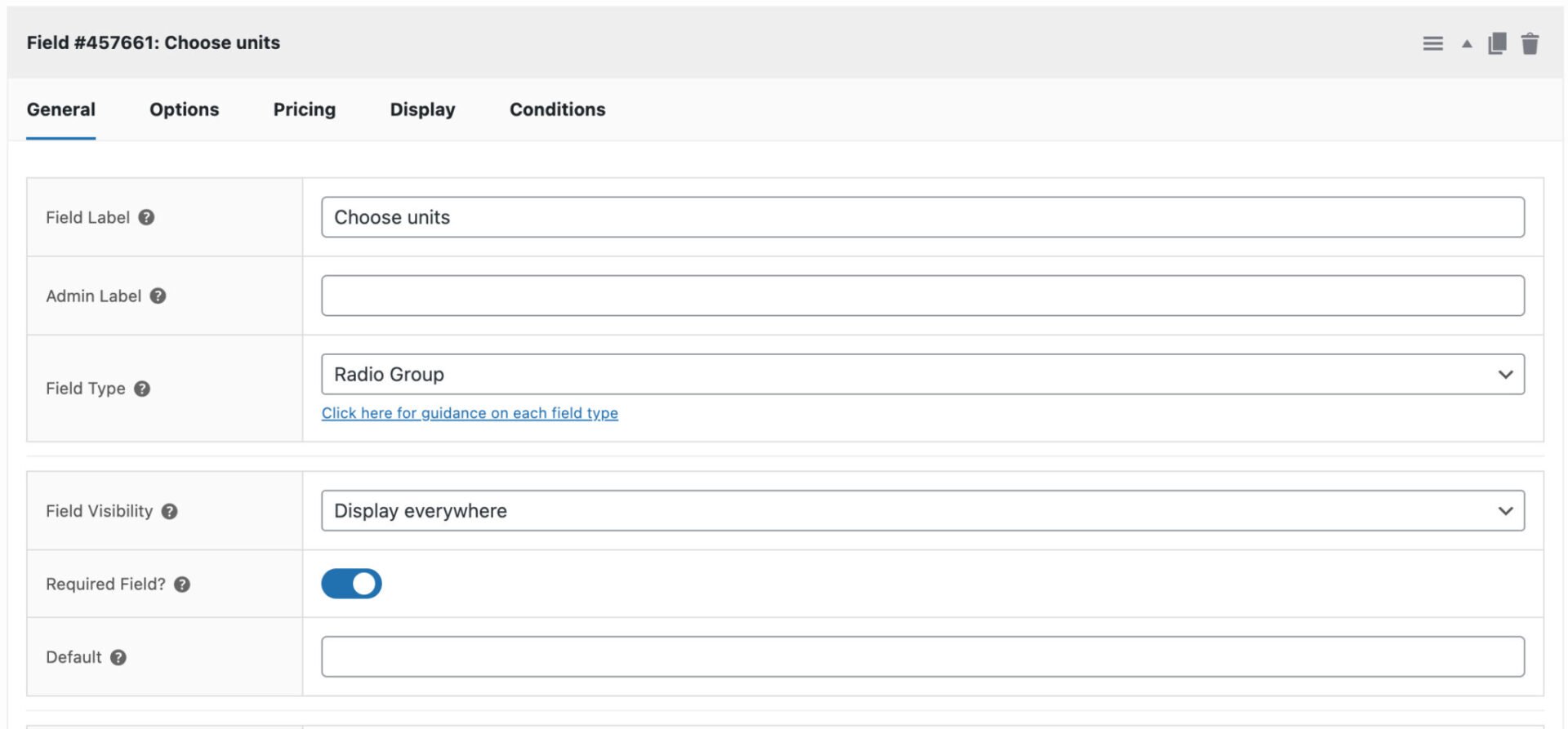
Add a new field, set ‘Field Type’ to ‘Radio Group’ and add a ‘Field Label’.
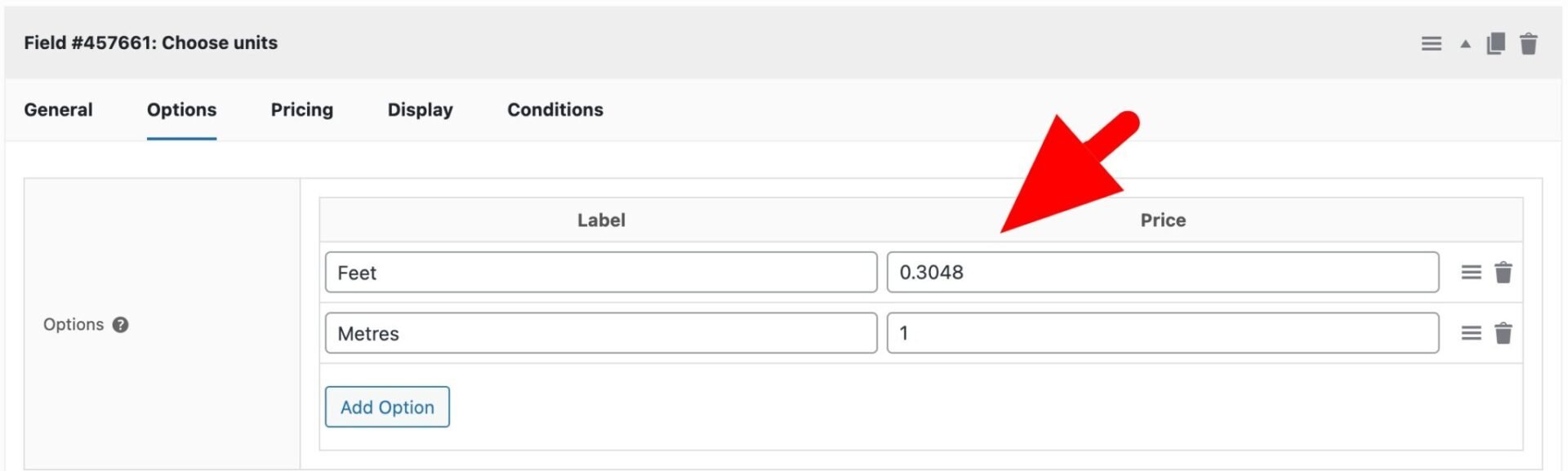
Go to the Options tab and add the options for your units, in this case ‘Feet’ and ‘Metres’. In the ‘Price’ column, enter a multiplier to convert a value from the selected unit to the intended unit. In this case, we want to display the length in metres so we enter a conversion multiplier of 0.3028 for the ‘Feet’ option and just 1 for the ‘Metres’ option.
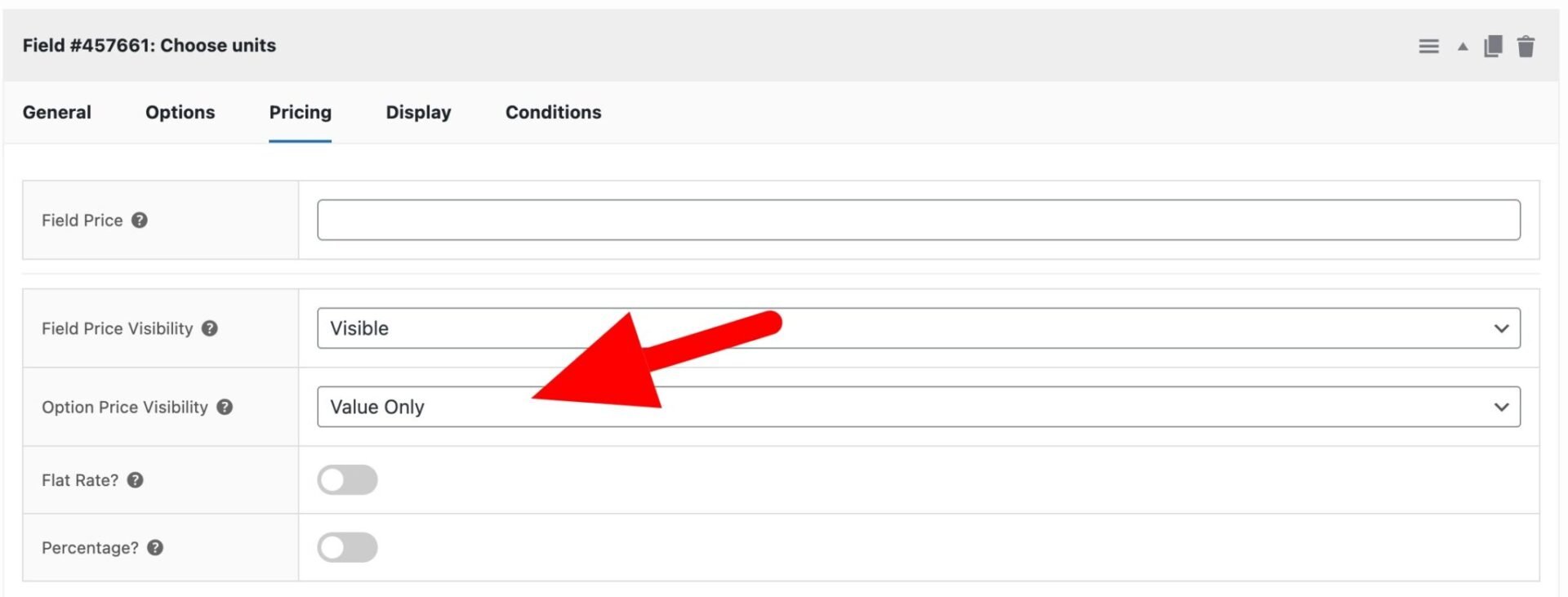
Then click on the ‘Pricing’ tab and select ‘Value only’ in the ‘Option Price Visibility’ field. This means the value in the ‘Price’ column is used in calculations but never displayed to the customer or added to the cart total.
Make a note of the Field ID (e.g. Field #123).
Step #2: Create a number input field
Now you can create a field for the user to enter the measurement:
- Add a new field, set ‘Field Type’ to Number, give it a label
- Set Min Value to 0 and ‘Decimal Places’ as needed
- Note the Field ID (e.g. Field #124)
Step 3: Create the calculation field
Now you can create a calculation field to convert the measurement to your desired units:
- Add a new field, set ‘Field Type’ to ‘Calculation’, give it a label
In the Calculations tab, enter:
{field_123_option_price} * {field_124}
Remember to replace 123 and 124 with your actual field IDs.
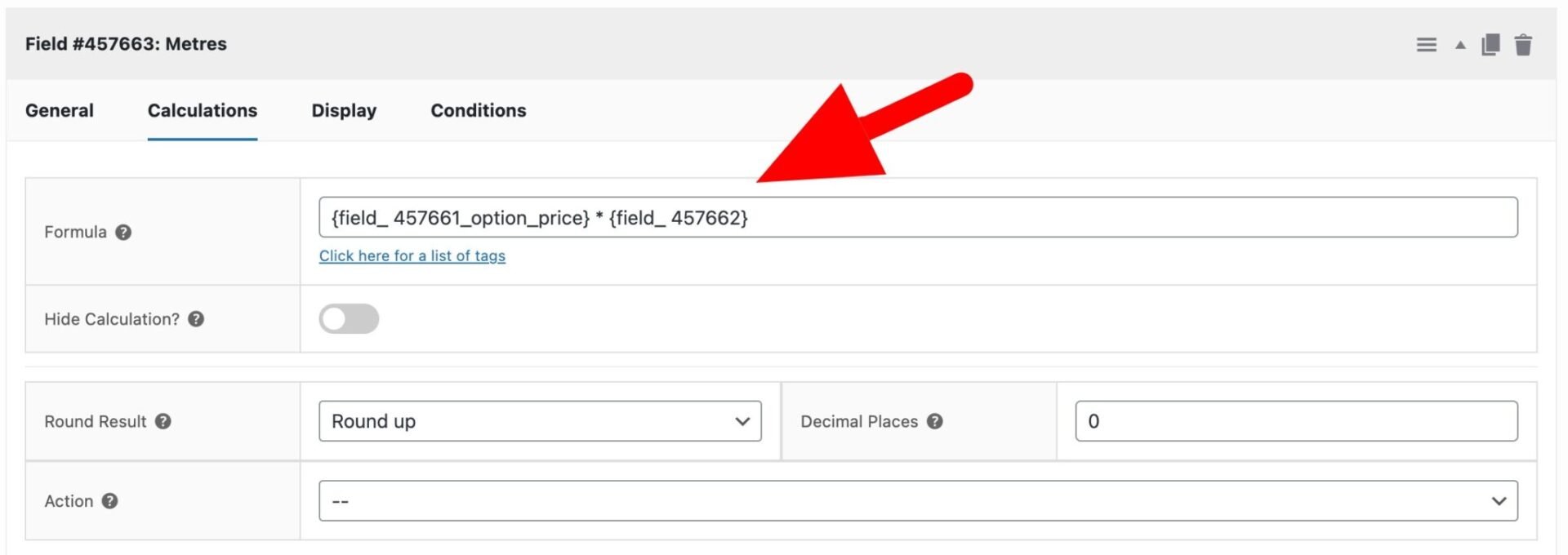
Now if the user selects feet, the value they enter for the measurement will be multiplied by 0.3048 to give a final value in meters. You can choose to set ‘Round Result’ to ‘Round up’ if you want to round up to the nearest whole number.