The Text Preview plugin can apply a custom class to the text preview layer based on the ‘Field Class’ setting in Add-Ons Ultimate.
To add a custom class to an add-on field, enter the class name in the ‘Field Class’ setting:
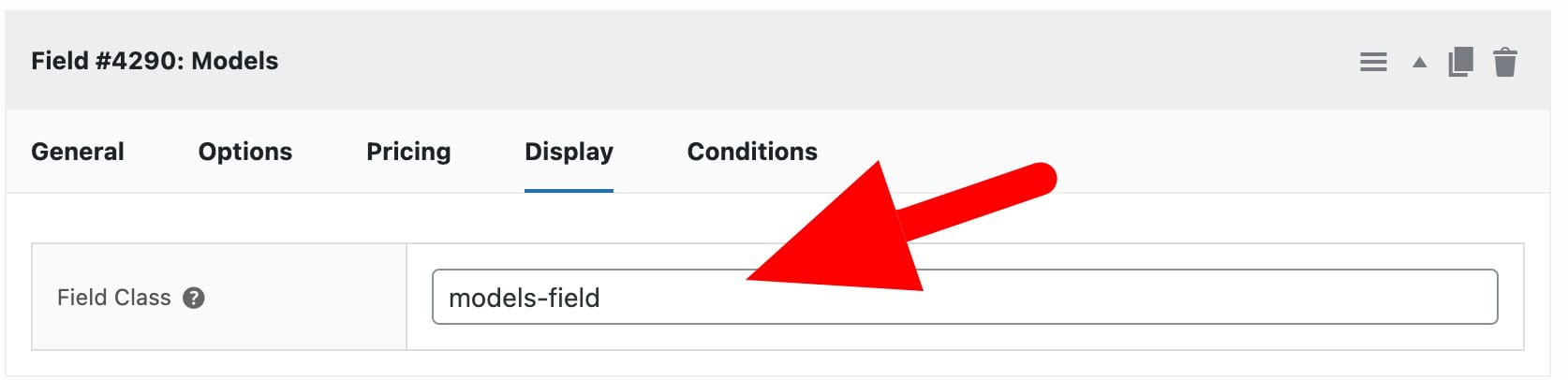
This class will then be applied to the text preview layer with the apaou- prefix. So a custom field class called models-field will be added to the text preview layer as apaou-models-field.
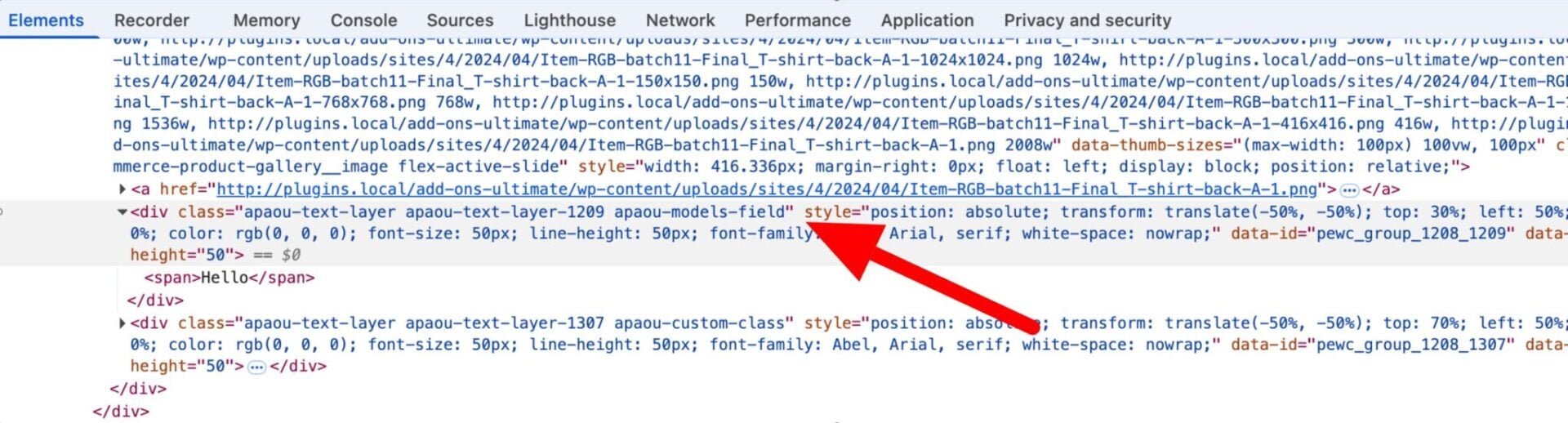
Note that each text layer field will also have a unique class based on the field ID, e.g. apaou-text-layer-1209 where 1209 is the field ID.
Add a class based on selected color
If you’re using a swatch field to specify text color, the plugin will automatically add a class based on the slug of the selected color. So if the user selects ‘Black’, the apaou-text-layer-black class will be added to the text preview element.