In the WooCommerce Product Add-Ons Ultimate plugin, Product fields allow you to use other products as add-on fields in your WooCommerce product. Product Categories fields allow you to use all products from the specified categories as add-on fields. There’s a demo product here.
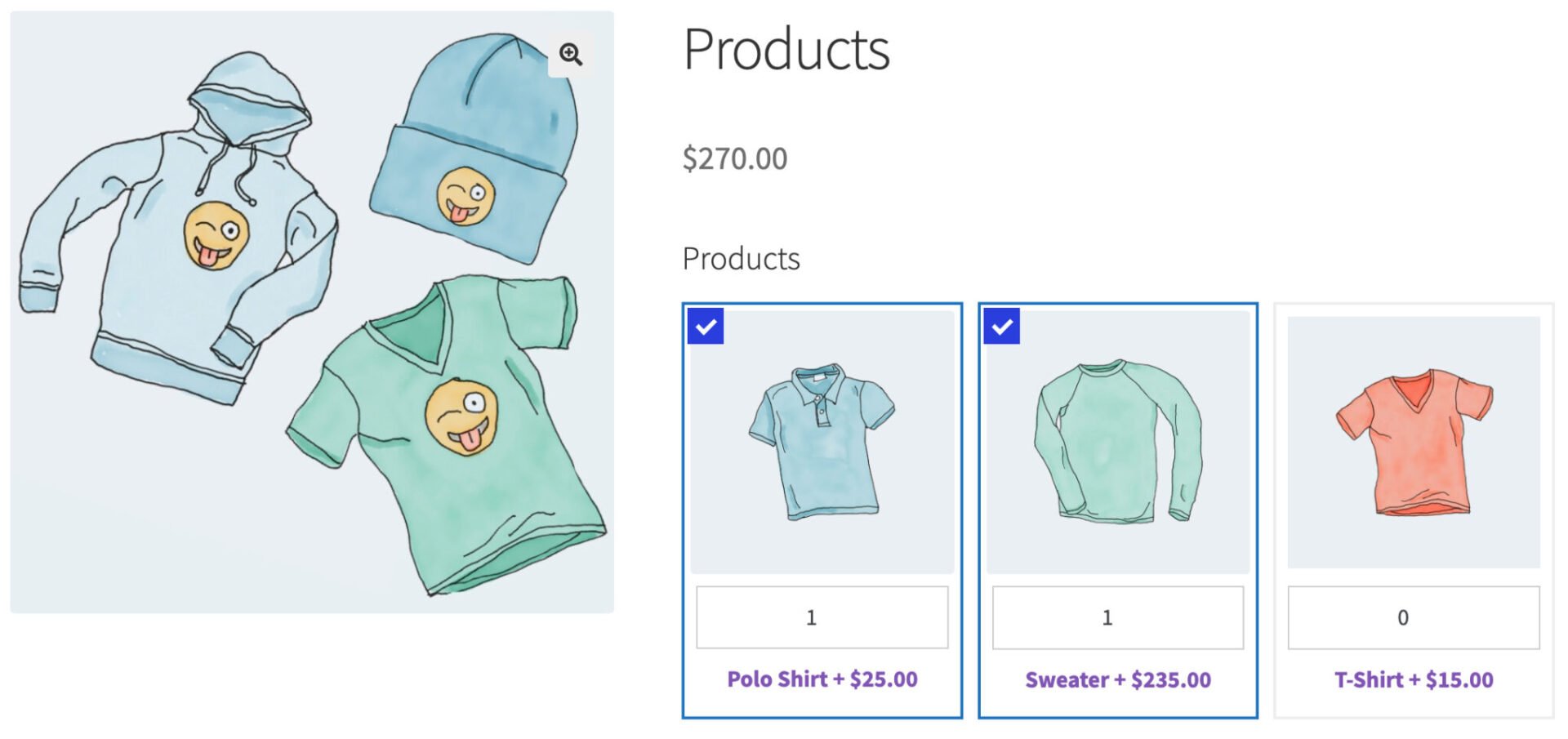
There’s also a complete tutorial on WooCommerce child products here.
How to add a Products or Product Categories field
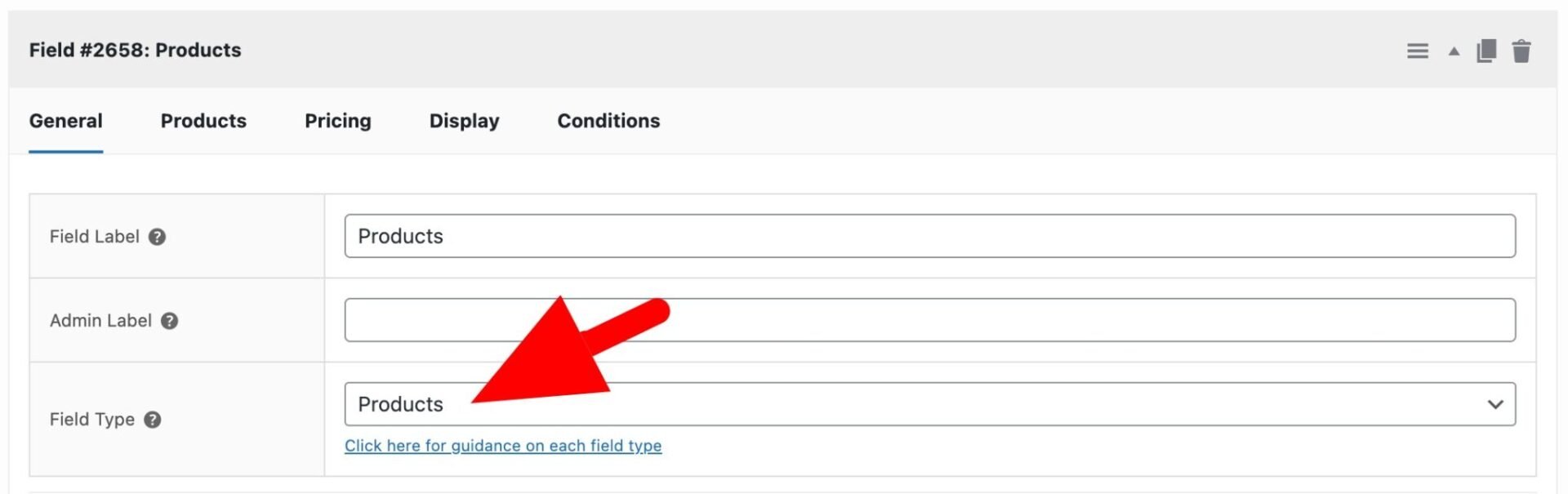
To add a Product field, just choose ‘Products’ from the ‘Field Type’ dropdown list.
To add a Product Categories field
To add a Product Categories field, just choose ‘Product Categories’ from the ‘Field Type’ dropdown list.
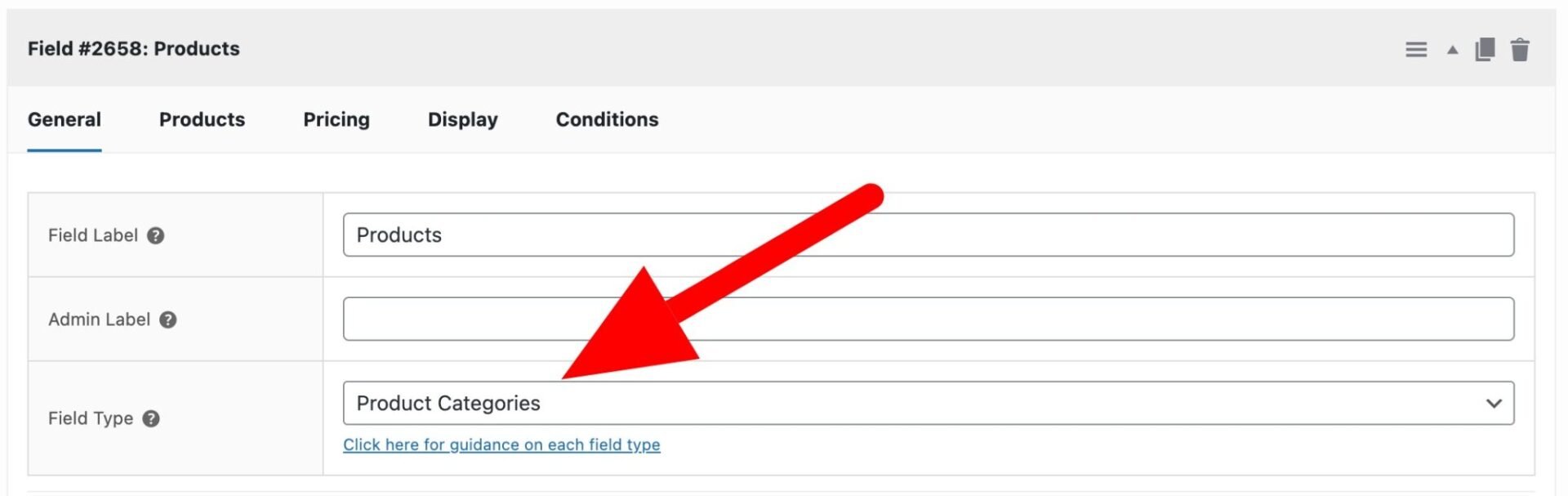
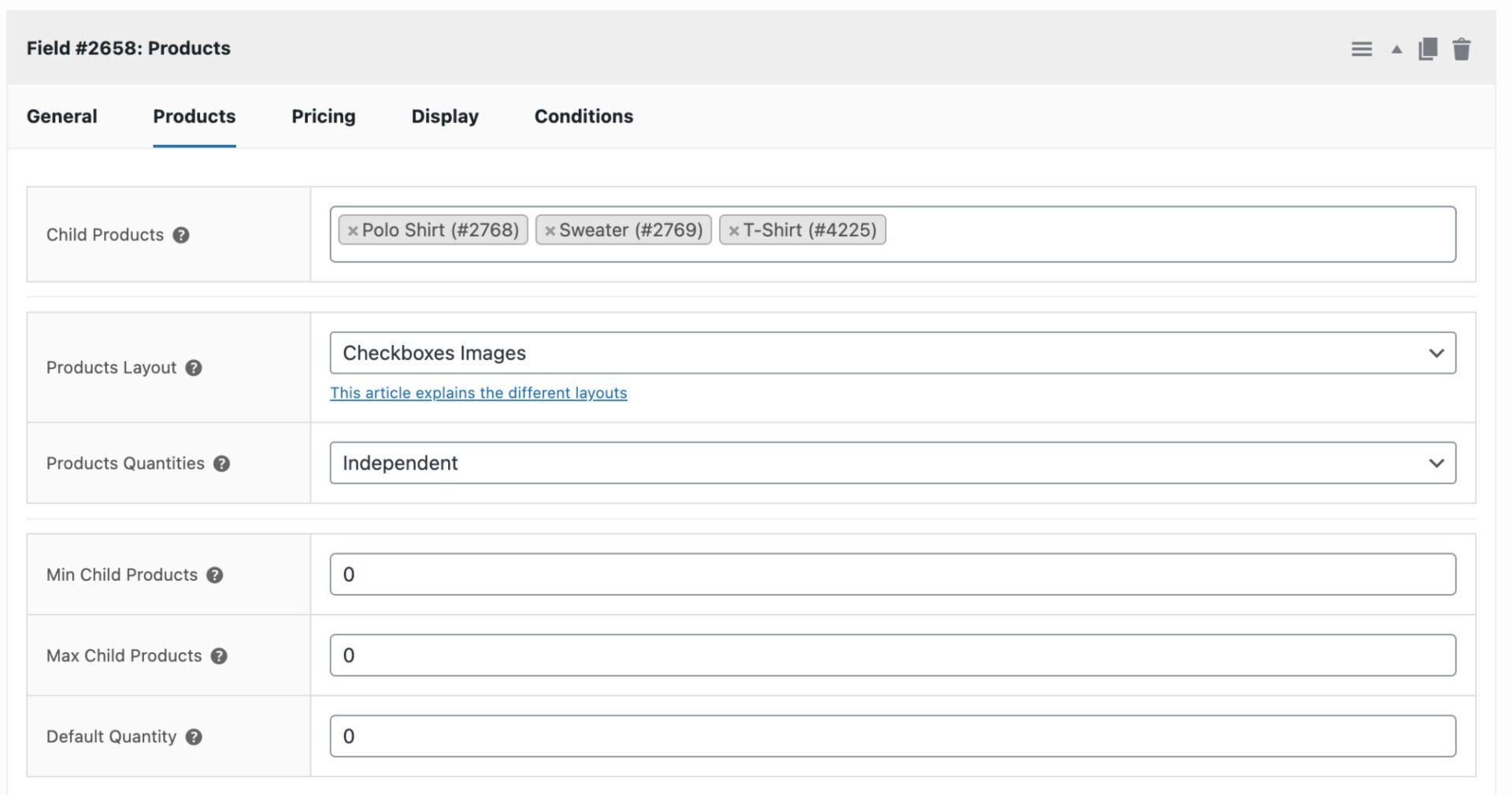
When you select either Products or Product Categories as the field type, you’ll see an extra tab for ‘Products’. Click on this to configure the field.
Child Products
In the ‘Child Products’ setting, choose which products from your store will feature as options in this field.
Product Categories
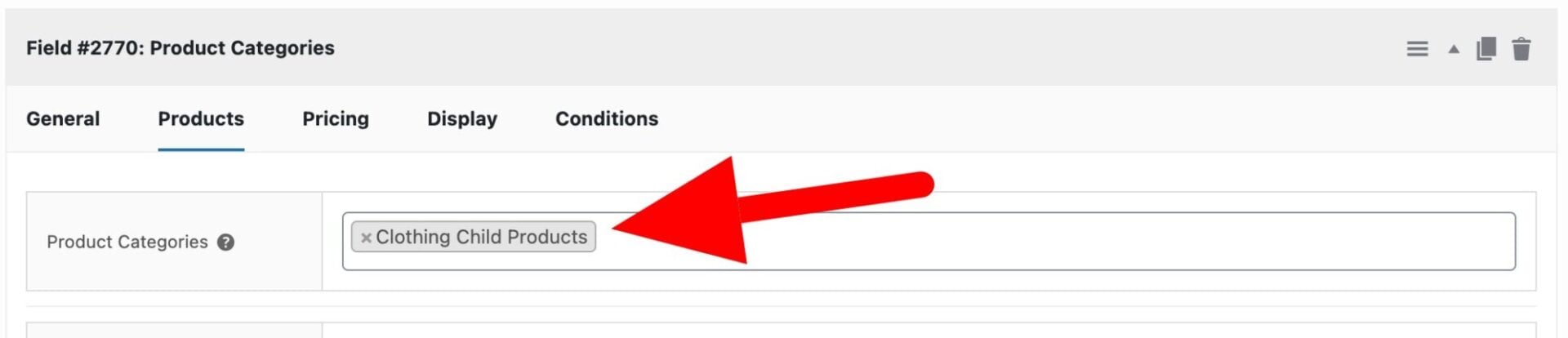
If you’re using the Product Categories field type, then you’ll see the ‘Product Categories’ field on the ‘Products’ tab. Enter the category or categories of products to display as options for this field.
Product layout
Choose how your child products will be displayed on the front end. This article shows examples of each of the layouts described below.
- Checkboxes Images let you add one or more child products as an addon field. The customer can select multiple child products within the field that will get added to the cart. The field will display the child product thumbnail
- Checkboxes List – the same as the Checkboxes Images above but without the child product image
- Column displays your child products in a single column layout. Note that the ‘Column’ setting also allows you to use variable products as child products.
- Components List displays each child product as a row with its thumbnail, title, short description, price, stock status and a quantity field, letting customers select multiple products and set a quantity for each – perfect for building “bundle” or “kit” style products from a list of components.
- Radio Images allow you to add one or more child products as an addon field, just like the checkboxes layout, though in the case of radio buttons the customer can only select one child product from the field. The child product image will be displayed
- Radio List – same as Radio Images above but without the child product image
- Select lets you add your child products as a dropdown field.
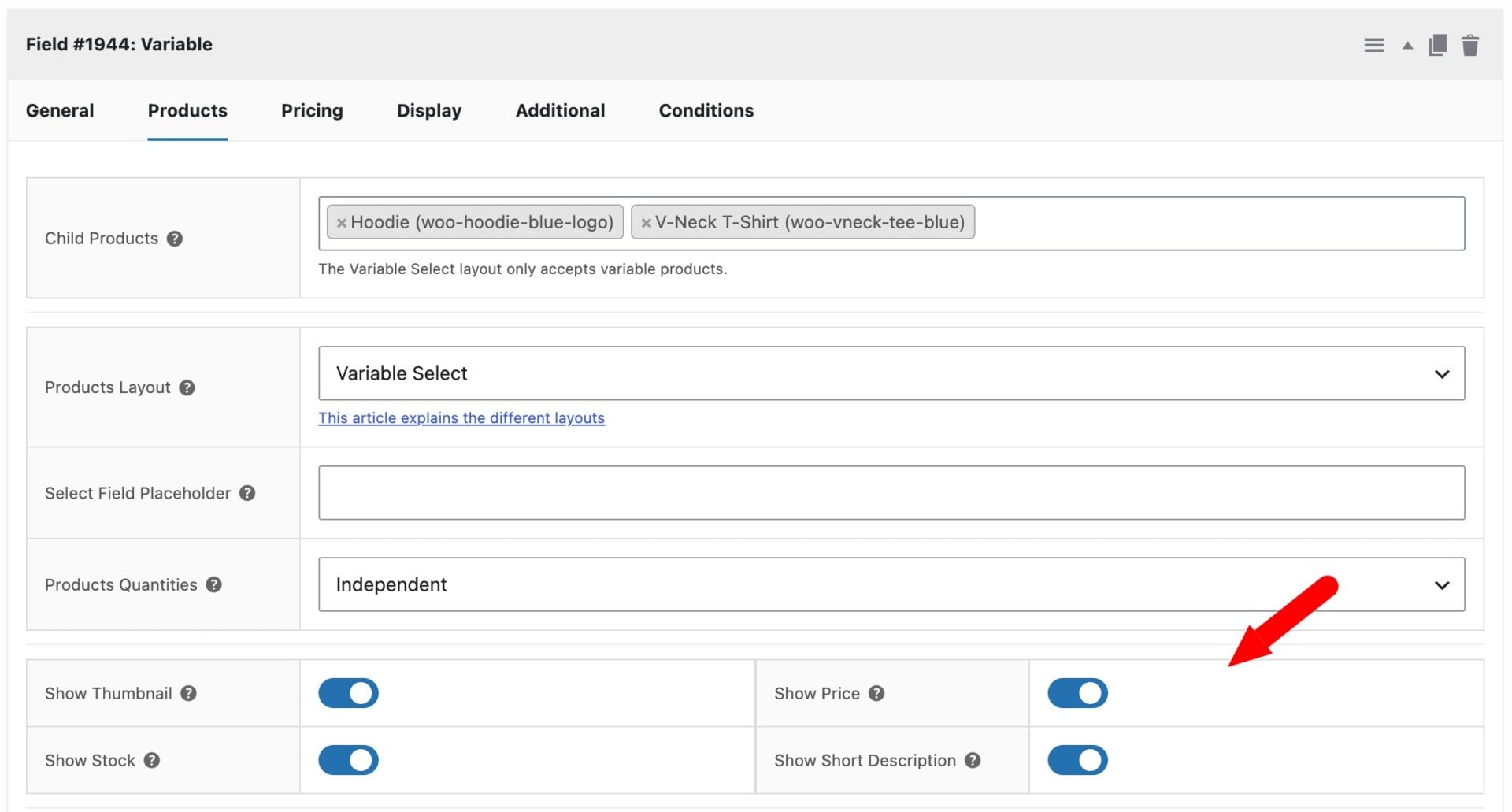
- Variable Select – this layout restricts the ‘Child products’ field to variable products only and displays them on the product page in a dropdown. When the customer picks a variable product, a second dropdown appears below it populated with the selected product’s variations. The chosen variation’s thumbnail, price, stock status and short description are shown beneath the field.
Product quantities
Choose how to manage the quantities of child products:
- Independent: when you specify a product addon field’s quantity as independent, the customer will be able to purchase as many of the child product as they wish, regardless of how many of the parent product they’ve chosen
- Linked: when you specify the quantity as linked, the quantity of the child product added to the cart will always be the same as the quantity of the parent product
- One-only: when you specify the quantity as one-only, then only one child product can be added to the cart, regardless of how many of the parent product has been added
Show thumbnail / price / stock / short description
These options are only enabled if the ‘Variable Select’ field is selected. Enable each of them to display the relevant information on the front end.
Minimum / Maximum Products
You can specify a minimum and/or maximum number of child products if you are using ‘Checkboxes’ as the ‘Products Layout’ and ‘Independent’ as the ‘Products Quantities’ type. You’ll see two new settings – Min Child Products and Max Child Products.
If you are specifying a minimum or maximum number of checkboxes, you might need to ensure that ‘Required field’ is checked in order to ensure that users select the required number of products.
Default Quantity
You can enter a value in this field if you want a certain quantity pre-selected for the chidl products.
Pricing
Click on the ‘Pricing ‘ tab for some options related to pricing for the Products field. Note that the price is set by the child products themselves; there’s no ‘Field Price’ setting.
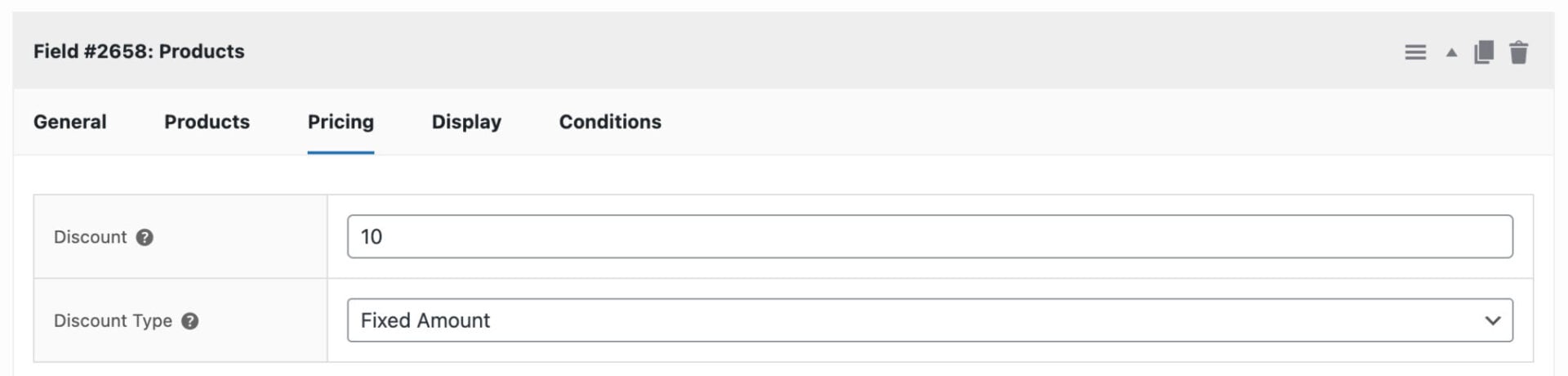
However, you can choose to offer a discount on child products. Just enter the value of the discount and the discount type, percentage or fixed.
The price of the child product will be adjusted accordingly.
Display tab
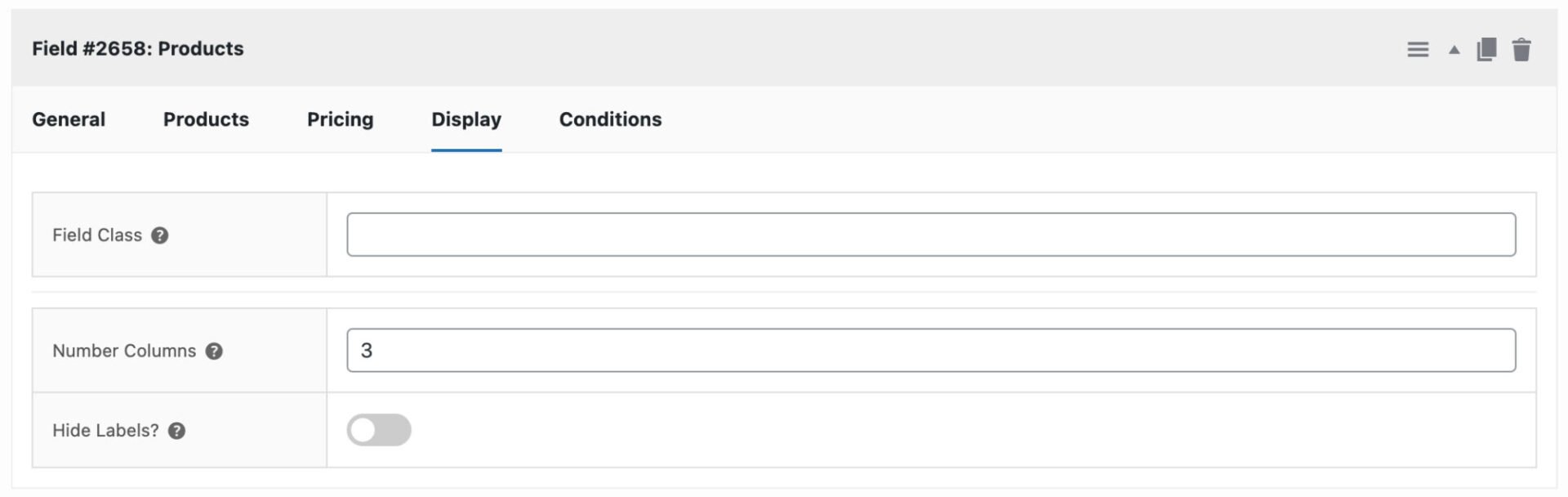
Click on the ‘Display’ tab for some options related to how the field is displayed.
Number columns
Choose how many columns to display the image swatches in on the front end.
Hide labels
Enable this option to hide the product names and only display their thumbnails.
Products and Product Categories global settings
You can find settings for child products by going to WooCommerce > Settings > Product Add-Ons > Products.
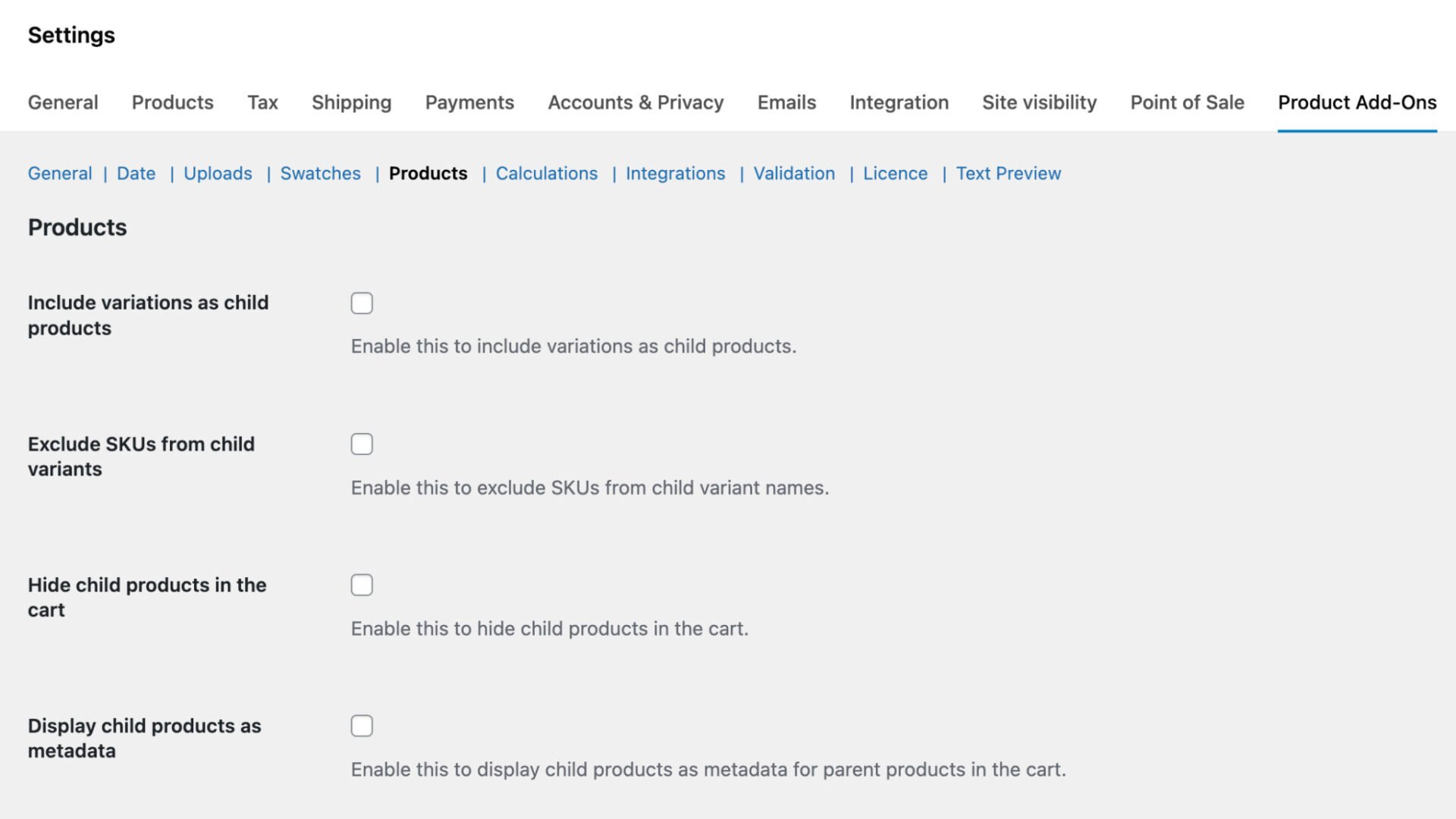
Include variations as child products
If you’re using the ‘Products’ field, you might want to include variations as child products, not just simple products.
To do so, go to WooCommerce > Settings > Product Add-Ons and select the ‘Include variations as child products’ option:
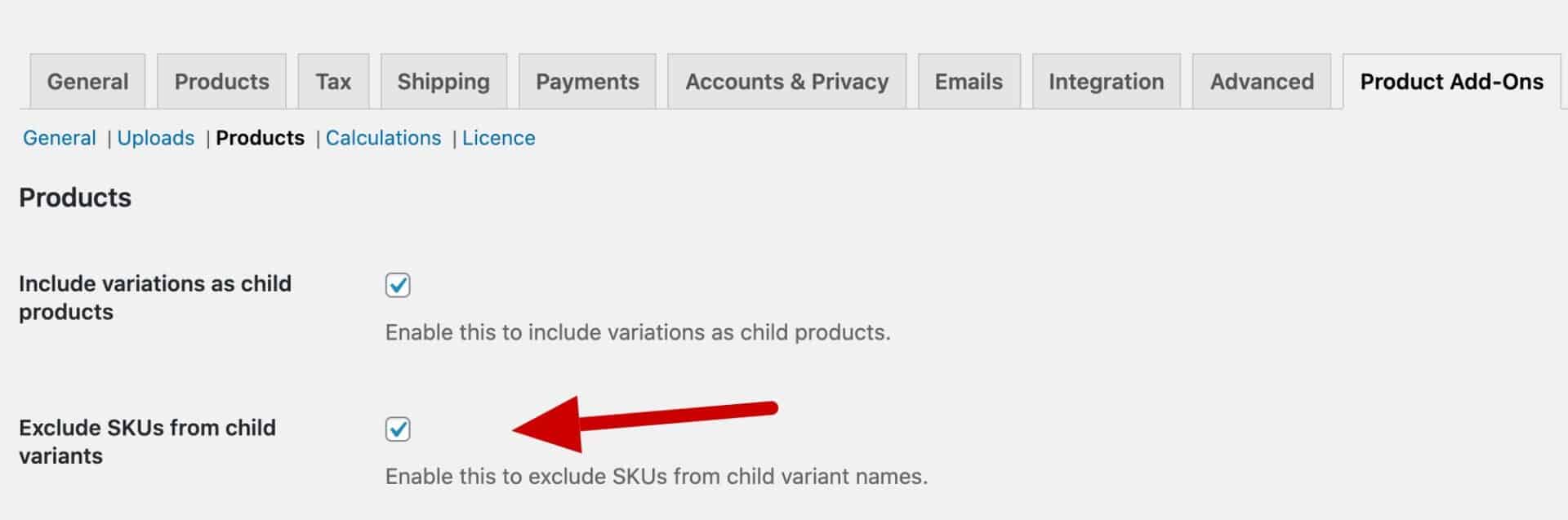
Display variant name without SKU in child product
By default, when using variations as child products, product names include the SKU. If you’d like the name without the SKU, go to WooCommerce > Settings > Product Add-Ons > Products and enable ‘Exclude SKUs from child variants’
Hide child or parent products in the cart, order or email
If you’d like to hide child products in the cart, order page and emails, you can go to WooCommerce > Settings > Product Add-Ons and select the following two options:
- Hide child products in the cart
- Hide child products in the order
This will also ensure that the count of products in the mini cart is updated.
Hide parent products in the cart, order and email
If you’d like to hide parent products instead, just check the following options
- Hide parent products in the cart
- Hide parent products in the order
Display child products as metadata
If you’d like to link child products to the parent product, you can display the child product IDs in the parent product metadata.
This will also update the parent product’s price so that it includes the child product prices as well – presenting a single combined price to the customer.

Multiply child product quantities by the product quantity
If you would like to multiply the quantity of child products by the main product quantity:
- Go to WooCommerce > Settings > Product Add-Ons > Products
- Set ‘Multiply independent quantities’
Do not remove parent
Enable this to keep the parent product in the cart when a required child product is removed.
Redirect hidden products
You can ensure that child products are not purchasable independently by setting them as ‘Hidden’ then checking the option to ‘Redirect hidden products’.
Display child product information in a lightbox
You can display additional information about child products when a user clicks the child product title. This will display the product title, thumbnail and short description in a lightbox.
To enable this, check the option to ‘Enable QuickView for child products’.

Note that this only works with ‘Checkboxes’, ‘Column’ and ‘Radio’ layouts.
List parent and child items separately in the cart
If you don’t want to organise child products under their parent products, you can use this snippet:
| <?php | |
| /* | |
| * Don't organise child products under parent products | |
| */ | |
| remove_action( 'woocommerce_cart_loaded_from_session', 'pewc_cart_loaded_from_session' ); | |
| remove_filter( 'woocommerce_cart_item_remove_link', 'pewc_cart_item_remove_link', 10, 2 ); |
Edit child product quantities in the cart
By default, the child product quantities can’t be edited in the product page, if you’ve set the product field quantity settings to Independent.
If you’d like users to edit child product quantities in the cart page, then use this snippet:
| <?php | |
| // Editable child quantity in cart when set to independent | |
| add_filter('pewc_disable_child_quantities', '__return_false'); |
Here’s how to add a snippet.
Hiding child products on the site
If you don’t want users to find your child products on the site, you can set them to ‘Hidden’.
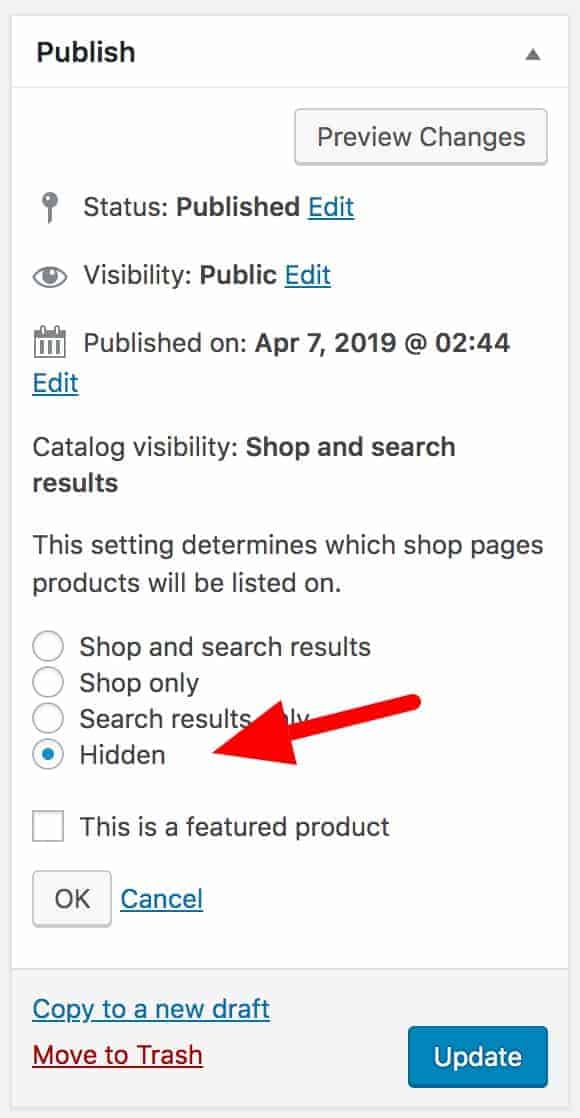
Note that the user could still find hidden products if they have the direct URL. To prevent users from accessing hidden products at all, go to WooCommerce > Settings > Product Add-Ons > Products and select the option to ‘Redirect hidden products’.
Setting a limit on the number of products in Product Categories fields
By default, the Product Categories field will only query 100 products per category. You can change this limit by using this snippet:
| <?php | |
| function prefix_pewc_products_for_cats_limit($limit) { | |
| // Increase the limit to 120 | |
| $limit = 120; | |
| return $limit; | |
| } | |
| add_filter('pewc_products_for_cats_limit', 'prefix_pewc_products_for_cats_limit'); |
‘How to’ guides
There are several ‘how to’ guides with different ideas for using the Products field, including: