In WooCommerce Bulk Variations, you can enable filters to let shoppers narrow the bulk variations order form to a matching row or column instead of scrolling through every combination.
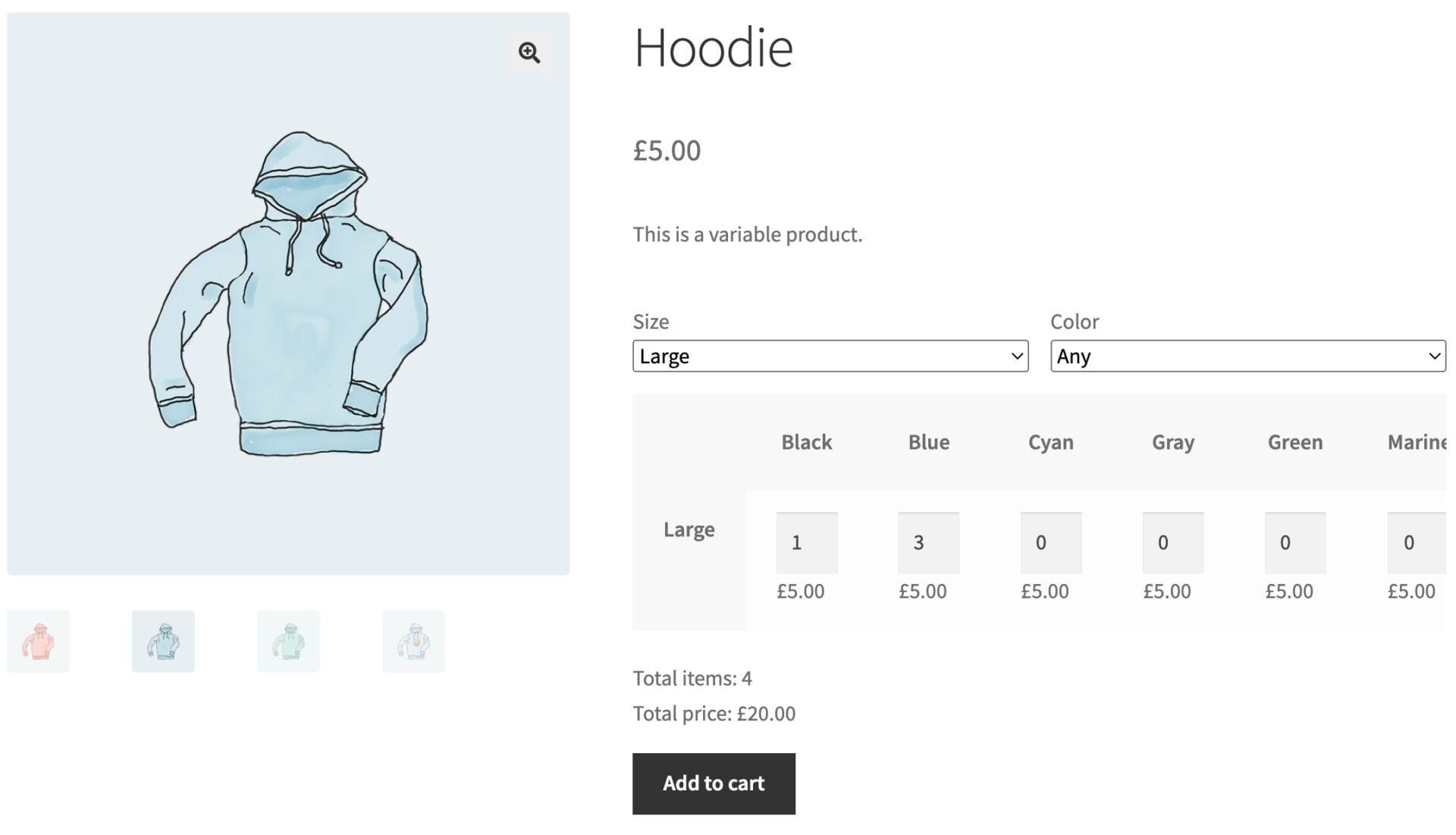
You can filter the grid by one or two attributes using dropdowns. The plugin is also compatible with WooCommerce Variation Swatches so you can use swatches as filters if you prefer.
Filtering is particularly useful if you have a lot of variations. It makes it easy for customers to focus on specific terms – e.g. just ‘Large’. You can enable the filters for one or both attributes.
How does filtering work?
When filtering is enabled, a dropdown appears above the grid for each filterable attribute. If you use swatches, they appear instead. Select a term such as ‘Red’ to hide every row or column that doesn’t match it.
With two attributes, both filters work independently and simultaneously. Select Color and then Size to narrow the grid to their intersection. Select ‘Any’, or click a selected swatch again, to clear the filter.
Filtering only changes what’s visible. The grid keeps any quantities already entered, even if a later filter change hides their row or column. A shopper can filter to Large, enter quantities, filter to Medium, enter more and then add everything to the cart in one go.
The filter pre-selects the product’s default attribute term, if one is set. The grid then opens already narrowed to it.
How do you enable filtering?
Filtering has three settings tiers:
- Global default. Go to WooCommerce > Settings > Bulk Variations > General and tick ‘Enable filtering’. It’s off by default.
- Per attribute. Go to Products > Attributes > Configure terms > Edit on a global attribute. Set ‘Grid filtering’ to ‘Use global setting’, ‘Yes’, or ‘No’ to override the global default for that attribute site-wide.
- Per product. Set ‘Grid Filtering’ in the ‘Attributes’ tab of the ‘Product data’ section.
The per-product setting takes precedence over the per-attribute setting, which takes precedence over the global default.
Filtering only works when Grid mode is active for the product. Grid mode requires one or two variation attributes.
Does filtering support swatches?
Yes. If WooCommerce Variation Swatches is active and an attribute uses color, image, text, or radio swatches, the filter for that attribute renders as matching swatches instead of a dropdown. It uses the same styling and per-term settings you’ve already configured in WCVS.
Swatches are always deselectable, regardless of the ‘Deselectable swatches’ setting. Click the selected swatch to clear the filter.