You can display a product table in WooCommerce Product Table Ultimate by using a shortcode or Gutenberg block.
Displaying a product table using a shortcode
Go to the page where you’d like to display the product and enter the following shortcode:
[product_table_ultimate]
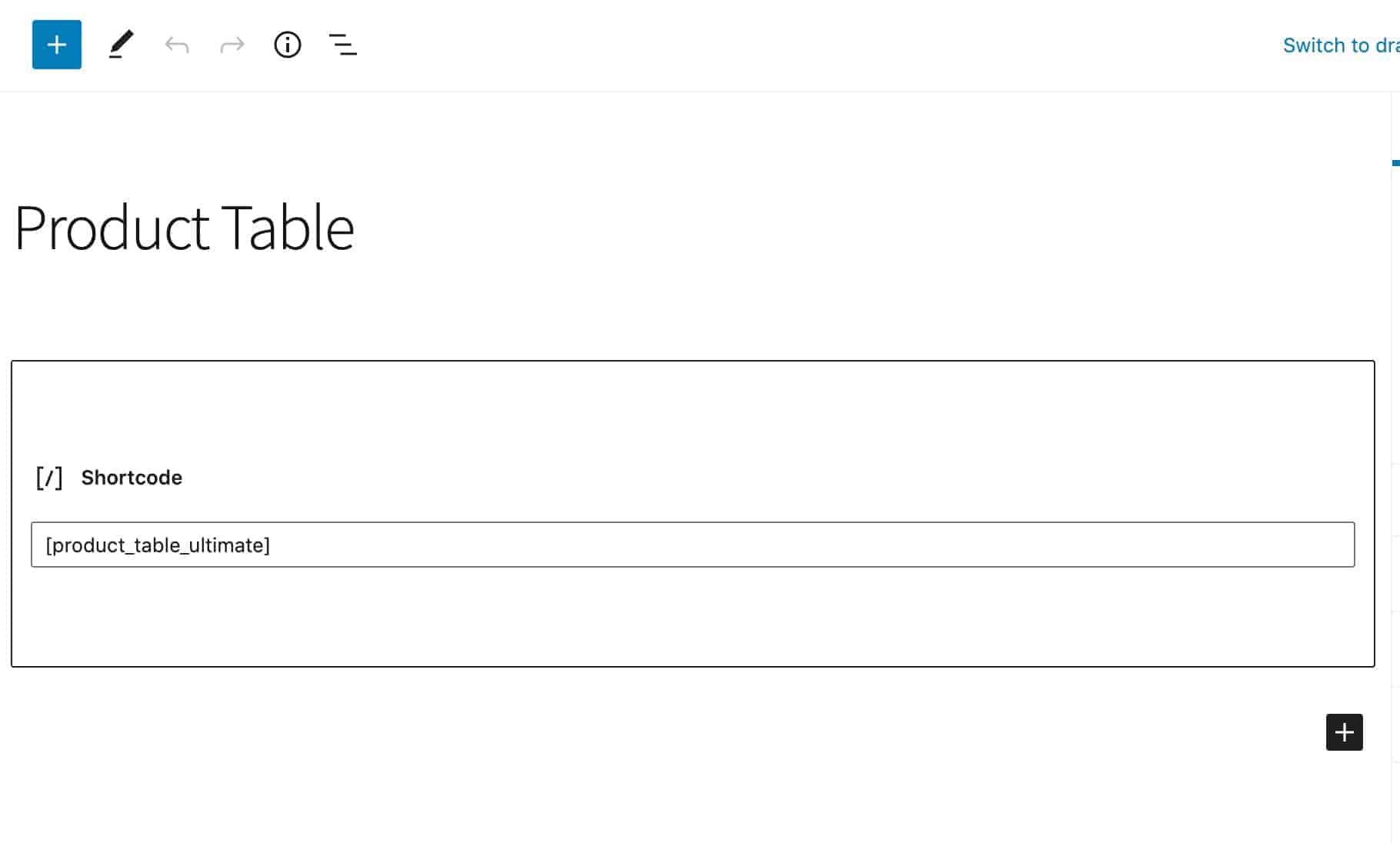
Publish or update your page. This will now display a product table to your users.
When you enter the basic shortcode like this, the plugin will use the settings you define at WooCommerce > Settings > Product Table. Click here to find out more about these settings.
Shortcode parameters
You can fine-tune your product using different shortcode parameters. Here’s a list of the available parameters and some examples of how to use them.
columns– this parameter defines what columns will be displayed in your table. Choose fromsku,thumbnail,name,short-description,long-description,stock,attributes,categories,tags,price,add-to-cart,last-modified-date,reviews,weight,length,width,height,author. Separate each option with a comma.source– define which products to display. Options include “all”, “categories”, “tags”, “taxonomies”, “callback”callback– if you choose “callback” in the “source” parameter, enter the name of your custom querycategories– if you choose “categories” in “source” then add a new parameter listing the IDs of the categories you want to display, e.g.categories="23,25"taxonomies– if you choose “taxonomies” in “source” then add a new parameter listing the IDs of the taxonomies you want to display, e.g.taxonomies="23,25"tags– if you choose “tags” in “source” then add a new parameter listing the IDs of the tags you want to display, e.g.tags="23,25"order_by– define how to order the products in the table. Choose from “id”, “sku”, “title”, “price”, “date”, “popularity”, “rating”, “menu_order”order– either “ASC” or “DESC”per_page– how many products to list per pageshow_quantities– either “yes” or “no”variations_display– if you have variations in your table, you can choose how to display them. Either “none”, “row”, “parent”add_selected– either “yes” or “no” to show a checkbox against each product, allowing users to select multiple products at the same timeselect_all– yes or no: shows a “select all” checkbox in the header to select every product on the page at once (used withadd_selected)add_all– yes or no: shows an “add all to cart” button that adds every visible product at oncethumb_lightbox– yes or no: clicking a product thumbnail opens the full image in a lightboxfixed_layout– yes or no: forces a fixed table layout (table-layout: fixed), useful for keeping column widths consistentsortable_columns– comma-separated list of columns users can click to sort:sku,name,pricefilterable_columns– comma-separated list of columns users can filter by:attributes,product_cat,product_tag, or individual attribute taxonomies (e.g.pa_color)filter_methods– comma-separated list of filter UI types:clickable(clickable terms),select(dropdown fields),search(product search box)filter_operator– AND or OR: controls how multiple dropdown filter selections combine. AND requires products to match all selected values; OR matches anyselect_filters_locations– above, below, or both: where dropdown filters appear relative to the tableajax_variations– yes or no: loads variation data via AJAX instead of on page load, for faster initial load with many variable productsajax_add_to_cart– yes or no: adds products to the cart without a page reload (requires WooCommerce’s AJAX add-to-cart setting enabled)taxonomies– comma-separated taxonomy term IDs to display, used whensource="taxonomies"
There’s further information on each of these settings here.
Displaying a product table using the block editor
To add your table, just click the ‘New Block’ icon and search for the ‘Product Table Ultimate’ block.
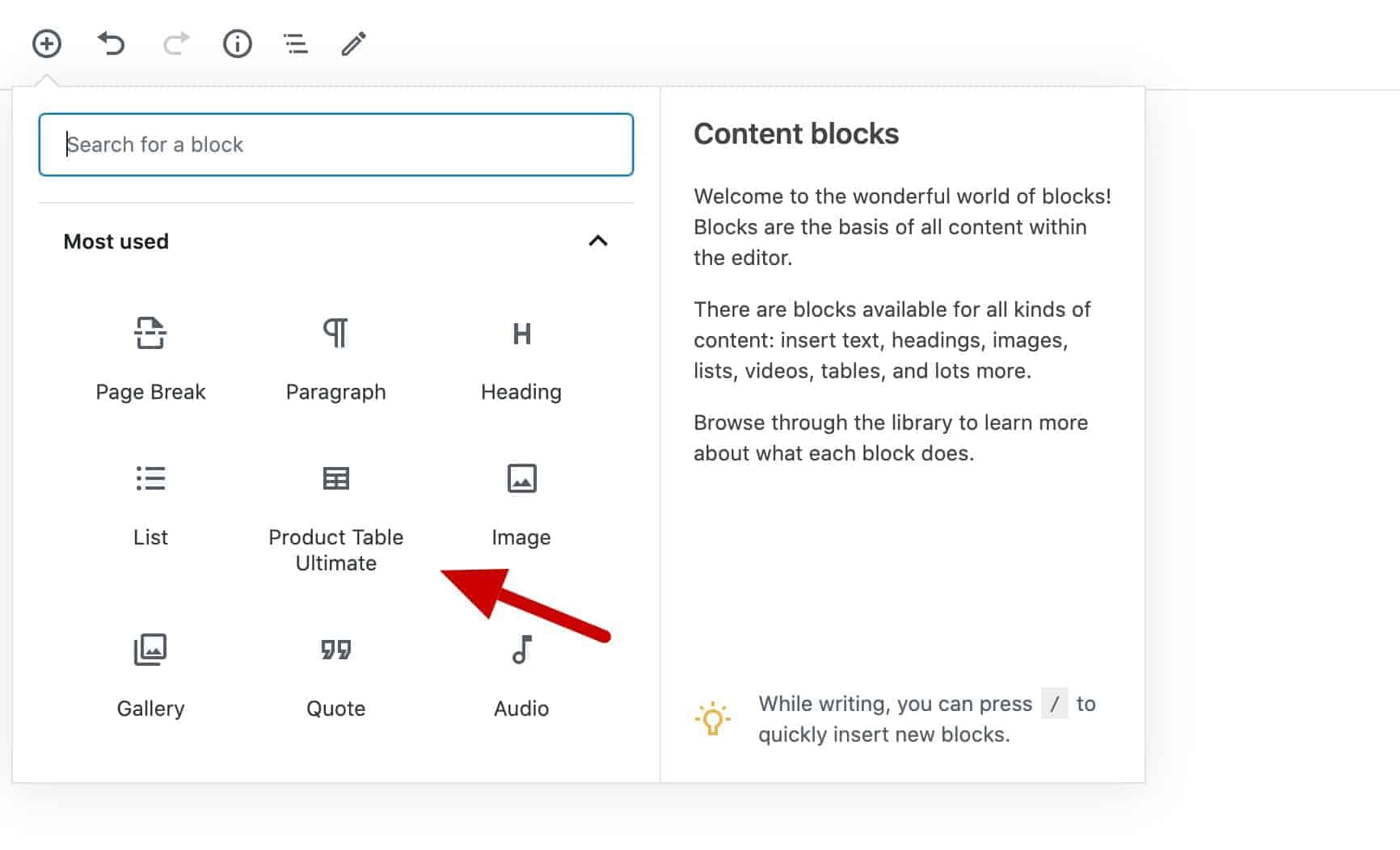
By default, the table will follow the default settings. However, you can override these from the block settings.
