In Bookings for WooCommerce, you can let customers book a part day or several whole days on a single product. This setup is often called hourly or daily booking, or half-day and full-day booking. It’s ideal, for example, if you have a venue that can be booked by the hour or by the day.
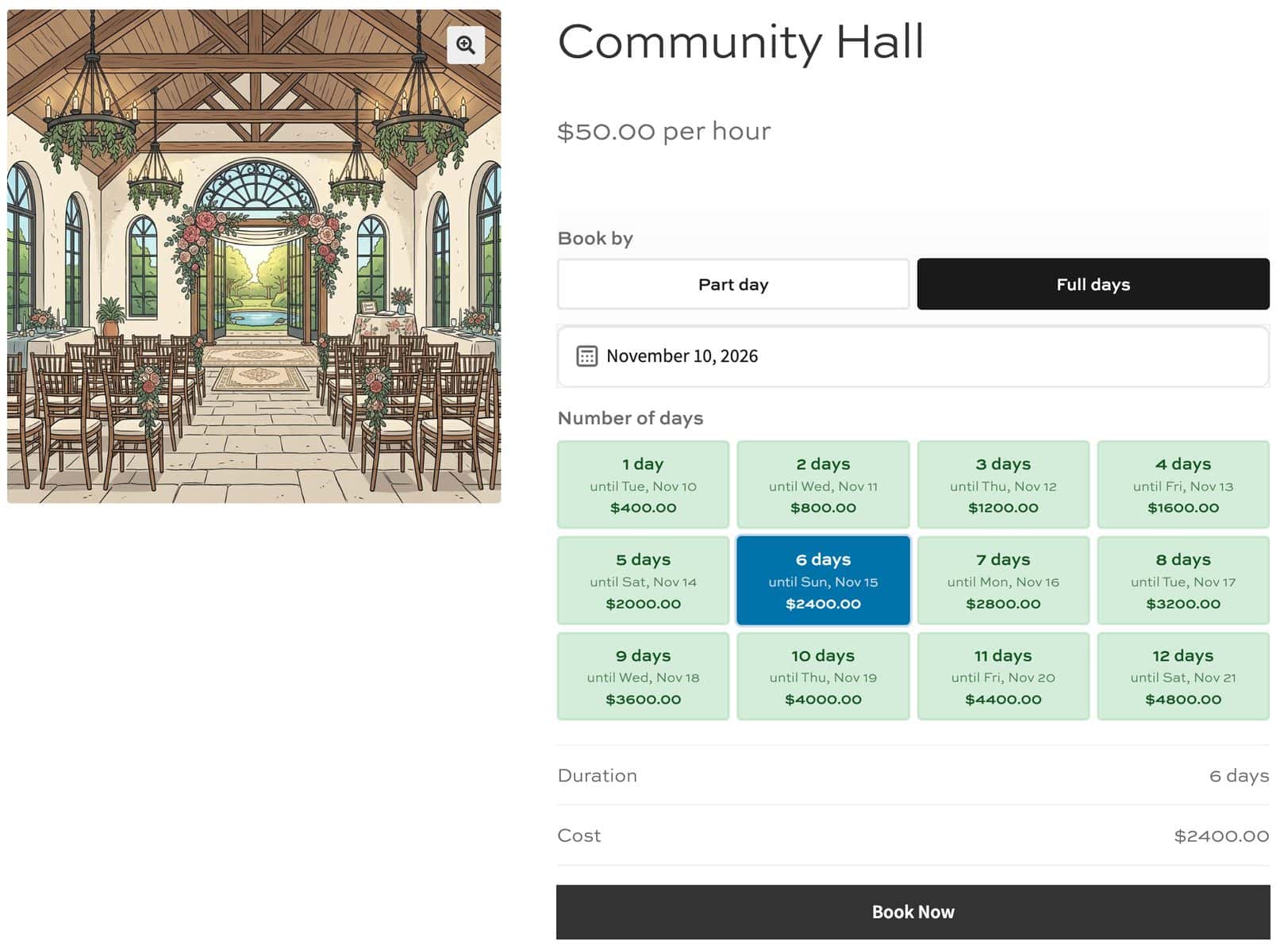
With this feature, users will be able to:
- Choose between ‘Part day’ and ‘Full days’ on the product page
- Book one or more time slots on a single date
- Book several consecutive whole days as a single multi-day booking
And, as the store owner or admin, you’ll be able to:
- Set separate prices for time slots and whole days
- Limit how many whole days customers can book
- Prevent part-day and whole-day bookings from overlapping
How do mixed duration bookings work?
Customers choose the booking type, and each type has its own price. The price doesn’t switch automatically based on the length of the booking.
| Part day | Full days | |
|---|---|---|
| Customer selects | A date and time slots | A start date and number of days |
| Price | ‘Price per slot’ | ‘Standard price’ for each day, plus any ‘Custom Pricing’ and ‘Discounts’ |
| Time booked | The selected slots | From ‘First slot time’ to ‘Last slot end time’ on each day |
Both booking types share the same availability. For example, a two-hour booking on Saturday means that Saturday can’t be booked as a whole day, although its other free slots can still be booked.
Set up your product
You can create your mixed duration product in the same way you would any other product. In these steps, we’ll set up a community hall that hires for $50 per hour or $400 per day.
Step #1: Create a booking product
- Go to Products > Add New
- Enter a name, such as ‘Riverside Hall’
- Select ‘Booking’ from the ‘Product type’ field
You now have a bookable product. Now let’s add its settings.
Step #2: Enter the booking settings
Click the ‘Booking Settings’ tab in the ‘Product data’ section, then:
- Select ‘Day’ from the ‘Booking unit’ field
- Enter
1in the ‘Max bookings per unit (quantity)’ field, as there’s only one hall - Enter
400in the ‘Standard price’ field
The whole-day price is now set at $400 per day.
Step #3: Create your time slots
Click the ‘Time Slots’ tab, then:
- Check the ‘Enable time slots’ field
- Enter
60in the ‘Slot duration (minutes)’ field - Enter
09:00in the ‘First slot time’ field - Enter
22:00in the ‘Last slot end time’ field - Enter
50in the ‘Price per slot’ field
The hall now has hourly slots from 09:00 to 21:00 at $50 per hour. Now let’s allow whole-day bookings.
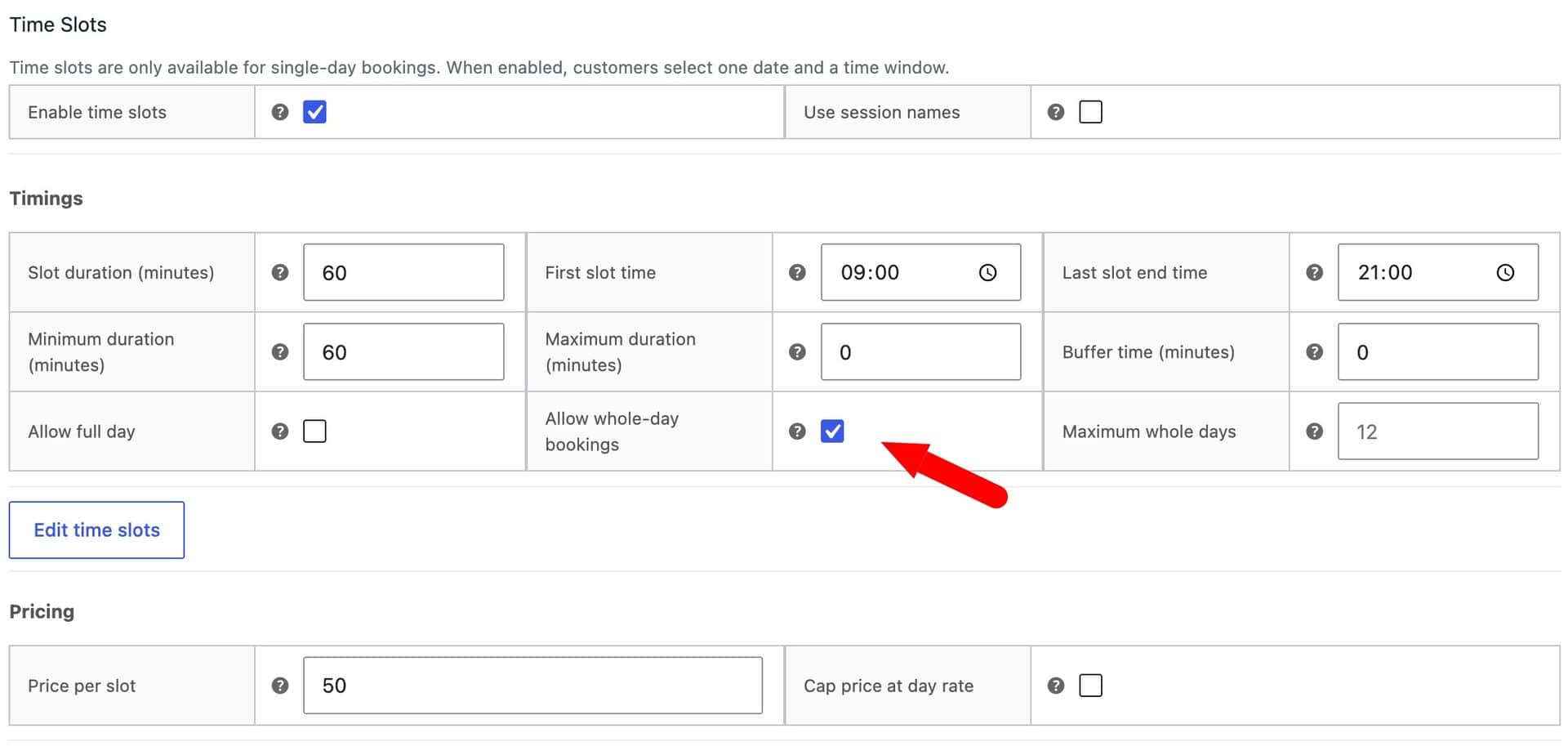
Step #4: Allow whole-day bookings
- Check the ‘Allow whole-day bookings’ field
- Enter
7in the ‘Maximum whole days’ field
If you leave ‘Maximum whole days’ blank, customers can book up to 12 days.
Step #5: Optionally set a minimum duration
Enter 120 in the ‘Minimum duration (minutes)’ field to require a two-hour minimum for part-day bookings. This setting doesn’t affect whole-day bookings.
Step #6: Optionally add whole-day pricing rules
Click the ‘Pricing’ tab to add ‘Custom Pricing’ or ‘Discounts’, such as a lower daily rate for longer bookings. These apply to whole-day bookings, while the ‘Slot Discounts’ on the ‘Time Slots’ tab apply to part-day bookings.
What will your customers see?
Customers see a ‘Book by’ heading with two tiles: ‘Part day’ and ‘Full days’. ‘Part day’ is selected by default and shows your usual time slot selector.
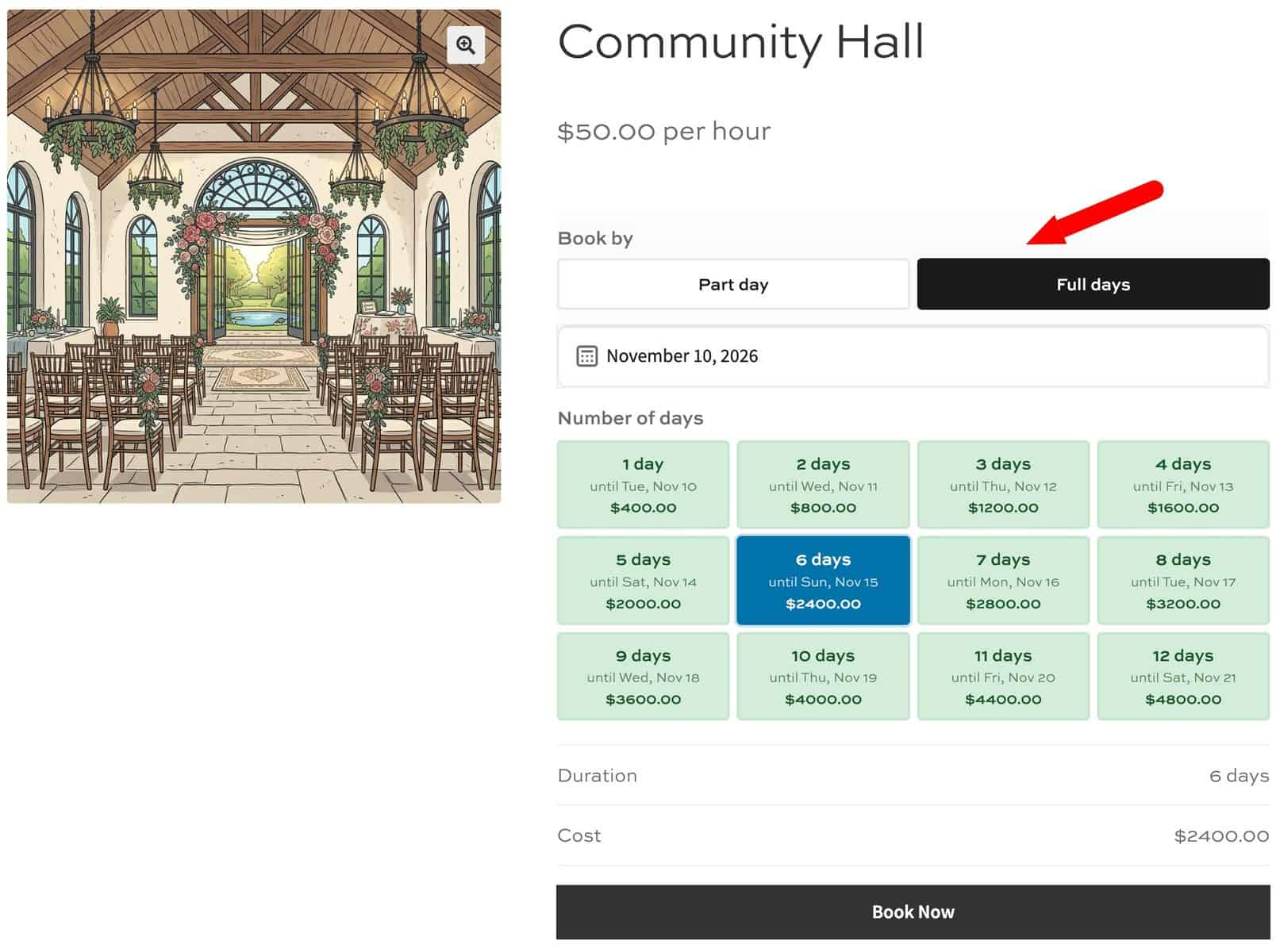
When customers select ‘Full days’, they pick a start date and the number of days:
- 12 days or fewer: Each option appears as a tile showing the number of days, end date and price
- More than 12 days: The options appear in a dropdown list
The calendar only offers whole days that are completely free. A date with a two-hour booking is available under ‘Part day’ but not under ‘Full days’.
For Riverside Hall, a customer would pay:
- $150 for a three-hour birthday party on Saturday (3 slots × $50)
- $800 for a two-day conference on Saturday and Sunday (2 days × $400)
Customize your labels
Go to WooCommerce > Settings > Bookings > Calendar and scroll down to ‘Time Slot Labels’. You can change these settings:
| Setting | Default |
|---|---|
| ‘Booking type heading’ | Book by |
| ‘Time slots option label’ | Part day |
| ‘Whole days option label’ | Full days |
| ‘Number of days label’ | Number of days |
Choose the wording your customers already use. For instance:
- Venue or room hire: ‘Hourly’ and ‘Daily’
- Boat or equipment rental: ‘By the hour’ and ‘By the day’
- Half-day sessions: ‘Half day’ and ‘Full day’
These labels apply to all of your mixed duration products.
Example setups
These examples show how the same settings suit different types of business.
Example #1: Boat rental with half-day and full-day options
A boat rental company offers a morning, an afternoon or a whole day. Use these settings:
| Setting | Value |
|---|---|
| ‘Slot duration (minutes)’ | 240 |
| ‘First slot time’ | 09:00 |
| ‘Last slot end time’ | 17:00 |
| ‘Maximum duration (minutes)’ | 240 |
| ‘Price per slot’ | $250 |
| ‘Standard price’ | $450 |
| ‘Maximum whole days’ | 3 |
Customers can book 09:00–13:00 or 13:00–17:00 for $250, or a whole day for $450. A three-day fishing trip costs $1,350.
Example #2: Coworking space with several desks
A coworking space has five hot desks that can be hired by the hour or by the day. Enter 5 in the ‘Max bookings per unit (quantity)’ field, then use a 60-minute slot.
If two desks are booked at 14:00 on Tuesday, only three can be booked as whole days that day. A whole-day booking needs a place to be free in every slot.
Example #3: Photography studio closed on Sundays
A photography studio offers hourly shoots and multi-day hire, but it’s closed on Sundays. A whole-day booking can’t include an unavailable date.
A customer starting on Saturday therefore can’t book two days, because the booking would run into Sunday. The same applies if any date in the range is fully or partly booked.
What’s the difference between ‘Allow full day’ and ‘Allow whole-day bookings’?
Use ‘Allow whole-day bookings’ to offer multi-day bookings or a separate daily price. Both settings reserve the full slot window, but they work differently:
| ‘Allow full day’ | ‘Allow whole-day bookings’ | |
|---|---|---|
| What it adds | A ‘Whole day’ option in the slot selector | ‘Part day’ and ‘Full days’ tiles |
| Length | One day | One or more days |
| Price | Based on your slot price | ‘Standard price’, plus any pricing rules |
Manage your mixed duration bookings
Once you’ve got your products up and running, you’ll want to manage them from the back end:
- Manage orders: Go to WooCommerce > Orders to view and process orders
- View bookings: Go to Bookings > Calendar to see your bookings, including multi-day bookings
- Add bookings manually: Go to Bookings > Add Booking to add part-day bookings
You can’t currently create whole-day bookings manually from the back end. To add one, place an order for it on the product page.
Troubleshooting
The ‘Allow whole-day bookings’ field isn’t showing. Check ‘Enable time slots’ on the ‘Time Slots’ tab, and select ‘Day’ from the ‘Booking unit’ field on the ‘Booking Settings’ tab.
A date is available for ‘Part day’ but not ‘Full days’. At least one slot on that date is fully booked. Whole-day bookings need every slot to be available.
Customers can’t book as many days as expected. Check the ‘Maximum whole days’ field, then look for bookings or unavailable dates within the range.
Today isn’t available for ‘Full days’. Customers can’t start a whole-day booking today once ‘First slot time’ has passed.