This guide covers the most common reasons a lookup table doesn’t behave as expected in Advanced Calculations. These include no value being returned, the wrong value being returned or values that only appear some of the time.
Why isn’t my lookup table returning a value?
If a calculation field using {look_up_table} shows nothing at all, work through these checks in order.
Is the formula exactly {look_up_table}?
The formula must be exactly {look_up_table}, with no extra spaces or surrounding text. This is what tells the field to use a lookup table instead of a formula. The formula builder validator should show a green checkmark if the formula syntax is correct.
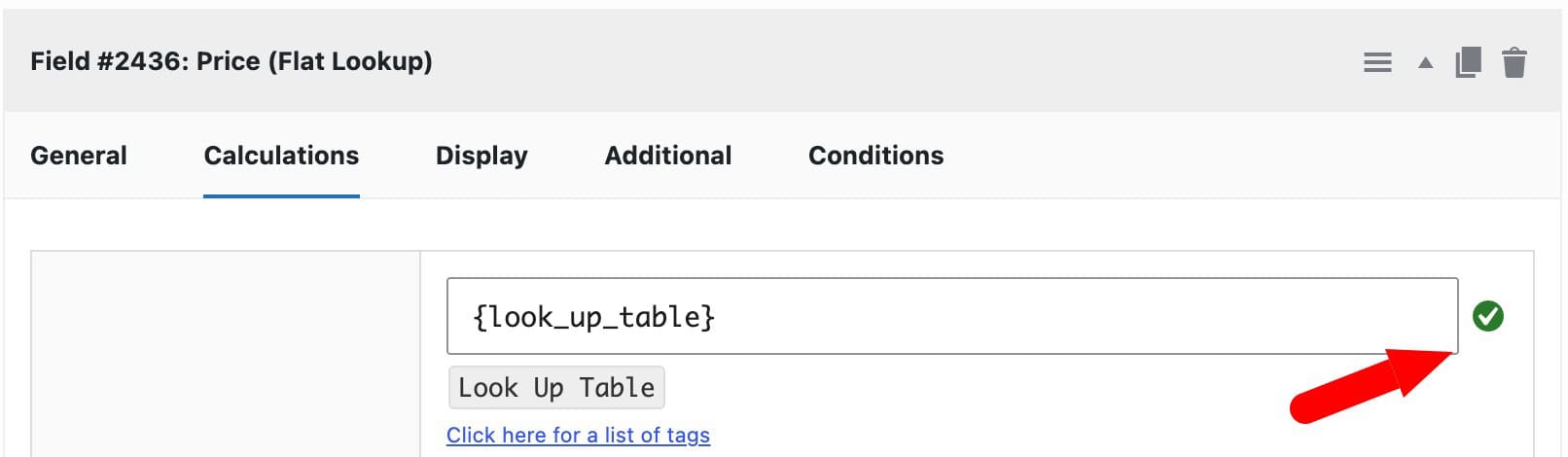
If the formula is anything else, the ‘Advanced Calculations Options’ section, where you choose the table and axis fields, won’t appear.
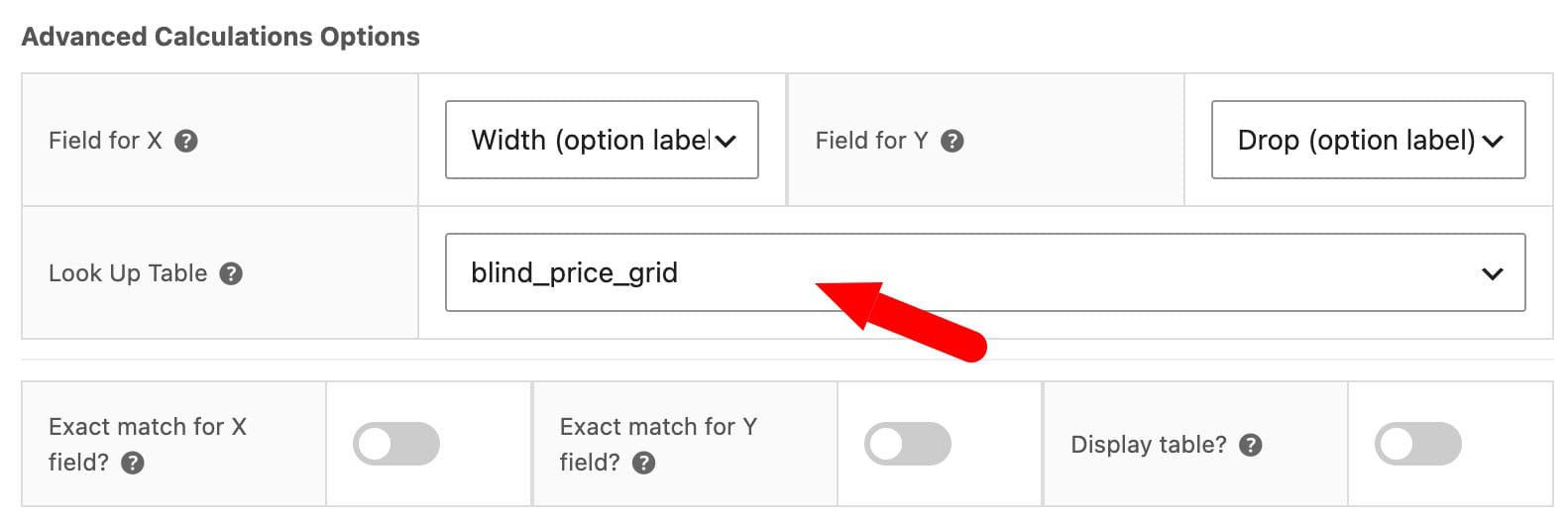
Is a table selected?
Open the calculation field’s settings and check that ‘Look Up Table’ has a table chosen. It shouldn’t be left on ‘–‘.
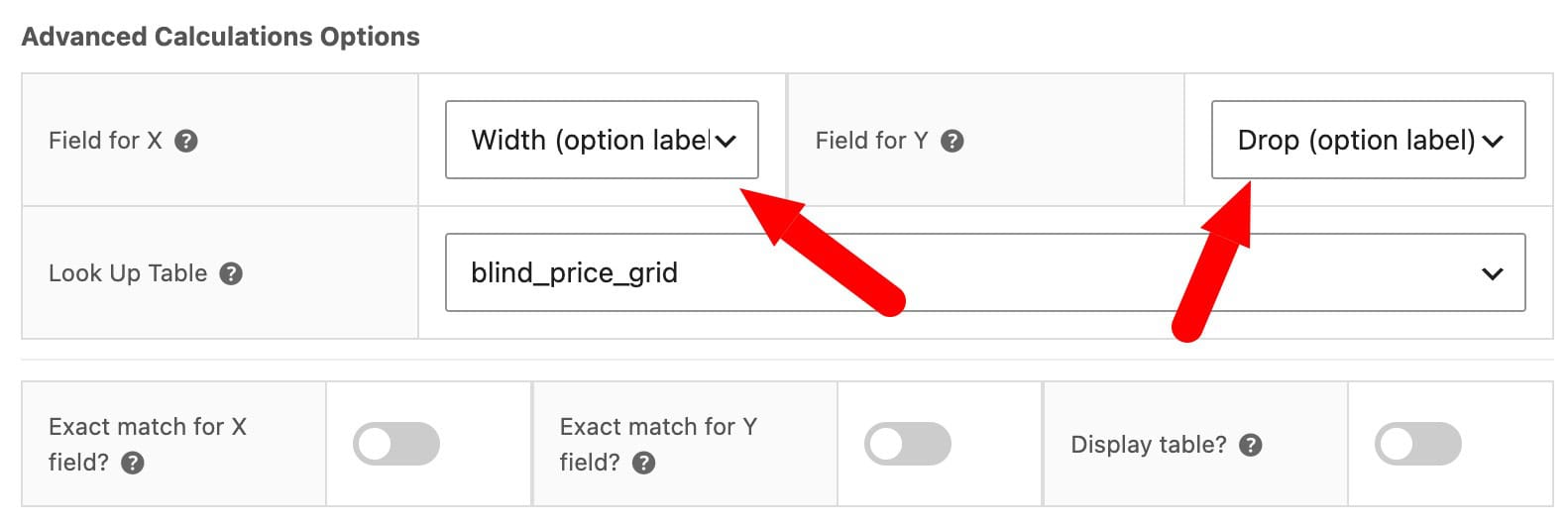
Are all the axis fields set?
Check that every axis has a field assigned under ‘Field for X’ and ‘Field for Y’, or in the ‘Axis Fields’ list for a flat table. An axis with no input field can’t produce a match (unless it’s a single-axis table).
Is the customer’s input in the table?
Check the table’s data directly to make sure it includes the combination the customer has selected. The simplest cause of a missing value is that the combination isn’t in the table yet.
Does every axis match exactly in a flat table?
Flat tables have no nearest-match fallback. If even one axis value doesn’t match exactly, including the case and spelling of text values, the row is skipped and nothing is returned. See flat table issues below.
Is a multi-select field being used as an axis input?
Don’t use a checkbox group, or an image swatch field with multiple selections allowed, as a lookup axis input. These fields let the customer choose more than one option, so they don’t return a single value to match against.
Use a number, calculation, select, select box, radio or single-selection image swatch field instead.
Has the table’s data saved?
Open the lookup table and check that the grid or rows show the data you expect. If a recent edit didn’t save, for example because of a slow connection or a save error, the table uses its previous or blank data.
What causes grid table issues (2 axes)?
- Duplicate headers: each value on the X axis (column headers) and Y axis (row headers) must be unique. Duplicate headers make matching ambiguous.
- Header order: enter numeric headers in ascending order. Out-of-order headers can produce unexpected matches.
- Empty cells: give every cell a value. A blank cell returns the empty cell signifier instead of a usable price. This is an asterisk (*) by default, and you can change it in the settings.
- Mismatched labels: if a select-type field supplies an axis, the table’s header values must match the field’s ‘Label’ text exactly, with the same spelling and case and no extra spaces.
- Exact match settings: check that ‘Exact match for X field?’ and ‘Exact match for Y field?’ are set the way you intend. See the next section for what happens when they’re unchecked.
What happens if there’s no exact match?
With ‘Exact match?’ unchecked for a numeric axis, an input that doesn’t match a header rounds up to the next header value. It never rounds down.
An input below every header returns the lowest header’s column or row, and an input above every header returns the highest. This only works predictably with numeric headers.
To catch any input larger than your highest numeric header, set the axis’s last header to the text ‘max’.
What causes flat table issues (3 or more axes)?
- Inexact matches: every axis column must match the customer’s input exactly for a row to be used. Unlike grid tables, flat tables don’t round up or use the nearest value.
- CSV header row: the final column in the CSV header row must read ‘Return’ for the plugin to recognize the file as flat format on import. This isn’t case-sensitive. If it’s missing, the plugin imports the file as a two-axis grid instead.
- Axis field order: the fields in the calculation field’s ‘Axis Fields’ list must be in the same left-to-right order as the table’s columns. If the order doesn’t match, the plugin compares each field against the wrong column.
- Changed axis columns: if you add or remove an axis column in the table after setting up the calculation field, check that the axis field order still lines up. The table and the field’s axis list are edited separately.
Why is the wrong value returned?
- Swapped axes: check that you haven’t swapped the X and Y axes, or two axis columns in a flat table. A wrong value can be caused by swapped axis fields rather than bad table data.
- Tax added twice: if ‘Add tax to cell values’ is enabled, check whether your table’s values already include tax. Enabling this setting on values that already include tax will add the tax twice.
- Unexpected rounding: if a grid table with ‘Exact match?’ unchecked returns a value from an unexpected row or column, check the round-up behavior. The input may be rounding up past the header you expected.
What if you’re still stuck?
If you still can’t figure it out, just raise a ticket.