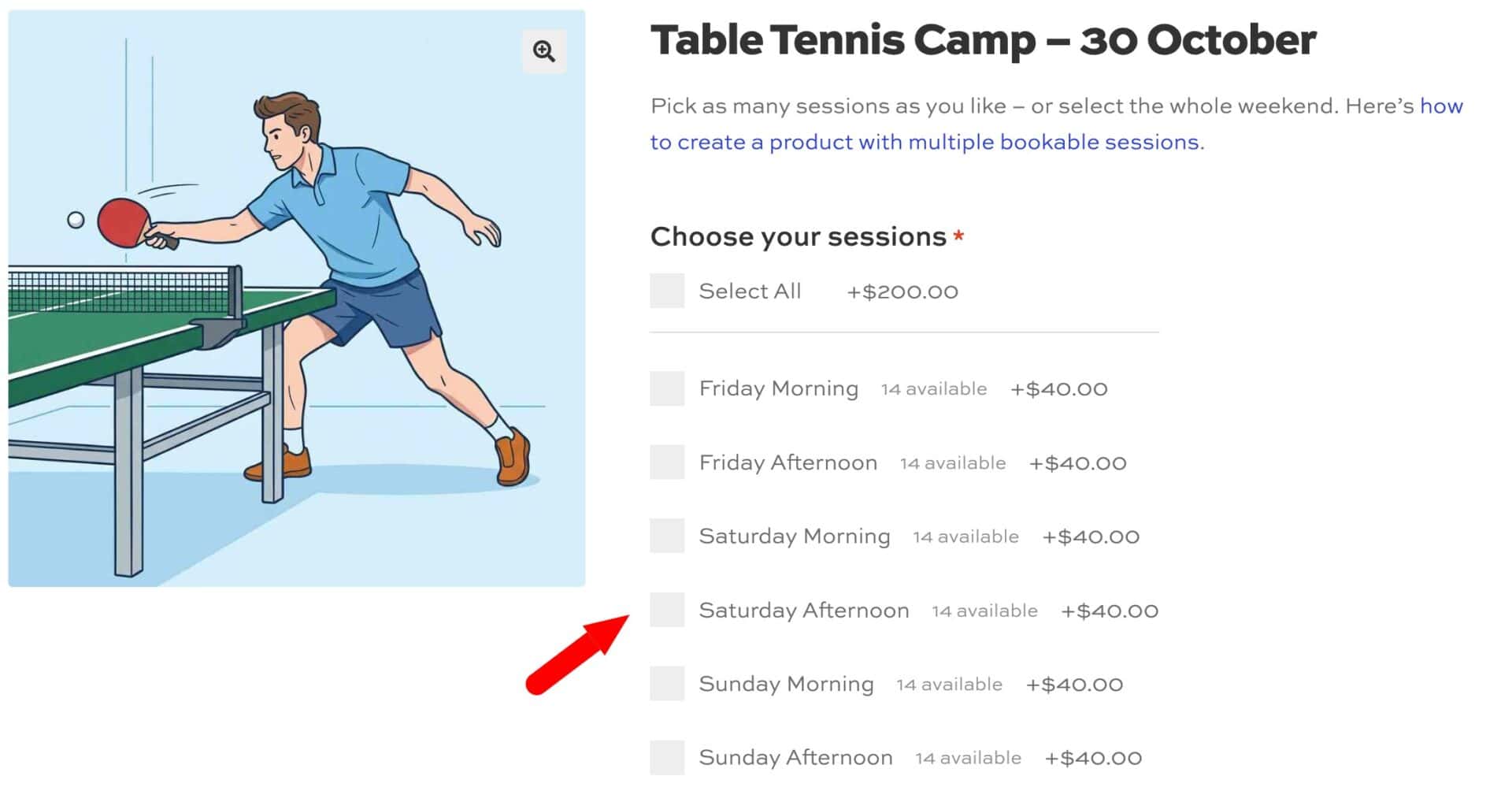
Bookings for WooCommerce gives you additional time slot options for selling sessions. Session names let you sell named sessions instead of just slots defined by times of the day; and the ‘Checkboxes view’ lets your customers book one or more non-sequential slots.
- Use session names – lets your slots represent named sessions, such as ‘Beginner Class’ or ‘VIP Session’, with no time of day attached
- Checkboxes view – a ‘Time slot view’ option where customers select one or more slots using checkboxes, instead of picking a single contiguous start and end range. ‘Checkboxes view’ can only be used with session names.
The main use case for these options is session-based products, like classes, workshops, and named sessions sold per day. See below for several possible booking products where you could use session names.
How to set up session names
To use session names for your time slots:
Step #1: Check ‘Enable time slots’ in the ‘Time Slots’ tab of the ‘Product data’ section of your bookable product
Step #2: Check ‘Use session names’, next to ‘Enable time slots’
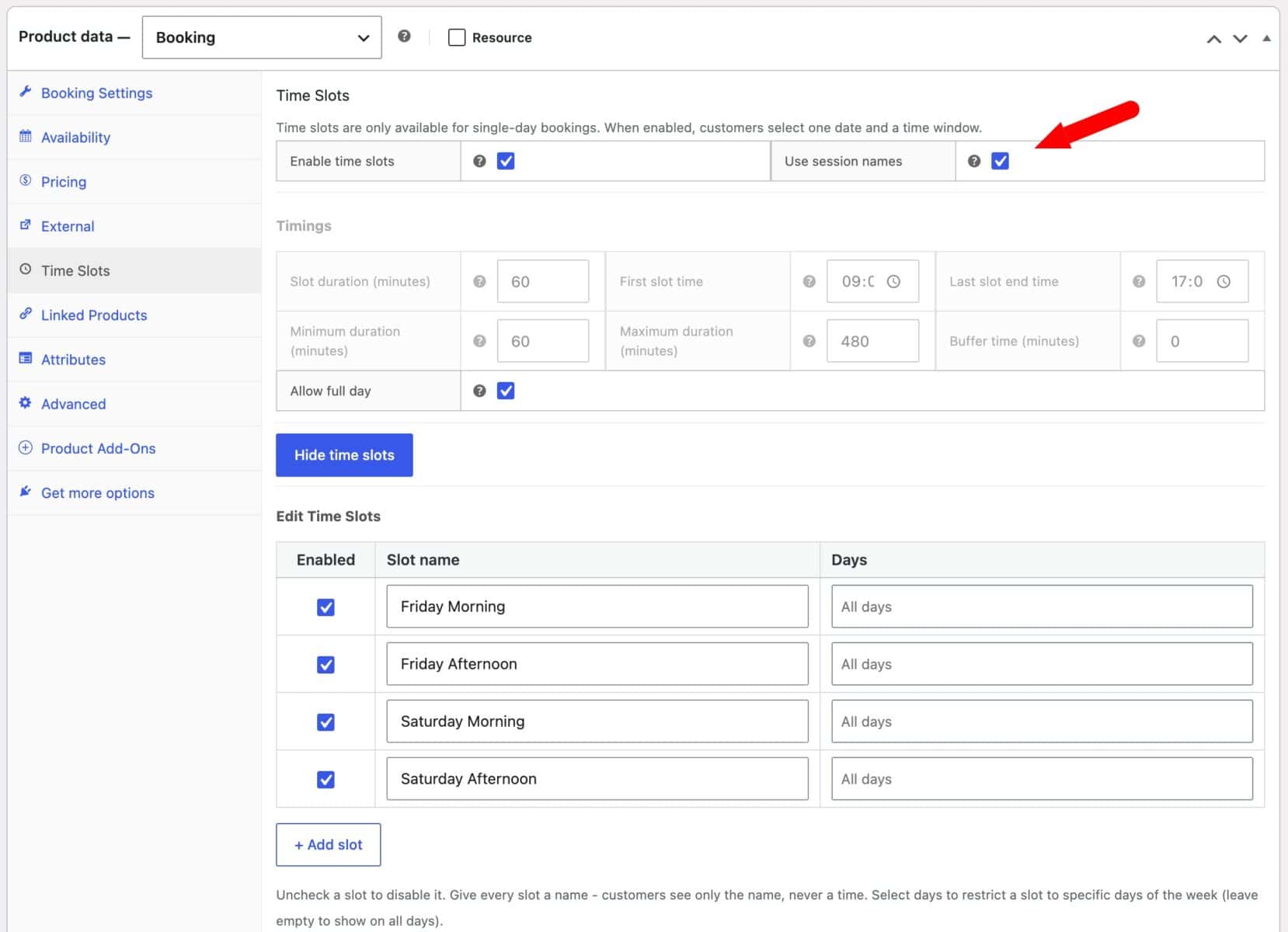
When session names are enabled:
- The Timings settings (‘Slot duration’, ‘First slot time’, ‘Last slot time’, ‘Min duration’, ‘Max duration’, and ‘Buffer’) are disabled, because sessions don’t have a real time window. ‘Allow full day’ remains active.
- ‘Time slot view’ is locked to ‘Checkboxes’. A session has no duration to span, so the range-based views (Time Picker, Diary View, and Start/End selects) don’t apply.
- The ‘Edit Time Slots’ table hides its ‘Start time’ and ‘End time’ columns.
Step #3: Add your sessions in the ‘Edit Time Slots’ table. For each row:
- Enter a slot name
- Optionally set a per-slot price override
- Restrict the session to specific days if needed
- Enable or disable the session
Save your product. Customers can now select one or more named sessions from a checkboxes list.
Can I use checkboxes view with standard time slots?
Yes. If you want to use the standard time slots format with a start time and end time, you can still select ‘Checkboxes’ from the ‘Time slot view’ field without enabling session names.
This works well for products with real time-of-day slots where you want customers to pick several non-contiguous slots in one booking, such as 9am and 2pm.
How does ‘Allow full day’ work with checkboxes?
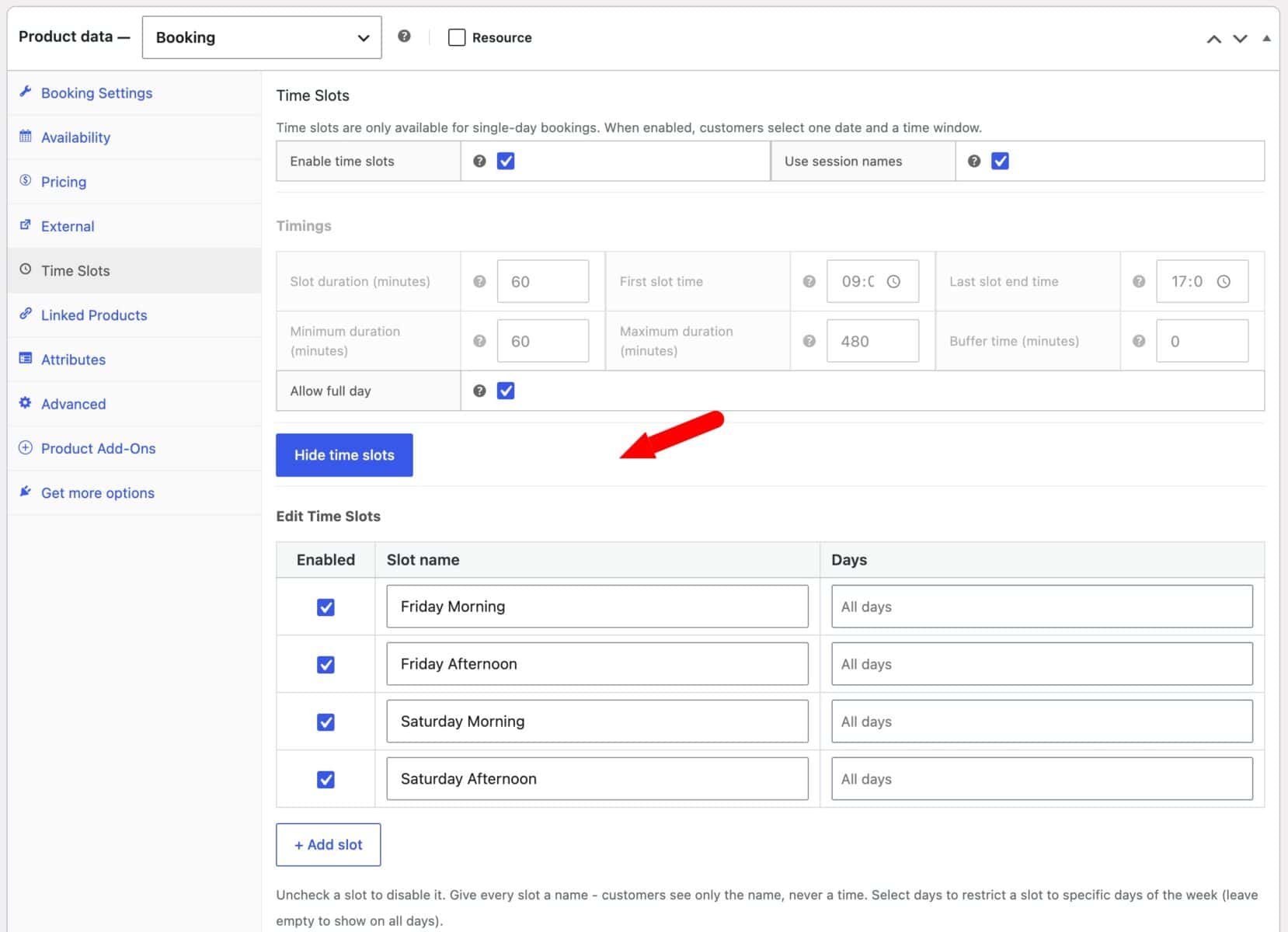
‘Allow full day’, under Timings, adds a ‘Select all’ checkbox above the checkboxes list on the front end. It only appears when every session for the selected date is available.
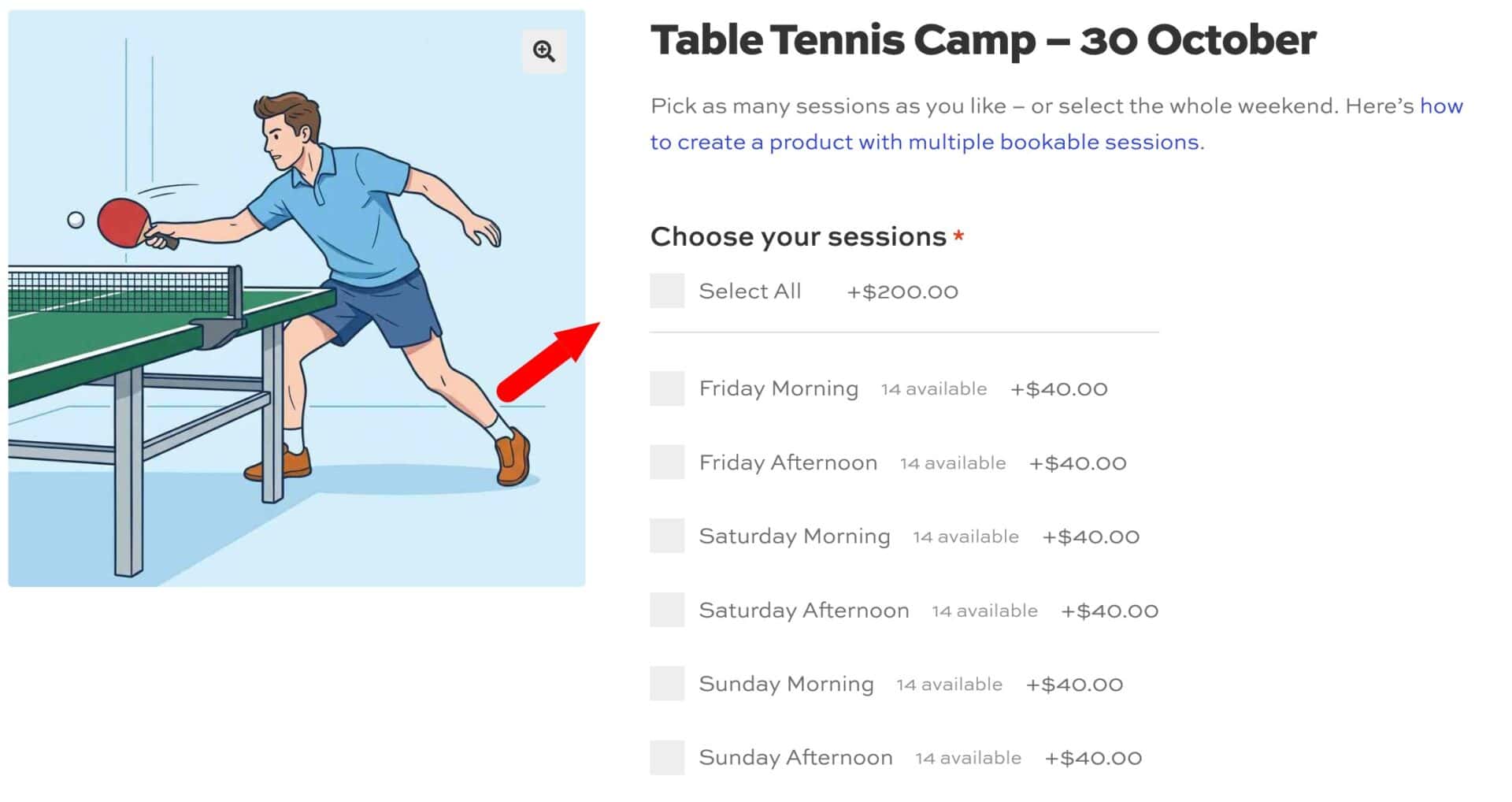
If any session is sold out, ‘Select all’ is hidden rather than offering a booking that can’t be fulfilled.
If ‘Use session names’ is also enabled, selecting everything via ‘Select all’ charges the flat ‘Standard cost’ (the product’s base price) instead of summing each session’s price. This day rate is shown next to ‘Select all’.
How is pricing calculated?
Each selected slot or session is priced independently, including any per-slot price overrides in the ‘Edit Time Slots’ table. The total is the sum of the selected items.
Day-rate caps and slot-count discounts apply to that total.
The one exception is the full-day flat rate. If ‘Allow full day’ and ‘Use session names’ are both enabled and the customer selects every session, they pay the flat ‘Standard cost’ rather than the sum.
How do bookings appear in the cart and orders?
Selecting multiple slots or sessions adds a single line item to the cart. Behind the scenes, each selected slot becomes its own linked booking, so availability and admin reporting stay accurate per slot.
For single-day bookings, cart and order line items show a ‘Date’ label instead of ‘Starts’. The selected session names are listed under it, rather than generic ‘Start time’ and ‘End time’ rows.
What can you use session names for?
Session names work well for any product where customers book by session rather than a specific clock time. Here are some examples:
- Nurseries, childcare, and holiday camps: ‘Morning session’, ‘Afternoon session’, and ‘Lunch club’. With ‘Allow full day’ enabled, parents can tick ‘Select all’ and pay a flat full-day rate.
- Fitness and yoga studios: ‘Beginner Class’, ‘Intermediate Flow’, and ‘Advanced Vinyasa’ on the same day. Customers can book more than one class in a single order.
- Cooking schools and craft workshops: ‘Bread Basics’, ‘Pasta Masterclass’, and ‘Cake Decorating’. Each session can have its own price and run only on certain days.
- Seasonal tours: ‘Sunrise Tour’ and ‘Sunset Tour’. The name stays the same while the actual time changes through the year.
- Events and festivals: ‘General Admission’, ‘VIP Session’, and ‘Meet and Greet’ for each date. These work like ticket tiers rather than time slots.
- Equipment or venue hire: ‘AM hire’, ‘PM hire’, and ‘Evening hire’. This suits businesses that don’t want to commit to exact hours.
- Spas and wellness centers: ‘Thermal Suite Access’, ‘Massage Package’, and ‘Facial Package’. Customers can combine several in one booking.
- Training days and conferences: ‘Workshop A’, ‘Workshop B’, and ‘Keynote’, priced individually. Attendees who select everything pay a flat day-pass rate.