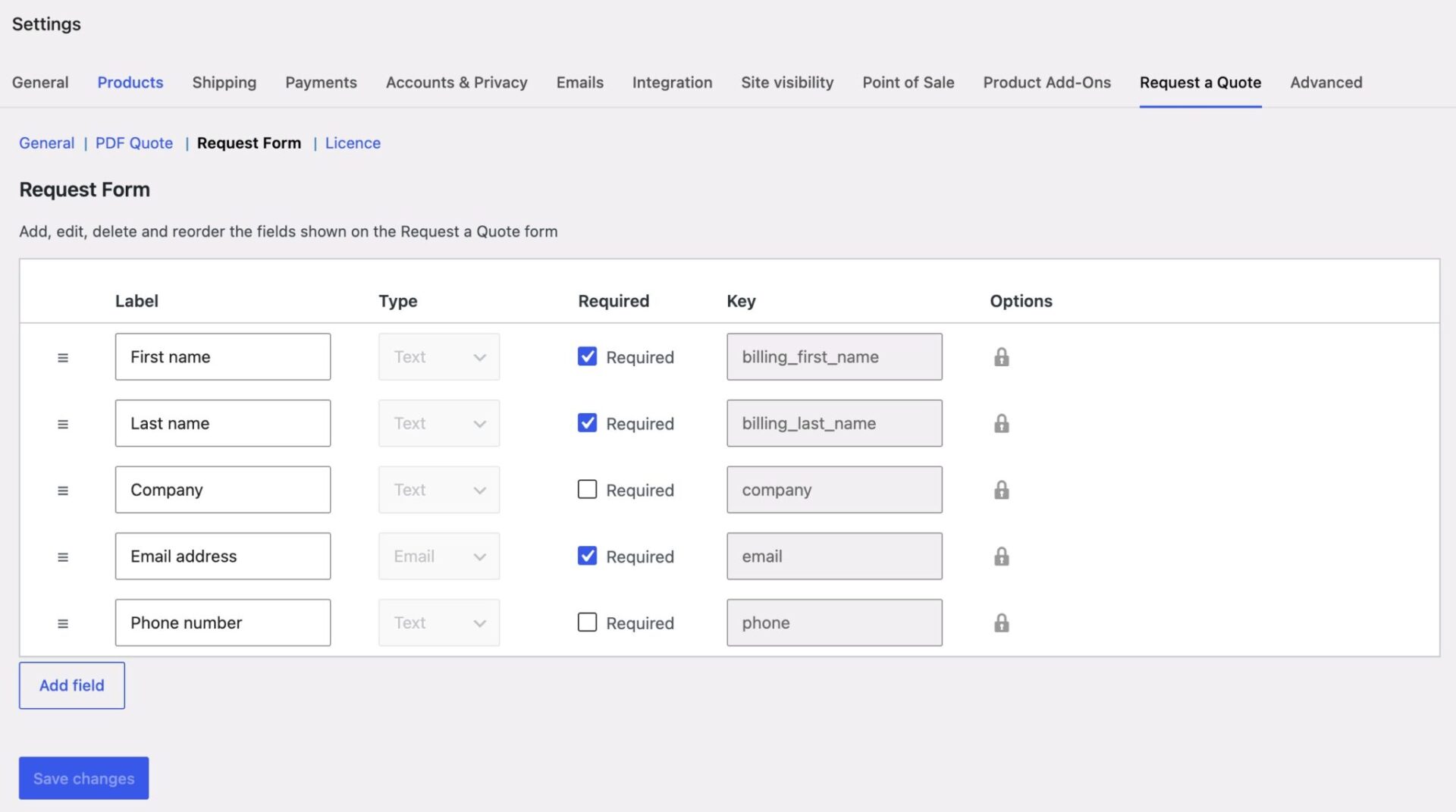
In WooCommerce Request a Quote, you can add, delete, edit or re-order address fields on your quote request form without any code. Go to WooCommerce > Settings > Request a Quote and open the Request Form tab, where you can drag, drop, and edit fields directly.
This is useful if you need extra address details from customers before you send them a quote – a delivery address, a state or province field, or a postal code, for example.
Step #1: Open the Request Form tab
Go to WooCommerce > Settings > Request a Quote, then click the Request Form tab. Each row in the table represents one field on your form.
Step #2: Add a new field
Click ‘Add field’ to add a new row. Choose Text as the field type for most address fields, such as street address, city, or postal code.
Step #3: Set the label and options
Enter a label for the field, such as ‘Province’ or ‘Postal code’, and decide whether it should be required. New fields get a key generated automatically from the label, but you can edit it if you’d like the field to map to a specific WooCommerce field name.
Step #4: Reorder your fields
Drag a row using the handle on the left to position your new address field wherever you’d like it to appear on the form. Save your changes when you’re happy with the order.
You now have a custom address field on your quote request form, with no code required.
What about the built-in fields?
First name, last name, company, email address, and phone number are core fields the plugin needs to build the customer’s billing details on the order. You can edit their label and whether they’re required, and drag them into any order you like, but they can’t be deleted.
Any field that doesn’t correspond to a standard WooCommerce order field – like a custom province or delivery notes field – is saved as a custom field on the order and shown in a ‘Quote Custom Fields’ box on the order screen.