Most often with Advanced Calculations, you will use number fields for the user to input values – which are then used to look up results on the look up table. However, you might prefer to use a select field instead. This way, you can require the user to pick from a set of options rather than entering any value they like in a number field.
You can do this in a couple of different ways.
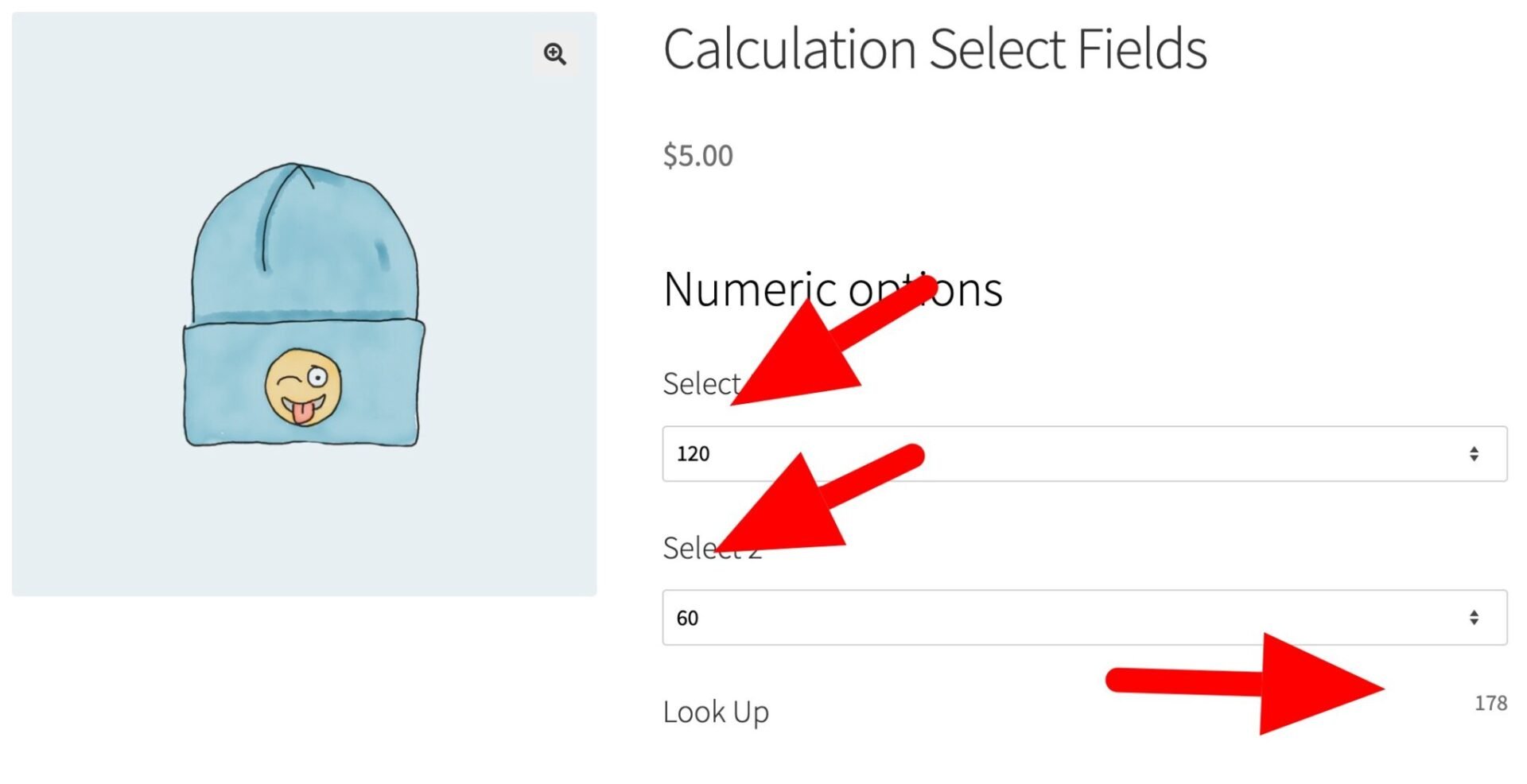
First, if you are just using numeric values for your options, then these will automatically be used to get the result from the look up table. So, in the example below, the select fields have numeric values – e.g. 120 and 60 – and these values are used to retrieve the result from the look up table.
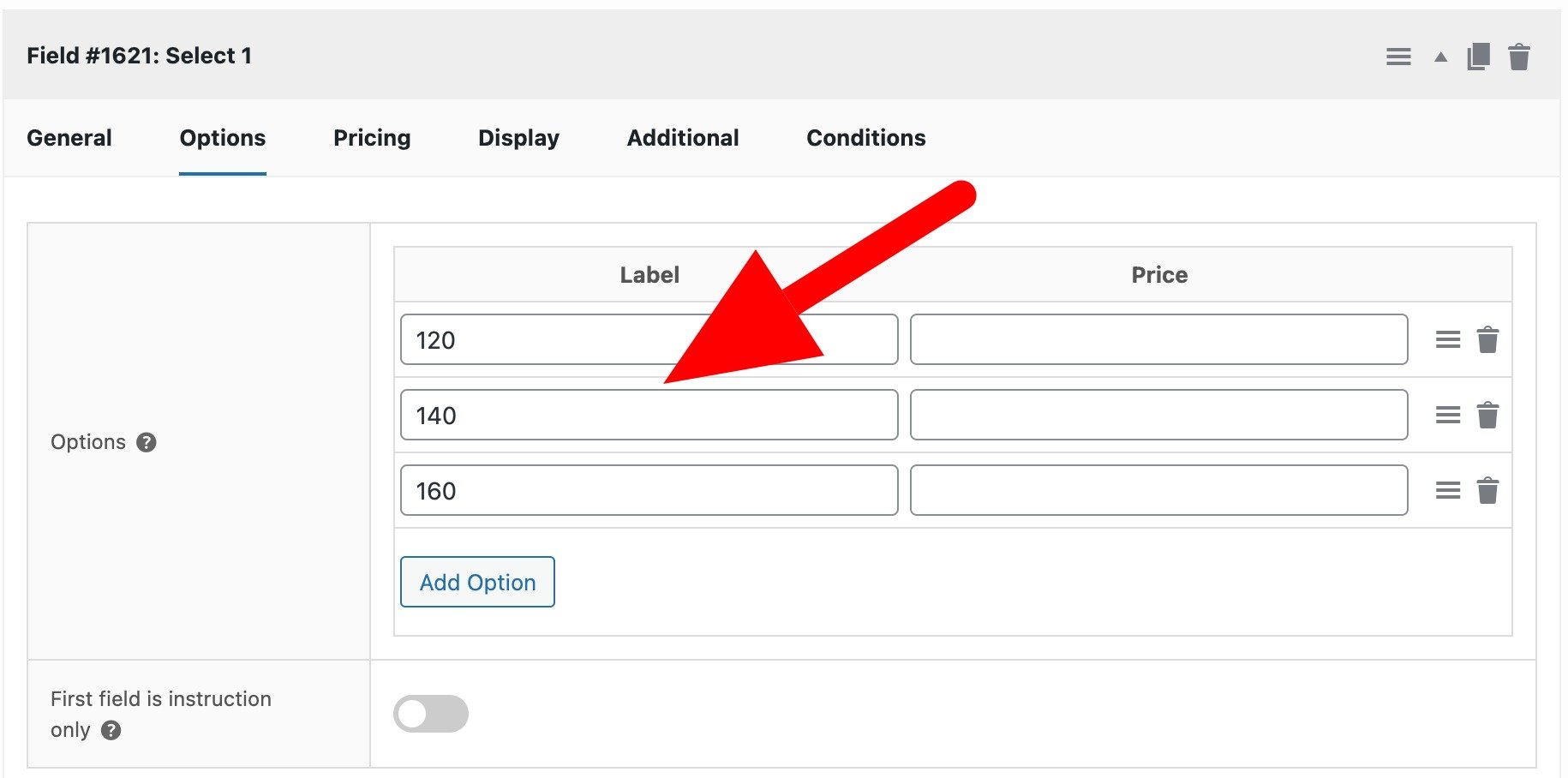
You don’t need to do anything special to set this up. Just create a select field and enter the numeric values in the ‘Label’ column on the options tab.
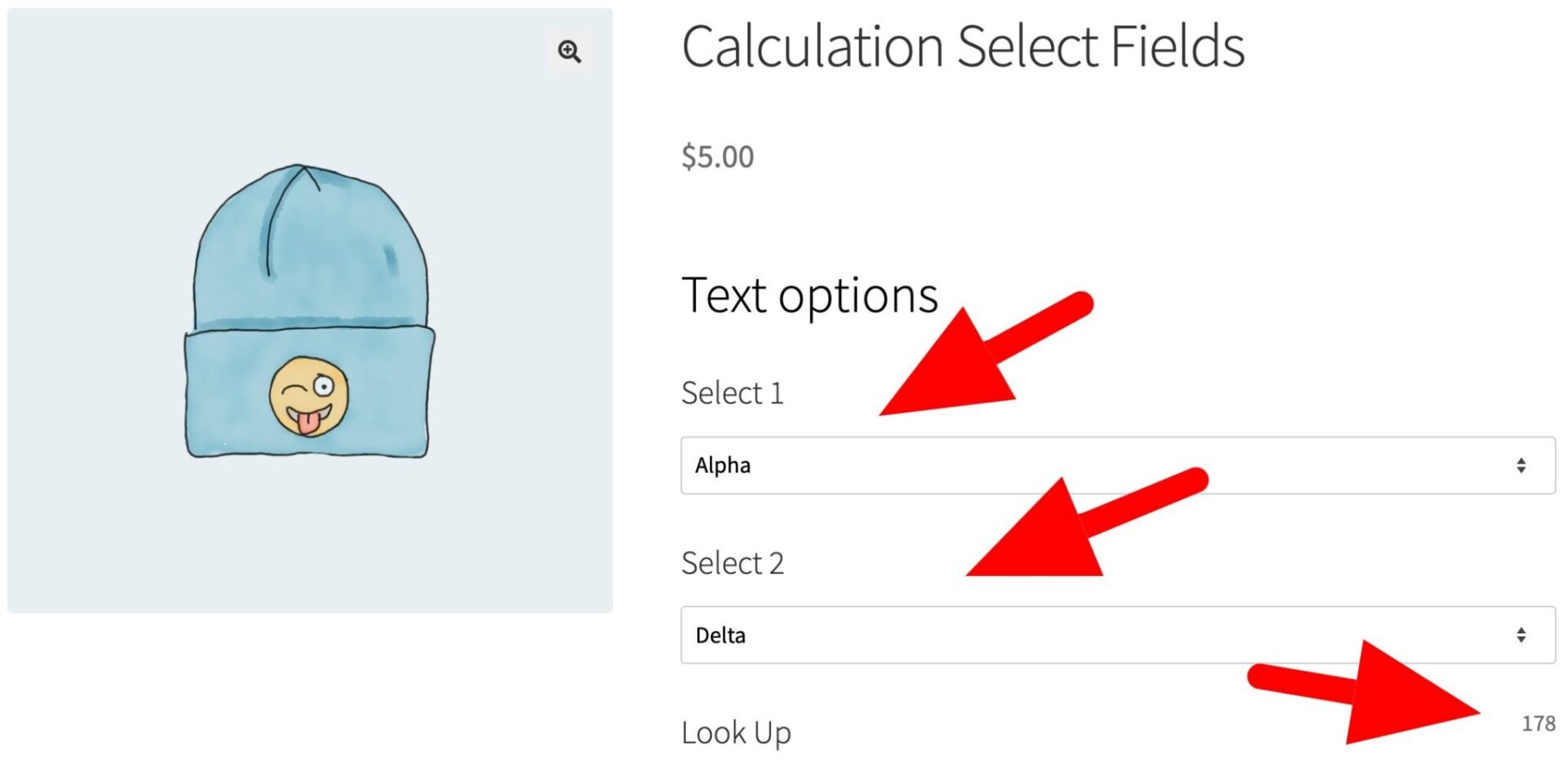
However, if you want to use text labels for your options, you can use the values in the ‘Price’ field to retrieve results from the look up table. See the ‘Options’ tab for a select field below.
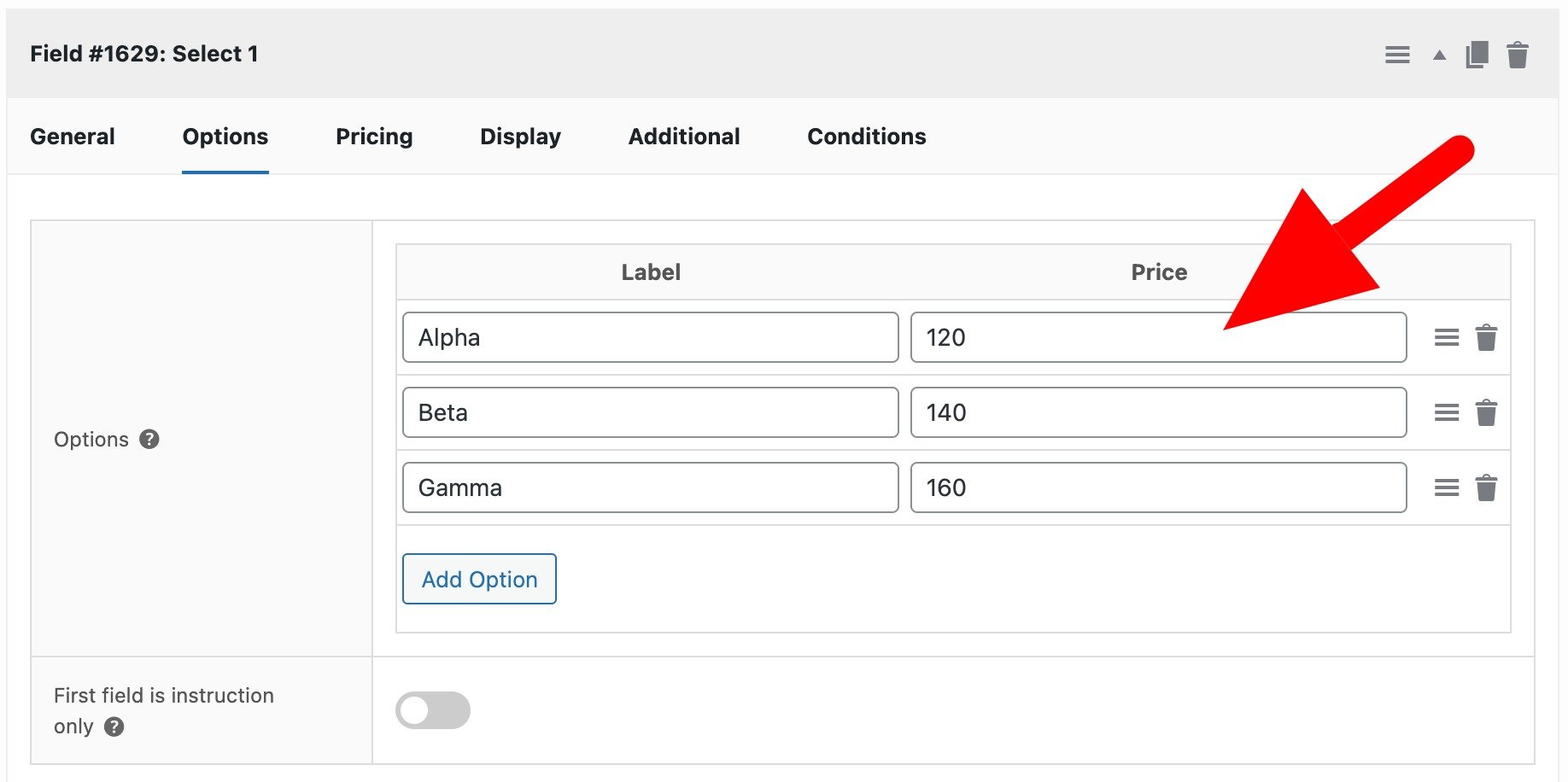
Using this method means you can use select fields with text labels for your look up tables.
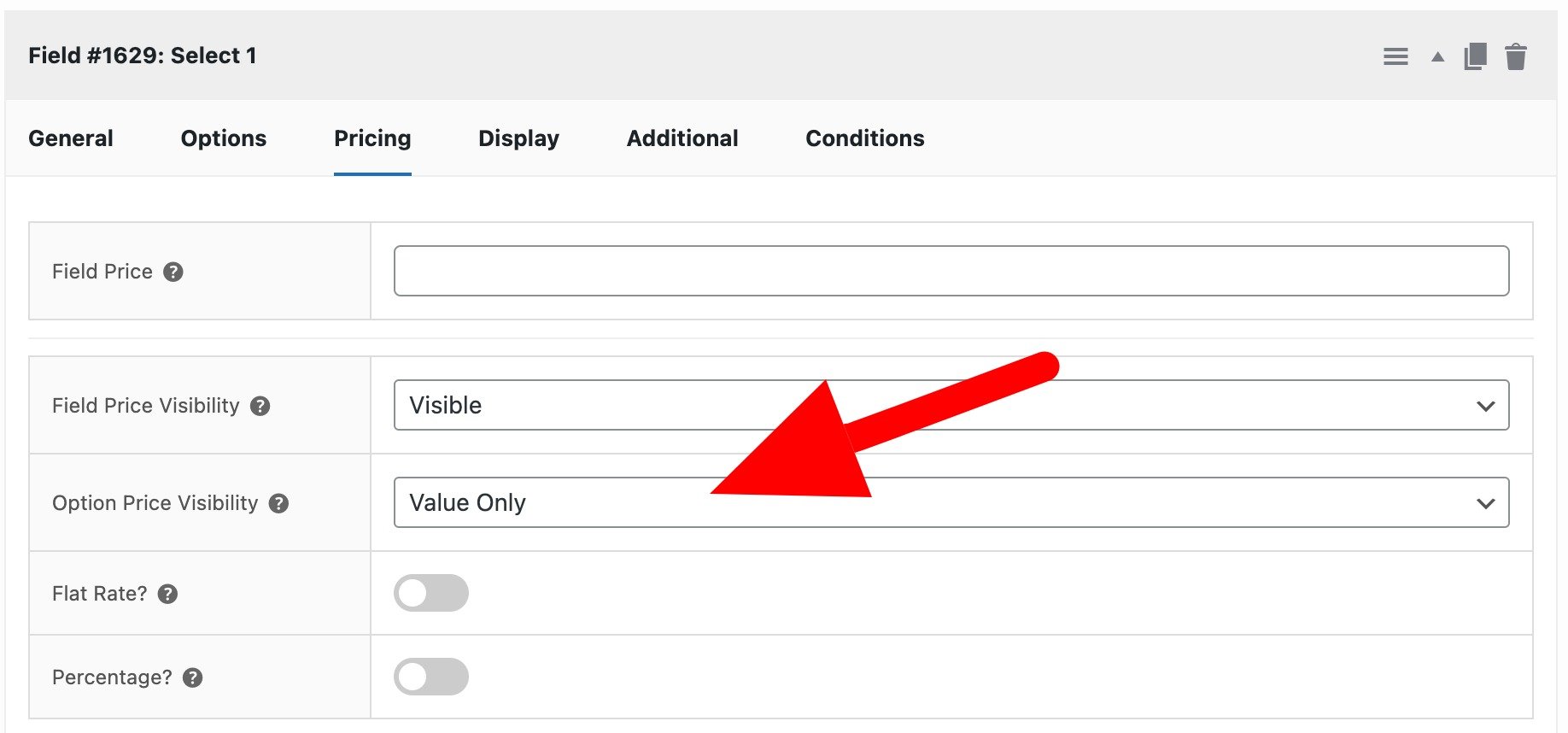
If you don’t want the values entered in the ‘Price’ column to add to the overall product price, you can select ‘Value only’ in the ‘Option price visibility’ field.