Bookings for WooCommerce has an export feature that allows you to export details of booking to a CSV file. Just specify the start and end date and hit ‘Export’.
Generating a report
Go to Bookings → Export in your WordPress admin.
- Enter a Start date and End date using the date pickers
- Click Export CSV
- The file will download automatically
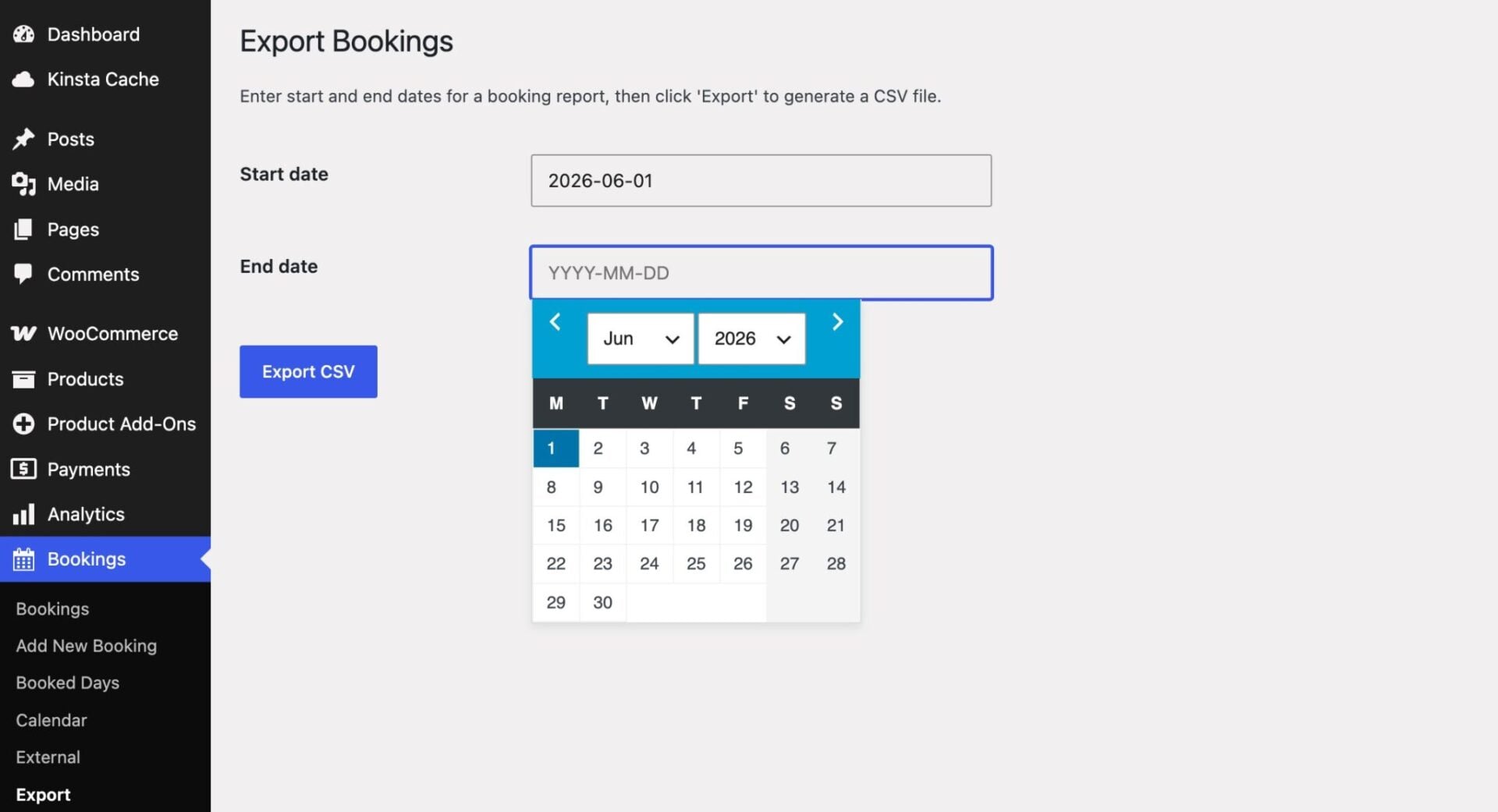
The report includes all bookings whose start date falls within the selected range, excluding any bookings that have been removed.
CSV columns
| Column | Description |
|---|---|
| Booking ID | The internal ID of the booking post |
| Order ID | The WooCommerce order associated with the booking, if any |
| Product | The name of the bookable product |
| Date booking made | The date the booking was created |
| Start date | The first day of the booking |
| End date | The last day of the booking |
| Booking length | Duration of the booking — days, nights, weeks, or hours for day-based bookings; hours and minutes for time slot bookings |
| First name | Customer’s first name, taken from the order billing details |
| Last name | Customer’s last name, taken from the order billing details |
| Customer’s email address | |
| Phone | Customer’s phone number from the order billing details |
| Amount paid | The order total including currency symbol |
Customer data
Customer details are taken from the billing address on the associated WooCommerce order. If no order exists (e.g. a manually created booking), the plugin falls back to the customer’s WordPress user profile for name and email.
Notes
- The date range filters on the booking’s start date, not the date the order was placed
- Bookings with a status of Removed are excluded from the report
- The CSV includes a UTF-8 byte order mark (BOM) for correct character display in Excel
- The Amount paid reflects the full order total – if an order contains multiple items, the total covers all of them, not just the booking